
You wake up, grab your phone, and see a notification: “Unusual sign-in attempt.” Maybe it’s nothing.
But then another alert appears. Your email password has been changed. A few minutes later, your bank sends a fraud warning. Friends start texting about strange messages coming from your social media account.
You used a strong password. You didn’t click anything suspicious. So what happened?
Most account takeovers today don’t happen because someone guesses your password. They happen because your password was exposed elsewhere, such as in a data breach, a phishing email, or a forgotten app you signed up for years ago.
And once a stolen password works, there’s often nothing stopping the attack.
In this guide, you’ll learn why passwords alone no longer protect you, how multi-factor authentication (MFA) blocks the vast majority of automated attacks, and how to turn it on in minutes before someone else logs in as you.
Think Your Password Is Enough? Here’s Why It’s Not.
For years, we were told the same advice: create a long, complex password and don’t reuse it. That advice still matters, but the threat landscape has changed.
Today, most breaches don’t involve someone “cracking” your password. They involve reusing one that was already exposed.
When a company experiences a data breach, stolen credentials are compiled into massive databases. Automated tools then test those same login combinations across banks, email providers, shopping platforms, and social media sites — all in seconds.
You Don’t Have To Be Targeted
One of the biggest misconceptions about hacking is that someone has to single you out. They don’t. Modern attacks are automated. They scan millions of accounts looking for easy matches.
That means:
- You don’t have to be wealthy
- You don’t have to be famous
- You don’t have to run a business
- You don’t even have to know there was a breach
If your credentials exist in a leaked database anywhere, they can be tested everywhere else.
Why Email Is The Real Risk
Your email account is the master key to almost everything. If someone gets access to it, they can reset passwords for:
- Banking apps
- Shopping accounts
- Cloud storage
- Social media
- Work platforms
That’s why so many account takeovers start with email. Once inside, the damage can spread quickly.
What This Looks Like In Real Life
Imagine a company you used three years ago suffers a breach. You barely remember signing up. The password you used back then is similar to one you still use today.
An automated script tests that email-and-password combination across major platforms. If even one matches, access is granted.
There’s no dramatic hacking scene, just exposed credentials meeting automation. Strong passwords still matter, but by themselves, they’re no longer enough.
Did You Know?
In 2025 alone, the U.S. experienced 3,322 reported data breaches — a record high — affecting nearly 279 million individuals.
How Hackers Actually Break Into Accounts (It’s Not What You Think)
Most people picture hacking as someone sitting in a dark room, guessing passwords or “breaking through” complex security systems. That’s rarely what happens.
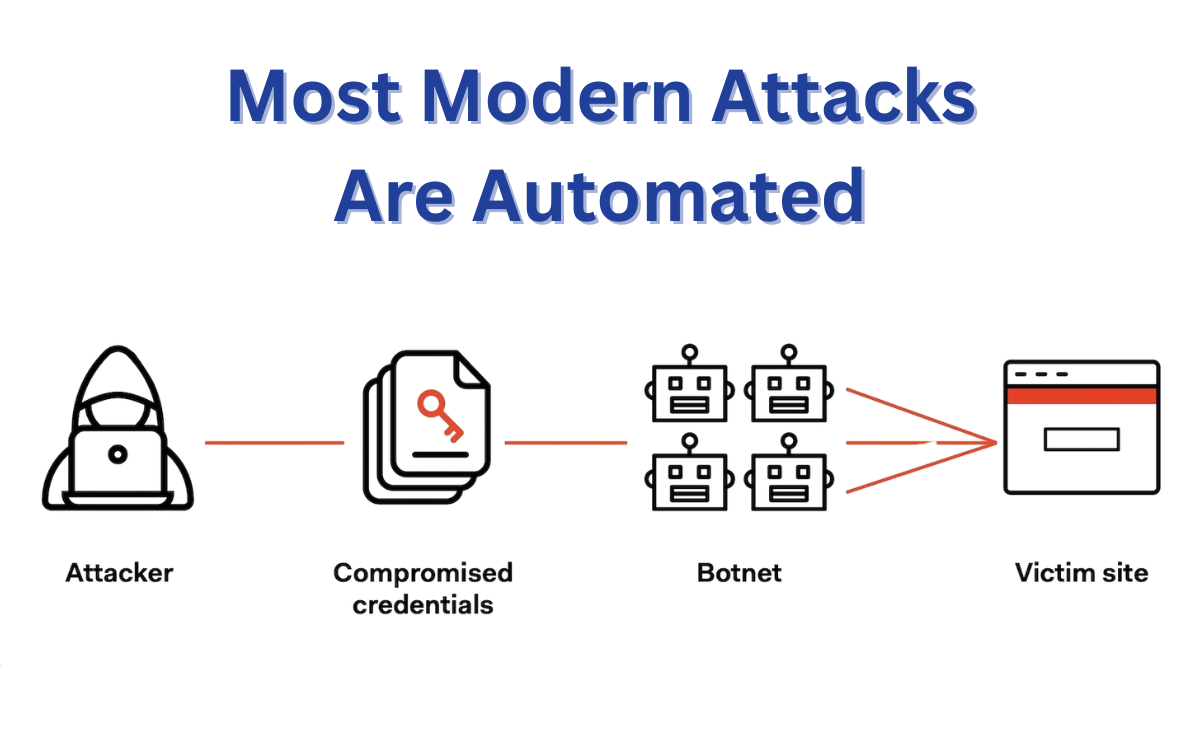
Modern account takeovers usually follow one of three paths:
1. Credential Stuffing: Reusing What’s Already Leaked
When a company experiences a data breach, stolen usernames and passwords don’t disappear. They’re compiled into massive lists.
Automated tools then test those same login combinations across popular websites — email providers, banks, shopping platforms, and social media accounts. If even one account uses the same credentials, access is granted.
2. Phishing Emails and Fake Login Pages
Sometimes hackers don’t need stolen databases at all. Instead, they trick people into handing over their credentials.
You might receive:
- A fake delivery notification
- A suspicious banking alert
- A message saying your account will be locked
The email looks real. The logo looks real. The login page looks real. But they aren’t.
Once you enter your email and password, it’s captured instantly. And within minutes, someone else can try logging in as you.
3. Password Reuse Across Sites
Even if your password is strong, reusing it creates risk. If one small website you signed up for gets breached, that same password can be tested everywhere else.
This is why breaches from years ago can still lead to account takeovers today. The risk doesn’t expire.
What Happens Next
After gaining access, attackers often move quietly.
They may:
- Change recovery settings
- Add their own email address
- Set up inbox forwarding
- Reset financial account passwords
And because many people don’t use multi-factor authentication, nothing stops cyber thieves once the password works.
The Reality Check: By The Numbers
Modern account takeovers aren’t rare. They’re routine.
- The FBI received 859,532 cybercrime complaints in 2024, totaling more than $16 billion in losses.
- The average global cost of a data breach is $4.88 million
- 88% of breaches in common web attacks involve stolen credentials.
- 22% of breaches began with credential abuse.
- 16% began with phishing.
One Extra Step Can Block 99% Of These Attacks
After everything you just read, this might surprise you: Stopping most account takeovers doesn’t require advanced software, technical expertise, or hours of setup.
It requires one extra step.
Multi-factor authentication (MFA) adds a second layer of verification after your password. So even if someone has your credentials, they still can’t log in without that additional proof.
And that small change makes a massive difference. According to Microsoft security research, enabling MFA blocks more than 99% of automated account compromise attempts.
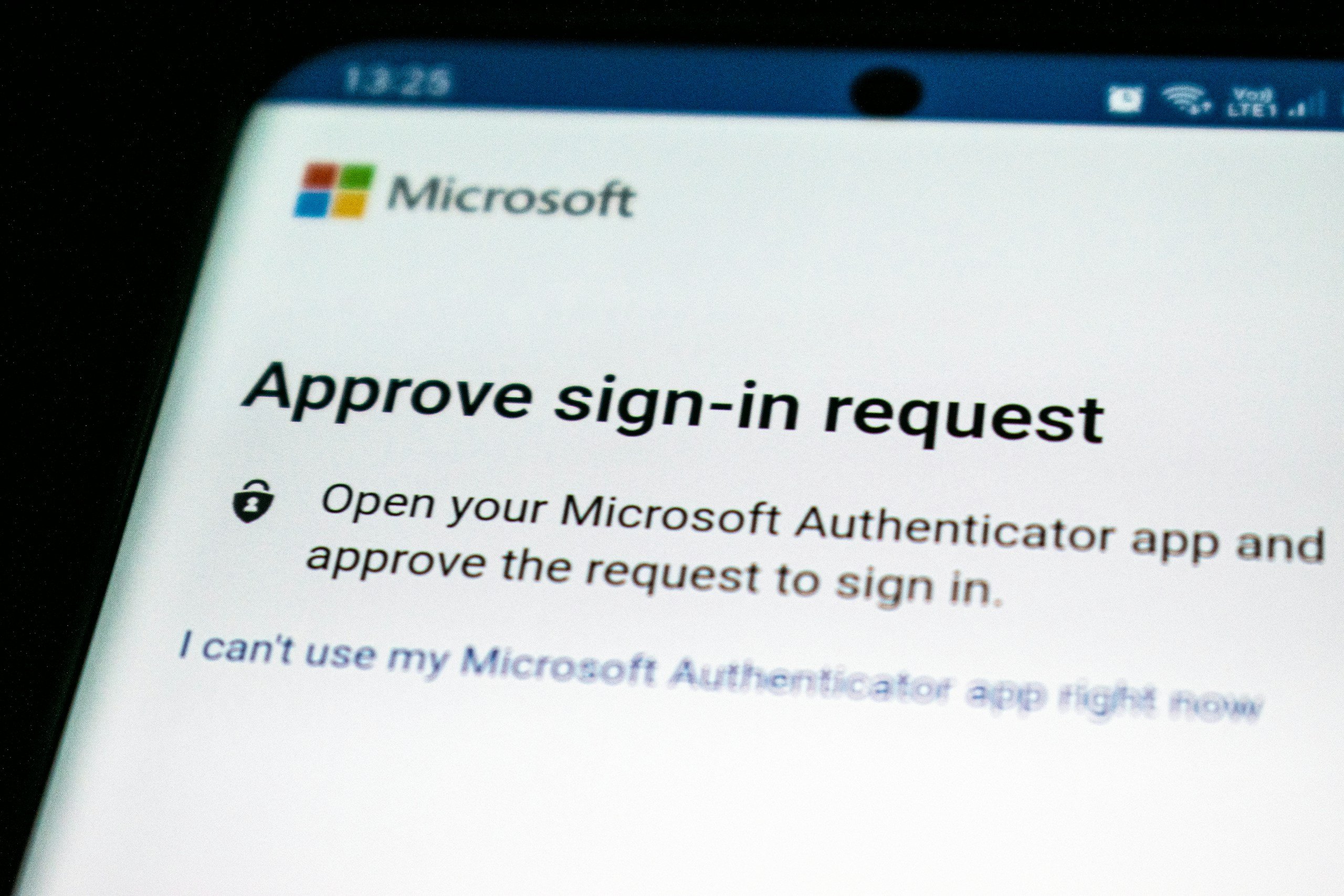
Think about that for a moment. The vast majority of credential stuffing attacks? Stopped. Automated login scripts? Blocked. Leaked password databases being tested against your accounts? Useless without that second factor.
Why MFA Works So Well
Most large-scale attacks rely on speed and volume. Automated tools test thousands, sometimes millions, of stolen credentials looking for easy matches. MFA interrupts that process.
Even if your password is correct, the attacker still needs something you control, such as a one-time code, push approval, fingerprint, or security key.
Without that second factor, the attacker’s login simply fails. And because automation can’t easily bypass that extra step, attackers usually move on to easier targets.
The Effort vs. The Payoff
For most accounts, MFA adds only a few seconds to the login process. You approve a notification, enter a short code, or use a fingerprint.
That small step dramatically reduces the risk of:
- Email takeovers
- Financial fraud
- Social media hijacking
- Identity theft
- Being locked out of your own accounts
It’s one of the highest-leverage security steps you can take — minimal effort with substantial protection.
It’s Not Just For Businesses
MFA isn’t just for companies or IT departments. It’s for:
- Personal email accounts
- Banking apps
- Social media
- Cloud storage
- Work logins
- Even gaming platforms
If it matters to you, it should have more than just a password protecting it. Passwords alone are just a simple, single lock. MFA adds a deadbolt.
What Multi-Factor Authentication Actually Looks Like
The name “multi-factor authentication” makes it feel too technical or complicated. In reality, you’ve probably already used it.
Multi-factor authentication simply means confirming your identity in two (or more) different ways:
- Something you know — your password
- Something you have — your phone or a security key
- Something you are — your fingerprint or face
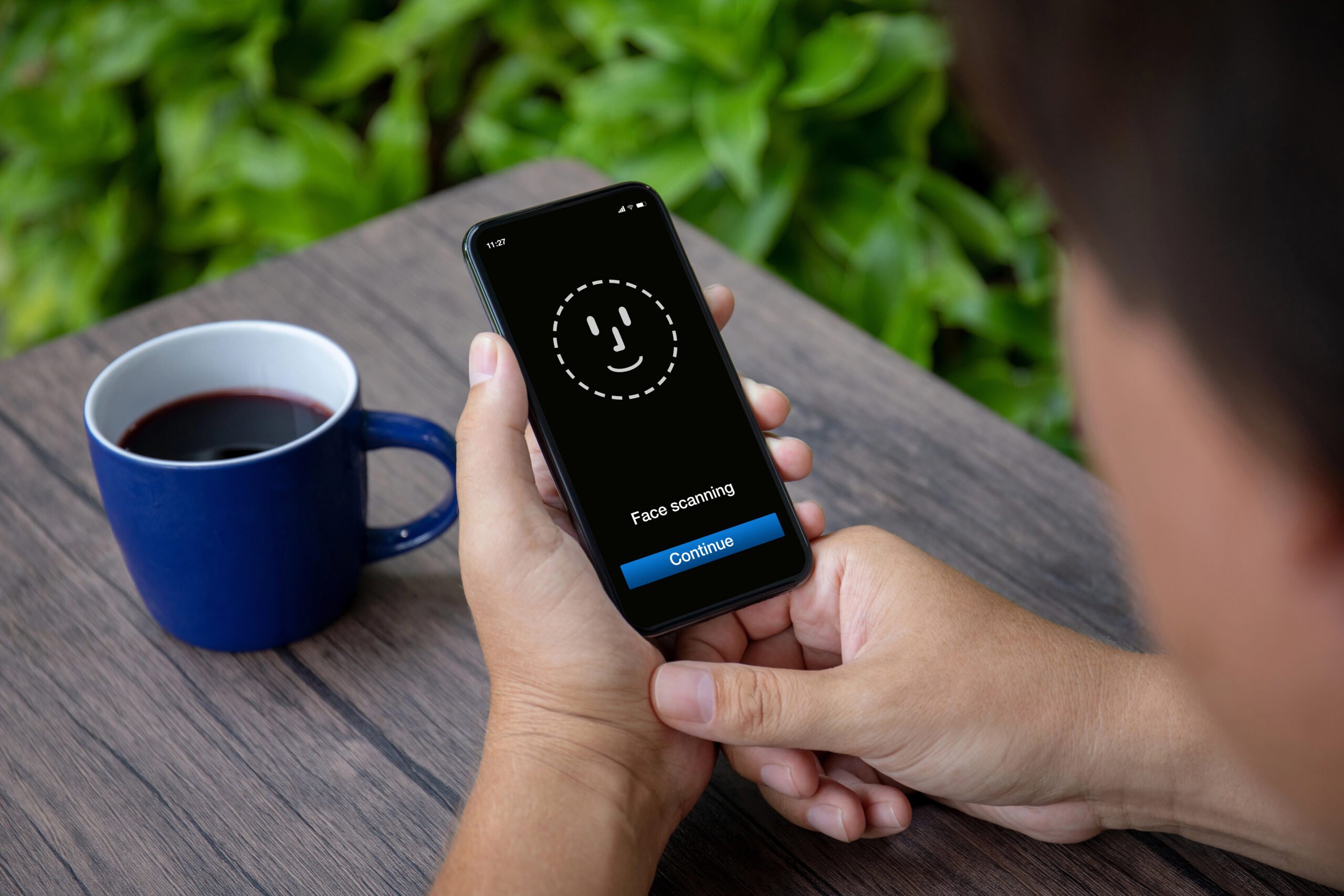
That’s it. Instead of relying only on a password, the system asks for one (or more) additional confirmations.
In practice, MFA usually feels like this:
- You enter your password.
- A notification appears on your phone.
- You tap “Approve.”
Other common examples include:
- Entering a 6-digit code from an authenticator app
- Using Face ID or a fingerprint
- Tapping a small hardware security key
Here are examples of common MFA prompts people use every day:
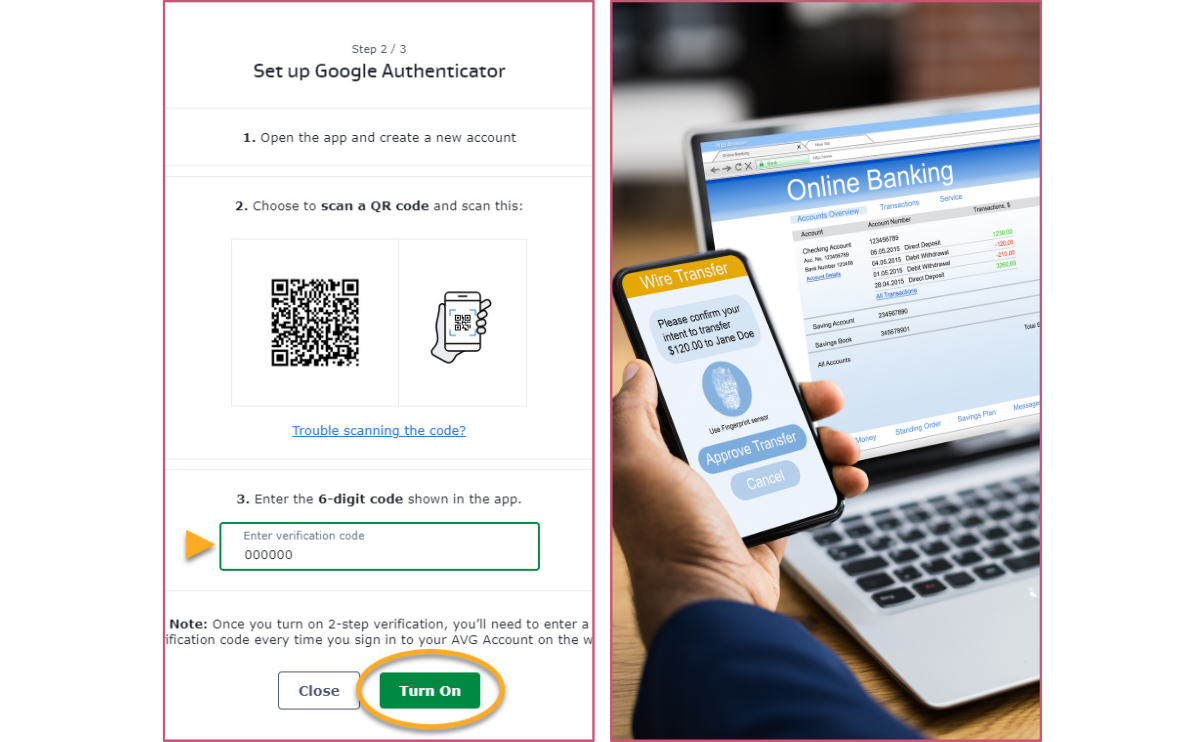
If you’ve ever approved a login for online banking or used Face ID to unlock an account, you’ve already used multi-factor authentication.
“Won’t This Slow Me Down?”
This is one of the biggest concerns. But in practice, most MFA approvals take just a few seconds.
For something you log into daily, it quickly becomes automatic. And many services even remember trusted devices, so you don’t have to verify every single time.
The added friction is minimal. The added protection is enormous.
2-Step Verification vs. MFA — Quick Clarifier
You’ll often see terms like “2-Step Verification,” “2FA,” and “MFA” used interchangeably, and that can be confusing.
2-Step Verification (2FA): logging in with your password plus one additional code or approval.
Multi-Factor Authentication (MFA): the broader term for using two or more verification factors.
In practice, most people use these terms to mean the same thing: adding something beyond just a password. 2FA is simply one form of MFA.
The Accounts You Should Protect First
If you’re going to turn on multi-factor authentication, start with the accounts that matter most. Some logins are inconvenient to lose. Others can cause real financial or personal damage.
Here’s where to begin.
1. Your Email (This Is the Big One)
Your email account is the control center of your digital life. If someone gains access to it, they can:
- Reset passwords for other accounts
- Approve password recovery requests
- Intercept financial alerts
- Lock you out completely
That’s why so many takeovers start here.
Protect your primary email account first — whether that’s:
- Gmail
- Outlook
- Yahoo Mail
If your email is secure, everything else becomes harder to compromise.

2. Banking & Payment Apps
Financial accounts are obvious targets.
Turn on MFA for:
- Your online banking portal
- Payment apps
- Credit card accounts
- Investment platforms
Services like PayPal, Venmo, and Cash App all offer multi-factor authentication.
A few extra seconds at login is far better than dealing with fraudulent transfers.
3. Social Media Accounts
Social media hacks aren’t just embarrassing. They can lead to scams, impersonation, and reputational damage. Protect platforms like:
- TikTok
- X
Compromised accounts are often used to message friends with fake investment links or phishing scams. MFA stops most of those takeovers before they start.
4. Cloud Storage & Work Accounts
Think about what’s stored in your cloud accounts:
- Photos
- Documents
- Tax records
- Contracts
- Personal backups
Whether you use Google Drive, iCloud, or Dropbox, enabling MFA adds crucial protection. The same goes for remote work accounts. If you work from home, those logins can be especially valuable targets.
Where To Start (If You Feel Overwhelmed)
If you don’t have much time right now or feel overwhelmed, don’t try to secure everything at once.
Start with:
- Primary email
- Banking and payments
- Social media
- Cloud storage
Once those are protected, expand from there.
Which MFA Method Should You Use?
Once you decide to turn on multi-factor authentication, the next question is simple: What kind should you choose?
The good news is that you don’t need anything complicated. For most people, one of the following options is more than enough.
Option 1: Authenticator Apps (Best Overall Choice)
For most users, an authenticator app is the best balance of security and convenience.
These apps generate a 6-digit code that refreshes every 30 seconds. When you log in, enter your password, then type the current code from your phone.
Popular options include:
- Google Authenticator
- Microsoft Authenticator
- Authy
Why this is a strong choice:
- Free
- Easy to set up
- Works offline
- Much more secure than text-message codes
For most people, this is the sweet spot.
Option 2: Push Notifications (Easiest to Use)
Some services use push-based approval instead of codes. You enter your password, and a notification appears on your phone asking you to approve the sign-in.
Tap “Approve,” and you’re in. Apps like Duo Security and Microsoft Authenticator support this method. It’s fast and very user-friendly.
Option 3: SMS Text Messages (Better Than Nothing)
Many accounts offer to send a one-time code via text message. This is better than using a password alone.
However, SMS is less secure than authenticator apps because phone numbers can sometimes be hijacked through SIM-swapping attacks.
If SMS is your only option, use it, but if an authenticator app is available, choose that instead.
Option 4: Security Keys (Phishing Resistant MFA)
For people who want the strongest possible protection, hardware security keys are an excellent option.
Devices built on FIDO2 (Fast IDentity Online 2) cryptography, like Yubico’s YubiKey, plug into your computer or connect wirelessly to your phone. They’re extremely resistant to phishing and account takeover attempts.
This option is especially useful for:
- Business owners
- Anyone managing sensitive data
- Journalists
- People with large online audiences
For everyday users, though, an authenticator app is usually more than enough.
The Simple Recommendation
If you’re not sure what to pick, start with an authenticator app. It’s free, secure, and widely supported. Once you get comfortable, you can always upgrade to stronger options later.
MFA Methods Compared (What to Pick and Why)
| Method | Convenience | Security | Phishing Resistance | Best For |
|---|---|---|---|---|
| SMS text code | High | Medium | Low | Better-than-nothing protection |
| Authenticator app code (TOTP) | High | High | Medium | Most people (best default) |
| Push notification approve | Very high | High | Medium | People who want the easiest flow |
| Security key (FIDO2/WebAuthn) | Medium | Very high | High | High-risk accounts, business admins, public-facing accounts |
How To Turn On Multi-Factor Authentication (Step-By-Step)
You don’t need technical skills to set this up. Most accounts follow the same basic process. Once you’ve done it once, the rest feel almost identical. Here’s how to get started.
Step 1: Start With Your Email
Your primary email account should be first. It controls password resets for almost everything else. Log in to your email provider and look for:
- Security
- Account Settings
- Sign-in & Security
- Two-Step Verification or Two-Factor Authentication
Most major providers make this easy to find. If you use Gmail or Outlook, the setup process walks you through it in just a few screens.
Step 2: Choose An Authenticator App
If given the option, select “Authenticator App” instead of SMS. Download one of these if you don’t already have it:
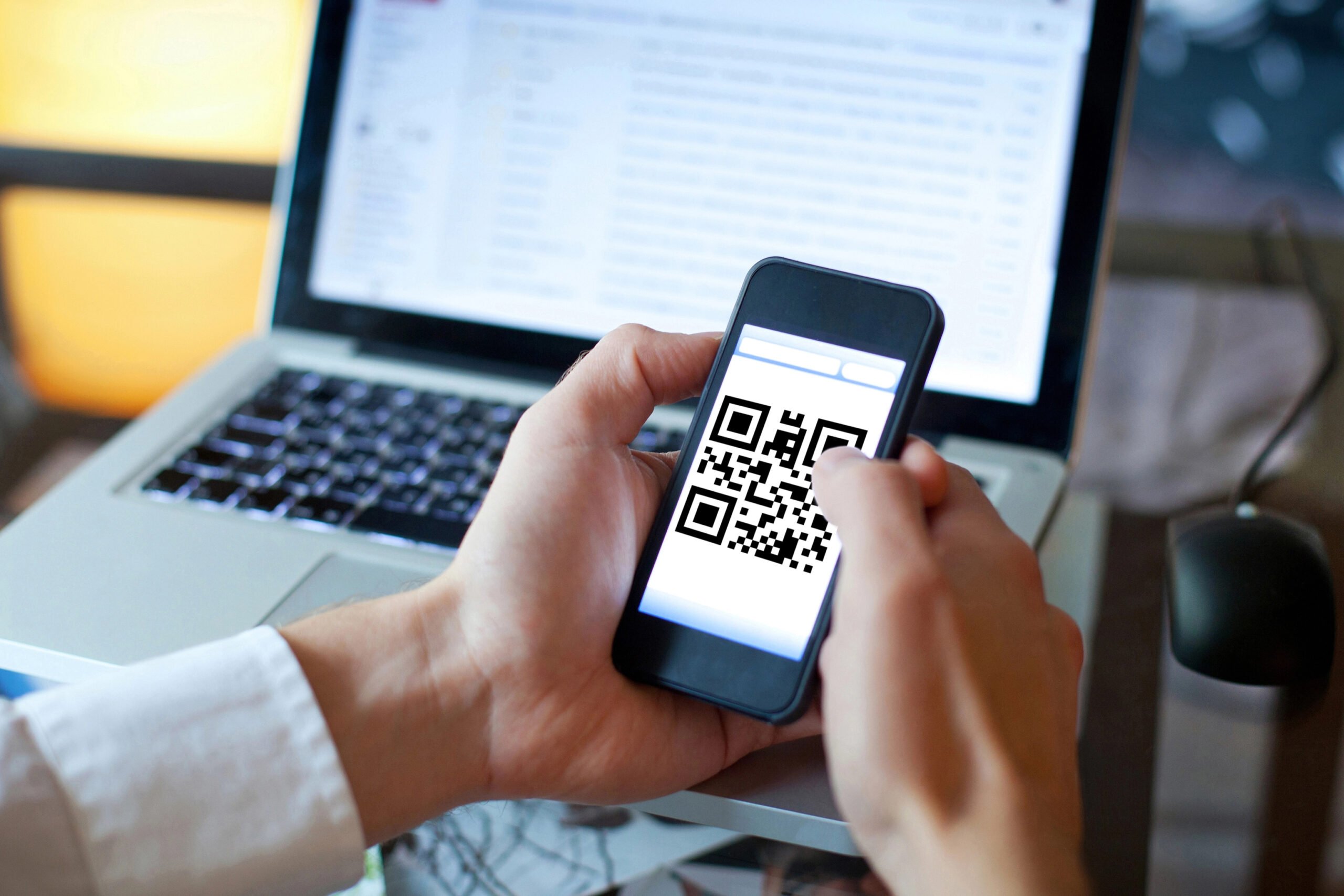
During setup, you’ll scan a QR code shown on your screen. The app will then generate a 6-digit code. Enter that code to confirm, and you’re done.
Step 3: Save Your Backup Codes
This is important. Most services provide backup recovery codes in case you lose your phone.
Download or securely store those codes in a safe place (not in your email inbox). That way, you won’t get locked out if you change devices.
Step 4: Repeat For Your Most Important Accounts
Once your email is protected, move on to:
- Banking apps
- Payment platforms
- Social media
- Cloud storage
- Work accounts
The process will look very similar each time. After you’ve enabled MFA on your top accounts, you’ve dramatically reduced your risk.
How Long Does This Take?
For one account: about five minutes. For your most important accounts: maybe 20–30 minutes total. That half hour could prevent weeks of stress trying to recover a hacked account.
What If You Lose Your Phone?
This is a common concern. If you’ve saved your backup codes and set up a recovery email or secondary device, you’ll still be able to regain access. Many services also allow you to register multiple authentication methods for added security.
What Happens If You Don’t Use MFA?
Most people don’t think about account security until something goes wrong. And when it does, it rarely starts with flashing warnings or dramatic signs.
1. A Quiet Account Takeover
You might not notice anything at first. An attacker logs in using a leaked password. They don’t change anything immediately. Instead, they:
- Add their own recovery email
- Set up hidden inbox forwarding rules
- Turn off security alerts
- Wait
From there, they may reset passwords on financial or shopping accounts. They may attempt small transfers first to avoid detection.
By the time you notice, access may already be locked down. And without MFA, there’s nothing that stopped the login in the first place.
2. Identity Theft Becomes Easier
Once someone controls your email, they can collect personal details:
- Full name
- Address
- Phone number
- Social security number
- Financial statements
- Tax documents
That information can be used to open accounts, apply for credit, or impersonate you in other scams. It doesn’t always happen overnight. Sometimes it unfolds slowly, piece by piece.
3. Financial Fraud
Compromised accounts are often used to:
- Transfer money
- Make purchases
- Send payment requests to contacts
- Access stored credit card information
Even if banks eventually reverse fraudulent charges, the disruption can be significant, including frozen accounts, temporary card shutdowns, and hours spent on support calls.
4. Being Locked Out of Your Own Accounts
This is one of the most frustrating outcomes. An attacker changes:
- Your password
- Your recovery email
- Your phone number
Suddenly, you can’t get back in. Account recovery can take days, sometimes weeks, especially for social media or email providers. And during that time, someone else may still have access.
5. The Emotional Cost
The financial risk is obvious, but the stress is less talked about.
There’s the panic when you first notice something is wrong. The uncertainty about what was accessed. The time spent changing passwords everywhere. The frustration of identity verification and support tickets.
Even if everything gets restored, the experience can be exhausting. And all of that from a single compromised login.
What About Businesses & Families?
Multi-factor authentication isn’t just an individual decision. It affects households, shared devices, and workplaces. The good news? The same simple principles apply.

Protecting Shared Devices At Home
Many families with kids share:
- Laptops
- Tablets
- Streaming devices
- Gaming consoles
When multiple people use the same device, the risk increases. Saved passwords, auto-login sessions, and shared browsers make it easier for accounts to be accessed accidentally or intentionally.
Turning on MFA ensures that even if someone is using the same device, sensitive accounts like email, banking, or work platforms still require that second confirmation.
It creates a clear boundary between convenience and security.
Teaching Kids & Teens Account Safety
Children and teenagers are growing up with dozens of online accounts, from school platforms to gaming systems and social media. They may not fully understand all the risks.
Enabling MFA on their accounts adds a safety net while they’re still learning digital judgment.
It also opens the door to an important conversation: passwords aren’t the only layer of protection. Responsible account habits matter.
Securing Remote Work Logins
Remote work has dramatically expanded the number of login points people use daily, such as email, cloud storage, project management tools, payroll systems, and customer databases.
If one of those accounts is compromised, it can impact an entire organization. Most companies now require MFA for this reason. It protects:
- Internal documents
- Client information
- Financial records
- Communication systems
Even freelancers and contractors should treat work accounts with the same level of protection as they do their financial accounts.
Why Small Businesses Especially Need MFA
Small businesses are often targeted precisely because attackers assume they’re too small to attract attention. In reality, attackers look for the easiest entry point — not the biggest name.
Without MFA, a single compromised employee login can lead to:
- Ransomware deployment
- Client data exposure
- Payroll redirection fraud
- Reputational damage
Unlike large corporations, small businesses often lack dedicated security teams. That makes preventive measures like MFA even more important because they’re affordable, easy to implement, and dramatically reduce risk.
Frequently Asked Questions
If you still have questions about multi-factor authentication, you’re not alone. Below are answers to the most common ones we hear. Don’t see yours? Drop it in the comments — we read every question and are happy to help.
Can MFA Be Hacked?
Yes, but it’s significantly harder. No security measure is 100% foolproof. Advanced phishing attacks can sometimes trick users into approving login requests, and SMS-based codes can be vulnerable to SIM-swapping.
However, for the vast majority of automated attacks, MFA stops the login immediately.
- Without MFA: Stolen password → Access granted.
- With MFA: Stolen password → Login blocked unless the attacker also has your second factor.
For most people, enabling MFA eliminates the most common and easiest attack methods.
Is SMS 2FA Safe Enough?
SMS (text message) codes are better than using a password alone, but they’re not the strongest option.
Text messages can sometimes be intercepted through SIM-swapping or phone number hijacking. That’s why security experts generally recommend using an authenticator app instead.
If SMS is your only available option, use it. However, if you can choose an authenticator app, that’s usually the better long-term choice.
What If I Lose My Phone?
This is one of the most common concerns, but most services provide:
- Backup recovery codes
- Secondary authentication methods
- Account recovery verification
As long as you save your backup codes and keep your recovery information up to date, losing your phone should not permanently lock you out.
Some authenticator apps also support encrypted cloud backups, making switching devices easier. The key is setting it up properly from the beginning.
How Long Does Setup Take?
For a single account, it usually takes five minutes or less. For your most important accounts, expect about 20–30 minutes total. Once it’s enabled, daily use typically adds only a few seconds to the login process.
Compared to the time it takes to recover a hacked account, the setup time is minimal.
Do I Need MFA On Every Account?
Not necessarily. Start with your most critical accounts:
- Primary email
- Banking and financial apps
- Social media
- Cloud storage
- Work accounts
From there, expand to other accounts as you’re able.
If an account contains personal information, payment details, or access to other accounts, it should have MFA enabled.
Is MFA The Same As 2FA?
Two-factor authentication (2FA) is a type of multi-factor authentication (MFA). While 2FA uses exactly two factors (e.g., a password and a code), MFA can involve two or more factors, including biometrics or hardware keys. In everyday use, most people use the terms interchangeably.
MFA + VPN: Do You Need Both?
While MFA protects your accounts by stopping logins even if your password is stolen, a VPN (Virtual Private Network) protects your internet connection by encrypting your traffic, especially on public Wi-Fi. They solve different problems, and they work best together.
If you’re choosing just one place to start, turn on MFA first because it blocks the most common attack path: stolen credentials. If you frequently use public networks or handle sensitive data, adding a VPN provides another smart layer of protection. Check out our reviews of the best VPN providers to learn more.
If you saw that “unusual sign-in attempt” notification tomorrow, would your accounts be protected? If MFA isn’t turned on yet, what’s stopping you? Drop it in the comments. One small change today could prevent that moment of panic later.


