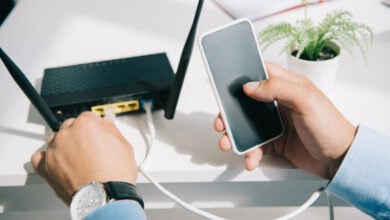
Your phone holds your photos, passwords, private messages, banking apps, and years of personal information. But when was the last time you checked the settings protecting all of it?
Most of us set up our phones once and barely think about those settings again. Meanwhile, apps collect permissions, old devices stay connected, and important security features go unnoticed.
The unsettling part? Some of these settings won’t do you much good if you wait until something goes wrong.
Lose your phone, get locked out of an account, or discover your photos haven’t been backed up in months, and suddenly those forgotten settings become a very big deal.
Before that happens, check these 12 phone settings. A few might surprise you, and some could save you from a nightmare you never saw coming.
Want our human-written content to rank above AI-generated garbage? Help us out by clicking this button!
5 Phone Settings You’ll Wish You’d Checked Before Something Goes Wrong
These first five settings are especially important because losing access to your phone, accounts, or personal information can make fixing things afterward much harder.
1. Could You Find Your Phone If It Disappeared Tomorrow?
You reach into your pocket, and your phone isn’t there. You check your bag, your car, and every pocket you own. Suddenly, you’re mentally retracing the last three hours of your life.
Your phone has a built-in feature designed for exactly this situation. But if it isn’t properly configured before your phone disappears, your options may be limited.
Apple’s Find My and Google’s Find Hub (formerly Find My Device) can help you locate a missing phone on a map, make it ring, lock it remotely, or erase its contents if necessary.
Even better, some phones can be located when they’re offline or have been turned off, thanks to networks of nearby devices that can securely report their approximate location. However, these capabilities depend on your phone model and settings.
Here’s what to check right now:
- iPhone: Go to Settings > Your Name > Find My > Find My iPhone. Make sure Find My iPhone, Find My network, and Send Last Location are enabled.
- Android: Go to Settings > Security > Find Hub (the location may vary). Check that Allow Device to Be Located is enabled, Location is on, and review your offline-finding options.
One more thing: Make sure you know how to access Apple’s Find My or Google’s Find Hub from another device. Your missing phone won’t be much help when you need to look up the instructions.
2. Your Phone Has Theft Protection You Might Not Know Exists
You probably have a passcode, fingerprint, or facial recognition protecting your phone. But what happens if someone steals it and already knows your passcode?
It sounds unlikely, but someone could watch you enter your code in public before stealing your phone. And with that code, they may be able to access sensitive information or change important security settings.
Fortunately, newer iPhones and Android phones have additional theft protections that many owners don’t realize exist.
On an iPhone, Stolen Device Protection adds another layer of security. It can require Face ID or Touch ID to access saved passwords, with no passcode alternative. Certain sensitive changes, such as changing your Apple Account password, may also require a one-hour security delay.
Android offers several protections, depending on your phone and software version:
- Theft Detection Lock: Can automatically lock your screen if the phone detects movement associated with someone snatching it.
- Offline Device Lock: Can lock your phone after it goes offline, making it harder for a thief to keep using an unlocked device.
- Identity Check: On supported devices, requires biometric verification for certain sensitive actions outside trusted locations.
Here’s what to check:
- iPhone: Go to Settings > Face ID & Passcode > Stolen Device Protection. Check whether it’s enabled and consider choosing Always for additional protection even at familiar locations.
- Android: Go to Settings > Google > All services > Theft protection to review the features available on your device.
These protections won’t prevent someone from stealing your phone. But they can make it significantly harder to turn a stolen device into access to your accounts and personal information.
3. When Was Your Phone Actually Backed Up Last?
Imagine dropping your phone, watching the screen go black, and realizing your last backup might be older than your youngest child.
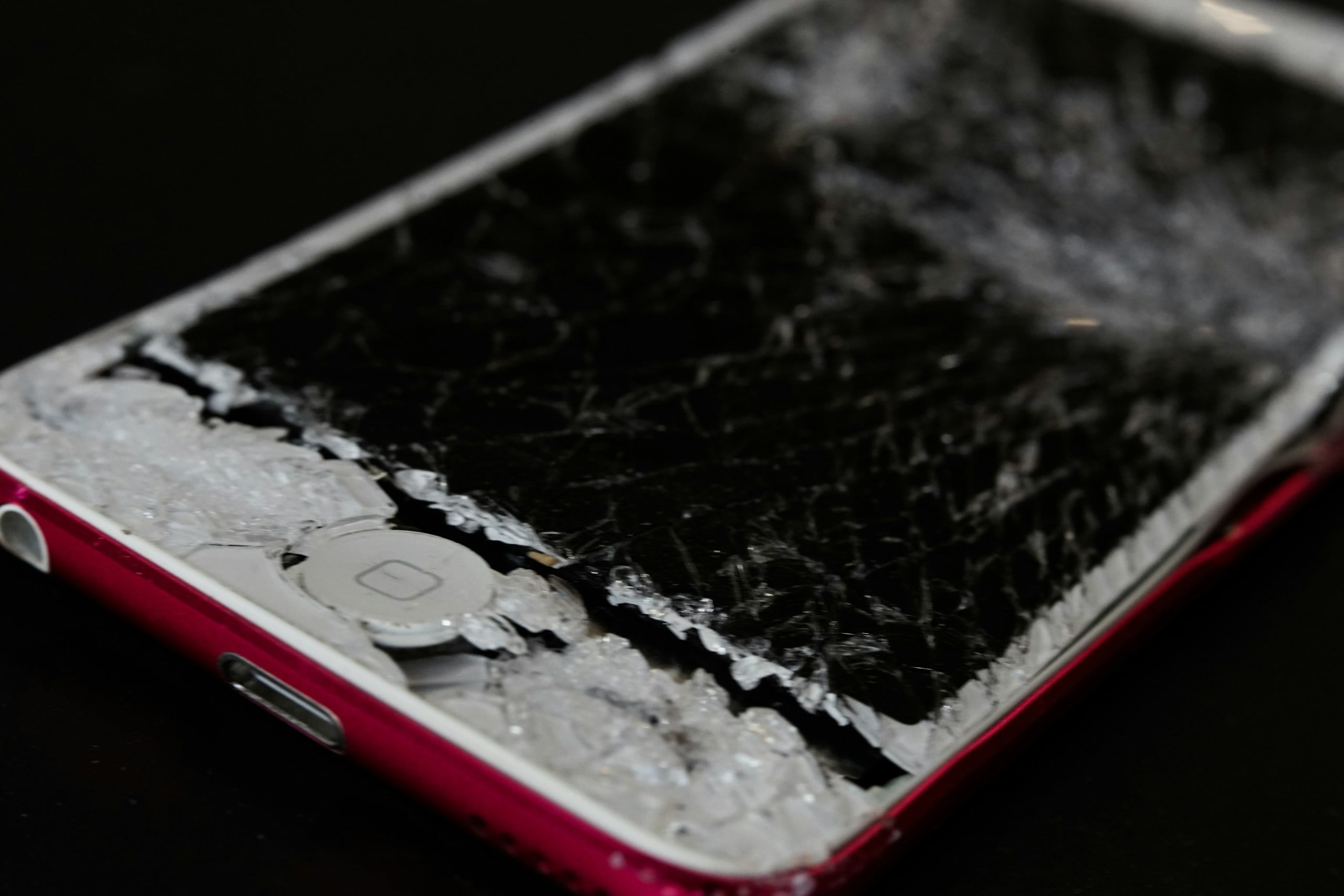
Automatic backups are supposed to prevent that nightmare. But having backups turned on doesn’t necessarily mean they’re working.
Your phone might have stopped backing up because you’ve run out of cloud storage, changed an important setting, or haven’t met the conditions needed for an automatic backup.
And here’s something many people don’t realize: not everything on your phone is necessarily included in the same backup.
For example, iPhones can store device settings and certain app data in iCloud Backup, while photos and messages may sync separately through iCloud. Android phones use Google’s backup services for information such as settings, contacts, and messages, while photos and videos are generally handled through Google Photos.
That distinction matters when you’re trying to recover everything after losing a phone.
The Backup Reality Check
Only 22% of respondents in a 2025 international survey said they always backed up their important data or had automatic cloud backups set up, according to the National Cybersecurity Alliance. That’s a lot of people potentially discovering what wasn’t saved when it’s already too late.
Here’s what to check:
- iPhone: Go to Settings > Your Name > iCloud > iCloud Backup. Check the last successful backup, then review which apps and information are included.
- Android: Go to Settings > Google > All services > Backup. Review your backup status and details. Check Google Photos separately to confirm your pictures and videos are backed up.
If your last successful backup was weeks or months ago, investigate why. Check available cloud storage, your internet connection, and whether automatic backups are enabled.
And don’t assume that because your photos appear in the cloud, everything else is protected. Cloud syncing and device backups serve different purposes, and neither automatically guarantees that every important file is recoverable.
4. Could You Get Back Into Your Accounts Without Your Phone?
You’ve lost your phone, borrowed another device, and finally reached the login screen for your Google or Apple account.
Then comes the message: We’ve sent a verification code to your phone.
The same phone you’re desperately trying to replace.
Two-factor authentication (2FA) makes accounts harder for unauthorized people to access by requiring another form of verification beyond a password. It’s an important security feature, but it also means you need a backup plan when your usual verification method isn’t available.
Account recovery settings are that backup plan. And they’re surprisingly easy to neglect.
Consider what might happen if:
- Your recovery phone number is outdated. Verification codes may be sent to a number you no longer control.
- Your recovery email is inaccessible. You might need to sign in to one account to recover another.
- Your only authentication method is on your missing phone. You could face a lengthy recovery process before regaining access.
Fortunately, both Apple and Google offer additional recovery options.
Here’s what to check:
- iPhone: Go to Settings > Your Name > Sign-In & Security > Recovery Contacts. Consider adding someone you trust who can help verify your identity if you lose account access. Also review your trusted phone numbers.
- Android/Google: Visit Google Account Security to review your recovery information and 2-Step Verification methods. You can also generate backup codes and store them somewhere secure outside your phone.
An Apple recovery contact cannot read your messages or access your account. Their role is to provide a recovery code if you need help getting back in.
One particularly important detail: Don’t store your only backup codes in a note or screenshot on the very phone you might lose. That defeats much of the purpose.
It’s More Common Than You Think
A 2025 Pew Research Center survey found that 29% of American adults have experienced a hacked personal online account, including email, social media, or banking accounts. That’s nearly three in ten people who’ve already dealt with someone gaining unauthorized access.
5. Could Someone Access Your Emergency Information If Your Phone Was Locked?
Your phone probably knows your birthday, your favorite restaurants, and which videos you watched at 2 a.m. But would it know whom to contact if you were injured and couldn’t speak for yourself?
Both iPhones and many Android phones let you make important emergency information available without unlocking the device.
That can include an emergency contact, relevant medical conditions, allergies, and medications. Someone helping you may be able to access those details even when the rest of your phone is protected by a passcode.
For people with significant medical conditions, or anyone who regularly travels alone, this small setting could be particularly valuable.

Here’s what to check:
- iPhone: Open the Health app > Your Profile > Medical ID. Add or review your emergency contacts and relevant medical information. Make sure Show When Locked is enabled if you want those details accessible.
- Android: Look for Safety & Emergency in Settings or open the Personal Safety app, if available. Review your emergency information and contacts, then choose whether they should appear on the lock screen.
It’s also worth reviewing Emergency SOS, which provides a faster way to contact emergency services. Depending on your phone and configuration, it may also notify designated emergency contacts.
There’s a privacy tradeoff worth considering: information displayed without unlocking your phone may be visible to anyone holding it. Include what would genuinely help in an emergency rather than filling out every available field.
And check those contact numbers. The person you designated five years ago may have changed numbers, moved away, or no longer be the person you’d want contacted first.
3 Privacy Settings That May Reveal More Than You Think
Your phone isn’t just storing personal information. It may also be sharing your location, giving apps access to sensitive features, and displaying private details for anyone nearby to see. Some of those decisions were probably made so long ago you’ve forgotten about them.
1. Who Can Still See Where You Are?
Remember sharing your location with a friend during a road trip? Or letting a family member track your whereabouts while you traveled?
There’s a chance that location sharing never stopped.
Apps like Apple’s Find My and Google Maps allow you to share your real-time location with specific people. It’s useful for keeping tabs on family members, coordinating plans, or making sure someone gets home safely.
But sharing arrangements can continue long after you’ve forgotten why you started them.
Depending on the service and settings, someone you’ve shared your location with may be able to see where you are, whether you’re moving, and even information about your phone’s battery.
Here’s how to see who’s watching your location:
- iPhone: Open Find My and tap People. Review who can see your location. You can also visit Settings > Privacy & Security > Safety Check to review information shared with people and apps.
- Google Maps (iPhone or Android): Open Google Maps > Your Profile Picture > Location sharing. Review the people listed and stop sharing with anyone who no longer needs access.
And remember, stopping location sharing with one person doesn’t necessarily stop sharing through unrelated apps or services.
There’s nothing inherently wrong with sharing your location. Plenty of families rely on it every day.
The question is whether everyone who currently has access is someone you still want knowing where you are.
2. Which Apps Still Have Access To Your Camera, Microphone, And Location?
You download an app, tap Allow a few times, and get on with your day. Six months later, the app you used twice still has permission to access your location.
Sound familiar?
App permissions determine which parts of your phone an application can use. And while many requests are perfectly legitimate, permissions don’t always need to remain in place forever.
For example, a navigation app needs location information to give directions. A video-calling app needs your microphone and camera. But does a shopping app really need your precise location when you’re not using it?
Here are a few permissions worth investigating:
- Location: Does the app need your exact position, or would approximate location work? Does it need access all the time?
- Microphone and camera: Which apps can use them, and does that access still make sense?
- Photos and contacts: Are apps allowed to see more of your personal information than their features require?
Here’s where to check:
- iPhone: Go to Settings > Privacy & Security. Select Location Services, Microphone, Camera, or Photos to review access by app.
- Android: Go to Settings > Security & Privacy > Privacy > Permission Manager, or look for Privacy Dashboard. Menu names vary by manufacturer.
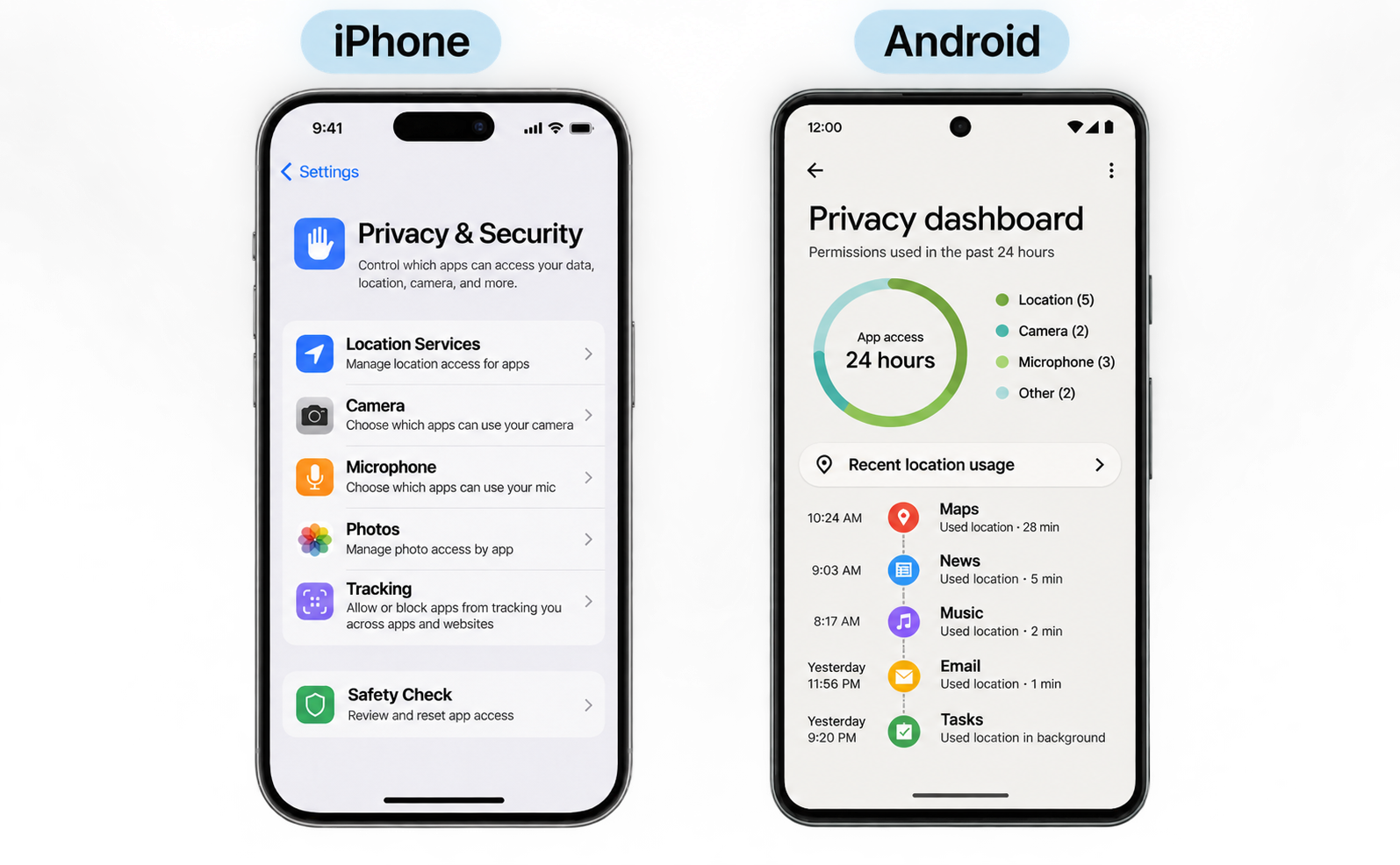
Android’s Privacy Dashboard can also show when apps recently accessed certain permissions. On iPhones, orange and green indicators help identify microphone and camera activity.
You don’t need to deny every permission. Some apps won’t work properly without the access they need. But if you can’t remember why an app needs your precise location, microphone, or contacts, that’s probably worth investigating.
3. What Can Strangers See On Your Lock Screen?
You’ve protected your phone with a passcode, fingerprint, or facial recognition. Then someone sends you a private message, and the first sentence lights up your screen for everyone nearby to read.
Your phone may be locked, but your notifications aren’t necessarily private.
Depending on your settings, incoming texts, emails, calendar invitations, and other alerts can display their contents without requiring anyone to unlock the device.
Imagine your phone sitting on the conference table when a particularly unfortunate group chat message arrives. Suddenly, everybody within reading distance is getting an update they definitely weren’t invited to receive.
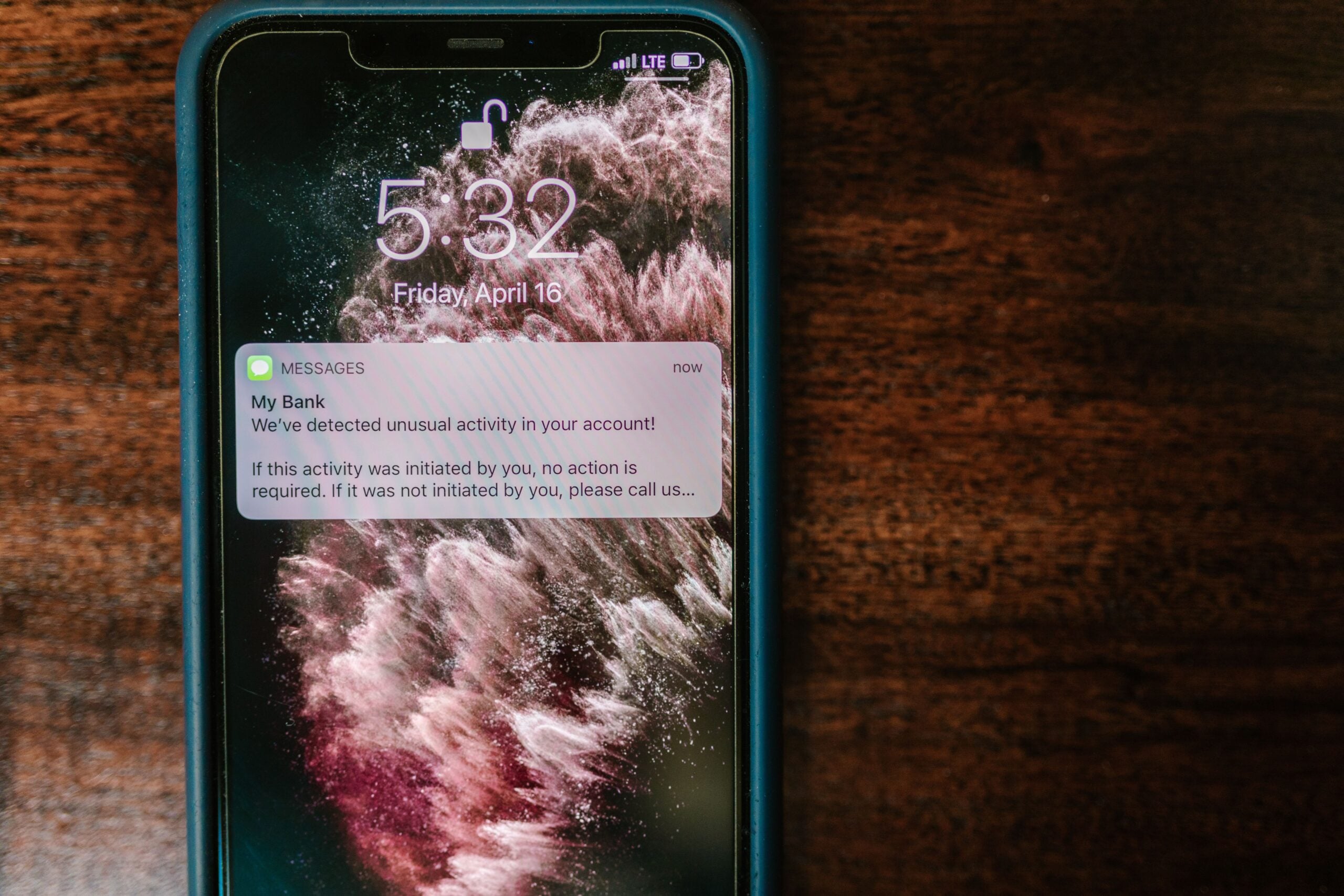
Fortunately, you can control how much information appears.
Here’s what to check:
- iPhone: Go to Settings > Notifications > Show Previews. Choose When Unlocked to hide message contents until your phone recognizes you, or Never to keep previews hidden.
- Android: Go to Settings > Notifications > Notifications on Lock Screen. Look for an option to hide sensitive content. The exact wording varies by device.
You can also adjust notification behavior for individual apps, which is especially useful for banking, email, and messaging.
The useful middle ground: Keep alerts visible so you know something arrived, but hide the actual contents until you unlock your phone.
4 More Phone Settings That Are Easy To Overlook
A few of the most useful security features don’t demand your attention. They sit quietly in the background, doing their jobs until something changes. That’s exactly why they’re worth checking.
1. Are Old Devices Still Connected To Your Phone Or Accounts?
Think about how many phones, tablets, and computers you’ve used over the years. Some may still be connected to your accounts, even if you haven’t touched them in ages.
The concern isn’t just an old device appearing in a list. Some connected devices may still be able to access personal information, including your messages.
For example, an iPhone can sync messages across Apple devices, while Google Messages lets Android users read texts on paired computers. That’s convenient until you realize an old laptop or shared computer might still have access.
Here’s what to check:
- iPhone: Go to Settings > Your Name to review devices associated with your Apple Account. Also check Settings > Apps > Messages > Text Message Forwarding and review devices using Messages in iCloud.
- Android: Visit Google’s device activity page to review account sessions. In Google Messages, open your profile menu > Device pairing to check for computers that should be unpaired.
Not every unfamiliar entry indicates unauthorized access. Some represent legitimate browser sessions or devices you’ve forgotten about.
You can also review Bluetooth pairings for old cars, speakers, and accessories, although these generally pose a different level of risk than devices signed into your accounts.
That old computer you gave away or stopped using deserves more attention than the speaker you bought in 2019.
2. Is Your Phone Set Up To Warn You About Unknown Trackers?
Bluetooth trackers are wonderful little inventions when your keys disappear into the couch cushions for the third time this week.
They’re considerably less wonderful when one that doesn’t belong to you appears to be traveling wherever you go.
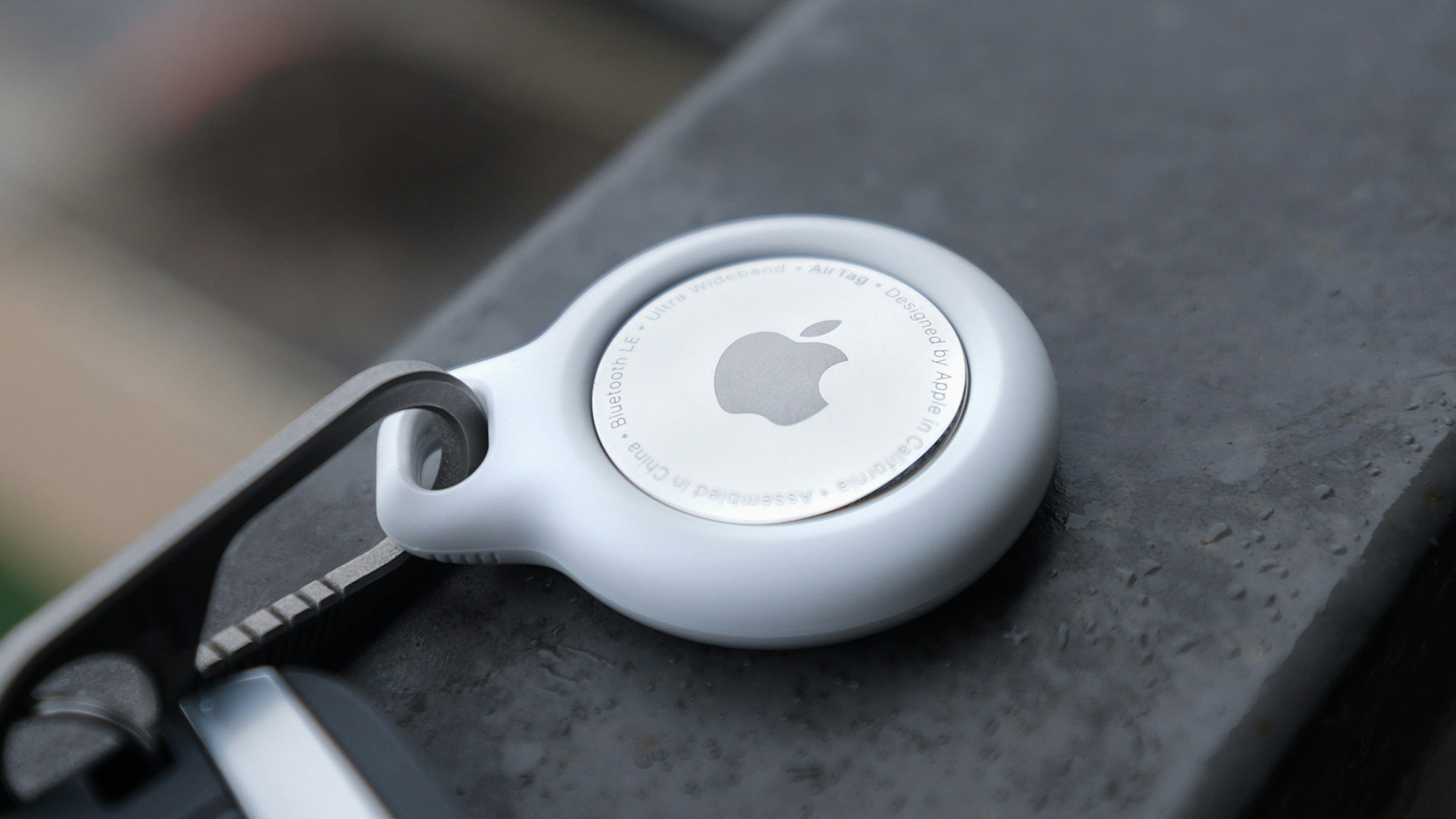
Both iPhones and supported Android phones can warn you when certain unfamiliar Bluetooth trackers are detected moving with you.
These features are designed to help identify devices such as AirTags and other compatible tracking accessories that might be used without someone’s knowledge.
Here’s what to check:
- iPhone: Go to Settings > Notifications > Tracking Notifications and make sure alerts are enabled. Apple’s detection also depends on settings such as Bluetooth and Location Services.
- Android: Look under Settings > Safety & Emergency > Unknown Tracker Alerts. Make sure alerts are enabled. You may also have an option to scan manually for nearby trackers.
If your phone detects a compatible unfamiliar tracker moving with you over time, it may display an alert showing where the device was detected. Depending on the tracker, you may be able to make it play a sound to help locate it.
An alert doesn’t automatically mean someone is stalking you. A borrowed bag, a friend’s belongings, or a tracker separated from its owner can sometimes explain it.
But don’t dismiss an alert you can’t explain. Follow your phone’s instructions to investigate, and seek help if you believe your safety is at risk.
Here’s an especially surprising detail: turning off Bluetooth or Location Services on your own phone doesn’t necessarily stop someone else’s tracker from reporting its location. The tracker itself must be disabled using the appropriate instructions.
These detection systems don’t recognize every possible tracking device, but they’re useful protections worth keeping enabled.
3. Could Your Phone Already Know One Of Your Passwords Has Been Stolen?
That password you’ve been using for years might not be as private as you think. It could have appeared in a data breach without you ever noticing anything suspicious.
Here’s the surprising part: Your phone may already know about it.
Both Apple and Google offer built-in tools that check saved passwords against information from known data leaks. They can also flag passwords that are weak or reused across multiple accounts.
That’s particularly important because criminals sometimes take passwords stolen from one website and try them on completely unrelated accounts. It’s called credential stuffing, and it relies on people reusing their passwords.
Here’s what to check:
- iPhone: Open the Passwords app and tap Security. Review any compromised, weak, or reused passwords. You can also check that Detect Compromised Passwords is enabled under Settings > Apps > Passwords.
- Android: Open Chrome > Settings > Google Password Manager > Checkup to review passwords saved to your Google Account.
If you find a compromised password, change it directly through the affected website or app. Prioritize important accounts, especially email, banking, and any others using that same password.
A warning doesn’t necessarily mean someone has accessed your account. It means the password may no longer be safe to use. These checks also can’t identify every compromised password, particularly ones that aren’t saved in the password manager.
And if you find yourself wondering how many other websites you’ve used that password on, that’s a pretty good reason to stop reusing it.
The Password Problem
Compromised login credentials were an initial way attackers gained access in 22% of the breaches analyzed in Verizon’s 2025 Data Breach Investigations Report. Sometimes, hackers don’t need to figure out your password. They already have one that works.
4. Are Automatic Updates Protecting Everything You Think They Are?
You’ve probably dismissed a software update because you were busy, your battery was low, or restarting your phone sounded like an unreasonable demand at that particular moment.
And if you’re like most people, “Remind Me Later” has occasionally become a long-term arrangement.
But software updates aren’t just about adding new features. Some fix security vulnerabilities that could otherwise be exploited.
These fixes are called security patches. They address weaknesses discovered in operating systems, apps, and other software components.
Here’s the detail worth knowing: Your phone’s operating system and apps don’t necessarily update through the same process. Android also has separate security and Google Play system updates, so having automatic updates enabled in one place doesn’t guarantee everything is current.
Here’s what to check:
- iPhone: Go to Settings > General > Software Update > Automatic Updates. Review your automatic installation settings. Then check Settings > Apps > App Store to confirm automatic app updates are enabled.
- Android: Go to Settings > System > Software updates, or your manufacturer’s equivalent. You can also check Android security update and Google Play system update information under About Phone > Android Version.
- Android apps: Open the Google Play Store > Your Profile > Settings > Network Preferences > Auto-update apps.
Updates can remain pending because of storage limitations, network conditions, battery requirements, or the need for a restart.
There’s another consideration for older phones. Eventually, manufacturers stop supporting certain models with regular security updates, even if those phones still appear to work perfectly.
If your phone hasn’t received a security update in a long time, check the manufacturer’s support information to determine whether it’s still supported.
Phone Scam Alert: Someone Could Steal Your Number Without Stealing Your Phone
You’ve checked your phone’s security settings. But there’s another place you might be overlooking: your mobile carrier account.
Through a scam called SIM swapping, criminals can impersonate you and trick your carrier into transferring your phone number to a SIM card or eSIM they control.
Your phone suddenly loses service, while someone else may start receiving your calls and text-message verification codes. Those codes could potentially help them break into your online accounts.
This isn’t just a hypothetical threat. According to the FBI’s 2025 Internet Crime Report, 971 SIM-swapping complaints involved more than $17.3 million in reported losses.
Fortunately, major wireless carriers offer protections against unauthorized changes:
- Verizon: SIM Protection and Number Lock help prevent unauthorized SIM changes and phone-number transfers.
- AT&T: Wireless Account Lock restricts certain account changes, including SIM swaps and number transfers.
- T-Mobile: SIM Protection and Port Out Protection help block unauthorized SIM changes and transfers to other carriers.
Check your carrier’s app or online account to see which protections are available and enabled. You may need to temporarily disable them when legitimately replacing your phone or switching carriers.
And if your phone unexpectedly loses cellular service without an obvious explanation, contact your carrier promptly. An unexplained service interruption can be a warning sign of SIM-swap fraud.
Short On Time? Check These 6 Phone Settings First
Don’t have time to work through all 12 settings? Start with these six. They address some of the biggest headaches you could face if your phone disappears, your accounts are compromised, or an emergency occurs.
| Setting | What To Check Right Now |
|---|---|
| Phone Tracking | Make sure Find My (iPhone) or Find Hub (Android) is enabled so you can locate a missing phone. |
| Automatic Backups | Check the date of your last successful backup. Don’t just assume it’s working. |
| Theft Protection | Verify that your phone’s available theft-protection features are enabled. |
| Account Recovery | Confirm your recovery phone number, email, and backup sign-in options are current. |
| Emergency Information | Make sure your emergency contacts are correct and accessible from the lock screen if you choose. |
| Password Security | Check whether your phone has flagged any compromised or reused passwords. |
These are quick checks, not necessarily quick fixes. If you discover an outdated backup, a compromised password, or missing recovery information, addressing it properly may take longer.
Once you’ve covered these essentials, work through the remaining settings to review who can access your information and what your phone may be sharing.
A Few More Phone Security Questions Worth Answering
Even after checking these settings, you might have a few questions about what your phone can actually do in an emergency, how much protection comes free, and when it’s worth taking another look. Here are a few things worth knowing. If you don’t see your question here, ask us in the comments.
What Should I Do If I See A Device I Don’t Recognize On My Account?
First, check whether it’s an old phone, computer, or browser session you’ve forgotten about. If you still can’t identify it, use your Apple or Google account settings to sign it out or remove it.
If you suspect unauthorized access, change your account password, review your recovery information, and check for other unfamiliar activity.
Do I Need To Pay For Cloud Storage To Back Up My Phone?
Not necessarily. Apple and Google provide limited amounts of free cloud storage, which may be enough for some users.
However, large photo libraries, videos, and device backups can quickly exceed those limits.
iPhone users can also create local backups using a compatible computer. Android backup alternatives vary by manufacturer and the types of data involved.
How Often Should I Review My Phone’s Privacy And Security Settings?
Every few months is a reasonable starting point, particularly if you regularly install new apps or change devices.
It’s also worth checking after major software updates, changes to your recovery information, or changes in who should have access to your location.
You don’t need to audit every setting each week. Focus on the ones that may have changed since your last review.
What Else Is Your Phone Not Telling You?
Once you start digging through your phone’s settings, it’s hard not to wonder what else you’ve been overlooking.
And the surprises don’t stop there. Discover more everyday tech features you might not be using correctly and learn why passwords alone aren’t enough to protect your accounts.
Be honest: How many of these settings had you never checked before? And did you discover anything surprising? Tell us in the comments!