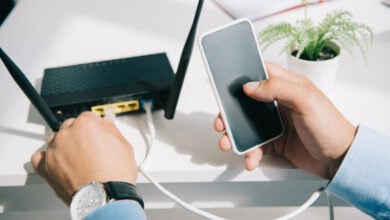
You’ve probably opened an Incognito window without giving it a second thought, swiped away a dozen apps to “save battery,” or trusted that anything stored in the cloud was safely backed up. After all, these features seem pretty self-explanatory.
Except they don’t always work the way you think.
Some of the most familiar features on your phone, computer, and browser have a few surprises hiding behind them. Some don’t do what their names suggest. Others can do things you never knew were possible.
And a few habits you’ve practiced for years might be about as productive as rearranging the icons on your desktop.
Let’s see how many of these you’ve been using wrong.
Want our human-written content to rank above AI-generated garbage? Help us out by clicking this button!

Everyday Tech Features That Do More Than You Think
Some of the most useful features on your devices are hiding behind buttons and shortcuts you’ve used hundreds of times. You may know exactly where to find them without realizing what else they can do.
1. Airplane Mode Isn’t Just For Flying
For most people, Airplane Mode gets about as much attention as the safety instructions in an airplane seat pocket. You remember it exists when you’re boarding a flight, switch it on, and forget about it until you land.
But that little airplane icon has some surprisingly useful tricks that have nothing to do with flying.
Airplane Mode temporarily disables cellular connections, but it doesn’t have to shut down everything wireless. On many phones, you can turn Wi-Fi and Bluetooth back on while keeping cellular service disconnected.
That opens up a few useful possibilities:
- When your phone has terrible reception: Your phone may use extra battery searching for a usable cellular signal. Airplane Mode stops that search, which can help conserve power when you’re somewhere with little or no service.
- When your cellular connection acts up: Switching Airplane Mode on for several seconds and then off forces your phone to reconnect to the cellular network. Sometimes that’s enough to fix a temporary connection glitch without restarting.
- When you’re traveling internationally: You can keep cellular connectivity disabled while using hotel Wi-Fi for browsing, messaging, and internet calls. Just check your phone’s settings before relying on this to avoid roaming charges.
Here’s something many people don’t realize: Turning on Airplane Mode doesn’t necessarily turn off Bluetooth. Some phones also remember when you’ve re-enabled Wi-Fi or Bluetooth, so those connections may remain available the next time you activate it.
2. Do Not Disturb And Silent Mode Aren’t The Same Thing
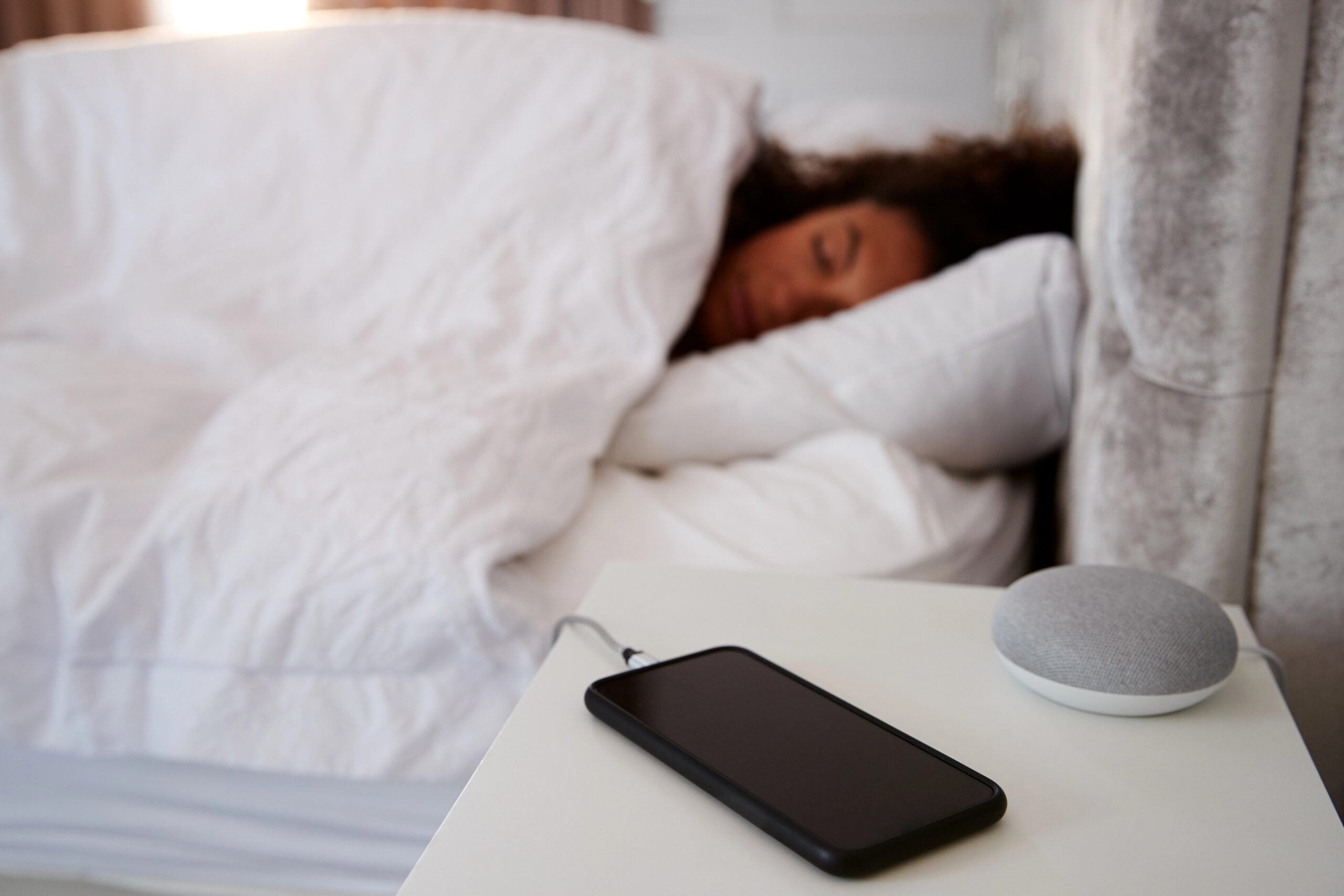
You’re settling in to watch a movie, heading into a meeting, or trying to get eight glorious hours of sleep without your phone announcing that someone liked a photo from 2019.
You switch on Silent Mode or Do Not Disturb. Same basic idea, right?
Not quite. One controls noise, while the other gives you more control over interruptions.
- Silent Mode generally stops calls and notifications from making sounds, but alerts may still appear on your screen or vibrate, depending on your settings.
- Do Not Disturb (DND) goes further by limiting when notifications interrupt you. You can often allow specific people or apps through while keeping everything else from demanding your attention.
The difference becomes especially useful when you want peace without making yourself completely unreachable.
For example, you could set Do Not Disturb to silence social media notifications overnight but still allow calls from your family.
On many devices, you can also schedule it to activate automatically at bedtime, during work hours, or whenever you’d rather not hear about a flash sale on kitchen towels.
What About Alarms And Emergency Calls?
This is where the settings get interesting. Depending on your phone and how you’ve configured it, alarms may still sound, selected contacts can be allowed through, and repeated calls may bypass Do Not Disturb.
But those exceptions aren’t identical across iPhones, Android phones, and computers.
The useful trick is to customize Do Not Disturb before you need it. Check which people, apps, and alarms are allowed through rather than discovering at 7 a.m. that your phone took your request for uninterrupted sleep a little too seriously.
3. Low Power Mode Isn’t Just For A Nearly Dead Battery
Most of us treat Low Power Mode like a last-minute rescue mission. The battery hits 10%, the little warning appears, and suddenly we’re negotiating with our phones over whether we really need the screen that bright.
But you don’t have to wait until your battery is practically begging for mercy.
Low Power Mode on iPhones and Battery Saver on Android phones reduce energy consumption by changing how your device operates. Depending on your phone, that can mean limiting background activity, reducing screen brightness, delaying certain updates, or scaling back performance.
You’re essentially telling your phone to prioritize battery life over some of its usual conveniences.
That can be useful well before the battery gets low:
- Long travel days: Make your battery last through delayed flights, navigation, and checking travel information.
- Concerts and festivals: Save power when you’re taking pictures, checking messages, and nowhere near an outlet.
- Long days outdoors or away from home: Conserve battery before you need navigation, emergency communication, or that last-minute grocery list.
There are trade-offs, though. On iPhones, for example, Low Power Mode can pause iCloud Photos syncing, disable Background App Refresh, and turn off automatic downloads.
You can switch it on whenever conserving battery matters more than having every feature running normally. Just don’t be surprised if certain apps take longer to refresh or your photos don’t sync immediately.
4. Your Phone’s Camera Can Copy Words From A Picture
Ever taken a picture of a Wi-Fi password, a recipe, or a sign because you didn’t feel like typing everything out? Then, when you actually needed the information, you ended up squinting at the photo and typing it out anyway?
Your phone may have been able to do that tedious part for you all along.
Many modern smartphones can recognize text in photos and turn it into something you can copy, paste, search, or even translate. The technology is called optical character recognition (OCR), and it converts words captured in an image into usable digital text.
You can use it to:
- Copy a complicated Wi-Fi password without manually entering 20 characters and wondering whether that’s a zero or the letter O.
- Grab an address or phone number from a business card, flyer, or screenshot.
- Translate a restaurant menu or foreign-language sign without typing unfamiliar words into a translator.
- Copy instructions from a photo directly into your notes or a message.
How To Try It
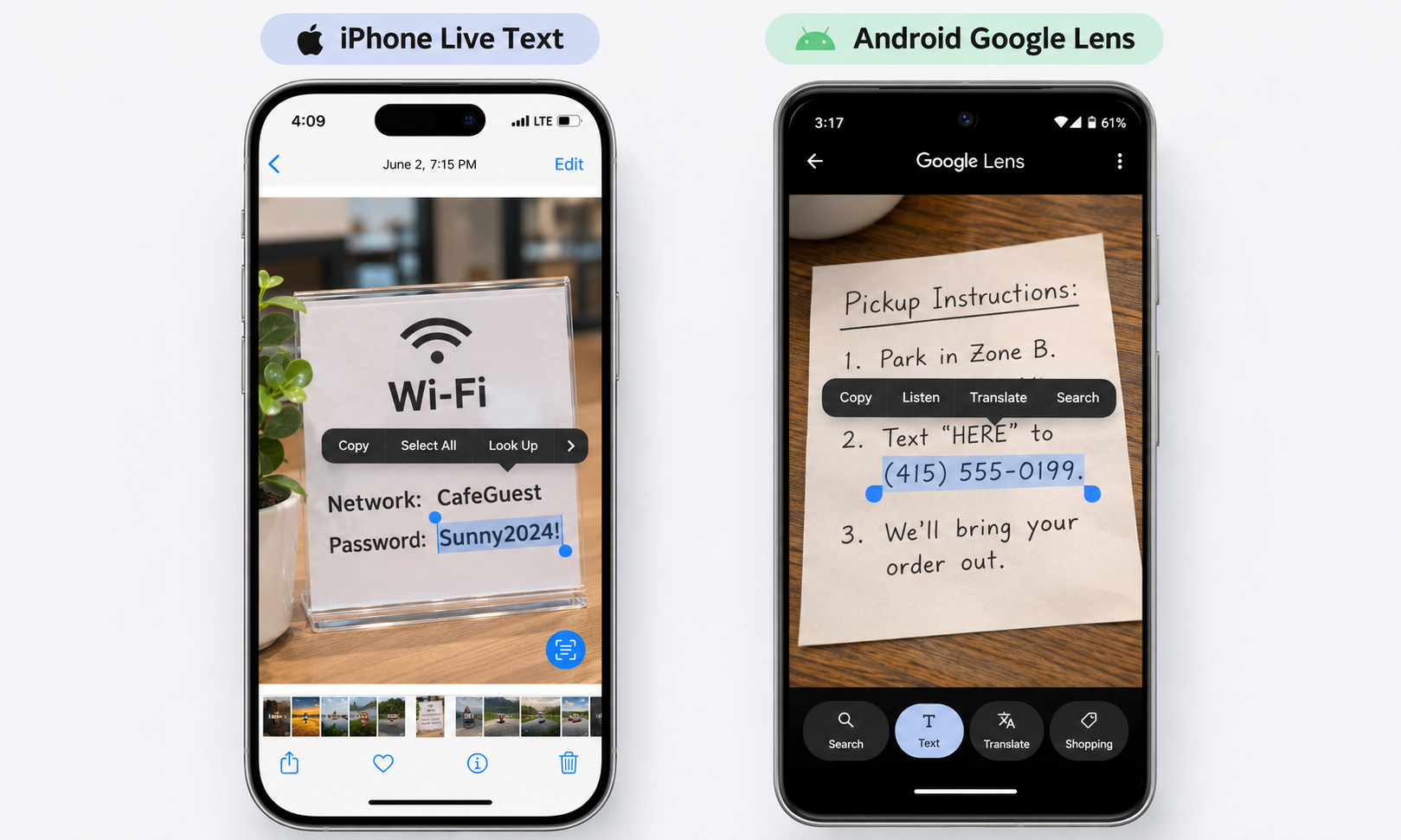
- On iPhone: Open a photo containing text in the Photos app. Touch and hold a word, adjust the selection, and tap Copy. Apple’s feature is called Live Text.
- On Android: Open a photo in Google Photos, select Google Lens, and select the text you want to copy. The exact steps may vary by device.
The best part? You don’t necessarily need to take a new picture. This works with photos and screenshots already in your gallery, including that blurry instruction label you’ve been meaning to decipher for six months.
5. Copy And Paste Can Remember More Than One Thing
You’ve copied an address, switched to another window, copied a phone number, and then realized you still needed the address.
So you return to the original page, find it again, copy it again, and wonder why something as basic as copy and paste still requires so much unnecessary traveling.
On Windows, there’s a feature that can save you that entire routine.
It’s called Clipboard History, and it lets your computer remember multiple copied items instead of only the most recent one.
Here’s the part many Windows users have never tried:
Press Windows + V.
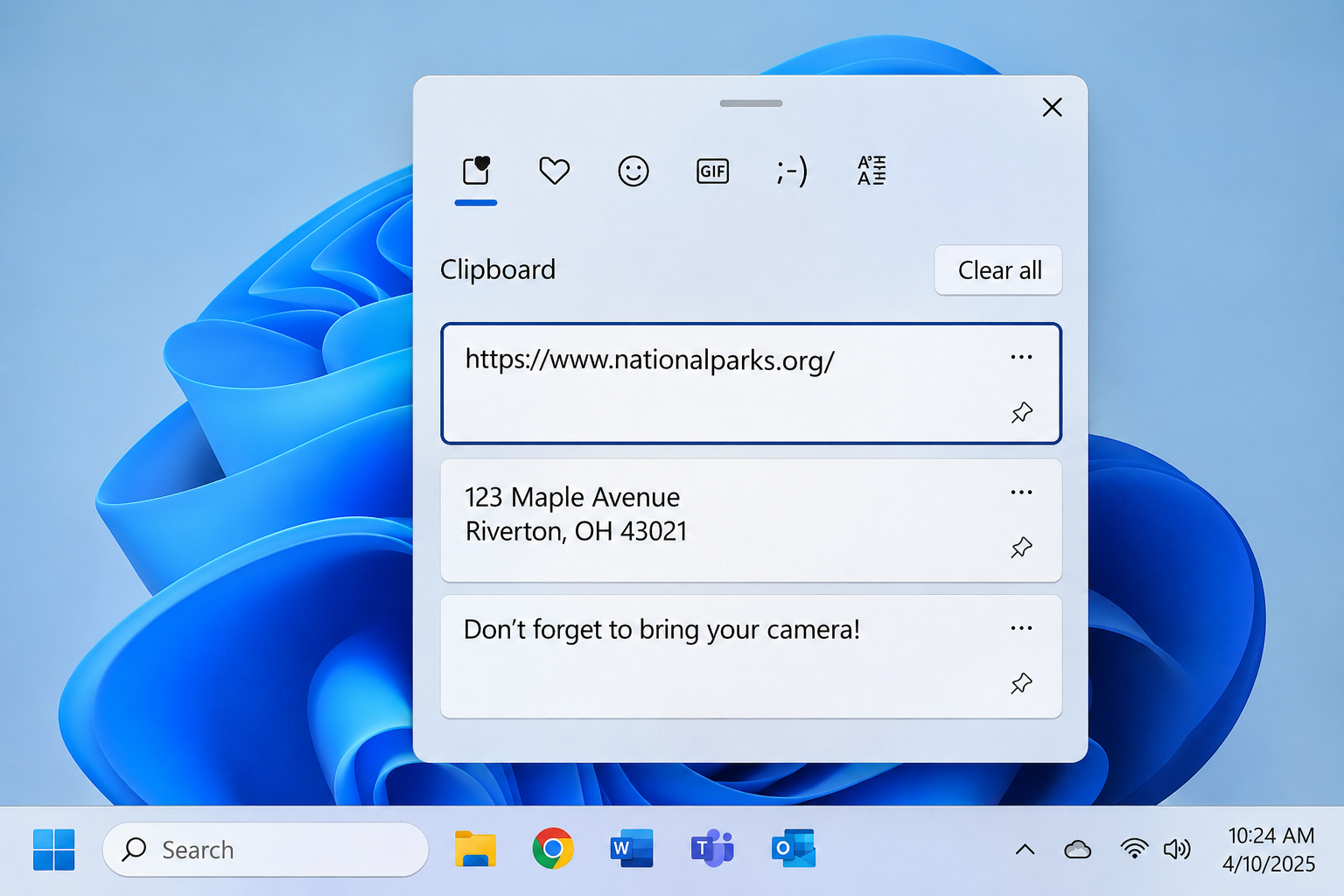
If Clipboard History isn’t enabled, Windows will offer to turn it on. Once it’s active, you can view supported previously copied items and select the one you want to paste.
That means you can copy several pieces of information before switching to the document or form where you need them.
For example, you could collect:
- Several addresses or links from different webpages.
- Frequently used text snippets for emails or documents.
- Product names, prices, or specifications you’re comparing.
You can also pin frequently used clipboard items so they remain available after restarting your computer.
And with compatible Windows devices, optional clipboard synchronization can make supported copied content available across devices.
Clipboard features differ across Windows, macOS, iOS, and Android, so this particular Windows + V shortcut isn’t universal.
One precaution: Clipboard History can retain information you might not want other people seeing, especially on a shared computer. Review its privacy and synchronization settings, and avoid keeping sensitive content there unnecessarily.
If you’ve ever lost an important sentence by accidentally copying something else, this may be one of the most useful keyboard shortcuts you’ve never used.
Tech Features That Don’t Work Quite How You Think
Knowing a feature exists is one thing. Knowing what actually happens when you use it is another.
Some of our most familiar tech habits are built around assumptions that sound perfectly reasonable, right up until you find out how the technology really works.
1. Closing All Your Apps Doesn’t Necessarily Save Battery
There’s a certain satisfaction in swiping away every app on your phone. One by one, they disappear until the recent-apps screen is spotless. You’ve accomplished something. Your phone is practically sparkling.
Unfortunately, that little housekeeping ritual probably isn’t saving battery life the way you think.
The misconception comes from assuming that every app visible in the recent-apps screen is still running and consuming power.
On modern smartphones, that’s often not the case.
When you leave an app, the operating system may suspend it, keeping its state in memory without allowing it to continue running normally. Other apps can perform specific background tasks, such as playing music, tracking navigation, or checking for updates.
In fact, Apple advises against routinely force-closing apps. Reopening a closed app can require more work than resuming one that’s suspended.
What Should You Do Instead?
If you’re concerned about battery usage, look at which apps are actually using power.
- On iPhone: Open Settings > Battery to review battery usage by app and see available activity details.
- On Android: Open Settings > Battery and look for Battery usage. The exact menus vary by manufacturer.
Pay particular attention to apps using substantial power in the background. You may be able to restrict their background activity without closing everything else.
Force-closing still has a purpose: It’s useful when an app freezes, stops responding, or behaves strangely.
But clearing your entire recent-apps screen several times a day isn’t necessary maintenance. Your phone doesn’t award productivity points for an empty list.
2. Incognito Mode Doesn’t Make You Invisible Online
There’s something about opening an Incognito window that makes even the most ordinary internet search feel slightly suspicious. Maybe you’re shopping for a surprise birthday gift. Maybe you just don’t want your browser remembering that you Googled whether penguins have knees.
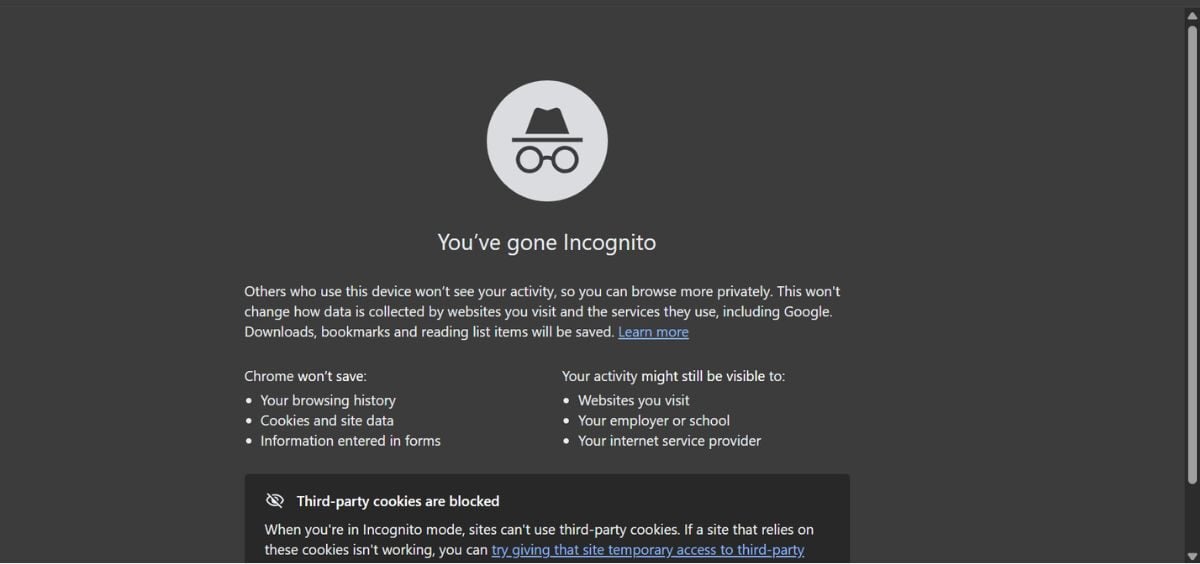
Whatever the reason, that little hat-and-glasses icon promises more secrecy than it actually delivers.
Incognito Mode in Chrome, Private Browsing in Safari and Firefox, and InPrivate in Microsoft Edge have a similar purpose: limiting what your browser saves about your activity.
When you close your private browsing session, your browser generally won’t retain the usual history, cookies, and temporary site data from that session.
But here’s what private browsing doesn’t automatically hide:
- Your activity from websites: Sites can still recognize you when you sign into an account and may collect information about your visit.
- Your browsing from your employer, school, or internet provider: Private mode doesn’t make your internet connection anonymous or prevent network administrators from potentially observing activity.
- Files you download: That PDF, photo, or other downloaded file can remain on your device after the private window closes.
- Bookmarks you save: Bookmarking a page in private mode doesn’t make the bookmark disappear afterward.
When Is Incognito Mode Actually Useful?
It’s handy when you’re using a shared computer, signing into a second account without logging out of your first, or researching a gift for someone who also uses your device.
The important distinction is local privacy versus online anonymity. Private browsing limits what your browser remembers, but it doesn’t hide your identity from websites you’ve signed into.
If you’re shopping for a surprise gift while logged into your usual account, the retailer may still remember what you looked at. The birthday surprise might need a little more planning.
3. Your Phone Can Use Cellular Data Even While Connected To Wi-Fi
You see the Wi-Fi symbol at the top of your phone, so naturally you assume you’re using Wi-Fi.
Your cellular data plan can take the afternoon off, right? Not necessarily. Some phones can switch to cellular data when your Wi-Fi connection isn’t doing its job.
On iPhones, Apple’s Wi-Fi Assist or Connectivity Assist features can use cellular data when a Wi-Fi network becomes unreliable.
Imagine you’re at a coffee shop, connected to its free Wi-Fi. The signal looks promising, but the network is so overloaded that opening a webpage feels like waiting for someone to fax you the internet.
Rather than letting the connection stall, your phone may use cellular data to keep things moving.
The catch is that you might be using mobile data when you thought Wi-Fi had everything covered. This matters most if you’re on a limited data plan.
How To Check
- On newer iPhones: Look under Settings > Wi-Fi for Connectivity Assist, where available.
- On iPhones with Wi-Fi Assist: Go to Settings > Cellular (or Mobile Data) and look for Wi-Fi Assist near the bottom.
- On Android: Some manufacturers offer similar automatic switching features, but names and locations vary. Look for options involving adaptive connectivity or switching to mobile data.
You can also review cellular usage in your phone’s settings to see which apps consume the most data.
These features can be genuinely useful. Nobody enjoys watching a webpage load indefinitely because their phone is determined to remain loyal to a terrible Wi-Fi connection.
4. Location Permissions Aren’t Just An On-Or-Off Switch
You’ve probably granted an app access to your location without thinking much about it. A small permission box appears, you want to get back to what you were doing, and “Allow” seems like the fastest route back to your life.
But giving an app access to your location doesn’t have to mean handing over your exact whereabouts whenever it wants.
Modern smartphones offer several levels of location permission, and the differences mater.
- Precise location: Allows an app to determine your location more accurately, which is useful for turn-by-turn directions or rideshare pickups.
- Approximate location: Shares a broader area rather than your exact position. That’s often enough for weather forecasts or local news.
- While using the app: Generally limits location access to times when you’re actively using the app or a permitted feature.
- Always allow: Lets an app access location in the background, even when you’re doing something else.
Not every app offers every option, and the available choices depend on your device.
Think about a weather app. It probably needs to know whether you’re in Chicago or Miami. It usually doesn’t need to know which side of your couch you’re sitting on.
A navigation app, meanwhile, benefits from much more accurate positioning. Certain family-location or safety services may also need background access to work as intended.
Check Which Apps Know Where You Are
- On iPhone: Go to Settings > Privacy & Security > Location Services. Select individual apps to review their permissions and Precise Location settings.
- On Android: Look under Settings > Location > App location permissions. Menu names can vary.
Pay particular attention to apps with all-the-time location access that you rarely use.
5. Optimized Battery Charging Can Make Your Phone Stop At 80%
You plug your phone in before bed, wake up during the night, and notice the battery has stopped charging at 80%.
Naturally, you suspect the cable. Or the charger. Or the phone itself, which has apparently decided that 80% is plenty and you should stop asking questions.
But your phone may be doing exactly what it’s supposed to do.
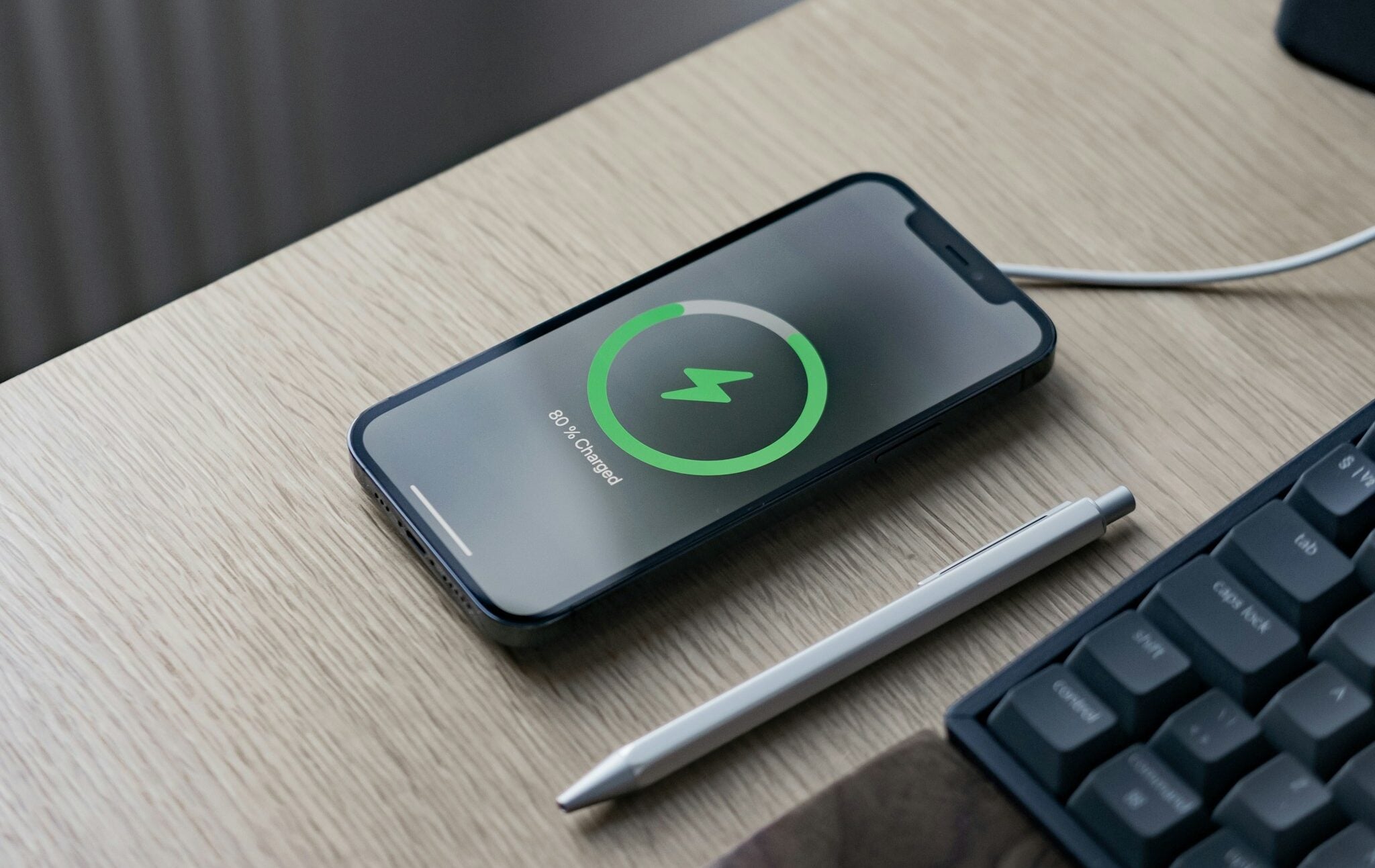
Why Your Phone Might Stop Charging At 80%
Most modern smartphones use lithium-ion batteries, which gradually lose capacity as they age. Battery aging is influenced by factors including temperature and how long the battery spends at a very high charge level.
To help reduce that wear, some phones use optimized or adaptive charging, which changes when the battery finishes charging.
For example, an iPhone with Optimized Battery Charging may pause at 80% overnight and finish charging closer to the time you usually unplug it.
Instead of reaching 100% at midnight and sitting there for hours, the phone tries to time the final portion of the charge to your routine. But an intentional charging pause isn’t the same thing as a charge limit.
On supported iPhones, you can intentionally set a maximum charging percentage, such as 80% or 90%. Some Android phones offer similar battery-protection settings.
The difference matters:
- Optimized charging: Delays the final part of charging but generally aims to reach your normal full-charge level before you need the phone.
- Charge limit: Intentionally stops charging at a selected percentage, although the device may occasionally charge further for battery-management purposes.
- Temperature protection: Can temporarily slow or pause charging when the battery gets too hot or cold.
If your phone regularly stops at the same percentage, check its battery charging settings before ordering another cable.
And if you need a full charge for a particularly long day, many devices let you temporarily override their charging limit or schedule.
6. Cloud Storage Doesn’t Give Your Device More Physical Storage
You pay for a generous cloud storage plan, proudly upgrade to two terabytes, and then your computer announces that its hard drive is nearly full.
Excuse me? Didn’t you just buy enough storage to preserve the entire family photo collection through several generations?
Here’s the misunderstanding: Cloud storage doesn’t increase the physical storage inside your phone or computer.
Your device still has the same built-in storage. Services such as iCloud, Google Drive, and OneDrive give you additional space on remote servers, not additional memory chips inside your phone or computer.
But there’s another wrinkle: Just because a file appears on your computer doesn’t necessarily mean the whole file is stored there.
This is where three different concepts matter:
- Local storage: Files physically stored on your device. You can generally access them without an internet connection.
- Cloud storage: Files stored on remote servers and accessible through your cloud account.
- Synchronization (syncing): A process that keeps files and changes consistent across connected devices.
Some cloud services let you see files without downloading their full contents until you need them.
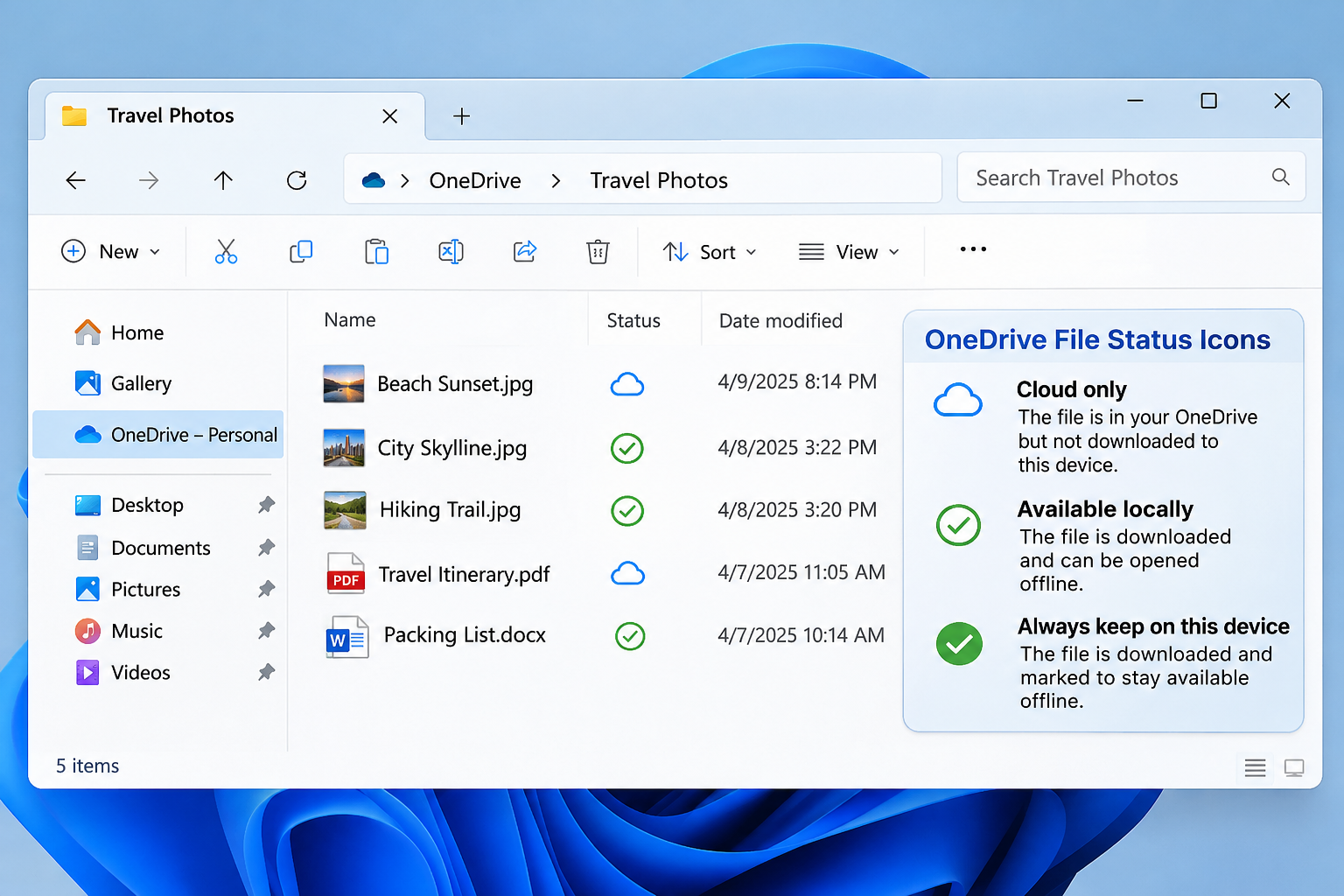
For example, Microsoft’s OneDrive Files On-Demand uses different icons to show whether a file is online-only, downloaded locally, or marked to remain available offline.
A file with a cloud icon can appear in File Explorer without taking up the same space as a fully downloaded file.
Cloud Syncing Isn’t The Same As Backing Up
A backup is intended to preserve a recoverable copy of your data. Syncing is designed to keep information consistent across locations.
If you delete a file from a synchronized folder, that deletion may also be synchronized.
Some cloud services offer recovery through trash folders, version history, or other protections, but that doesn’t make every synchronized file an independent backup.
Before assuming your important documents and family photos are protected, check whether your service syncs them, backs them up separately, or does both.
And if you need files while traveling without internet access, make sure the ones that matter are downloaded for offline use.
7. Deleting Photos Doesn’t Always Free Up Space The Way You Expect
At some point, nearly everyone has tried to reclaim phone storage by deleting hundreds of photos.
Goodbye, blurry concert pictures. Goodbye, 37 nearly identical sunset photos. Goodbye, screenshots of recipes you’ve never made.
Then you check your available storage and find the results less impressive than expected.
The confusing part is that deleting a photo, removing its local copy, and clearing recently deleted files aren’t necessarily the same operation.
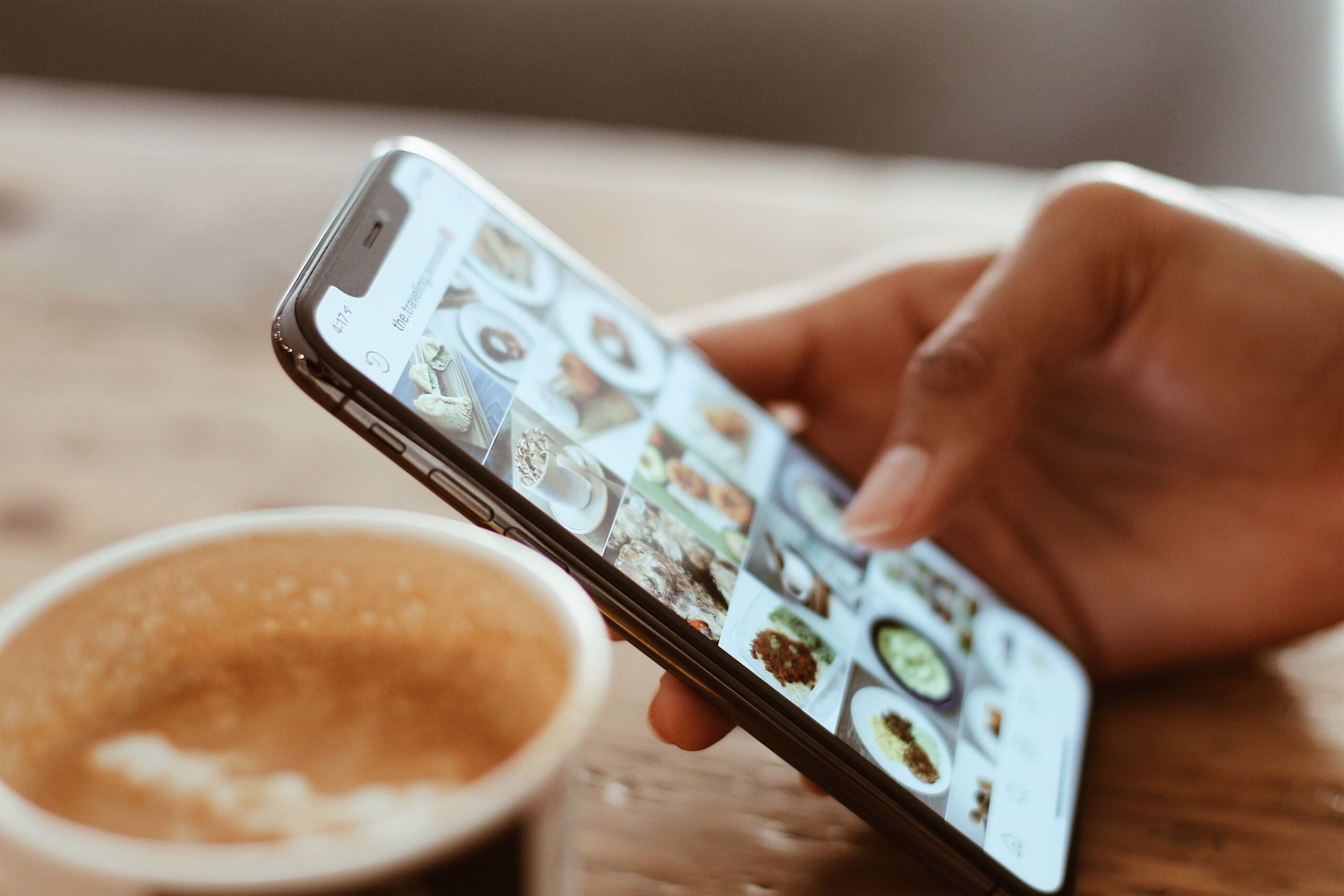
This distinction matters most when your photos sync with cloud services. Consider two common setups:
With iCloud Photos: Deleting a picture from your synchronized library also deletes it from other devices using that library. Deleted photos generally remain recoverable in Recently Deleted for 30 days.
If your goal is simply to reduce how much space photos occupy on your iPhone, Optimize Storage is often the better option. It allows your device to keep smaller versions locally while retaining full-resolution originals in iCloud.
With Google Photos: The Free up space on this device feature can remove eligible local copies of photos that have already been backed up to Google Photos.
Those photos remain accessible through Google Photos, although you may need an internet connection to retrieve the cloud versions. But using the regular Delete function in Google Photos can remove pictures from your cloud library as well.
Before You Delete Hundreds Of Pictures
Check three things:
- Are your photos actually backed up? Don’t assume an upload finished simply because you enabled a backup setting.
- Are you deleting the photo itself or only its local copy? The consequences can be very different.
- Are deleted photos still sitting in Recently Deleted or Trash? Depending on the service and storage being measured, they may continue occupying space until permanently removed.
Nobody wants to discover that their attempt to make room for vacation pictures also deleted the pictures from the last vacation.
8. Unsend Doesn’t Always Mean Your Message Disappeared
We’ve all experienced that awful moment when a message goes out, and you immediately wish you could reach through the screen and grab it.
Maybe you sent it to the wrong person. Maybe autocorrect transformed an innocent sentence into something requiring a formal apology. Or maybe you realized, half a second too late, that the recipient didn’t need your unfiltered opinion.

Fortunately, many messaging apps now let you edit or unsend messages. Unfortunately, “unsend” doesn’t always mean “the other person never saw it.”
The Fine Print Behind Undo Send
Editing and unsending come with rules that depend on the messaging service, message type, and sometimes the software both people are using.
Take Apple’s iMessage as an example:
- Undo Send: You generally have up to two minutes to unsend an eligible iMessage.
- Edit: You can edit an eligible iMessage up to five times within 15 minutes.
- Edit history: The recipient can view previous versions by tapping the Edited label.
- Compatibility: Older software may prevent Undo Send from removing the original message on the recipient’s device.
Other messaging apps have different rules. Google Messages also offers a 15-minute editing window, although how edits appear depends on the message type and recipient’s capabilities. Apple’s Messages app doesn’t offer the same editing and unsending features for ordinary SMS, MMS, and RCS conversations.
But there’s an even more obvious limitation that technology can’t solve. Someone may have already read your message before you unsend it.
They might have seen a notification preview, opened the conversation, or taken a screenshot. And even if the app removes the message, the recipient may still know something was deleted.
Autocorrect may not have your best interests at heart, but the Send button is still your responsibility.
What Else Have You Been Getting Wrong About Your Tech?
It’s amazing how many things we do on our devices simply because that’s how we’ve always done them. Sometimes the biggest tech upgrade isn’t a new gadget. It’s discovering what the one you already own can actually do.
Want to uncover a few more surprises? Check out these guides:
- 12 Tech Myths That Made Sense Once, But Don’t Anymore – From outdated advice to surprisingly persistent misconceptions, see which tech “facts” deserve to be retired.
- These Everyday Habits Are Slowing Down Your Devices – Discover how familiar habits can affect your phone, computer, and other devices without you realizing it.
- 14 Everyday Technology Problems That Seem Random (But Aren’t) – Find out what’s behind those maddening little tech problems that never seem to have an obvious explanation.
Which feature surprised you the most? Or have you discovered a useful trick hiding in plain sight that most people don’t know about? Share it in the comments. We’re always up for learning another shortcut that makes us wonder how we survived without it.