Your laptop can barely load a webpage. Meanwhile, someone six feet away is streaming video without a hiccup.
Same room. Same Wi-Fi. Completely different experience.
Before you blame the router, there’s a clue hiding in plain sight: if everything else works normally, the problem may be the device itself.
Phones, laptops, and TVs don’t all handle Wi-Fi the same way. Sometimes what feels like a bad connection isn’t a Wi-Fi problem at all.
There’s an easy way to tell the difference — and it starts with figuring out what the problem follows.
Want our human-written content to rank above AI-generated garbage? Help us out by clicking this button!
First, Make Sure It Really Is Just One Device
Before changing settings or restarting anything, try one simple test: put the struggling device up against one that’s working normally.
If your laptop is crawling at the kitchen table, bring your phone over and load the same website, stream the same video, or run a speed test on both.
You aren’t looking for identical numbers. Wi-Fi speeds naturally bounce around. You’re looking for an obvious, repeatable difference.
If both devices struggle, the connection or that particular location moves higher on the suspect list. But if your phone flies while the laptop beside it crawls, the router suddenly has a pretty good alibi.
It’s not a complete diagnosis, but you’ve already narrowed the search considerably without changing a single setting.
8 Reasons Your Wi-Fi Seems Slow On Just One Device
If your test points to one device, that’s where the real troubleshooting begins. The cause could be buried in its hardware, software, settings, or simply what the device is doing right now.
Here are the most likely reasons one device can crawl while everything else on your Wi-Fi works just fine.
1. Its Wi-Fi Hardware Is Older
Here’s the part that’s easy to miss: your router isn’t doing all the wireless work.
Every Wi-Fi device has its own wireless hardware. That means your phone, laptop, and TV each bring their own capabilities to the connection, including:
- Wi-Fi radio: The hardware that sends and receives wireless signals.
- Antennas: Their design and placement can affect how well the device communicates with the router.
- Wi-Fi generation: Older devices may not support the faster, more efficient Wi-Fi standards your router does.
- Frequency bands: Not every device has the same access to or capabilities on 2.4 GHz, 5 GHz, and newer 6 GHz networks.
In other words, Wi-Fi is a two-way conversation. Your router can be perfectly capable of a fast connection, but the device still has to do its part.
That’s why your brand-new phone might scream along while the older laptop beside it struggles. The phone may have newer Wi-Fi hardware and better support for modern wireless standards. That laptop may be running on technology from several years ago.
So if your phone pulls 500 Mbps from the exact spot where your eight-year-old laptop struggles, that doesn’t mean every device gets 500 Mbps. It just proves what your phone can do.

2. The Device Is Busy Doing Something Else
A webpage takes forever to appear. A video stutters. An app feels painfully sluggish. It certainly looks like slow internet.
But sometimes your device is already busy doing something you can’t see.
Background activity can slow things down in two very different ways:
- It can compete for your internet connection. Cloud photo syncing, operating-system updates, app updates, backups, and game downloads can all move large amounts of data while you’re trying to do something else.
- It can compete for the device itself. Security scans, dozens of browser tabs, background apps, and other processes can consume CPU, memory, or storage.
The result can look surprisingly similar on your end.
If a huge game update is hogging bandwidth, data may genuinely be reaching your device more slowly. But if an overloaded laptop takes several seconds to process and render a webpage after the data arrives, the connection itself may be perfectly healthy.
That’s an important distinction: sometimes your internet is slow, and sometimes the thing using the internet is slow.
First, check for large downloads, syncing, updates, or other background activity. If pausing that activity suddenly brings the device back to life, you’ve found a much better explanation than bad Wi-Fi.
3. A VPN, App, Or Software Problem Is Getting In The Way
Sometimes the hardware is perfectly capable, and nothing is hogging your connection. The slowdown is coming from the software using it.
A VPN is a good example. Instead of sending your internet traffic directly toward its destination, a VPN routes it through another server and encrypts it along the way. That extra trip and processing can reduce speeds or increase latency, especially if the VPN server is far away or congested.

But VPNs aren’t the only possibility. One-device slowdowns can also involve:
- A misbehaving browser or app that’s loading slowly even though other services work normally.
- Outdated network drivers on a laptop or desktop. These software instructions let the operating system communicate with its Wi-Fi hardware.
- Operating-system bugs or outdated software that interfere with networking.
- Security or filtering software that inspects internet traffic before allowing it through.
The easiest clue is whether the slowdown appears everywhere on the device or only under certain conditions.
If one browser is painfully slow but another works normally, that’s very different from every internet-connected app struggling. Likewise, if the problem disappears when you temporarily disconnect a VPN, you’ve learned considerably more than another router restart would tell you.
Before changing network hardware, update the affected app and operating system, check for network-driver updates where applicable, and test without a VPN if you use one.
One More Thing To Check On A Laptop
Does the Wi-Fi seem worse when your laptop is unplugged? Power-saving settings can sometimes reduce wireless adapter’s activity or performance to conserve battery.
If the slowdown happens mainly on battery power, compare the connection while plugged in versus unplugged. A noticeable difference gives you a much more specific place to investigate.
4. Its Saved Wi-Fi Connection Has A Glitch
Your device doesn’t start from scratch every time it connects to your home Wi-Fi. It saves information about that network so it can recognize it and reconnect automatically.
Usually, that’s exactly what you want. But that saved connection can occasionally stop behaving properly, particularly after something changes, such as:
- You replace or reconfigure your router.
- The Wi-Fi password or security settings change.
- Your device installs a major software update.
- Other network settings change or update.
That’s why one phone or laptop can have trouble while every other device carries on normally. The network itself may be fine; the device’s saved connection to it may be misbehaving.
This is one situation where “Forget This Network” can actually be useful for troubleshooting, rather than random advice from the internet. Forgetting and rejoining makes the device discard its saved Wi-Fi profile and create a fresh one.
The process is usually simple:
- Select your home Wi-Fi network in the device’s network settings.
- Choose Forget, Forget This Network, or the equivalent option.
- Rejoin the network and enter your Wi-Fi password again.
- Test the connection before changing anything else.
If that doesn’t help, many phones and computers also offer a network settings reset, but save that for later. Depending on the device, it can erase other saved Wi-Fi networks and connectivity settings along with the troublesome one.

5. It Doesn’t Handle A Weak Wi-Fi Signal As Well
Here’s a useful experiment: take the struggling device closer to your router and test it again.
If it suddenly performs much better, you’ve uncovered a different kind of device problem. It can connect to Wi-Fi just fine, but it may not handle a weaker signal as well as your other devices.
Several things can make one device hold onto Wi-Fi better than another:
- Antenna design and placement: Devices use different antenna setups, which can affect how well they send and receive signals.
- Wi-Fi hardware: Newer or more capable wireless hardware may perform better as signal conditions get tougher.
- Frequency band: A device using 5 GHz or 6 GHz may behave differently from one using 2.4 GHz, particularly farther from the router.
- The device itself: Its size, construction, and even its position can affect antenna performance.
Frequency matters because 5 GHz can deliver faster speeds but generally doesn’t travel as far or pass through obstacles as well as 2.4 GHz. The newer 6 GHz band offers additional capacity, but its higher frequency also makes distance and obstacles important.
That’s why your phone and laptop can sit in the same bedroom and still have noticeably different experiences. One may maintain a usable connection while the other starts struggling.
And don’t put too much faith in those little Wi-Fi bars. They’re estimates reported by each device, not a universal measurement you can reliably compare between screens.
The better test is simple: compare the struggling device close to the router and again in the problem area. A dramatic improvement up close tells you considerably more than counting bars.
Is The Device Slow, Or Does It Keep Disconnecting?
“Bad Wi-Fi” can describe two different problems, and the difference is a useful clue.
If the device stays connected but everything feels slow, consider background activity, weak-signal performance, software issues, or the device’s hardware.
If it repeatedly drops Wi-Fi and reconnects, pay closer attention to the saved network connection, Wi-Fi drivers or software, power-saving behavior, and the device’s wireless hardware.
6. Your Smart TV May Have Surprisingly Basic Wi-Fi Hardware
Your TV can have a gorgeous 4K display, impressive picture processing, and enough streaming apps to eliminate any chance of choosing something to watch in under 20 minutes.
None of that guarantees great Wi-Fi hardware.
Compared with a newer phone or laptop, some smart TVs have relatively basic wireless hardware. And because TVs tend to stay in our homes much longer than phones, the Wi-Fi technology inside yours may already be several generations behind even if the picture still looks fantastic.

Then there’s the location. A TV is often pushed against a wall, surrounded by other electronics, tucked into an entertainment center, or mounted wherever the room layout dictates — not wherever Wi-Fi reception happens to be best.
The built-in apps add another wrinkle. If Netflix buffers but YouTube streams normally on the same TV, that points in a very different direction than every streaming app struggling.
Before blaming your internet connection, try a quick comparison: open another streaming app on the TV, then try the same service on your phone or tablet from roughly the same location.
If every app on the TV struggles while nearby devices stream normally, the TV’s connection becomes a stronger suspect. If only one app misbehaves, start with the app instead of rebuilding your home network around it.
7. The Device Needs A Proper Restart
Yes, we’re going there: turn it off and back on again. But if only one device is struggling, restart that device before touching the router.
Phones, laptops, TVs, and other connected devices run background processes for days or even weeks. Occasionally, an app, network service, or other piece of software gets stuck in a bad state. A proper restart shuts those processes down and gives the operating system and networking components a fresh start.
That can clear temporary problems involving:
- Network services that aren’t behaving properly.
- Apps or background processes that have become stuck.
- Memory pressure that is making the entire device sluggish.
- Temporary software glitches affecting the Wi-Fi connection.
And make sure you’re actually restarting it. Closing a laptop lid, turning off a TV screen, or locking your phone may only put the device into a low-power or standby state.
There’s also an easy rule for deciding what deserves the reboot:
One device acting up? Restart the device first.
Multiple devices acting up? Now the router deserves a closer look.
If a proper restart immediately fixes the problem but the slowdown keeps returning, however, something else may be triggering it. That’s when it’s worth looking back at background activity, software, or the device’s age rather than making restarting part of your daily routine.
8. The Device Is Simply Getting Old
Sometimes there isn’t one glitch to fix. The device itself is starting to show its age.
That doesn’t necessarily mean its Wi-Fi hardware is failing. An older laptop, phone, or tablet can still connect perfectly well while other aging components make anything involving the internet feel painfully slow.
Over time, several limitations can start piling up:
- Older Wi-Fi hardware may not take full advantage of newer routers and wireless standards.
- A slower processor and limited memory can struggle with increasingly demanding websites and apps.
- Aging or slower storage can make apps launch, load, and respond more slowly.
- Older operating systems may lose access to software improvements or eventually stop receiving updates.
- Modern websites and streaming services may simply demand more from the device than they did when you bought it.
This is where comparing devices under the same conditions becomes especially useful.
If an older laptop remains dramatically slower than a newer one even when they’re beside the router, and you’ve already ruled out downloads, software problems, and a bad saved connection, the router starts looking considerably less suspicious.
Pay attention to what else feels slow, too. If apps take ages to open, webpages hesitate even after they begin loading, the device frequently freezes, or everyday tasks have become sluggish, you’re probably dealing with more than a Wi-Fi problem.
That still doesn’t automatically mean you need a new device. But before spending money on a faster internet plan, Wi-Fi extender, or new router, there’s one last test worth running.
Before You Spend Money, Run This 60-Second Test
Before upgrading your internet plan, replacing your router, or deciding your laptop has one foot in the electronics recycling bin, give yourself 60 seconds to narrow down what you’re actually dealing with.
Start with the struggling device beside the router.
Is it still much slower than another device in the same spot?
→ Yes: The device moves higher on the suspect list. Check for background activity, software issues, updates, and saved-network problems.
→ No: The device can perform well with a strong signal. Coverage, interference, or how that device handles weaker Wi-Fi deserves more attention.
Is everything on that device slow, or just one app or website?
→ One app or service: Start there. The Wi-Fi probably isn’t your first suspect.
→ Everything: Restart the device and test again.
Are multiple devices showing the same symptoms now?
→ You’ve changed the investigation. It’s time to look at the router, modem, Wi-Fi coverage, or internet service instead.
The goal isn’t to diagnose every networking problem in a minute. It’s to answer the question that can save you the most unnecessary troubleshooting: does the slowdown stay with this device, or does it show up somewhere else too?
One More Test Can Separate The Device From The Wi-Fi
Still not sure which one deserves the blame? Change the connection without changing the device.
If possible, connect a laptop or TV directly to your router with an Ethernet cable. For a phone, tablet, or laptop, you could also try a different Wi-Fi network or a mobile hotspot.
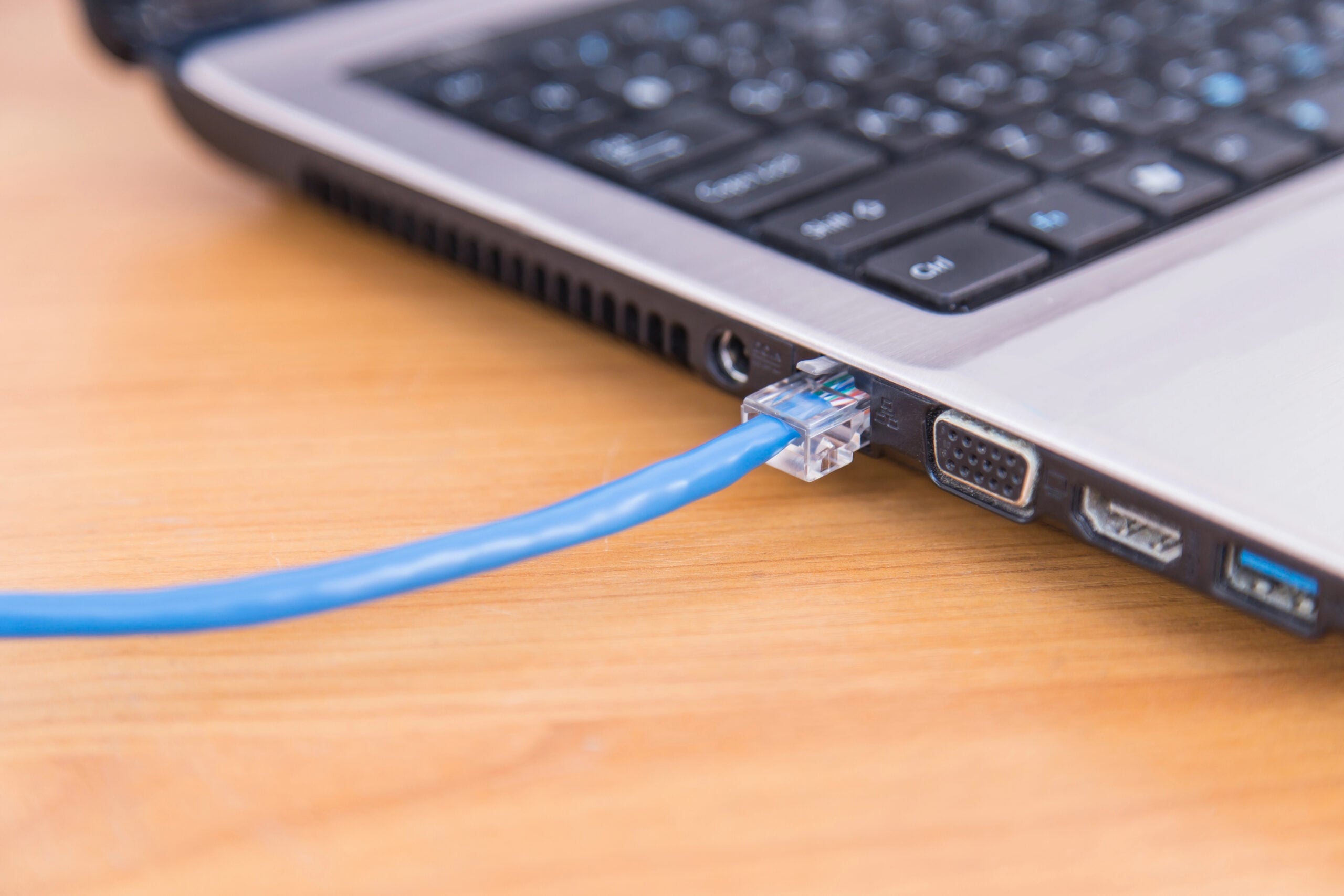
Then see what changes:
- It’s suddenly much faster: The device is clearly capable of better performance, so its connection to your home Wi-Fi deserves a closer look.
- It’s still sluggish: The device itself, its software, or the app or service you’re using is more likely the issue.
- Ethernet is fast, but Wi-Fi is slow: You’ve bypassed the wireless part of the connection, which strongly points toward a Wi-Fi-specific problem on that device.
Don’t get hung up on matching speed-test numbers. The useful part of this test is changing one variable — the connection — and seeing whether the slowdown follows.
How To Speed Up A Slow Device
If all those tests keep pointing back to the same phone, laptop, or TV, you’ll finally know where to focus your attention. You don’t need to overhaul a Wi-Fi network that’s working perfectly well for everything else.
Start with the fixes that match what you found:
- Restart the device properly. If it’s been sleeping or sitting in standby for weeks, give it a full restart.
- Pause large downloads and background syncing. Check for cloud backups, photo syncing, game downloads, and operating-system or app updates.
- Update its software. Install available operating-system and app updates, and check for network-driver updates on computers where applicable.
- Test without a VPN. If performance improves dramatically, investigate the VPN settings or try a different server before blaming Wi-Fi.
- Forget and rejoin your Wi-Fi network. This can clear a troublesome saved connection without resetting everything else.
- Check power settings on laptops. If Wi-Fi performance changes noticeably on battery power, look for settings that may be limiting the wireless adapter to conserve energy.
- Improve the signal reaching that device. If it performs well near the router but struggles farther away, its location — or its ability to handle a weaker signal — matters.
- Look beyond Wi-Fi if the whole device feels slow. When apps, menus, browsers, and everyday tasks are sluggish too, cleaning up storage, reducing unnecessary background apps, or eventually replacing an aging device may make more sense than changing your network.
Don’t do all of these at once. Make one change, test again, and see whether it actually made a difference.
Before You Buy A New Router
If every other device works normally in the same location, a new router probably isn’t the first thing I’d spend money on.
A router upgrade becomes more relevant when the problem extends beyond one device — multiple devices struggle, coverage is poor in parts of your home, or the router is old enough that it no longer supports the Wi-Fi capabilities your newer devices can use.
If the slowdown stubbornly stays with one phone, laptop, or TV, keep your troubleshooting focused there.
Frequently Asked Questions
Still trying to pin down why one device seems to hate your Wi-Fi? These questions cover a few situations that can make the diagnosis especially confusing. Don’t see your question here? Hit us up in our comments, and we’ll do our best to help you!
Why Is My Laptop Slow Even With Full Wi-Fi Bars?
Because Wi-Fi bars show signal strength, not internet speed. A strong connection to your router doesn’t guarantee fast internet, that your laptop’s Wi-Fi hardware can handle high speeds, or that the device can process everything quickly.
Think of full bars as “I can hear the router clearly,” not “everything from here to the internet is fast.”
Why Is My Phone Faster On Cellular Data Than On Wi-Fi?
Cellular data and your home Wi-Fi take completely different paths to the internet. If your phone is consistently faster after you turn Wi-Fi off, something about the home connection deserves investigation.
Try another device on the same Wi-Fi before blaming the phone. If several devices are also slow, you’ve moved beyond a one-device problem and toward the network or internet connection.
Can A Phone Case Make Wi-Fi Slower?
Usually, an ordinary phone case shouldn’t cause a dramatic Wi-Fi slowdown. But very thick cases, or cases with substantial metal or certain accessories, can interfere with wireless signals or antenna performance.
It’s an easy variable to eliminate: remove the case and repeat the same test in the same location. If there’s no meaningful difference, put it at the bottom of the suspect list.
Can One Old Device Slow Down Wi-Fi For Everything Else?
It can affect network performance in some circumstances, but the old rule that one slow device automatically drags your entire Wi-Fi network down to its speed is an oversimplification.
Modern routers manage multiple devices much more intelligently. An older device can still consume airtime or create inefficiencies, especially on a busy network, but if everything else works normally, don’t assume the oldest gadget in the house is secretly sabotaging everyone.
Found The Culprit? Here’s What To Check Next
Once you’ve narrowed down whether you’re dealing with one stubborn device or a bigger Wi-Fi problem, you can stop troubleshooting everything at once and follow the clues that actually fit.
If your investigation is pointing beyond the device, these guides can help you dig deeper:
Have you ever had one device that just refused to cooperate while everything else worked perfectly? Tell us what was acting up — and what finally fixed it — in the comments below. Your weird Wi-Fi mystery might help someone else solve theirs.