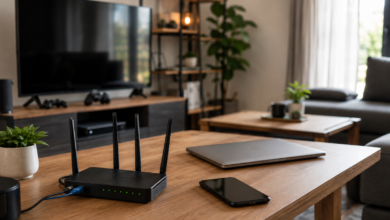
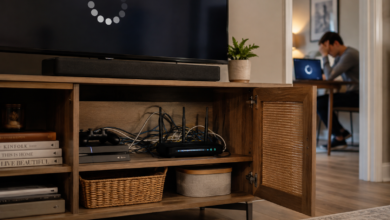
You’re paying for a fast phone, a decent laptop, and solid internet. So, why does everything still feel slow?
Apps lag. Pages hang. Your laptop sounds like it’s preparing for takeoff just because you opened a few tabs. And somehow, the one thing you need right now takes the longest to load.
It’s frustrating, and it feels like your device is the problem. But most of the time, it’s not.
The truth is, many slowdowns come from minor, everyday habits that build up over time, like leaving everything open, never restarting, filling storage to the limit, and ignoring updates.
Basically, we treat our devices like they’re indestructible, all-powerful, and never in need of a break — and then wonder why they’re struggling to keep up.
The good news? Most of this is fixable, and your device will probably start cooperating again once you stop making its job so hard.

The “Always On” Problem: We Never Let Our Devices Rest
There was a time when turning your computer off was just part of using it.
Now? Most devices aren’t afforded that luxury.
Phones go weeks without a restart. Laptops get closed, reopened, and expected to instantly be ready for anything — emails, tabs, video calls, 47 browser windows open — like nothing ever happened.
And for a while, that works because modern devices are good at multitasking. Until they reach the end of their rope.
Behind the scenes, things are secretly stacking up.
Apps don’t fully close. Background processes keep running. Temporary files linger. Little glitches that would normally disappear after a restart move in and get comfortable.
It’s like never giving your brain a chance to reset — eventually, things get a little messy.
At some point, it catches up:
- Apps take longer to open
- Things randomly freeze or lag
- Weird glitches show up like uninvited guests
Nothing dramatic. Just enough to make everything feel slightly slower, clunkier, and more annoying than it should be.

And instead of fixing it, we power through because restarting feels inconvenient. Or unnecessary. Or like something we’ll get to… eventually.
Meanwhile, your device is still trying to keep everything running like nothing’s wrong.
Quick Fix
- Restart your phone, computer, or tablet at least once a week
- If something suddenly feels slow or glitchy, restart before doing anything else
It’s simple, borderline boring advice. But it’s also one of the fastest ways to clear out the mess we quietly create — and give your device a fresh start.
The Invisible Pileup: Apps Running When You Think They Aren’t
We all do this.
Open an app, use it for a minute, then swipe away and move on. Repeat that a few dozen times, and suddenly your device is juggling way more than you realize.
Because here’s the part that’s easy to miss: just because you’re not actively using an app doesn’t mean it’s actually done running.

A lot of apps keep going in the background, refreshing content, checking for updates, syncing data, and tracking location. Individually, it’s nothing. But stack enough of them together, and your device starts working overtime behind the scenes.
And if we’re being honest, we treat apps like open tabs in our brains.
We’re not using them right now, but we’re definitely not closing them either, just in case.
Meanwhile, your device is over here like, “So… are we done with this, or should I keep it warm forever?”
At some point, it catches up:
- Apps take longer to load or switch between
- Your battery drains faster than it should
- Your device feels warm for no obvious reason
And the weird part is that it still looks like nothing is happening. No warning. No alert. Just a quiet pileup of background activity you didn’t realize was still there.
We leave everything running and then expect everything to run well.
Quick Fix
- Close apps you’re not actively using, especially heavier ones (maps, video, games)
- Go into settings and limit background app activity or refresh where possible
- On laptops, reduce unnecessary startup programs so fewer things are running by default
You don’t need to micromanage every app. But clearing out the extras gives your device a lot more breathing room, and you’ll usually notice the difference pretty quickly.
Myth vs Reality: What’s Actually Slowing Your Device Down
A lot of common “tech advice” sounds right but misses what’s really going on.
- Myth: “My device is just getting old.”
Reality: Most slowdowns come from buildup, not age — and a lot of it is fixable. - Myth: “If I still have storage left, I’m fine.”
Reality: Almost full is already a problem. Your device needs breathing room to run smoothly. - Myth: “Closing apps doesn’t matter.”
Reality: One or two? No big deal. A pile of them running in the background? That adds up fast. - Myth: “Updates just add new features.”
Reality: They’re often fixing the exact bugs and slowdowns you’re dealing with.
The Storage Trap: Why “Almost Full” Is Already a Problem
Be honest, do you treat storage like a junk drawer with unlimited capacity?
Thousands of photos (including all 14 versions of the same one).
Old downloads we forgot about.
Apps we haven’t opened in months, but won’t delete, just in case.
Most people think of it as a simple yes-or-no question: “Do I have space left?” Yes? Cool. We’re good.
That’s not exactly how it works.
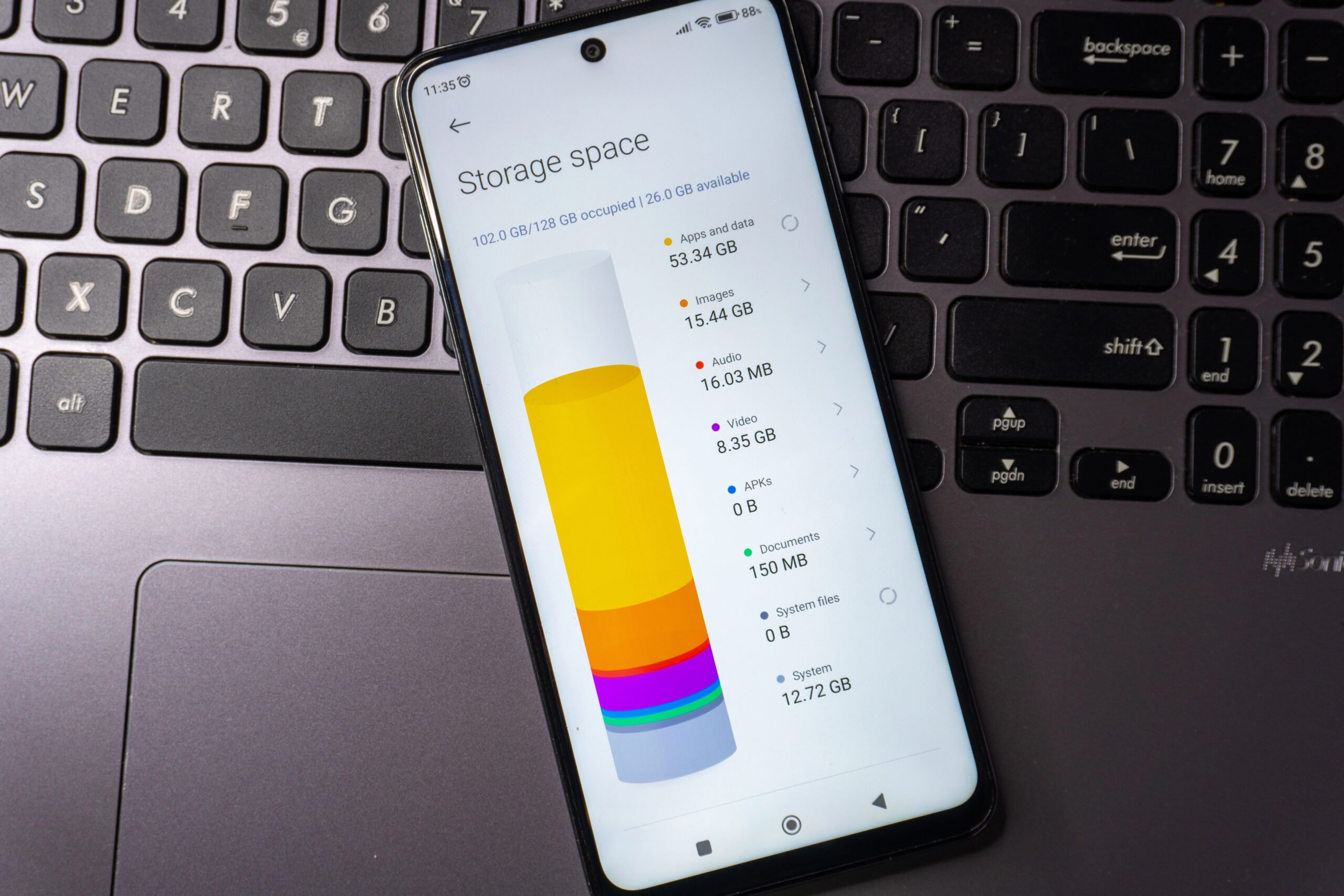
Your device doesn’t just need storage to hold things — it needs free space to function properly. And once that space starts getting tight, performance slows down.
Why? Behind the scenes, your device uses that extra space for temporary files, caching, updates, and everyday operations. When it runs out of breathing room, everything has to work harder to do basic tasks.
All of your stuff is still there, and your device is dealing with it.
But at some point, it catches up:
- Apps feel sluggish or slow to respond
- Saving or loading files takes longer than it should
- You start getting those “storage almost full” warnings — way too often
And it feels like it came out of nowhere. It didn’t. We just filled every inch and expected everything to keep working the same.
Quick Fix
- Keep at least 15–20% of your storage free for smooth performance
- Go through your photos and delete duplicates, screenshots, and videos you don’t need
- Remove unused apps and clear out old downloads
You don’t need to do a full digital cleanse. But freeing up even a little space can take immediate pressure off your device, and it usually shows pretty quickly.
The Update Avoidance Habit: We Ignore Fixes on Purpose
Updates always seem to pop up at the worst possible times.
Right when you need your phone. Right when your laptop is finally cooperating. So you hit “Remind me later,” and then keep doing that for the next three weeks like it’s a personal boundary.
Totally understandable.
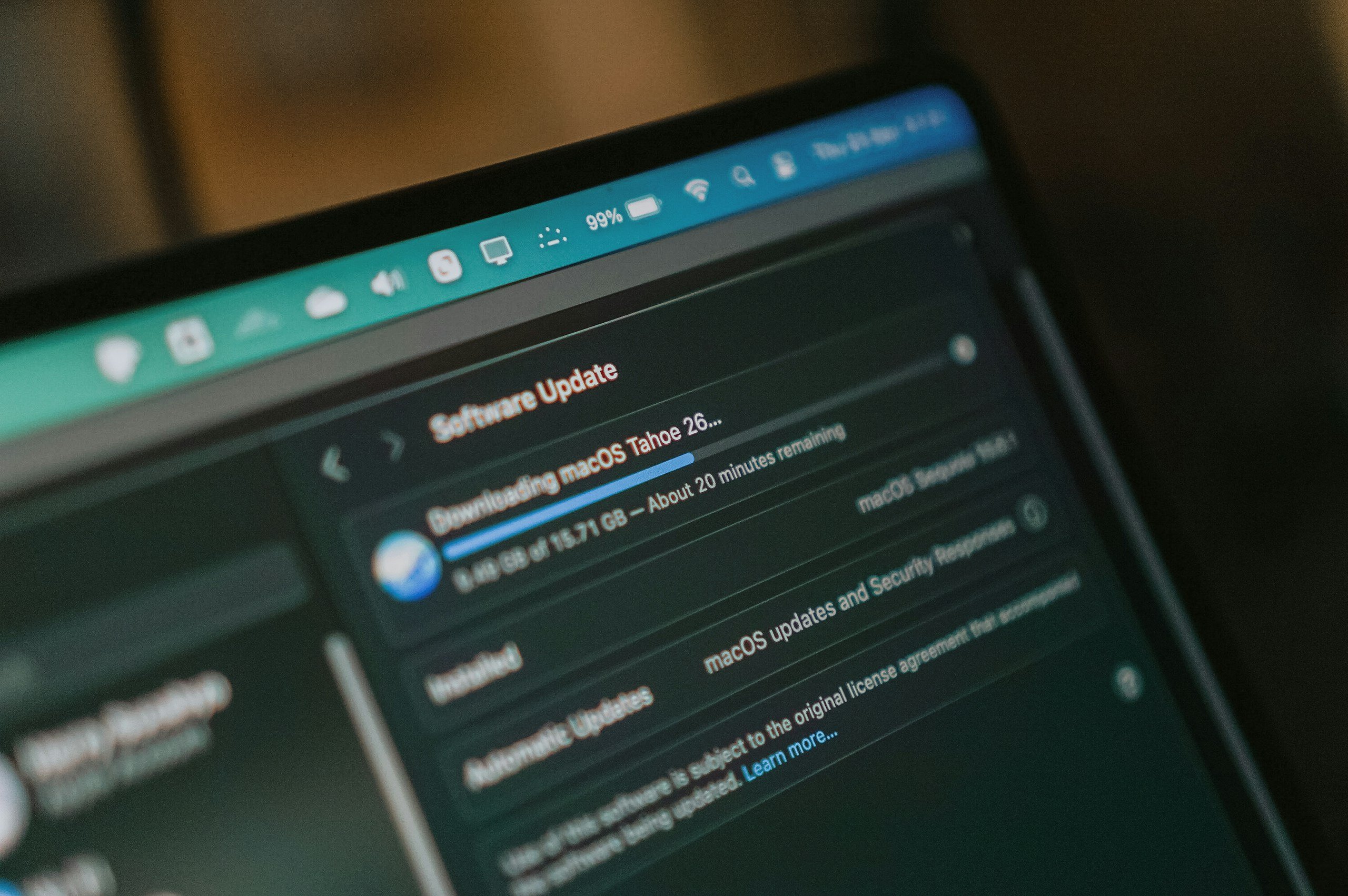
But here’s the tradeoff most people don’t realize: those updates aren’t just about new features — they’re fixing the exact slowdowns and glitches you’re dealing with.
Behind the scenes, updates are:
- Patching bugs that cause lag and freezing
- Improving how your device uses memory and power
- Fixing compatibility issues that build up over time
When you skip them, none of that happens. So now your device is juggling outdated software, apps built for newer versions, and old bugs that never got fixed.
And we’re over here wondering why things feel a little off.
To be honest, we treat updates as optional suggestions rather than actual solutions. And then we just keep using the same device with the same issues that already had a fix waiting.
Quick Fix
- Turn on automatic updates whenever possible
- If you’ve been postponing one, install it when your device is idle or charging
- After updating, restart your device so everything resets cleanly
You don’t have to update the second it appears. But letting updates pile up is basically choosing to keep problems your device already knows how to fix.
Your Wi-Fi Isn’t Always the Problem (But We Blame It Anyway)
When something loads slowly, most of us go straight to the same conclusion: “The Wi-Fi is being slow.”
And sometimes, sure, it is. But a lot of the time, the issue isn’t your internet speed. It’s everything happening on your network at the same time.
Think about everything connected to your Wi-Fi right now:
- Phones
- Laptops
- TVs
- Streaming devices
- Smart home gadgets
- Maybe even a few devices you forgot were still connected
Each one is sharing the same bandwidth.
So when things feel slow, especially at night, it’s not always that your internet has gotten worse. It’s that your network has turned into rush-hour traffic.
We treat Wi-Fi like it’s unlimited, invisible magic. Everything, everywhere, all at once.
And then there’s the wildcard: devices that shouldn’t even be there anymore. Old phones. Guests who never disconnected. Maybe even unknown connections if your network isn’t locked down well.
So now you’re sharing your internet with past versions of your life and possibly strangers. Meanwhile, Wi-Fi gets blamed for everything, like it’s the only one in the room.
Quick Fix
- Restart your router every few weeks to clear minor glitches
- Check what’s connected and remove devices you don’t recognize or no longer use
- If things slow down at certain times, limit how many high-bandwidth activities are happening at once (like multiple streams or downloads)
Your internet plan might be fine. But how it’s being used can make a big difference in how fast everything actually feels.
The Heat Problem: We Suffocate Our Devices Without Realizing It
This one doesn’t feel like a tech issue, but it absolutely is.
Think about how you usually use your laptop: on the couch, on the bed, maybe even on a blanket or pillow. Comfortable for you. Terrible for your device.
It’s basically like asking someone to run a marathon in a winter coat.

Laptops (and even phones) rely on airflow to stay cool. Those little vents on the sides or bottom? They’re not decorative. They’re how heat escapes.
So when you block them, all that heat has nowhere to go. And your device responds in the most reasonable way possible: It slows itself down.
This is called thermal throttling, and it’s basically your device saying, “I can keep working, just not at full speed unless you want me to melt.”
That’s why you might notice:
- Sudden slowdowns during normal use
- Fans getting loud for no obvious reason
- Performance dropping during streaming, gaming, or multitasking
It’s not random. It’s your device protecting itself. Meanwhile, we’ve got it sitting on a blanket like it’s tucked in for the night.
Quick Fix
- Use laptops on hard, flat surfaces so air can circulate properly
- Keep vents clear and dust-free
- Avoid heavy use in warm or poorly ventilated environments
You don’t need a cooling setup, but giving your device some breathing room can fix slowdowns you didn’t realize were heat-related.
The Power Setting Tradeoff: We Accidentally Tell It to Be Slower
Battery anxiety is real.
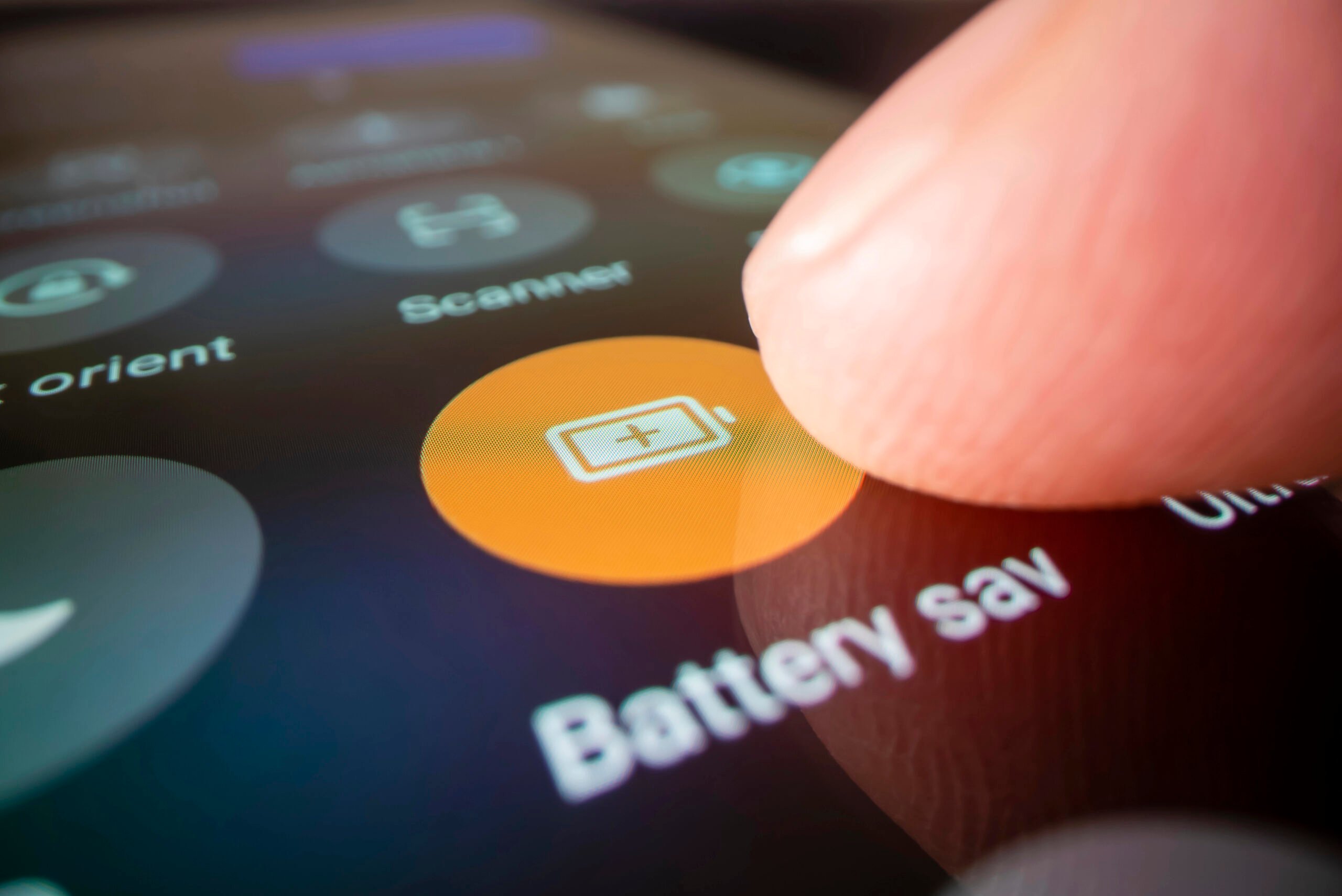
So, a lot of us keep our devices in Low Power Mode (or Battery Saver) as much as possible — just to stretch things a little longer. Totally fair.
But here’s the part that’s easy to miss: those settings don’t just save battery; they also limit performance on purpose.
To stretch battery life, your device will reduce processing speed, limit background activity, and delay certain tasks and updates.
This is great if you’re trying to make it through the day on 12%. Not so great when you’re just trying to open an app without waiting two extra seconds.
At some point, you’ll notice:
- Apps responding more slowly than usual
- Lag when switching between tasks
- Everything feeling just a little more delayed than it should be
And it’s confusing, because nothing is technically wrong. You just told your device to slow down, and it did.
Quick Fix
- Turn off Low Power Mode when you want better performance
- On laptops, switch to “balanced” or “high performance” mode when plugged in
- Use battery saver strategically, not as your default setting
It’s a useful feature. But it’s a tradeoff — and leaving it on all the time means you’re choosing slower performance without realizing it.
The Tab Overload Problem: When Your Browser Becomes the Bottleneck
This one sneaks up on you.
You open a few tabs. Then a few more. Then, a couple you’ll “come back to later.” And before you know it, your browser is carrying half your to-do list.

It doesn’t feel like a big deal because you’re only looking at one or two tabs at a time.
But behind the scenes, those tabs are very much still alive, using memory and processing power.
Still, we treat tabs like bookmarks with commitment issues. We don’t want to save them. We don’t want to close them. We just want them there, just in case.
Meanwhile, your laptop is trying to keep up with:
- A YouTube video you paused an hour ago
- Three shopping tabs you’re “comparing”
- That article you fully intend to read someday
- And 12 other things that are all quietly using resources
So even if your device is otherwise fine, your browser alone can start to slow everything down:
- Pages take longer to load
- Switching tabs feels laggy
- Your entire system starts to feel sluggish
And the longer they stay open, the more they build up. At some point, your browser stops being a tool and starts being the problem.
Quick Fix
- Close tabs you’re not actively using (yes, even the ones you “might need”)
- Use bookmarks or tab groups instead of leaving everything open
- Restart your browser occasionally to clear memory
You don’t have to go down to three tabs. But cutting things back even a little can noticeably improve performance, especially on older or lower-memory devices.
The Compounding Effect: Why It Never Feels Like One Big Problem
Here’s what makes all of this tricky:
None of these habits feels like “the problem.”
Leaving apps open? Not a huge deal.
Skipping a restart? Fine.
Running low on storage? Still works.
Individually, everything seems manageable. But stack them together, and it’s a different story.
Now your device is:
- Running a bunch of background apps
- Low on storage space
- Behind on updates
- Handling dozens of tabs
- Possibly overheating or limiting performance
And suddenly, everything feels slower — even though nothing “broke.”
That’s why so many people assume their device is just getting old.
What Kind Of Tech User Are You? (Be Honest)
Be honest, your device already knows.
- The “I’ll Restart Later:” Hasn’t restarted a device in weeks and fully trusts “Remind Me Tomorrow.”
- The Tab Hoarder: 37 tabs open and convinced that closing them would cause problems.
- The Storage Maximalist: Sitting at 98% full and still taking screenshots.
- The App Collector: Downloads apps, uses them once, keeps them forever.
- The Update Avoider: Treats software updates like a major life decision.
- The Wi-Fi Blamer: One slow load = the entire internet is broken.
- The Heat Ignorer: Uses a laptop on a blanket and hopes for the best.
- The “It’ll Be Fine” Optimist: Notices the slowdown and changes absolutely nothing.
Which one are you? (No judgment… we’re all at least two of these.) Drop yours in the comments.

Quick Reset: The 5-Minute Tune-Up That Fixes Most Issues
If your device has been feeling off, you don’t need to do anything drastic.
Most of the time, it’s just dealing with a buildup of small things that haven’t been cleared out in a while.
Instead of guessing what the problem is, start with a quick reset — the kind that addresses the most common issues all at once.
Think of it as a fast cleanup, not a full overhaul.
5-Minute Tune-Up
- Restart your device to clear background processes
- Close unused apps and tabs that are still running
- Free up a little storage space (even a small amount helps)
- Check for any pending updates
That’s it. No deep settings. No complicated steps.
And in many cases, this alone is enough to noticeably improve performance because you’re clearing out the very things that tend to build up over time.
It’s basically the closest thing your device gets to a reset button for everyday slowdowns.
When It’s Actually Your Device (And Not You)
At this point, it’s fair to ask: “Okay, but what if it really is my device?” Because sometimes, it is.
No amount of restarting or storage cleanup is going to turn a very old device into a fast one. And if your device can’t keep up with newer apps or software anymore, there’s a limit to what quick fixes can do.
That said, many devices get replaced sooner than they need to because the slowdown feels like a hardware issue when it’s really just a buildup.
Here’s how to tell the difference.
It’s Probably NOT Your Device If:
- It used to run fine, and the slowdown happened gradually
- Performance improves (even a little) after a restart or cleanup
- You’re running low on storage or behind on updates
- Issues feel inconsistent — sometimes fast, sometimes not
It Might Be Your Device If:
- It’s several years old and no longer gets software updates
- It struggles even after you’ve cleared storage and restarted
- Apps crash frequently or won’t open at all
- Performance is consistently slow, no matter what you do
In other words, if quick fixes help, even temporarily, your device probably isn’t the problem.
If they don’t, it’s time to start thinking about an upgrade.
Frequently Asked Questions
Still feel like your device has a personal vendetta against you? That’s fair. These are the questions people usually ask after realizing they might be part of the problem. Don’t see your question here? Ask us in the comments.

Why Does My Device Feel Fine One Minute & Painfully Slow The Next?
Because a lot of these issues build quietly, then hit all at once.
Maybe your storage just crossed that “too full” threshold. Maybe a bunch of background apps are lined up at the same time. Maybe your device got a little too warm.
It’s rarely one big failure; it’s a pileup finally becoming noticeable.
Is It Actually Bad That I Never Restart My Phone?
Bad? No. But it’s not helping you either.
Going weeks without a restart lets little glitches, background tasks, and memory clutter stick around longer than they should.
You don’t have to restart, but your device definitely wishes you would.
Why Does My Phone Feel Slower At Night?
Because your Wi-Fi is basically rush hour traffic. More people streaming, scrolling, gaming, downloading — all at the same time.
Even with good internet, your connection is being shared more heavily, which can make everything feel slower.
Do I Really Need To Delete Photos, Or Is That Just A Storage Scare Tactic?
No scare tactics — just reality. Photos (especially videos) are one of the biggest storage hogs. And once your storage gets tight, your device has less room to function efficiently.
Also, let’s be honest. You’re not going back for that blurry duplicate.
Why Does My Laptop Slow Down The Second I Open “A Few” Tabs?
Because your definition of “a few” and your laptop’s definition are not the same.
Each tab uses memory. Enough of them, especially with video, ads, or complex sites, can slow down your entire system, not just your browser.
Why Does My Device Randomly Get Hot When I’m Not Doing Anything Intense?
Because something is happening, just not something you can see.
Background apps syncing, updates running, tabs refreshing… it all adds up. Heat is often a sign that your device is working harder than you realize.
Is Low Power Mode Secretly Ruining My Performance?
“Ruining” is a strong word. But it is intentionally slowing things down to save battery. So if your device feels sluggish, and Low Power Mode is always on, that’s not a coincidence.
Why Does Restarting Fix So Many Problems? It Feels Too Simple.
Because it clears out all the temporary stuff your device has been carrying around.
Think of it like closing 30 tabs in your brain at once. Everything gets a clean slate, and suddenly things run smoother again. Simple doesn’t mean ineffective; it just means we underestimate it.
How Do I Know If I’ve Crossed The Line From “Bad Habits” To “Time For A New Device”?
Try this test: If a restart, cleanup, or update makes things even a little better, your device probably still has life left in it.
If nothing changes at all? That’s when it’s likely a hardware limitation.
What’s The One Habit That Causes The Most Slowdowns?
It’s not just one. It’s doing all of them a little bit:
- Never restarting
- Keeping everything open
- Letting storage fill up
- Ignoring updates
Individually? Fine. Together? That’s when your device starts struggling.
Still Dealing With Weird Tech Issues? Start Here
If your device has been acting off, slow, or just a little unpredictable, there’s usually more going on beneath the surface.
This article covers the everyday habits that build up over time, but if you’re trying to figure out why something specific is happening, these guides will help you go a level deeper:
- Why Smartphones Start Acting Strange After a Few Years — What actually changes over time (and why your phone doesn’t feel the same as it used to)
- Common Technology Problems in Modern Homes — The everyday tech issues most homes deal with (and what’s really behind them)
- Your Wireless Connection Dropping — Why your Wi-Fi randomly cuts out — and what’s causing it
- Why Technology Works in One Room But Not Another — The real reason your connection is great in one spot and terrible in another
Because once you understand what’s actually happening, most tech problems stop feeling random — and start feeling fixable.
If your device is doing something weird, slow, or borderline suspicious, drop it in the comments. There’s a very good chance someone else is dealing with the exact same thing, and one small fix might be all it takes. Or at the very least, we can all agree it’s probably not the Wi-Fi this time.