You open Gmail, and it just spins. You refresh. Of course, still spinning.
Now you’re clicking around like that’s going to convince it to cooperate, wondering if your internet broke, your account got hacked, or Gmail is just ignoring you. It’s usually not.
This happens all the time, and it’s almost always something minor. The good news? Most of the time, you can fix it in under a minute.
Let’s start with the quickest checks and figure out what’s actually going on.
Is Gmail Down Right Now? (Let’s Rule Out The Obvious First)
Before you start changing settings or digging through your browser, it’s worth asking one simple question: Is this actually a “you” problem… or a Gmail problem?
Every once in a while, Gmail does go down. It’s not often, but when it happens, it can look exactly like something is broken on your end.
How To Check In 30 Seconds:
- Check the Google Workspace Status Dashboard to see whether Gmail is having a broader outage.
- Look at sites like Downdetector for real-time user reports.
If you see a spike in reports or a confirmed outage, that’s your answer.
In that case, there’s nothing to fix — you just have to wait it out.
But here’s the reality.
Most of the time, Gmail is working perfectly fine. And if other websites load normally, but Gmail won’t open, keeps spinning, or shows a blank screen, it usually means the issue is coming from your browser, app, or device, not Gmail itself.
Start Here: The Quick Checks That Help Solve (Or Diagnose) Many Gmail Issues
So, you’ve determined that Gmail isn’t having its own issues. What next?
These are the quick fixes that solve a huge percentage of Gmail loading problems. And just as importantly, they help you figure out where the problem is coming from.
That’s really the point of this section. We’re not just throwing random fixes at the wall. We’re using a few fast tests to answer a very useful question: Is this Gmail itself, your browser, your phone, or just a temporary glitch?
The good news is that you can usually narrow that down in a minute or two.

1. Open Gmail In Incognito (Private) Mode
Incognito mode is one of the fastest ways to tell whether the problem is coming from your normal browser setup rather than Gmail itself.
It opens a clean browser window with most of the usual baggage stripped away — things like extensions, saved site data, and old cookies that may be interfering behind the scenes.
That matters because a lot of Gmail problems aren’t really “Gmail problems” at all. They are browser issues that just appear when you try to open Gmail.
So if Gmail loads normally in Incognito mode, that’s actually very good news. It usually means the issue is something local and fixable, like an extension conflict or corrupted browser data — not your account, not your inbox, and not some major Google meltdown.
How to do it:
- Chrome: Click the three dots, then choose New Incognito Window
- Safari: Go to File > New Private Window
- Edge and Firefox: Open a Private Window
Then head to Gmail and see what happens.
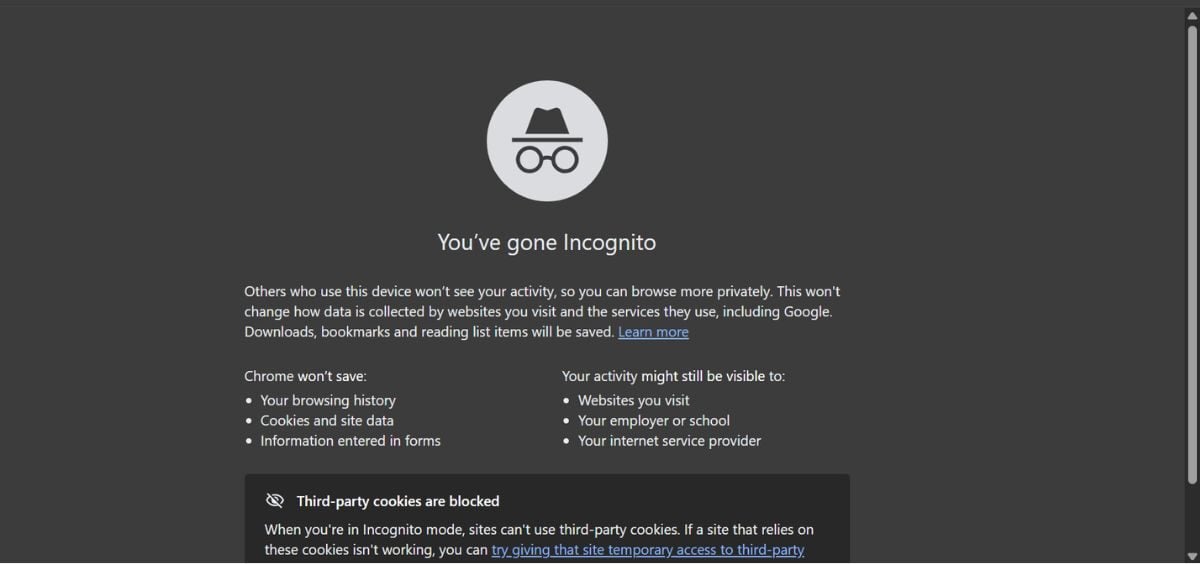
What this tells you:
- If Gmail works here, the problem is probably in your regular browser
- If it still doesn’t work, move to the next quick check
2. Try A Different Browser
This one feels almost too obvious, which is probably why many people skip it.
But trying Gmail in a different browser is one of the easiest ways to tell whether the problem is Gmail or your browser.
For example, if Gmail won’t load in Chrome but opens just fine in Safari, Edge, or Firefox, you’ve already narrowed the problem down a lot. At that point, you know the issue is tied to your original browser, not Gmail itself.
That usually points to one of a few common things:
- An extension conflict
- Old cached data
- A browser update that didn’t install cleanly
- Settings that are interfering with how Gmail loads
In other words, this isn’t just “try another browser.” It’s a quick diagnostic shortcut.
If Gmail works there, you’ve learned something useful immediately and avoided a lot of unnecessary guessing.
3. Restart Your Device (Yes, Really)
It’s the oldest tech tip on earth, and somehow still one of the best.
A restart clears temporary glitches, resets stuck background processes, and gives your device a chance to stop carrying around whatever weird little hiccup was causing the problem.
And yes, sometimes the issue really is that simple.
This step is especially worth trying if Gmail was working recently and then suddenly started acting strange for no obvious reason. Maybe the page keeps spinning. Maybe it loads halfway and freezes. Maybe the app opens, but nothing updates.
Those kinds of one-off problems are usually caused by temporary system glitches, not anything deeply wrong with Gmail.
So even though “restart your device” sounds boring, it can fix things like:
- Endless loading loops
- Blank Gmail screens
- Pages that partly load but never finish
- App behavior that suddenly breaks after an update
It’s not glamorous, but it’s often surprisingly effective.
What You’re Seeing (And What It Usually Means)
If Gmail isn’t loading, the way it fails is often the biggest clue. Here’s a quick cheat sheet:
- Blank white screen
→ Usually a cache issue or extension conflict - Endless loading/spinning
→ Often corrupted data or browser issues - Buttons not working/missing elements
→ Likely an extension interfering - Only broken on your phone
→ Usually a Gmail app glitch or sync issue
The good news: most of these are quick, fixable problems—not anything serious with your account.
How To Tell Which Fix You Need First
At this point, you don’t need a long explanation of every possible cause; you just need a quick sense of where to start.
A lot of Gmail loading problems look the same on the surface. You see a spinning screen, a blank page, or an inbox that won’t refresh, and it all feels equally random.
But there are usually a few clues that point you in the right direction.
- If Gmail works in Incognito mode, the problem is probably your regular browser setup, usually an extension, saved cookies, or cached data.
- If Gmail works in a different browser, that also points to your original browser rather than your account.
- If Gmail only acts up on your phone, the Gmail app itself is the more likely culprit.
- And if Gmail won’t load anywhere, on any device, then it’s worth checking for a wider outage or a connection issue before you do anything else.
You don’t have to diagnose this perfectly before moving on. The point is to make the next steps feel a little less random, so you can start with the fix that’s most likely to work.
How To Fix Gmail When It Won’t Load (Step-by-Step)
We’re going to go in order, from the most common, fastest fixes to the more advanced ones, so you’re not wasting time jumping around or trying random things.
Start at the top and work your way down. Most people won’t need to go past the first couple of steps.
Fix #1: Clear Cache and Cookies
If Gmail isn’t loading, this is the first “real” fix worth trying, and honestly, it fixes this more often than people expect.
The reason is simple: your browser is constantly saving bits of websites (cache) to make things load faster. That includes images, scripts, login sessions, layout data, etc.
Over time, that data builds up. And most of the time, that’s helpful.
But Gmail updates constantly in the background. So eventually, your browser ends up trying to load a new version of Gmail using old, outdated data.
And that’s where things start to break.
What This Actually Looks Like
This is usually the cause when:
- Gmail gets stuck on “Loading…”
- You see a blank white screen
- Parts of the page load, but not everything
- Buttons don’t respond
It feels random, but it’s usually just bad stored data.
Why Clearing Your Cache Fixes It
When you clear cache and cookies, you’re basically telling your browser: “Forget everything you think you know about this site, and start fresh.”
And when Gmail reloads cleanly, the problem often disappears immediately.
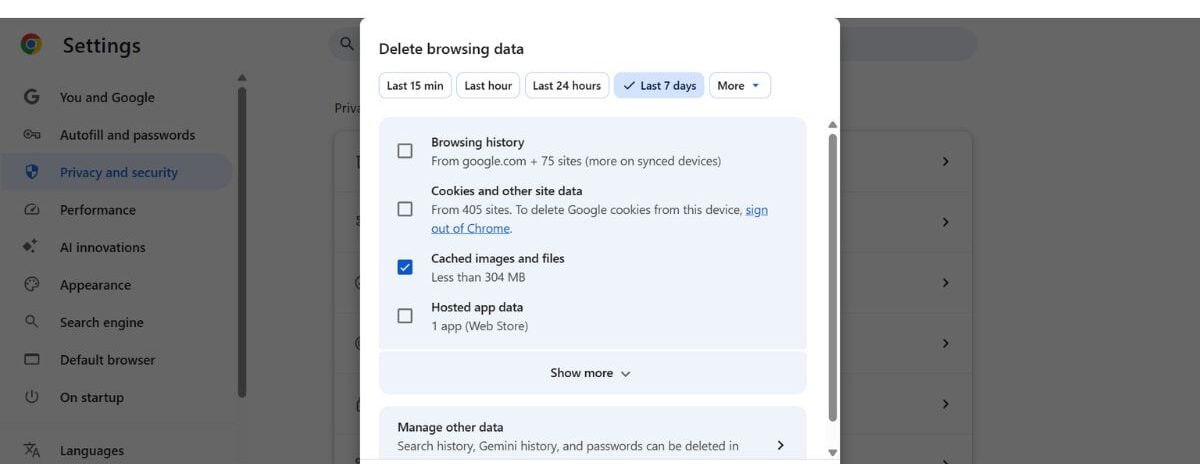
How To Do It (Chrome Example)
- Click the 3 dots (top right)
- Go to Settings
- Click Privacy and Security
- Select Clear browsing data
- Choose:
- Cookies and other site data
- Cached images and files
- Choose a time range: Last 7 days (or All time if issues persist)
- Click Clear data
- Then reopen Gmail and try again.
Using A Different Browser?
Check out our ultimate guide on how to clear cache and cookies on Chrome, Firefox, Safari, Microsoft Edge, and your mobile devices for step-by-step instructions.
Fix #2: Disable Extensions (Especially Ad Blockers)
If Gmail worked in Incognito mode earlier, this is likely your issue.
Extensions don’t just sit quietly in your browser — they actively interact with the pages you load. That’s how ad blockers hide ads, and privacy tools block trackers.
But Gmail is a very complex app. It loads a lot of scripts and background processes. So when an extension blocks something it thinks is unnecessary, it can accidentally break Gmail itself.
What This Looks Like
This is likely your issue when:
- Gmail works in Incognito mode, but not normally
- The page loads, but the buttons don’t work
- Parts of the interface are missing
This is one of the most common causes, and one of the easiest to fix.
What To Do
- Open your browser extensions page
- Chrome: Type
chrome://extensionsin the address bar - Edge: Type
edge://extensionsin the address bar - Firefox: Menu → Add-ons and themes → Extensions
- Safari (Mac): Settings → Extensions
- Chrome: Type
- Turn off extensions one at a time
- Refresh Gmail after each one
Start with these first. They’re the most common troublemakers.
- Ad blockers
- Privacy tools
- Security plugins
You’re looking for the moment Gmail starts working again — that’s your culprit. Once you find the problem extension, you can leave it off, replace it, or adjust its settings.
Fix #3: Update Or Reset Your Browser
If Gmail isn’t loading properly, your browser itself might be part of the problem, particularly if Gmail works in one browser but not another.
Gmail isn’t just a simple webpage; it’s constantly updated with new features, scripts, and behind-the-scenes changes. If your browser hasn’t kept up, it can struggle to load everything correctly.
Step 1: Check For Updates
Most modern browsers update automatically, but not always right away. Here’s how to check manually:
- Chrome: Settings → About Chrome
- Edge: Settings → About
- Firefox: Menu → Help → About Firefox
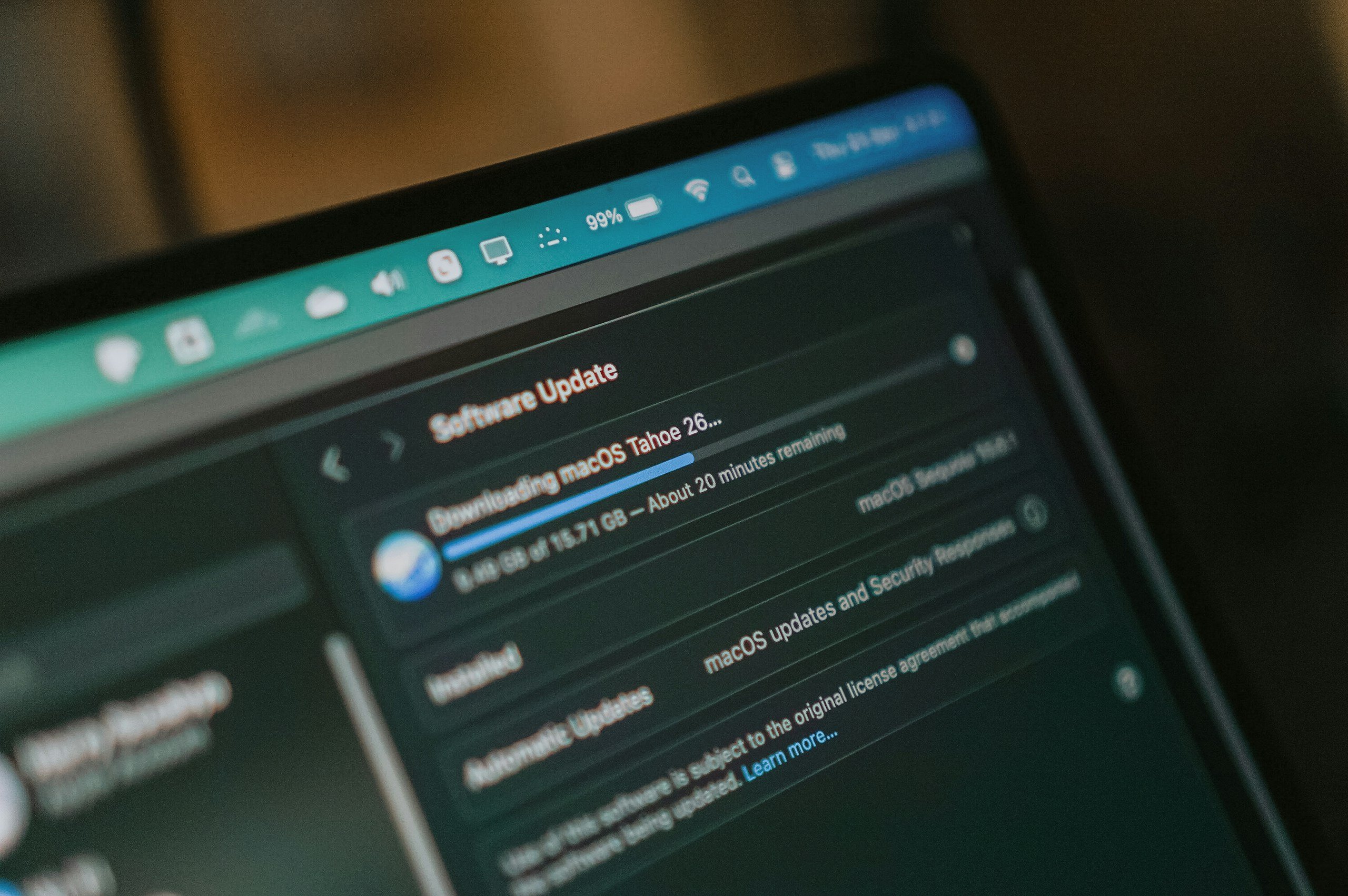
- Safari (Mac): Update through System Settings → Software Update
If an update is available, install it and restart your browser.
Step 2: Reset Your Browser (If Needed)
If Gmail still isn’t loading after updating, the issue may be buried in your browser settings.
Over time, browsers collect:
- Old configurations
- Conflicting settings
- Hidden glitches from extensions or updates
A reset clears all of that and gives you a clean starting point — without deleting your bookmarks or saved passwords. After resetting, open Gmail again and see if it loads normally.
Fix #4: Gmail App Not Working? (iPhone & Android)
If you’re on mobile, the issue is often the app, not Gmail itself.
Mobile apps don’t always update cleanly. Sometimes, an update installs over old data, background processes get stuck, or syncing fails silently.
And unlike a browser, apps don’t always “reset” themselves naturally.
What this looks like on your phone:
- Emails won’t load
- Inbox doesn’t refresh
- App freezes or crashes
- You see old emails, but nothing new
It can feel like Gmail is down, but it’s usually just the app glitching.
Step 1: Force Close The App
- Swipe up and fully close Gmail
- Reopen it
Step 2: Update The App
Go to the App Store or Google Play and check for updates.
Step 3: Clear Cache (Android) Or Reinstall (iPhone)
This removes corrupted app data.
- Android: Settings → Apps → Gmail → Storage → Clear Cache
- iPhone: Delete the app → reinstall
Fix #5: Check Your Internet (Quick Reality Check)
Before going any deeper, it’s worth ruling out something simple: your connection.
When Gmail won’t load, it can feel like a Gmail problem, but sometimes it’s just your internet struggling in the background.
If your internet is the problem, Gmail usually isn’t the only thing acting weird.
You might notice:
- Other websites are loading slowly
- Videos are buffering or not starting
- Apps failing to refresh or update
In other words, when things feel generally sluggish, it may not just be Gmail.
How To Check Quickly
You don’t need to run speed tests or dig into settings. Just try a couple of quick checks:
- Open a few other websites
- Try another app or device
- Switch between Wi-Fi and mobile data
If Gmail is the only thing not working, your internet is probably fine.
Fix #6: Security Software Or VPN Blocking Gmail
Sometimes the issue isn’t Gmail or your browser; it’s something trying to “protect” your device.
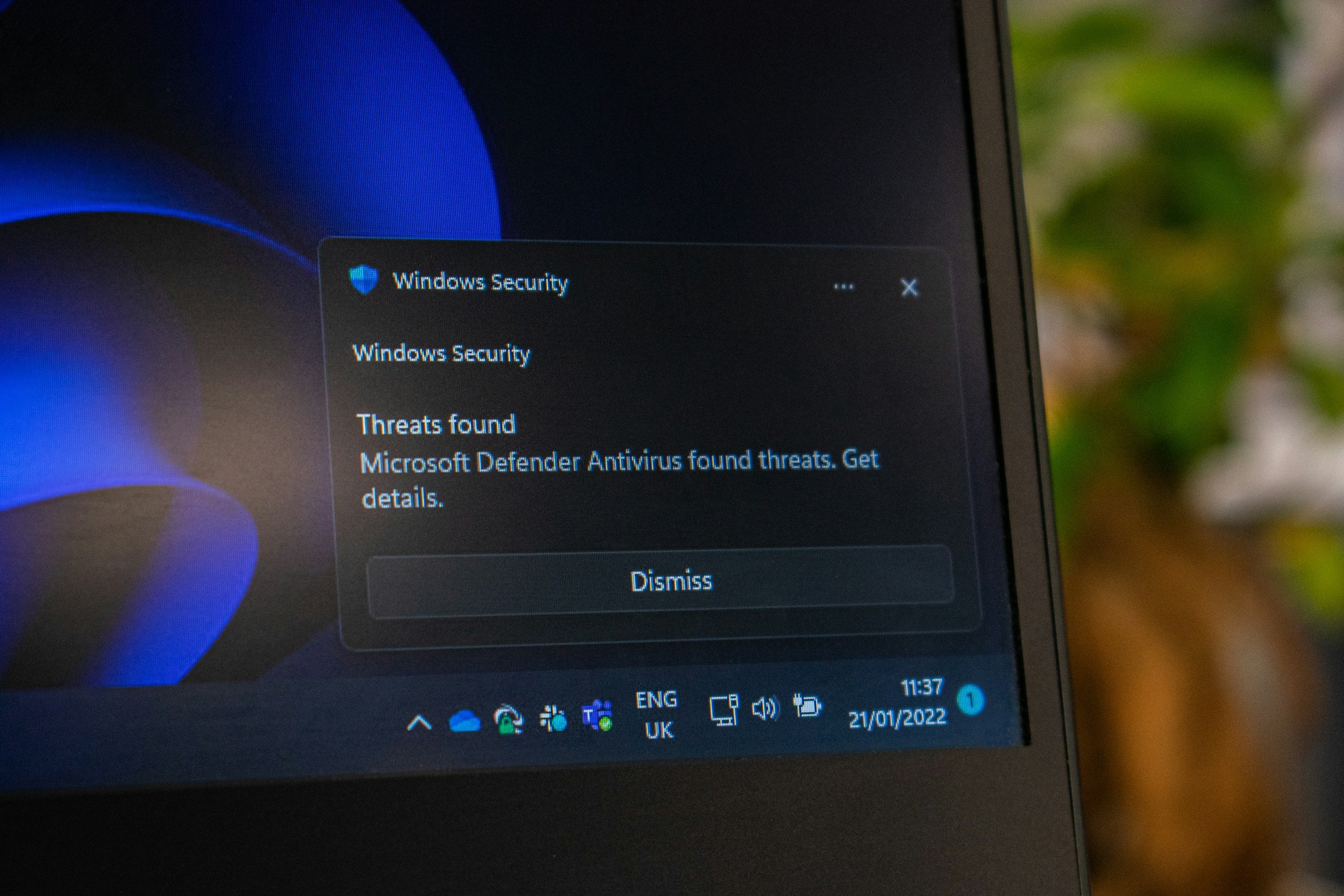
Security tools like VPNs (virtual private networks), firewalls, and antivirus programs can occasionally interfere with how Gmail loads, especially if they block certain scripts or connections.
These tools are designed to filter traffic and block anything that looks suspicious, but Gmail is a complex web app, and occasionally, something gets flagged incorrectly and blocked.
What This Usually Looks Like
This might be your issue if:
- Gmail won’t load on one network but works on another
- It works when your VPN is off
- You see connection errors or partial page loads
What To Try:
- Temporarily disable your VPN
- Pause your antivirus or firewall
- Reload Gmail
If it suddenly works, you’ve found the conflict.
What To Do Next
Instead of leaving protection off, you’ll want to:
- Add Gmail to your whitelist/trusted sites
- Or adjust your security settings so Gmail isn’t blocked
That way, you keep your protection and your inbox.
Fix #7: Account-Specific Issues
If everything else checks out, the issue might not be your browser or device — it might be tied to your specific account.
This is more likely if:
- Gmail works on the same device with another account
- You’re stuck in a login loop
- Emails won’t sync or load properly
In these cases, the problem isn’t Gmail overall; it’s how your account is interacting with it.
Why This Happens
Sometimes account data gets temporarily out of sync, especially after:
- Password changes
- Security updates
- Device or app changes
Signing out and back in forces everything to reconnect cleanly.
What To Try
- Sign out of Gmail
- Sign back in
- Try another Google account (if you have one)
If another account works, it’s account-specific. If none work, the issue is likely elsewhere.
Start Here If You Just Want Gmail Working Again
If you don’t want to read everything, run through these in order:
- Open Gmail in Incognito mode
- Try a different browser
- Restart your device
- Clear cache and cookies
- Disable extensions (especially ad blockers)
- Update your browser or app
- Check your internet connection
What This List Is Telling You
Each step helps you narrow things down:
- Incognito → rules out extensions & saved data
- Different browser → isolates browser issues
- Restart → clears temporary glitches
- Cache → fixes outdated or broken data
You’re not just trying random things — you’re zeroing in on the cause.
Short On Time? Do This First
If you only try one thing: open Gmail in Incognito mode. It’s the quickest way to tell whether the problem is local (and fixable) or something else.

Frequently Asked Questions
Most Gmail issues look slightly different depending on what’s causing them. If you’re still not sure what’s going on, these are the most common patterns people run into.
And if your situation isn’t here, drop it in the comments — we’ll help you figure it out.
Why Does Gmail Keep Loading Forever?
This is one of the most common (and frustrating) versions of the problem.
Most of the time, it comes down to:
- Browser extensions interfering
- Corrupted cache or cookies
- An outdated browser
If it keeps spinning but never fully loads, start with Incognito mode and clearing cache. Those solve this more often than anything else.
Why Is Gmail Slow On My Phone?
If you’re on mobile, it’s usually the app, not Gmail itself.
This often happens after:
- An app update
- A sync issue
- Background processes are getting stuck
Try force-closing the app, updating it, or reinstalling it. These reset things behind the scenes.
Why Does Gmail Work In One Browser But Not Another?
This is actually a really helpful clue. Each browser has its own extensions, settings, and stored data.
So if Gmail works in one but not another, the issue is almost always tied to the browser, not your account.
Focus on clearing the cache, disabling extensions, or resetting that specific browser.
What Does A Blank Screen In Gmail Usually Mean?
A blank white screen is almost always a loading or rendering issue.
That typically points to:
- Cache problems
- Extension conflicts
- Browser compatibility issues
This is one of the strongest signs that clearing your cache will help.
Can Extensions Really Break Gmail?
Yes, and they do it more often than people realize. Ad blockers, privacy tools, and security extensions can block parts of Gmail without telling you.
That’s why Gmail often works in Incognito mode (where extensions are disabled).
Why Does Gmail Sometimes Fix Itself?
If Gmail suddenly starts working again without you doing anything, it’s usually because:
- A temporary glitch resolved itself
- Cached data refreshed
- A background process reset
It’s a good sign the issue wasn’t serious — just something small getting out of sync.
Still Dealing With Tech Headaches?
If Gmail not loading feels like part of a bigger issue, it probably is. Sometimes it’s not just Gmail; it’s your connection or something else quietly causing problems in the background.
These guides can help you tackle other issues you may be facing:
- Why Your Wi-Fi Keeps Dropping (And How To Fix It)
→ If things feel slow or inconsistent across your home - Outgoing SMTP Server Settings Guide
→ If email issues go beyond Gmail (sending, syncing, etc.) - Best Cloud Backup Solutions
→ If you want fewer “what if something breaks?” moments
Still not seeing your exact issue? Tell us what’s happening. Is it stuck on loading, displaying a blank screen, or only broken on one device? Drop it in the comments — we’ll help you figure out what’s going on.