Everything should be fast. And yet, Netflix buffers. Zoom freezes. Pages spin like they’re thinking about it.
And there’s always that one room in your house that feels like it’s running on dial-up from 2007. You know the one. Full bars, but absolutely nothing loads.
It’s frustrating, and honestly, a little insulting.
Here’s the part most people don’t realize: the speed you pay for usually isn’t the speed your Wi-Fi actually delivers.
Between your internet plan and your devices, a lot can go wrong — walls blocking signals, outdated equipment, interference from everyday stuff, even your neighbors competing for the same airspace.
It’s not obvious, but it adds up.
And once you understand what’s actually happening, those slow moments start to make a lot more sense, and they’re often easier to fix than you’d think.
1. Signal Problems (Why Distance, Walls, and Your House Affect Wi-Fi)
You’d think Wi-Fi works like lightning. Flip it on, and the whole house just has it. Unfortunately, that’s not how it works.
Wi-Fi is more like sound. The farther you get from the source, the weaker it becomes — and the more stuff it has to pass through, the worse it gets.
Walls, floors, ceilings, furniture, all of these barriers slow the signal down. Some materials are worse than others, too. Brick, concrete, and even large mirrors can absolutely wreck your connection.
That’s why you can be sitting 10 feet from your router, thinking, This is great, then walk into another room and suddenly nothing loads.
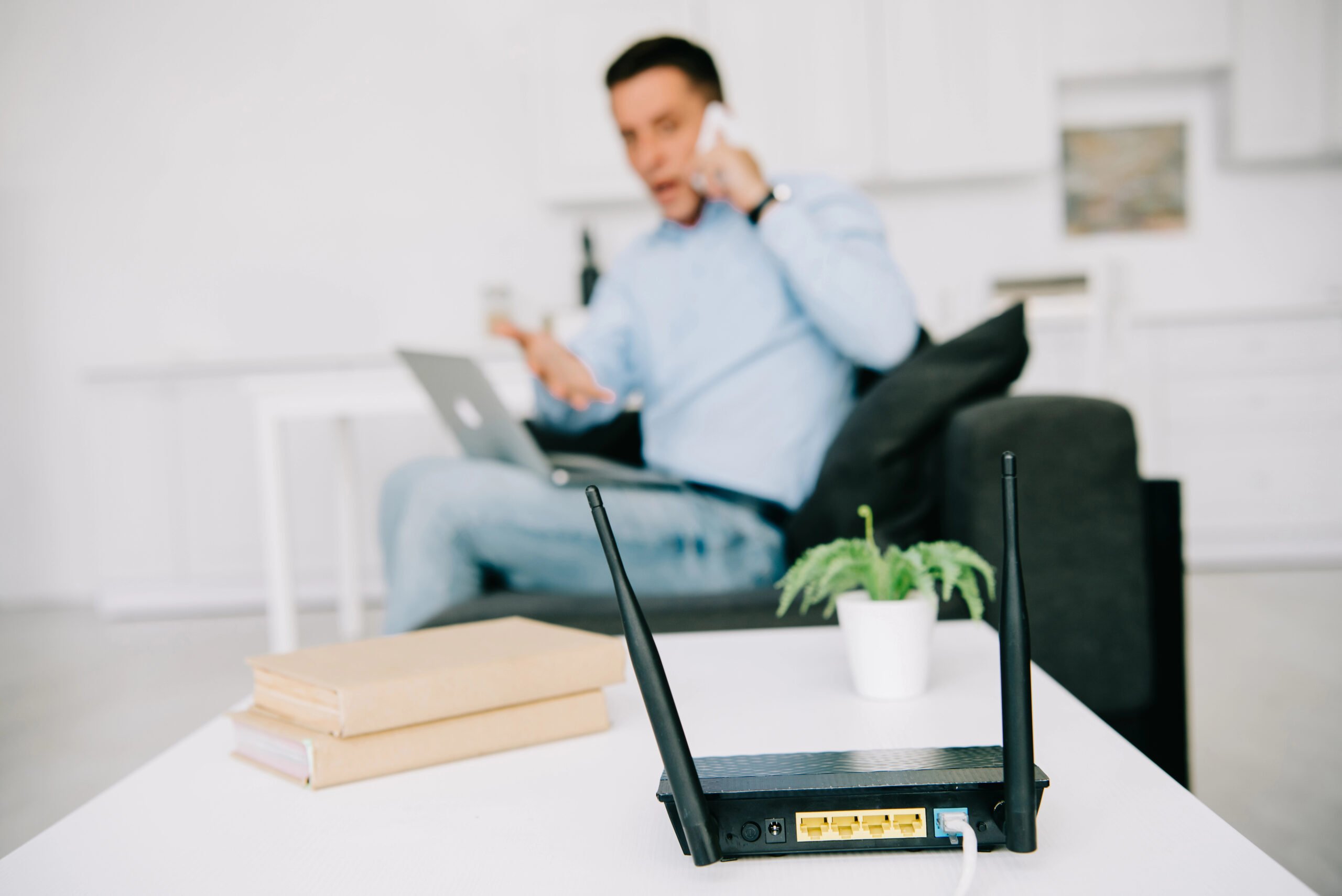
And if your router is tucked away in a corner, hidden in a cabinet, or shoved behind a TV stand? You’ve basically asked your Wi-Fi to start every race from behind a wall.

The Pattern To Watch For
- One room works great, another feels like a dead zone
- Your connection drops or weakens in specific spots
- Wi-Fi seems fine… until something nearby turns on
- Performance changes depending on where you are in the house
It feels random until you realize it’s location-dependent.
What’s Getting In The Way
Some of the biggest signal killers are things you’d never think twice about:
- Walls (especially brick or concrete)
- Floors and ceilings
- Large mirrors and metal surfaces
- Microwaves, baby monitors, and Bluetooth devices
- Dense furniture or even fish tanks
Wi-Fi signals don’t pass cleanly through objects; they get weaker at every step.
Fix Your Router’s Placement First
You don’t need to do anything complicated — this is one of the easiest wins.
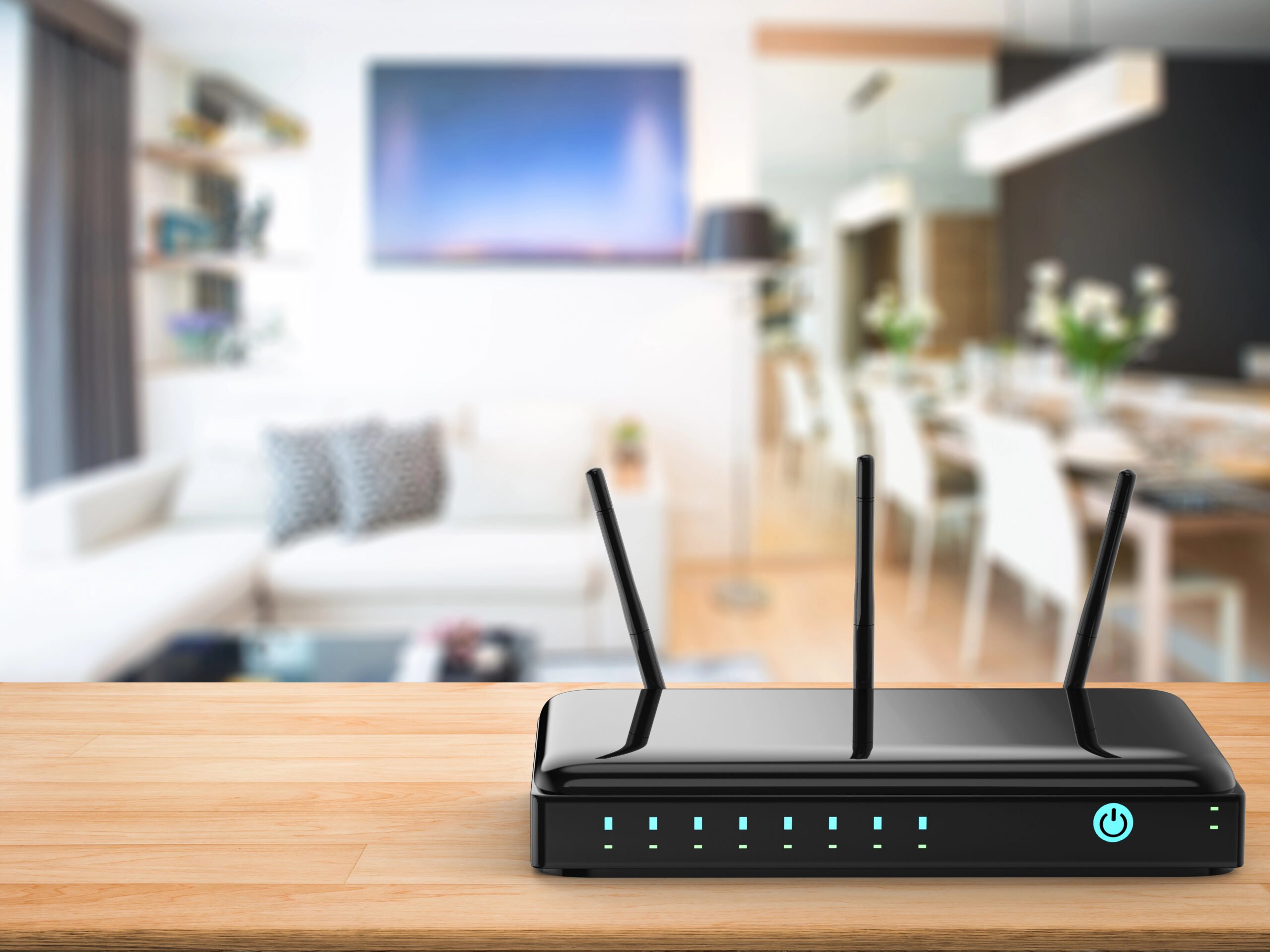
- Move your router closer to the center of your home
- Get it off the floor (waist height or higher works best)
- Keep it out in the open, not buried in furniture
- Avoid placing it right next to large electronics
- Restart your router (unplug → wait 30 seconds → plug back in)
Even small changes in placement can make a noticeable difference.
This is also why one of the most common “fixes” people swear by isn’t to purchase a higher speed plan — it’s just moving the router five feet in a better direction.
2. Too Many Devices (And Why Everything Slows Down at Once)
Wi-Fi used to be simple. One laptop. Maybe a phone. That was it.
Now? You’ve got TVs streaming, multiple phones scrolling, a laptop on a video call, a tablet doing… something, and a handful of smart devices quietly doing their own thing in the background.
And all of it is sharing the same connection.

Your internet isn’t just going to one device; it’s being split across all the devices in your home. That’s where things start to feel slow.
When Everything Hits At Once
- Your video call is fine until someone turns on Netflix
- A download suddenly crawls when someone else starts scrolling or gaming
- Everything feels randomly slower at the same time
- Your Wi-Fi seems “fine” until multiple people are online
It’s not that your internet suddenly got worse. It’s that your bandwidth is getting stretched thinner and thinner.
Why Does This Happen?
Think of your Wi-Fi like a single-lane road. When one car is on it, everything moves smoothly.
Start adding more cars, and suddenly you’re dealing with slowdowns, stop-and-go movement, and the occasional full-on traffic jam.
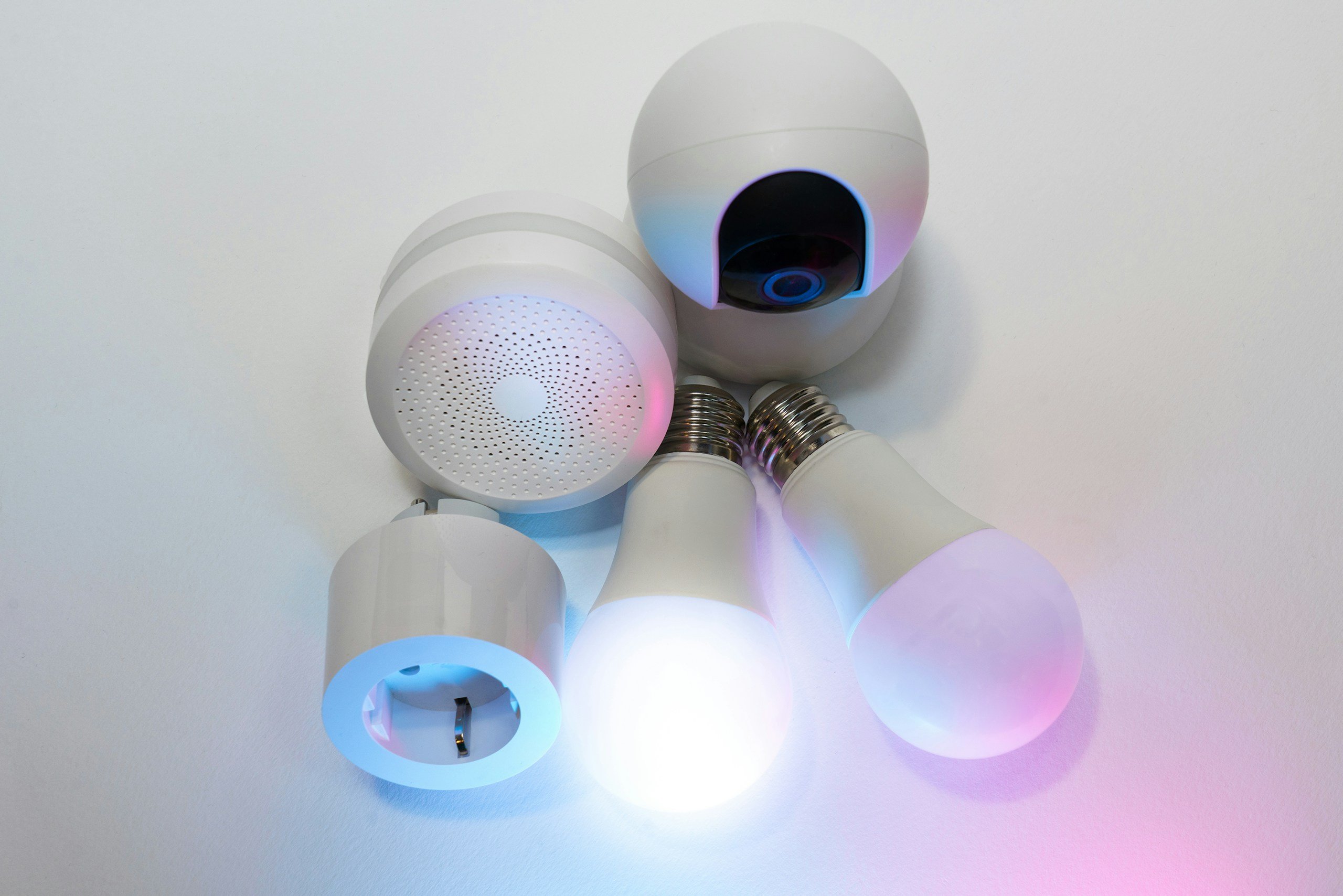
Modern homes don’t just have more devices — they have more always-on devices.
Things like:
- Smart TVs
- Security cameras
- Smart speakers
- Background app updates
They’re all quietly using bandwidth, even when you’re not thinking about them.
Ease The Load On Your Router
You don’t need to unplug your entire house, but a few small changes can make a noticeable difference:
- Be aware of what’s running at the same time (especially streaming, gaming, and video calls)
- Pause large downloads or updates during high-use moments
- Restart your router occasionally to clear out lingering connections
- If your household is busy, your router needs to handle multiple devices, not just speed
This is also why Wi-Fi can feel perfectly fine one minute and completely overwhelmed the next.
Nothing changed about your plan, but everything changed about how many things are using it.
3. Channel Congestion (Why Your Wi-Fi Slows Down When Your Neighbors Are Online, Too)
You can do everything right in your own house. Good router. Solid placement. Not too many devices.
But your Wi-Fi still slows down, especially at certain times of day. That’s when it starts to feel a little suspicious.
Evenings are worse. Weekends are worse. Late at night? Suddenly everything’s fine again. That’s not a coincidence.
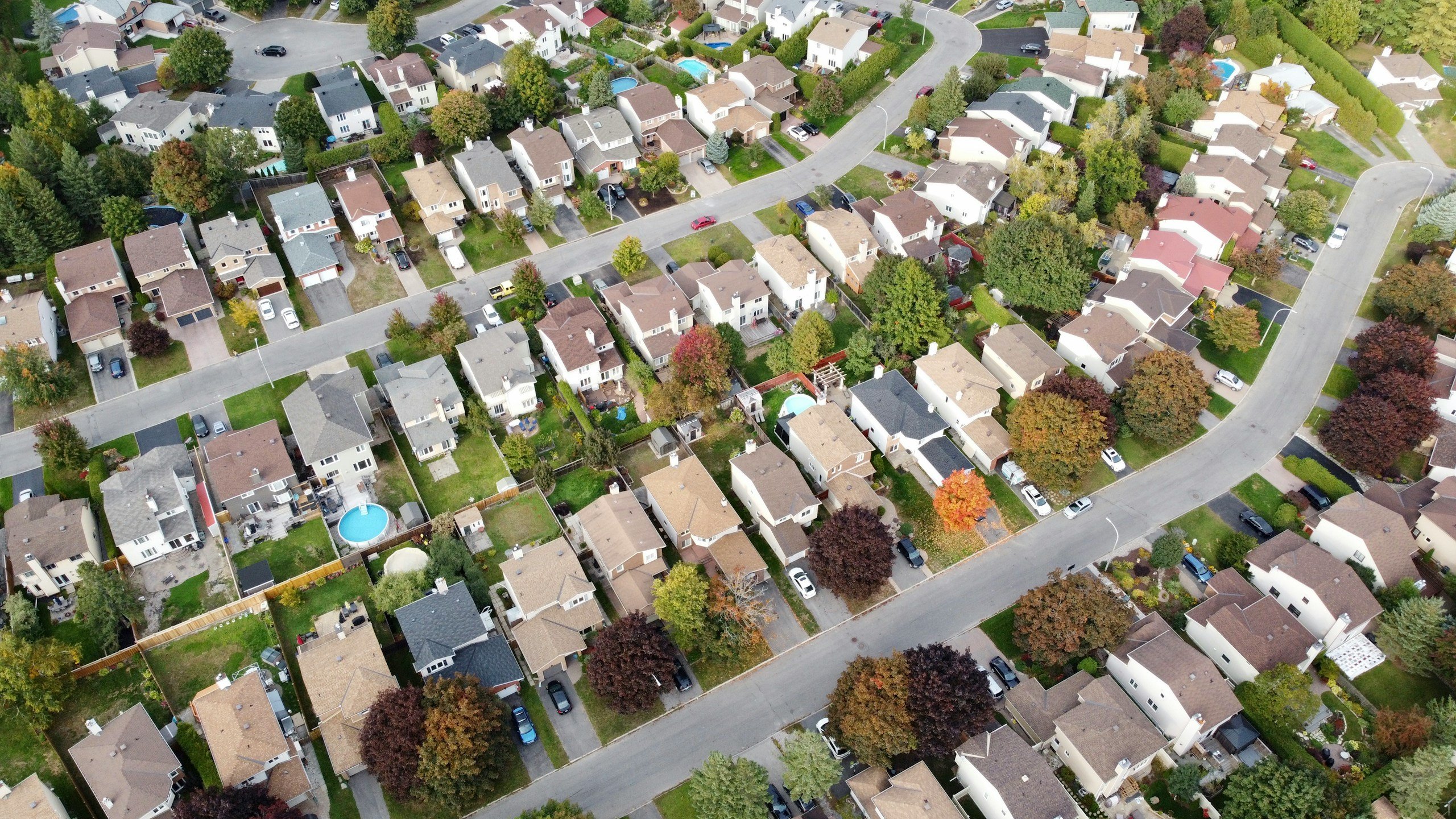
Your Wi-Fi doesn’t operate in a bubble — it’s competing with everything around it.
The Timing Clues
If your Wi-Fi reliability follows a schedule, it’s usually not random.
- Your internet slows down like clockwork in the evening
- Streaming buffers more during peak hours
- Speeds feel inconsistent, even when nothing has changed in your home
- Everything feels faster early in the morning or late at night
What’s Crowding Your Signal?
There are two layers to this, and they stack together.
Wireless “Traffic Jams”
Wi-Fi works a lot like radio stations. There are only so many channels available, especially on the 2.4 GHz band, which is still widely used because it travels farther through walls.
When multiple nearby routers are using the same or overlapping channels, they start competing for airtime.
And here’s the part most people don’t realize: Wi-Fi devices are designed to “listen” before they “talk.”
So if your router detects another nearby network transmitting data, it will wait its turn before sending yours.
That’s great for avoiding interference. But in crowded areas? It creates a constant start-stop effect, like a traffic jam in the air.
That’s why your connection can feel laggy or inconsistent even when your signal looks strong.

Shared Provider Infrastructure
There’s also a second layer happening outside your home.
Most residential internet connections, especially cable and some fiber setups, don’t give each house a completely dedicated line.
Instead, your neighborhood shares a portion of the network. So when more people are online at the same time, it puts more demand on that shared infrastructure.
And just like a crowded highway, things slow down during peak hours.
This is why evenings tend to feel worse:
- More people are home
- More devices are active
- More bandwidth is being used at the same time
The Federal Communications Commission notes that broadband speeds can vary due to network congestion during high-demand periods.
What You Can Actually Do
You don’t have complete control over this, but there are a few things that can help:
- Restarting your router can sometimes move it to a less crowded channel
- Try manually switching channels*
- Newer routers handle congestion more efficiently
- If slowdowns happen at the same time every day, it’s likely external congestion, not your setup
*Tip:
To select a different Wi-Fi channel, open your router’s settings in a web browser using its IP address. Navigate to the wireless/WLAN section to change the channel for 2.4 GHz (typically 1, 6, or 11) or 5 GHz bands.
In some cases:
- Upgrading your plan can help
- Switching providers may make a bigger difference
This is also why your internet can feel completely fine one minute and frustrating the next, even though nothing in your home has changed.
4. The Device Problem (Why One Device Feels Slower Than Another)
Here’s a frustrating issue. Your Wi-Fi feels slow on one device but totally fine on another.
You’re on the same network, in the same room, and using both at the same moment, but it’s a completely different experience.
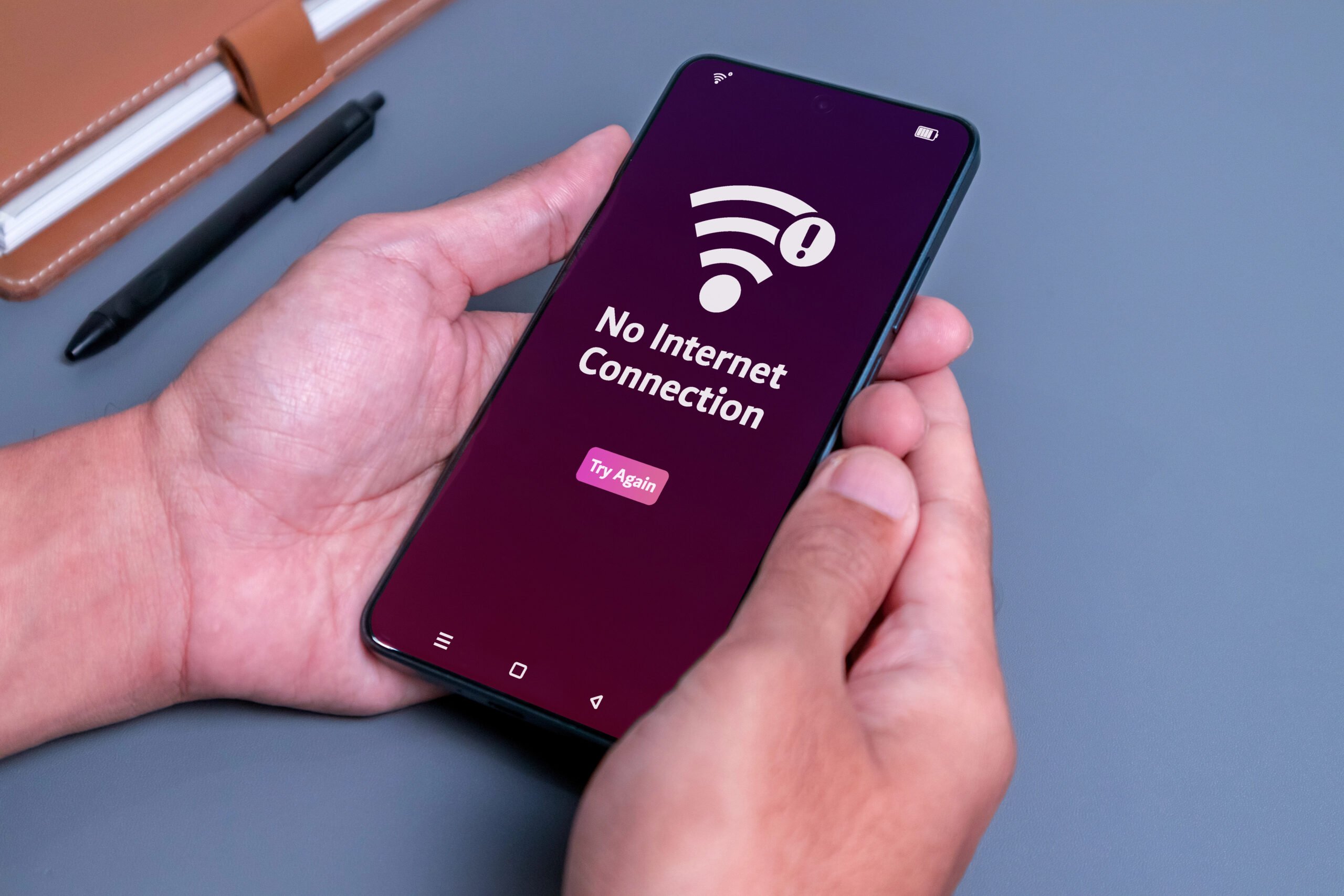
That’s when it starts to feel like your Wi-Fi is just messing with you. It’s not.
Not all devices use Wi-Fi the same way, and some are way better at it than others.
The One-Device Clue
- Your phone loads everything instantly, but your TV buffers
- One laptop feels fast, while another struggles in the same spot
- A smart TV or streaming stick lags, even when your internet should be more than enough
- Older devices consistently feel slower, no matter what
It’s easy to assume your Wi-Fi is the problem. Sometimes, it’s not.
What’s Actually Happening
Different devices have different Wi-Fi capabilities.
Newer devices are better at:
- Connecting to faster bands
- Handling weaker signals
- Managing data more efficiently
Older or cheaper devices often:
- Use older Wi-Fi standards
- Have weaker internal antennas
- Struggle with higher speeds or modern network demands
So even if your network is solid, your device might not be able to keep up. It’s like trying to stream 4K video on a device that was never built for it.

Don’t Fix The Wrong Thing
You don’t need to replace everything, but this is helpful to recognize:
- If one device is always slower, the issue may be that device, not your Wi-Fi
- Smart TVs and streaming devices are common bottlenecks
- Older phones, tablets, and laptops often can’t keep up with modern speeds
If everything else in your house feels fast, but one device struggles, that’s your clue.
And once you see it, it saves you from trying to “fix” a Wi-Fi problem that isn’t actually there.
5. The Router Problem (Why Your Equipment Can’t Keep Up Anymore)
Upgrading your internet plan feels like it should fix everything.
Faster plan → faster Wi-Fi. Right? Not always.
You get the same buffering and slow downloads. The same “why is this still happening?” moment while staring at a spinning screen.
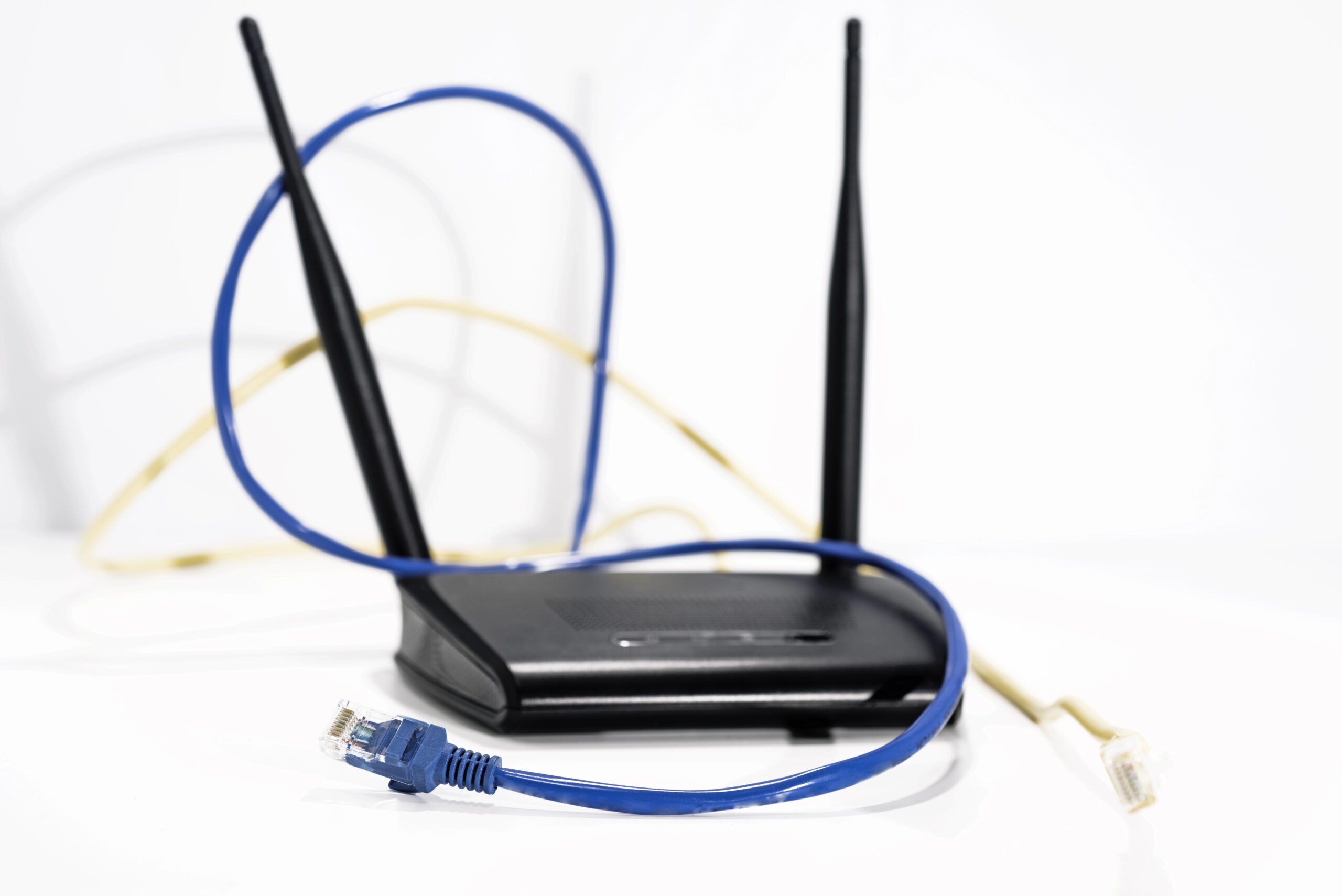
That’s usually your router saying, This is as fast as I go.
And a lot of routers, especially older ones or those that come from your provider, aren’t built to keep up with modern speeds, devices, or usage.
What makes this tricky is that nothing actually “breaks.” Everything still connects, and pages still load, but it just never feels as fast as it should.
Why Does This Happen?
Wi-Fi technology moves fast.
Routers that were perfectly fine a few years ago weren’t designed for:
- Multiple people streaming at the same time
- Video calls, gaming, and smart devices all running together
- Higher internet speeds from newer plans
It’s not that your router is broken; it’s just outdated and overwhelmed.
When It’s Time To Replace It
You don’t need to obsess over specs, but this is one of the few times where upgrading actually makes a noticeable difference.
- If your router is 3–5+ years old, it may be holding you back
- ISP-provided routers are often entry-level and limited
- Newer routers are better at handling multiple devices at once, not just speed
This is also why two homes with the exact same internet plan can feel completely different. One has a router that can keep up, while the other is quietly bottlenecking everything.
Router Upgrade: Single Router Or Mesh?
If you’ve determined that your router is the problem, here’s the quick decision:
Get a single router if:
- Your home is small to medium-sized
- Wi-Fi is mostly fine near the router
- You need better speed or device handling
Go mesh if:
- You have dead zones or weak rooms
- Wi-Fi drops off in certain areas
- Your issue is coverage, not speed
Simple rule:
Bad in certain spots → use mesh
Slow everywhere → upgrade your router
When Mesh Wi-Fi Actually Fixes the Problem (And When It Doesn’t)
At some point, people get fed up and start looking for a fix. That’s usually when mesh Wi-Fi enters the conversation.
You’ve probably seen it — those multi-unit systems that promise “whole-home coverage” and magically eliminate dead zones.
And to be fair, often they do. But mesh Wi-Fi doesn’t fix everything. It fixes something specific.
What Mesh Wi-Fi Is Actually Good At
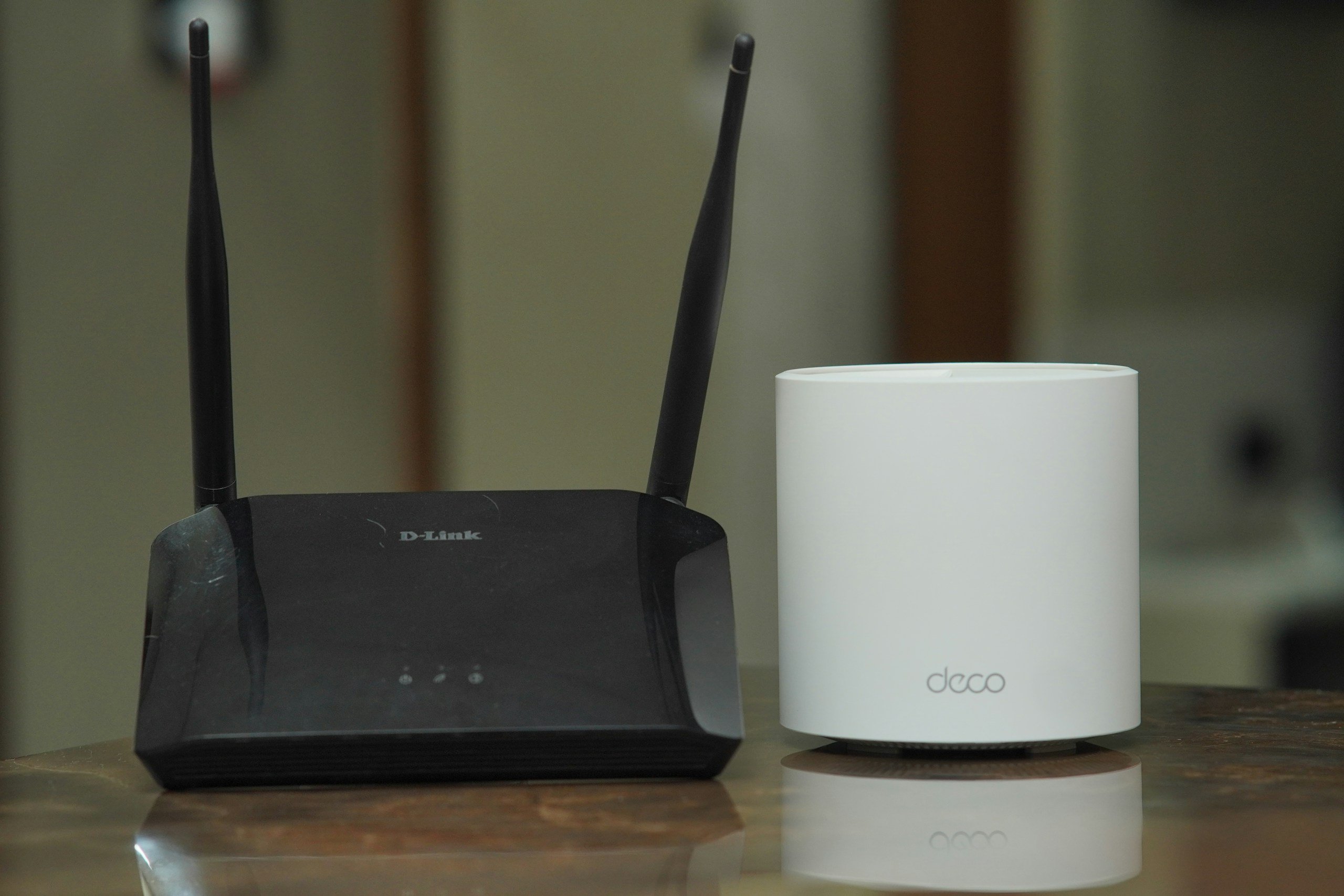
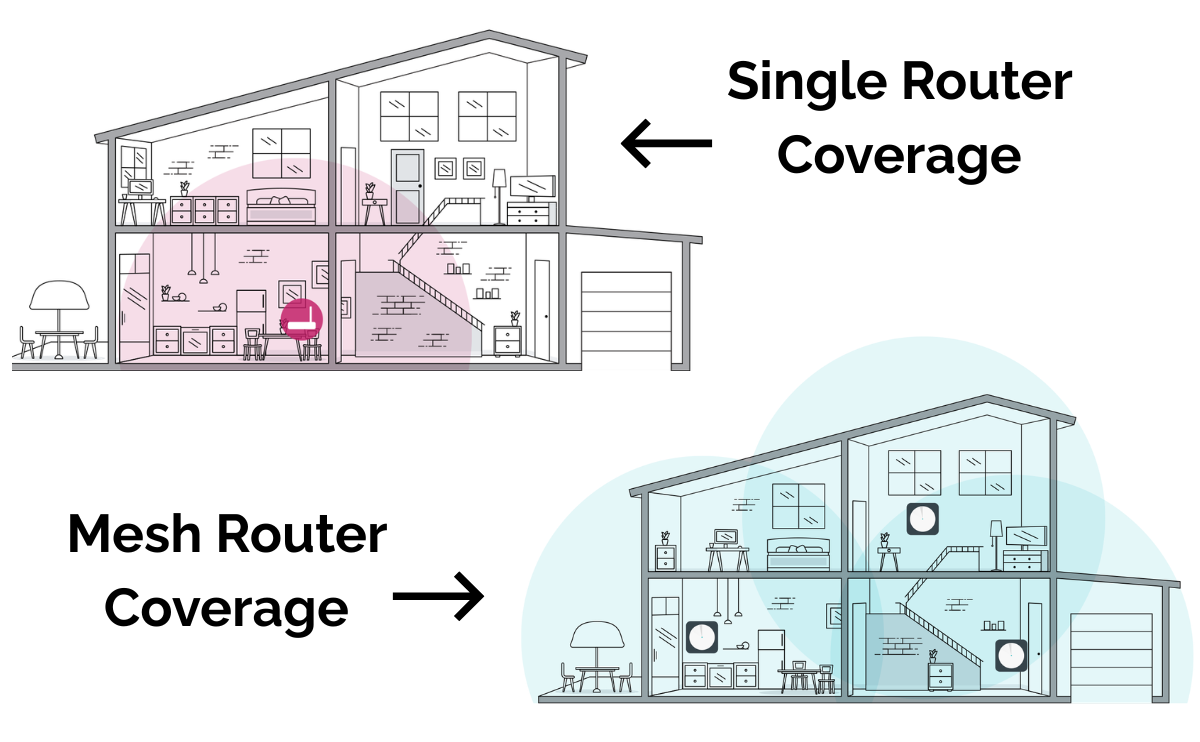
Mesh systems are designed to solve one problem: Coverage.
Instead of one router trying (and failing) to reach your entire home, mesh systems use multiple nodes placed around your house to spread the signal more evenly.
So instead of a strong signal in one room and a weak signal in another, you get more consistent coverage everywhere.
This is especially helpful if:
- You have a larger home
- Multiple floors
- Rooms that always seem to have a weak signal
It doesn’t make your internet faster; it makes it more evenly distributed.
What It Won’t Fix
This is where expectations matter. Mesh won’t help if your issue is:
- Too many devices using bandwidth at once
- An outdated or underpowered internet plan
- Router limitations unrelated to coverage
So if your Wi-Fi feels slow everywhere, adding more nodes won’t magically speed it up.
It just spreads the same limitations more evenly.
When It’s Worth It
Mesh is worth considering if your main issue is:
- Certain rooms having a weak or unreliable signal
- Inconsistent performance depending on where you are in the house
But if your Wi-Fi feels slow across the board, the problem likely lives somewhere else in this list.
That’s why some people install a mesh system and feel like it changed everything, and others feel like nothing really improved.
It depends on what problem you’re actually trying to solve. And by this point, you probably have a much better idea of which one you’re dealing with.
Quick Checks & Fixes (Figure It Out First, Then Fix It Fast)
Before you upgrade anything, take a few minutes to do this in order:
Step 1: Diagnose the problem
Step 2: Fix what you find
Most Wi-Fi issues become much easier to solve once you stop guessing and isolate what’s actually going wrong.
Step 1: Diagnose What’s Actually Going On
These don’t fix anything, but they help you identify the problem so you don’t waste time chasing the wrong solution.
Test your signal in two spots
This is the easiest way to figure out what you’re dealing with. Check your connection:
- Right next to your router
- In the room where things feel slow
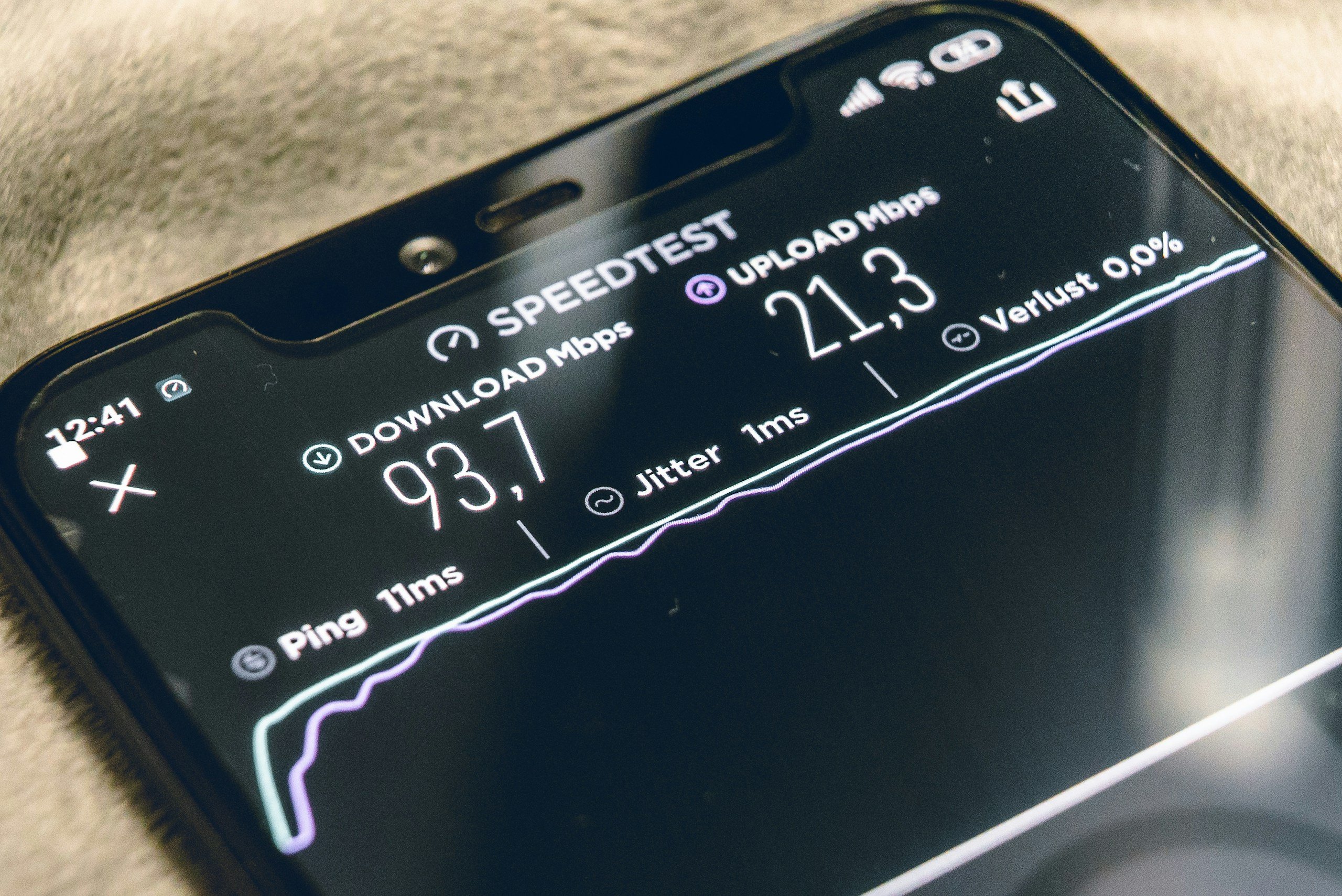
You can do this casually (load a video) or run a quick speed test with a free tool like Speedtest by Ookla.
You’re not looking for perfect numbers; you’re looking for the difference.
- Fast near the router, slower farther away → coverage problem
- Slow in both places → router, plan, or congestion issue
This one step eliminates a lot of guesswork.
Check if it’s just one device
Before blaming your Wi-Fi, test another device in the same spot.
- One device is slow → it’s likely the device
- Everything is slow → it’s your network
This can save you from trying to “fix” a network that isn’t actually the problem.
Step 2: Try To Fix What You Just Identified
Now that you know what’s going on, these changes that can make a difference.
Move your router (the highest-impact fix most people skip)
Best for: coverage issues
If your Wi-Fi struggles in certain rooms, this is the first thing to try.
- Move it closer to the center of your home
- Get it off the floor (waist height or higher works best)
- Keep it out in the open, not tucked behind furniture
- Avoid placing it right next to large electronics
Even a small move can dramatically improve coverage.
Restart your router (still one of the most reliable fixes)
Best for: random slowdowns or instability
It sounds basic, but it can work by clearing temporary glitches and resetting connections. This can even help it switch to a less congested channel.
If things have been feeling off lately, this is one of the fastest resets you can try.
Try switching Wi-Fi bands
Best for: inconsistent signal or “connected but not working” issues
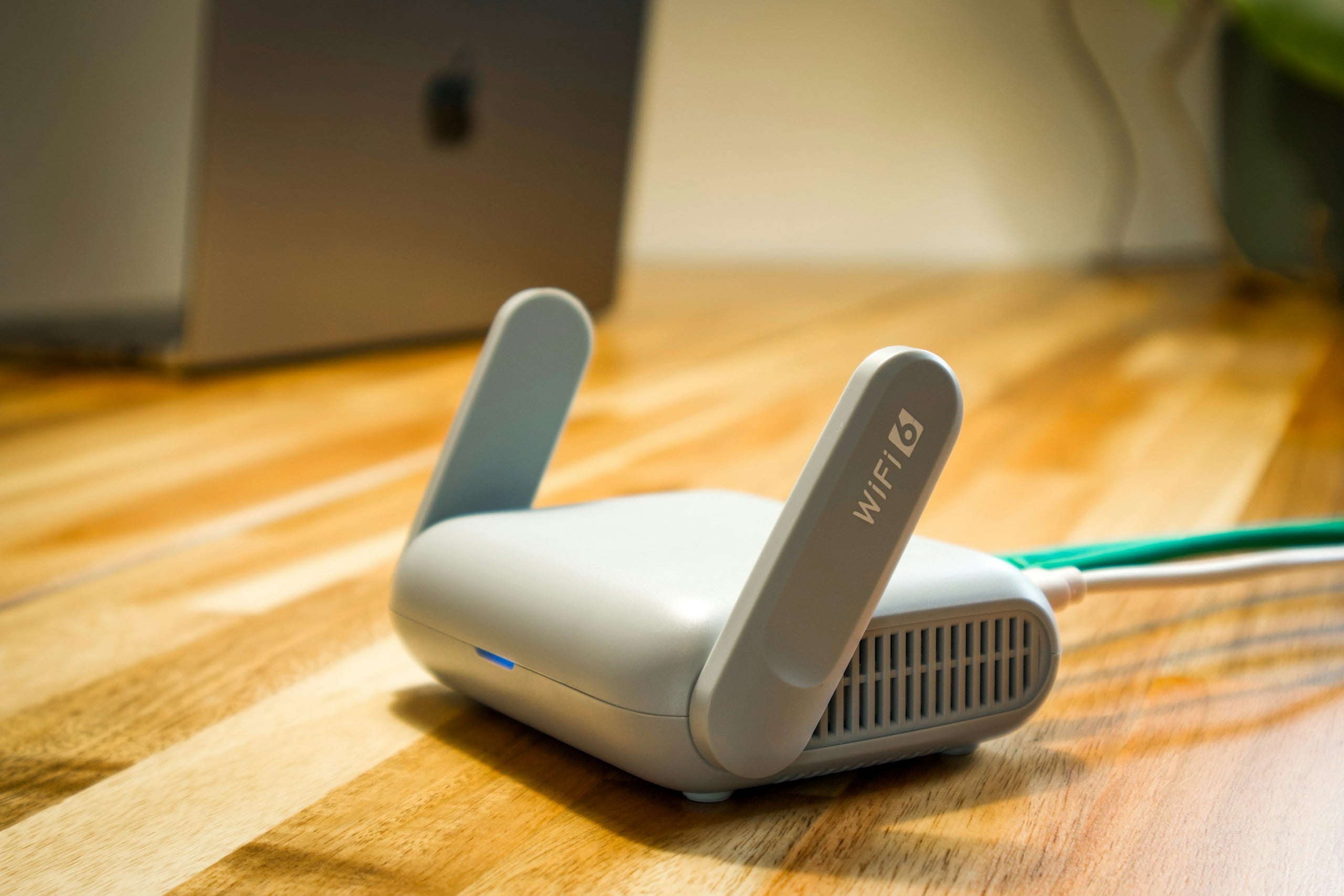
If you’ve ever seen two networks like HomeWiFi and HomeWiFi-5G, you’re looking at two different Wi-Fi bands, and they behave very differently.
- 5 GHz → faster, but shorter range
- 2.4 GHz → slower, but stronger through walls
So if you’re connected to the faster network from across the house, you might have speed but not enough signal to actually use it.
Use the right band for where you are
- Close to the router → use 5 GHz for speed
- Farther away → use 2.4 GHz for stability
Quick tip most people miss
Many modern routers use automatic switching between bands. It works most of the time, but not always. If your connection feels unstable, try manually selecting the network instead.
Pay attention to what’s running at the same time
Best for: slowdowns when multiple devices are active
If everything slows down at once, your network may just be overloaded.
- Streaming + video calls + gaming = heavy demand
- Background downloads and updates can quietly use bandwidth
Timing matters more than people realize.
When A Router Upgrade Actually Makes Sense
If you’ve tried the basics and things still feel off:
- A newer router can help with speed + handling multiple devices
- A mesh system can fix coverage issues
- A higher plan can help if your household is high-usage
The key is matching the fix to the problem, not guessing.
If You Only Try One Thing
Move your router. It’s simple, free, and solves more problems than people expect.
At this point, your Wi-Fi probably doesn’t feel quite as mysterious anymore. It’s not random. It’s just a handful of small factors stacking up. And once you start adjusting them, things usually improve faster than you’d expect.
Frequently Asked Questions
Still have a Wi-Fi question that didn’t quite get answered? You’re not the only one. Most people deal with a mix of these issues, which is why it can feel so confusing. Drop your question in the comments. Chances are, someone else is dealing with the exact same thing.

Why Is My Wi-Fi Fast In One Room But Terrible In Another?
This usually comes down to signal strength, not your internet plan.
Walls, floors, and even furniture weaken your Wi-Fi as it travels. So one room can feel perfect, while another feels like a dead zone.
That’s a coverage problem—not a speed problem.
Why Does My Wi-Fi Slow Down At Night?
Evenings are the peak usage time.
More people in your home—and in your neighborhood—are online streaming, gaming, and scrolling at the same time.
More demand = more congestion = slower speeds.
Why Does My Phone Work Fine, But My TV Or Laptop Is Slow?
Not all devices handle Wi-Fi equally.
Newer devices are better at:
- Holding a strong connection
- Using faster bands
- Managing data efficiently
Older or cheaper devices can struggle—even on a good network.
Will Upgrading My Internet Plan Actually Fix Slow Wi-Fi?
Sometimes, but not always.
If your issue is:
- Weak signal → a faster plan won’t help
- Too many devices → it might help
- Outdated router → you’ll still feel limited
The fix depends on the actual problem.
Does Restarting Your Router Really Help, Or Is That A Myth?
It helps more than people expect.
Restarting can:
- Clear temporary glitches
- Reset stuck connections
- Improve performance short-term
It’s not a permanent fix—but it’s a good reset.
How Often Should I Replace My Router?
Most routers start to fall behind after about 3–5 years, depending on usage.
Technology changes fast—and newer routers handle:
- More devices
- Faster speeds
- Better signal management
If your setup hasn’t changed in years, it might be part of the problem.
Need A Complete Troubleshooting Guide?
If your connection is still dropping, cutting out, or behaving unpredictably, you’re likely dealing with a deeper issue that requires a more step-by-step approach. Read our comprehensive guide to fix very specific Wi-Fi problems.
Are you still having weird Wi-Fi issues? If your setup is doing something oddly specific, like dropping only at certain times, struggling in one exact spot, or slowing down when something very particular happens, share in our comments.