You finally did it. You replaced that aging router with a shiny new model promising faster speeds, stronger Wi-Fi, and fewer reasons to yell at your internet.
Setup was surprisingly easy. Your phone connected. The router app gave you a reassuring little checkmark. Success!
Except… the bedroom still has terrible Wi-Fi, your video calls still freeze, and the TV upstairs apparently didn’t get the memo about your expensive upgrade.
Before you blame the router, consider this: the problem might not be what you bought, but how you set it up. And some of the most common setup mistakes are things that seem perfectly reasonable at the time.
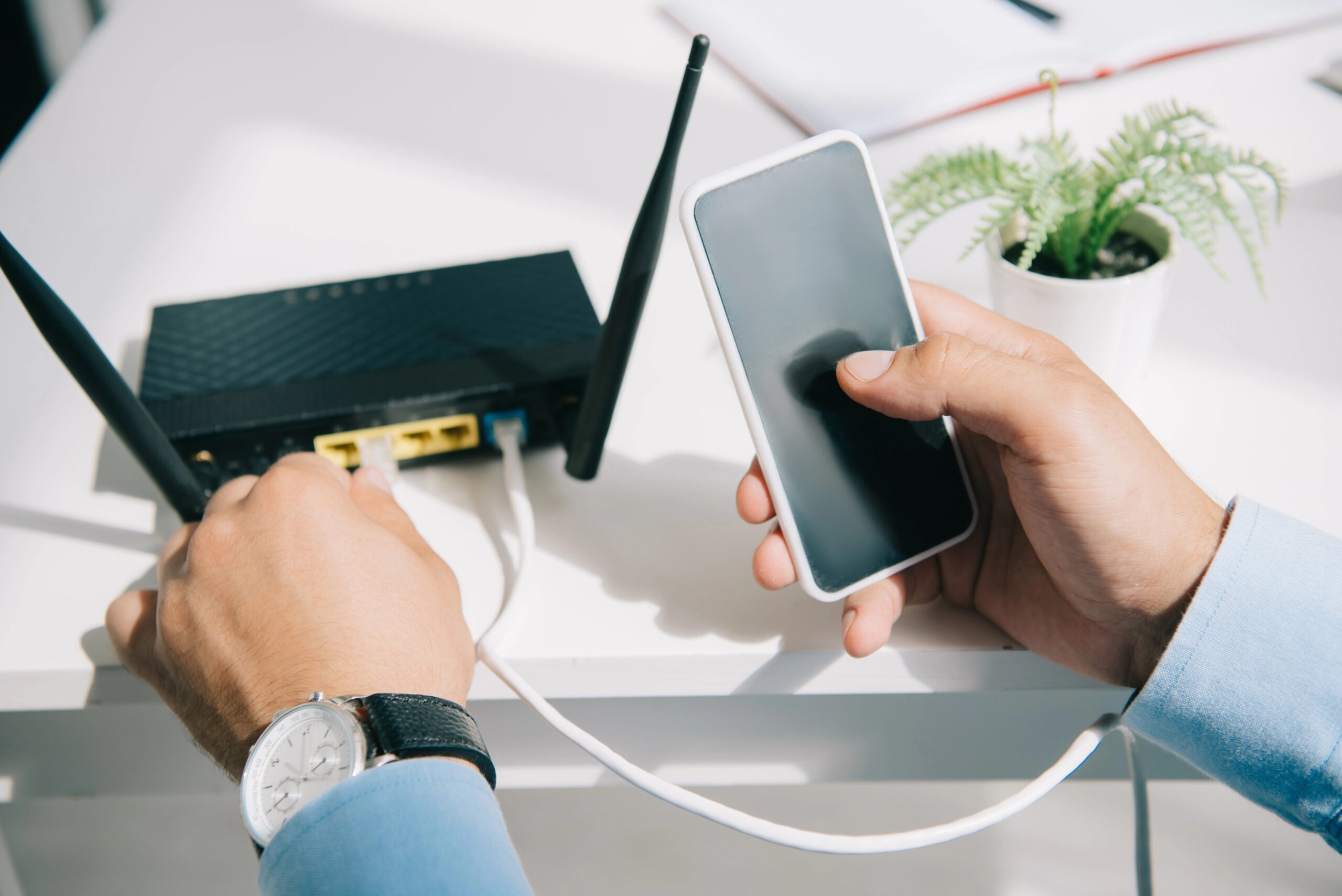
The Biggest Mistake? Treating Your New Router Like Your Old One
When most people replace a router, they approach it like swapping out a kitchen appliance. Unplug the old one, put the new one in its place, reconnect everything, and get on with life.
Want our human-written content to rank above AI-generated garbage? Help us out by clicking this button!
Sounds reasonable. After all, you bought better equipment. Shouldn’t that be enough?
Here’s what makes routers different: they don’t just connect your home to the internet. They also broadcast the wireless signals your devices depend on, and everything from their physical surroundings to the connected equipment can affect performance.
That means a new router can inherit problems unrelated to the old router’s age or capabilities.
Same inconvenient location. Same questionable network setup. Same assumptions about how Wi-Fi should work.
You might have replaced the hardware without changing much about the network itself.
7 New-Router Setup Mistakes That Can Ruin Your Wi-Fi Upgrade
Some of these mistakes are hiding in plain sight. Others involve settings and equipment you probably haven’t thought about in years. And several happen when you’re doing exactly what seems logical during setup.
1. Putting Your New Router Exactly Where The Old One Was
Your old router lived on that little shelf in the corner for six years. The new one fits perfectly. An outlet is already there, the internet cable reaches, and you don’t have to rearrange anything.
Why would you put it anywhere else?
Here’s something most people never consider: your router’s original location may have been chosen for convenience, not Wi-Fi performance.
Think about how it ended up there:
- The cable installer chose the spot. It was close to an existing connection, not necessarily the rooms where you use Wi-Fi most.
- You picked the most convenient outlet. The router ended up wherever the cables reached, and there was space to put it.
- The internet equipment lives in the basement. Convenient for keeping cables together, less convenient for devices two floors above.
Wi-Fi signals weaken as they travel farther from the router, especially when they have to pass through walls and floors. If your router sits at one end of the house, rooms at the opposite end may be at a disadvantage.
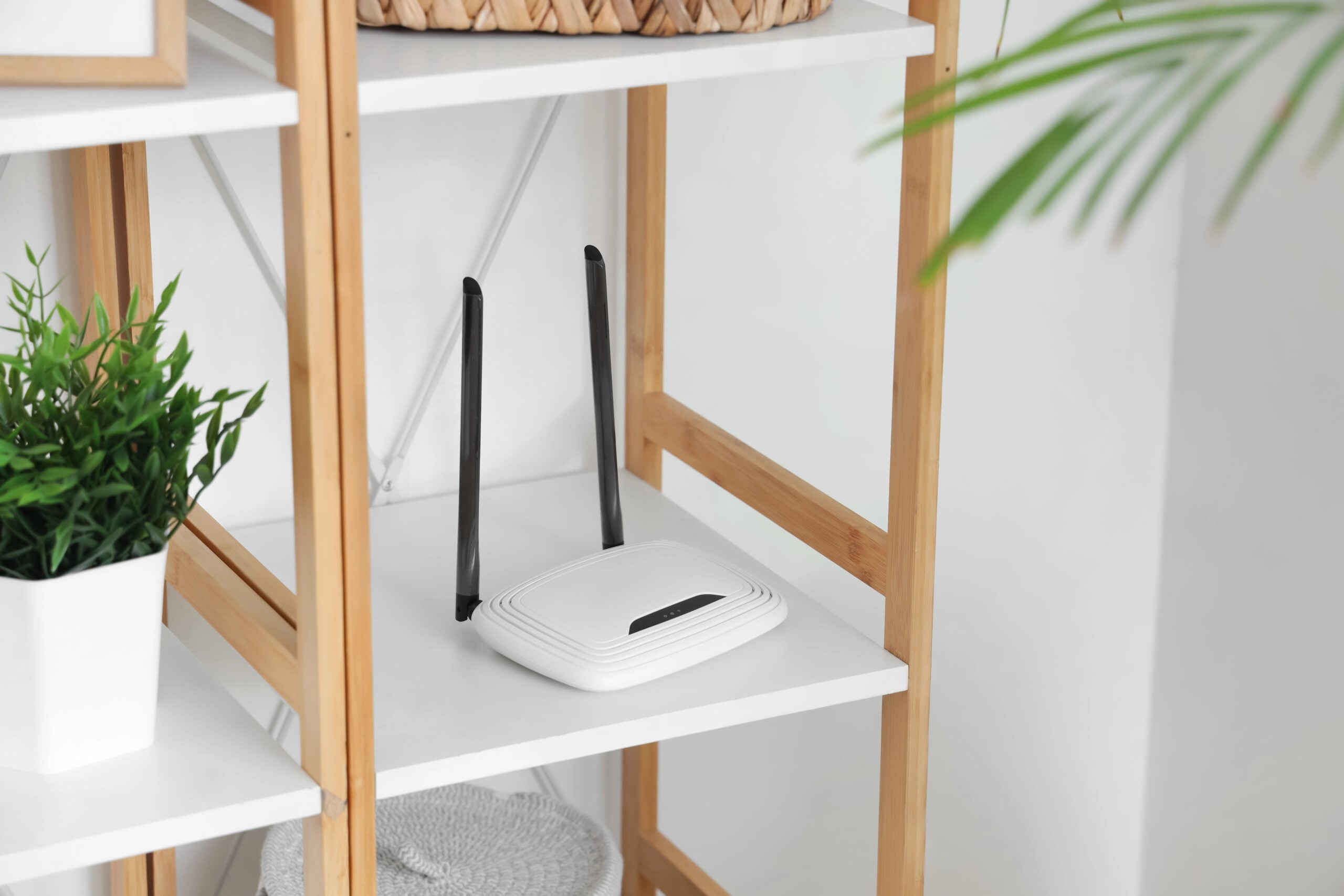
Where Should Your New Router Go?
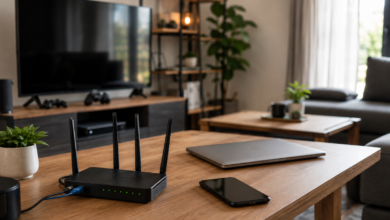
Think about where your household actually uses Wi-Fi. A relatively central location gives the signal a better starting point for reaching the rooms that matter. If you’re unsure where to put it, our guide to finding the best spot for your router can help you avoid locations that won’t work.
Of course, your modem location and existing wiring may limit your options. But if you can reposition your router, trying a different location before committing to the old setup can reveal whether placement was part of the problem.
2. Hiding Your Router Inside Furniture Or Behind Electronics
Routers aren’t exactly known for their interior-design appeal. Between the blinking lights, awkward antennas, and tangle of cables, it’s understandable that you’d rather not make yours the living room’s centerpiece.
So you find a discreet spot. Maybe inside the entertainment center, behind the TV, or tucked between a stack of books and that decorative basket nobody’s allowed to touch.
Unfortunately, hiding your router can also mean weakening its Wi-Fi signal.
Wi-Fi uses radio waves, and objects around your router can absorb, reflect, or block some of that energy. This is called signal attenuation, and materials such as concrete, brick, and metal can be particularly troublesome.
Some common hiding spots create problems:
- Inside cabinets or entertainment centers: Dense materials and metal components can weaken or obstruct the signal.
- Behind a television: Metal components inside the TV can block or reflect wireless signals.
- Under or behind large furniture: Bulky objects can block the signal between your router and connected devices.
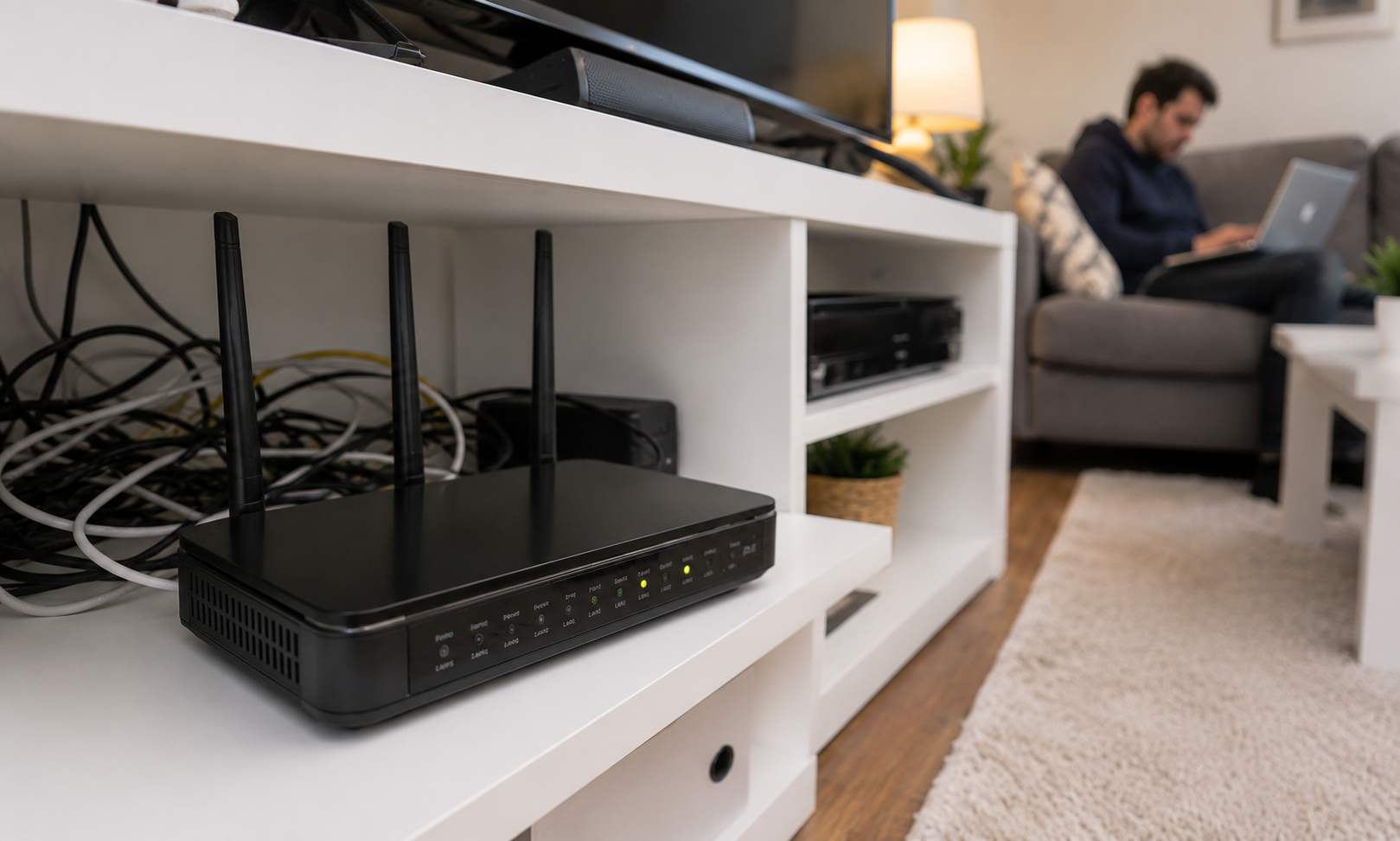
Nearby electronics can introduce a different problem: radio-frequency interference. Microwave ovens, certain baby monitors, and cordless phones may produce signals that compete with Wi-Fi, particularly on the 2.4 GHz band.
But ordinary electronics don’t automatically interfere just because they’re plugged in nearby. Enclosed spaces can also restrict airflow, making it harder for your router to release heat.
An open, elevated shelf away from major obstructions and potential interference sources is usually a better choice than an enclosed cabinet.
You don’t have to display your router like a family heirloom. Just don’t make your Wi-Fi fight its way out of the furniture before it reaches the rest of the house.
3. Expecting Your New Router To Reach Every Corner Of The House
Your new router’s packaging probably made some impressive promises. Blazing-fast speeds. Powerful coverage. Maybe even a picture of an entire house glowing with perfect Wi-Fi.
Naturally, you expect the upstairs bedroom, basement, and back patio to finally get the attention they deserve.
But here’s the catch: a faster router doesn’t necessarily mean Wi-Fi that reaches farther.
Those impressive speeds advertised on the box are typically theoretical wireless connection rates measured under ideal conditions. Some advertised speed ratings even combine the maximum capabilities of multiple Wi-Fi bands, meaning no single device could achieve that entire number on its own.
Modern routers can use different frequency bands, each with its own strengths:
- 2.4 GHz: Generally reaches farther and handles obstacles better, but offers lower speeds and is often more congested.
- 5 GHz: Typically supports faster connections but loses signal strength more readily over distance and through walls.
- 6 GHz: Available on compatible Wi-Fi 6E and Wi-Fi 7 equipment, this band provides additional wireless capacity and potentially excellent speeds, but generally struggles more with distance and obstacles.
That doesn’t mean you should force every device onto the fastest band. Many modern routers use band steering to encourage compatible devices to choose an appropriate connection. A phone upstairs may perform better on 2.4 GHz than on a weak 5 GHz connection.
Your Devices Have Limits, Too
Another limitation most router packaging doesn’t explain is that Wi-Fi is a two-way conversation. Your router has to reach your phone, but your phone also needs enough transmitting power to send information back. A powerful router can’t completely compensate for a weak connection in the opposite direction.
Before assuming your new router should cover the entire house, check what it actually delivers in the rooms where you use Wi-Fi. Advertised speeds show what the hardware can do under ideal conditions, not what every device will experience in your home.
4. Connecting Your New Router Without Checking Your Existing Equipment
Here’s something that’s surprisingly easy to overlook: your internet provider’s equipment may already be doing the job you bought your new router to handle.
Maybe your ISP supplied a modem/router combination years ago. You buy a better router, connect it to that existing box, and follow the setup instructions. Everything works, so why question it?
Except you may now have two routers managing different layers of your home network.
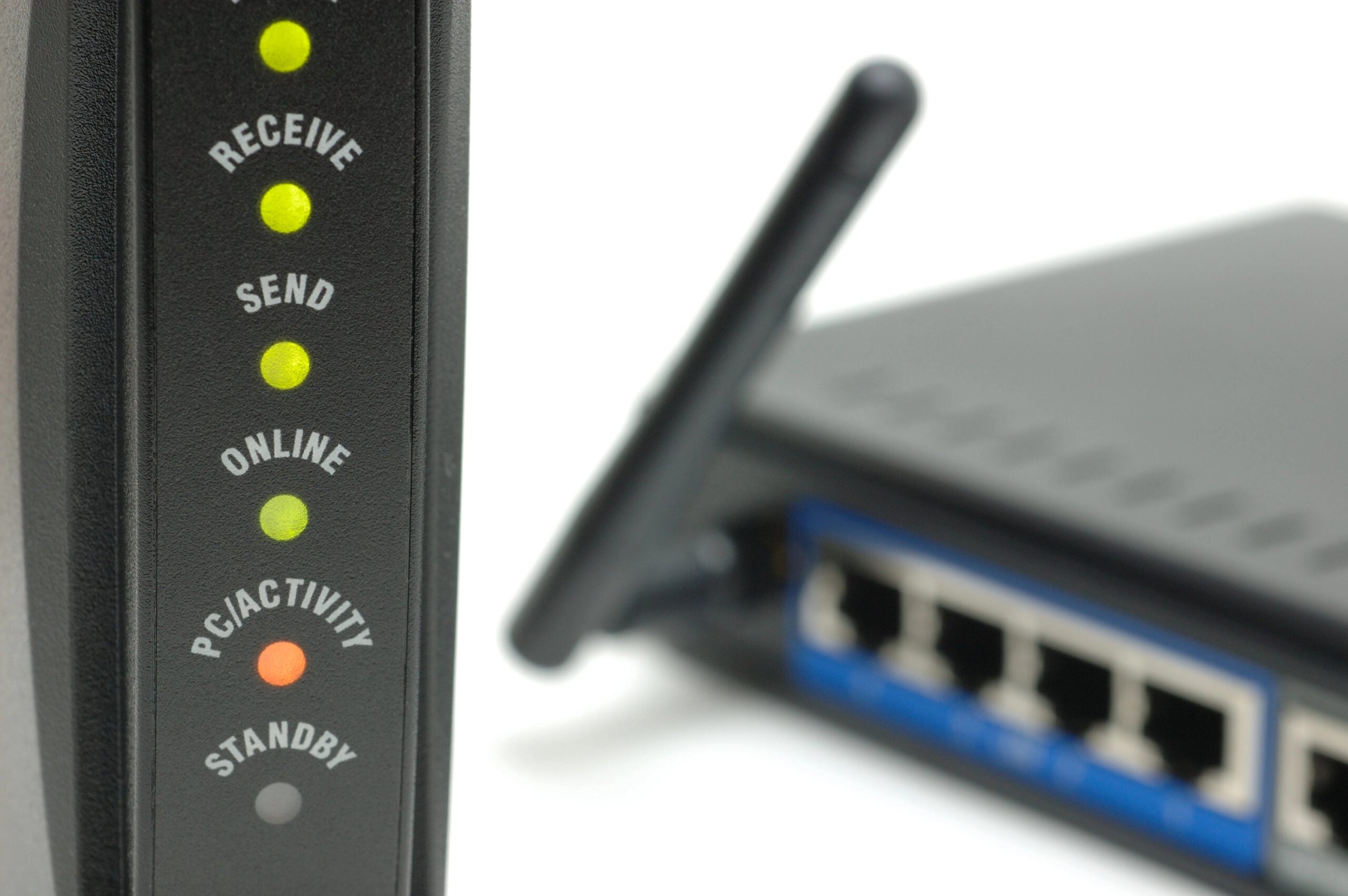
First, a quick distinction worth knowing:
- Modem: Connects your home to your internet provider’s network.
- Router: Directs traffic between your devices and the internet, typically providing your home’s Wi-Fi.
- Gateway: Combines modem and router functions in one device. Many internet providers supply these.
If your ISP’s gateway is still acting as a router and you connect another router behind it, you may create double NAT (Network Address Translation). This means internet traffic passes through two routers, each translating network addresses.
Double NAT doesn’t automatically slow your Wi-Fi, but it can complicate online gaming, remote access, port forwarding, and certain device-to-device connections.
There’s another potential headache: both your ISP gateway and new router may be broadcasting Wi-Fi. That can create overlapping networks, unnecessary wireless congestion, or devices connecting to the old network when you think they’re using the new one.
Which Device Should Handle Your Network?
Before changing anything, find out whether your ISP equipment is a modem-only device or a combination gateway.
If it’s a gateway, check your router manufacturer’s instructions to see which arrangement makes sense:
- Bridge or passthrough mode: Depending on the gateway, this can allow your new router to handle routing instead of the ISP equipment.
- Access point mode: Lets the ISP gateway continue managing the network while your new equipment provides Wi-Fi.
Don’t change these settings blindly. Some ISP gateways require specific configurations, particularly when they also support television or phone services.
5. Trusting The Setup Wizard Without Checking The Important Stuff
Modern router setup apps make the whole process feel almost suspiciously easy. Scan a QR code, choose a Wi-Fi name, tap a few buttons, and congratulations! Your new network is ready.
The app gives you a big green checkmark. Who are you to argue with a big green checkmark?
But “setup complete” doesn’t necessarily mean your router is properly secured or running the latest software.
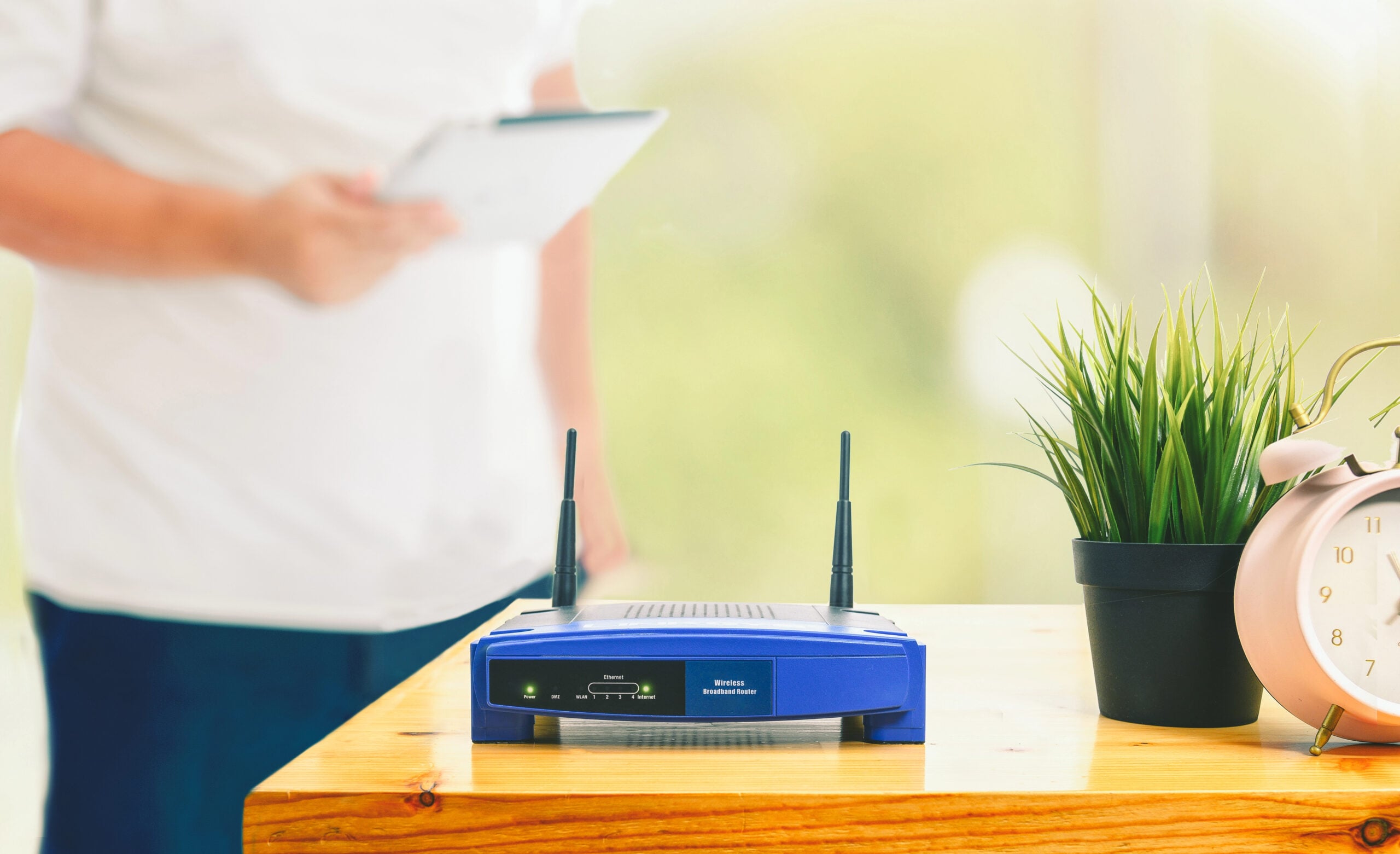
Before calling it a day, there are four settings worth checking:
- Firmware updates: Firmware is the software that runs your router. Updates can fix security vulnerabilities, correct bugs, and sometimes improve performance. Check for updates and enable automatic installation if your router supports it.
- Wi-Fi security: Look for WPA3 or WPA2-AES encryption, depending on what your devices support. These help protect your wireless network from unauthorized access. Avoid outdated options such as WEP or WPA with TKIP.
- Passwords: Your router’s administrator password controls access to its settings and is separate from your Wi-Fi password. Make sure both are strong and unique, especially if your router came with generic or easily guessed default credentials.
- Wi-Fi Protected Setup (WPS): This feature makes connecting devices easier without manually entering a Wi-Fi password. However, older PIN-based versions have known security weaknesses. If you don’t use WPS, disable it in your router’s settings.
These checks focus on security and reliability, not speed. Changing your password or disabling WPS won’t speed up your downloads, but overlooking these settings can leave your new network unnecessarily vulnerable.
6. Bringing Every Old Network Setting Along For The Ride
One of the nicest things about replacing a router is discovering you can give it the same Wi-Fi name and password as the old one. Suddenly, your phones, laptops, smart TVs, and that smart plug you forgot you owned can reconnect without much fuss.
And there’s nothing inherently wrong with doing that.
The trouble starts when you carry over every other setting, too, including changes you made years ago for reasons you can barely remember.
Over time, home networks can accumulate quite a collection of customizations:
- Separate Wi-Fi networks: Maybe you split your 2.4 GHz and 5 GHz bands to accommodate an older device that needed special attention.
- Device priority rules: You gave your gaming console or work laptop preferential treatment, even though your household’s internet habits have changed.
- Manual IP addresses and port forwarding: These settings reserve network addresses or direct certain incoming connections to specific devices. Old rules may point to equipment you no longer own.
- Custom DNS settings: You changed the service that translates website names into internet addresses, perhaps to troubleshoot a problem that’s long since disappeared.
These settings aren’t necessarily bad, and many won’t affect Wi-Fi speed at all. But outdated configurations can introduce connection problems, compatibility headaches, or unnecessary complexity.
Another temptation with a new router is to explore every advanced setting simply because it’s available. Custom firewall rules, VPN configurations, and other networking features can be useful, but making several changes before establishing a reliable connection makes troubleshooting much harder.
If something stops working, which setting caused it? That’s a surprisingly difficult question when you’ve changed six things at once.
What Should You Actually Keep?
Start with the new router’s recommended configuration, then preserve the settings your household actually needs. If you use specialized features, add them back deliberately, preferably one at a time, so you can identify any problems they introduce.
And if you discover an old rule named after a gaming console you sold four years ago? That’s probably a reasonable candidate for retirement.
7. Assuming Everything Works Because Your Devices Connected
The new router is online, your phone connects, and suddenly the rest of the house comes back to life. Smart TVs, tablets, security cameras, speakers, and a suspicious number of devices you’ve forgotten you own.
Everything connected. Mission accomplished, right?
Not quite. A successful Wi-Fi connection doesn’t tell you whether your new router is performing any better than the old one. It only confirms that your devices can join a wireless network.
Your phone might connect instantly while the upstairs bedroom still has terrible coverage. Your smart TV might start streaming without a problem, only to begin buffering halfway through a movie.
Another easy-to-miss possibility: some devices might not even be connected to your new router’s Wi-Fi. If your ISP gateway or another access point is still broadcasting a familiar network, devices may connect to that instead.
The mistake isn’t letting everything reconnect. It’s assuming the upgrade was successful without checking whether the problems that prompted it have actually improved.
And fortunately, finding out doesn’t require specialized equipment or an afternoon spent learning how to analyze network traffic. Just find out how the new network performs before assuming all those reconnecting devices mean the job is done.
Run This 5-Minute Wi-Fi Test Before You Change Anything Else
Ready to find out what your new router can actually deliver? Grab a phone or laptop and take a quick walk around the house. No specialized networking tools required.
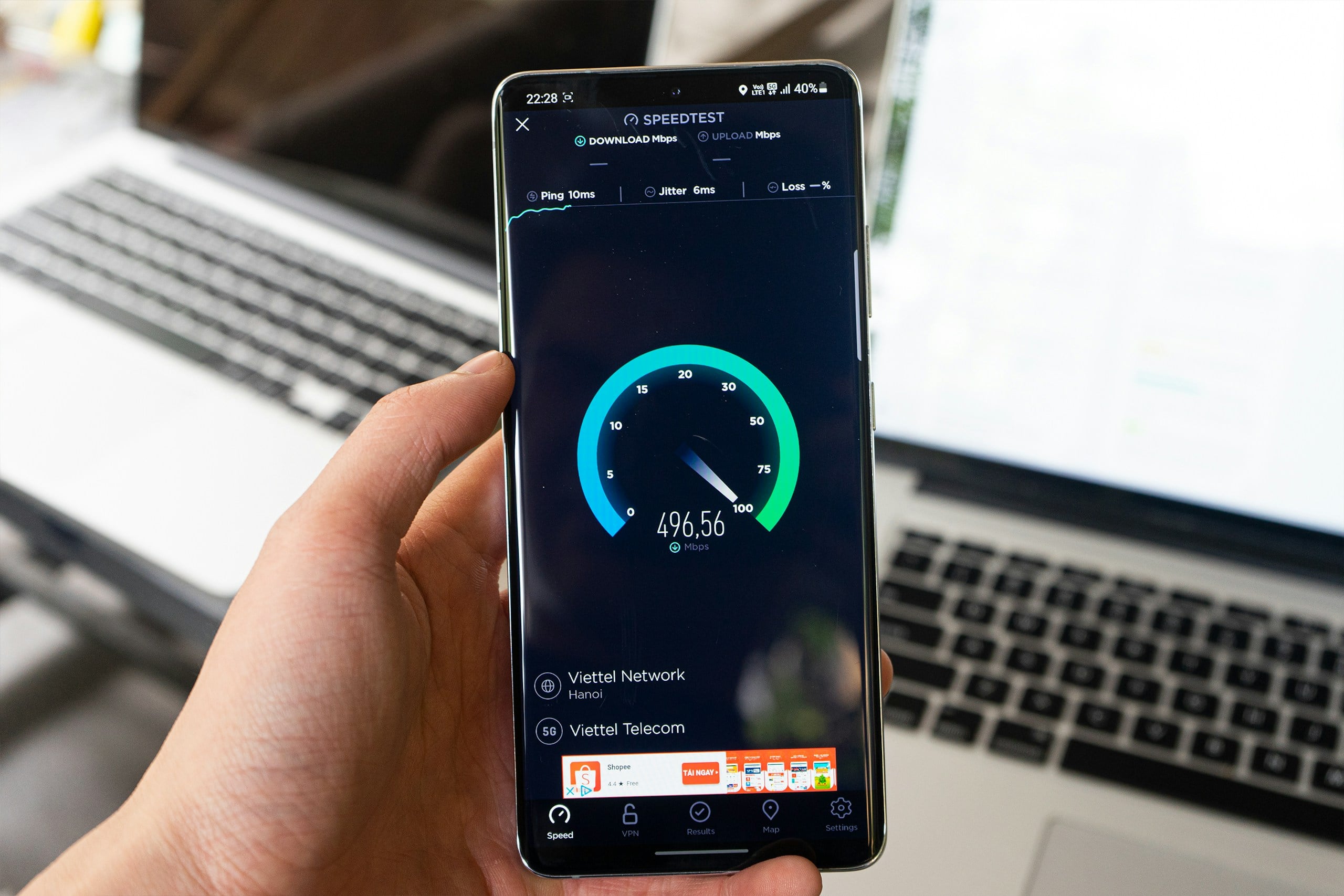
Step 1: Start Close To Your Router
Stand a few feet from the router and run an internet speed test using a service like Speedtest by Ookla.
This gives you a starting point for comparing other rooms. Keep in mind that an internet speed test doesn’t measure your router’s maximum Wi-Fi capability. Your internet plan and connection can also limit the result.
If you’re paying for fast internet but your Wi-Fi still feels sluggish, our guide to the hidden reasons for slow Wi-Fi explains where those promised speeds can get lost.
Step 2: Visit Your Usual Wi-Fi Trouble Spots
Take the same device to the places where you actually use the internet. Think upstairs bedroom, home office, living room, or wherever your old router seemed to lose interest in doing its job.
In each location, check:
- Speed: Does your download speed drop significantly compared to your first test?
- Reliability: Do websites hesitate to load, videos buffer, or connections drop?
- Consistency: Does everything work normally one minute and struggle the next?
Try to avoid testing while someone else is downloading a massive game update or streaming on several devices. You want reasonably consistent conditions.
Step 3: Look For A Pattern
Pay attention to where performance changes, not just the numbers themselves.
- Does the connection weaken as you move farther away?
- Does one room behave differently from nearby rooms?
- Does the same problem appear in several locations?
Those patterns can help identify whether you’re dealing with a coverage problem or something else.
Step 4: Compare With Your Old Router
If you have previous speed-test results, compare them with your new measurements. Otherwise, think about the specific problems that prompted the upgrade.
Does your upstairs video call still freeze? Does the living room TV still buffer?
A new router doesn’t need to break speed-test records to be a worthwhile upgrade. What matters is whether it’s delivering a better, more reliable connection where you actually use it.
What Do Your Wi-Fi Test Results Mean?
Your speed tests and observations can tell you a lot more than whether your internet is fast or slow. The real clue is where the problem shows up and whether it follows a particular device.
Use these patterns to narrow down what might be happening.
| What You Notice | What It Could Mean | What To Check Next |
|---|---|---|
| Fast near the router, slow farther away | Weak Wi-Fi coverage | Router placement, walls, and distance |
| Slow even beside the router | Internet or network bottleneck | Internet plan, router settings, or a wired speed test |
| Only one device struggles | Device-specific limitation | Wi-Fi hardware, software, or network settings |
| One room is consistently unreliable | Local coverage problem | Obstacles, interference, or a better access point location |
| Websites work, but gaming or remote access fails | Possible network configuration issue | Double NAT, firewall, or port-forwarding settings |
If speeds are poor even beside the router, a wired Ethernet test is particularly useful. Connecting a computer directly to the router can help determine whether the problem involves Wi-Fi or something affecting the internet connection itself.
When One Router Just Isn’t Enough
Sometimes, even a properly positioned, well-configured router can’t provide reliable Wi-Fi everywhere. If your testing reveals persistent dead zones, your home may need more than one wireless coverage source.
That’s particularly true in larger homes, multi-story layouts, or houses where the router is stuck at one end because of existing wiring.
But before buying another device, it helps to understand what additional equipment actually does:
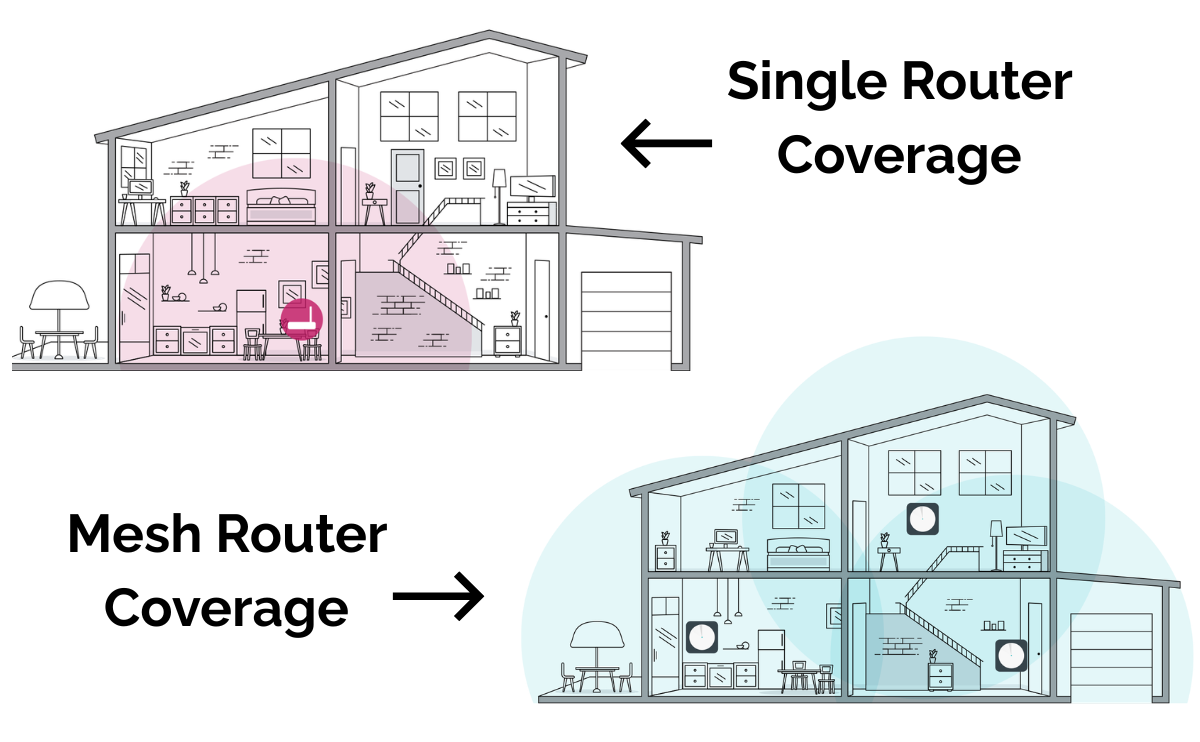
- Mesh Wi-Fi systems: Use multiple units that work together to provide coverage across your home. Wireless mesh units communicate with each other, so their placement matters as much as the main router’s.
- Wired access points: Add Wi-Fi coverage in other parts of the house using an Ethernet connection back to your network. Because they don’t depend on a wireless connection to the main router, they can be especially effective in distant rooms.
Here’s where people often make another mistake: placing a wireless mesh satellite directly inside the dead zone they’re trying to fix.
If that satellite can barely communicate with the main router, it has a weak connection to share with nearby devices. Positioning it somewhere between the router and the trouble spot, where it can still receive a strong signal, generally works better.
New-Router Setup: The Quick Version
If you’ve just unboxed a new router (or suspect your recent upgrade could use a second look), here’s a quick checklist to get things right.
- Question the old location. Just because your previous router lived there doesn’t mean it’s the best spot.
- Give it some space. Keep it elevated, out in the open, and away from large obstructions.
- Check your existing equipment. Find out whether your ISP’s gateway still acts as a router or broadcasts another Wi-Fi network.
- Review the important settings. Check firmware, security, and any old configurations you carried over.
- Test before calling it done. Walk through your home with one device and see where coverage improves or falls off.
The goal isn’t a perfect-looking setup screen. It’s reliable Wi-Fi where you actually need it.
Frequently Asked Questions
Still have questions about getting your new router up and running? Here are a few common setup questions that can save you some frustration. Have another question? Drop it in the comments, and we’ll do our best to help.
Should I Turn Off Wi-Fi On My ISP’s Modem/Router?
If your new router is handling Wi-Fi, disabling the wireless network on your ISP’s gateway can help prevent unnecessary overlapping networks.
But there’s an important distinction: turning off the gateway’s Wi-Fi doesn’t turn off its routing functions. If you want the new router to manage your entire network, you may also need to investigate bridge or passthrough mode, depending on your equipment and ISP.
Should I Separate The 2.4 GHz And 5 GHz Bands On My New Router?
Usually, there’s no need. Many modern routers use band steering, which helps compatible devices choose between available Wi-Fi bands while using a single network name.
However, some older smart home devices only support 2.4 GHz and may have trouble with certain combined-network setups. Temporarily separating the bands or using a dedicated compatible network can sometimes help during setup.
Do I Need To Restart All My Devices After Replacing A Router?
Not necessarily. If you kept the same Wi-Fi name, password, and compatible security settings, many devices should reconnect automatically.
If a particular device refuses to connect, try restarting it. You can also forget the saved Wi-Fi network and reconnect using your current password.
How Long Does A New Router Take To Start Working Properly?
Most routers are ready to provide Wi-Fi within a few minutes of completing setup, although firmware updates and some initial configuration processes may take longer.
You shouldn’t have to wait days for a new router to deliver better coverage or speeds. If performance remains disappointing after setup is complete, investigate the connection rather than assuming the router needs time to settle in.
Do I Need To Call My Internet Provider When I Replace My Router?
Usually not if you’re simply connecting a new router to an existing modem or gateway.
However, replacing the modem itself may require activation through your ISP, particularly with cable internet service. Some providers also have specific equipment or configuration requirements.
Will A Wi-Fi 7 Router Make My Older Devices Faster?
Not necessarily. Older phones, laptops, and smart home devices can often connect to a newer router, but they remain limited by their own wireless hardware and supported Wi-Fi standards.
A Wi-Fi 7 router doesn’t turn an older Wi-Fi 5 laptop into a Wi-Fi 7 device. You may still benefit from improved network management or coverage, but the newest features generally require compatible devices.
Still Having Wi-Fi Problems? Follow The Next Clue
Your new router is up and running, but something still isn’t right? Before you start shopping for more equipment, figure out what kind of problem you’re dealing with.
These guides can help you narrow it down:
- 10 Common Wi-Fi Mistakes That Could Be Slowing You Down — Discover other everyday habits and overlooked problems that can affect your connection.
- How Many Devices Can Your Wi-Fi Handle? — Find out whether your household’s phones, TVs, cameras, and smart gadgets are putting too much demand on your network.
- Why Your Wi-Fi Keeps Disconnecting — Investigate connections that randomly drop even when your router appears to be working.
- What Happens When You Never Restart Your Router? — Learn why a router can develop recurring glitches and when restarting actually helps.
Did your new router deliver the upgrade you expected, or did you discover another Wi-Fi headache? Tell us what happened in the comments!