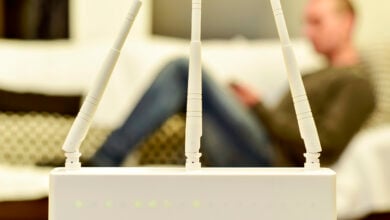
Everyday technology problems can seem random, but they usually aren’t. Your tech is rarely acting weird for no reason. It just has a terrible way of explaining itself.
A video call turns your voice robotic halfway through a meeting. Your phone leaves the house at 80% and hits 25% before lunch. The TV drops Wi-Fi while everything else keeps streaming. The printer, which had nothing to complain about last week, suddenly declares itself offline.
It is the kind of thing that can make you feel irrationally frustrated because it interrupts real life. You are trying to work, make a call, print a form, relax after a long day, or just get out the door.
Usually, there is a reason hiding in plain sight: a background app draining power, a crowded network, a weak signal in one room, or a laptop trying to pull air through a blanket.
We’ll help you spot the pattern, test the likely suspects, and fix common glitches without randomly resetting half the house.
Want our human-written content to rank above AI-generated garbage? Help us out by clicking this button!

Why Tech Glitches Feel Random — Even When They Aren’t
When something stops working without warning, it is easy to assume the device has simply gone bad. Usually, though, it is reacting to something: too many tasks competing for attention, a weak wireless signal, an update that did not go smoothly, a nearly full drive, or heat building up where it should not.
The problem is that the clue rarely looks like the problem. A laptop gets sluggish because it is quietly uploading years of photos. A smart bulb disappears after the router restarts overnight. A phone burns through battery in a building with poor cell service because it keeps hunting for a connection.
That is why tech problems can feel so maddening. The device is not necessarily broken, but it is struggling with something you cannot see yet. A few common technology myths can make troubleshooting harder by sending you toward the wrong fix first.
The everyday technology problems that seem random but aren’t often follow familiar patterns. Once you know what kind of problem you are looking at, the first useful check becomes much easier to spot.
14 Everyday Tech Problems That Feel Random and What to Check First
Most tech issues are not as mysterious as they first appear. A slow connection, dying battery, frozen screen, or offline device usually comes back to one of a handful of things: signal, power, heat, storage, software, or an accessory that is not communicating properly.
Start with the symptom that sounds most familiar. Each section explains what is commonly behind it, what clues to watch for, and the first few checks worth making before you start changing settings, buying replacements, or unplugging every device in the house.
Quick-Reference Tech Glitch Cheat Sheet
| What you notice | What may be causing it | First thing to try |
|---|---|---|
| The laptop feels hot, and the fan is loud | Blocked vents, dust, or a demanding app running in the background | Move it to a hard surface and close heavy apps |
| Laptop battery drains much faster than usual | Bright screen, video calls, background syncing, or external accessories | Lower brightness, turn on battery saver, and unplug anything you do not need |
| Internet suddenly feels slow | Downloads, cloud backups, streaming, or game updates competing for bandwidth | Pause large uploads or downloads and test again |
| Wi-Fi drops in one room | Weak signal, router placement, walls, or interference | Move closer to the router and test a few nearby spots |
| Wi-Fi will not connect at all | Wrong password, saved network issue, router problem, or Airplane Mode | Check another device, restart once, then reconnect |
| Phone battery drains unusually fast | Weak cell signal, heat, or an app running in the background | Check battery usage and close the app using unusual power |
| Browser freezes or stutters | Too many tabs, a heavy website, or a broken extension | Close tabs and disable extensions one at a time |
| An app or website keeps loading forever | Bad saved data, unstable internet, low storage, or a service outage | Try another browser or device, then restart the app |
| Camera or video will not work | Wrong camera selected, blocked permissions, privacy shutter, or app conflict | Check camera settings and close other apps using the camera |
| The printer will not print | Stuck queue, wrong printer selected, weak Wi-Fi, or paper and ink issue | Clear the queue and print a simple test page |
| TV will not turn on | Power issue, dead remote batteries, wrong input, or a temporary freeze | Check the outlet, use the TV’s power button, and unplug it briefly |
| A smart device is offline | Weak Wi-Fi, lost power, router restart, or setup issue | Restart the device and check whether other smart devices are affected |
1. Internet Suddenly Slowing Down
A movie starts buffering halfway through the best scene. A work call becomes choppy. Websites take forever to load, even though they were fine an hour ago.
Sometimes the internet provider is the problem. Often, though, the slowdown is happening inside the house. Your connection has a limited amount of bandwidth, and every device shares it. A game console downloading an update, a laptop backing up files, several people streaming video, and a phone uploading photos can all compete for the same connection.
If one device is struggling while everything else works normally, the issue may be weak Wi-Fi, a browser problem, or something running in the background on that device. Restarting the router can help when it has been running for a long time, but do it once and give it several minutes to reconnect before deciding whether it made a difference.
2. Wi-Fi Randomly Disconnecting
Wi-Fi can work perfectly in one room and become unreliable a few steps away. Your phone may stay connected in the kitchen, then switch to mobile data on the couch. A laptop may lose the signal in the bedroom while every device near the router works fine.
That usually comes down to distance, interference, or router placement. Wi-Fi has to travel through walls, floors, furniture, pipes, appliances, and whatever else sits between the router and your device.
A router hidden behind a television, tucked into a cabinet, or sitting on the floor has a harder job than one placed out in the open. Move it to a shelf or table in a central part of the home when possible. Keep it away from large metal objects and avoid putting it inside enclosed furniture.
Try using the device in a few nearby spots. A weak area can be surprisingly small. Moving a desk, chair, or laptop a few feet may change the connection more than expected. If the same room keeps causing trouble, a mesh Wi-Fi node, range extender, or wired connection may be worth considering.
If the connection drops at roughly the same time every night, check for scheduled router updates, overnight backups, device downloads, or an outlet timer before assuming the Wi-Fi is failing.
3. Software Updates Causing New Problems
An update is supposed to fix things, so it is especially frustrating when a phone, laptop, TV, printer, or app starts acting strange right after one installs it.
Sometimes the timing is a coincidence. Other times, the update changed a setting, introduced a bug, reset a permission, or left an older app, driver, or accessory struggling to keep up. A printer may suddenly stop connecting. Bluetooth headphones may become unreliable. A laptop might run hotter than usual while it finishes background cleanup after a major system update.
Before assuming the update ruined the device, give it a little time. Phones and computers often continue organizing files, indexing content, syncing data, or downloading supporting updates after the main installation appears finished. That extra work can make a device feel slow or drain its battery for a while.
If the problem sticks around, check for another update. Companies often release small follow-up fixes after a larger rollout. Then look for the setting most likely affected: Wi-Fi, Bluetooth, camera permissions, browser extensions, printer drivers, or battery settings.
When an issue begins immediately after an update, write down the version number and the exact symptom. That makes it much easier to search for a known fix or explain the problem to support.
For smart TVs, printers, and other connected devices, it is also worth checking whether the manufacturer still supports software updates before spending too much time chasing a fix.
4. Can’t Connect to Wi-Fi at All
There is a big difference between Wi-Fi that drops once in a while and Wi-Fi that refuses to connect at all.
First, narrow down what is actually happening. Can you see the network but not join it? Does the password keep failing? Does the device connect but say there is no internet? Or is the Wi-Fi network missing completely?

Start with these basic checks:
- Make sure Wi-Fi is on and Airplane Mode is off
- See whether another device can find and join the same network
- Confirm you are using the current password, especially after a router change
- Check whether the device connects to Wi-Fi but simply cannot reach the internet
Check another phone, tablet, or computer to find out whether the issue affects one device or the whole home.
When a device says it is connected but nothing loads, test another website or app. One service may be down while the rest of the internet is working normally. If nothing on the network can get online, restart the modem and router once, then wait for them to reconnect fully.
5. Phone Battery Draining Faster Than Usual
Your phone can go from lasting all day to struggling by lunchtime without much warning. That does not always mean the battery is failing.
Apps are often part of the story. A social media app, navigation app, game, or photo backup tool may be doing more in the background than you realize. It may be refreshing content, uploading files, checking your location, or repeatedly trying to reconnect to a server.
Check your phone’s battery settings and look for anything using much more power than expected. A single app at the top of the list can reveal a lot. Update it, close it, or remove it temporarily if the behavior looks unusual.
Weak cell service can also drain a battery quickly. In parking garages, elevators, stadiums, rural areas, basements, or buildings with thick walls, your phone may keep searching for a better signal. It is still working hard even when it looks like it is sitting idle.

Heat makes battery problems worse. Leaving a phone in a hot car, using it in direct sun, or charging it under a pillow can cause it to run hot and lose power faster. If you are somewhere with no usable signal, Airplane Mode can save battery by stopping the phone from constantly hunting for service.
6. Browsers Freezing and Stuttering
A frozen browser can make a perfectly decent computer feel ancient. You click a tab, nothing happens, and suddenly the whole machine seems to be moving through mud.
Browsers carry more weight than people think. Modern websites can be packed with video, ads, chat boxes, animations, trackers, embedded documents, and background scripts. Add a pile of tabs, a few streaming videos, and several extensions, and the browser may start using far more memory than expected.
Tabs are usually the first place to look. It is easy to treat them as a to-do list: articles to read later, travel plans, recipes, shopping carts, forms, videos, work documents, and random searches. Some of those tabs keep running in the background even when you have not looked at them for hours.
Extensions can cause problems too. Ad blockers, coupon tools, grammar checkers, note-taking add-ons, shopping assistants, and screenshot tools may all be useful, but one outdated extension can slow down a page or make the browser unstable.
Close tabs you no longer need. Then try the problem website in a private or incognito window. If it works there, an extension or saved browser data may be involved. Disable extensions one at a time and test again so you can identify the real culprit instead of guessing.
7. Infinite Loading Loops
A loading screen should last a few seconds. When it keeps spinning, refreshing, reopening, or sending you back to the same page, something is stuck.
This can happen with websites, apps, login screens, streaming services, device updates, and smart-home apps. The cause may be a weak connection, corrupted saved data, low storage, a bad update, or a service issue on the other end.
When one website keeps loading forever, but other sites work, try opening it in another browser or on another device. If it fails everywhere, the problem may be with the site itself rather than your computer.
For apps, close the app completely and reopen it. Check for an update. Restart the device if the loop keeps happening. Login loops can sometimes be fixed by signing out, clearing saved website data, or using a private browser window.
8. Why Won’t My Video Work?
“My video does not work” can mean several different things. A webcam may show a black screen during a meeting. A streaming app may have sound but no picture. A browser may refuse to access the camera. Your video could work in one app but fail in another.
For a video call, check that the correct camera is selected in the app’s settings. Laptops, monitors, docks, webcams, and virtual camera tools can all show up as separate options. It is easy to select the wrong one without noticing.
Another app may already be using the camera. A meeting app left open in the background can block a browser or another video app from accessing it. Close unused video apps, browser tabs, and camera tools before testing again.
Many laptops also have a physical privacy shutter or camera key. Those are easy to bump accidentally, and they can make the camera look completely dead even when it is working normally.
For streaming video, try another app or website. If only one service has a problem, the issue may be with that app, content setting, account, or service outage. If every video freezes or looks choppy, move closer to the router, lower the streaming quality, and close anything else that may be uploading or downloading in the background.
9. Laptops Overheating: The “Jet Engine” Effect
You are writing an email or working in a document when the laptop fan suddenly starts roaring. The bottom gets hot. The keyboard feels warm. It sounds like the computer is preparing for takeoff.
Sometimes the reason is obvious. Video calls, games, photo editing, large spreadsheets, and dozens of active browser tabs can push a laptop hard. Other times, it is simply not getting enough airflow.

Laptops pull in cool air and push out warm air through vents. When they sit on a bed, blanket, couch cushion, pillow, or lap for long periods, those vents can get blocked. The fan has to work harder, heat builds up, and performance may slow down to protect the computer.
Before assuming the laptop needs repair:
- Move it to a hard, flat surface with room around the vents
- Close unused browser tabs, video calls, games, and demanding apps
- Check Task Manager or Activity Monitor for a process using unusually high CPU power
- Look for dust around the exterior vents
If the laptop becomes painfully hot, smells unusual, shuts down, or gets loud during basic tasks every day, it may need professional attention.
10. Laptop Battery Draining Faster Than Usual
A laptop that once lasted most of the day can suddenly struggle to make it through a meeting. That does not always mean the battery is finished.
Screen brightness, video calls, streaming, browser tabs, cloud syncing, external accessories, and power settings can all shorten battery life.
Quick ways to stretch battery life:
- Lower screen brightness and turn on battery-saving mode
- Pause large cloud syncs, downloads, or updates until you are near the power source
- Close apps and browser tabs you are not actively using
- Unplug external drives, phones, webcams, or other accessories you do not need
Heat is another clue. A laptop that runs hot often uses more battery because the fan and processor are working harder. If the percentage drops suddenly, the laptop shuts down before reaching 0%, or the case begins to separate, check the battery health report or have the battery inspected. A swollen battery should be treated as a safety issue, not a DIY project.
11. Random Device Freezes and Performance Drag
When a phone, tablet, or computer hesitates, lags, or freezes briefly, it is usually overloaded rather than broken. Low storage, too many background tasks, heat, or one badly behaved app are common causes.
Check free space, close anything you are not using, and restart the device. If one app is the only problem, update or reinstall it. If the slowdown began just after a system update, wait a day or two; the device may still be syncing files, indexing content, or finishing background cleanup.
12. The “Incompatible” Peripheral Problem
You plug in a keyboard, monitor, webcam, printer, USB drive, charger, dock, or adapter, and nothing happens. Or it works for a few minutes, then disconnects for no obvious reason.
“Incompatible” sounds vague, but most accessory problems come down to a few practical things: the wrong cable, not enough power, an outdated driver, a bad port, or an adapter that does not support the feature you need.
Rule out the simple stuff:
- Try a different cable before assuming the accessory is defective
- Test another port on the computer, dock, or monitor
- Connect the accessory to another device when possible
- Check whether the cable or adapter supports charging, data, video, or the amount of power required
That quickly tells you whether the problem follows the accessory, the cable, or the computer.
For an external monitor, make sure the cable and adapter actually support video output. For printers, webcams, and other accessories, check whether the manufacturer offers a current driver for your operating system. If a device stopped working immediately after an update, a driver or firmware update may be the missing piece.
13. Bizarre Audio and Signal Interference
Crackling speakers, choppy headphones, laggy wireless mice, and robotic call audio usually come down to either a cable problem or a shaky wireless connection.
For wired headphones or speakers, a loose or damaged cable can cause static, one-sided audio, or sudden cutouts. Bluetooth issues are more often caused by distance, low battery, walls, or too many nearby wireless devices.
Try these first:
- Reseat the plug or try another cable and port
- Charge the accessory and move it closer to the phone or computer
- Disconnect and re-pair Bluetooth devices; during calls, confirm the app is using the correct microphone and speaker
14. TVs, Printers, and Other Home-Tech Problems
Not every home or office tech headache involves a phone or computer. TVs, printers, streaming devices, smart speakers, plugs, and cameras can all fail for familiar reasons: power, Wi-Fi, a stuck app, an outdated setting, or a device that simply needs to restart.

- TV won’t turn on: Start with power. Check that the cord is firmly connected, the outlet or surge protector works, and the remote batteries are not dead. Then try the power button on the TV itself. If the screen stays black, unplug the TV for about a minute before plugging it back in. When the TV turns on but shows no picture, check the input; it may be set to an inactive cable box, console, or HDMI port.
- TV keeps dropping Wi-Fi: Test the signal where the TV sits. TVs often have weaker Wi-Fi hardware than phones and laptops, especially when they are against a wall or inside an entertainment cabinet. Restart the TV and router, check for a TV software update, and use Ethernet if running a cable is practical.
- Printer won’t connect or print: Check the basics before reinstalling anything: power, paper, ink or toner, error lights, and whether you selected the correct printer. Make sure the printer and the device sending the job are on the same Wi-Fi network. A stuck job can block every job behind it, so clear the print queue, restart the printer, and send a simple test page.
- Streaming device freezes or buffers: Try another app first. If one service is struggling while the others work, the problem may be with that app rather than your internet. If everything buffers, restart the streaming device and router, check for updates, and make sure the device is not overheating behind the TV.
- Smart speakers, plugs, and cameras keep going offline: Check whether the issue follows the device or its location. Devices in garages, basements, outdoor outlets, or far bedrooms may be too far from the router, especially near thick walls or metal surfaces. Restart the device, confirm it has power, and check that Wi-Fi is stable. If several smart devices disappear at once, restart the router and check for an outage. If only one keeps dropping, it may need a firmware update, a stronger signal, or a replacement.
How to Troubleshoot Tech Glitches Without Losing Your Mind
When a device starts acting up, most people do the same thing: restart the laptop, unplug the router, close a few windows, delete an app, update something, then restart everything again.
It can work. It can also leave you with no idea what actually fixed the problem. Then the issue comes back two days later, and you are right where you started.
Take a minute before changing anything. A few useful observations can save you an hour of random resets.
Start With the Timeline
Think back to when you first noticed the problem.
Maybe your browser started freezing after you added an extension. Or maybe the Wi-Fi got worse after the router moved behind the TV. Maybe the printer stopped connecting after you changed the network password. Maybe the laptop fan started running nonstop after you installed a new editing program.
Timing is not proof, but it gives you somewhere to begin.
Look beyond software updates, too. A new smart camera can add traffic to the network. A cloud backup can suddenly start uploading years of photos. A cheap adapter can work just well enough to cause problems that come and go.
Then see whether you can make the issue happen again. Does the browser freeze only on one website? Does the laptop get loud during video calls? Or does the Wi-Fi drop when the microwave runs? Is the printer failing only when you print from one computer?
A pattern gives you something to test. Without one, you are just pressing buttons and hoping.
Change One Thing at a Time and Test Again
Changing five settings at once may make the problem disappear, but it does not tell you why.
Make the smallest sensible change first. Pause one large upload. Close the browser tabs using the most memory. Move the laptop from the couch to a desk. Disconnect one suspicious accessory. Then test again.
After each step, ask three simple questions:
- Did it improve?
- Did nothing change?
- Did it get worse?
That is enough to decide what to try next.
You do not need a perfect diagnosis in one move. You only need to avoid making the problem harder to trace.
When to Stop Troubleshooting and Ask for Help
Some problems are not worth pushing through.
Stop using the device and get help when there is a safety concern, possible hardware damage, or important data at risk. A swollen battery, burning smell, sparks, liquid damage, visible smoke, repeated shutdowns, or a device that becomes dangerously hot are all signs to stop experimenting.

It is also time to ask for help when the device will not start, keeps crashing after basic checks, or has a problem you can describe clearly but cannot fix. “My laptop shuts down only during video calls” or “the printer disconnects whenever the router restarts” gives a support person far more to work with than “it is broken.”
Before contacting support, take a screenshot of the error message and write down what happened, when it happened, and what you were doing at the time. Those details can shorten the conversation considerably.
Frequently Asked Questions
Most tech problems have a simple cause once you know where to look. These answers cover the questions that come up most often when a device starts acting strange.
Still dealing with a problem that does not fit neatly into one of these categories? Leave a comment with what your device is doing, when it happens, and what you have already tried. The more specific the details, the easier it is to spot a useful next step.
What should I check first when my device starts acting weird?
Start broad: Is the problem happening on one device or several?
If every device in the house has slow internet, focus on the router or internet connection. If one laptop is slow while everything else works, look at that laptop’s apps, storage, browser, and Wi-Fi signal.
Then check the basics: power, battery, network connection, open apps, available storage, blocked vents, and recent updates. Those are not glamorous fixes, but they solve a surprising number of problems.
Will restarting my device actually fix the problem?
Sometimes, yes.
Phones, laptops, routers, TVs, printers, and smart devices all run temporary processes in the background. Apps get stuck. Connections become unstable. Memory fills up with tasks that never quite closed properly. Restarting clears much of that out.
A restart is a good first step, not a permanent answer. When the same issue keeps coming back, there is usually something else behind it: a bad app, weak signal, failing accessory, overloaded router, or setting that needs attention.
When should I stop troubleshooting and ask for help?
Stop when there is a safety concern, possible hardware damage, or important data at risk.
A swollen battery, burning smell, sparks, liquid damage, repeated shutdowns, visible smoke, or a device that becomes dangerously hot are all reasons to stop using it and get help.
It is also time to call support or a repair professional when you can describe the problem clearly, but basic steps have not fixed it. A note like “the laptop shuts down only during video calls” or “the TV loses Wi-Fi every evening” gives them something useful to investigate.
Think Like a Digital Detective
Most everyday technology problems that seem random but aren’t leave a trail of small clues; you just need to know which ones matter.
A computer that gets slower month by month may need more than a restart; it may be time to clear out the clutter slowing it down. A phone that has become unreliable after a few years may be dealing with battery wear, storage pressure, or software that no longer runs as smoothly as it once did. And when smart lights, plugs, or cameras keep dropping offline, the weak link is often the underlying network, not every device at once.
Not every problem has a quick fix, and not every device is worth keeping forever. When the same issue returns after reasonable checks, it helps to know how long tech devices typically last before spending money on a repair or replacement. The point is not to become the household IT department. It is to make a smarter next move, with a little less guesswork and a lot less frustration.
Share Your Tech Fix
Dealing with a tech problem or found a fix that worked? Share it in the comments.