One day, your smartphone just stops being the device you completely relied on.
The phone that used to cruise comfortably from breakfast to bedtime now needs a mid-afternoon pep talk and access to the nearest charging cable.
You’ve become the person who checks their battery percentage before leaving the house, keeps chargers in multiple rooms “just in case,” and experiences a small rush of panic when you realize you’re at 37% with several hours left in the day.
It feels like it happened overnight. But in most cases, your battery didn’t suddenly give up. A combination of aging, settings, apps, and everyday habits may be draining it faster than you realize.
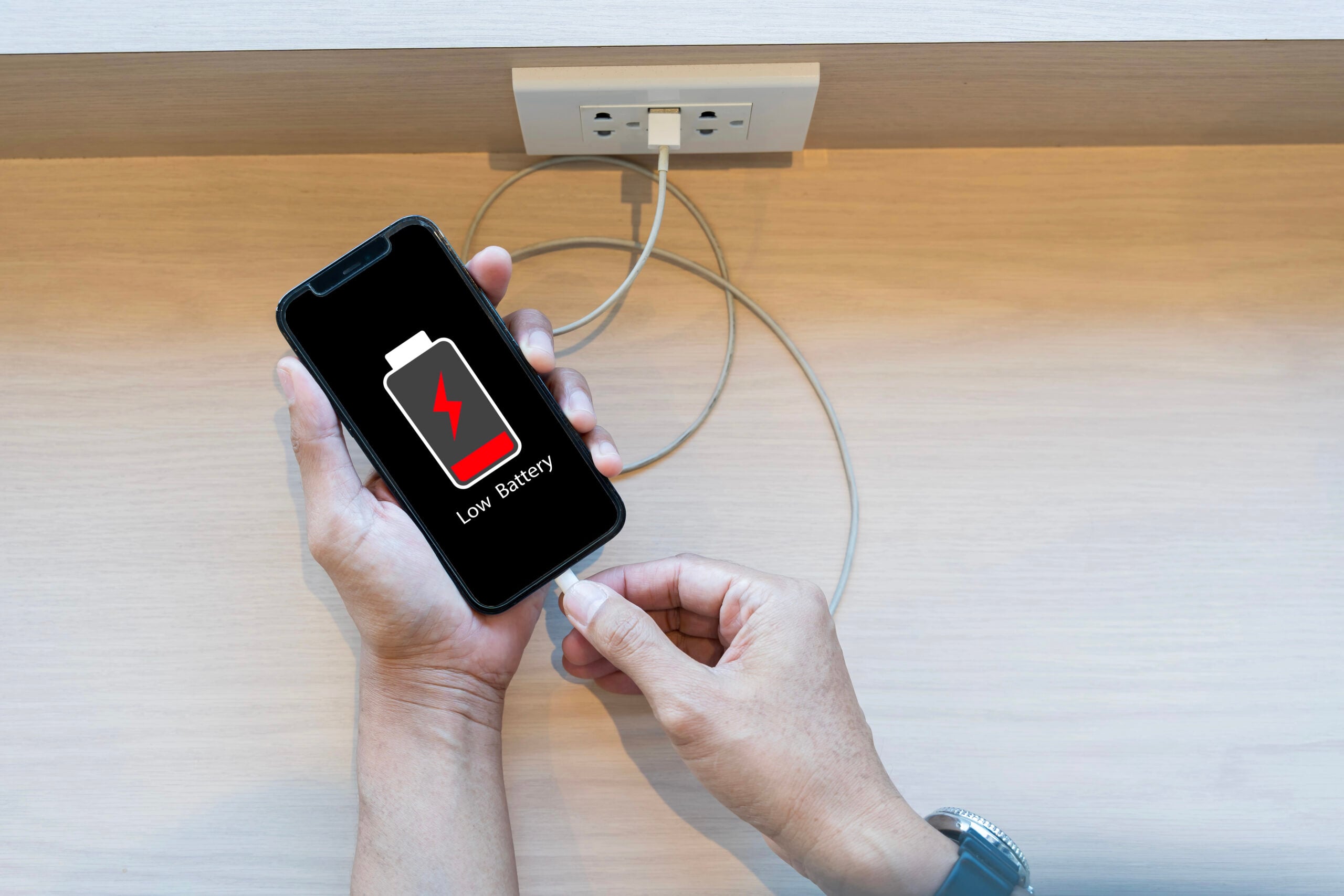
Why It Feels Like Your Battery Suddenly Got Worse
If your phone battery seems to have gone from “all day” to “where’s my charger?” practically overnight, you’re not imagining things.
The strange part is that battery problems usually don’t happen overnight.
A battery loses capacity over time. Apps become more demanding. Software updates add new features. Settings change. None of these shifts are dramatic on their own.
Then one day, the math stops working. The routine you’ve followed for months — or even years — suddenly isn’t enough to get you through the day.
Maybe you’ve noticed yourself:
- Leaving the house at 100% and expecting business as usual.
- Using your phone the same way you always do.
- Glancing at your battery before lunch and wondering how you’re already down to 61%.
It feels sudden because you notice the moment your battery starts disrupting your routine, not the dozens of small changes that led up to it.
Before You Panic, Check These Two Things
Before you assume your phone battery is doomed, take about 30 seconds to check what your device is actually telling you.
Modern smartphones can provide clues about whether your battery is aging normally or if something else may be causing the sudden drain.
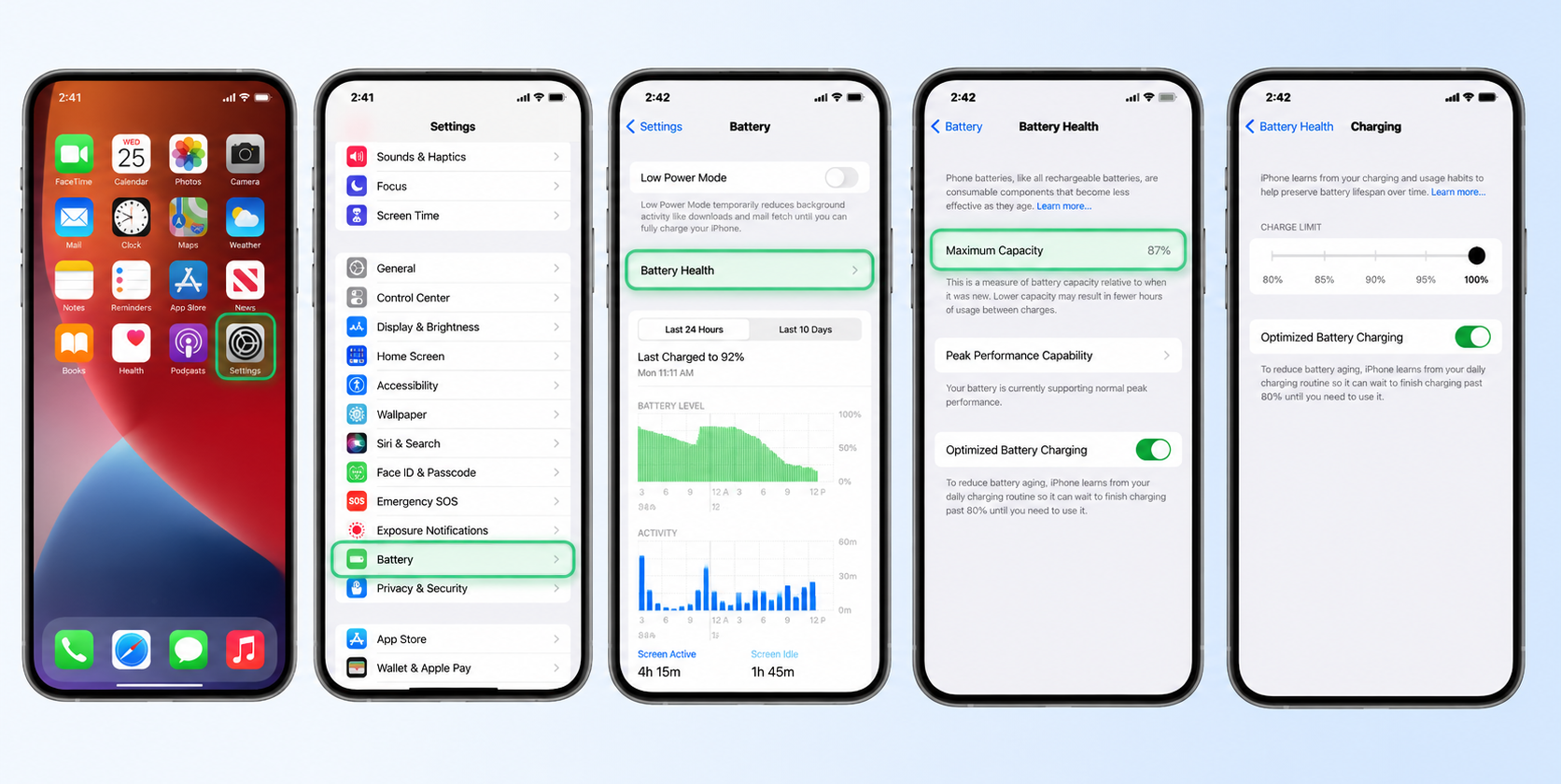
How To Check Your Battery Health
If you have an iPhone, head to: Settings → Battery → Battery Health & Charging
Look for Maximum Capacity, which estimates how much charge your battery can hold compared to when it was brand new.
Android is a little less straightforward because it varies by manufacturer.
Depending on your device, you may find battery information under:
- Settings → Battery
- Device Care
- Battery & Device Care
- Built-in diagnostics tools
Some Android phones display battery health information directly, while others may require a manufacturer’s app or diagnostic tool.
How Long Should A Phone Battery Last?
Most modern smartphones use lithium-ion batteries, which naturally wear down over time.
They’re typically designed to last about 500 full charge cycles before their maximum capacity starts to decline noticeably.
For many people, that works out to roughly 2 to 3 years of everyday use, though factors like heat, charging habits, and heavy use can accelerate aging.
Quick Reality Check
| If You See… | It Usually Means… |
|---|---|
| Battery Health: 90–100% | Your battery is probably aging normally. |
| Battery Health: 80–89% | You may start noticing shorter battery life. See below to extend its life. |
| Battery Health: Under 80% | A battery replacement could be worth considering. |
| Battery health looks good, but drain is severe | One of the causes below may be responsible. |
11 Reasons Your Phone Battery Drains Faster Than It Used To & Quick Fixes
A phone battery rarely gets worse for just one reason. More often, it’s a mix of battery age, settings, apps, signal strength, heat, and daily habits all piling on at once.
That’s why it can feel so confusing. Your phone may seem normal one day, then suddenly start behaving like it’s personally offended by being unplugged.
Some causes are easy to fix. Others are signs your battery may simply be getting older. The key is figuring out which drains apply to your phone before you assume it’s time to buy a new one.
1. Your Screen Is Working Harder Than You Realize
If your phone battery seems to disappear faster than it used to, your screen may be a bigger part of the problem than you realize.
Modern displays are brighter, larger, and smoother than ever before. The downside is that your screen is often one of the biggest battery users on your entire phone.
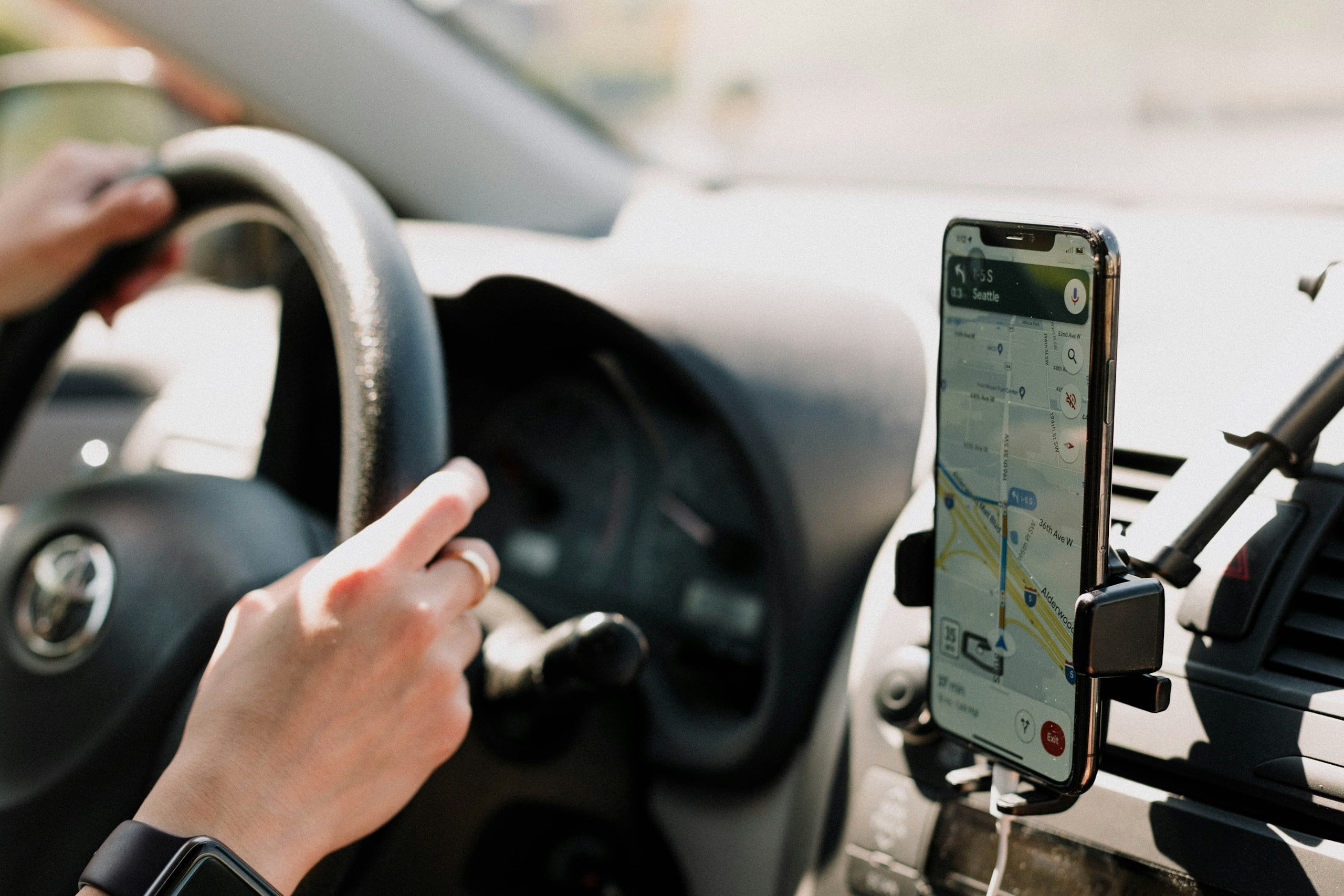
Think about how often this happens:
- You step outside and crank the brightness all the way up.
- You use GPS when driving with the display on the entire time.
- You watch videos at maximum brightness.
- You never quite remember to turn the screen back down afterward.
Modern displays can drain even more power because many phones now use high refresh rates, such as 90Hz or 120Hz. That simply means the screen refreshes more often to make scrolling and animations look smoother. It feels great to use, but that extra work requires extra energy.
And if you have a larger phone, there’s literally more screen to power throughout the day.
Best Fix
You don’t have to dim your screen into oblivion to save battery life. Instead:
- Turn on Adaptive Brightness if you regularly forget to adjust it yourself
(usually found under Settings → Display). - Lower brightness manually when you don’t need it at full blast.
- Consider reducing your refresh rate if battery life matters more than ultra-smooth scrolling
(often under Settings → Display → Motion Smoothness or Refresh Rate). - Shorten your screen timeout so your display isn’t staying awake longer than necessary
(typically under Settings → Display → Screen Timeout).
2. Background Apps Never Really Stop Working
One of the biggest smartphone myths is that if an app isn’t open on your screen, it isn’t doing anything. Unfortunately, that’s not always true.
In reality, many apps continue working even when you’re not using them. This process is called background activity — small tasks that run in the background, so everything feels ready to go when you open an app.
Individually, these bursts of activity don’t use much power. But if enough apps are doing it throughout the day, those little drains can start to add up.

What Might Be Running Right Now?
Even if you haven’t opened them recently, apps like these could still be using battery power in the background:
- Email apps checking for new messages
- Cloud photo services backing up images and videos
- Facebook and Instagram refreshing content
- Weather apps updating forecasts
- Fitness and health trackers syncing activity data
- Messaging apps checking for new notifications
Best Fix
Take a quick look at which apps actually deserve background access.
- Check your battery usage screen to see which apps are consuming the most power behind the scenes.
- Leave background access enabled for apps you genuinely rely on, like messaging, navigation, or security apps.
- iPhone: Go to Settings → General → Background App Refresh to turn it off for apps that don’t need constant updates.
- Android: Open Settings → Apps → [App Name] → Battery (the exact wording varies by device) to restrict background activity.
3. A Software Update Changed More Than You Realized
If you’ve ever thought, “My battery was perfectly fine until I updated my phone,” you’re definitely not alone.
Major software updates often trigger a burst of activity behind the scenes. Your phone may spend the next day or two reindexing photos, files, and app data so they’re easier to search and organize. It may also be optimizing apps to work with the new software.
New updates can also introduce features that place greater demands on older hardware. A newer phone may handle those changes effortlessly. An older device may suddenly feel like it’s working overtime.
Best Fix
Before assuming the update permanently wrecked your battery:
- Give it 24–72 hours. Many post-update battery issues settle down once those background tasks finish.
- Update your apps, as outdated ones can misbehave after a major software update.
- Check your battery usage settings to see whether one app suddenly jumped to the top of the list.
- Restart your phone if you haven’t since installing the update.
4. One App Has Become A Battery Hog
Sometimes, the problem isn’t your phone at all. It’s one app that suddenly started demanding far more power than usual.
Apps update constantly, and occasionally those updates introduce bugs, new features, or what’s known as a runaway process. This task gets stuck in a loop in the background and keeps using resources long after it should have stopped.
Video-heavy features can also take a toll. Auto-playing videos, livestreams, video editing tools, and even some camera apps naturally require more power than simpler apps.
If your battery life suddenly dropped off a cliff overnight, check your battery usage settings. Your phone often makes the culprit surprisingly obvious.
Best Fix
If one app is using a disproportionate amount of battery:
- iPhone: Go to Settings → Battery, then scroll down to see battery usage by app.
- Android: Open Settings → Battery → Battery Usage (the wording varies by device) to see which apps are using the most power.
- Update the app, since developers frequently patch battery-related bugs.
- Restrict background activity if you don’t need constant updates.
- Delete and reinstall the app if the problem started after an update and doesn’t improve.
- Remove it altogether if it’s no longer worth the battery drain.
5. Your Phone Works Harder Away From Wi-Fi
Ever notice that your battery behaves one way at home and a completely different way once you’re out running errands, traveling, or spending the day away from your usual Wi-Fi network? You’re not imagining it.
Using cellular data generally requires more power than using Wi-Fi. And when your signal is weak, your phone’s cellular radio has to work even harder, constantly searching for, connecting to, and maintaining the strongest signal it can find.
That’s why battery drain often seems worse in places like:
- Large office buildings
- Rural areas
- Parking garages and basements
- Road trips through spotty coverage
- Crowded events
- Areas with inconsistent 5G service

Vacation Battery Perfect Storm
Vacations combine several of the biggest battery drains into one perfect recipe:
- GPS and navigation
- Heavier use of cellular data
- Taking more photos and videos
- Brighter screens outdoors
- Spotty coverage in unfamiliar places
- Long stretches away from chargers
No wonder the phone that normally makes it through the day suddenly seems exhausted by mid-afternoon.
Best Fix
You can’t control cell towers, but you can make things easier on your battery:
- Use Wi-Fi whenever it’s available and secure.
- Download maps, playlists, and entertainment before long trips.
- Connect to trusted networks at work, hotels, or airports instead of relying entirely on cellular data.
- Expect faster battery drain in weak-signal areas and plan ahead if you’ll be away from a charger.
6. GPS And Location Services Add Up
Location services are incredibly useful. They’re also surprisingly easy to forget about.
GPS apps obviously need to know where you are. But many other apps also request location access, sometimes far more often than you’d expect.
That’s because your phone isn’t simply storing your location once and moving on. Some apps periodically poll for your location, meaning they repeatedly check where you are to update information or trigger certain features.
You might expect this from:
- Navigation apps
- Rideshare and food delivery apps
- Find My Device services
But it can also happen with:
- Weather apps
- Retail apps
- Camera apps that tag photo locations
- Social media apps
- Fitness trackers
Individually, these checks don’t use much battery. But if enough apps are constantly asking, they can contribute to a faster drain throughout the day.
Best Fix
Review which apps truly need location access.
- iPhone: Go to Settings → Privacy & Security → Location Services to change permissions.
- Android: Open Settings → Location → App Permissions (the wording varies by device).
- Choose “While Using the App” instead of “Always” whenever possible.
- Turn location access off completely for apps that don’t genuinely need it.
7. The Constant Stream Of Alerts Doesn’t Help
A single notification won’t destroy your battery life. But dozens—or hundreds—of them throughout the day can start to add up.
Every time your phone lights up, vibrates, plays a sound, or checks for new alerts, it uses a little bit of power. That activity is often tied to push notifications, a system that allows apps to deliver updates to your device in real time.
For messaging apps and calendar reminders, that’s incredibly useful.
For the shopping app that wants to let you know socks are on sale for the third time this week? Maybe less so.
Best Fix
Take a minute to review which apps actually deserve your attention.
- Turn off notifications from apps you rarely use.
- Keep alerts enabled for the apps that genuinely matter to you.
- iPhone: Go to Settings → Notifications to manage alerts by app.
- Android: Open Settings → Notifications → App Notifications (the wording varies by device).
8. Heat Is One Of Your Battery’s Biggest Enemies
Most people worry about dropping their phone in water. Far fewer think about what happens when they leave it baking in a hot car.
Lithium-ion batteries are sensitive to heat. Repeated exposure to high temperatures can contribute to thermal aging — the gradual chemical wear that reduces a battery’s capacity to store energy over time.
In other words, heat doesn’t just make your phone feel hot in the moment. It can shorten your battery’s lifespan.

Common culprits include:
- Leaving your phone in a parked car
- Using it in direct sunlight for long periods
- Charging it under pillows or blankets
- Gaming or streaming for hours while plugged in
- Fast charging in already hot environments
You may even notice your phone dimming the screen, slowing performance, or temporarily pausing charging when it gets too warm. Those built-in safeguards are designed to protect the battery from further heat stress.
Best Fix
Help your phone stay cool whenever possible.
- Avoid leaving it in hot cars or direct sunlight.
- Remove thick cases while charging if your device tends to run hot.
- Charge it in well-ventilated areas, not under blankets or cushions.
- Take breaks during long gaming or streaming sessions if you notice your phone overheating.
- Pay attention to temperature warnings rather than pushing through them.
9. Charging Habits Matter More Than Most People Think
The internet is full of battery advice that ranges from helpful to completely unhinged.
Modern phones are smarter about charging than they used to be. That said, heat remains the biggest concern.
Fast charging pushes more power into your battery in a shorter amount of time, which can generate additional heat. That’s why many phones now offer Optimized Battery Charging, a feature that learns your routine and slows charging when appropriate.
You may also hear about the 20%–80% rule—the idea that keeping your battery out of extreme highs and lows may reduce long-term wear.
Best Fix
- Turn on Optimized Battery Charging if your phone offers it.
- Focus more on preventing excessive heat than chasing exact percentages.
- Use reputable chargers and cables designed for your device.
10. A Malicious App Could Be Draining Your Battery
Most battery problems aren’t caused by malware, but if your battery drain is extreme, sudden, and accompanied by other strange behavior, it’s worth paying attention.
Some malicious apps can continue running in the background, collect data, display intrusive ads, or request permissions they don’t actually need.
Warning signs include:
- Unusually rapid battery drain
- Unexpected overheating
- Apps you don’t recognize
- Spikes in data usage
- Pop-ups or behavior that feels out of character for your phone
Best Fix
- Review recently installed apps.
- Delete anything you don’t recognize or no longer use.
- Check app permissions for anything that seems excessive.
- Keep your operating system updated.
- Run a security scan if your device manufacturer provides one.
11. Your Battery Is Simply Getting Older
After all the hidden drains and settings tweaks, there’s still one possibility left: Your battery may simply not hold as much power as it used to.
Phone batteries use lithium-ion technology, and every time you charge and discharge them, tiny chemical changes occur inside the battery.
These changes add up through what’s known as charge cycles. One charge cycle equals 100% of your battery’s capacity, even if that happens over multiple charges.
For many people, battery aging becomes noticeable after two to three years of daily use.
Signs of battery aging may include:
- You’re charging more often than you used to.
- Battery Health shows reduced capacity.
- Your phone works normally otherwise.
- The decline has been gradual rather than sudden.
Before replacing your entire phone, ask yourself:
- Is Battery Health below 80%?
- Are you charging multiple times a day?
- Does your phone still do everything else you need it to do?
If the answer is yes, a battery replacement may be worth exploring before upgrading to a new device.
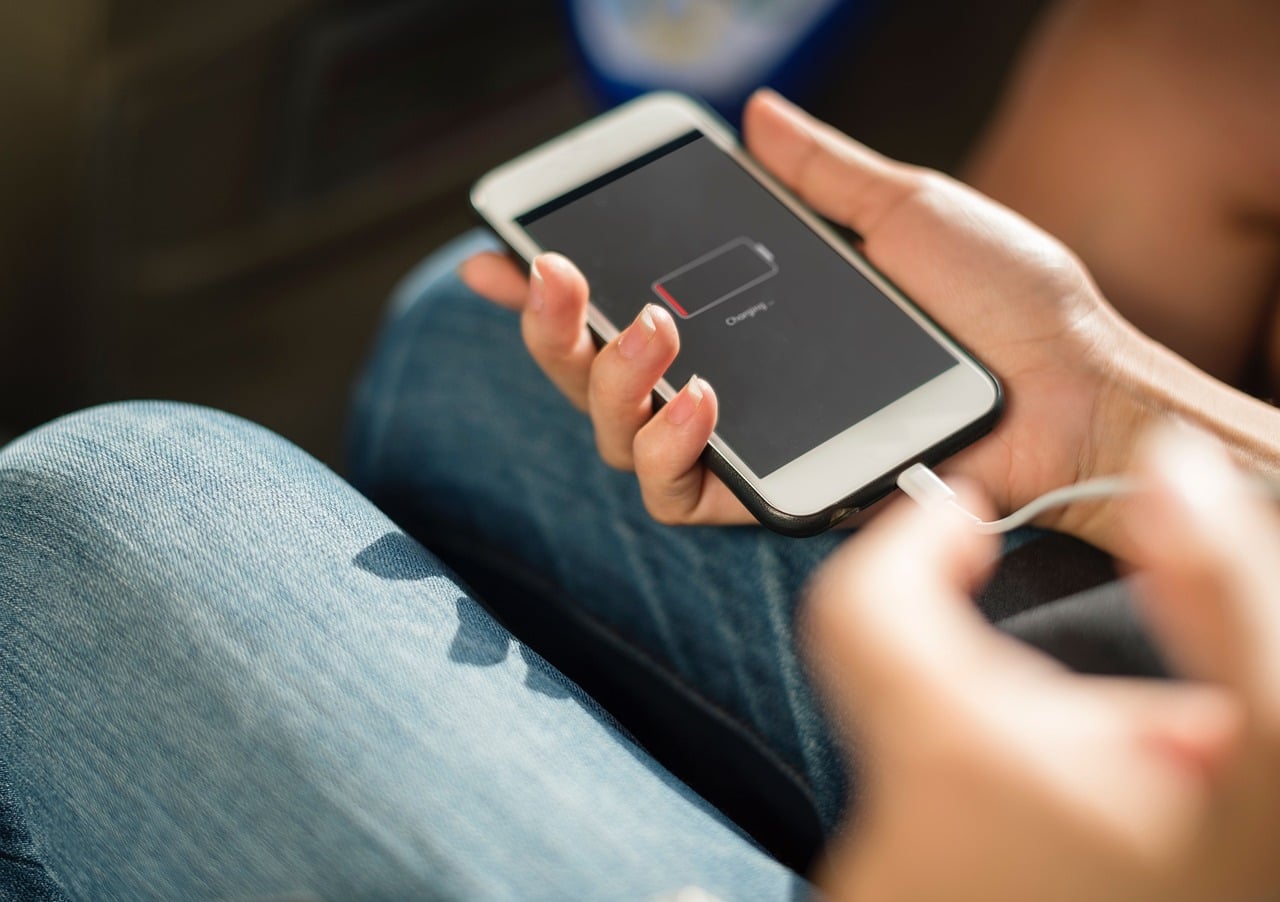
When Is It Time To Replace The Battery?
After all of this, you may still be wondering, So… is my battery actually done for?
Sometimes, the answer is yes, but that doesn’t automatically mean it’s time to replace your entire phone.
Signs your battery may be nearing the end of its useful life include:
- Battery Health below 80%
- Needing to charge multiple times a day
- Random shutdowns, even when you still have battery percentage left
- Rapid drops in battery percentage
- Noticeably shorter battery life despite trying the fixes above
You Might Not Need A New Phone After All
If your phone still performs the following, a battery replacement could be a much more affordable option than buying a brand-new device.
- Runs the apps you need
- Feels reasonably fast
- Receives important software updates
- Meets your day-to-day needs
On the other hand, if you’re also dealing with:
- Slow performance
- Limited storage
- Frequent glitches
- A phone that’s no longer supported with security updates
…it may make more sense to put that money toward an upgrade instead.
Frequently Asked Questions
Still have questions? You’re probably not the only one. If you’ve experienced a weird battery issue that isn’t covered here, let us know in the comments. There’s a good chance someone else has dealt with the exact same thing.
Why Does My Phone Battery Drop From 20% To 5% So Quickly?
As batteries age, the percentage meter becomes less reliable. Instead of draining steadily, you may notice sudden drops once the battery gets low.
If this starts happening regularly, especially alongside random shutdowns, it may be a sign that your battery’s health has significantly declined.
Does Dark Mode Actually Save Battery Life?
Sometimes. Phones with OLED displays can save a bit of power in Dark Mode because black pixels use less energy than bright white ones.
The difference usually isn’t dramatic, but if you spend hours each day reading, browsing, or messaging, the savings can add up over time.
Why Does My Phone Battery Die Faster In Cold Weather?
Extreme heat gets most of the attention, but cold temperatures can temporarily affect battery performance, too.
Lithium-ion batteries rely on chemical reactions to generate power. Those reactions slow down in the cold, which can make your battery seem like it’s draining faster than normal. The good news? In most cases, battery life returns to normal once the phone warms back up.
Should I Force Close All Of My Apps Every Day?
No. Modern smartphones are designed to manage apps efficiently.
Constantly force closing and reopening apps can sometimes use more energy than simply letting your phone handle them on its own. It’s usually more helpful to identify a specific battery-hogging app than to aggressively close everything.
Is Wireless Charging Bad For Your Battery?
Not inherently. Wireless charging can generate more heat than wired charging, especially with faster wireless chargers.
Occasional use isn’t a problem, but if your phone consistently gets very warm while charging, it may be worth switching to a wired charger more often.
Why Does My Friend’s Phone Last Longer Than Mine Even Though We Have The Same Model?
Because battery life is part hardware and part habit.
Two people can own identical phones and have completely different experiences based on screen brightness, signal strength, apps, charging habits, battery age, and how heavily they use their devices throughout the day.
Still Feel Like Your Tech Is Working Against You?
A fast-draining phone battery is annoying, but it’s rarely random. Once you know what’s happening behind the scenes, it becomes much easier to tell whether your phone needs a few setting changes, a battery replacement, or a bigger upgrade conversation.
If your other devices have started acting suspiciously dramatic, too, these guides can help you keep troubleshooting:
- Why Your Phone Suddenly Feels Like It’s Working Against You
- The Hidden Expiration Dates On Modern Technology
- These Everyday Habits Are Slowing Down Your Devices
- 12 Tech Myths That Made Sense Once—But Don’t Anymore
- 6 Tech Problems Almost Every Home Runs Into
Has your phone battery turned you into someone who knows the location of every charger in the house? Tell us what weird battery behavior you’ve been dealing with in the comments.