Your phone seemed fine yesterday. Then, without warning, it suddenly cannot take another photo, install an update, or download a file.
The frustrating part is that nothing obvious appears to have caused it. You did not download a huge movie or install dozens of new apps. Yet somehow, nearly every gigabyte is gone.
Phone storage usually fills in ways that are easy to miss. Small files accumulate, apps grow, old downloads linger, and hidden data quietly takes up more room than expected.
The good news is that your storage has not vanished. It is still there; you just need to find what is using it.

What’s Really Happening
Your phone probably did not fill up because of one enormous file. Storage usually disappears gradually as photos, videos, apps, downloads, messages, and temporary data accumulate in the background.
Some of that content is easy to find. Some is buried inside apps or grouped under vague labels such as System Data or Other.
The key is to identify which category is growing before you start deleting things at random. Once you know where the space went, freeing it becomes much easier.
How to See What Is Using Your Storage
Before deleting anything, check what is actually taking up the space. Your phone’s storage screen groups files into categories such as photos, apps, messages, downloads, and system data.
Want our human-written content to rank above AI-generated garbage? Help us out by clicking this button!
Find the Storage Screen
- On iPhone: Open Settings > General > iPhone Storage.
- On Android: Open Settings > Storage. The exact wording may vary by manufacturer.
Give the phone a moment to calculate everything. You should then see a storage bar, category breakdown, and a list of apps ranked by size.
What to Look For
Focus on the two or three largest categories rather than the total amount of free space.
- Photos and videos: Large recordings, duplicates, screenshots, or recently deleted files may be responsible.
- Apps: The total may include downloads, drafts, cached files, and saved projects—not just the app itself.
- Messages: Photos, videos, voice notes, and documents can make one conversation surprisingly large.
- Downloads: Offline shows, playlists, podcasts, maps, and documents are easy to forget.
- System Data or Other: These broad categories can include temporary files, indexes, logs, and update data.
The app list is often the most revealing part. Tap the largest apps and compare the application size with its documents and data. A small app with several gigabytes of stored data deserves a closer look.
Storage totals may not update immediately after files are deleted. Some items remain in a trash or recently deleted folder, while others take time to disappear from the storage report.
For now, do not start removing files at random. Identify the biggest categories first. They will show you where the missing space went—and where to begin cleaning.

8 Reasons Your Phone Storage Fills Up So Fast
Once you know which category is using the most space, the next step is understanding why it grew.
Phone storage usually does not disappear because of one dramatic download. It fills gradually through everyday activity: taking photos, opening messages, updating apps, saving content for offline use, and letting temporary files accumulate.
The eight causes below account for most storage problems. Some are easy to spot. Others hide inside apps or appear under vague labels that do not clearly explain what they contain.
1. Photos and Videos Add Up Quickly
Photos can take up a large amount of storage over time, but videos are usually the bigger problem. A few minutes of high-resolution footage can use more space than hundreds of pictures, especially if you record in 4K.

Your photo library may also contain more than you realize, including:
- Live Photos or motion photos
- Burst shots and duplicates
- Screenshots and screen recordings
- Edited copies that keep the original
- Blurry or accidental photos
- Files still sitting in Recently Deleted
Start with large videos, since removing just a few can free several gigabytes. Then review duplicates, screenshots, bursts, and screen recordings.
Before deleting anything important, make sure it is safely backed up. Also remember that items in Recently Deleted, Trash, or Bin may continue using storage until they are permanently removed.
2. Cached Files Grow in the Background
Apps store temporary files to help pages, images, and videos load faster. This is called cached data, and a small amount is normal. The problem is that some apps keep accumulating cache for months.
Social media, shopping, browser, and streaming apps are common offenders. An app that looked small when you installed it may eventually use several gigabytes once cached files and local data are included.
To check for buildup:
- Open the app’s storage details
- Compare the app size with its documents or data
- Look for an in-app cache-clearing option
- Review browsers and social media apps first
On many Android phones, Clear cache removes temporary files without deleting your account. Be careful not to select Clear data or Clear storage, which may sign you out or remove local settings.
On an iPhone, cache controls vary by app. Some apps include their own cleanup option, while others may need to be offloaded or reinstalled.
Clearing a cache is usually temporary. The files will begin rebuilding as you use the app again.
Browser data can contribute to the buildup as well. Our guide to clearing cache and cookies on iPhone, Android, and major browsers explains what each option removes and when clearing it may sign you out.
3. Messaging Apps Store More Than Text
Text messages themselves use very little storage. The real issue is everything attached to them.
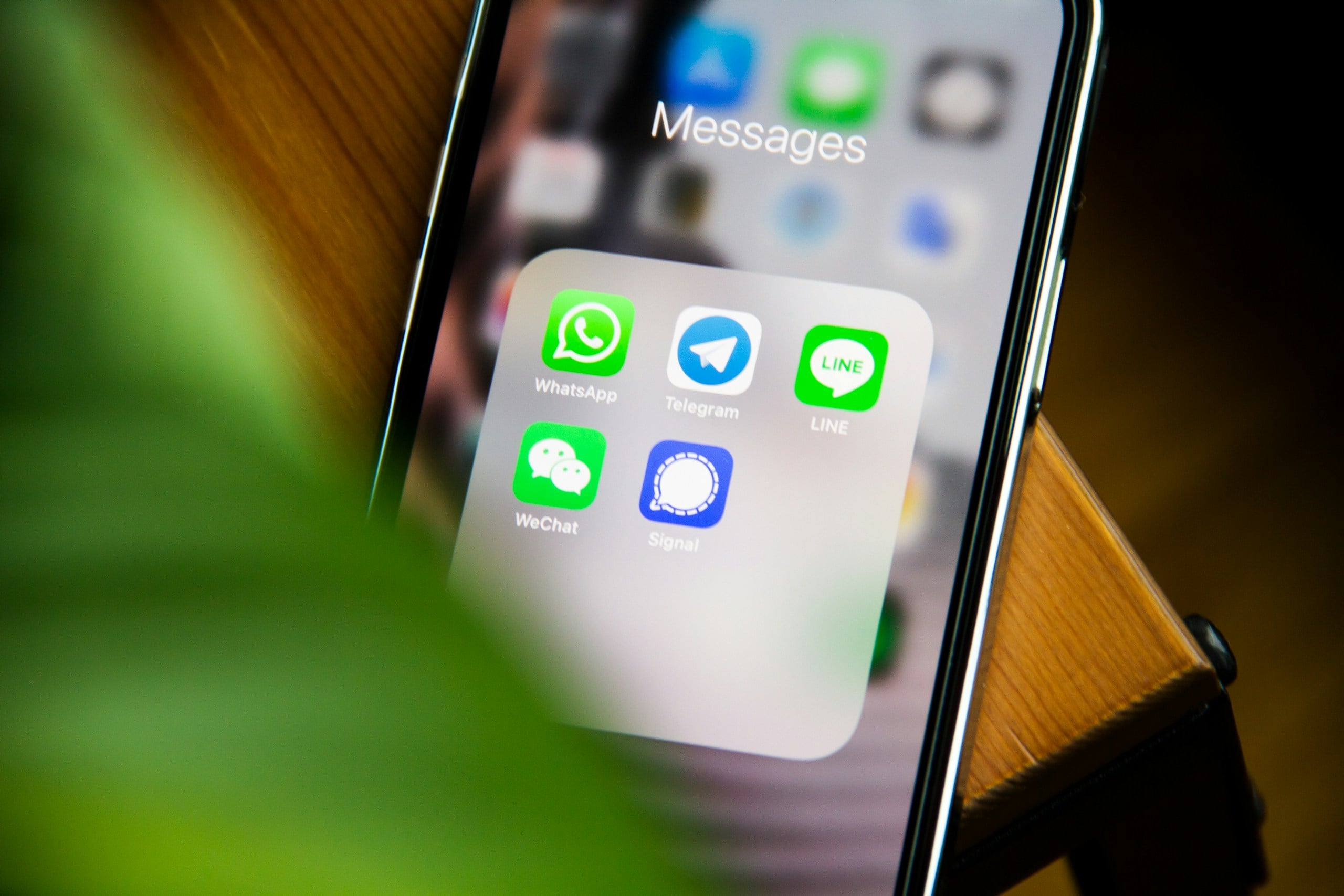
Photos, videos, GIFs, voice notes, documents, and stickers can build up inside conversations for years. Group chats are especially demanding because new media arrives constantly, often without you saving it manually.
Messaging apps may store:
- High-resolution photos and videos
- Voice messages
- PDFs and work documents
- Frequently forwarded GIFs and memes
- Media saved in both the app and your photo library
Use the app’s storage-management screen to find the largest files or most media-heavy conversations. This is much faster than opening each chat individually.
You can also reduce future growth by turning off automatic video downloads or automatic saving to your photo gallery. Save anything important elsewhere before removing it.
4. Apps Get Larger Over Time
An app rarely stays the same size as the day you installed it. Updates add new features, graphics, tools, languages, and media files. The app may also collect drafts, downloads, projects, and account data as you use it.
That means a familiar app can quietly become much larger without looking any different on your home screen.
Check for:
- Apps you no longer use
- Photo or video editors holding old projects
- Social apps with large amounts of stored data
- Streaming apps with local downloads
- Drafts saved inside creative apps
Sort your apps by size and tap the largest ones for more detail. A modest app with several gigabytes of documents and data may be a better cleanup target than a visibly large app.
If available, use Offload App or Archive for apps you need occasionally. This removes the app while keeping its settings and documents for later.
5. Mobile Games Can Become Storage Giants
Mobile games often download much more content after installation. The original app may be small, but maps, textures, characters, music, updates, and seasonal events can make it several gigabytes larger.

Some games also keep:
- Extra language and voice packs
- Replay files
- Downloaded maps or campaigns
- High-resolution graphics
- Old update packages
Before deleting a game, make sure your progress is connected to an account or backed up. A local-only save may disappear when the app is removed.
Check the game’s settings for a resource manager. Some titles let you delete unused maps, voice packs, or downloadable content without removing the entire game.
If a large game has not been opened in months, uninstalling it may free more space than deleting hundreds of small files.
6. Offline Downloads Are Easy to Forget
Offline content is useful because it works without an internet connection. It is also easy to forget once a trip, commute, or workout routine ends.
Common storage users include:
- Downloaded shows and movies
- Music playlists
- Podcast episodes
- Offline maps
- E-books and course materials
- Cloud files marked for offline access
These files may not appear in your phone’s regular Downloads folder. Each app usually manages its own saved content, so look for sections labeled Downloads, Offline, or Available Offline.
Automatic downloads can make the problem worse. A podcast app may save every new episode, while a video or music app may download recommendations whenever you connect to Wi-Fi.
Review those settings and keep only the content you still use.
7. System Data Needs Space Too
Not all storage belongs to files you downloaded. Your phone’s operating system needs space for core software, security features, built-in apps, indexes, logs, update files, and temporary data.
This content may appear under labels such as:
- System Data
- Other
- System
- Temporary Files
The category can grow after a software update, heavy streaming, photo indexing, or long periods without restarting the device. Some of it may shrink automatically once background tasks are finished.
To reduce unnecessary buildup:
- Restart the phone
- Install pending system updates
- Clear browser data
- Remove old downloads and message attachments
- Leave the device connected to power and Wi-Fi after a major update
Avoid deleting system files with third-party cleaner apps. Some system storage is essential and cannot be safely removed.
8. Cloud Storage May Not Free Local Space
Uploading files to the cloud does not always remove them from your phone. A backup service may create an online copy while leaving the original stored locally.
That means you can have the same photo or document in two places without gaining any phone storage.
There are three different actions to understand:
- Backup creates another copy
- Syncing keeps files consistent across devices
- Optimization reduces the amount stored locally
Look for settings such as Optimize Storage, Free Up Space, or Remove Download. These options can reduce local usage after confirming that files are safely stored online.
Be careful when deleting synced files. In some services, deleting a photo from your phone also deletes it from the cloud and every connected device.
Before removing important photos or documents, make sure you have a reliable backup plan. These data loss prevention tips explain how cloud backups and additional copies can protect files if a phone is lost, damaged, or reset.
Cloud storage helps only when it is configured to reduce local copies. Buying more cloud space does not increase the physical capacity inside your phone.
Apple explains the difference between iCloud storage and the physical storage on your device, which is why purchasing more cloud space does not increase your phone’s built-in capacity.
Why Storage Reports Can Feel Confusing
Phone storage reports are helpful, but they are not always perfectly clear. Categories can overlap, totals may change, and deleted files do not always disappear from the report immediately.
Several things can make the numbers look inconsistent:
- Storage totals may update slowly after files are deleted
- Recently deleted items may still use space
- Apps may separate the app itself from its documents, downloads, and cache
- Photos may appear in both messages and the photo library
- Cloud-optimized files can use changing amounts of local storage
- Updates and editing tasks may temporarily create extra files
The category labeled System Data, Other, or Temporary Files can be especially confusing because it may include caches, logs, indexes, update files, and shared app data.
Do not worry about explaining every small difference. Treat the storage report as a guide rather than a perfect accounting statement. Focus on the largest categories and any app or file type that looks unusually big.
If the numbers do not change after a cleanup, wait a few minutes and restart the phone. This can refresh the storage calculation, although it will not remove files that are still sitting in a trash folder.
What to Check First When Your Phone Is Full
When storage is critically low, deleting random files is rarely effective. The fastest approach is to target the largest items first.
Use this order:
- Large videos
Check your photo library, message attachments, video-editing apps, and downloaded shows. - Oversized apps and games
Sort apps by size and look for old games, drafts, offline content, or large caches. - Recently deleted files
Review the trash folders in your photo app, file manager, notes, voice recorder, and cloud storage apps. - Messaging attachments
Use the app’s storage manager to find large videos, documents, voice notes, and media-heavy conversations. - Offline downloads
Remove old playlists, podcast episodes, maps, shows, and files marked for offline use.
Back up anything important before deleting it. After a large cleanup, restart the phone so the storage totals can refresh.
Try to free more than the bare minimum. Your phone needs some unused space for updates, camera processing, downloads, and temporary files.
How to Keep Storage From Filling Up Again
A cleanup solves the immediate problem, but storage will fill again if the same settings and habits remain in place.
A few simple changes can slow the buildup:
- Record everyday videos at a lower resolution when 4K is not necessary
- Turn off motion photos or Live Photos if you rarely use them
- Limit automatic downloads in messaging and streaming apps
- Keep only a few recent podcast episodes offline
- Disable smart downloads that save recommendations automatically
- Review screenshots, large videos, and unused apps once a month
- Use cloud optimization instead of backup alone
- Leave some free space for updates and normal phone activity
A quick monthly review is usually enough. Check your largest videos, downloads, message attachments, screenshots, and unused apps before they become a problem.
You do not need to delete everything you enjoy. The goal is simply to remove the content that no longer has a reason to stay.
Storage is not the only everyday habit that can affect how responsive your devices feel. See the tech habits that secretly slow down your devices for other settings and background activities worth reviewing.
When More Storage Is the Only Practical Answer
Sometimes the phone is not cluttered. It simply does not have enough capacity for the way you use it.
This is common if you regularly:
- Record high-resolution video
- Play several large mobile games
- Download shows, music, or maps
- Edit photos or videos on your phone
- Keep years of photos stored locally
- Need large work files available offline
Look at how much space your essential content already uses. If your photos, apps, and system files nearly fill the phone even after a cleanup, the storage capacity may simply be too small.
Choose future storage based on your current usage plus room to grow. A phone that is almost full as soon as your data is transferred will quickly become frustrating again.
Cloud storage, external drives, and memory cards can help, but they are not perfect substitutes for internal storage. Cloud files may require an internet connection, and not every app or system file can be moved elsewhere.
Cloud services vary in how they handle backup, synchronization, recovery, and local access. Our cloud backup comparison explains the major options and the differences between them.
When storage warnings regularly stop you from taking photos, installing updates, or downloading files, choosing more capacity is not excessive. It is the practical solution.
Give Your Phone Some Breathing Room
Phone storage usually fills through ordinary use, not one dramatic download. Photos, videos, apps, message attachments, offline content, and system files all grow a little at a time.
The best approach is to start with the largest categories rather than deleting random files. Review big videos, oversized apps, old downloads, messaging attachments, and recently deleted items first.
Once you have freed some space, adjust the settings that caused the buildup. Limit automatic downloads, review offline content regularly, and use cloud optimization carefully.
The goal is not to keep your phone empty. It is to make sure the space is being used by files and apps you still want.

Frequently Asked Questions
Still have questions about what is taking up space on your phone? Leave them in the comments, and share whether you use an iPhone or Android so others can offer more specific advice.
Below are answers to some of the most common phone storage questions.
Why is my storage still full after deleting photos?
Deleted photos may remain in Recently Deleted, Trash, or Bin for several weeks. Empty that folder, then give the phone time to update its storage total.
Do text messages take up phone storage?
Plain text uses very little space. Photos, videos, voice notes, GIFs, and documents inside conversations are what usually take up room.
Is it safe to clear cached data?
Clearing a genuine app cache is usually safe. Avoid choosing Clear Data or Clear Storage, which may remove settings, downloads, or local files.
Why does System Data keep growing?
System Data can include caches, logs, update files, indexes, and temporary data. Restarting the phone and installing pending updates may reduce it.
How much phone storage do I need?
For lighter use, 128 GB may be enough. People who record a lot of video, play large games, or keep files offline may be better served by 256 GB or more.
Keep Your Phone Running Smoothly
Freeing up storage can solve slowdowns, failed updates, camera problems, and other frustrating behavior. But storage is only one part of keeping an older phone working well.
- If your device still feels slow, freezes, overheats, or behaves unpredictably after a cleanup, explore why smartphones start acting strange after a few years. It covers other common causes, including aging batteries, demanding software, background activity, and heat.
- Battery problems can create similar symptoms. Learn why your phone battery suddenly drains faster than it used to and what to check before replacing the entire device.
- You may also find that an older phone no longer powers up as quickly as it once did. Our guide to why your phone suddenly takes longer to charge explains how chargers, cables, heat, settings, and battery health can affect charging speed.
A little regular maintenance can extend the useful life of your phone. Keep some storage free, review large files occasionally, and investigate new performance problems before assuming you need a replacement.
What Worked for You?
Have you found a storage culprit or cleanup trick that made a noticeable difference? Share your experience in the comments, including whether you use an iPhone or Android and which solution worked best for you.