Sound familiar? One minute your phone is happily connected to Wi-Fi. The next, your video is buffering, your apps refuse to load, and you’ve burned through who knows how much cellular data before you even notice.
Meanwhile, your laptop is streaming, your smart TV is binge-watching without complaint, and everyone else’s phone seems to have signed a peace treaty with the router.
Your phone relies on a surprising mix of wireless hardware, software, router settings, and built-in features that constantly decide when to stay connected and when to disconnect.
Sometimes those decisions are smart. Other times, your phone seems to have a personal grudge against your Wi-Fi. Here are the most common reasons it keeps dropping the connection — and what to do about it.

8 Reasons Your Phone Keeps Disconnecting From Wi-Fi
Many Wi-Fi disconnects have surprisingly simple explanations once you know what your phone is doing behind the scenes.
Want our human-written content to rank above AI-generated garbage? Help us out by clicking this button!
From weak signals and router settings to software quirks and automatic network switching, each cause leaves its own clues. Knowing what to look for can save you a lot of unnecessary troubleshooting.
1. The Wi-Fi Signal Isn’t As Strong Or Stable As It Seems
When a phone keeps disconnecting from Wi-Fi, the signal is usually the first thing people blame, and sometimes they’re absolutely right.
But distance is only one piece of the puzzle. A Wi-Fi signal has to travel through everything between your router and your phone, so even a couple of rooms can make a bigger difference than you might expect.
Common signal blockers include:
- Walls and floors, especially those made of brick or concrete
- Large metal appliances like refrigerators and filing cabinets
- Mirrors and aquariums, which can interfere with wireless signals
- Nearby Wi-Fi networks, especially in apartments, condos, or densely populated neighborhoods
And here’s something many people don’t realize: signal strength and signal quality aren’t the same thing.
Your phone might show three or four Wi-Fi bars and still struggle to stay connected. Those bars only estimate how strong the signal is — they don’t measure how much interference or wireless “noise” your phone is dealing with.
Another reason this problem is confusing is that phones don’t have the same Wi-Fi hardware as larger devices.
Laptops have larger antennas and more room for wireless components, allowing them to hang onto weaker signals longer.
Smartphones squeeze everything into an incredibly thin device, so they often lose a marginal connection before your laptop, tablet, or smart TV does.
If your phone disconnects in the same room every time — or only when you walk upstairs, head into the backyard, or step into the kitchen — that’s a strong clue the signal itself is the first thing worth investigating before changing router settings or replacing your phone.
Quick Test: Is Your Wi-Fi Signal Too Weak?
Start by standing where your phone usually disconnects, then compare it to a room where your Wi-Fi works reliably. If the problem consistently happens in the same spot, a weak or unstable signal is a strong suspect.
Want a more precise answer?
- Many Android phones display Wi-Fi signal strength (measured in dBm) in their Wi-Fi settings or diagnostic menus.
- Android and iPhone users can also download a free Wi-Fi analyzer app, like Ubiquiti WiFiman, to measure signal strength.
As a general rule:
- -67 dBm or stronger: Excellent for most everyday use
- -70 to -75 dBm: You may start noticing slowdowns or occasional disconnects
- Below -75 dBm: Your connection is much more likely to become unstable
2. Your Phone Thinks Cellular Is A Better Option
Sometimes your phone isn’t accidentally disconnecting from Wi-Fi at all. It’s making a decision.
Modern smartphones constantly evaluate your internet connection. If they decide cellular data will provide a smoother experience, they may quietly switch away from Wi-Fi without asking.
The goal is simple: keep videos playing, web pages loading, and apps responding quickly. The problem is that your phone doesn’t always make the right call.
A brief slowdown or weak signal can convince it that cellular is the better option, even if your Wi-Fi would have recovered a few seconds later.
Different manufacturers use different names for this feature, including:
- Wi-Fi Assist on many iPhones
- Adaptive Connectivity on many Android devices
- Intelligent Wi-Fi on many Samsung Galaxy phones
While the names vary, they all do essentially the same thing: automatically switch to what your phone believes is the fastest and most reliable connection.
Your phone is more likely to switch to cellular when:
- You move into an area with weaker Wi-Fi coverage
- Several people are using your home network at the same time
- Your router briefly slows down or stops responding
- The phone decides your Wi-Fi isn’t reliable enough, even if the Wi-Fi icon is still visible
Another clue is an unexpected increase in your monthly cellular data usage.
If you’re burning through more mobile data than usual, your phone may be leaving Wi-Fi more often than you realize. Your phone was trying to help. Your data plan may disagree.
If this sounds familiar, try temporarily turning off Wi-Fi Assist, Adaptive Connectivity, or your phone’s equivalent feature for a day or two. If the random switches stop, you’ve likely found the cause.
3. Your Router Keeps Moving Your Phone Between Wi-Fi Bands
Does your Wi-Fi disconnect every time you walk into a certain room? If the answer is yes, your router may actually be trying to help.
Most modern routers don’t rely on just one Wi-Fi signal. They’re constantly deciding which wireless band should give your phone the best connection.
Instead of staying on the same band all the time, your phone may be switched from one to another as you move around your home.
Here’s the difference:
- 2.4 GHz: Longer range, but slower speeds
- 5 GHz: Faster speeds, but shorter range
- 6 GHz: Fastest speeds, but works best when you’re close to the router (available on newer routers)
Many routers use a feature called band steering to make these decisions automatically.
Think of it like changing lanes on the highway. Your router is constantly trying to move your phone into the “fast lane” for the best performance.
Most of the time, the lane change is so smooth that you never notice it. But if the timing isn’t perfect, your phone may briefly lose its connection before reconnecting.
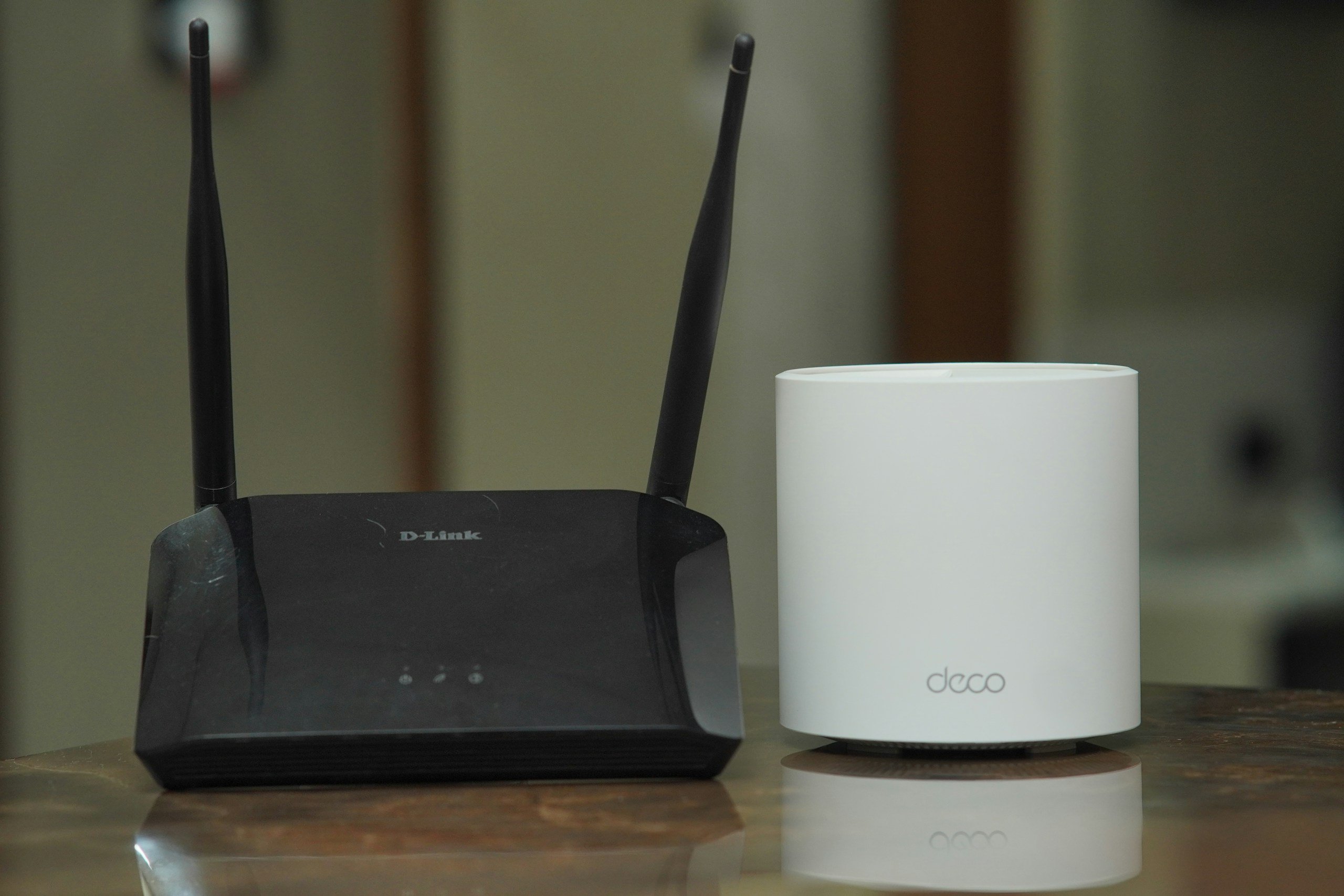
The same thing can happen if you have a mesh Wi-Fi system. Instead of one router covering your entire house, mesh systems use multiple access points. As you walk from room to room, your phone automatically roams between them in search of the strongest signal.
Again, this usually happens seamlessly. But if one access point has a much weaker signal — or the handoff doesn’t happen cleanly— you may notice a brief disconnect before your phone settles onto the stronger connection.
Quick Test: Is Band Switching The Problem?
Pay attention to when the disconnect happens.
Does it:
- Happen in almost the same spot every time?
- Occur while walking between rooms or floors?
- Last only a few seconds before reconnecting?
- Start after upgrading to a new router or mesh Wi-Fi system?
If you’re experiencing these issues, automatic band switching or roaming is a likely culprit. That’s especially true if your connection becomes perfectly stable again once you stop moving.
4. Your Phone Is Holding Onto Old Or Conflicting Network Information
Your phone remembers every Wi-Fi network you’ve ever connected to. Most of the time, that’s incredibly convenient. Occasionally, though, those saved settings become outdated and start causing connection problems.
This often happens after you’ve made changes to your home network, such as:
- Replacing your router
- Renaming your Wi-Fi network
- Changing the Wi-Fi password
- Installing a Wi-Fi extender or mesh system
- Installing a new modem or router
Your phone may still be trying to use connection information that no longer matches your current setup.
One common source of confusion involves duplicate SSIDs. An SSID is simply your Wi-Fi network’s name—the one you see when choosing a network to join.
For example, your router and Wi-Fi extender might both broadcast “SmithFamilyWiFi.” It looks like one network, but your phone may actually see two different devices and struggle to decide which one to use.
The same thing can happen after replacing or renaming your router. Even if the network name stays the same, your phone may still be trying to use outdated security or connection information.
The good news is that this is one of the easiest Wi-Fi problems to fix. Forget the Wi-Fi network on your phone, then reconnect as if you’re joining it for the first time.
Your phone will discard the old connection information and create a fresh one using your router’s current settings. If outdated or conflicting network data was causing the problem, this simple step often solves it in just a few minutes.
5. A Software Update Changed How Your Phone Handles Wi-Fi
Was your Wi-Fi working perfectly until your phone installed an update? If your disconnects started immediately afterward, the timing may not be a coincidence.
Software updates do much more than add new features or fix security issues. They can also change how your phone communicates with Wi-Fi networks.
Behind the scenes, an update may modify:
- How your phone connects to Wi-Fi networks
- The network stack—the software that manages internet connections between your phone, apps, and Wi-Fi
- Power-saving features that determine how aggressively your phone conserves battery life
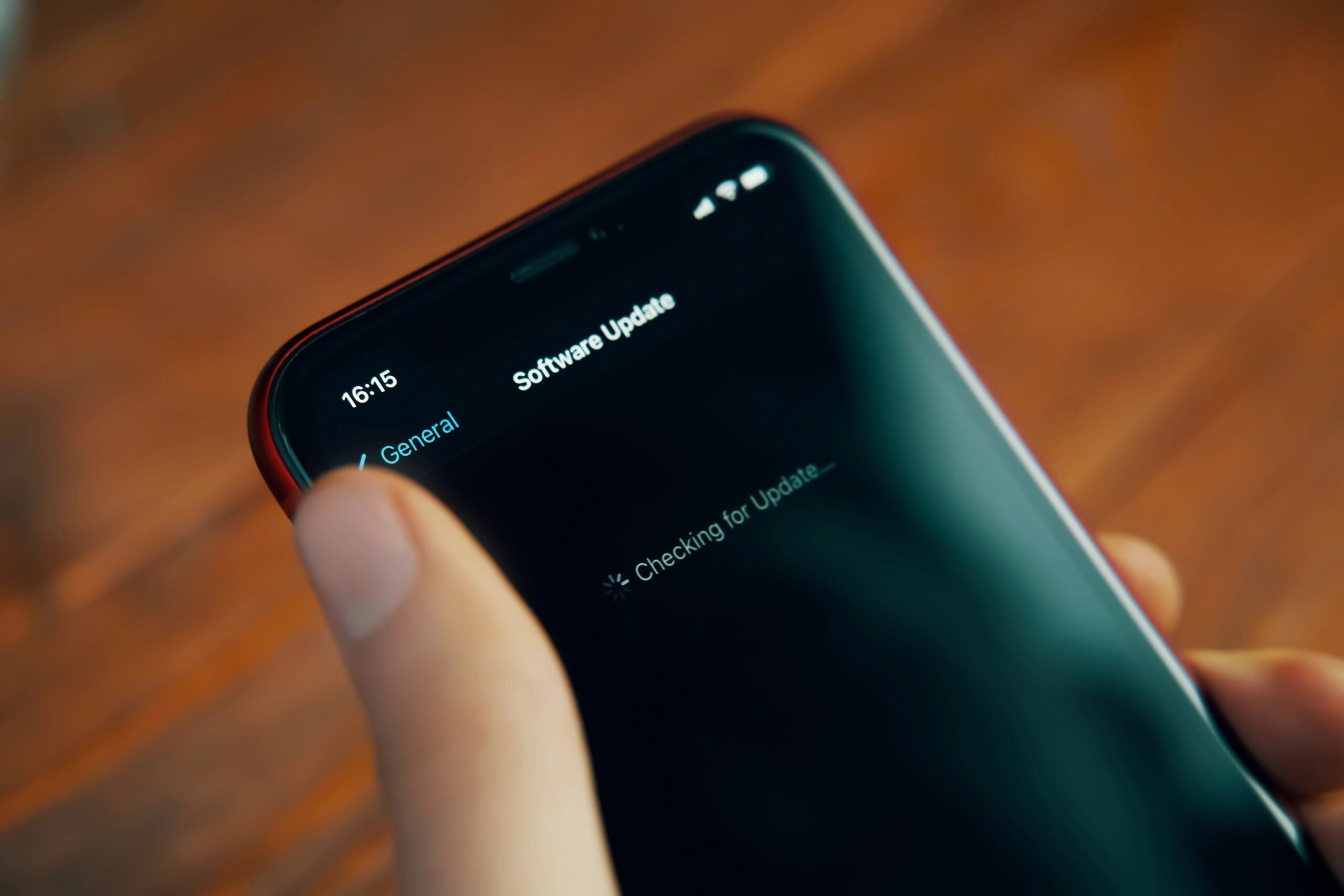
Think of the network stack as your phone’s traffic controller. It helps Wi-Fi, cellular data, apps, and internet services all communicate with one another. If something changes unexpectedly, even a small software bug can make your connection less reliable.
Sometimes the update itself isn’t actually the problem. A newly updated phone may simply stop playing nicely with an older router. If your router hasn’t received a firmware update in years, the two devices may temporarily disagree about how to maintain a stable Wi-Fi connection.
One of the biggest clues is that nothing else changed. Your router is in the same place. Your internet plan is the same. The only difference is the software running on your phone.
Quick Test: Did An Update Trigger The Problem?
Ask yourself:
- Did the disconnects begin within a day or two of updating?
- Does the problem happen on multiple Wi-Fi networks?
- Are other devices still working normally?
- Was the software update the only major change?
If you answered yes to most of those questions, the update is a strong suspect.
Before resetting your router or replacing any hardware, check whether your phone manufacturer has already released another software update. Wi-Fi bugs discovered after a major release are often fixed surprisingly quickly in follow-up patches.
6. A VPN, Private DNS, Or Security App Is Interrupting The Connection
Does your phone say it’s connected to Wi-Fi, but websites and apps still refuse to load? Sometimes the problem isn’t your Wi-Fi at all—it’s the software sitting between your phone and the internet.
Many privacy and security features inspect, encrypt, or redirect your internet traffic before it reaches a website. Most of the time, they work exactly as intended. But if one isn’t behaving properly, it can make your Wi-Fi connection appear unreliable.
Some of the most common culprits include:
- VPNs: Route your internet traffic through another server for added privacy.
- Private or encrypted DNS: Uses a more secure service to help your phone find websites.
- Ad blockers: Filter internet traffic before it reaches your apps or browser.
- Work profiles: Add extra security to phones managed by an employer.
- Mobile security apps: Monitor network activity to help protect your device.
None of these tools are bad. They’re designed to make your phone more private and secure. The trade-off is that every extra layer creates another opportunity for something to go wrong.
Try temporarily disabling one feature at a time—not all of them at once. If the disconnects stop, you’ve likely found the culprit. From there, you can adjust its settings, update the app, or decide whether you still need it running.
7. Your Phone’s Battery-Saving Features Are Getting Too Aggressive
Does your Wi-Fi seem to disconnect only after your phone has been sitting idle? If so, your battery-saving settings may be playing a bigger role than you realize.
Modern smartphones constantly look for ways to extend battery life. To do that, they may temporarily reduce background activity, limit how often apps stay connected to the internet, or even put parts of the Wi-Fi connection to sleep until you start using your phone again.
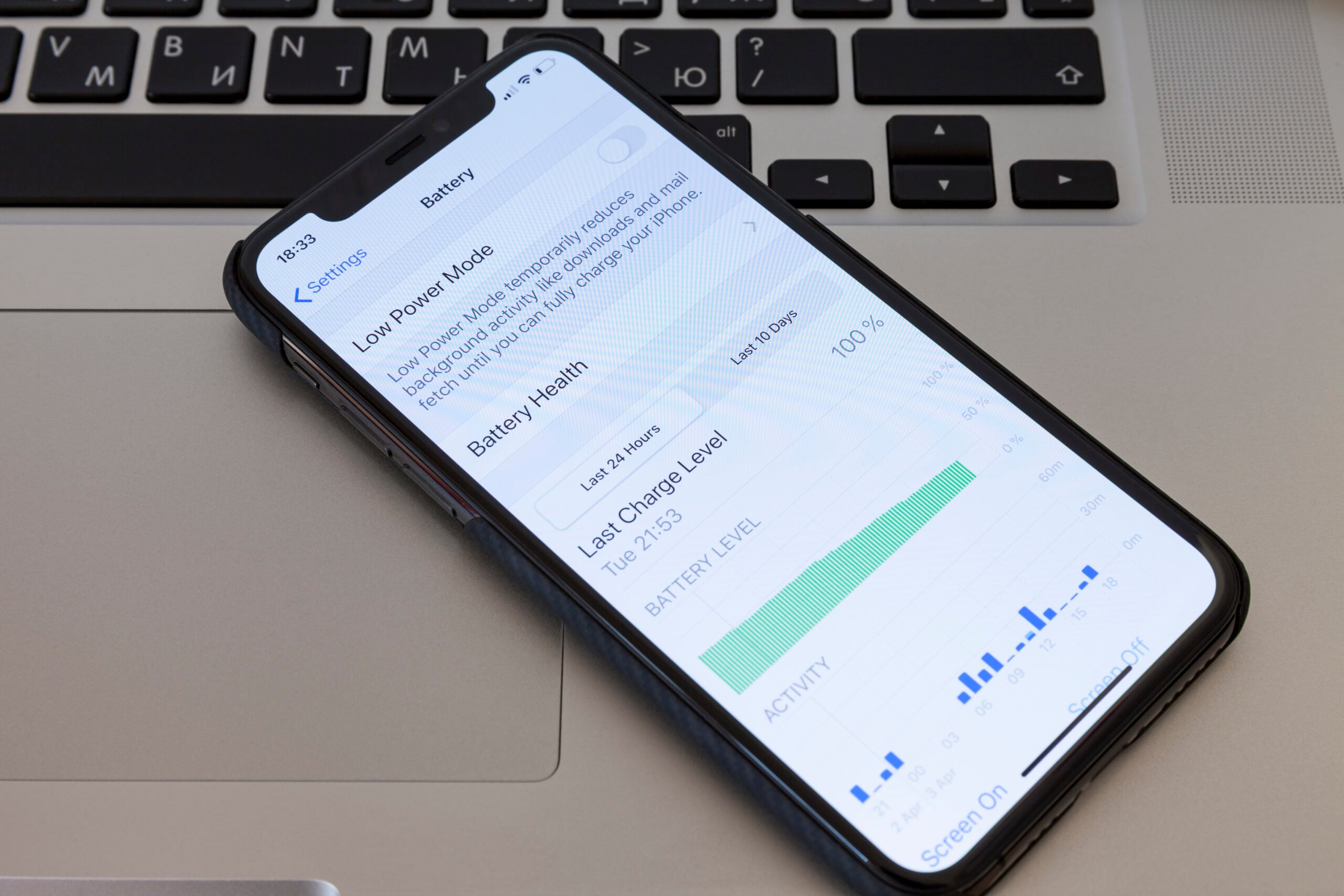
Depending on your device, these features may include:
- Low Power Mode on iPhone
- Battery Saver on Android
- Background app restrictions that limit internet activity when you’re not using an app
- Manufacturer-specific battery optimization features from companies like Samsung, Google, and OnePlus
Most of the time, these features work exactly as intended. The problem is that some phones become a little too aggressive about conserving power, causing Wi-Fi to reconnect more slowly or pause background network activity.
Quick Test: Is Battery Saving The Culprit?
Ask yourself:
- Do the disconnects happen after your phone has been sitting unused?
- Do notifications arrive only after you unlock your phone?
- Do apps suddenly refresh all at once when you wake the screen?
- Does the problem get worse when Low Power Mode or Battery Saver is turned on?
If so, your phone may be prioritizing battery life over maintaining a constant Wi-Fi connection.
Try temporarily turning off Low Power Mode, Battery Saver, or your phone’s battery optimization features for a day or two. If the disconnects disappear, you’ve likely found the cause. You can then decide whether to leave those settings off or adjust them so they don’t interfere with your Wi-Fi as aggressively.
8. Your Router And Phone Simply Aren’t Getting Along
Did the disconnects start after you bought a new phone—but your router stayed the same? If so, the issue may not be your Wi-Fi signal at all. Your phone and router may simply not be communicating as smoothly as they should.
As phones and Wi-Fi technology continue to evolve, older networking equipment doesn’t always keep pace. That doesn’t mean your router is broken. It just means it may struggle to work as efficiently with newer devices.
Compatibility problems are more likely if your router:
- Is several years old
- Hasn’t received a firmware update in a long time
- Uses older Wi-Fi or security standards
- Started having problems only after you upgraded your phone
One common reason is firmware—the software built into your router. Think of it as your router’s operating system.
Just like your phone receives software updates, routers often receive firmware updates that fix bugs, improve performance, and add support for newer devices.
Another possibility is security compatibility. Newer phones are designed to use the latest Wi-Fi security standards, while older routers may still rely on older ones.
Most of the time they work together without any issues, but occasionally they disagree about how to establish or maintain a reliable connection.
Quick Test: Is Your Router The Problem?
Ask yourself:
- Did the disconnects begin after upgrading your phone?
- Do multiple newer phones have the same problem?
- Does restarting the router fix the issue—for a while?
- Is your router several years old and rarely updated?
If you answered yes to several of those questions, your router is a stronger suspect than your phone.
Before shopping for a replacement, check whether your router has a firmware update available. Many Wi-Fi reliability problems can be resolved with an update. If your router is no longer supported or hasn’t received updates in years, though, it may simply be struggling to keep up with today’s phones and wireless technology.
How To Tell If The Problem Is Your Phone Or Your Router
After reading all of these possibilities, you might be wondering where to start. The quickest way to narrow things down is figuring out whether the problem follows your phone or stays with your home network.
The clues below can usually point you in the right direction.
| What’s Happening | The Problem Is Probably… |
|---|---|
| Only your phone disconnects while everyone else’s devices stay connected | Your phone |
| The same problem happens on your home Wi-Fi, work Wi-Fi, and public networks | Your phone |
| The disconnects started immediately after a software update | Your phone |
| Turning Airplane Mode on and off temporarily fixes the problem | Your phone |
| Several devices lose Wi-Fi or internet at the same time | Your router or internet connection |
| Your TV, laptop, or game console also struggle to stay online | Your router or internet connection |
| Restarting the router fixes everything—for a while | Your router |
| Guests experience the same problem when they visit | Your router or internet connection |
Keep in mind that there are exceptions. A software update and an aging router, for example, can sometimes create compatibility problems that affect only one phone.
Still, this quick comparison is usually enough to point you in the right direction.
Once you know which device is most likely responsible, troubleshooting becomes much faster, and you can avoid changing settings that were never causing the problem in the first place.
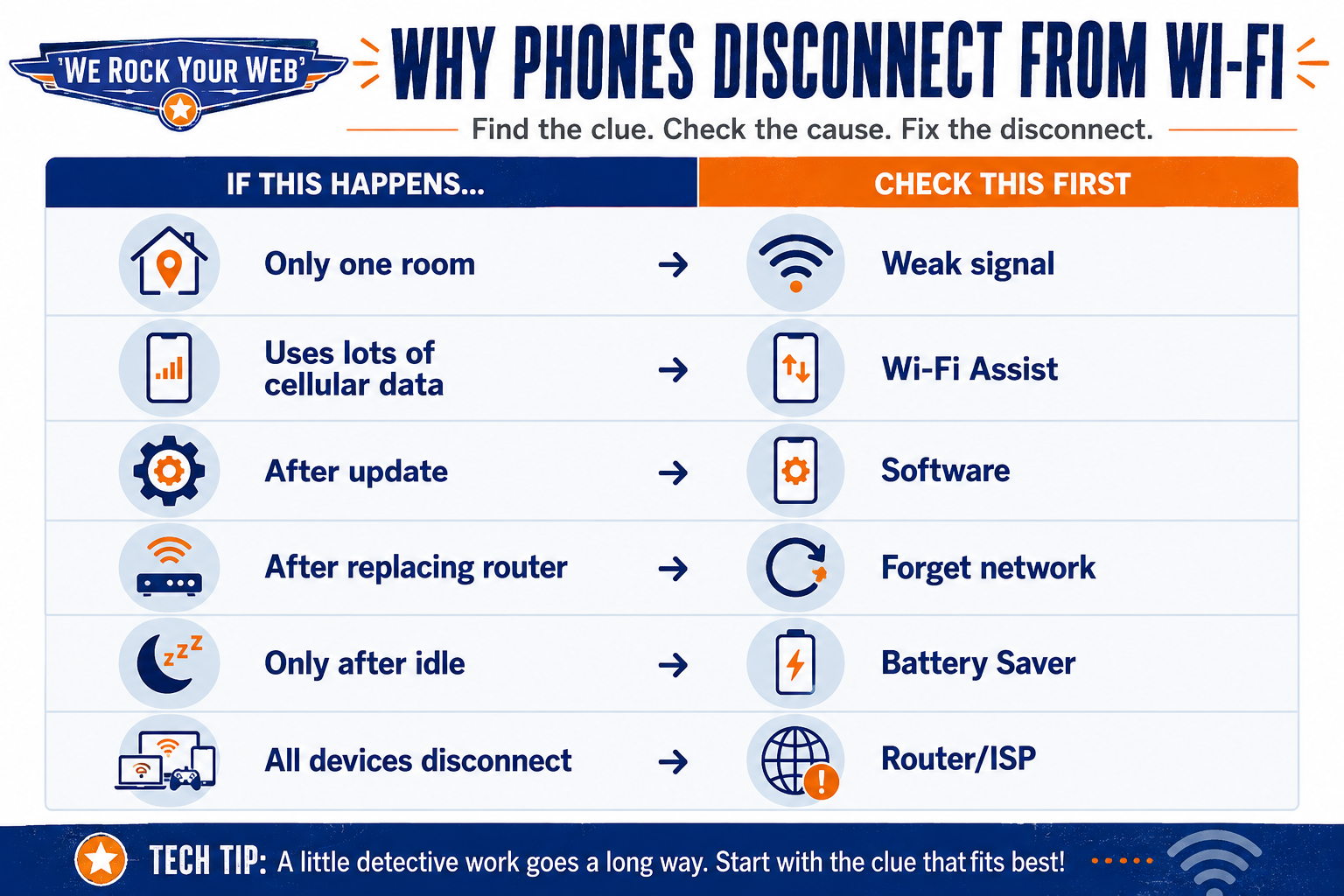
What To Try Before Replacing Your Phone Or Router
Most Wi-Fi disconnect problems can be solved without buying new hardware. Before you start shopping for a new phone or router, work through these fixes in order. The simplest solution is often the right one.
1. Toggle Wi-Fi Off And Back On
Turn Wi-Fi off for a few seconds, then reconnect. This refreshes the connection without affecting any of your saved settings.
2. Restart Your Phone
A quick restart clears temporary software glitches that can interfere with Wi-Fi. It only takes a minute and often fixes problems that seem much bigger than they really are.
3. Restart Your Router
Power your router off for about 30 seconds before turning it back on. This clears temporary memory issues and forces the router to establish a fresh internet connection.
4. Forget The Wi-Fi Network
If your phone is holding onto outdated network information, forgetting the network and reconnecting can create a clean connection using your router’s current settings.
5. Check For Software Updates
Look for updates on both your phone and your router. Manufacturers regularly release patches that fix Wi-Fi bugs, improve compatibility, and address newly discovered issues.
6. Temporarily Disable Your VPN Or Security Software
If you’re using a VPN, Private DNS, ad blocker, or network security app, temporarily turn it off to see whether the disconnects stop. If they do, you’ve likely found the source of the problem.
7. Reset Your Network Settings
If nothing else has worked, resetting your phone’s network settings can clear stubborn Wi-Fi configuration problems. Just remember that you’ll need to reconnect to your saved Wi-Fi networks afterward.
8. Test A Different Wi-Fi Network
Connect to another trusted Wi-Fi network, such as a friend’s house or your workplace. If the same disconnects happen there, the problem is much more likely to be your phone than your home router.
9. Watch For A Pattern
Before replacing anything, pay attention to when the disconnects happen.
Ask yourself:
- Do they only happen in certain rooms?
- Do they start after a software update?
- Do they happen only when Battery Saver is on?
- Do other devices disconnect at the same time?
The answers often point directly to the cause.
10. Consider Replacing Hardware As A Last Resort
If you’ve worked through everything above and the disconnects continue, it may finally be time to consider replacing your router—or, in rare cases, your phone.
Treat new hardware as the last step, not the first. Many Wi-Fi problems are caused by software, settings, or compatibility issues that don’t require spending any money.
Frequently Asked Questions
Here are answers to some of the questions readers ask most often about phones that keep disconnecting from Wi-Fi. Don’t see your question here? Ask us in the comments!
Why Does My Phone Disconnect From Wi-Fi When The Screen Turns Off?
Some phones become much more aggressive about saving battery power when the screen is off. Depending on your device and settings, background apps, Wi-Fi activity, and network connections may be limited until you wake the phone again.
If the disconnects mostly happen after your phone has been sitting idle, check your battery optimization or Low Power Mode settings.
Why Does My Phone Reconnect By Itself A Few Seconds Later?
In many cases, your phone never completely “gives up” on the network. It automatically searches for a better connection and reconnects as soon as the signal improves or the interruption passes.
Brief disconnects like this often point to weak signal quality, automatic band switching, or temporary router issues rather than permanent hardware failure.
Why Does My Phone Only Disconnect At Home?
If your phone works normally everywhere else, your home network is the most likely place to investigate.
Your router, Wi-Fi settings, interference from nearby networks, or even the layout of your house may be contributing to the problem. If other devices occasionally struggle too, your router or internet connection deserves a closer look.
Can An Older Phone Have Weaker Wi-Fi?
Yes. As phones age, they may not support the latest Wi-Fi standards or take full advantage of newer router features.
Older devices also tend to have less powerful wireless hardware than newer models, making them more likely to struggle with weak signals or crowded networks.
Will Resetting Network Settings Erase My Photos Or Apps?
No. Resetting your network settings only removes saved Wi-Fi networks, Bluetooth pairings, VPN settings, and other network-related preferences.
Your photos, apps, messages, and other personal files won’t be erased. Just be prepared to reconnect to your Wi-Fi networks and pair Bluetooth devices again afterward.
When Your Phone Still Refuses To Cooperate
A phone that keeps dropping Wi-Fi usually leaves clues—you just have to catch it in the act. Pay attention to where it happens, whether other devices struggle, and what changed shortly before the problem began.
If the connection is dropping across more than one device, dig deeper with our guide to why your Wi-Fi keeps disconnecting. If everything stays connected but crawls, these hidden reasons your Wi-Fi is slower than it should be may reveal the real bottleneck.
And if the Wi-Fi is only one of several new annoyances, your phone may be dealing with a bigger case of digital middle age. Here’s why smartphones start acting strange after a few years and why your phone battery drains faster than it used to.
Has your phone been randomly dropping Wi-Fi? What finally fixed it — or are you still trying to figure it out? Share your experience in the comments below. Your solution might be exactly what someone else needs to get back online.