Tech advice spreads fast and sticks around way longer than it should.
Someone tells you something once (“don’t charge your phone overnight”), it sounds logical, and suddenly it becomes a rule you follow for years without questioning it.
The problem? A lot of that advice is based on how technology used to work, not how it works now.
And in some cases, following it doesn’t just fail to help — it can actually make things worse.
Let’s break down some of the most common tech myths people still believe, and what’s really happening behind the scenes.

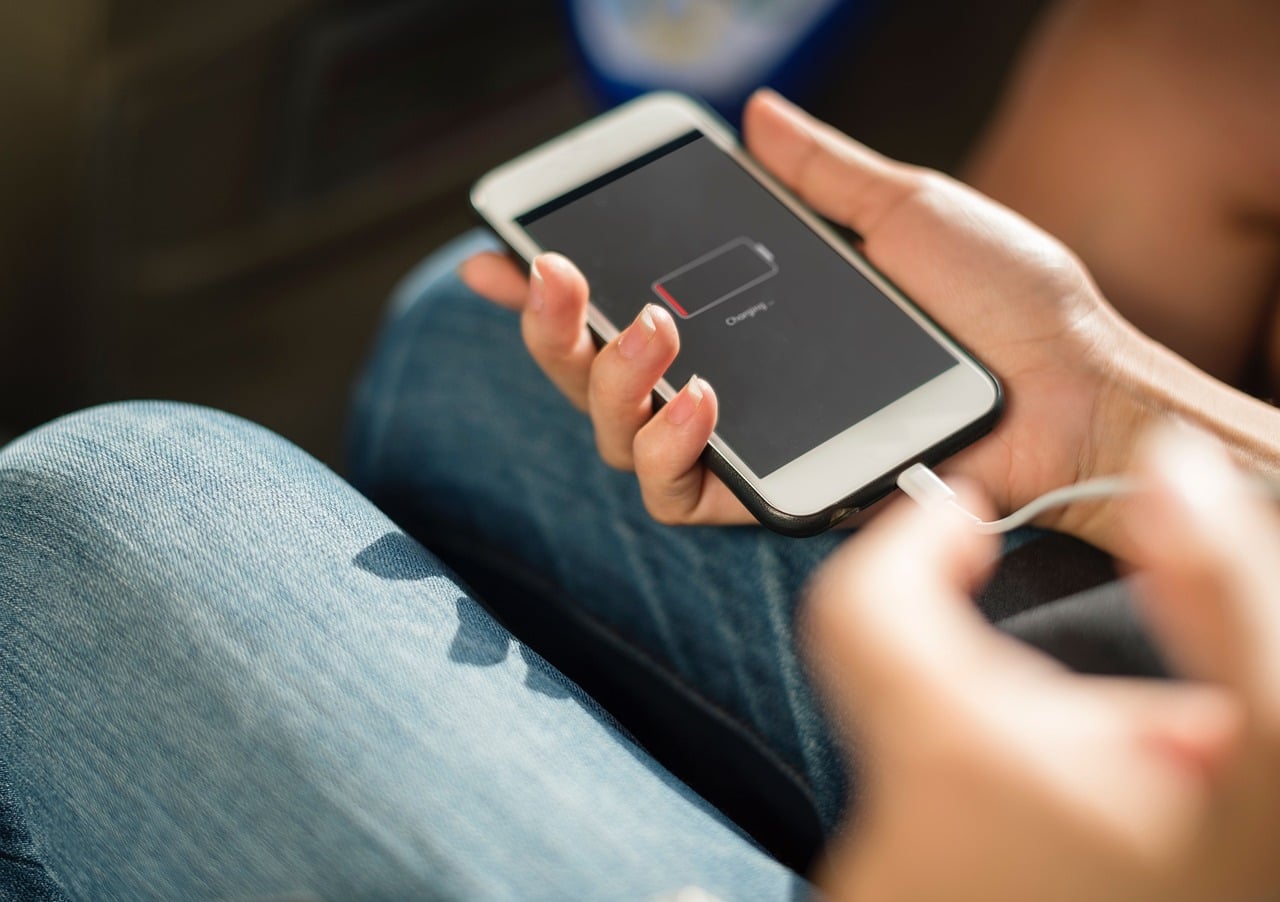
1. Charging Your Phone Overnight Damages the Battery
This is one of those tech “rules” people follow without even thinking about it.
You plug your phone in before bed, hesitate for half a second, and think, “Is this slowly ruining my battery?”
It feels like it should be. Leaving anything plugged in for 7–8 hours straight sounds like overkill. And if you’ve ever woken up to a warm phone, that doesn’t exactly inspire confidence.
But here’s the reality: Your phone isn’t just charging all night nonstop.
What Your Phone Is Actually Doing While You Sleep
Modern smartphones are built with battery management systems that are doing a lot more than people realize.
Once your phone hits 100%, it doesn’t just keep pulling power indefinitely. Instead, it shifts into a much more controlled process:
- Charging slows down significantly
- Power delivery pauses and resumes in small bursts
- The system monitors battery temperature and usage patterns
Some phones even go a step further. If you usually unplug your phone at the same time every morning, your phone may:
- Charge quickly to around 80–90%
- Then wait
- Finish charging right before you wake up
The goal is simple: reduce long-term battery stress without you having to think about it.
So no, your phone isn’t sitting there “overcharging” all night.
Where This Myth Came From (And Why It Stuck)
This advice didn’t come out of nowhere. It used to be correct.
Older devices relied on nickel-based batteries, which:
- Could be damaged by overcharging
- Didn’t manage power intelligently
- Had something called a “memory effect”
Back then, leaving something plugged in for too long could actually shorten the battery’s lifespan.
But modern devices use lithium-ion batteries, which behave completely differently.
The technology changed, but the advice didn’t. And now people are still following rules that no longer apply.
Here’s the Part Most People Get Wrong
Charging isn’t the problem. Heat is.
Your battery is under the most stress when:
- It’s sitting at 100%
- It’s warm (or worse, hot)
- It stays in that state for long periods
That’s why certain situations are actually worse than overnight charging, like:
- Charging your phone under a pillow or blanket
- Using power-heavy apps (gaming, video, FaceTime) while plugged in
- Leaving your phone in a hot environment (like a car)
These create heat buildup, which quietly wears down your battery over time.
Why People Still Notice Battery Decline Anyway
This is where the myth reinforces itself. People charge overnight, their batteries degrade over time, and they assume that’s the cause.
But what’s really happening is much less dramatic:
- All lithium-ion batteries degrade gradually
- Most people keep their phones for 2–4 years
- Daily usage habits (heat, charging cycles, heavy apps) add up
So, What Should You Actually Do?
If plugging in your phone overnight is the easiest way to keep it charged, there’s no real downside to continuing.
What does make a difference is paying attention to how your phone behaves while charging:
- Avoid trapping heat (under pillows, blankets, tight spaces)
- Be mindful of heavy usage while plugged in
- Let your phone’s built-in charging optimization do its thing
In other words, it’s not about when you charge; it’s about how much stress you’re putting on the battery while it’s charging. And once you see that, a lot of other “battery advice” starts to feel a little outdated.
2. Closing Apps on Your Phone Saves Battery Life
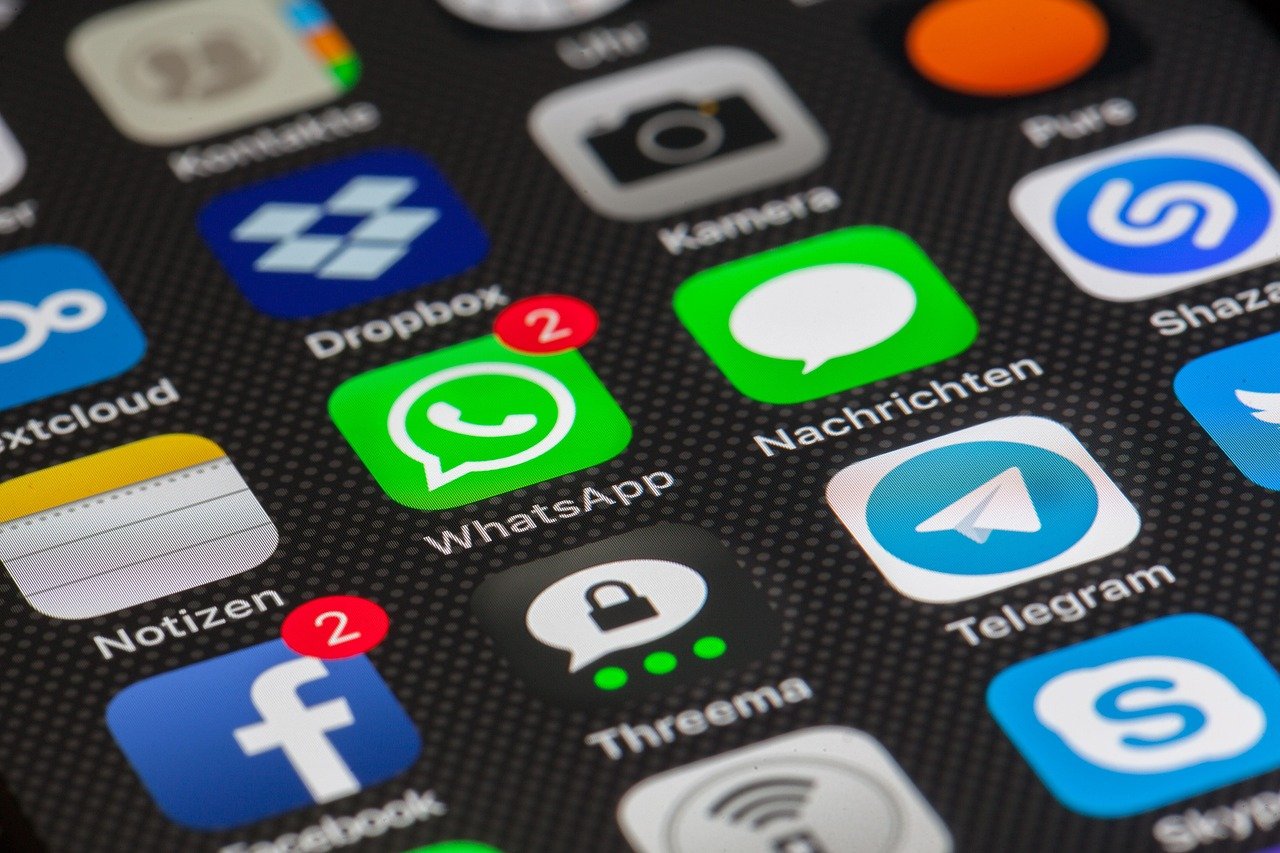
This one seems productive. You swipe up, clear everything out, and think, “There. That should help my battery.”
It looks like you’re freeing up space, reducing workload, maybe even giving your phone a fresh start.
But in most cases? You’re actually making your phone work harder.
What’s Really Happening in the Background
Modern smartphones are designed to handle apps very differently from what most people assume.
When you switch away from an app, it usually doesn’t keep running at full power.
Instead, your phone:
- Pauses the app
- Stores its current state in memory
- Allocates resources elsewhere
In other words, it’s not “running” — it’s sitting quietly, waiting. That means it’s using little to no battery at all.
Why Closing Apps Can Backfire
Here’s the part most people don’t realize: Opening an app from scratch uses more energy than returning to one that’s already paused.
When you force-close an app and reopen it, your phone has to:
- Reload data
- Reinitialize processes
- Rebuild everything from the beginning
That takes more power than simply resuming it. Think of it like this:
- Leaving apps open = putting a book down with a bookmark
- Closing apps = throwing the book away and buying it again every time
Where Did This Myth Come From?
This advice used to make sense. Early smartphones:
- Had limited memory
- Managed apps poorly
- Could slow down with too many things open
Back then, manually closing apps could help performance.
But today? Your phone is doing that job automatically and far more efficiently.
When Closing Apps Does Make Sense
There are still a few situations where it’s actually helpful:
- An app is frozen or glitching
- Something is clearly draining battery in the background
- The app isn’t behaving as expected
In those cases, closing it can act like a reset. But as a daily habit? It’s unnecessary.
So, What Should You Do Instead?
Let your phone manage apps the way it was designed to.
There’s no need to constantly “clean up” unless something is clearly wrong.
The real shift here is simple: Stop trying to manually control what your phone already handles better.
And once you stop thinking of background apps as a problem, a lot of ordinary phone “performance fixes” start to look unnecessary, too.
3. You Should Always Fully Drain Your Battery Before Charging
This is one of those habits people follow very confidently. You let your phone drop to 5%… maybe even 1%… just to “do it right.”
It sounds logical, but with modern batteries? It’s actually doing the opposite of what you think.
Why This Advice Used to Make Sense
This myth comes from a time when batteries worked very differently.
Older devices used nickel-based batteries, which had something called a memory effect. If you didn’t fully discharge them, they could “forget” part of their capacity and slowly hold less charge over time.
Back then, draining your battery completely was the right move, but that technology is long gone.
How Modern Batteries Work
Lithium-ion batteries behave almost the opposite way.
Instead of requiring full discharge cycles, they prefer smaller, more frequent charges and tend to experience more stress at the extremes, especially near 0%.
When your battery gets very low:
- Voltage drops significantly
- Internal strain increases
- Charging back up becomes more demanding
Occasionally, letting your phone die isn’t a big deal. But if you’re doing it regularly, that repeated strain can quietly wear the battery down faster over time.
What This Means for How You Charge
Charge when it’s convenient. If you want a simple guideline that actually aligns with how modern batteries work:
- Try to keep your battery roughly between 20% and 80% when possible
- Avoid regularly dropping all the way to 0%
- Don’t stress about being perfect — consistency matters more than precision
Once you stop thinking of your battery as something that needs to be “trained,” a lot of those old charging habits start to feel unnecessary pretty quickly.
Quick Check: Which One Have You Done?
Before we move on from phone myths, be honest:
- Charged overnight and felt guilty
- Closed all apps to “save battery”
- Let your phone hit 1% because it felt healthier
If you’ve done all three, congratulations. You were following advice from a previous era of technology.
4. More Signal Bars = A Better Connection
You glance at your phone, see full bars, and assume everything should be working perfectly. Then a video buffers, a page won’t load, or a message takes forever to send.
And now you’re wondering, “How do I have full signal and terrible internet at the same time?”
It feels contradictory, but the issue isn’t your phone — it’s what those bars actually measure.
What Signal Bars Actually Tell You
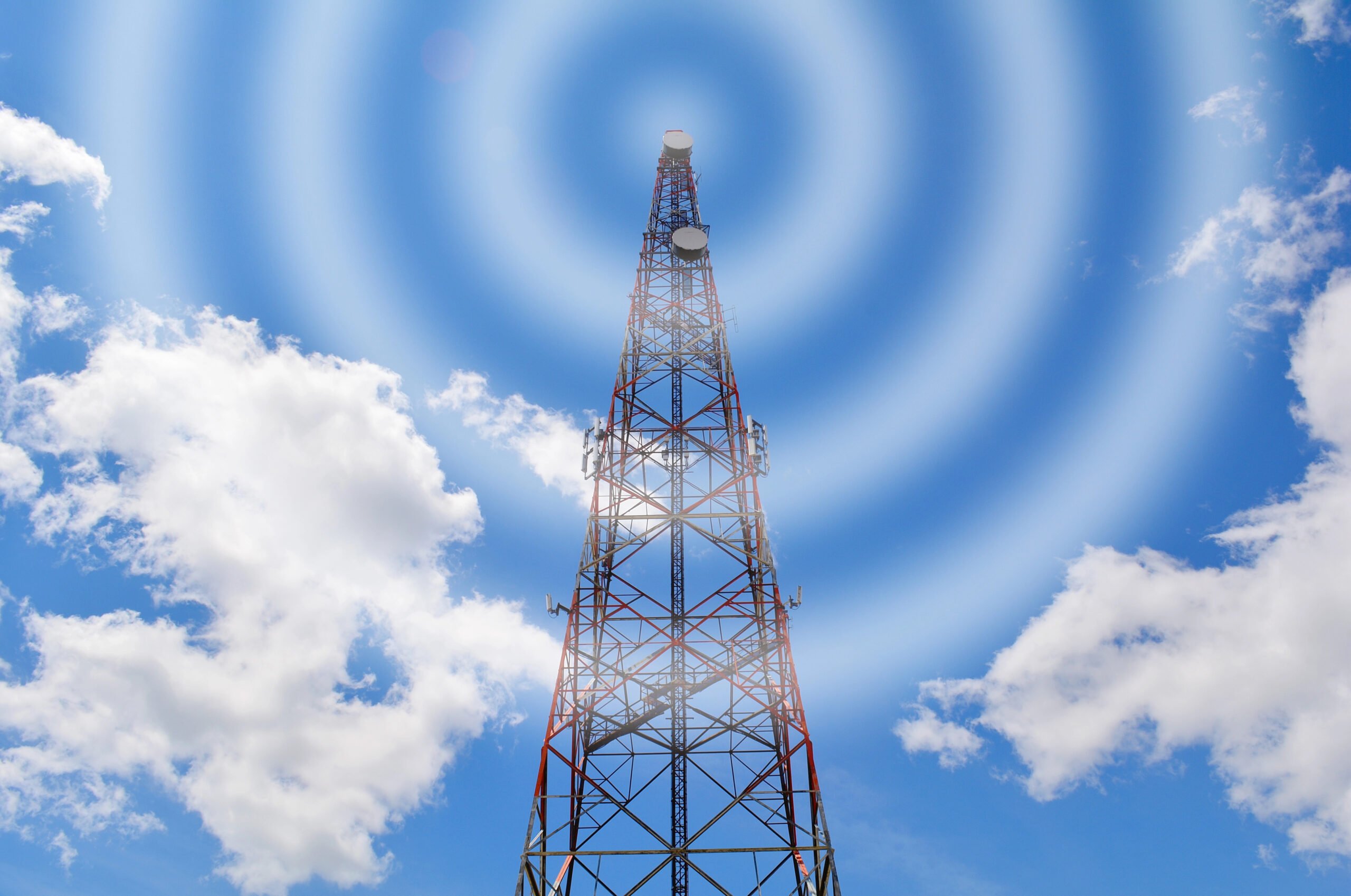
Signal bars only show how strong your connection is to a nearby tower or router. They don’t tell you:
- How fast your data will be
- How busy the network is
- How many people are sharing that same connection
So full bars don’t mean “fast” — they just mean you’re connected reliably.
Why A Strong Signal Still Feels Slow
Connection strength and performance aren’t the same thing.
You can have a strong signal and still experience slow speeds because:
- Too many people are connected to the same tower
- Peak usage times stretch network capacity
- Bandwidth is shared across multiple users
Your phone has a solid connection; it’s just competing for resources.
That’s also why fewer bars don’t always mean worse performance. A less crowded connection can sometimes feel faster than a strong but overloaded one.
Once you separate signal strength from actual speed, a lot of those “this makes no sense” moments start to click.

5. Faster Internet Plans Mean Faster Wi-Fi Everywhere
Upgrading your internet plan feels like it should solve everything.
Slower speeds? Upgrade.
Buffering? Upgrade.
Dead zones in the house? Probably… upgrade.
And for a moment, it might even seem like it worked, but then you walk into a certain room, and everything falls apart again. Why? Because the speed you pay for and the speed you experience aren’t the same thing.
What You’re Actually Paying For
When you upgrade your internet plan, you’re increasing the maximum speed coming into your home.
That’s it. It doesn’t automatically improve:
- Your Wi-Fi signal strength in every room
- How well your router distributes that signal
- How your home layout affects connectivity
Your plan controls the supply, but your setup controls the delivery.
Why Your Wi-Fi Still Struggles
Once the internet enters your home, everything depends on your environment.
Real-world performance is affected by:
- Distance from your router
- Walls, floors, and building materials
- Interference from other devices
- Router quality and placement
That’s why you can have:
- Fast speeds in one room
- Slower speeds in another
- And a “dead zone” somewhere in between
The signal isn’t reaching those areas effectively, no matter how fast your plan is.
This is also why upgrading your plan often feels like a temporary fix. It increases overall capacity, but it doesn’t solve the underlying issue of how that connection is distributed throughout your space.
Once you see the difference between internet speed and Wi-Fi coverage, it becomes clear why throwing more speed at the problem doesn’t always work.
Wi-Fi Myth vs. Reality
| What People Assume | What’s Usually Happening |
|---|---|
| Full bars mean fast internet | Signal strength isn’t the same as speed |
| Faster plan fixes bad Wi-Fi | Your router and layout still matter |
| One slow room means bad internet | It may be weak coverage or interference |
6. Incognito Mode Makes You Anonymous Online
Opening an incognito or private window feels like flipping a switch. You think, no history, no traces, or no tracking. “This means I’m anonymous now, right?”
Not exactly.
What Incognito Mode Actually Does
Incognito mode only affects what’s stored on your device. It prevents:
- Browsing history from being saved locally
- Cookies from sticking around after the session ends
- Autofill and form data from being stored
It’s primarily designed for privacy from other people using your device.
What It Doesn’t Do
It does not hide your activity from:
- Websites you visit
- Your internet provider
- Services you log into
If you’re signed into an account, you’re still identifiable. If a site tracks behavior, it can still do that.
Incognito isn’t invisible — it’s just temporary. Once you see that difference, it’s easier to understand why people overestimate what it does.
7. Public Wi-Fi Is Safe If It Has a Password
Seeing a password on a public Wi-Fi network feels reassuring. It creates the impression that the network is “secure.” But in public spaces, that’s not really what’s happening.
What the Password Actually Does
In most cases, the password simply controls who can join the network. It doesn’t mean:
- Your connection is encrypted end-to-end
- Other users can’t interact with shared traffic
- The network itself is being actively monitored for threats
It’s access control, not full protection.
Where the Risk Comes In
Public networks often have:
- Many unknown users connected at once
- Shared environments where data can be exposed
- Fake or spoofed networks that mimic legitimate ones
Once you stop equating “password” with “safe,” your habits around public networks tend to shift pretty quickly.
And that same kind of assumption shows up in another area people rely on heavily.

8. Antivirus Software Protects You From Everything
Installing antivirus software feels like checking a box. Protected? Done.
And for a long time, that was mostly true. If something malicious tried to install itself on your computer, antivirus software could catch it and stop it. But modern threats don’t work that simply anymore.
What Antivirus Is Good At
Antivirus software is designed to:
- Detect known threats
- Block suspicious files or programs
- Flag potentially harmful activity
It’s especially effective against threats that exhibit recognizable behavior or match known patterns.
That’s why it still works well as a baseline layer of protection — it can catch obvious problems before they cause damage.
Where It Falls Short
Most real-world threats now rely on behavior, not just software. Things like:
- Phishing emails that trick you into clicking links
- Fake login pages that capture your credentials
- Downloads that look legitimate but aren’t
These don’t always look dangerous to your system because technically, you’re the one initiating them.
That’s the shift: many modern attacks are designed to bypass software by going through people instead.
So, while antivirus software can block certain threats, it can’t always stop you from:
- Entering your password on the wrong site
- Clicking something that looks legitimate
- Trusting something that isn’t
Antivirus still helps. It just isn’t a complete solution on its own anymore.
9. Macs Don’t Get Viruses
This one has been repeated for years, and it’s just believable enough to stick.
Macs have historically been targeted less often than Windows PCs, which led to the idea that they’re somehow immune. So, “less common” became “can’t happen.”
What’s Actually True
Macs can still be affected by:
- Malware
- Phishing attacks
- Browser-based exploits
The difference is mostly about targeting, not capability.
For a long time, Windows had a much larger user base, which made it a more attractive target. But as Mac usage has grown, so has the attention from attackers.
No device is off-limits — it’s just a matter of where attackers see opportunity.

10. More RAM Always Means a Faster Computer
Upgrading RAM is one of the most common “fixes” people go to. And sometimes, it works, but not always for the reason people expect.
What makes this confusing is that more RAM can improve performance in certain situations, which makes it feel like a universal solution. In reality, it only helps when memory is the thing holding your system back.
When More RAM Helps
RAM improves performance when:
- Your system is running out of available memory
- You’re multitasking heavily (lots of tabs, apps, or programs open)
- Applications need more space to run smoothly (e.g., editing software, games)
When your computer runs out of RAM, it starts using your storage drive as backup memory, which is much slower. That’s when things feel laggy, slow to respond, or delayed.
In those cases, adding more RAM can make a noticeable difference by giving your system more room to work without slowing down.
When It Doesn’t
If your system already has enough RAM, adding won’t make much difference.
Performance might still be limited by:
- Processor speed (how fast your computer can actually process tasks)
- Storage type (SSD vs HDD—this has a huge impact on responsiveness)
- Software efficiency (some programs are just heavier than others)
If your computer isn’t using all the RAM it already has, adding more doesn’t make it faster — it just gives it unused headroom.
The Sneakiest Myth Might Be Coming Next
Battery myths are annoying. Wi-Fi myths are frustrating. But storage myths are the ones that can actually cost you something — photos, documents, passwords, projects, tax files, all of it.
And that’s because “saved” and “safe” are not always the same thing.
11. Cloud Storage Means You Don’t Need Backups
Storing files in the cloud feels like a safety net. Everything is saved somewhere else, so it must be protected, right?
That assumption makes sense because cloud services are reliable. But “stored” and “backed up” aren’t the same thing.
What Cloud Storage Actually Does
Cloud services are great for:
- Accessing files across devices
- Syncing changes automatically
- Preventing loss from a single device failure
If your laptop dies or your phone is lost, your files are still there, which is where the feeling of security comes from. It’s incredibly convenient and works well for everyday use.
What It Doesn’t Guarantee
The key detail most people miss is that cloud storage is usually sync-based, not backup-based.
That means whatever happens to a file in one place often happens everywhere.
- Accidental deletion
- Sync errors that remove files everywhere
- Account issues, lockouts, or access problems
If a file gets deleted or corrupted, that change can sync instantly, leaving you without a clean copy.
That’s why relying on a single location, even in the cloud, still carries risk. It’s a great tool for access and convenience, but not a complete safety net on its own.
And that leads to one of the most misunderstood assumptions about what happens when something is “deleted.”

12. Once You Delete Something, It’s Gone Forever
Deleting something feels final. You remove it, empty the trash, and assume it’s gone for good. But that’s not usually how it works.
What Deleting Actually Does
In many cases, deleting a file doesn’t immediately erase it. Instead, it:
- Removes it from view
- Marks its storage space as available
The system essentially says, “This space can be reused,” but the actual data often stays in place until something else replaces it. It’s gone from your system, but not immediately wiped from storage.
Why That Matters
Because of how storage works:
- Files can sometimes be recovered
- Data doesn’t disappear instantly
- “Deleted” isn’t always permanent
That’s why recovery tools can sometimes bring files back, even after they’ve been “deleted.” It’s more like removing a label than destroying the file itself.
This works both ways.
- It can be helpful if you accidentally delete something
- But it also means sensitive data may still exist longer than you expect
What happens after deletion, whether new data overwrites it or not, is what determines if it’s truly gone.
Once you understand that, it changes how you think about both privacy and data loss because deletion isn’t always the end of the story.
Frequently Asked Questions
Still have a few “okay, but what about…” questions? These come up a lot once people start rethinking how their devices actually work. If you don’t see yours here, hit us up in our comments.
Is It Bad To Leave Your Phone Plugged In After It Hits 100% During The Day?
Not really. Modern phones stop actively charging once they reach full capacity. The bigger concern is heat over time, especially if you’re using the phone heavily while it’s plugged in.
Do Certain Chargers Or Cables Affect Battery Health?
Yes, quality matters more than people think. Cheap or uncertified chargers can:
- Deliver inconsistent power
- Generate excess heat
- Wear down your battery faster over time
Stick with reputable or manufacturer-certified accessories whenever possible.
Why Does My Internet Feel Fast On Some Apps But Slow On Others?
Not all traffic is treated the same. Performance can vary based on:
- Server speed (the site or app you’re using)
- Network prioritization by your provider
- How data is routed behind the scenes
Sometimes the issue isn’t your connection — it’s what you’re connecting to.
Will Upgrading My Router Actually Improve My Wi-Fi?
In many cases, yes. A newer router can:
- Handle more devices efficiently
- Distribute the signal more evenly
- Support newer Wi-Fi standards for better performance
If your router is several years old, upgrading it often has more impact than upgrading your internet plan.
How Often Should I Actually Restart My Devices?
There’s no strict schedule, but a good rule of thumb is:
- Restart when something feels off
- Restart after major updates
- Occasionally reset long-running devices (like routers)
Think of it as maintenance, not a daily requirement.
What’s The Easiest Way To Make My Devices Feel Faster Without Upgrading Them?
A few small changes go a long way:
- Keep software updated
- Free up storage space
- Remove unused apps or programs
- Restart occasionally
Most slowdowns come from buildup, not hardware limits.
Is There A Simple Way To Make Public Wi-Fi Safer To Use?
Yes, without overcomplicating it:
- Avoid logging into sensitive accounts (banking, email)
- Use secure websites (look for HTTPS)
- Consider using a VPN on public networks
It’s not about avoiding public Wi-Fi entirely; it’s about using it more carefully.
How Do I Know If My Slow Internet Is My Provider Or My Setup?
A quick way to tell:
- Test speed close to your router vs far away
- Try multiple devices
If everything is slow everywhere → likely your provider
If it varies by location → likely your setup
That one distinction saves a lot of guesswork.
Do I Really Need Both Cloud Storage And A Backup?
If the files matter, yes.
A good setup is:
- Cloud storage for convenience and access
- A separate backup (external drive or secondary service) for protection
That way, one issue doesn’t wipe everything out.
Before You Blame Your Tech Again
Most of these myths stuck around because they used to be true — or at least sounded right. But once you understand what’s actually happening behind the scenes, a lot of those “random” issues stop feeling random.
Slow phone. Spotty Wi-Fi. Dropped connections. It’s usually not one big problem—it’s a few small things adding up. If you want to see what’s really going on (and what actually fixes it), these guides break it down:
What’s a tech “rule” you’ve always followed without really knowing why? Drop it in the comments — I’m curious how many of us learned the same ones.