One day, your laptop handles everything you throw at it. The next, it’s running so hot you start wondering if it’s secretly mining cryptocurrency when you’re not looking.
The fan sounds louder. The keyboard feels warmer. Maybe it slows down during a video call, starts heating up on the couch, or develops an alarming ability to double as a lap warmer.
What’s odd is that most overheating problems don’t begin with a broken part or a flashing warning message. They tend to creep up slowly until one day you realize something feels different.
So why does a laptop that seemed perfectly fine a year ago suddenly feel like it’s working twice as hard to do the same things?
Why Laptop Overheating Usually Sneaks Up On You
Most laptops don’t wake up one morning and announce that they’re overheating. There’s no dashboard warning light. No dramatic alert. No polite pop-up that says, “Hello, I’ve been struggling thermally for several months now.”
Instead, the signs tend to show up in everyday moments.
Maybe you’re halfway through a Zoom call when the fan suddenly becomes the loudest participant in the meeting.
Or maybe your laptop has developed a habit of getting noticeably hot after an hour on the couch, even though it never seemed bothered by that spot before.
Sometimes the first clue is performance. Programs take longer to open. Browser tabs feel sluggish. Video calls stutter. A laptop that once handled multitasking without complaint now seems oddly exhausted by the same workload.
Other times, the warning signs are physical.
You might notice:
- The fan runs almost constantly
- The bottom of the laptop feels unusually hot
- Battery life seems shorter than it used to be
- Performance drops during demanding tasks
- The laptop freezes, crashes, or restarts unexpectedly
- The charger area feels warmer than normal
None of these symptoms automatically means something is broken. What they often indicate is that your laptop’s cooling system is working harder than it used to—and not getting the same results.
The next step is figuring out why.
Quick Laptop Heat Diagnostic
Not sure what’s causing the problem yet? Before we start digging into the most common reasons laptops overheat, here’s a quick way to connect what you’re seeing with where you should start looking.
| If You’re Seeing This | The Most Likely Cause Is |
|---|---|
| The fan never seems to stop running | Dust buildup or background apps consuming resources |
| The laptop gets hot on the couch or in bed | Blocked vents and restricted airflow |
| It feels noticeably hotter while charging | Battery charging heat or battery wear |
| Performance feels slower than it used to | Thermal throttling (the laptop slowing itself down to stay safe) |
| It only gets hot while gaming or editing video | Heavy CPU and GPU workloads generating more heat |
| The bottom feels hot even when you’re not doing much | Background processes, updates, or cloud syncing activity |
Don’t worry if more than one row sounds familiar. In many cases, laptop overheating isn’t caused by a single issue. It’s often several small factors working together.
The good news is that many overheating problems can be traced back to a handful of common causes.
Some create more heat than your laptop was designed to handle. Others make it harder for the cooling system to remove that heat in the first place.
If there’s a recurring theme in laptop overheating, it’s that many problems develop gradually rather than suddenly.
Few examples illustrate that better than dust buildup.
Reason #1: Dust Slowly Turns Your Cooling System Into A Blanket
For many laptops, dust is the biggest overheating culprit. The reason is simple: laptops rely on airflow to remove heat, and dust gradually builds up and blocks airflow.
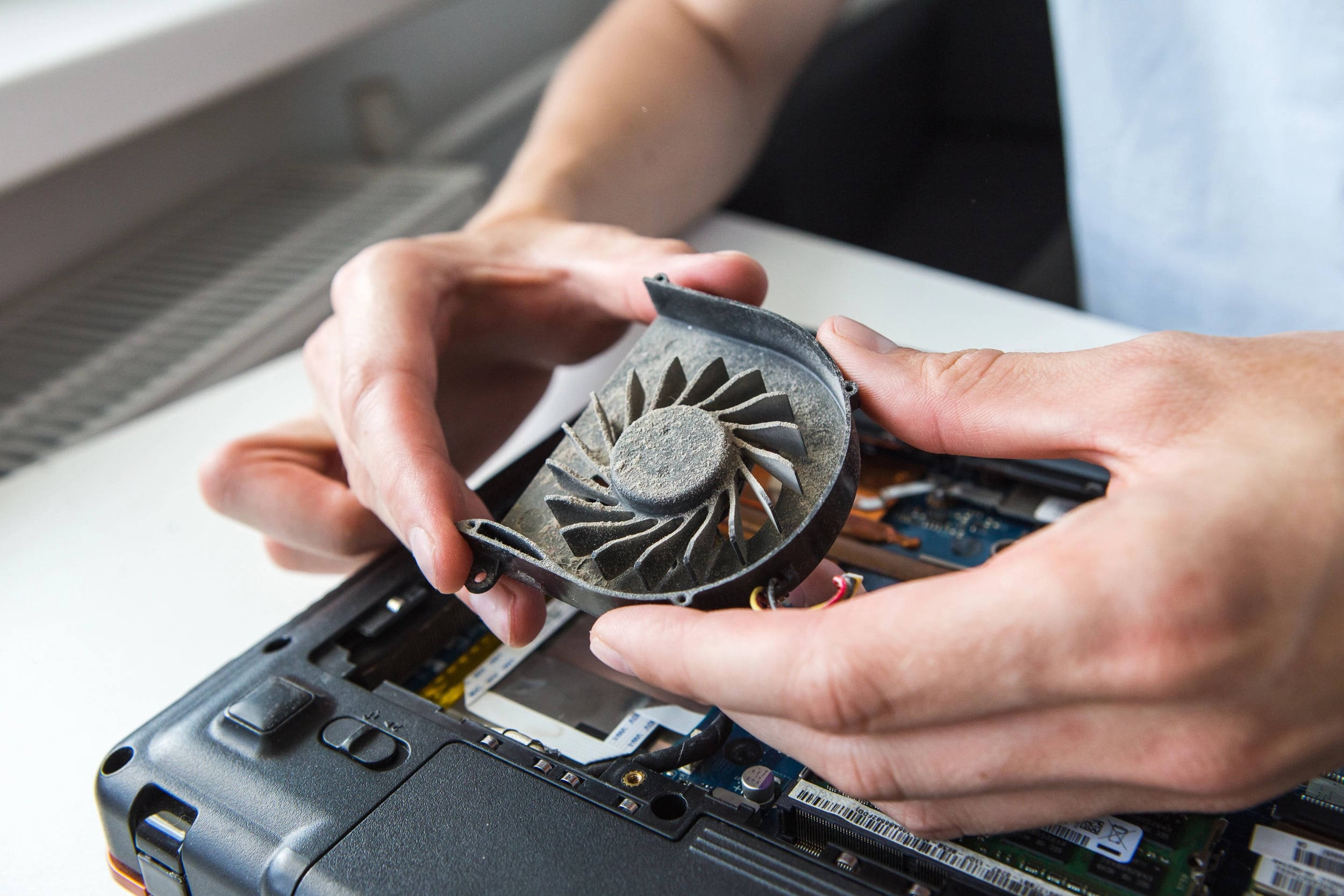
Over time, dust builds up on:
- Air intake vents
- Fan blades
- Internal exhaust vents
- Heat sinks, the metal components that pull heat away from the laptop’s processor (CPU) so the cooling system can remove it
That buildup creates two problems:
- Less air can move through the laptop
- Heat becomes harder to remove
Think of it like trying to cool your house with several air vents partially blocked. The air conditioner still runs, but it has to work much harder to keep temperatures comfortable.
Your laptop’s cooling system faces the same challenge. And because dust keeps accumulating, the problem usually gets worse year after year.
Most people don’t notice dust becoming a problem until the fan gets louder, the laptop gets hotter, or performance starts feeling different. By that time, the buildup may have been developing for months or even years.
Best Fix
- Use compressed air to clean intake and exhaust vents every few months.
- Keep vents free of lint, dust, and pet hair.
- Avoid using laptops in especially dusty environments whenever possible.
- For older laptops, consider a deeper internal cleaning if you’re comfortable opening the device—or have a professional do it.
Reason #2: Your Laptop Is Doing More Behind The Scenes Than You Realize
Have you ever looked at a laptop that’s sitting idle and thought, “I’m not even using it.” Your laptop may disagree.
Modern computers rarely sit completely inactive anymore. Even when no programs appear to be open, dozens of background tasks may still be running.
Common examples include:
- Operating system updates
- Cloud syncing services like OneDrive, Google Drive, or Dropbox
- Antivirus and security scans
- Startup programs that launch automatically
- Email, messaging, and notification services
- AI-powered features running in the background
None of these tasks are particularly demanding by themselves. The problem is that they often run at the same time.
Every background process requires CPU resources. The processor works harder, generates more heat, and places additional demands on the cooling system.
That’s why a laptop can sometimes feel warm even when you’re convinced you’re not doing anything at all.
In many ways, modern laptops behave more like smartphones than traditional computers. They’re always connected, always checking for something, and always doing small jobs behind the scenes.
Most of the time, that’s helpful. But it also means your laptop may be generating heat long before you open your first browser tab of the day.
Best Fix
Open Task Manager (Windows) or Activity Monitor (Mac), then look for programs consuming unusually high CPU resources.
Pay special attention to:
- Startup programs you don’t use — Apps that automatically launch when your computer starts.
- Cloud syncing services — OneDrive, Google Drive, Dropbox, and similar services transferring large amounts of data.
- Background applications — Programs still running after you’ve finished using them.
- High-CPU processes — Anything using significant processor resources while you’re not actively doing much.
If you find a program that’s constantly consuming resources, consider closing it, disabling it from startup, updating it, or uninstalling it if you no longer use it.
Reason #3: Your Browser Has Become The Most Demanding Program On Your Laptop
Years ago, web browsers were relatively simple. Today, they’re closer to operating systems.
A modern browser may be handling dozens of tabs, streaming video, running web apps, loading advertisements, syncing accounts, checking email, and managing extensions—all at the same time.
That’s a lot of work for your laptop.
The “I’m Just Browsing The Web” Trap
Imagine a fairly normal afternoon. You have:
- 15 browser tabs open
- A YouTube video playing in the background
- Gmail open in another tab
- A few shopping tabs you’ll “come back to later”
- Several browser extensions installed
- A news site filled with autoplay videos and advertisements
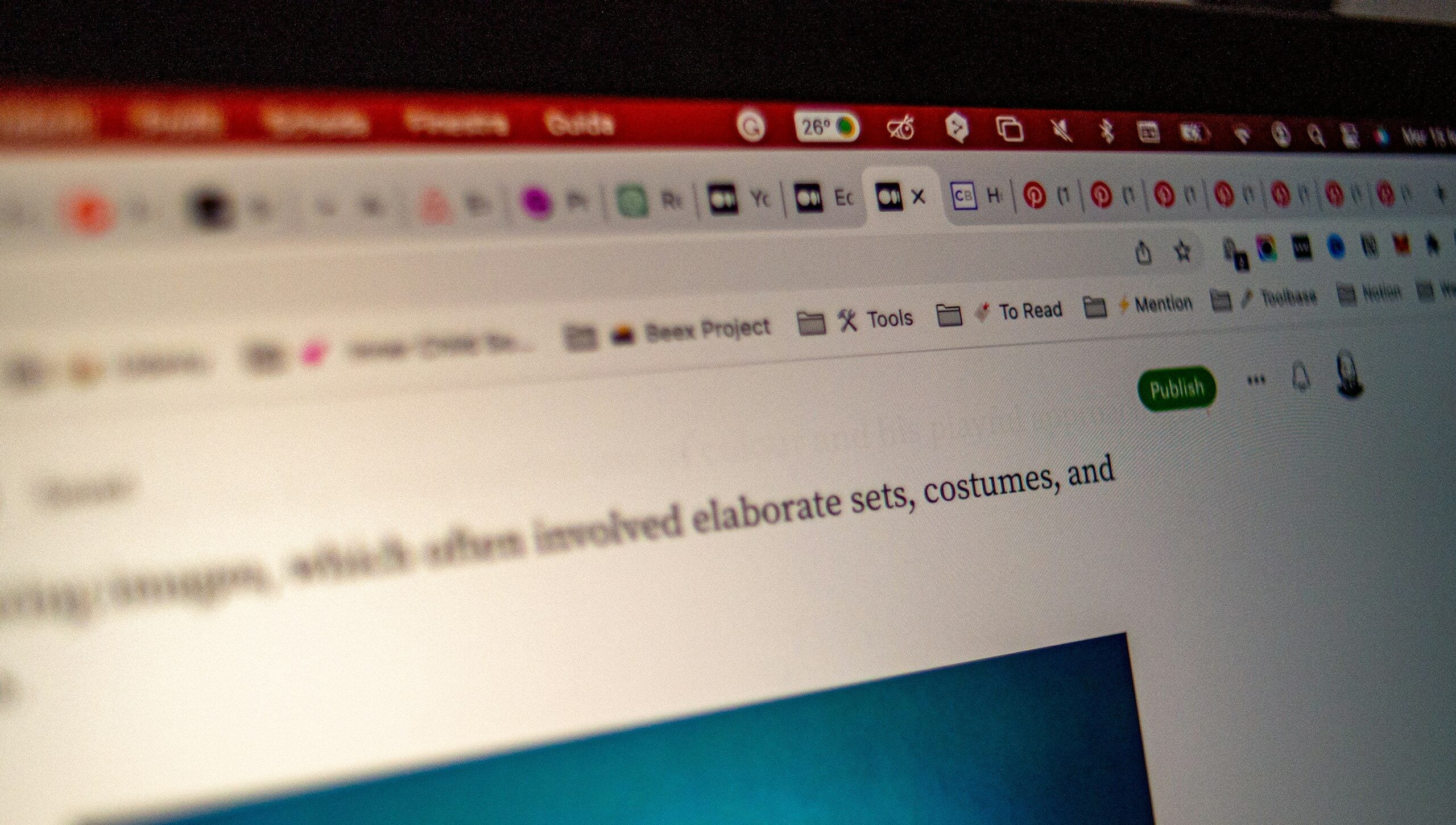
It doesn’t feel like you’re doing anything particularly demanding, but your browser may be managing hundreds of separate tasks behind the scenes.
Video streaming is especially resource-intensive because the processor (CPU) and graphics processor (GPU) must continuously decode and display video in real time. Add advertisements, scripts, trackers, and multiple active tabs, and the workload climbs even higher.
That’s one reason laptops often get warm during an afternoon of “just browsing” the internet.
Best Fix
- Close tabs you’re no longer using.
- Limit video streaming in background tabs.
- Remove browser extensions you don’t actually need.
- Restart your browser occasionally to clear accumulated memory usage.
- Consider using browser tab-sleeping features that automatically suspend inactive tabs.
Tip: If your browser consistently uses the most CPU or memory in Task Manager, it may be worth treating it like any other resource-heavy application and trimming back what it has to manage.
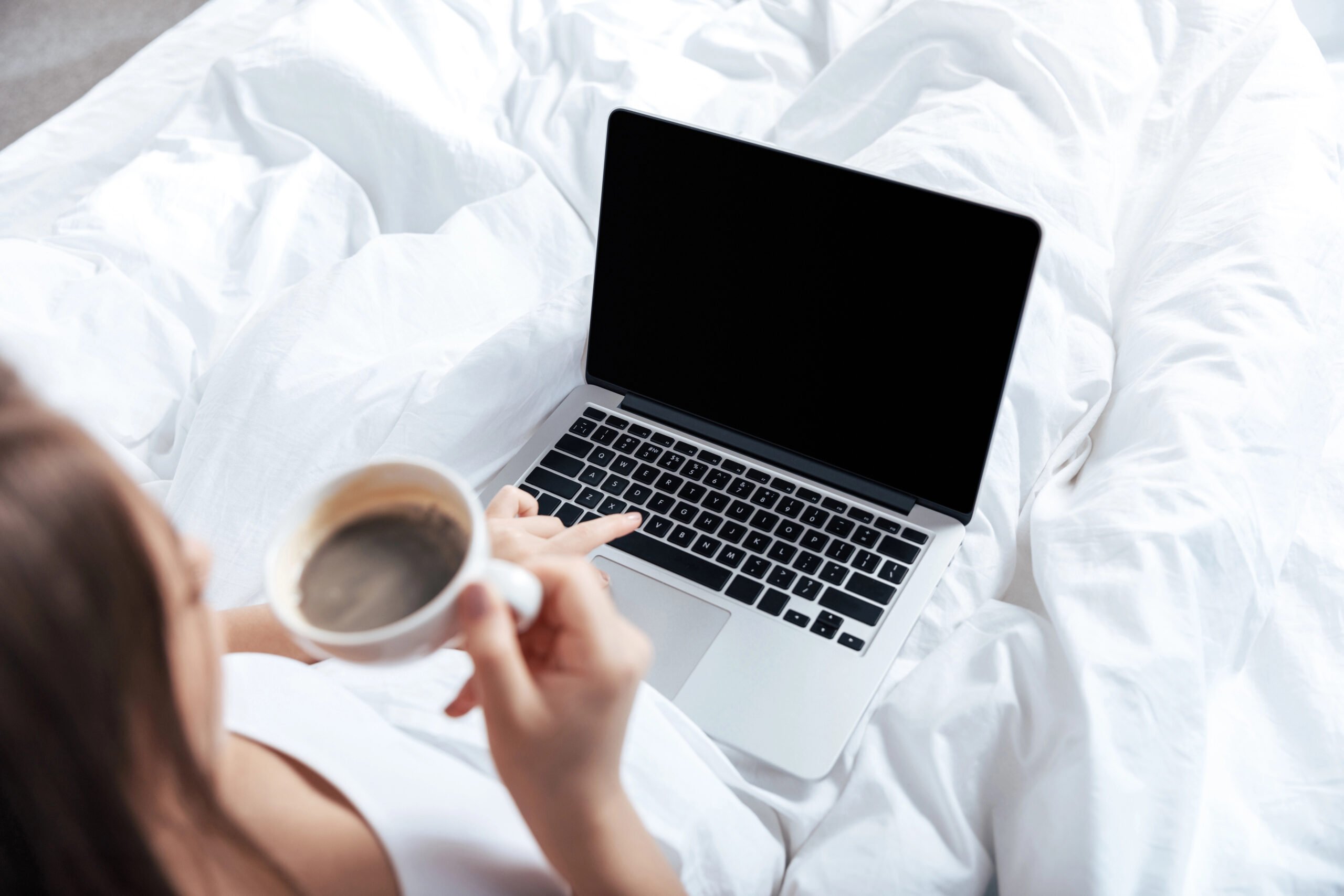
Reason #4: Soft Surfaces Can Suffocate A Laptop Faster Than You Think
Many laptops are designed to pull cool air in through vents on the bottom and push hot air out through vents on the sides or rear.
That works well on a desk. It works much less well on a couch cushion, blanket, comforter, or pillow.
Soft surfaces can partially block those vents, restricting airflow and trapping heat around the laptop. Some materials can even create small pockets of warm air that get pulled back into the cooling system instead of allowing fresh, cooler air to circulate.
The result is a laptop that’s trying to cool itself with increasingly warm air.

The Couch Cushion Trap
Picture your laptop sitting on a couch while you’re streaming a show.
The laptop slowly sinks into the cushion. The bottom vents become partially covered. A blanket drapes over one side.
The fans keep running, but the airflow becomes more restricted than the cooling system was designed for. An hour later, the laptop feels noticeably hotter, even though you’re doing the same thing you would normally do at a desk.
Best Fix
- Use your laptop on a hard, flat surface whenever possible.
- Place a tray, lap desk, or book underneath it when using it on a couch or bed.
- Keep the side and rear vents clear of blankets, pillows, and other soft materials.
- Consider a laptop stand if you regularly work away from a desk.
Reason #5: Charging And Gaming Create A Perfect Heat Storm
Some activities simply generate more heat than others.
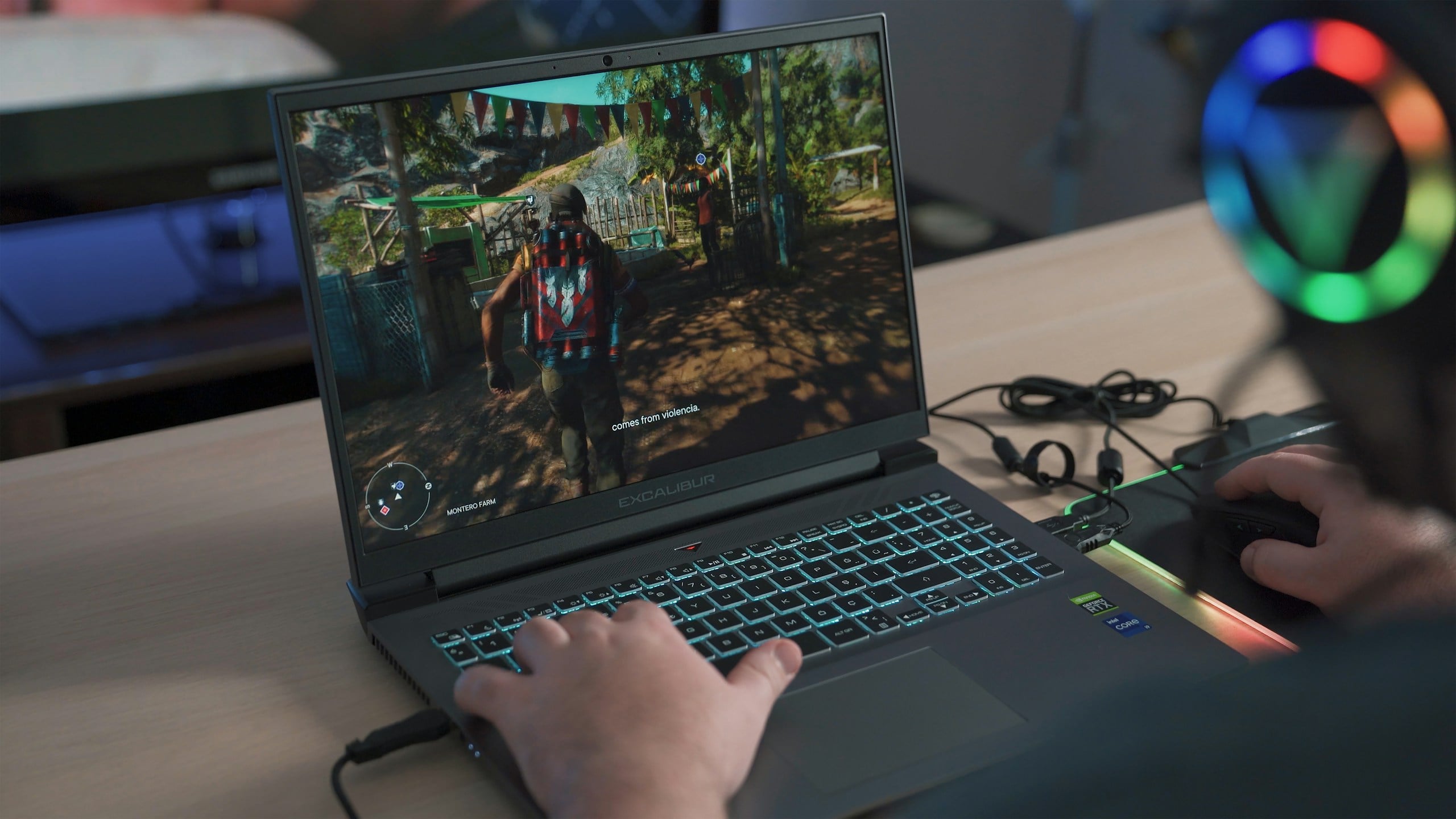
Gaming is an obvious example. Modern games push both the processor (CPU) and graphics chip (GPU) hard, often for hours at a time.
Video editing, AI tools, 3D design software, and other demanding applications can have a similar effect.
These workloads require the laptop to perform millions—or even billions—of calculations while continuously processing graphics, video, or data.
Then there’s charging. While your battery is recharging, it naturally generates heat as part of the charging process. That’s completely normal.
The challenge is when both things happen at the same time. Gaming while charging. Editing video while charging. Running AI tools while charging.
Now the laptop isn’t just removing heat from the CPU and GPU. It’s also dealing with heat generated by the battery. That’s why some laptops that seem perfectly fine during everyday use suddenly become much hotter during demanding tasks.
Why The Fan Suddenly Sounds Like A Jet Engine
Your laptop’s fans aren’t reacting to the game, video, or AI tool itself. They’re reacting to heat.
As temperatures rise, the cooling system increases fan speed to move more air through the laptop and remove heat faster.
That’s why the fan may sound relatively quiet while checking email, but become dramatically louder during a gaming session or a large video export.
In many cases, that extra fan noise is a sign that the cooling system is doing exactly what it was designed to do.
Best Fix
- Use demanding applications on a hard, well-ventilated surface.
- Avoid stacking multiple heavy tasks together when possible.
- Take breaks during long gaming, editing, or AI sessions.
- Reduce graphics settings in games if temperatures become excessive.
- Consider a cooling pad if you regularly run demanding workloads.
Reason #6: Your Battery Might Be Contributing More Than You Think
When people think about laptop overheating, they usually focus on the processor, cooling system, or dust buildup.
The battery often gets overlooked.
Like every rechargeable battery, a laptop battery gradually wears down with age. As it ages, the chemical reactions inside the battery become less efficient.
One result is increased internal resistance—a battery’s tendency to waste more energy as heat during charging and discharging.
You don’t need to remember the term. The important takeaway is that an older battery may generate more heat while doing the same job it performed effortlessly a few years ago.
That extra heat can add to the overall thermal load inside the laptop, especially during charging.
Warning Signs To Watch For
In some cases, battery wear can become more than just an efficiency problem.
Pay attention to signs such as:
- The battery draining unusually quickly
- The laptop becoming hotter while charging
- The bottom of the laptop feeling warm near the battery
- The trackpad or keyboard area beginning to bulge
- A laptop that no longer sits flat on a table
That last point is particularly important.
A swollen battery can physically expand inside the laptop, potentially damaging internal components and creating a safety hazard.
If you notice swelling, stop using the device and have the battery inspected or replaced as soon as possible.
Best Fix
- Check your battery health periodically using built-in system tools. (Windows users can generate a battery report by opening Command Prompt and running
powercfg/batteryreport, while Mac users can view battery condition information in System Settings.) - Pay attention to unusually high heat while charging.
- Replace aging batteries that show significant wear or reduced capacity.
- Address any signs of swelling immediately rather than continuing to use the laptop.
Reason #7: Aging Hardware Doesn’t Handle Heat Like It Used To
Like most electronics, cooling systems become less effective over time, even when nothing has technically failed.
One reason is thermal paste, a heat-conducting material that helps transfer heat from the processor into the cooling system. Over the years, it can gradually dry out and become less effective, making it harder for heat to move away from critical components.
Cooling fans age, too. After years of use, fans may accumulate wear, spin less efficiently, or move slightly less air than they did when the laptop was new.
Even the components themselves can become less efficient as they age.
None of these changes happen overnight. But together, they can slowly reduce the cooling system’s ability to keep temperatures under control.
The Laptop Version Of Getting Older
Think about a car with 150,000 miles on it. It may still run perfectly fine, but it probably doesn’t perform exactly the same way it did when it left the dealership.
Aging laptops often follow a similar pattern. The cooling system still works, the fans still spin, and the laptop still turns on every morning.
It just has a little less margin for heat than it once did. That’s one reason an older laptop may start overheating during tasks it handled easily a few years ago.
Best Fix
- Clean dust from the cooling system before assuming hardware is failing.
- Consider replacing thermal paste on older laptops if you’re comfortable with advanced maintenance.
- Have a technician inspect aging cooling components if overheating persists.
- If the laptop is many years old, compare repair costs against replacement costs before investing heavily in upgrades.
Why Overheating Makes Everything Feel Slower
One of the most frustrating parts of laptop overheating isn’t the heat itself. It’s the slowdown that often comes with it.
The reason is something called thermal throttling.
When your laptop’s CPU or graphics chip GPU reaches certain temperatures, the system intentionally reduces performance to prevent damage.
Think of it like a car climbing a mountain. If the engine temperature starts getting dangerously high, you don’t push harder. You back off.
Modern laptops do the same thing.
When temperatures climb too high, the system may:
- Reduce processor speeds
- Reduce graphics performance
- Limit power consumption
- Prioritize cooling over speed
The result is a laptop that suddenly feels sluggish even though nothing has technically gone wrong. In many cases, thermal throttling is actually a sign that your laptop’s protection systems are working exactly as intended.
What Happens When Temperatures Climb
| Temperature Rises | Laptop Response |
|---|---|
| Slight increase | Fans speed up |
| Higher increase | Performance reduced |
| Extreme heat | Shutdown protection activates |
What To Do When Your Laptop Starts Overheating
If your laptop is running hotter than usual, don’t assume you need to replace it. Work through these steps first.
Step 1: Move It To A Hard Surface
If the laptop is sitting on a couch, blanket, bed, pillow, or your lap, move it to a hard, flat surface.
This immediately improves airflow and eliminates one of the most common causes of overheating.
Step 2: Check For Runaway Apps
Open Task Manager (Windows) or Activity Monitor (Mac) and look for anything consuming unusually high CPU resources.
Pay special attention to:
- Browser tabs and extensions
- Cloud syncing services
- Software updates
- Applications you forgot were running
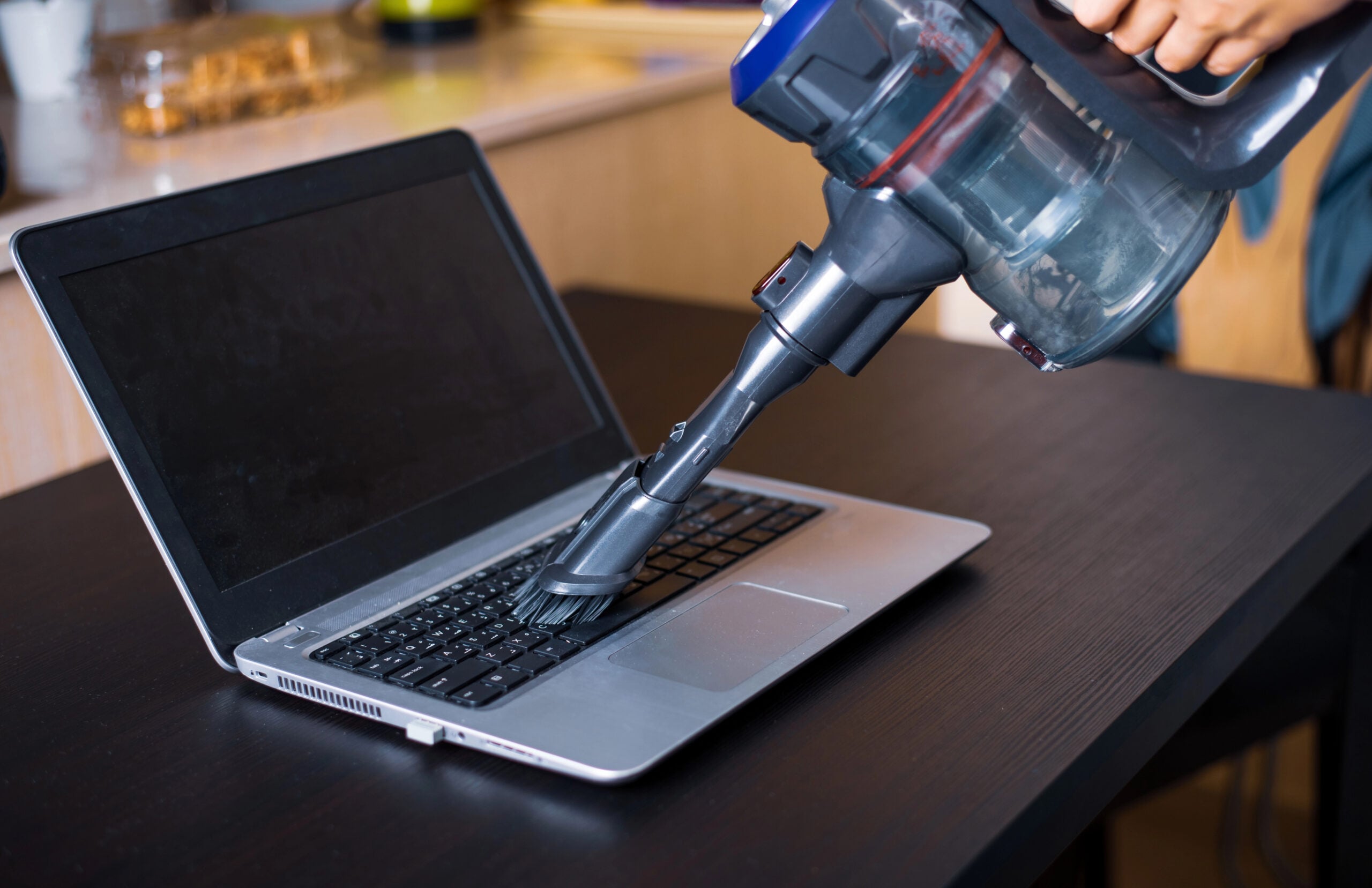
Step 3: Clean The Vents
Inspect the air intake and exhaust vents for visible dust buildup. Use compressed air to remove dust from vents and fan openings if needed.
Step 4: Restart It
A simple restart can stop runaway processes, clear temporary issues, finish pending updates, and reduce background activity. It’s surprisingly effective more often than people expect.
Step 5: Update Software
Install pending operating system, driver, and firmware updates. Manufacturers sometimes release updates that improve power management, fan behavior, and thermal performance.
Software Tools That Can Help
If you’re curious about what’s actually happening inside your laptop, a few free tools can help monitor temperatures and system activity.
Popular options include:
- HWMonitor (Windows) — Provides detailed temperature, voltage, and fan-speed information.
- Core Temp (Windows) — Focuses on CPU temperature monitoring.
- iStat Menus (macOS) — Provides comprehensive system-wide monitoring.
- Fanny (macOS) — A simple menu bar widget to monitor CPU/GPU temperature.
You don’t need to become a hardware expert to use these tools.
Even a quick glance can help you determine whether your laptop is running slightly warm or operating at unusually high temperatures.
What Temperature Is Too Hot?
Every laptop is different, but as a general rule:
- Under 176°F (80°C) is typically fine during normal conditions.
- 176°F–194°F (80°C–90°C) is common during demanding workloads.
- Consistently above 194°F (90°C) may indicate a cooling problem worth investigating.
Don’t obsess over individual temperature spikes. What matters most is sustained high temperatures combined with symptoms like excessive fan noise, slowdowns, or unexpected shutdowns.
Do External Cooling Solutions Actually Work?
The short answer: sometimes.
External cooling solutions won’t magically fix a clogged cooling system, failing fan, or aging hardware. But they can help improve airflow and reduce temperatures in certain situations.
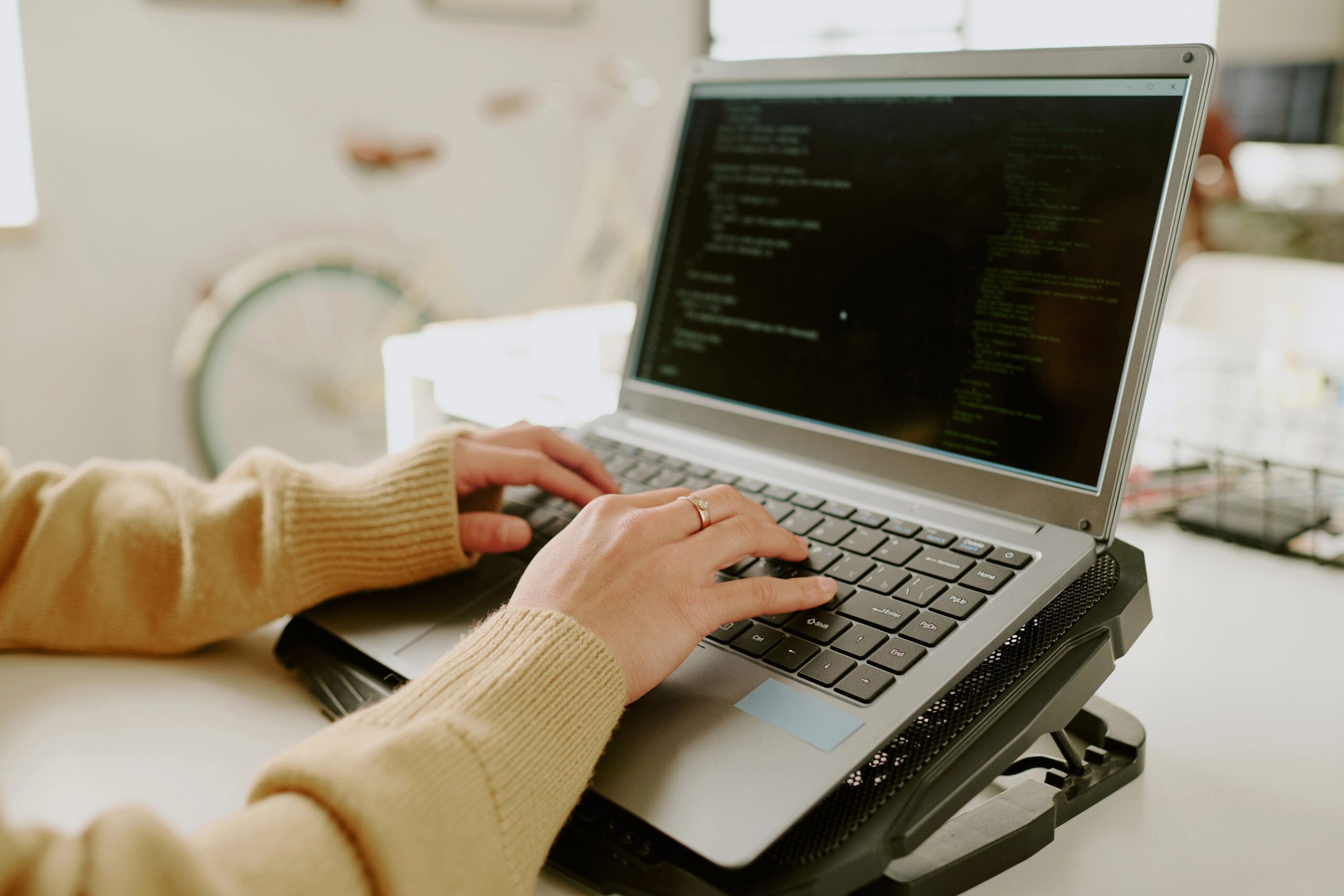
Common options include:
- Cooling pads — Use built-in fans to increase airflow beneath the laptop.
- Laptop stands — Elevate the laptop and improve natural airflow.
- Vacuum coolers — Attach near exhaust vents and pull hot air out more aggressively.
- External desk fans — Help circulate cooler air around the device.
Worth Buying Or Just More Desk Clutter?
For most people, a simple laptop stand provides the best value.
Cooling pads can help during gaming, video editing, and other demanding workloads, but expectations should be realistic.
If a laptop is overheating because of dust buildup, a failing fan, or a swollen battery, no accessory is going to solve the underlying problem. Think of cooling accessories as airflow improvements—not miracle cures.
What If Your Laptop Still Overheats After All Of This?
If you’ve cleaned the vents, checked for runaway software, improved airflow, and the laptop is still overheating, the problem may be deeper than routine maintenance can solve.
Possible causes include:
- A failing cooling fan
- Dried or degraded thermal paste
- A worn or damaged battery
- Internal hardware damage
- Cooling system components that are no longer functioning properly
At that point, continued troubleshooting may require opening the laptop or having it professionally inspected.
Signs It’s Time For Professional Help
Consider seeking professional repair if:
- The laptop shuts down unexpectedly due to heat
- Fan noises become unusually loud, irregular, or grinding
- You notice battery swelling or physical bulging
- Temperatures remain extremely high after cleaning and maintenance
- The laptop overheats during even light everyday tasks
Overheating is often fixable, but when basic troubleshooting stops making a difference, it’s usually a sign that the issue goes beyond dust, software, or airflow alone.
Frequently Asked Questions
Here are some common questions people have about overheating laptops. Don’t see yours here? Drop them in the comments below. There’s a good chance someone else is dealing with the same thing.
Can Overheating Permanently Damage A Laptop?
It can. Modern laptops have multiple safety systems designed to prevent heat damage, including thermal throttling and automatic shutdown protection.
The bigger concern is repeated exposure to high temperatures over long periods of time.
Excessive heat can shorten the lifespan of batteries, fans, and other internal components. That’s why it’s better to address overheating early rather than treating it as a normal part of laptop ownership.
Can A Laptop Get Too Hot In A Hot Room?
Yes. Your laptop’s cooling system works by moving heat into the surrounding air. If the room is already warm, that process becomes less effective.
This is why laptops may run hotter in summer, in direct sunlight, or in rooms without much airflow.
Is It Safe To Put A Laptop On A Cooling Pad All The Time?
Generally, yes. Most cooling pads simply improve airflow underneath the laptop and don’t interfere with normal operation.
Just remember that a cooling pad is an airflow aid, not a substitute for cleaning vents, maintaining the cooling system, or addressing hardware problems.
Is It Bad To Use A Laptop On My Lap?
Occasionally? Not usually. The problem is long sessions where your clothing, blanket, or body blocks the bottom vents. That can trap heat and make the cooling system work harder than it would on a desk.
A lap desk, tray, or firm surface gives the laptop breathing room without forcing you to abandon the couch entirely.
Could A Hot Laptop Be A Sign Of Malware?
Sometimes, but it’s not the most common cause. Malware can run unwanted processes in the background, which may increase CPU usage and heat. But regular culprits like browser tabs, cloud syncing, updates, and dust are much more common.
A good first check is Task Manager or Activity Monitor. If you see an unfamiliar process using a lot of CPU, that’s worth investigating.
Is Your Laptop Acting Strange In Other Ways?
Overheating is often the first symptom people notice, but it’s rarely the only one.
The same issues that make a laptop run hot can also contribute to slow performance, shorter battery life, loud fans, random freezes, and that general feeling that your computer just isn’t as responsive as it used to be.
If your laptop still feels like it’s working harder than it should, these guides can help you investigate what might be happening next:
- Why Your Computer Feels Slower Than It Used To
- How To Clean Up Your Computer’s Clutter
- The Everyday Tech Habits That Secretly Slow Down Your Devices
- The Hidden Expiration Dates On Modern Technology
Has your laptop developed any weird heat-related quirks lately? Fans running nonstop? The bottom getting hot enough to double as a space heater? Performance dropping for no obvious reason? Drop a comment and tell us what’s happening.