When was the last time you restarted your router?
If your answer is “I have absolutely no idea,” you’re in good company. Most routers run 24/7 for months or even years, largely forgotten unless the Wi-Fi starts acting up. But should they?
Are routers actually designed to run indefinitely without a break, or can leaving them on for months without rebooting eventually cause Wi-Fi glitches, slowdowns, or connection problems?
And if yours hasn’t been restarted since nobody-can-remember-when, is that perfectly normal — or something you’ve been accidentally neglecting?
Do Routers Actually Need To Be Restarted?
Not necessarily. Routers are designed to run continuously, so you haven’t been neglecting yours simply because you can’t remember the last time you restarted it.
Unlike a laptop you might shut down at the end of the day, your router is expected to stay on around the clock. It doesn’t need downtime because it’s tired, and there’s no internal clock counting down to its next mandatory reboot.
But there’s an important distinction: running continuously isn’t inherently a problem. Problems can occasionally develop while it’s running.
Your router is essentially a specialized little computer, complete with a processor, temporary memory (RAM), and software called firmware. Even while nobody is thinking about it, it’s constantly:
- Managing connected devices as phones, TVs, laptops, cameras, and other smart gadgets
- Directing network traffic between those devices and the internet
- Keeping track of connections and network information needed to get data where it’s going
- Running software and security functions in the background
Most of the time, it handles all of that without any intervention from you. But software and network connections don’t always behave perfectly — and certain temporary problems can develop during long stretches of continuous operation.
That’s where restarting can make a surprisingly noticeable difference.
What Changes Inside A Router That Never Gets Restarted?
Leaving your router on for months doesn’t mean problems are inevitably piling up inside it. A healthy router is designed to manage its resources and connections continuously.
But long uptimes can give certain software and networking problems more opportunity to appear. And when they do, they can produce symptoms that feel completely unrelated: slower performance, devices that suddenly won’t connect, or Wi-Fi that becomes increasingly unreliable.
Here are a few things that can happen behind the scenes.
1. Memory Problems Can Creep In Over Time
Like your computer or phone, your router uses RAM as temporary working space. It holds information needed by active processes and connections, then releases that memory when it is no longer needed.
At least, that’s what is supposed to happen.
A software bug can sometimes cause a memory leak, where a process claims memory but doesn’t properly give it all back when it’s finished. If that continues, the router gradually has less working memory available for everything else.
Depending on the router and the problem, you might eventually notice:
- Sluggish performance that wasn’t there before
- Devices struggling to connect or stay connected
- Router settings or apps becoming slow or unresponsive
- Instability that disappears after a reboot
This is different from the popular idea that RAM simply gets “clogged with old data” over time. Properly functioning software manages RAM automatically. The problem is when something stops managing it properly.
2. Network Connections Can Fall Out Of Sync
Not every problem is about memory.
Your router spends its life managing an enormous number of little networking interactions as devices connect, disconnect, request addresses, communicate with the internet, and start and stop sessions.
Usually, those interactions begin, end, and refresh exactly as intended. Occasionally, something gets stuck or falls out of sync.
That might involve:
- Connection or session information that isn’t being handled correctly
- Dynamic Host Configuration Protocol (DHCP) issues, involving the local IP addresses your router assigns to devices
- Cached network information that isn’t behaving as expected
- Communication between the router, modem, and ISP getting into an abnormal state
You may see these problems described online as “stale data piling up.” That’s a little misleading. For example, DNS cache entries normally have expiration times and aren’t supposed to accumulate forever.
Sometimes nothing is actually “full.” The router has simply ended up in a state it wasn’t supposed to be in.
3. Firmware Can Develop Glitches, Too
Underneath it all, your router runs firmware — the software that controls how the hardware operates.
Firmware runs continuously, and bugs can occasionally cause processes to hang, crash, consume too many resources, or stop communicating properly with another part of the network.
Manufacturers release firmware updates partly to address issues like these, along with compatibility problems, performance improvements, and security vulnerabilities.
And now we get to the strange part: several very different problems inside a router can sometimes be cleared by doing exactly the same ridiculously simple thing. Turning it off and back on.
Why Turning It Off And Back On Works So Well
“Have you tried turning it off and back on again?” may be the oldest joke in tech support, but it works for a reason.
A reboot isn’t giving your router a much-needed rest. It’s forcing a bunch of things that have been running continuously to stop and start fresh.
Depending on the problem, restarting can:
- Clear temporary memory (RAM), including resources tied up by a misbehaving process
- Terminate stuck processes and restart the router’s software services
- Clear certain temporary connection states that aren’t behaving properly
- Reinitialize network interfaces responsible for communicating with your devices and other networking equipment
- Re-establish connections between different parts of your home network
Think of it less like giving your router a nap and more like closing a frozen app and opening it again. You haven’t repaired the bug that made the app freeze, but you’ve cleared the immediate problem and given the software a clean start.
Why Do People Tell You To Wait 30 Seconds?
You’ve probably heard some version of “Unplug it, wait 30 seconds, then plug it back in.”
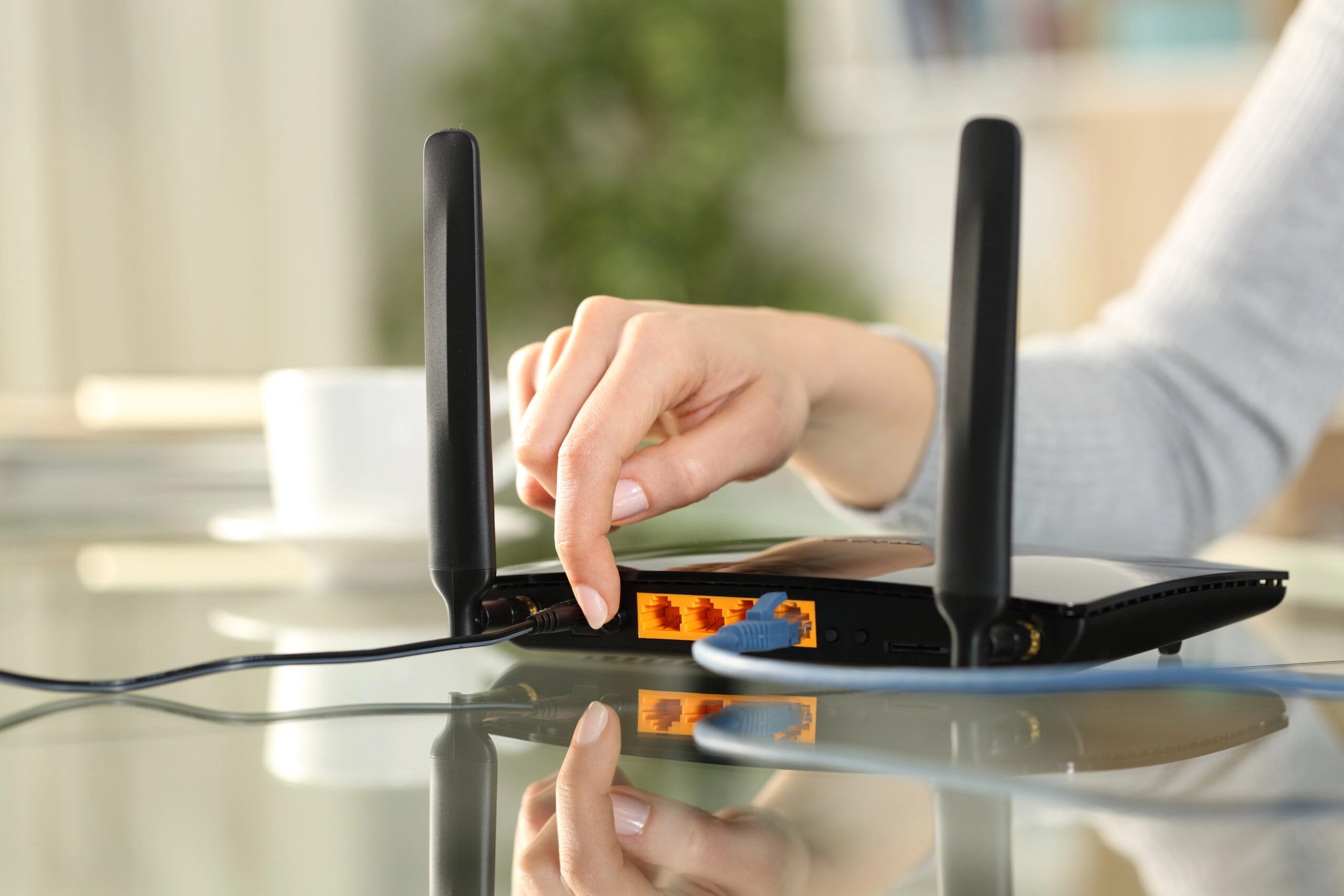
The waiting isn’t a magical countdown. Disconnecting power ensures the router actually shuts down rather than briefly interrupting it, giving its internal electronics time to discharge before you restore power.
For a basic power-cycle reboot:
- Unplug the router’s power cable.
- Wait about 30 seconds.
- Plug it back in.
- Give it a few minutes to fully restart and reconnect.
Your Wi-Fi network may disappear temporarily while the router boots, and connected devices should begin reconnecting once it’s ready.
Restarting Vs. Resetting: Please Don’t Push That Tiny Button Yet
Before you go anywhere near the back of your router, one distinction is worth getting right: restarting and resetting aren’t the same.
A restart, also called a reboot, simply shuts down the router and starts it again without erasing your network settings. You can usually do this through the router’s app or admin settings, by using a power button if your model has one, or by unplugging the power cable and plugging it back in.
A factory reset is very different. It returns the router to its original configuration and can erase your Wi-Fi name, password, and other customized settings.
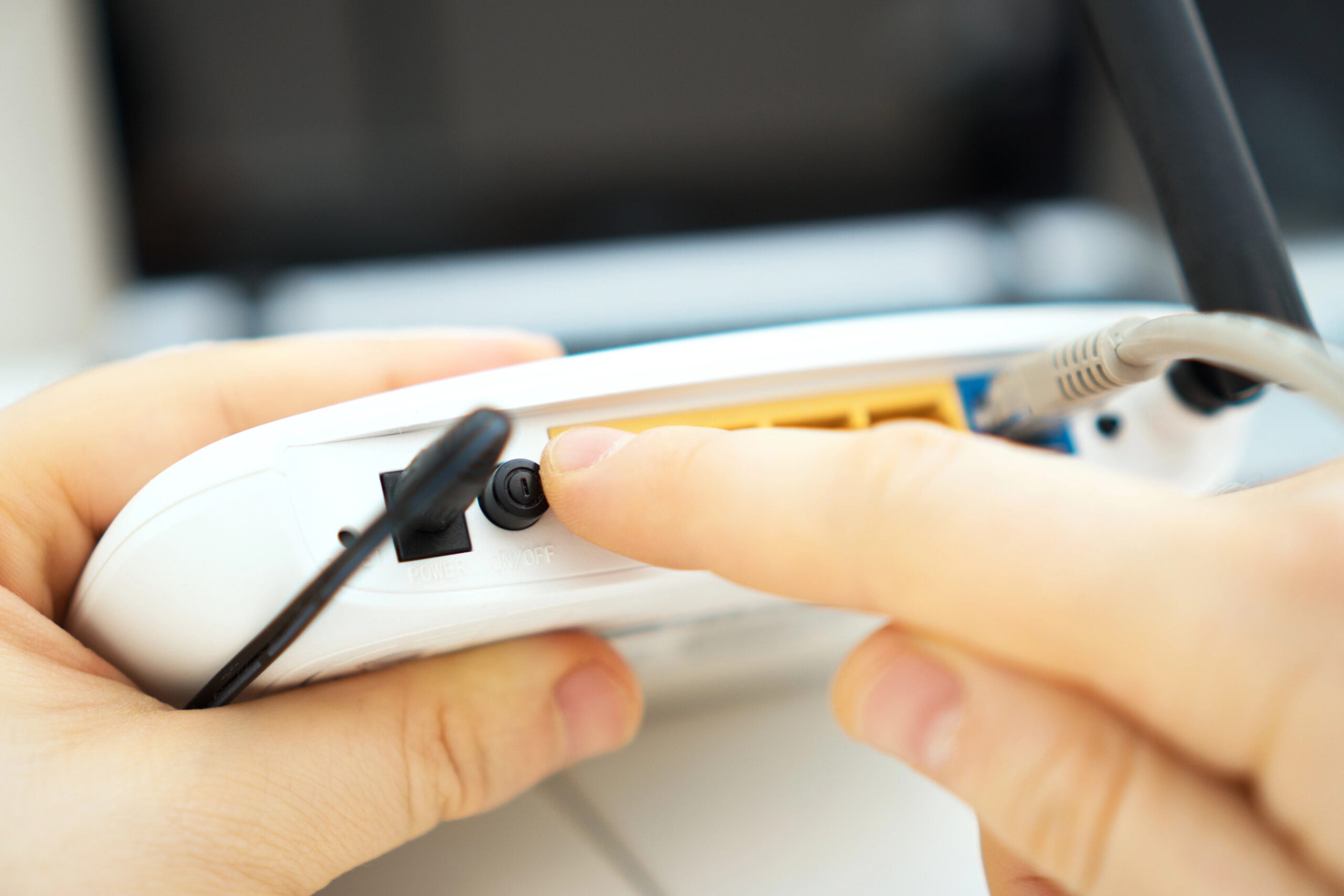
And here’s where things get confusing: many routers have a physical button on the back labeled “Reset.” That’s generally not the button you want when you’re simply trying to restart your router.
The Reset button is often recessed so you can’t press it accidentally, and many models require you to hold it for several seconds before a factory reset begins. Exact behavior varies by manufacturer, so check your router’s instructions before using it.
If you’re just trying to reboot, use the router’s Restart/Reboot option, its power button if appropriate, or unplug the power cable. Leave the Reset button alone unless you actually intend to restore the router to factory settings.
The Part Most People Miss: Your Router Might Be More Than A Router
Another reason router-restart advice can get confusing is that we tend to call almost any box with blinking lights “the router.”
Depending on your internet setup, one device may do several jobs, or multiple pieces of equipment may work together.
- Router: Directs traffic between devices on your home network and the internet. Most home routers also provide your Wi-Fi.
- Modem: Connects your home network to certain types of internet service, such as cable.
- ONT: An Optical Network Terminal performs a similar handoff for fiber internet, converting the provider’s fiber-optic signal into something your home network can use.
- Gateway: Combines multiple networking functions into one device, commonly a modem and router.
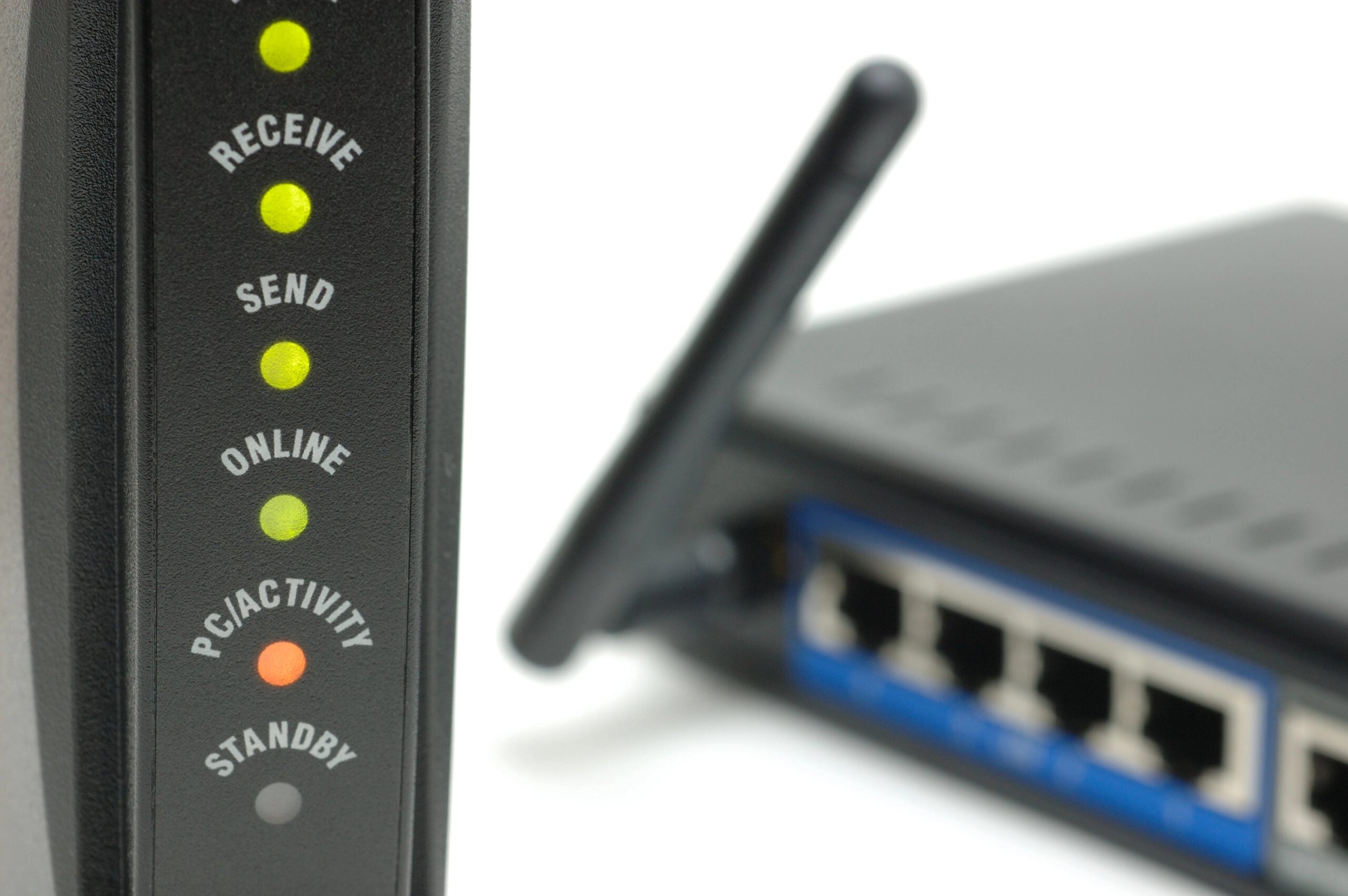
Why does that matter? Because restarting one box doesn’t necessarily restart your entire internet connection.
If you have a separate modem and router, rebooting only the router may clear a Wi-Fi or router problem while leaving an issue involving the modem or ISP connection untouched. With a combined gateway, unplugging that one device may restart both sides at once.
So when someone swears that “restarting the router” fixed their internet, they may have restarted considerably more than the router itself.
There’s Also A Security Reason To Restart Occasionally
Performance isn’t the only reason you might want to reboot your router occasionally. It can also offer a security benefit.
Some router malware is non-persistent, meaning it lives in temporary memory rather than permanently surviving every reboot.
Cutting power clears that volatile memory, which can disrupt the malware and terminate temporary connections an attacker was using. In fact, cybersecurity agencies have recommended router reboots as one tool for dealing with certain router-based threats.
But there’s an important catch: rebooting can remove the immediate threat without fixing the weakness that let it in.
If your router has outdated software, weak login credentials, or exposed features that attackers can exploit, malware may simply find its way back in. That’s why the more important long-term security habits are:
- Keep your router’s firmware updated to patch known security vulnerabilities.
- Change default administrator credentials and use a strong, unique password.
- Disable remote management if you don’t need to access your router’s settings from outside your home network.
- Replace unsupported routers that no longer receive security updates.
So, yes, rebooting can occasionally do more than fix temperamental Wi-Fi. It can interrupt certain security threats—but it isn’t a substitute for securing the router itself.
Why Router Security Made Headlines In 2026
Cybersecurity experts have been talking about home routers lately for a reason. In 2026, U.S. agencies disrupted a network of compromised home and small-office routers being used by Russian military intelligence-linked hackers.
The National Cybersecurity Alliance (NCA) explains that attackers used outdated, poorly secured routers as entry points — even when the router belonged to an ordinary home user. The warning prompted renewed advice to reboot routers, install firmware updates, change default passwords, and replace equipment that no longer receives security updates.
What A Router Reboot Can And Can’t Fix
Restarting your router can solve a surprising number of temporary problems. But it can’t fix problems unrelated to the router’s current software or connection state.
| A Reboot May Help With | A Reboot Won’t Fix |
|---|---|
| Temporary software glitches | Poor router placement or weak coverage |
| Memory or resource problems | An internet plan that’s too slow for your household |
| Stuck network connections | Persistent interference from nearby devices or networks |
| Certain non-persistent malware | Outdated firmware or unpatched vulnerabilities |
| Temporary communication problems between network equipment | A recurring problem with your ISP |
| A router process that has stopped responding | Aging or failing hardware |
The distinction becomes especially important when rebooting works, but only for a while. If the same slowdown, dropout, or connection problem keeps coming back, restarting may clear the symptom without addressing the cause.
So, Should You Restart Your Router Every Month?
If restarting can clear temporary glitches and even provide a small security benefit, should you just put “reboot router” on the calendar every month?
You certainly can. The NCA recommends periodic router reboots and suggests monthly as a good starting point, particularly as one part of maintaining a more secure home network.
But monthly isn’t a magic number. A healthy router doesn’t suddenly slow down or become less reliable just because it crossed the 30-day mark without a reboot.
For most households, there are two reasonable approaches:
- Restart periodically as preventive maintenance. A monthly reboot is simple, takes only a few minutes, and can clear temporary problems before you notice them.
- Restart when there’s a reason. If your router is stable, up to date on firmware, and your network is behaving normally, there’s no evidence that missing your monthly reboot harms the equipment.
The more important distinction is wanting to restart your router versus needing to restart it.
An occasional preventive reboot is one thing. If your Wi-Fi only stays reliable because you’re repeatedly pulling the plug, the reboot may be hiding a problem rather than preventing one.
Should You Schedule Automatic Router Reboots?
If you’re sold on the idea of an occasional reboot but know you’ll never remember to do it, some routers let you schedule one automatically. Depending on the model, you may find the option in the router’s settings or companion app.
Scheduling an overnight reboot can be convenient because your network briefly goes offline while the router restarts. It may make sense if you:
- Want to automate an occasional preventive reboot rather than remembering it yourself
- Have a router with a known occasional stability quirk but aren’t ready to replace it
- Need a temporary workaround while you investigate a recurring network problem
But there’s a downside to making the problem disappear automatically.
Imagine your router becomes unstable after several days of uptime, but you’ve scheduled it to reboot every few nights. You may have accidentally created a very effective way of never discovering the router has a problem. Scheduled reboots are convenient maintenance. They shouldn’t be life support for an unreliable network.
How Many Restarts Are Too Many?
No magic number of router restarts suddenly means something is wrong. What matters is why you keep doing it.
Restarting after an unusual connection hiccup is very different from knowing exactly which plug to pull because you’ve been crawling behind the entertainment center every Thursday.
Pay attention when rebooting becomes your standard fix for the same recurring problem:
- Wi-Fi gets progressively worse until you restart.
- Devices regularly stop connecting even though they worked earlier.
- Internet access repeatedly disappears and returns after a reboot.
- The router freezes or becomes unresponsive.
- Performance improves dramatically after restarting, then deteriorates again days later.
- You reboot preemptively because you’ve learned problems are coming.
That pattern tells you something important. The reboot is working, but the underlying problem isn’t going away.
At that point, the useful question is no longer “How often should I restart my router?” It’s “Why does my router keep needing to be restarted?”
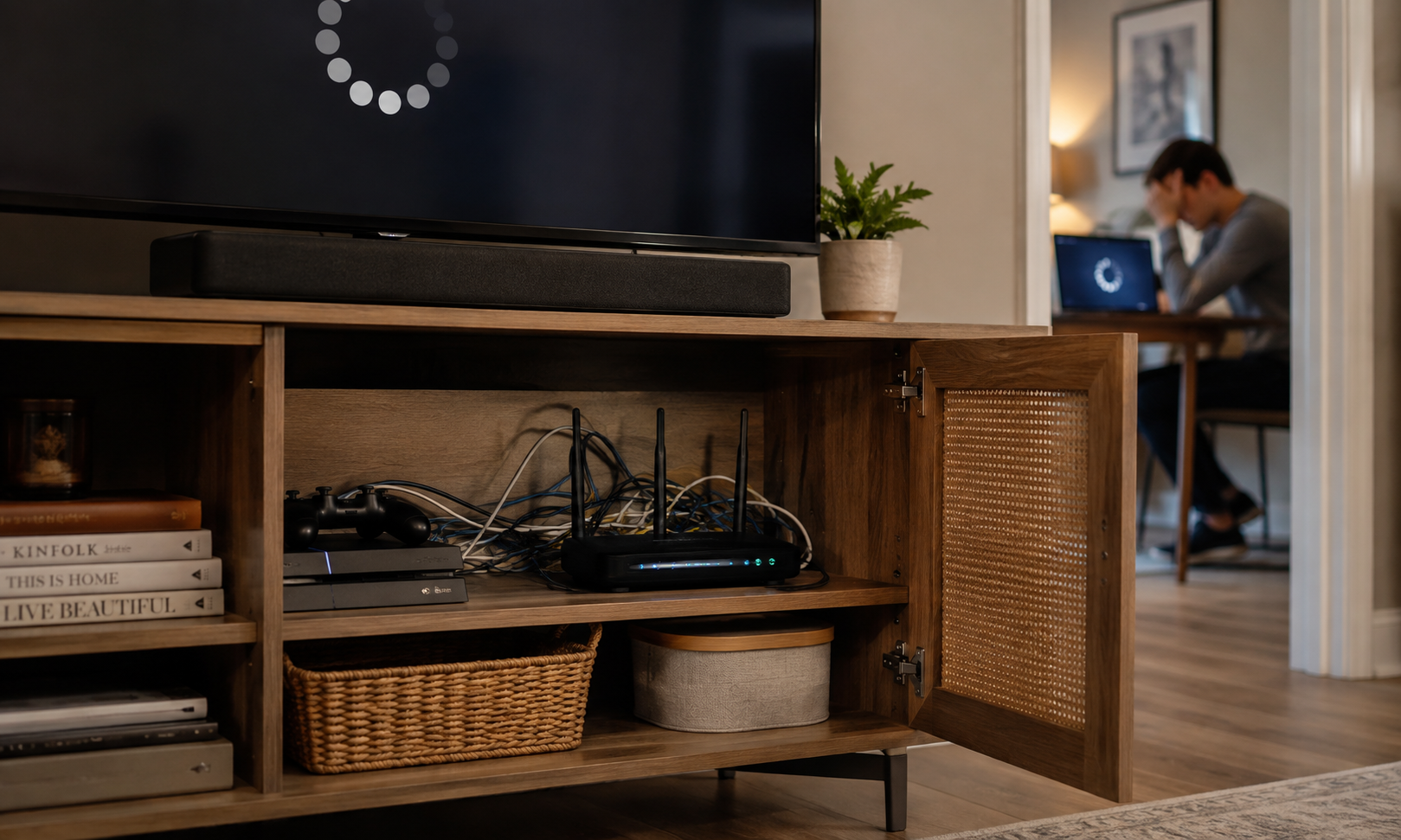
Rebooting Your Router Too Often? Check These 5 Things
If rebooting has become part of your regular Wi-Fi routine, it’s time to investigate what keeps sending you back to the power cord.
A few clues can help narrow it down.
1. Check For A Firmware Problem
Start with the router’s software. Outdated firmware can contain bugs that cause crashes, connection problems, or instability, while newer versions may include fixes specifically designed to address them.
Many newer routers update automatically, but not all do. Check the router’s app or administration page to see whether an update is available—and whether the manufacturer is still releasing updates for your model.
2. Make Sure Your Router Can Breathe
Routers generate heat whenever they’re operating, and that heat needs somewhere to go.
A router tucked inside a closed cabinet, stacked beneath other electronics, or surrounded by dust may have a harder time dissipating it. If problems become more common after the router has been running for a while, it’s worth investigating the heat.
Give it open space, keep its ventilation openings clear, and avoid stacking other heat-producing electronics around it.
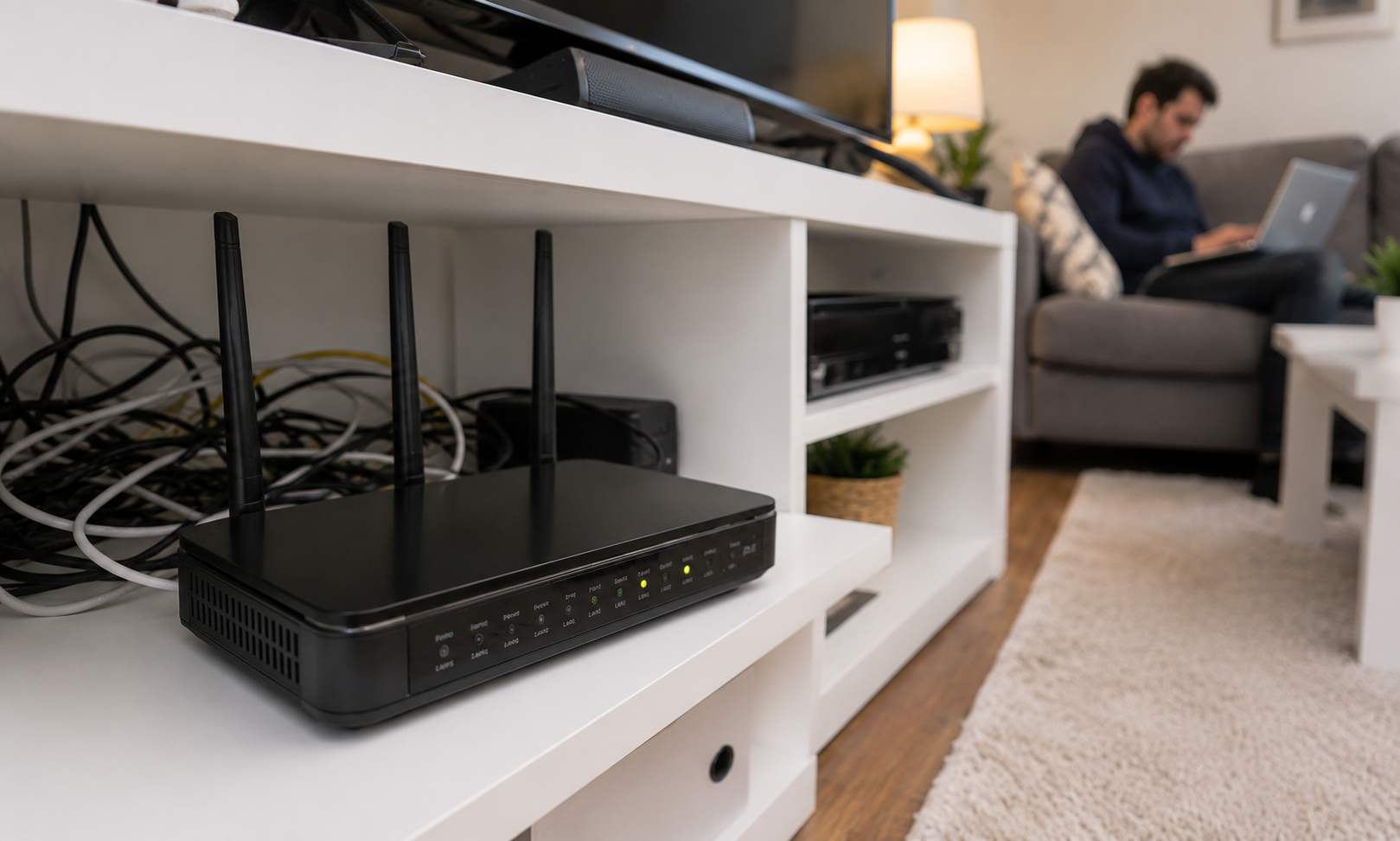
3. See Whether The Problem Follows One Device
If one laptop keeps dropping Wi-Fi while every other device works normally, rebooting the entire network may be treating the wrong patient.
Test another phone, computer, or streaming device when the problem occurs. If everything else works, look at the troublesome device before blaming the router.
4. Check Whether Wi-Fi Is Actually Failing
Here’s an important distinction: being connected to Wi-Fi and having internet access aren’t the same thing.
If your devices remain connected to the Wi-Fi network but websites and apps lose internet access, the problem could involve your modem, ONT, ISP connection, or another part of the network rather than the router’s wireless signal.
5. Think About How Much Your Network Has Changed
The router that comfortably handled your household several years ago may now be juggling phones, laptops, TVs, cameras, speakers, consoles, watches, appliances, and a small civilization of smart-home gadgets.
Older or less capable hardware can struggle under heavier workloads, particularly when several devices are doing bandwidth-intensive things at once.
If the router is struggling with workloads it once handled without complaint, its age may be part of the story.
Is Your Router Simply Getting Old?
Routers don’t come with an expiration date, and an older router doesn’t automatically need replacing just because a newer Wi-Fi standard has arrived. If yours is stable, secure, supported, and still handles your household without trouble, age alone isn’t much of a diagnosis.
But older hardware can eventually start showing its limitations.
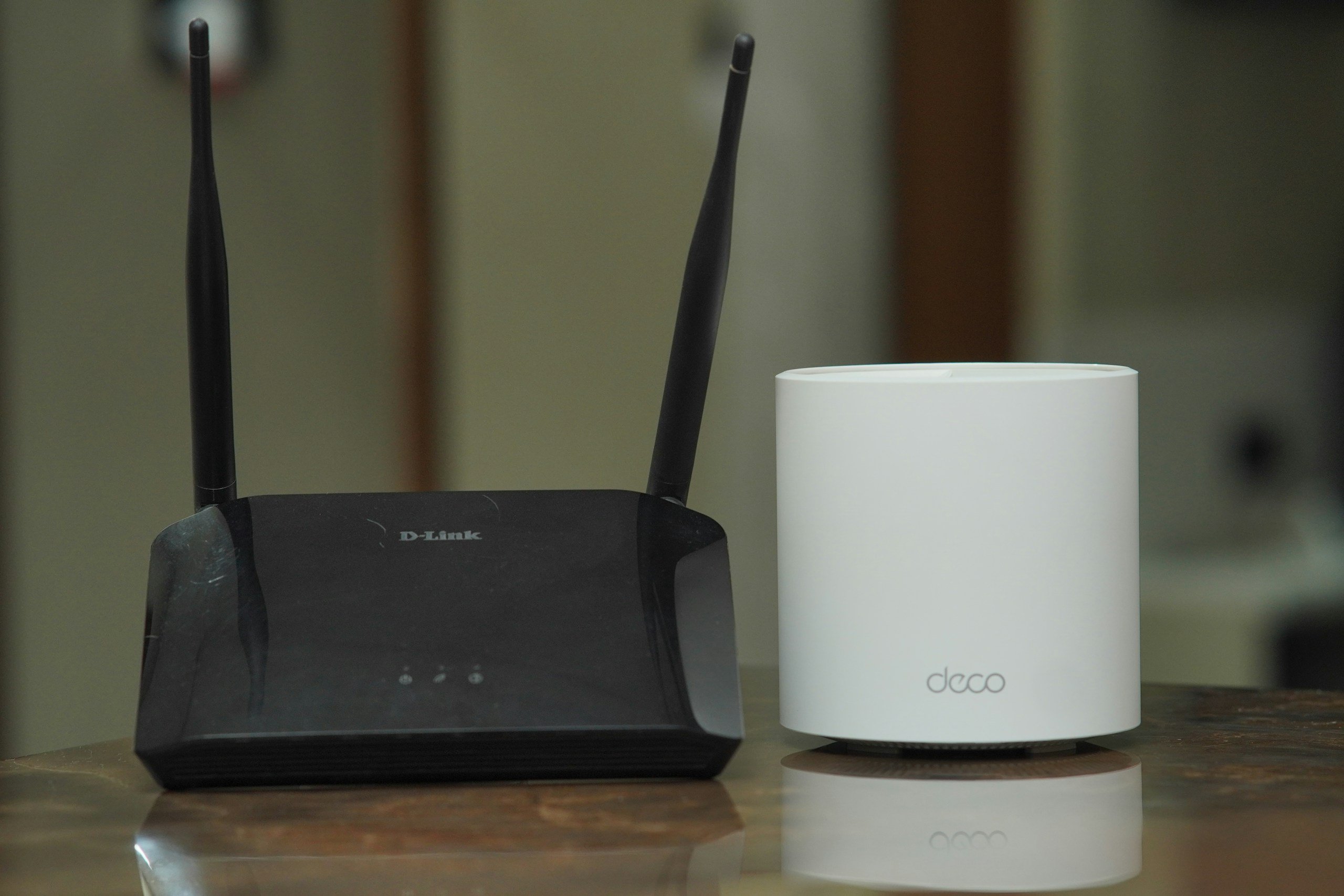
It may be time to consider replacing your router if:
- It no longer receives firmware or security updates. Unsupported hardware can leave known vulnerabilities unpatched.
- Frequent crashes or connection problems keep returning even after you’ve ruled out firmware, heat, ISP issues, and individual devices.
- Your household has outgrown its capabilities. A router bought for a handful of devices may struggle with today’s much busier network.
- Its Wi-Fi technology is several generations behind what your newer devices support, limiting the performance and features available to them.
- The hardware itself may be failing, especially if instability is becoming more frequent.
Before buying anything, though, make sure you’re solving the right problem. A new router won’t move a bad router location, upgrade your internet plan, fix an ISP outage, or magically eliminate every source of wireless interference.
Sometimes the old router really is the weak link. The trick is making sure you’ve actually found it before reaching for your credit card.
Should You Restart, Troubleshoot, Or Replace Your Router?
Not sure what your router actually needs? Start with what it’s doing right now.
| What’s Happening? | Your Next Move |
|---|---|
| Everything is working normally | Leave it alone. An occasional preventive reboot is fine, but there’s no need to restart a healthy router just because it’s been running for a long time. |
| A strange Wi-Fi or connection problem suddenly appeared | Reboot the router and see whether the problem clears. |
| The same problem keeps coming back | Troubleshoot instead of repeatedly rebooting. Look at firmware, heat, individual devices, your ISP connection, and network load. |
| The router no longer receives security updates | Start considering replacement, especially if you’re also seeing performance or reliability problems. |
Frequently Asked Questions
Still wondering about your particular router setup or reboot habits? Drop your question in the comments. In the meantime, here are a few situations we haven’t covered yet.
Is It Bad To Turn My Router Off Every Night?
Usually, there’s little reason to power down a healthy router every night. Routers are designed for continuous operation, and shutting yours off also disconnects anything that relies on your home network. At the same time, you’re asleep, including security cameras, smart-home devices, cloud backups, and overnight software updates.
If you’re turning it off nightly because you’re worried that continuous operation will wear it out, that’s generally unnecessary.
Does Restarting Your Router Change Your IP Address?
It can, but don’t count on it.
Your devices have private IP addresses within your home network, and those addresses may change when devices reconnect. Your home also typically has a public IP address assigned by your internet provider.
Restarting your equipment may result in a different public IP address if your ISP uses dynamic addressing, but many providers can assign the same address again. A reboot isn’t a reliable way to force a public IP change.
Does Unplugging A Router Damage It?
Normal occasional power cycling shouldn’t damage a router. They’re designed to handle being powered off and restarted.
Constantly unplugging a perfectly functional router isn’t providing a hardware benefit, though. If you’re doing it several times a week because something keeps failing, investigate the recurring problem instead.
Why Does My Router Work Better After Being Unplugged For A Few Minutes?
The improvement usually isn’t because the router needed several minutes to cool off or “rest.” Powering it down clears temporary memory and stops its running processes, while starting it again forces software and network connections to initialize fresh.
If the improvement consistently disappears after hours or days, however, the pattern matters more than how long you left it unplugged.
Should I Restart My Router After A Power Outage?
Not automatically. If your router, modem, or gateway reconnects normally and everything works, there’s no need to reboot it again just for good measure.
If devices won’t reconnect or you have Wi-Fi but no internet access after power returns, restarting your networking equipment can be a reasonable troubleshooting step.
Still Having Wi-Fi Problems? Follow The Clue
A reboot can be a remarkably effective fix, but if your Wi-Fi keeps giving you reasons to use it, the pattern can help point you toward what to investigate next.
- Does your connection keep disappearing? Our guide to why your Wi-Fi keeps disconnecting walks through the causes that can bring those frustrating dropouts right back after a reboot.
- Are problems are worse in certain rooms? Before blaming your router, see whether your router might be in the worst possible spot.
- Does everything slow down when your household gets busy? Find out what’s really using all of your internet bandwidth—including devices doing far more in the background than you might realize.
- Still not sure what the culprit is? Check whether you’re making one of the 10 most common home Wi-Fi mistakes before you start replacing equipment.
And now we’re curious: How long has your router been running without a restart? A few days? Six months? So long that nobody in the house is willing to make an estimate? Tell us in the comments.