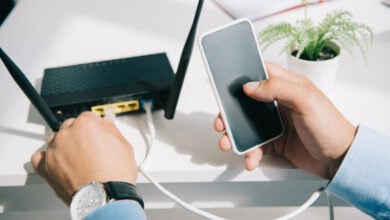
Your Wi-Fi was working perfectly fine yesterday. Today, videos are buffering, websites are crawling, and you’re giving the router a look usually reserved for people who drive under the speed limit. But what if your router isn’t the problem?
Some surprisingly ordinary electronics around your house can mess with your Wi-Fi, including a few you’d never think to blame. And the real kicker is, some don’t even have to be connected to your network to cause trouble.
Before you upgrade your internet plan or replace your router, let’s take a closer look at the offending electronics sharing your home.

How Can Electronics Slow Down Your Wi-Fi?
Not everything that makes your internet feel slow is actually slowing down your internet connection. Sometimes, the problem is how your devices communicate with your router.
There are three main ways everyday electronics can cause trouble.
Want our human-written content to rank above AI-generated garbage? Help us out by clicking this button!
- Wireless interference: Some electronics produce radio signals or electrical noise that interfere with Wi-Fi. Your devices may have to retransmit data, making the connection slower or less reliable.
- Wi-Fi congestion: Devices sharing a Wi-Fi channel take turns transmitting. When too many are actively communicating, delays can add up.
- Bandwidth consumption: Large downloads, automatic updates, and cloud uploads can use more of your internet connection than you realize.
The 2.4 GHz Wi-Fi band is particularly vulnerable to household interference because other wireless technologies operate in the same general frequency range. The 5 GHz and 6 GHz bands generally face less interference from these everyday devices.
The tricky part? All three problems can look remarkably similar. Your video buffers, a webpage takes forever to load, or a video call freezes at exactly the wrong moment.
9 Everyday Electronics That Can Slow Down Your Wi-Fi
Some of the biggest Wi-Fi troublemakers are hiding in plain sight. Others are devices you probably haven’t given a second thought since plugging them in. Here are nine everyday electronics worth investigating.
1. Your Microwave Oven Can Interfere With Wi-Fi
Ever notice your Wi-Fi acting up right when someone starts heating leftovers? Your microwave might be doing more than turning yesterday’s dinner into today’s lunch.
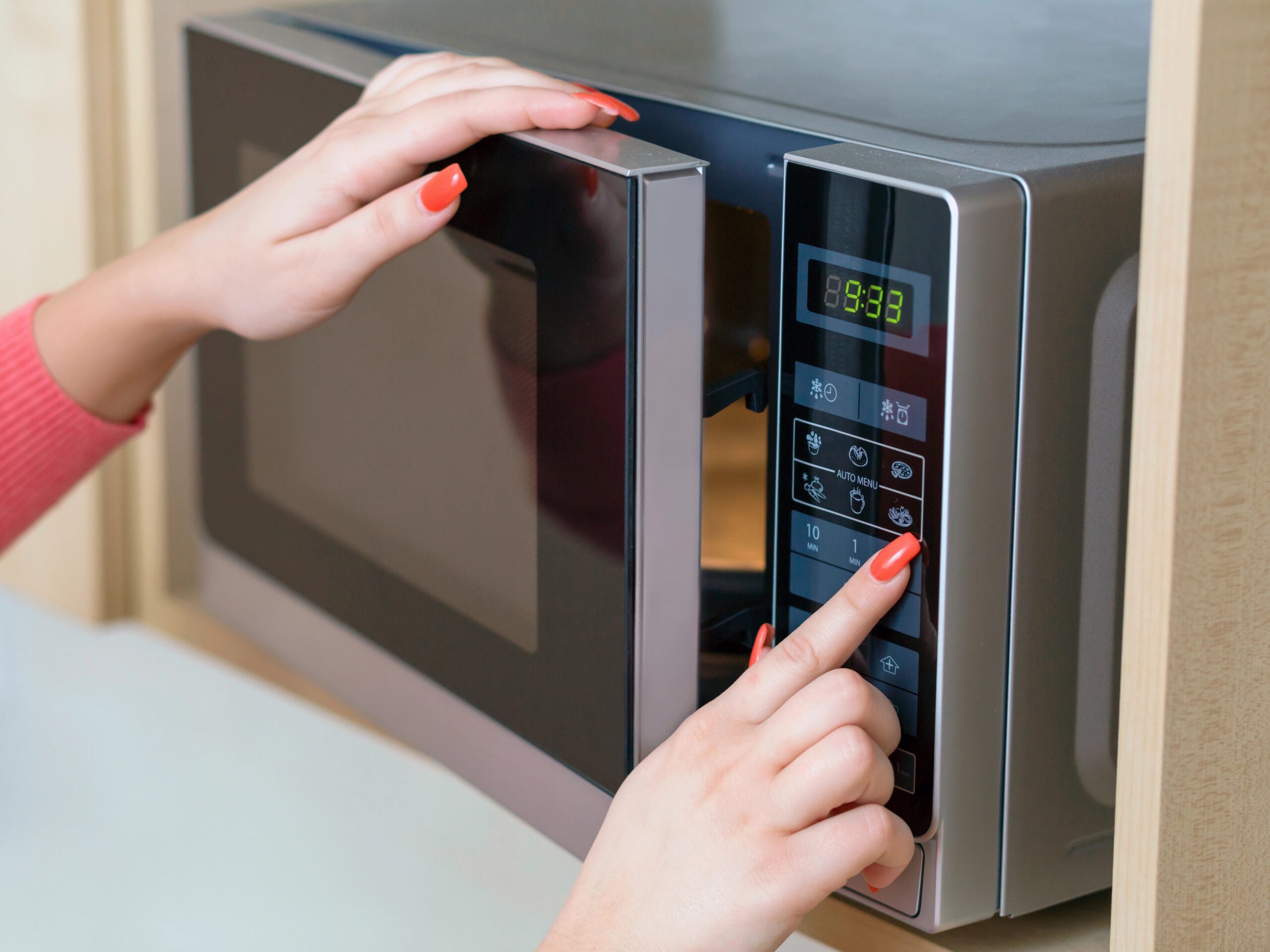
Microwave ovens operate at approximately 2.45 GHz, right in the frequency range used by 2.4 GHz Wi-Fi. Although microwaves are designed to contain that energy, small amounts can escape during normal operation.
That interference can make it harder for nearby Wi-Fi devices to communicate with your router, resulting in slower speeds, buffering, or brief interruptions.
The effect is more noticeable when you’re using 2.4 GHz Wi-Fi near the kitchen, particularly if your router or laptop is close to the microwave.
And no, this doesn’t mean every time someone heats a burrito, the entire household loses internet access. Many modern networks handle the interference without noticeable problems.
How To Tell If Your Microwave Is The Problem
Try using the same device in the same location while the microwave is running and again when it’s off.
If there’s a consistent difference:
- Switch to 5 GHz or 6 GHz Wi-Fi if your router and device support it.
- Move your router farther from the microwave, especially if they’re on the same counter or opposite sides of a shared wall.
A microwave-related slowdown should generally stop when the microwave stops running.
2. Your Bluetooth Gadgets Can Compete With Wi-Fi
Your wireless headphones, mouse, keyboard, and game controller might all be competing for space with your Wi-Fi. And if your desk looks like a small electronics store, you’ve probably got several of them working at once.

Bluetooth and 2.4 GHz Wi-Fi use overlapping radio frequencies, but they don’t communicate the same way.
Bluetooth uses frequency hopping, rapidly switching between frequencies to help avoid interference. Modern Bluetooth and Wi-Fi devices are designed to coexist, so one wireless mouse or pair of earbuds usually won’t cause noticeable trouble.
Problems are more likely when several Bluetooth devices are active near a Wi-Fi connection that’s already struggling, particularly in a crowded 2.4 GHz environment.
If your laptop experiences interruptions, try temporarily switching off nearby Bluetooth accessories. Reconnect them one at a time to see whether a particular device makes a difference.
Switching your computer to 5 GHz or 6 GHz Wi-Fi can also help because Bluetooth operates in the 2.4 GHz band.
If nothing changes, leave your accessories alone. Your headphones don’t deserve to be blamed for something they didn’t do.
3. Your Security Cameras And Video Doorbells Can Hog Your Upload Speed
Your security camera might be doing its job a little too enthusiastically. While you’re trying to join a video meeting, it could be busy sending footage of the delivery driver, the neighbor’s dog, or a suspicious-looking squirrel to the cloud.
Security cameras can use a surprising amount of upload bandwidth, especially when several are recording or streaming simultaneously.
Most of us think about internet speed in terms of downloading: streaming movies, loading websites, or watching videos. But security cameras often work in the opposite direction, sending video from your home to cloud storage or a remote viewing service.
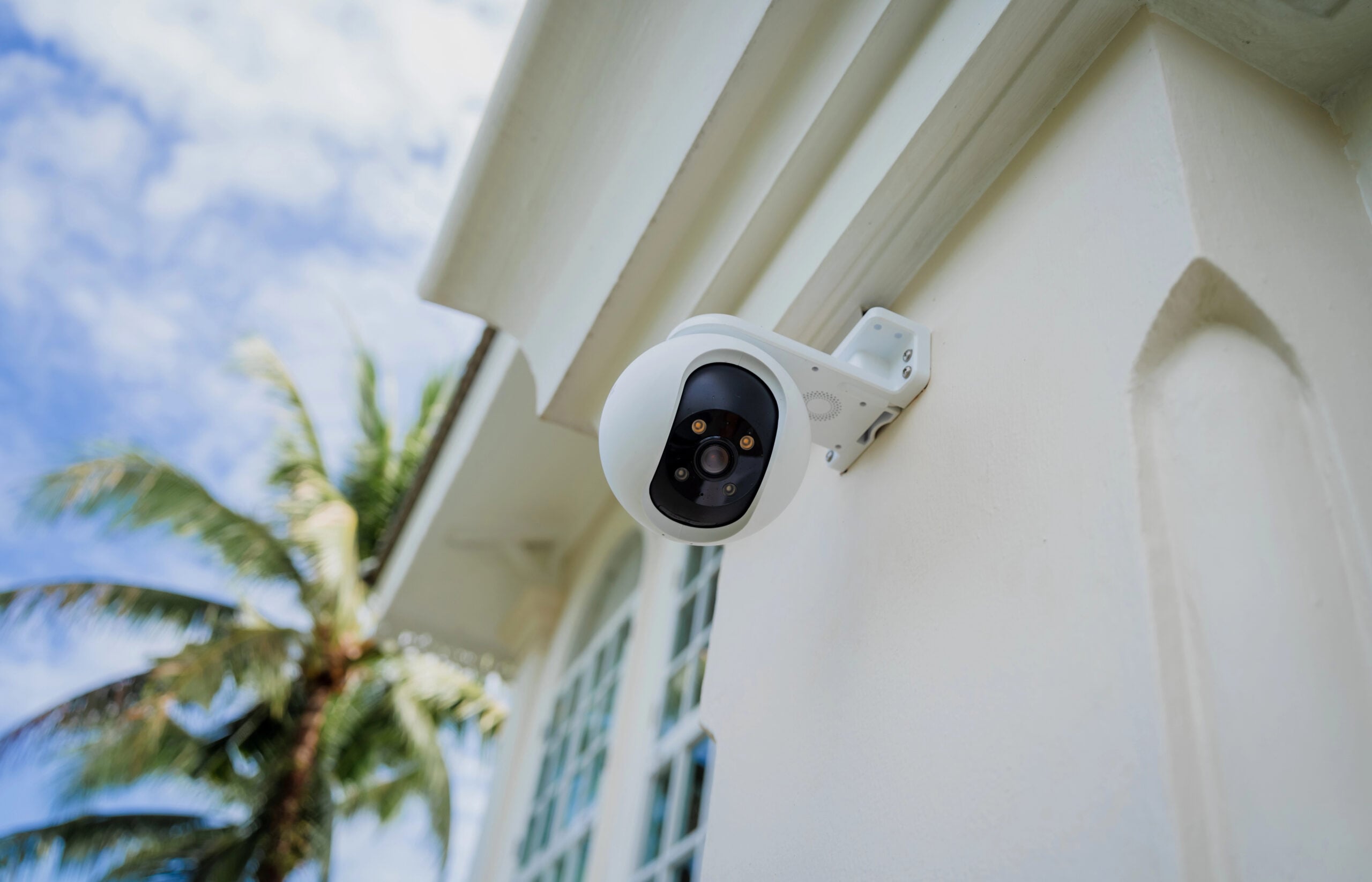
Many home internet connections have much slower upload speeds than download speeds. That means a few active cameras may create problems even when your internet plan sounds plenty fast.
You might notice freezing video calls, gaming lag, or sluggish performance when several cameras become active.
Not every camera uploads continuously. Some record only when motion is detected, while others save footage locally.
How To Keep Security Cameras From Slowing Everything Else Down
- Check your camera settings. Reducing recording resolution or unnecessary recording activity may lower bandwidth use.
- Look at your router’s traffic statistics. Some routers show which devices are uploading the most data.
- Consider local recording. Cameras that support local storage may reduce cloud uploads.
- Compare performance. Test your connection during normal camera activity and again with nonessential camera uploads temporarily reduced.
If your front porch has more camera coverage than a bank vault, it’s worth finding out how much bandwidth that security system is actually using.
4. Your Smart TV Or Gaming Console May Be Using Internet Bandwidth Behind Your Back
You finish watching television, put down the remote, and assume the TV is done using the internet. Not necessarily.
Smart TVs, streaming devices, and gaming consoles can download updates even when you’re not actively using them. And some of those downloads are anything but small.

A game update can involve tens of gigabytes of data, while a newly downloaded game can be substantially larger.
Meanwhile, someone else in the house is wondering why their video call suddenly resembles a slideshow.
These devices usually aren’t interfering with your Wi-Fi signal. They’re competing for the same internet bandwidth. Large downloads can also increase latency when your connection becomes congested, making gaming and video calls feel sluggish.
Streaming boxes and smart TVs can download software and app updates, although these are generally smaller than major game downloads.
What To Check Before Blaming Your Router
- Look for active downloads. Check your console’s download queue and available TV update settings.
- Schedule large game downloads outside your household’s busiest internet hours when your device allows it.
- Use Ethernet for stationary devices. A wired connection can free up Wi-Fi airtime and improve stability, although it won’t eliminate competition for internet bandwidth.
A device downloading an enormous update in another room could be responsible for your slowdown, even when nobody is actively using it.
5. Your Baby Monitor May Be Interfering With Wi-Fi Without Even Using It
Here’s a Wi-Fi suspect you might never find in your router’s connected-device list: your baby monitor.
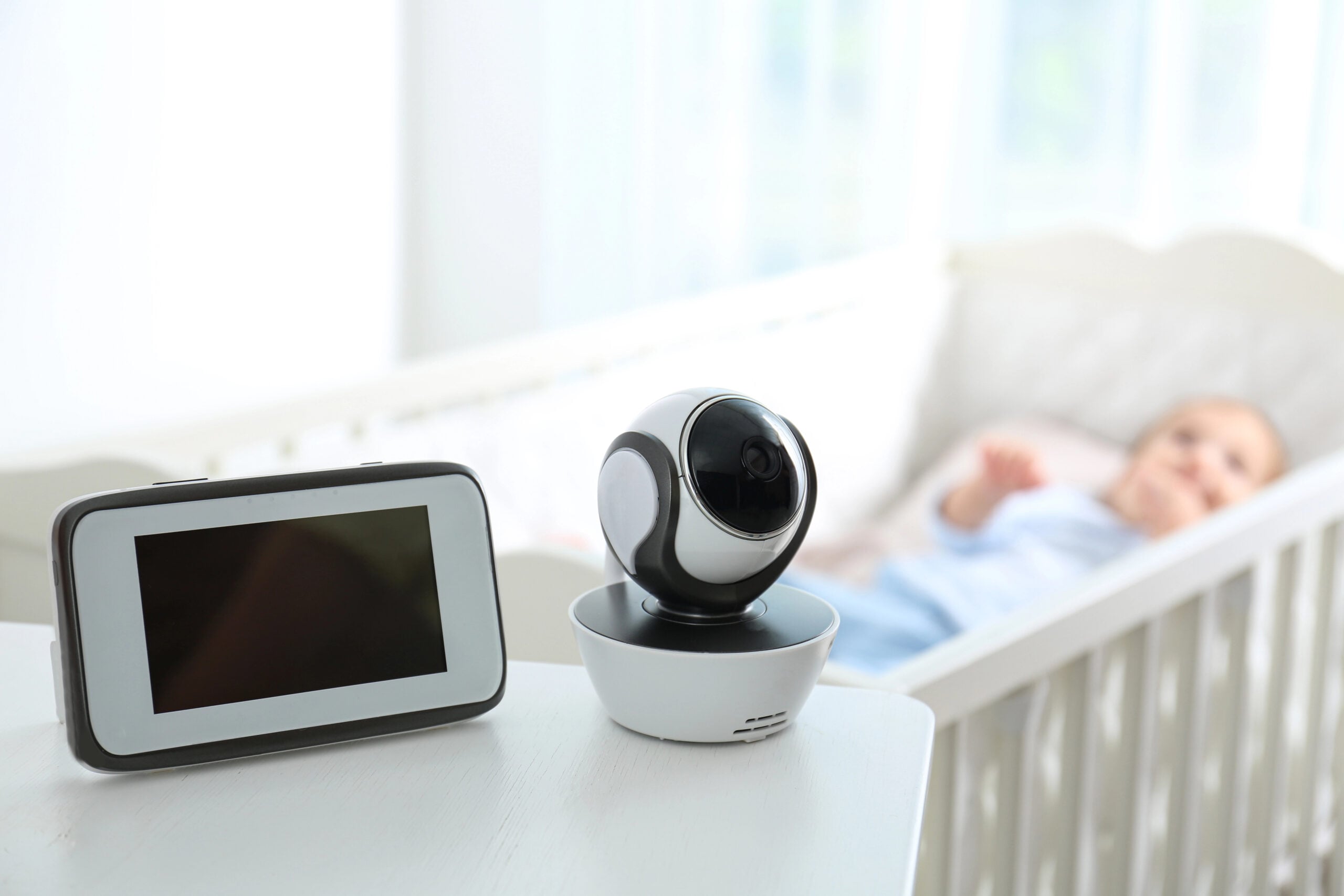
Some baby monitors use their own wireless connection between the camera and a dedicated viewing screen. They don’t need your home’s Wi-Fi network to work, but certain models operate in the same 2.4 GHz frequency range.
That means the monitor’s wireless transmissions can interfere with nearby Wi-Fi signals, particularly if the equipment is close to your router or another device already struggling with a weak connection.
Other baby monitors connect directly to your home’s Wi-Fi. These can add wireless traffic and, depending on how they stream or store video, use internet bandwidth.
How To Tell If Your Baby Monitor Is Causing Trouble
- Check the type of monitor you have. If it uses a dedicated screen, look up its operating frequency in the manual or product specifications. Don’t assume it uses Wi-Fi.
- Move the equipment farther from your router. Increasing the distance between wireless devices can help reduce potential interference.
- Try switching to 5 GHz Wi-Fi. If your phone or laptop supports it, moving away from the crowded 2.4 GHz band may improve performance.
- Compare performance in different locations. If Wi-Fi works better farther from the monitor’s equipment, interference becomes a possibility worth investigating.
Keep the monitor’s safety function intact while testing different equipment placements.
6. Even Your Christmas Lights Might Be Messing With Wi-Fi
You put up the Christmas tree, untangle approximately seven miles of lights, and turn your living room into a festive masterpiece.
Then your Wi-Fi starts acting up. Is your holiday decorating somehow responsible?

Certain Christmas lights and electronic lighting controllers can produce electromagnetic interference, or electrical noise that may interfere with nearby wireless signals.
The potential troublemakers aren’t necessarily the bulbs. Electronic power supplies, blinking controllers, and poorly shielded wiring can sometimes produce unwanted radio-frequency noise.
But before you accuse your Christmas tree of sabotaging movie night, there’s an important distinction.
Ordinary modern LED Christmas lights are unlikely to cause noticeable Wi-Fi interference. Most holiday displays operate without affecting wireless connections.
Router placement may be the bigger problem. If you’ve moved your router behind the tree, tucked it into a cabinet, or surrounded it with decorations, you’ve potentially changed how well its signal reaches the house.
If your Wi-Fi seems worse after decorating:
- Test with the lights on and off to see whether performance consistently changes.
- Check electronic controllers and power supplies, which may be more relevant than the bulbs.
- Keep your router clear of decorations and nearby electrical equipment.
If your internet works perfectly until you flip the switch on a particular display, that timing is worth investigating.
7. That Old Cordless Phone Could Be Competing With Your Wi-Fi
Remember when practically every kitchen had a cordless phone sitting in its charging cradle? If yours is still going strong, it might be worth checking how old it is.
Some older cordless phones operate in the 2.4 GHz frequency band, where their wireless transmissions can interfere with nearby Wi-Fi connections.
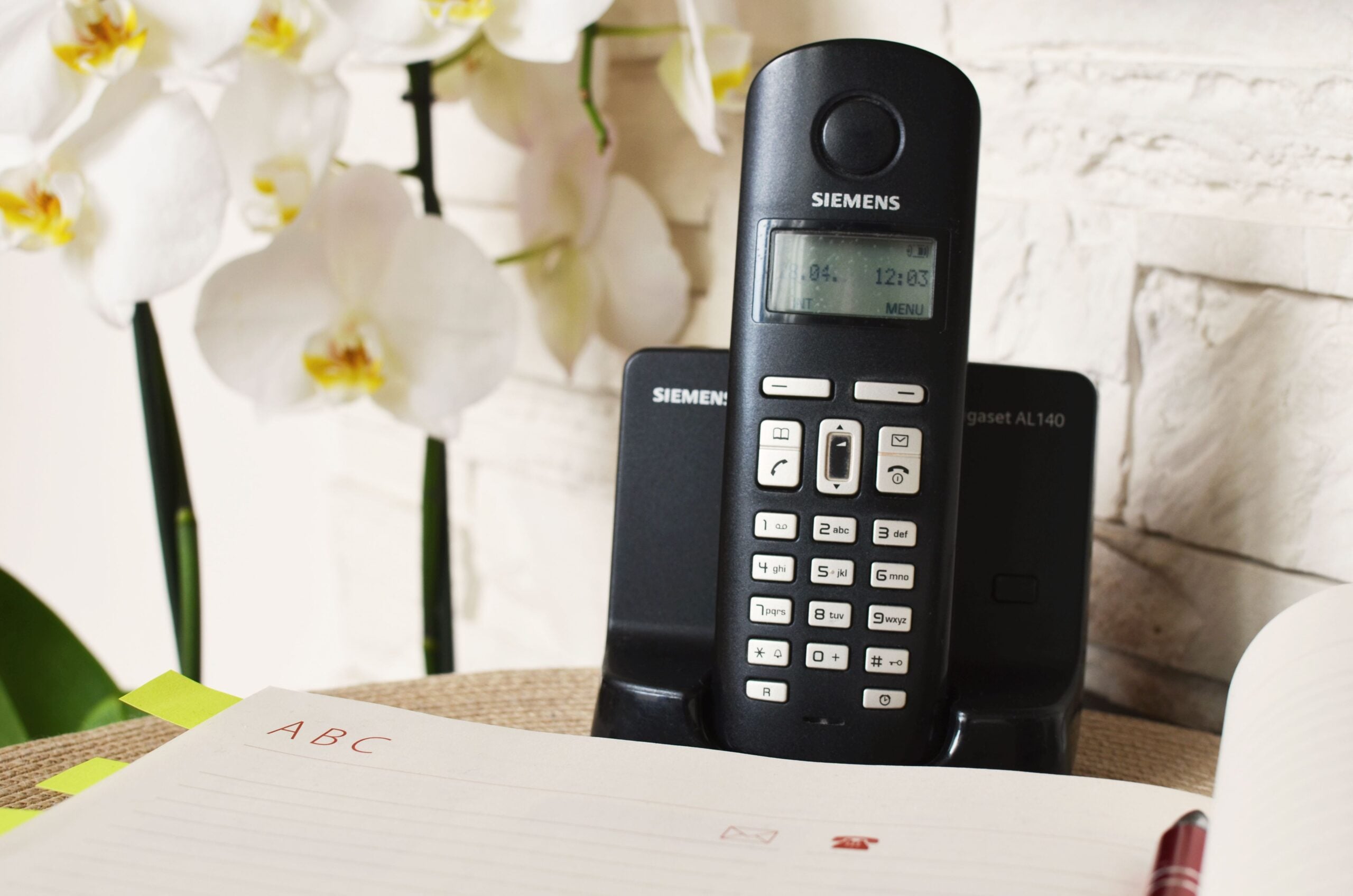
You might notice a slowdown or brief interruption when someone uses the phone, particularly if the base station is close to your router. However, this isn’t a problem with every cordless phone.
Many modern cordless phones use DECT 6.0 technology, which typically operates around 1.9 GHz in the United States, outside standard Wi-Fi frequencies.
If you’ve got an older cordless phone:
- Check its operating frequency in the manual or manufacturer’s specifications.
- Move the base station farther from your router if it operates at 2.4 GHz.
- Compare Wi-Fi performance during a phone call and when the phone is idle.
If your phone uses DECT 6.0, there’s little reason to suspect ordinary 2.4 GHz Wi-Fi interference from that system.
And if you’ve still got a cordless phone from the early 2000s, congratulations on keeping a piece of household technology alive long enough to become a possible Wi-Fi troubleshooting clue.
8. Your USB 3.0 Devices Can Interfere With Wi-Fi In A Surprisingly Weird Way
You connect an external hard drive, plug in a USB hub, or upgrade your home-office setup with a docking station.
Everything works beautifully, except your Wi-Fi suddenly seems less reliable. That expensive new accessory might be responsible, and not because it’s connected to the internet.
Certain USB 3.0 devices and cables can generate electromagnetic noise that interferes with nearby 2.4 GHz wireless signals.
Here’s why.
USB 3.0 transfers data at high speeds through electrical connections. Those rapidly changing signals can produce radio-frequency noise, particularly around poorly shielded connectors and cables.
That noise can overlap with portions of the 2.4 GHz spectrum, making it harder for nearby wireless receivers to detect the signals they’re supposed to receive.
The result? Slower Wi-Fi, dropped connections, or even a wireless mouse that starts behaving like it’s developed a personal grudge against your computer.
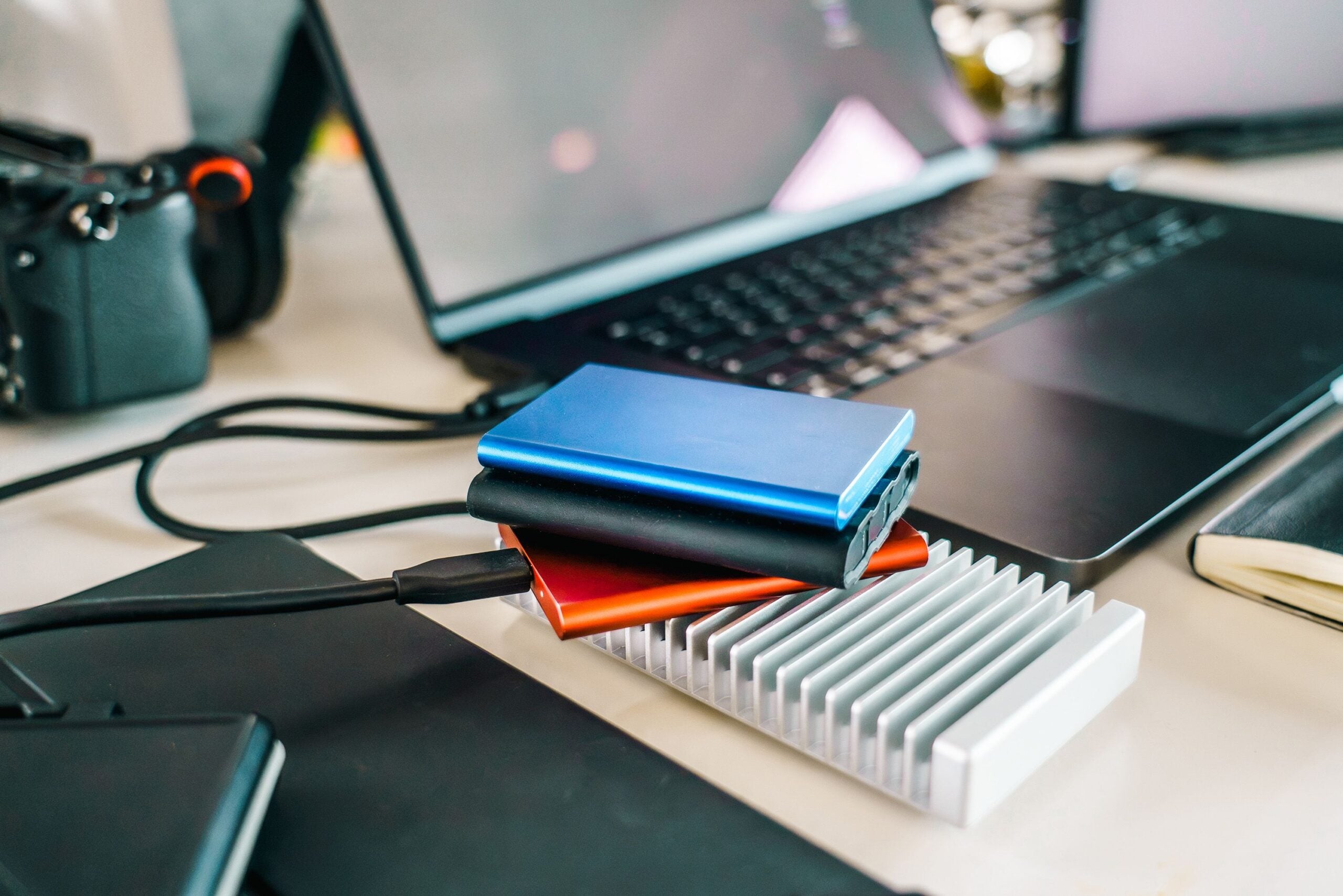
Intel published a technical white paper documenting this exact interference problem. And the key factor is often physical distance.
A USB 3.0 drive sitting inches from a Wi-Fi adapter is more concerning than one across the room.
How To Test For USB 3.0 Interference
- Disconnect the USB device temporarily. See whether your connection becomes more reliable.
- Move USB equipment farther away. Repositioning a cable, hub, or external drive may help.
- Use a USB extension cable for wireless receivers. Moving a mouse or keyboard receiver away from USB 3.0 equipment can reduce interference.
- Switch your computer to 5 GHz or 6 GHz Wi-Fi if available.
Not every USB 3.0 device creates noticeable interference. Good shielding and physical separation can make a significant difference.
9. Your Growing Collection Of Smart Devices Can Put Extra Strain On Your Router
Remember when your router only had to keep a couple of computers and phones connected?
Now it’s managing smart speakers, thermostats, lightbulbs, plugs, cameras, televisions, appliances, and possibly a refrigerator that insists on having its own internet connection.
A growing collection of smart-home devices can put additional demands on your Wi-Fi network, particularly if you’re using an older router.
But the number of connected devices doesn’t tell the whole story.
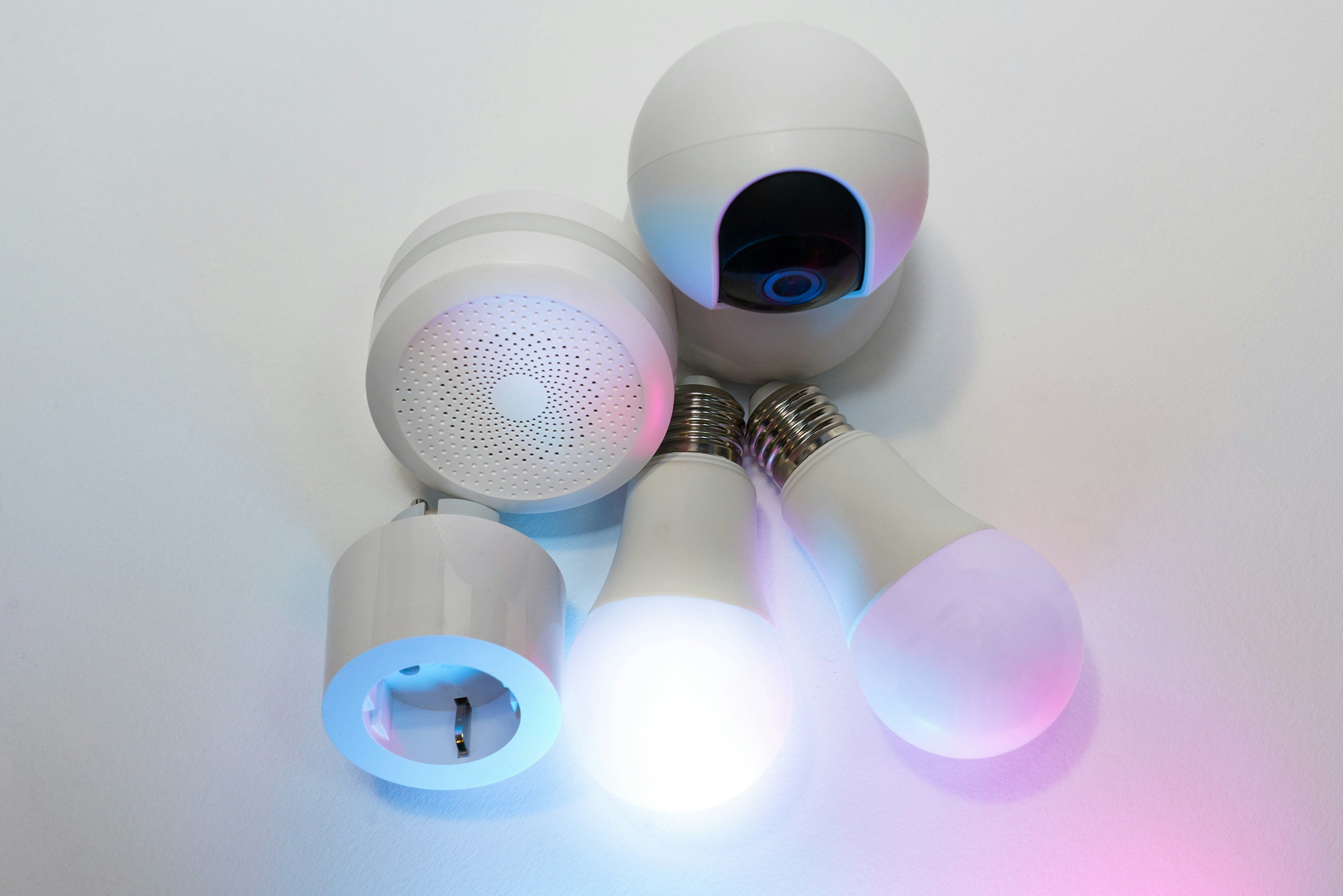
A smart plug sending occasional status updates uses very little bandwidth. A security camera transmitting high-resolution video is another matter entirely.
The real issue is how many devices are actively communicating and how much wireless airtime they’re using.
Wi-Fi devices sharing a channel generally take turns transmitting. A device with a weak connection may also transmit at lower speeds, occupying the channel longer to send the same amount of data.
Older or entry-level routers may struggle when several devices are busy simultaneously.
And not every smart-home gadget connects directly to Wi-Fi. Some use Zigbee or Thread through hubs or other compatible equipment. Certain versions of these technologies also share the 2.4 GHz spectrum.
How To Find Out Whether Your Smart Home Is Overloading Your Network
Start with your router’s connected-device list, usually available through its mobile app or web-based settings page.
Look for:
- High-bandwidth devices: Cameras, smart displays, and TVs deserve more attention than basic sensors.
- Devices with weak connections: Some router apps show signal strength or connection quality.
- Unusually heavy traffic: If your router provides usage statistics, check which devices are sending or receiving substantial amounts of data.
If problems persist, temporarily reduce nonessential smart-home activity and compare performance.
Don’t replace your router simply because you have dozens of connected devices. A modern router may handle them without difficulty, especially when most spend their time doing very little.
Is Something Interfering With Your Wi-Fi Or Just Using Your Bandwidth?
The timing of your slowdown and which devices are affected can help narrow down the cause. Use these clues to decide what to investigate first.
| What You’re Noticing | What It Might Mean |
|---|---|
| Wi-Fi worsens when an appliance runs | Possible wireless interference |
| 2.4 GHz struggles, but 5 GHz works | 2.4 GHz interference or congestion |
| Wired and wireless devices both slow down | Internet bandwidth or connection problem |
| Video calls freeze while cameras record | Heavy upload traffic |
| Internet slows during game updates | Bandwidth consumption |
| Only one computer or phone struggles | Device-specific problem |
| Problems started after moving electronics | Equipment placement or interference |
These aren’t definitive diagnoses, but they provide a useful starting point.
How To Find The Electronic Device Slowing Down Your Wi-Fi
You don’t need to unplug everything in your house and turn your living room into an electronics crime scene. The trick is to change one thing at a time. Otherwise, you might fix the problem without knowing what caused it.
Step 1: Look For A Pattern
Does your Wi-Fi slow down during dinner, when everyone gets home, or after you’ve connected certain equipment? Pay attention to whether the problem affects your entire house or just one room.
Timing is often your best clue. A slowdown that repeatedly starts and stops alongside a particular activity gives you somewhere useful to investigate.
Step 2: Compare Devices And Wi-Fi Bands
When the slowdown happens, test another phone, laptop, or tablet in roughly the same location.
- Both devices struggle: Investigate your router, wireless environment, or internet connection.
- Only one struggles: Check that device’s connection and background activity.
If possible, also compare 2.4 GHz and 5 GHz Wi-Fi while relatively close to the router.
If 5 GHz works well but 2.4 GHz struggles, interference or congestion on the 2.4 GHz band becomes more likely.
Some routers combine both bands under one network name, so check your router’s settings if you can’t select one directly.
Step 3: Test Your Suspected Electronics
Temporarily turn off, disconnect, or pause the suspected device when it’s safe to do so. Repeat the activity that was causing trouble.
If Wi-Fi consistently improves when the device is inactive and worsens when it’s active, you’ve found a useful clue.
Test one suspect at a time. If nothing changes, move on rather than assuming your first guess was correct.
Step 4: Check Your Router And Compare Speeds
Many routers show connected devices through a mobile app or web-based settings page. Some also display how much data each device uses.
Look for unexpected downloads, uploads, or unusually busy devices.
You can also run a speed test before and after changing the suspected device’s activity. Use the same computer, location, and testing service for a fair comparison.
Pay attention to:
- Download speed: How quickly you receive data.
- Upload speed: How quickly you send data.
- Latency (ping): How long data takes to travel to a server and back. High or inconsistent latency can make gaming and video calls feel sluggish.
A single test isn’t proof. Look for consistent differences across several attempts.
When The Electronics Probably Aren’t The Problem
Sometimes the electronics around your house are completely innocent. If none of your testing points to a particular device, consider these possibilities:
- Everything is slow, even with Ethernet: Your internet service, modem, or router may be responsible.
- Wi-Fi struggles in certain rooms: Weak coverage, thick walls, or poor router placement could be causing trouble.
- Only one device has problems: An aging Wi-Fi adapter, software issue, or background process may be responsible.
- Slowdowns happen at predictable times: Heavy household internet use or congestion outside your home could be contributing.
- Your connection keeps dropping completely: Modem problems, damaged cables, or unreliable internet service deserve investigation.
Before paying for a faster plan, compare your actual speeds with what you’re supposed to receive. More bandwidth won’t automatically fix weak coverage, wireless interference, or faulty equipment.
Frequently Asked Questions
Still wondering what else might be messing with your Wi-Fi? Here are answers to a few common questions. If you don’t see yours here, hit us up in the comments!
Can Electronics Interfere With Wi-Fi Even When They’re Turned Off?
Usually not if they’re completely powered off and no longer producing electrical or wireless activity.
However, some electronics remain active in standby mode, performing background tasks or maintaining wireless connections.
Pressing the power button doesn’t always mean every electronic component has stopped operating.
Can A Neighbor’s Electronics Interfere With My Wi-Fi?
Yes, especially in apartments, townhouses, and densely populated neighborhoods.
Nearby Wi-Fi networks may compete for wireless airtime, while certain non-Wi-Fi electronics can also contribute interference.
Your router doesn’t recognize property lines. It shares the surrounding radio environment with whatever is operating nearby.
Will Switching To 5 GHz Completely Eliminate Wi-Fi Interference?
No, but it can help avoid many common sources of 2.4 GHz interference.
The trade-off is range. 5 GHz generally offers more available channels but doesn’t travel as far or penetrate obstacles as well as 2.4 GHz.
The newer 6 GHz band provides additional room for compatible devices, although it also has range limitations.
Can A Device Slow Down Wi-Fi Without Using Much Internet Bandwidth?
Yes. Internet bandwidth and Wi-Fi airtime aren’t the same thing.
A device with a weak connection may transmit at a lower data rate, occupying more airtime to send the same information.
That can reduce wireless capacity for other devices, even when the slow device isn’t transferring much data.
Can Electronics Permanently Damage My Wi-Fi Signal?
No. Ordinary wireless interference doesn’t permanently damage your Wi-Fi signal. It affects communication while the interfering activity is present.
Persistent problems may instead indicate faulty equipment, damaged cables, overheating, or another issue that needs attention.
Still Having Wi-Fi Problems? Here’s Where To Look Next
If you’ve investigated the electronics around your house and your Wi-Fi is still misbehaving, the problem might be hiding somewhere else.
Here are a few more places worth investigating:
- Your Router Might Be In The Worst Possible Spot: Find out how furniture, walls, and ordinary placement mistakes can weaken your Wi-Fi signal.
- Is Your Wi-Fi Slow On Just One Device?: Discover why one laptop, phone, or television can struggle while everything else works perfectly.
- What’s Really Using All Your Internet Bandwidth?: Uncover background downloads, uploads, and hidden activity that can slow your connection.
- 7 Signs Your Wi-Fi Router Is Getting Too Old: Learn when aging hardware really is the problem and when replacing it probably won’t help.
Have you ever discovered something completely unexpected was messing with your Wi-Fi? Tell us what it was in the comments. Bonus points if you spent weeks blaming your internet provider first.