If a website suddenly looks broken, won’t update, or keeps logging you out, it can be incredibly frustrating, especially when you need the page to work right now.
In many cases, the problem isn’t the website at all. Your browser may be loading outdated files stored in its cache or cookies, which can cause pages to display incorrectly or stop working.
In this guide, we’ll show you how to clear cache and cookies in Chrome, Firefox, Edge, and Safari on iPhone and Android, so you can quickly get websites working again.

Does This Sound Familiar?
You open a website, and something immediately feels off.
- The page layout looks broken or messy
- Images or buttons aren’t loading
- The site keeps logging you out
- Refreshing the page doesn’t show the latest version
- Parts of the page simply refuse to load
These problems often occur when your browser uses outdated cached files or cookies instead of loading the latest version of the website.
Clearing your browser cache usually fixes these issues in just a few seconds.
Quick Fix: Clear Your Cache In Seconds
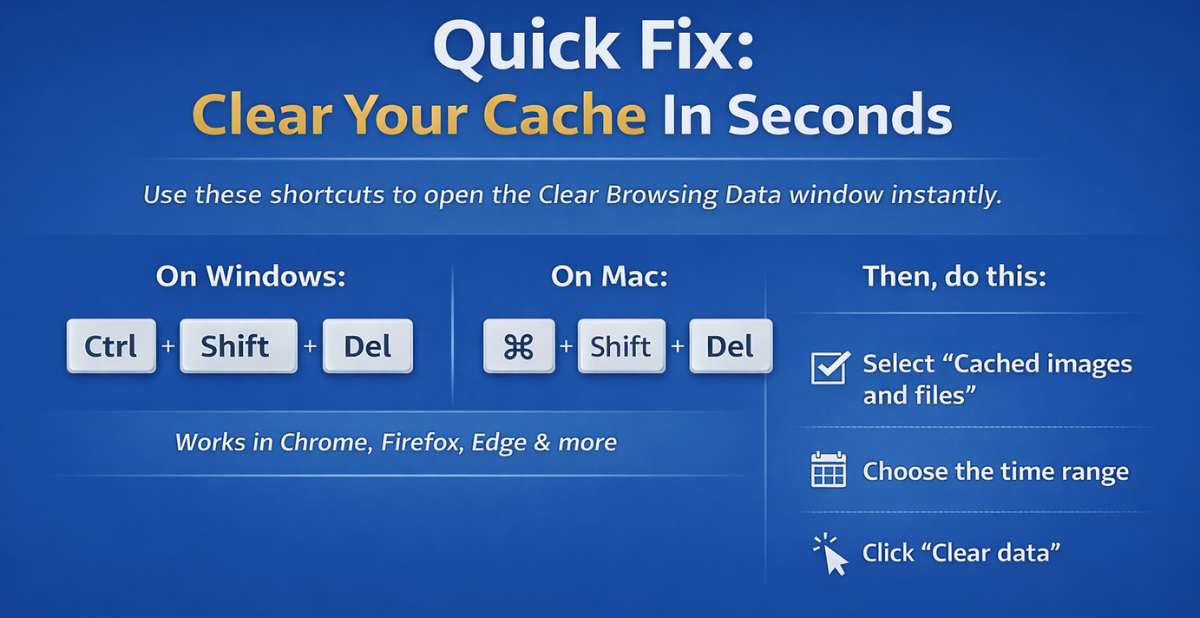
If you just want the fastest way to clear your browser cache, most browsers have a simple keyboard shortcut that opens the Clear Browsing Data window instantly.
On Windows:
Press Ctrl + Shift + Delete
On Mac:
Press Command + Shift + Delete
This shortcut works in most major browsers, including Chrome, Firefox, and Microsoft Edge.
Once the window opens:
- Select Cached images and files
- Choose the time range
- Click Clear data
Your browser will remove the stored files and load fresh versions of websites the next time you visit them.
If you’re using Safari, iPhone, or Android, scroll down for the step-by-step instructions for your device.
Why Clearing Your Cache Fixes Website Problems
Websites rely on many different files working together, including images, scripts, style sheets, and background code. Your browser saves many of these files locally so that pages load faster the next time you visit. This stored data is called cache.
Most of the time, this works exactly as intended. But if a website updates its design or content, your browser may still try to load the older cached files. When that happens, pages can look broken, fail to update, or stop loading correctly.
Clearing your cache removes those outdated files and forces your browser to download the newest version of the website, which often fixes the problem right away.
Common Website Problems Clearing Your Cache Can Fix
Many web developers actually recommend clearing your cache as the first troubleshooting step when a page isn’t loading correctly.
When a website behaves strangely, it’s not always obvious that your browser cache is the cause. Websites can behave strangely for several different reasons, and cached files are often the hidden culprit.
If you notice any of the issues below, clearing your cache is usually one of the first troubleshooting steps worth trying.

1. A Website Looks Broken Or Unformatted
If a webpage suddenly looks messy, with missing images, strange fonts, or broken layout elements, your browser may be loading outdated files from its cache.
When websites update their design or code, your browser might still try to load older cached versions of those files. Clearing the cache forces your browser to reload the page from the latest version.
2. A Page Won’t Update
Have you ever refreshed a page multiple times, only to have it still show outdated information?
This often happens when your browser continues to load cached files instead of retrieving the newest version of the page from the website’s server. Clearing your cache can solve this by forcing a completely fresh reload.
3. You Keep Getting Logged Out of a Website
Login issues are sometimes caused by corrupted cookies or cached site data.
If a website keeps logging you out, sending you back to the login page, or getting stuck in a login loop, clearing your cache and cookies can often reset the connection and fix the issue.
4. A Website Won’t Load Properly
Sometimes a page partially loads, displays error messages, or fails to load certain features, such as buttons, images, or videos.
When that happens, the problem may be due to outdated scripts or cached page files. Clearing those files often allows the website to load correctly again.
How To Clear Your Browser Cache
Clearing your browser cache is a quick process in most browsers and devices. While the exact menu names may vary slightly, the steps are usually found in the same privacy or browsing data settings.
Below are step-by-step instructions for clearing cached files in the most common browsers and devices. If you’re troubleshooting a website problem, start with the browser you’re currently using.
How To Clear Cache In Chrome (Step-By-Step)
If you’re using Google Chrome, clearing your cache takes only a few seconds.
Quick shortcut:
Press Ctrl + Shift + Delete (Windows) or Command + Shift + Delete (Mac) to open the Clear Browsing Data window instantly.
You can also clear your cache manually by following these steps:
- Open Chrome
- Click the three-dot menu in the top-right corner of the browser
- Select Delete browsing data
- Select Cached images and files
- Choose a time range, like Last hour or All time
- Click Delete data
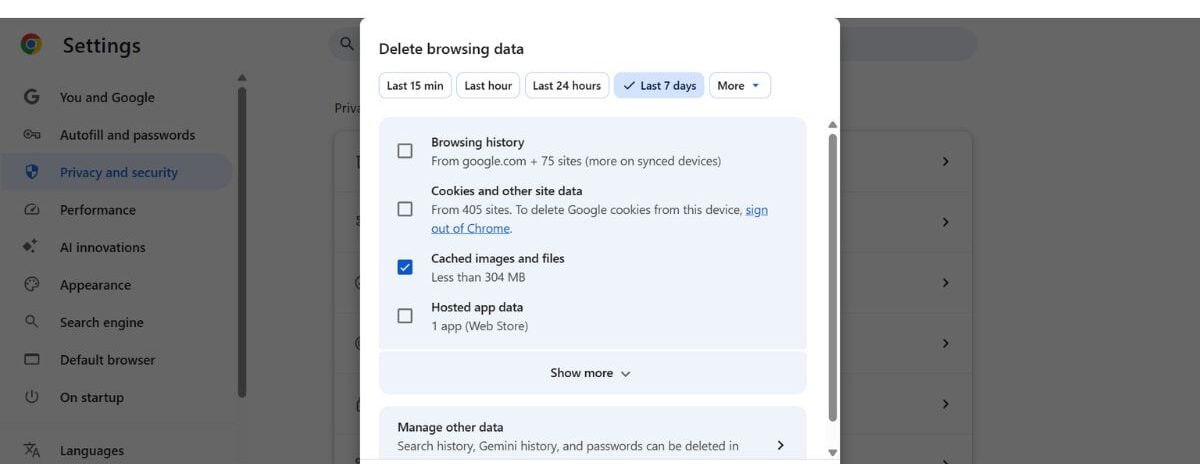
Chrome will remove the stored files, and websites will load fresh versions the next time you visit them.
Pro Tip: If a website still looks broken after clearing your cache, try a hard refresh by pressing Ctrl+F5 (Windows) or Command+Shift+R (Mac).
How To Clear Cache In Firefox
Clearing the cache in Firefox only takes a few clicks.
Quick shortcut:
Press Ctrl + Shift + Delete (Windows) or Command + Shift + Delete (Mac) to open the Clear Recent History window.
You can also clear your cache manually by following these steps:
- Open Firefox
- Click the menu button (three horizontal lines) in the top-right corner
- Select Settings
- Click Privacy & Security panel
- Scroll to the Cookies and Site Data section
- Click Clear Data
- Select Temporary cached files and pages
- Click Clear
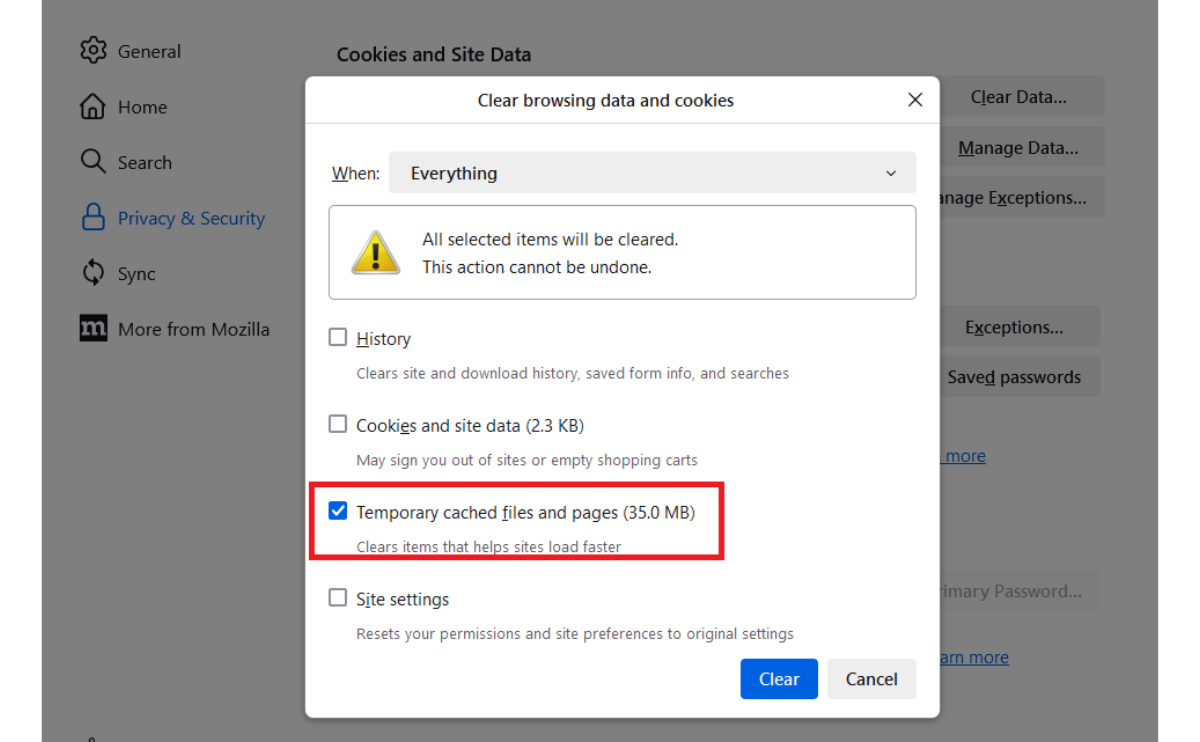
Firefox will automatically remove the stored files and download fresh versions of websites the next time you visit them.
Pro Tip: If you’re troubleshooting a specific website, try opening it in a Private Window to see if the problem is caused by cached data.
How to Clear Cache in Microsoft Edge
If you’re using Microsoft Edge, clearing your browser cache is quick and similar to the process in Chrome.
Quick shortcut:
Press Ctrl + Shift + Delete (Windows) or Command + Shift + Delete (Mac) to open the Clear Browsing Data window. Alternatively, you can type “edge://settings/clearbrowserdata” in your address bar to access this feature.
You can also clear the cache manually by following these steps:
- Open Microsoft Edge
- Click the three-dot menu in the top-right corner
- Select Settings
- Click Privacy, search, and services
- Scroll to the Clear browsing data section
- Click Choose what to clear
- Select Cached images and files
- Choose a time range
- Click Clear now
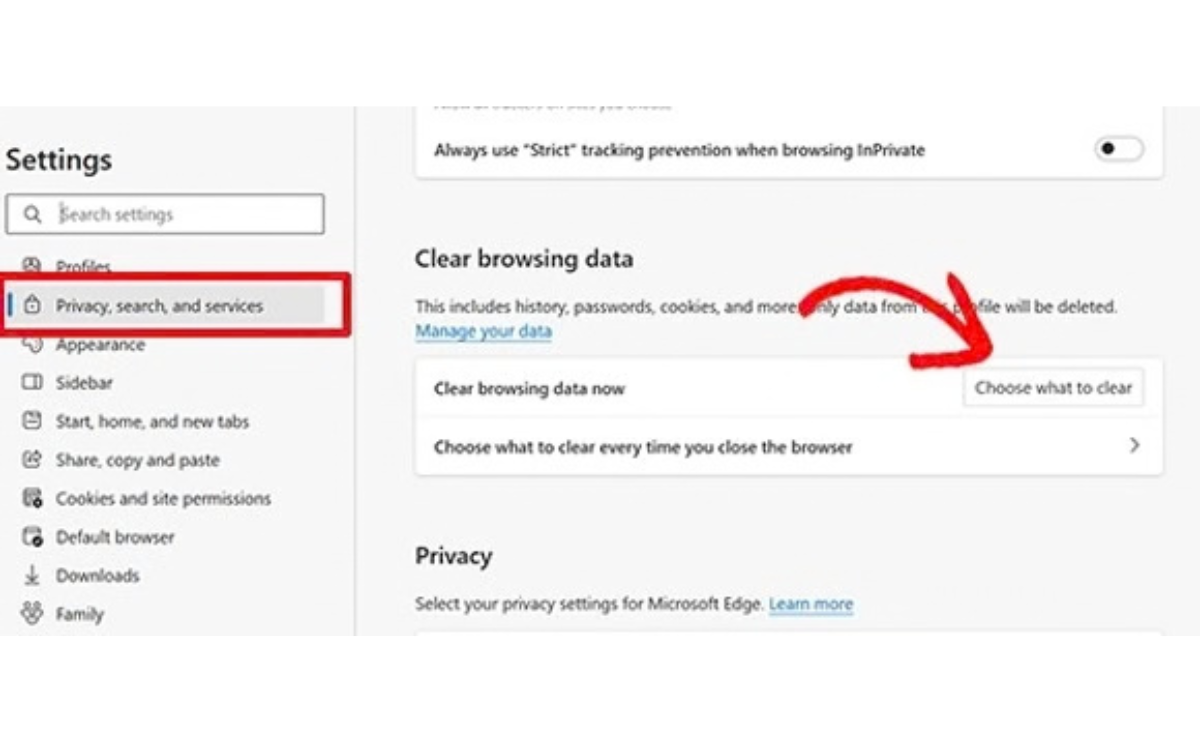
Edge will remove stored website files and reload pages from the server the next time you visit them.
Using Safari instead? The next section explains how to clear cache in Safari.
How To Clear Cache In Safari (Mac)
Clearing the cache in Safari on a Mac requires enabling the Developer menu, which gives you access to the cache controls.
Follow these steps:
- Open Safari
- Click Safari in the menu bar and select Settings (or Preferences on older versions)
- Click the Advanced tab
- Check the box labeled Show Develop menu in the menu bar
- Close the settings window
- In the top menu bar, click Develop
- Select Empty Caches
Safari will clear the stored website files and reload the pages from the server the next time you visit them.
Why Safari Can Be Confusing
Safari handles cache a little differently than most browsers, which is why these steps may feel less obvious.
- The option to clear only the cache is hidden in the Develop menu.
- Many people instead choose Clear History, which removes browsing history, cookies, and other website data, as well as cached files.
So what’s the difference?
- Clearing the cache removes temporary files (like images and scripts) that help websites load faster. This often fixes pages that look broken or won’t update.
- Clearing history and cookies also signs you out of many websites and removes saved site data.
If you only want to fix a website that isn’t loading correctly, clearing just the cache is usually enough. If problems continue, you may also want to clear cookies or browsing history.
Using Safari on your iPhone or iPad instead? The next section shows how to clear your cache on mobile devices.
How To Clear Cache On iPhone
On an iPhone or iPad, clearing your browser cache usually means clearing Safari’s cache, the device’s default web browser.
Follow these steps:
- Open the Settings app
- Scroll down and tap on Apps
- Tap on Safari
- Scroll down and tap Clear History and Website Data
- Select a timeframe
- Confirm by tapping Clear History
Safari will remove cached files, cookies, and browsing data (there is no option to only clear cache). The next time you visit a website, Safari will load a fresh version of the page.
Note: Clearing history and website data will also sign you out of many websites. If you’re troubleshooting a page that isn’t loading properly, this is usually the quickest way to reset Safari.
Using an Android device instead? The next section explains how to clear the cache on Android phones and tablets.
How To Clear Cache On Android
On most Android phones and tablets, clearing your browser cache usually means clearing it in Google Chrome, the default browser on many devices.
Follow these steps:
- Open the Chrome app
- Tap the three-dot menu in the top-right corner
- Tap Settings
- Select Privacy and security
- Tap Clear browsing data
- Select Cached images and files
- Choose a time range
- Tap Clear data
Chrome will remove stored website files, and pages will load fresh versions the next time you visit them.
Note: Android also allows you to clear cache for individual apps through Settings → Apps → Storage → Clear Cache. This is helpful if a specific app is running slowly or behaving unexpectedly.
Still having trouble with a website? Sometimes, clearing cookies in addition to the cache can help. The next section explains what cookies are and how to remove them.
What Are Cookies?
A cookie is a small piece of data that a website stores in your browser when you visit it. Cookies help websites remember things like your login status, preferences, and other settings so you don’t have to re-enter them every time you visit.
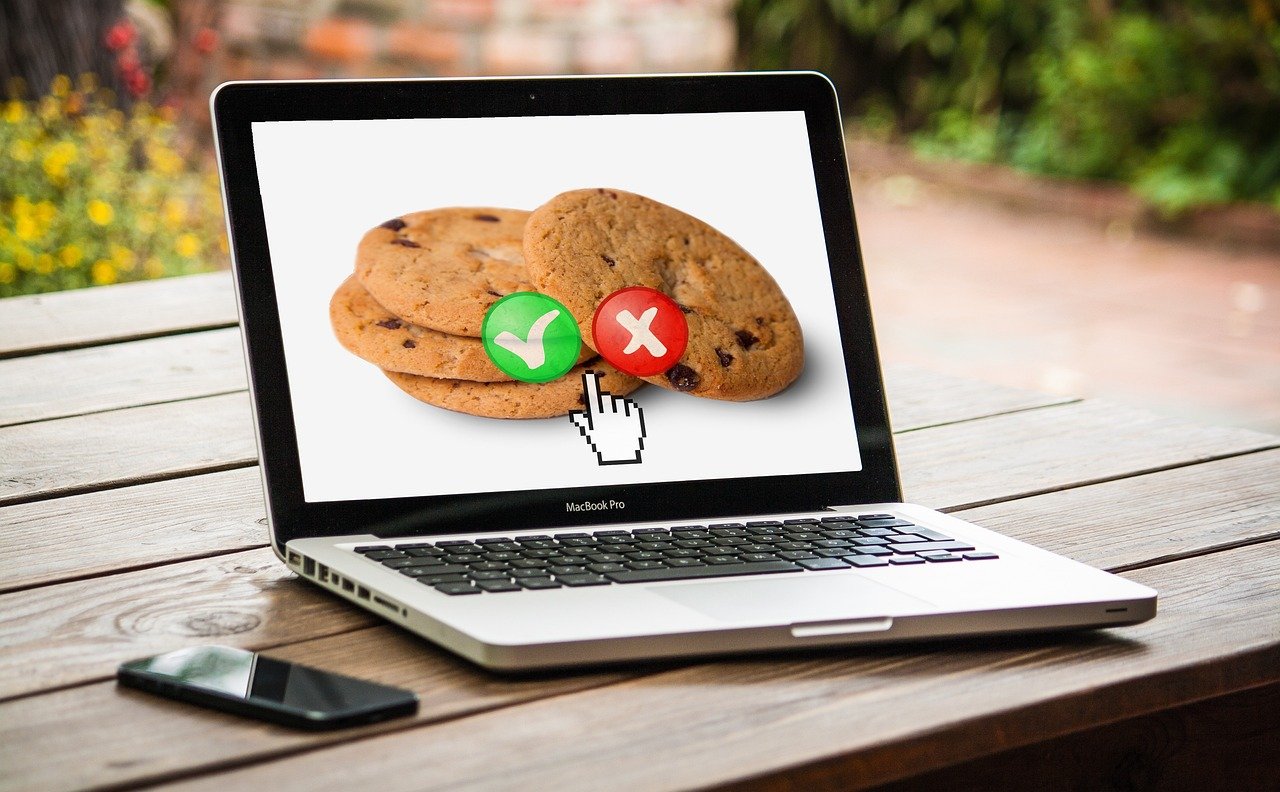
Most of the time, cookies improve your browsing experience. For example, they allow websites to keep you signed in or remember items in your shopping cart.
However, cookies can sometimes cause problems if they become outdated or corrupted. When that happens, clearing cookies can help fix issues such as login loops, pages not loading correctly, or websites displaying incorrect information.
If clearing your cache didn’t fix a website problem, removing cookies may help reset the site and get things working again.
Cache vs. Cookies: What’s the Difference?
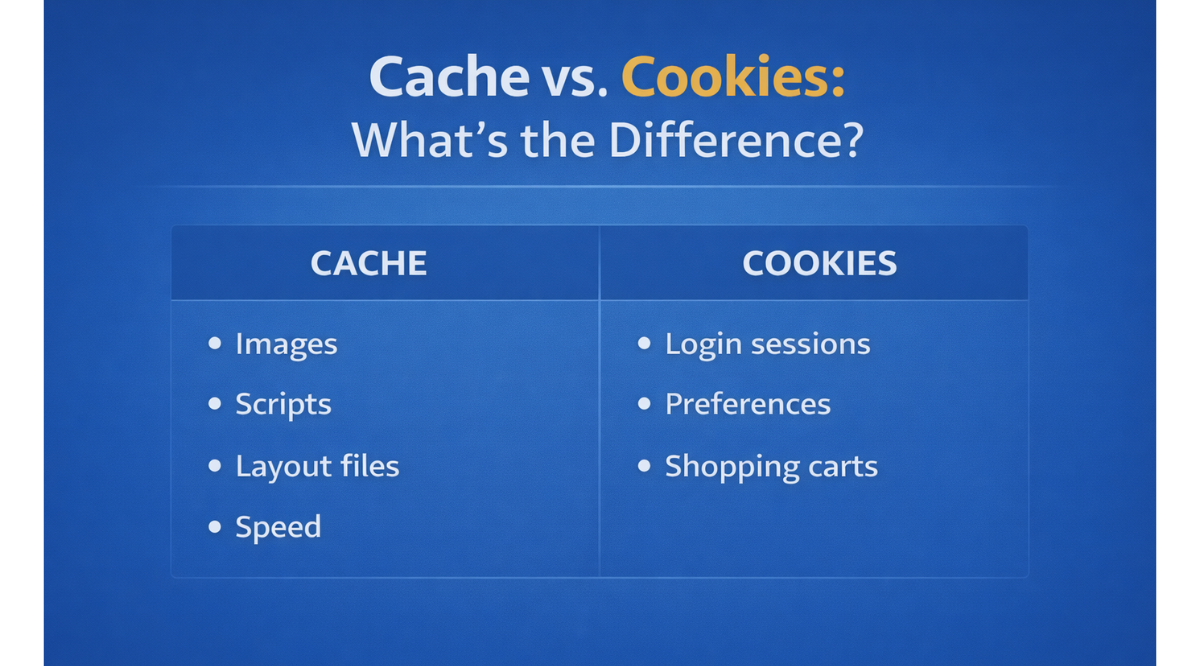
Both cache and cookies store data from websites, but they serve different purposes.
Cache stores parts of webpages — like images, scripts, and layout files — so websites load faster the next time you visit.
Cookies store information about your visit, such as login sessions, preferences, or items in a shopping cart.
When troubleshooting a website problem, it’s usually best to clear your cache first. If the issue continues, clearing cookies can sometimes resolve login issues or website errors.
How To Clear Cookies
Clearing cookies is very similar to clearing your browser cache. In most browsers, the option appears in the same Clear Browsing Data menu.
The steps below show how to remove cookies from the most common browsers and devices.
Clear Cookies in Chrome
- Open Chrome
- Click the three-dot menu in the top-right corner
- Select Settings
- Select Delete browsing data
- Select Cookies and other site data
- Choose a time range
- Click Delete data
Removing cookies will sign you out of many websites and remove stored site preferences.
Clear Cookies in Firefox
- Open Firefox
- Click the menu button
- Select Settings
- Click Privacy & Security
- In the Cookies and Site Data section, click Clear Data
- Select Cookies and Site Data
- Click Clear
This will remove stored cookies and reset login sessions for many websites.
Clear Cookies in Microsoft Edge
- Open Microsoft Edge
- Click the three-dot menu in the top-right corner
- Select Settings
- Click Privacy, search, and services
- Under Clear browsing data, click Choose what to clear
- Select Cookies and other site data
- Choose your time range
- Click Clear now
Removing cookies will sign you out of many websites and remove stored site preferences.
Clear Cookies in Safari (Mac)
- Open Safari
- Click Safari in the menu bar
- Select Settings (or Preferences)
- Click the Privacy tab
- Click Manage Website Data
- Select Remove All
This will remove cookies stored by websites in Safari.
Clear Cookies on iPhone
- Open the Settings app
- Tap Safari
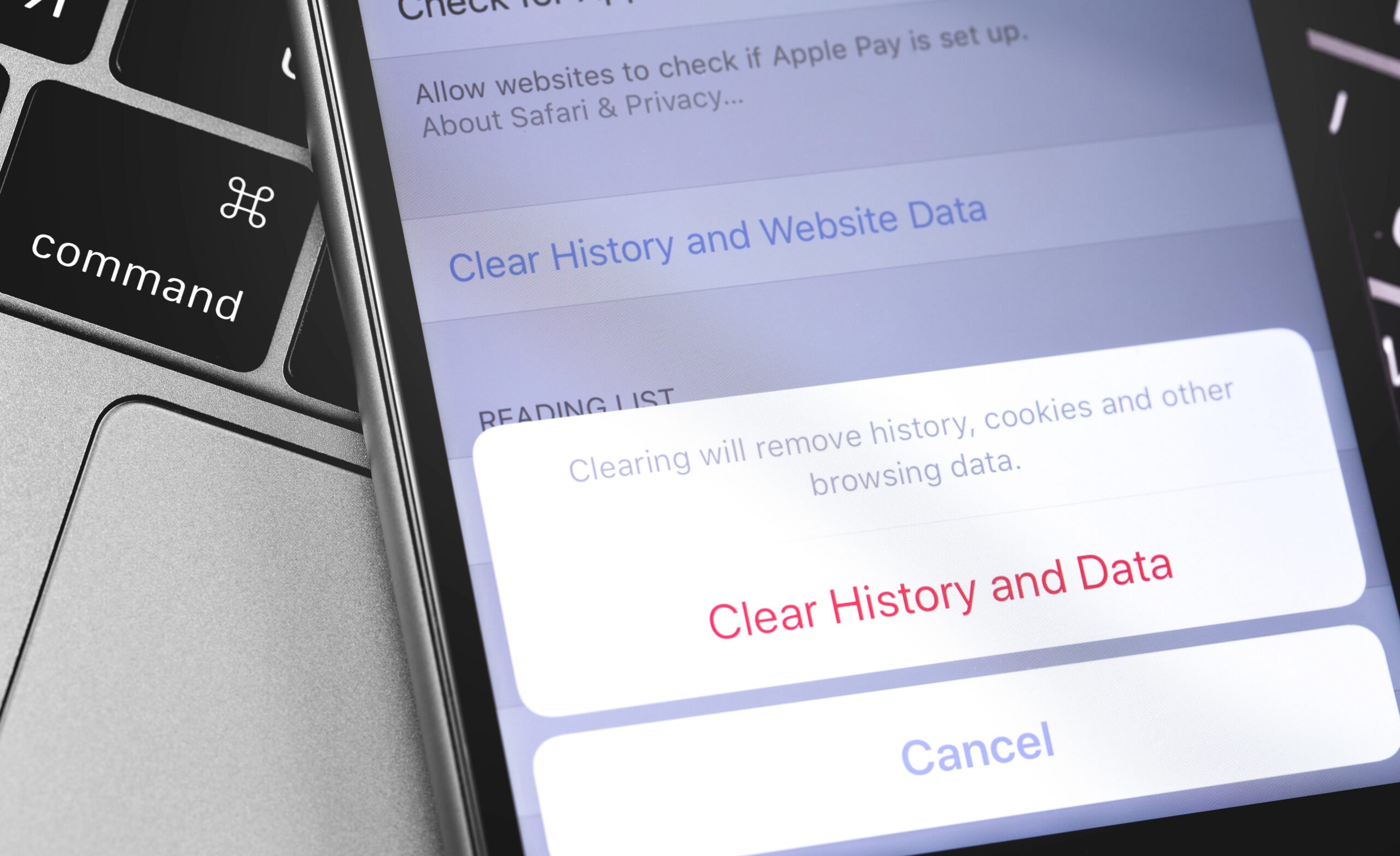
- Tap Clear History and Website Data
- Confirm by tapping Clear History and Data
This removes cookies, browsing history, and cached website files.
Clear Cookies on Android (Chrome)
- Open the Chrome app
- Tap the three-dot menu
- Tap Settings
- Select Privacy and security
- Tap Clear browsing data
- Check Cookies and site data
- Tap Clear data
This will remove stored cookies and log you out of most websites.
What Time Range Should I Choose?
Most browsers ask you to choose a time range when clearing cookies or browsing data. The options usually include things like:
- Last hour
- Last 24 hours
- Last 7 days
- Last 4 weeks
- All time
So which one should you choose?
If you’re troubleshooting a recent problem with a website, clearing the last 24 hours or the last 7 days is often enough. This removes recent cookies that may be causing the issue without logging you out of every site you use.
If the problem has been happening for a while, or you want to completely reset your browser’s stored data for websites, choose All time.
Keep in mind that clearing cookies will sign you out of many websites, so you may need to log back in afterward.
If you’re troubleshooting a problem with just one website, you may not need to clear your entire browser cache or cookies.
How To Clear Cache Or Cookies For One Website Only
Sometimes you don’t want to clear all of your browser data. Doing so can sign you out of websites or remove saved preferences across many sites.
Fortunately, most browsers allow you to remove cached files or cookies for a specific website only. This can be helpful if one site is behaving strangely, but everything else on your browser works normally.
Below are a few ways to remove stored data for a single website.
Clear Cookies for One Website in Chrome
- Open Chrome
- Click the three-dot menu in the top-right corner
- Select Settings
- Click Privacy and security
- Choose Cookies and other site data
- Click See all site data and permissions
- Search for the website
- Click the trash icon to remove stored data
The next time you visit the site, Chrome will load a fresh version of the page.
Clear Cookies for One Website in Firefox
- Open Firefox
- Click the menu button (three horizontal lines)
- Select Settings
- Click Privacy & Security
- Under Cookies and Site Data, click Manage Data
- Search for the website
- Select the site and click Remove Selected
This clears stored cookies and data for that specific website.
Clear Website Data in Safari (Mac)
- Open Safari
- Click Safari in the top menu bar
- Select Settings (or Preferences)
- Click the Privacy tab
- Choose Manage Website Data
- Search for the website
- Select it and click Remove
Safari will delete stored cookies and data for that site only.
What To Do If Clearing Cache & Cookies Didn’t Fix The Problem
If you’ve cleared your cache and cookies and the website still isn’t behaving, don’t worry — that doesn’t necessarily mean something is wrong with your device. There are a few other quick things you can try that often fix stubborn website issues.

Many browser problems stem from minor conflicts between stored data, browser settings, or extensions. Working through the steps below can usually help you identify what’s going wrong.
1. Force Refresh the Page
Sometimes your browser still tries to use stored files even after clearing the cache. A hard refresh forces the page to reload completely from the website’s server.
Try the following keyboard shortcuts:
Windows:
Press Ctrl + F5
Mac:
Press Command + Shift + R
This tells the browser to reload the page without relying on cached files.
Hard Refresh vs Clearing Cache: What’s the Difference?
A hard refresh and clearing your browser cache are related, but they solve slightly different problems.
A hard refresh forces your browser to reload the current page directly from the website’s server instead of using stored files.
Clearing your cache removes stored website files entirely, so your browser must download fresh versions the next time you visit the site.
Here’s the difference in simple terms:
Hard refresh
- Reloads the current page
- Temporarily bypasses cached files
- Quick troubleshooting step
Clearing cache
- Deletes stored website files
- Forces fresh downloads for future visits
- Fixes more persistent problems
If a page still looks broken after a normal refresh, a hard refresh is often the fastest first step. If that doesn’t solve the issue, clearing your browser cache usually resolves more stubborn problems.
2. Restart Your Browser
It may sound simple, but restarting your browser can solve more problems than you might expect.
Browsers often keep background processes running even after you clear data. Closing all browser windows and reopening the browser ensures everything resets properly.
If you’re troubleshooting a website problem, it’s a good idea to:
- Close every browser tab
- Quit the browser completely
- Open it again and revisit the site
3. Try an Incognito or Private Window
Another quick way to test whether browser data is causing the issue is to open the website in Incognito Mode (Chrome) or a Private Window (Firefox, Safari, or Edge).
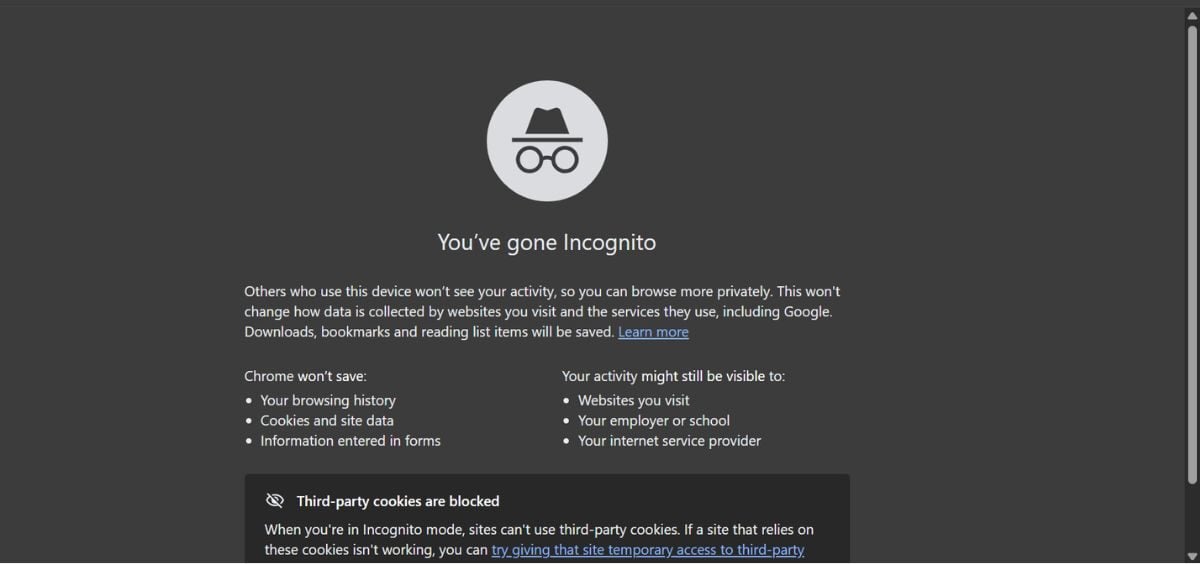
Private browsing windows temporarily disable many stored browser data, such as cookies, cache, and browsing history. This allows the page to load as if you were visiting the site for the first time.
If the website works normally in a private window, that’s a good sign that something in your regular browser data is interfering with the page.
Quick steps to open a private browsing window:
Chrome or Microsoft Edge
- Click the three-dot menu in the top-right corner
- Select New Incognito Window (Chrome) or New InPrivate Window (Edge)
Firefox
- Click the menu button (three lines) in the top-right corner
- Select New Private Window
Safari (Mac)
- Click File in the top menu bar
- Select New Private Window
Once the private window opens, visit the website again and see if the issue still occurs.
4. Disable Browser Extensions
Browser extensions are incredibly useful, but they can also cause unexpected conflicts with certain websites.
Ad blockers, privacy tools, security extensions, and even productivity plugins can sometimes prevent parts of a webpage from loading properly.
If a website still isn’t working after clearing your cache and cookies, try temporarily disabling your extensions:
- Open your browser’s extensions or add-ons page
- Turn off extensions one at a time
- Refresh the website after each change
If the website suddenly starts working, you’ve likely found the extension causing the issue.
5. Restart Your Device
If your browser still isn’t cooperating, restarting your computer or phone can help clear temporary system processes that may be interfering with your browser.
While it may seem like a basic step, restarting your device can resolve:
- Browser glitches
- Temporary network issues
- Background processes affecting your browser
After restarting, open your browser again and try visiting the website.
6. Try a Different Browser
Sometimes the issue isn’t your cache or cookies at all — it may be a compatibility problem between the website and your browser.
If a site still won’t load properly, try opening it in a different browser.
For example:
- If you’re using Chrome, try Firefox or Safari
- If you’re on Safari, try Chrome
If the website works in another browser, the issue is likely related to a browser setting, extension, or cached data in your primary browser.
7. Check Your Internet Connection
Occasionally, the problem isn’t the browser or the website — it’s the connection between them.
A slow or unstable internet connection can cause pages to load incorrectly, partially render, or fail to update.
Try these quick checks:
- Refresh the page
- Restart your Wi-Fi router
- Switch between Wi-Fi and mobile data
- Run a quick internet speed test
Once your connection stabilizes, reload the website.
8. The Website Itself May Be Having Issues
It’s also possible that the problem isn’t on your end at all.
Websites occasionally experience server outages, maintenance periods, or temporary technical problems. When that happens, even a perfectly functioning browser may struggle to load the page.
If you suspect this might be the case, you can:
- Check the website’s social media pages for updates
- Try loading the site on another device
- Search online to see if other users are reporting problems (Tip: https://downforeveryoneorjustme.com is a fantastic source to help determine widespread site issues)
If the issue is on the website’s side, the best solution is usually to wait until the site resolves the problem.
When Should You Clear Your Browsing History?
Clearing your browsing history is different from clearing cache or cookies. Your browsing history is simply a record of the websites you’ve visited, stored by your browser so you can easily return to them later.
Most people only need to clear their browsing history in a few situations:
- Privacy concerns – If you’re using a shared computer or public device and don’t want others to see which websites you visited.
- Troubleshooting website issues – Some browsers clear related site data when history is deleted, which can occasionally fix stubborn loading problems.
- Security reasons – If you’ve logged into sensitive accounts on a shared device, clearing history can remove traces of those sessions.
In general, clearing your browsing history doesn’t affect how websites load, unlike clearing the cache. It mainly removes the list of previously visited pages stored in your browser.
If you’re trying to fix a website that looks broken or won’t update, clearing cache or cookies is usually more helpful than clearing browsing history.

Frequently Asked Questions
Many people first hear about clearing cache and cookies while troubleshooting a website problem. Below are answers to some of the most common questions about what cache and cookies do — and when you might need to clear them. Don’t see your question here? Ask us in the comments.
Does Clearing Cache Delete Passwords?
No. Clearing your browser cache only removes temporary files, such as images, scripts, and stored page data. Your saved passwords are usually stored separately in your browser or password manager.
However, if you also clear cookies, you may be signed out of websites and need to log in again.
What Happens If I Clear Cookies?
Cookies store information such as login sessions and website preferences. When you clear cookies, websites will no longer remember that you were signed in. This means you may be logged out of websites and need to sign in again the next time you visit them.
How Often Should You Clear Your Browser Cache?
Most people don’t need to clear their cache regularly. It’s usually only necessary when a:
- The website isn’t loading correctly
- The page looks outdated
- Login issues occur
- The site keeps redirecting or failing to update
Otherwise, your browser manages cached files automatically.
Why Does A Website Still Look Broken After Clearing Cache?
If a site still isn’t working properly, try these additional steps:
- Perform a hard refresh
- Restart your browser
- Open the site in incognito/private mode
- Disable browser extensions
- Restart your device
Sometimes the issue may also be caused by a problem with the website itself.
Is It Safe To Clear Cache And Cookies?
Yes. Clearing cache and cookies is a normal troubleshooting step and does not harm your device.
The main inconvenience is that you may need to log back into some websites and reset certain preferences afterward.
Need More Troubleshooting Guides?
If a website still isn’t working properly, the issue may be related to your internet connection, browser settings, or email platform.
These troubleshooting guides walk through a few other common problems and how to fix them.
- Why Your Wi-Fi Keeps Dropping And How To Fix It
- Gmail Not Loading? Solutions For New Emails, Slowness, iPhone, Chrome & More
Still dealing with a stubborn website? Describe what’s happening in the comments, and we’ll help you troubleshoot the next step.