You know the feeling.
Yesterday, your computer was fine. Today, it feels weirdly slow. Apps drag, tabs lag, and the fan sounds like it is about to file a complaint.
The strange part is that nothing major changed.

<Most people do not realize that a slowdown like this is usually not one big problem. It is often a bunch of small things piling up in the background… too many tabs, too many startup apps, low storage, updates, or heat.
The good news: a slow computer does not automatically mean it is dying, infected, or ready for retirement. More often than not, it is just overwhelmed… not doomed.
Watch: Why Your Computer Suddenly Feels So Slow… and How to Fix It
Sometimes it is easier to see it than read it. This quick video breaks down the most common reasons a computer suddenly feels slow, along with a few simple fixes that can help speed things up again.
Why It Feels So Sudden
One of the weirdest things about a slow computer is how sudden it feels.
But most of the time, it is not actually sudden. It just builds up slowly until it finally becomes impossible to ignore.
Think of it like adding weight to a backpack. Add one book, and it seems fine. Add a second, then a water bottle, then a laptop, and suddenly it feels heavy enough to make your shoulders ache.
A computer’s performance works the exact same way. Memory gets eaten up, storage gets tighter, and startup apps quietly multiply.
A few more files on the drive. A few more startup programs. Just a few more tabs you swore you needed open. None of it feels dramatic on its own. Together, though, it adds up. You barely notice the individual additions until the machine finally reaches its tipping point.
That is why the slowdown feels random. Usually, it is not random at all. It is just cumulative.
12 Reasons Your Computer Suddenly Feels So Slow
When your computer feels sluggish for no obvious reason, the culprits are usually boring, highly fixable, and hiding in plain sight.

1. Background Programs Are Quietly Eating Up Speed
One of the biggest reasons a computer suddenly feels slow is activity happening behind the scenes. Even when you are not actively interacting with them, apps are constantly utilizing CPU cycles and reserving system memory (RAM).
Most people don’t realize how much these background processes can pile up. One or two daemons running silently won’t hurt, but a dozen of them can saturate your computer’s processing bandwidth all day long. What might be running:
- Cloud apps perform continuous directory polling and network syncing.
- Chat clients pinging servers via background APIs.
- Antivirus software is executing active heuristic disk scanning.
- Game launchers are downloading patches and running telemetry.
- Print spoolers and manufacturer daemons are idling in memory.
On a Mac, Activity Monitor can show which apps are using the most processor, memory, disk, or network resources.
And speaking of things running in the background, you might be surprised to learn that closing an app doesn’t always mean it has actually stopped.
2. Closed Apps Are Not Always Actually Closed
You click the “X”, the window disappears, and you assume the app is gone. Unfortunately, that is not always true.
Many modern applications minimize to the system tray and continue running as background processes to maintain active web connections or launch faster next time. That means your system is still actively allocating RAM and processor priority to them, even when your desktop looks perfectly clean. Common examples:
- Messaging apps stay resident in memory to push instant alerts.
- Cloud tools running persistent background synchronization services.
- Media apps reserve audio drivers and background allocation.
- Helper utilities maintain active API polling.
- Software configured with persistent autostart registry keys.
While these hidden apps certainly take their toll, the biggest resource hog on your system is probably the one you are staring at right now.
3. Your Browser May Be Doing Most of the Damage
A lot of people blame their whole operating system when the browser is really the one causing chaos. Because browsers now handle streaming, dashboards, and video calls, they rely heavily on hardware acceleration and act more like mini operating systems than simple web viewers.

Most people don’t realize how resource-hungry browser engines (like Chrome) have become. If your browser’s memory allocation is overloaded, your entire machine will feel the drag. What adds to the problem:
- Hardware acceleration maxing out your GPU for video streams.
- Web apps continuously run complex JavaScript engines.
- Massive DOM (Document Object Model) rendering for dashboards.
- Third-party trackers execute asynchronous background scripts.
- Hidden rendering processes are multiplying in your task manager.
But it’s not just the browser itself that causes the bottleneck—it’s how we use it, starting with that endless row of pages at the top of your screen.
4. Too Many Tabs Really Can Slow Down the Whole Computer
Everyone jokes about having too many tabs open. Your computer’s RAM, however, is not amused. Each open tab requires a dedicated memory footprint, and when you run out of physical RAM, your computer is forced into “paging”—swapping data back and forth to your much slower hard drive.
A few static pages don’t matter, but a mix of web apps and media players will force your system to work overtime. The usual tab troublemakers:
- Email clients utilize continuous background polling.
- Streaming sites hoard dedicated memory for video buffering.
- Infinite-scroll social feeds are creating massive memory bloat.
- Unoptimized ad networks executing heavy JavaScript payloads.
- Inactive tabs are forcing the OS into heavy disk swapping.
Google even includes a Memory Saver feature in Chrome because inactive tabs can use enough memory to affect performance.
Tabs aren’t the only things weighing down your web experience, though; those “helpful” little add-ons you installed could be quietly making things worse.
5. Browser Extensions Can Quietly Make Things Worse
Browser extensions are helpful right up until you have too many of them. Over time, it is easy to collect ad blockers, grammar checkers, and shopping helpers.
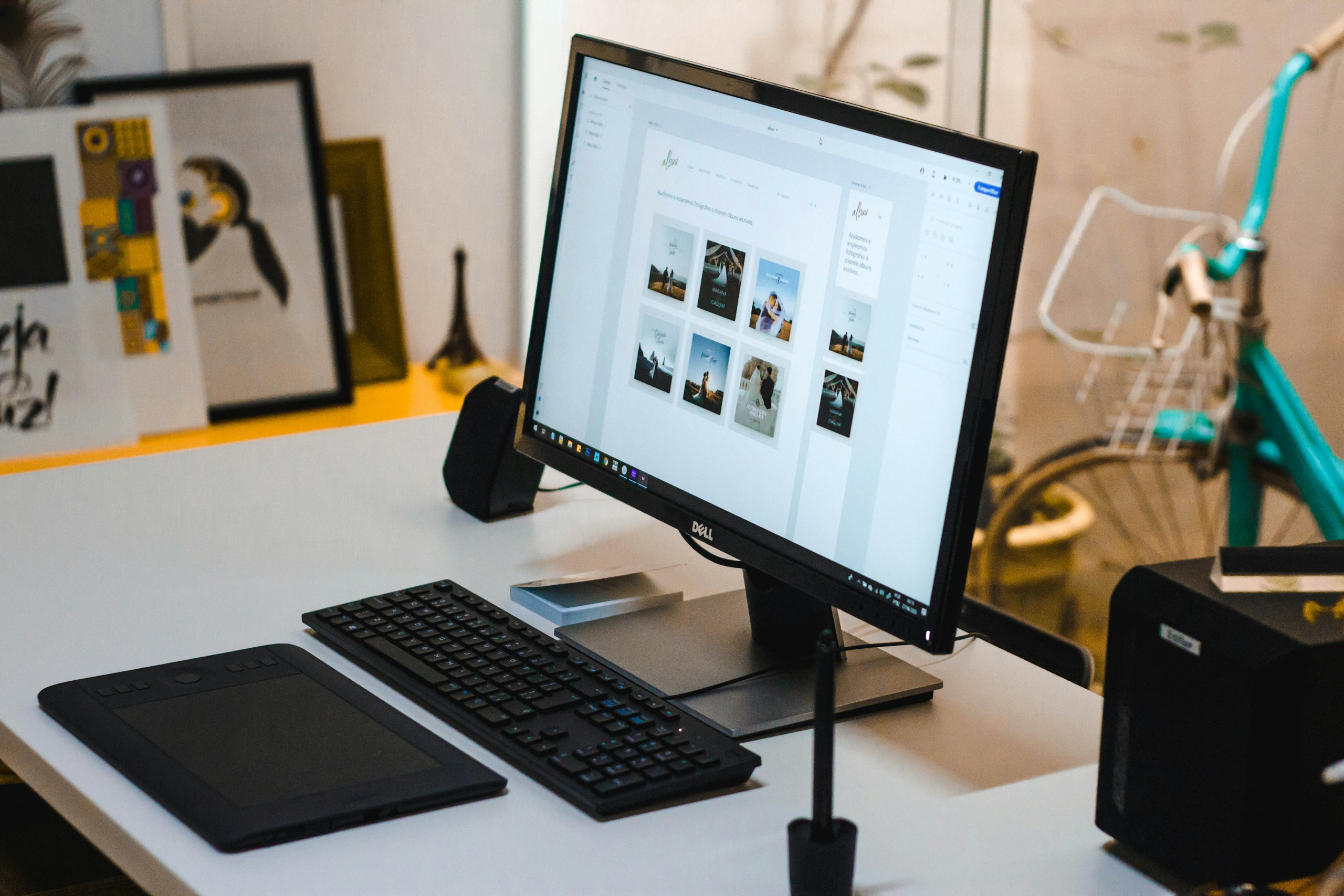
Each one injects extra code into the browser’s framework, and many request permission to read and alter every single network request you make. That constant interference can severely throttle your browsing speeds. Extensions that commonly pile up:
- Orphaned extensions running outdated background scripts.
- Shopping tools constantly query external pricing APIs.
- Content blockers analyze heavy volumes of network traffic.
- Poorly coded add-ons are creating persistent memory leaks.
- Extensions execute continuous code injection on page loads.
Even if you clean up your tabs and extensions, sometimes the blame falls entirely on the shoulders of a single, poorly coded destination.
6. One Heavy Website Can Drag Everything Down
Sometimes the problem is not your whole browser; it is just one terribly optimized tab. Modern websites often rely on “client-side rendering,” meaning they force your computer’s processor to build the webpage on the fly using heavy frameworks and massive code payloads.
Most people don’t realize a single bloated site can spike your CPU to 100%. If everything suddenly slows down after opening one page, you’ve likely found the bottleneck.
Signs that a website is the issue:
- High-resolution media bypassing hardware optimization.
- Client-side rendering frameworks are aggressively taxing the CPU.
- WebSocket connections manage live, persistent chat widgets.
- Animation elements demand unexpectedly high GPU usage.
- Endless scrolling nodes overwhelm browser memory limits.
Once you’ve ruled out browser chaos, it’s time to look at the system-level tasks that love to interrupt your workflow at the worst possible moments.
7. Automatic Updates Love Bad Timing
Updates are critical for security, but they often trigger at the worst possible moments. Your computer may be unpacking compressed files, rewriting core system directories, and re-indexing data in the background.
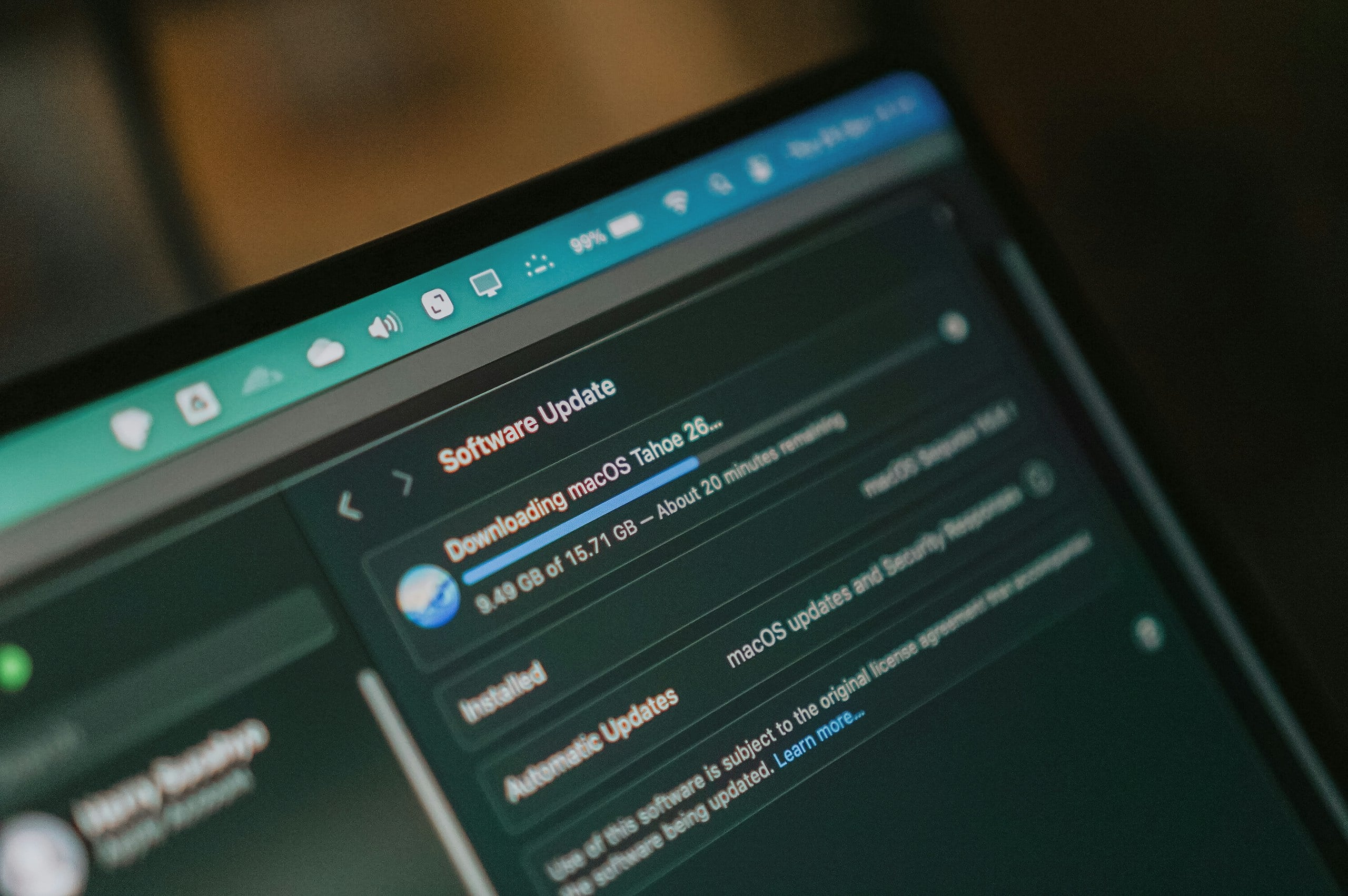
This background maintenance monopolizes your disk’s Input/Output (I/O) operations, starving your active applications of the data speeds they need to function smoothly. What might be happening:
- OS services are monopolizing disk read/write operations.
- Package managers are extracting highly compressed installer files.
- Security modules running deep, post-update heuristic scans.
- Driver installations are causing temporary hardware interrupt latency.
- Post-update processes trigger intensive file re-indexing.
Updates eventually finish, but the leftover files they leave behind can contribute to another silent speed killer: a cramped hard drive.
8. A Hard Drive That Is Too Full Can Make Everything Feel Tight
Storage problems build up slowly. Most people don’t realize that operating systems require a generous buffer of empty space (usually 15-20%) to function.
When physical RAM gets full, the computer uses free drive space as “virtual memory.” Furthermore, modern Solid State Drives (SSDs) require empty blocks to perform background maintenance (TRIM operations). If the drive is packed full, data management grinds to a halt.
What tends to fill it up:
- System temp folders are bloated with unpurged installer data.
- The OS is lacking space for vital virtual memory paging.
- SSDs are failing to execute background optimization routines.
- Browser cache directories are hitting maximum storage limits.
- Large media files are pushing the drive past optimal capacity.
Microsoft recommends checking categories like temporary files, large or unused files, cloud-synced files, and unused apps when space starts getting tight.
Just as your storage drive slowly fills up over the months, so does the invisible queue of software demanding attention the moment you press the power button.
9. Startup Programs Build Up Slowly Over Time
One reason computers feel older over time is that more applications insert themselves into your operating system’s boot sequence. Before long, your computer starts every day by loading a massive queue of software into RAM before you even click your first icon.
This creates a massive bottleneck for your processor right out of the gate.
Common startup clutter:
- Cloud clients are forcing network handshakes during the boot sequence.
- Electron-based messaging apps are initializing full web engines.
- Media agents are running pre-fetch routines on startup.
- Peripheral software injects drivers into the operating system.
- Manufacturer bloatware is executing hidden telemetry tasks.
Windows even lets you review startup apps in Task Manager and see which ones have the biggest impact on startup time.
If your startup queue is clear and the software looks fine, the real reason your computer is crawling might be physical rather than digital.
10. Overheating Can Cause Your Computer to Slow Itself Down
Not every slowdown is software-related. Processors generate massive amounts of heat. To prevent physical melting, modern CPUs and GPUs use “thermal throttling”—they intentionally downclock their own speeds to cool off.
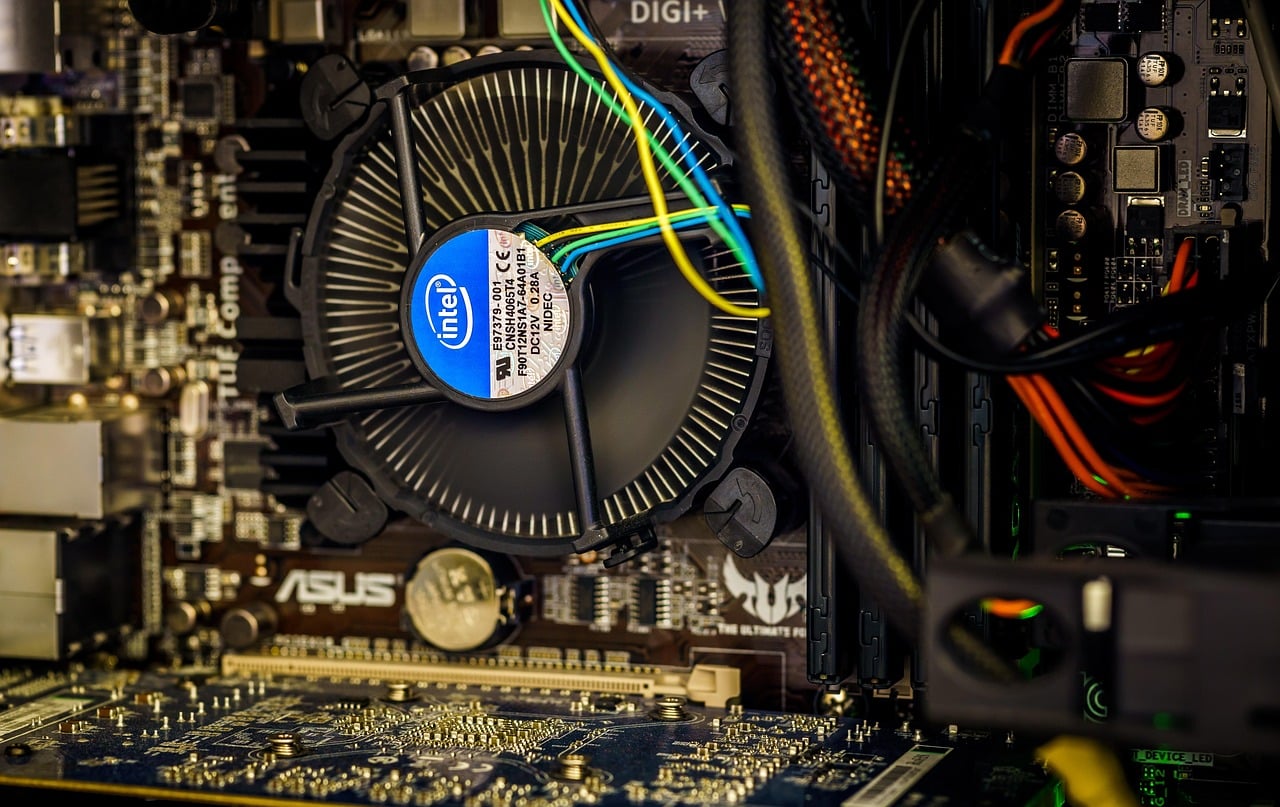
If your machine feels fine at first and then starts crawling under a heavy workload, your computer isn’t broken; it is just putting on the brakes to save its own life. Signs that heat is part of the problem:
- Cooling fans are hitting maximum RPM limits to exhaust heat.
- The physical chassis acts as a heat sink and feels hot.
- CPUs are aggressively downclocking, causing system-wide lag.
- GPU throttling is causing massive frame drops during rendering.
- System performance is recovering instantly when temperatures normalize.
Intel explains that thermal throttling is a built-in protective mechanism that reduces processor speed when temperatures get too high
And the number one cause of all that trapped, performance-killing heat? A surprisingly mundane household nuisance.
11. Dust Can Block Airflow and Make Heat Problems Worse
Dust sounds like a minor housekeeping issue, but inside a PC chassis, it acts as a thermal insulator. It clogs heat sinks, coats delicate components, and restricts exhaust vents. When the computer cannot push hot air out, internal ambient temperatures skyrocket, triggering the exact thermal throttling mentioned above.
Where dust causes issues:
- Particulate matter is clogging critical intake and exhaust vents.
- Fans are struggling with dust-induced rotational friction.
- Internal components are suffering from restricted ambient airflow.
- Soft fabrics completely block bottom-mounted laptop intakes.
- Thermal paste is degrading faster due to chronic heat retention.
Once you’ve given your hardware room to breathe, there is one final, incredibly simple software trick that fixes a multitude of sins.
12. Your Computer May Just Need a Restart
Sometimes the answer is a simple reboot. When a device runs for weeks without shutting down, fragmented data, orphaned “zombie” processes, and minor memory leaks slowly consume your system’s resources.
Most people don’t realize that a simple restart flushes the RAM entirely, wipes away temporary glitches, and gives the operating system a clean slate to work from.
What a restart can help clear:
- Flushing fragmented and inactive data from system RAM.
- Terminating orphaned background processes eating CPU cycles.
- Clearing corrupted temporary cache files and swap data.
- Resetting driver states and software-induced memory leaks.
- Applying pending kernel-level updates required for stability.
In the end, returning your computer to that “fine yesterday” speed is usually just a matter of clearing out these digital—and physical—cobwebs.
7 Reassuring Fixes That Usually Help Right Away
When your computer suddenly feels slow, it is easy to panic a little. One minute, it is working normally, and the next, it feels like every click needs a motivational speech.
The good news is that you usually do not need a complicated rescue plan. In many cases, a slowdown comes from everyday buildup, too many background tasks, too many tabs, not enough free space, or your computer simply running too hot.
In other words, this is often more “digital clutter” than a full-blown disaster.
Here are a few simple fixes that solve a surprising number of everyday slowdowns:
1. Restart your computer
It sounds almost too obvious, but restarting really does help. It clears out temporary glitches, resets background processes, and gives your system a fresh start.
2. Check Task Manager or Activity Monitor
Instead of guessing, take a quick look at what your computer is actually doing. These built-in tools can show you which apps are using the most memory, CPU power, or disk activity.
3. Close extra tabs and quit unused apps
A crowded browser and a pile of background apps can eat up more resources than most people realize. Closing heavy tabs and fully quitting apps you are not using can free up speed right away.
4. Free up some storage space
If your drive is getting too full, even a small cleanup can help. Start with old downloads, unused apps, duplicate files, and anything else you no longer need hanging around.
5. Trim your startup programs
If too many apps launch every time your computer turns on, your system can feel bogged down before you even get started. Disabling unnecessary startup apps can make a noticeable difference.
6. Let updates finish
If your computer is in the middle of an update, trying to power through it usually just makes things more frustrating. Let it finish, then restart if needed.
7. Move it somewhere cooler
If your laptop feels hot, give it a little breathing room. Move it off your lap, bed, or couch and onto a hard, flat surface so heat can escape more easily.
A slow computer can feel dramatic, but the cause usually is not. Most of the time, it is just dealing with normal buildup, and once you spot the problem, the fix often feels a lot simpler than you expected.
Building Healthy Digital Habits (So This Doesn’t Happen Again)
Fixing a slow computer feels like a massive relief, but preventing it from bogging down in the first place is even better. Just like a car needs occasional oil changes, your operating system needs a little routine maintenance to keep the digital engine running smoothly.

Most people don’t realize that maintaining a lightning-fast computer doesn’t require a degree in IT or expensive optimization software. It simply comes down to building a few frictionless habits that stop the invisible clutter before it ever reaches a tipping point.
Here is a quick routine to keep your machine feeling brand new:
- The Weekly Reboot: Stop relying on “Sleep” mode. Make it a habit to fully shut down or restart your computer at least once a week to flush the RAM and clear out temporary glitches.
- The Monthly Sweep: Set a calendar reminder once a month to empty your recycle bin, clear your downloads folder, and run your system’s built-in disk cleanup tool.
- The Tab Audit: If you haven’t looked at a browser tab in 48 hours, bookmark it and close it. Treat your browser like a workspace, not a long-term storage unit.
- Audit Your Startup Apps Quarterly: Every few months, open your Task Manager or Activity Monitor and review what is allowed to launch on boot. Disable anything you don’t need the exact second your computer turns on.
- Respect the Airflow: Keep your computer away from dusty corners, avoid using laptops on blankets or pillows for extended periods, and gently wipe down the exhaust vents every few weeks.
At the end of the day, your computer is supposed to work for you—not the other way around. By taking just a few minutes a month to clear the digital cobwebs, you can keep your system fast, cool, and ready for whatever you throw at it.
Still Dealing With Tech Headaches? Read These Next
If your computer is not the only thing acting up, you are not alone. Slowdowns, connection issues, email problems, and security headaches often show up together. These guides can help you tackle the next likely culprit:
- Why Your Wi-Fi Keeps Dropping And How To Fix It — helpful if the problem feels more like a connection issue than a computer issue.
- Outgoing SMTP Server Settings: Complete A–Z List, Setup Guide & Troubleshooting — a useful next read if email is part of the frustration.
- Best Business Internet Providers — worth checking if your internet feels slow across more than one device.
- Best Cloud Backup Solutions For Small Business — helpful if you want a safer, less stressful backup plan.
- Best Email Spam Filters — a smart read if inbox clutter is becoming its own daily headache.
- SPF, DKIM, and DMARC Explained — useful if you are trying to improve email security and deliverability.
- What Is Multi-Factor Authentication? — a simple place to start if you want better account security.
The good news is that most tech problems are a lot less overwhelming once you know where to look. One small fix often leads to another.
Have a Slow-Computer Story or Question? Drop It in the Comments
Has this happened to you, too? Maybe your laptop suddenly started dragging, your browser turned into a tab hoarding situation, or one tiny fix made a surprisingly big difference.
Share your experience in the comments, or ask your question if your computer is still acting up. There is a good chance someone else is dealing with the exact same thing, and your comment might help them, too.