If your computer used to run quietly but now sounds like it’s preparing for takeoff every time you open your browser, join a video call, or stream a show, you’re not imagining things.
Computers rarely become noisy overnight. Instead, small changes build up over time until one day you realize, “I don’t remember it being this loud.”
The good news? Loud fans don’t automatically mean your computer is on its last legs.
In many cases, your computer is responding to heat, heavier workloads, or years of gradual wear and tear. Here’s what your computer may be trying to tell you — and what you can do about it.

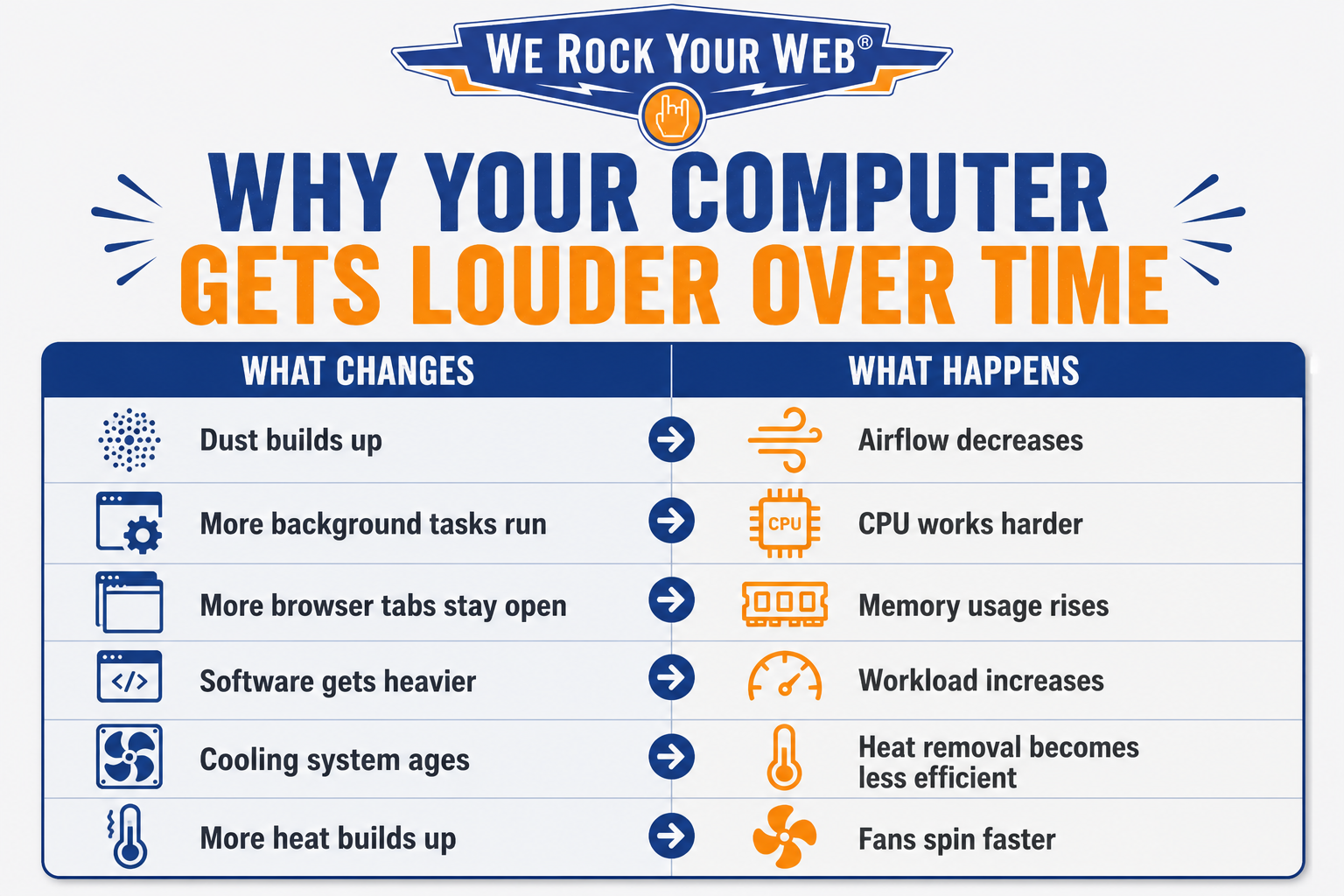
6 Reasons Your Computer Sounds Louder Than It Used To
In most cases, loud fans aren’t random. They’re your computer’s way of responding to heat, heavier workloads, or the wear and tear of everyday use.
Want our human-written content to rank above AI-generated garbage? Help us out by clicking this button!
Here are some of the most common reasons a computer that once ran quietly now sounds like it’s working overtime.
1. Dust Is Slowly Suffocating Your Computer
You don’t have to live in a dusty house for dust to become a problem.
Every computer pulls in dust. Every single day.
As your computer’s fans draw in cool air, they also pull in tiny particles of dust, pet hair, and debris. Over time, that buildup can start restricting airflow inside the system.
A big part of your computer’s cooling system is something called a heat sink, a series of metal fins designed to pull heat away from components like the processor. Fans then push that heat out through the exhaust vents.
When dust coats those fins or blocks the vents, heat gets trapped inside the computer.
To compensate, the cooling fans have to spin faster and work harder to move the same amount of air. The result is a computer that sounds far busier than it actually is.
2. Your Computer Is Doing More Behind The Scenes Than You Realize
One of the biggest misconceptions about computers is that if you’re not actively doing much, neither is the computer.
In reality, modern computers are constantly busy in the background.
While you’re checking email or scrolling social media, your system may also be:
- Syncing files to the cloud
- Running antivirus scans
- Checking for updates
- Backing up data
- Indexing files for faster searches
- Updating applications
All of those tasks require processing power.
The CPU (Central Processing Unit) is essentially your computer’s brain. Every background process adds to its workload, and more work creates more heat.
When temperatures rise, the cooling system responds by increasing fan speed. That’s why your computer can sound surprisingly busy even when it looks like almost nothing is happening on the screen.
3. Browser Tabs Have Become Tiny Space Heaters
Be honest. How many browser tabs do you have open right now?
Years ago, websites were relatively simple. Today, many web pages function more like software applications than static pages.

Modern websites often contain:
- Videos
- Animations
- Advertising networks
- Tracking scripts
- Live content feeds
- Interactive web apps
Every one of those elements consumes system resources.
Your computer’s RAM (Random Access Memory) acts as short-term working memory. The more tabs, browser processes, and applications competing for space, the harder your system has to work.
Streaming video, participating in video calls, using cloud-based applications, and juggling multiple browser windows can increase that workload even further.
4. Your Computer Is Carrying More Weight Than It Used To
A funny thing happens as computers age. The hardware stays the same, but the world around it doesn’t.
Think about everything that has changed in the last decade.
- Operating systems have become more sophisticated.
- Web browsers have evolved into powerful software platforms.
- Security protections have grown more advanced.
- Many applications now include cloud connectivity, background syncing, and even AI-powered features.
Take Windows as an example. A computer that once ran an older version of Windows may now be running Windows 11, complete with additional security layers, background services, and modern features that simply didn’t exist years ago.
The same thing has happened in your browser.
What used to be a simple webpage is now often a complex web application filled with videos, animations, trackers, live content feeds, and interactive tools.
Also, modern software is designed with newer hardware in mind. Developers naturally build applications around today’s computers, not the ones sitting on desks five or ten years ago.
Your computer’s cooling system feels that extra workload, and when temperatures rise, the fans respond accordingly.

5. Heat Can Trigger A Performance Feedback Loop
Sometimes the fans aren’t causing the problem. They’re responding to it.
Computers are designed to protect themselves from excessive heat. When temperatures climb too high, they can activate a safety feature known as thermal throttling.
Thermal throttling simply means the computer intentionally slows itself down to prevent damage.
The problem is that this can create a frustrating cycle.
- Heat increases.
- Fans ramp up.
- Performance drops.
- Tasks take longer to complete.
- The system stays under load longer.
- More heat builds.
- The fans continue working overtime.
This is one reason computers can sometimes feel both louder and slower at the same time.
6. Cooling Systems Age, Too
Most people think about aging batteries or slowing processors. Few people think about aging cooling systems.
But cooling components experience wear just like anything else. Fans contain moving parts. Bearings wear down. Dust accumulates. Years of heat exposure gradually take a toll.
Another often-overlooked component is thermal paste, a heat-conducting material that helps transfer heat away from the processor and into the cooling system. Over time, it can dry out and become less effective.
When that happens, temperatures may rise even if nothing else has changed.
This is one reason older computers often become noisier as they age. The hardware may still be functioning correctly, but the cooling system is no longer operating as efficiently as it once did.
How To Make Your Computer Quieter Again
Now for the good news. Most fan noise isn’t permanent.
In many cases, a few maintenance steps and habit changes can make a noticeable difference.
The goal isn’t to eliminate fan noise entirely — cooling fans exist for a reason — but to reduce unnecessary strain and help your computer operate more efficiently.
Fix #1: Clean Out Dust
If you’ve never cleaned your computer, this is often the best place to start. Dust buildup restricts airflow, traps heat, and forces fans to work harder than they should.
Start by shutting down the computer completely and disconnecting it from power. Check the intake and exhaust vents for visible dust buildup (typically on the sides and bottom).
For desktops, compressed air can help remove dust from vents, fans, and filters. For laptops, use compressed air, but follow the manufacturer’s cleaning recommendations and use extra caution around delicate components.
A few important rules:
- Never spray liquid cleaners inside a computer
- Avoid household vacuums, which can generate static electricity
- Use short bursts of compressed air
- Keep vents clear of dust and debris
If your computer is several years old and has never been cleaned internally, professional cleaning may be worth considering.

Fix #2: Find & Close Resource-Hungry Programs
Sometimes the loudest part of the problem isn’t dust; it’s software.
Open Task Manager on Windows or Activity Monitor on Mac and look for programs consuming unusually high amounts of CPU, memory, or disk activity.
You may discover that:
- A cloud-sync service is working overtime
- A browser tab is consuming excessive resources
- An update is running in the background
- A program is stuck in a loop
Many people are surprised to find that a single application is responsible for most of the workload.
One useful clue is your CPU usage.
If you’re not doing anything particularly demanding and your computer is sitting idle, you generally shouldn’t see the CPU pinned near 100% utilization for long periods of time.
If that’s happening, something is likely consuming far more processing power than it should.
Common culprits include:
- A browser tab that’s gone rogue
- Cloud-sync software working in the background
- Antivirus scans
- Stuck software updates
- A misbehaving application
In some cases, unusually high CPU usage can even be caused by malware running without your knowledge.
That’s why checking Task Manager or Activity Monitor is often one of the fastest ways to figure out why your fans won’t calm down.
Identifying and closing unnecessary resource-heavy programs can often reduce fan activity almost immediately.
Fix #3: Tame Your Browser Tabs
Modern browsers are incredibly powerful, but they can also become resource hogs.
Every open tab consumes memory, processing power, and energy. The impact becomes even greater when those tabs contain videos, interactive content, advertisements, or cloud-based applications.
You don’t need to become a minimalist and keep only one tab open. But if you’re routinely juggling dozens of tabs across multiple browser windows, your computer may be working much harder than necessary.
A few easy improvements include:
- Closing tabs you’re no longer using
- Removing unnecessary browser extensions
- Restarting your browser occasionally
- Using tab-sleeping features when available
Fix #4: Help Your Computer Stay Cool
Cooling systems can only work with the airflow they’re given. One of the easiest ways to decreases fan noise is to free up that airflow.
If you use a laptop on a couch, bed, blanket, or pillow, the intake vents can become partially blocked, trapping heat inside the system.
Instead:
- Use laptops on hard, flat surfaces
- Keep vents unobstructed
- Avoid placing computers in enclosed spaces
- Consider slightly elevating the rear of a laptop
- Make sure desk areas allow for adequate ventilation
Small airflow improvements can have a surprisingly large impact on temperatures and fan activity.
Fix #5: Be Strategic About Updates
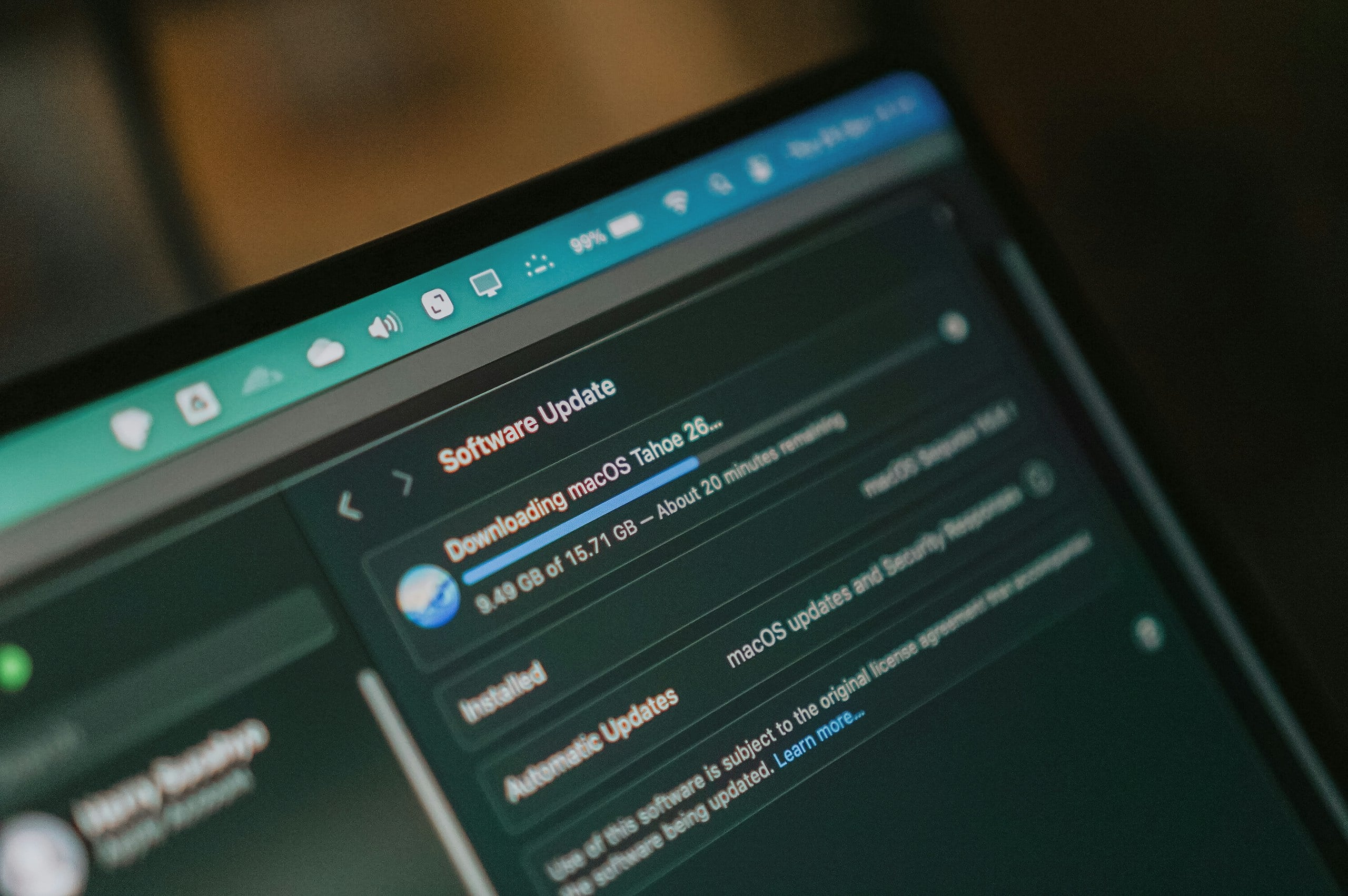
Software updates are important for security, stability, and performance. But updates can also temporarily increase fan noise.
Large operating system updates, antivirus scans, software installations, and file indexing tasks often place extra demands on your computer.
If your fans suddenly become louder after an update, the system may simply be finishing background work.
Before assuming something is wrong:
- Allow updates to complete
- Restart the computer afterward
- Give the system time to finish indexing and optimization tasks
- Check for software that may be stuck updating repeatedly
Sometimes patience solves the problem better than troubleshooting.
Fix #6: Consider Maintenance Before Replacement
Many people assume a loud computer means it’s time to buy a new one. That’s not always true.
If your computer is several years old, the cooling system itself may simply need attention.
Professional maintenance can include:
- Internal cleaning
- Fan replacement
- Thermal paste replacement
- Cooling system inspection
In many cases, these repairs cost far less than replacing the entire machine.
Before retiring a computer that’s become noisy over time, it may be worth determining whether the issue is actually aging hardware or simply overdue maintenance.
Tips To Monitor Your Computer’s Temperature And Fan Performance
In many cases, a louder fan simply means your computer is doing exactly what it was designed to do: move heat away from important components before they get too hot.
The challenge is knowing the difference between normal cooling behavior and signs that your computer is working harder than it should.
A few simple tools and adjustments can help you understand what’s happening under the hood—and whether the noise is actually something you need to worry about.
1. Monitor Your Computer’s Temperature
If your fans only ramp up while you’re gaming, editing video, converting large files, or running other demanding software, that’s often exactly what they’re supposed to do.
What’s more concerning is a computer that sounds like it’s under heavy load when you’re doing little more than checking email or browsing the web.
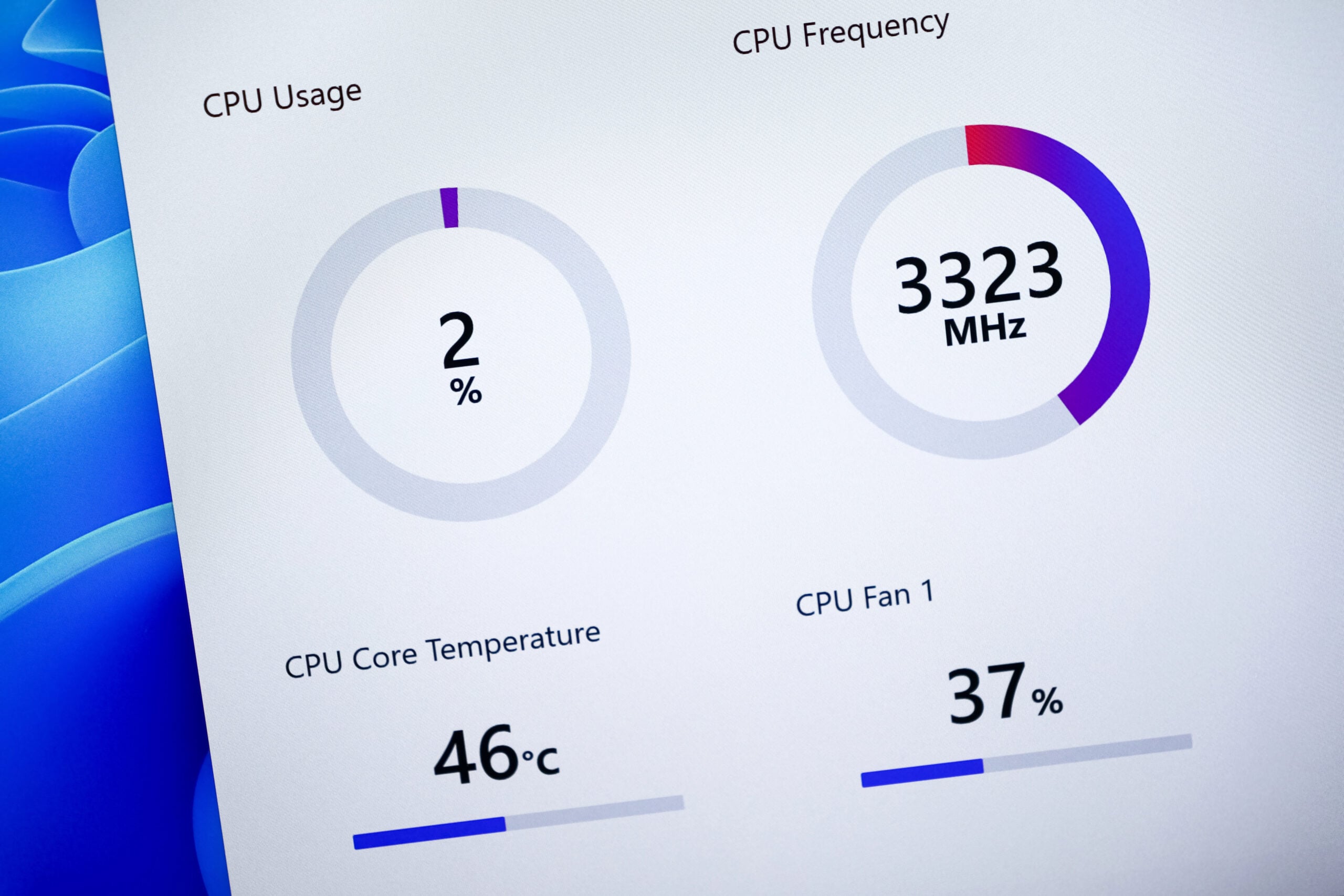
Monitoring software can help you tell the difference.
For Windows users, Core Temp is a popular free tool that lets you monitor CPU temperatures in real time. Mac users can use Fanny, which displays temperature and fan information directly from the menu bar.
You don’t need to obsess over every degree. The goal is simply to establish a baseline.
If temperatures and fan speeds consistently spike during demanding tasks, that’s normal. If they’re constantly elevated for no obvious reason, it’s a clue that something else may be going on.
2. Cooling Pads, Laptop Stands, And Vacuum Coolers
Sometimes improving airflow is easier than changing settings.
A simple laptop stand can elevate the bottom of the computer and provide more room for air to circulate around the intake vents.
Cooling pads take things a step further by adding extra fans underneath the laptop to help dissipate heat.
You may also come across laptop vacuum coolers, which attach near the exhaust vent and help pull hot air out of the system.
Results vary depending on the laptop’s design, but these accessories can be particularly helpful for:
- Gaming laptops
- Older laptops
- Thin-and-light models with limited cooling capacity
- Users who spend hours in video meetings or other demanding applications
They’re not miracle cures, and they won’t solve underlying hardware problems. But if your computer routinely runs hot, improving airflow can reduce temperatures enough to keep the fans from running at full speed as often.
3. Consider Adjusting Fan Settings
Some computers are configured to run their fans more aggressively than necessary.
Desktop users may be able to adjust fan behavior through the BIOS or UEFI settings built into the motherboard. Depending on your hardware, you may see options such as:
- Quiet mode
- Balanced mode
- Performance mode
- Custom fan curves
A fan curve determines how quickly the fan speeds increase as temperatures rise.
For example, you might configure the system to stay quieter during light web browsing while still allowing the fans to ramp up aggressively when gaming or performing demanding tasks.
Some motherboards also support software-based fan control tools, while programs such as MSI Afterburner can provide additional fan controls for certain graphics cards.
Just remember: quieter isn’t always better. The goal is to reduce unnecessary fan noise without compromising cooling performance.

When Fan Noise Means Something More Serious
Most fan noise is completely normal. In fact, if your computer never increased fan speed under heavier workloads, that would be more concerning than the noise itself.
But while a steady rush of air is usually nothing to worry about, certain sounds can indicate that something isn’t working the way it should.
Grinding Noises
A grinding sound is one of the more concerning noises you can hear from a computer.
Cooling fans contain moving parts, including bearings that help the blades spin smoothly. As those components wear out, they can begin producing a rough grinding or scraping sound.
Unlike normal airflow noise, grinding often sounds mechanical. If you hear a persistent grinding noise, especially one that gets worse over time, the fan itself may be approaching failure.
Clicking Sounds
Occasional clicks can sometimes be harmless, but repeated clicking is worth paying attention to.
A clicking fan may indicate:
- A damaged fan blade
- A loose component
- Debris caught inside the fan housing
- A fan struggling to spin properly
Because fans operate at high speeds, even a small obstruction can create surprisingly noticeable noise.
Rattling Fans
Rattling noises often suggest that something is loose.
In some cases, dust buildup or debris may be interfering with the fan blades. In others, mounting hardware or internal components may have worked loose over time.
A rattling noise that changes when you move or reposition a laptop can be a clue that something inside the cooling system needs attention.
What About Coil Whine?
Not every unusual sound comes from a fan.
Coil whine is a high-pitched buzzing, humming, or squealing noise that can occur when electrical components vibrate during operation.
It’s commonly associated with graphics cards, power supplies, and other power-delivery components.
While coil whine can be annoying, it’s usually not a sign that anything is broken.
Many perfectly healthy computers produce some level of coil whine, especially when handling demanding tasks.
The key difference is that coil whine typically sounds electronic rather than mechanical.
When Sudden Changes Are A Red Flag
Most of the causes we’ve discussed throughout this article develop gradually. That’s why sudden changes deserve more attention than gradual ones.
If your computer becomes dramatically louder overnight, especially alongside symptoms like:
- Frequent overheating
- Unexpected shutdowns
- Freezing or crashing
- Severe slowdowns
- New grinding, clicking, or rattling sounds
…it’s worth investigating sooner rather than later.
The Noisy Computer Quick Checklist
Before you assume something is wrong, ask yourself:
- Are the vents visibly dusty?
- Is CPU usage unusually high when you’re doing very little?
- Do the fans quiet down after a restart?
- Are dozens of browser tabs open?
- Is the computer sitting on a blanket, couch, or bed?
- Did the problem start after a major update?
- Is the noise a steady airflow sound—or a grinding, clicking, or rattling sound?
Frequently Asked Questions
Here are some questions people often ask about noisy computers. Have a question we didn’t cover? Drop it in the comments.
Does Turning Your Computer Off At Night Help Reduce Fan Noise?
It can. Shutting your computer down gives background processes, updates, and memory usage a chance to reset.
If your machine has been running continuously for days or weeks, a full shutdown and restart can sometimes resolve fan activity caused by software rather than hardware.
Why Does My Computer Get Loud Only When It’s Charging?
Charging creates additional heat, especially on laptops.
The battery, charging circuitry, and processor may all generate heat at the same time, causing the cooling system to become more aggressive. If the fan quiets down after charging is complete, that’s usually normal behavior.
Can A Loud Fan Damage My Computer?
Usually not.
In most cases, a loud fan is a sign that the cooling system is working hard to protect your hardware. The bigger concern is the issue causing the fan to work overtime, such as excessive heat, dust buildup, or failing components.
Why Is My Fan Quiet In The Morning But Loud Later In The Day?
Heat is cumulative. As your computer runs throughout the day, internal temperatures gradually increase.
Background tasks, software updates, browser tabs, video calls, and other workloads can add up, causing the cooling system to become more active by the afternoon or evening.
Why Does My Fan Get Loud The Moment I Open Zoom?
Video calls require more processing power than most people realize.
Your computer is simultaneously handling video, audio, internet traffic, and multiple video streams from other participants. Features like HD video, background blur, and virtual backgrounds add even more work.
More work creates more heat, which causes the fans to speed up.
For most computers, some extra fan noise during Zoom calls is completely normal. If the fans become excessively loud or the computer starts overheating, dust buildup, restricted airflow, or aging hardware may be contributing to the problem.
Is It Worth Replacing A Laptop Fan?
Sometimes. If the laptop is otherwise performing well and the problem is clearly isolated to the cooling system, replacing a fan can be much less expensive than replacing the entire computer.
The decision usually comes down to the age of the machine and the overall cost of the repair.
Still Chasing Down Weird Tech Problems?
Fan noise is often one of the first signs people notice when a computer starts aging. The same factors that make fans work harder can also affect performance, temperatures, battery life, and overall reliability.
If you’re trying to figure out what else your tech gadets may be telling you, these guides can help:
- Why Your Laptop Gets Hot So Easily Now
- Why Your Computer Suddenly Feels Slow
- Smartphone Acting Strange?
- Why Your Wi-Fi Keeps Dropping And How To Fix It
- Why Your Fast Internet Crawls Every Night
What’s The Loudest Thing Your Computer Does?
Does it sound like a jet engine during video calls? Start roaring the moment Chrome opens? Only get loud while gaming? Share your experience and tips in the comments.