
When did you last replace your Wi-Fi router?
If your immediate thought was, “Have I ever replaced my Wi-Fi router?” we may have found something worth investigating.
We replace phones, laptops, and TVs without thinking twice, while the router gets shoved behind a cabinet and expected to keep the entire house online for years.
And when Wi-Fi starts dropping, buffering, or struggling in rooms where it used to work? Most of us blame the internet provider.
But routers age, too. And they don’t always announce retirement by suddenly dying. Sometimes they just get increasingly annoying.
Want our human-written content to rank above AI-generated garbage? Help us out by clicking this button!
So before you upgrade your internet plan or spend another evening restarting everything, let’s find out whether that forgotten box with the blinking lights is actually the problem.
First Question: How Old Is Your Router?
Before we blame your router for anything, there’s one surprisingly difficult question to answer: How old is it?
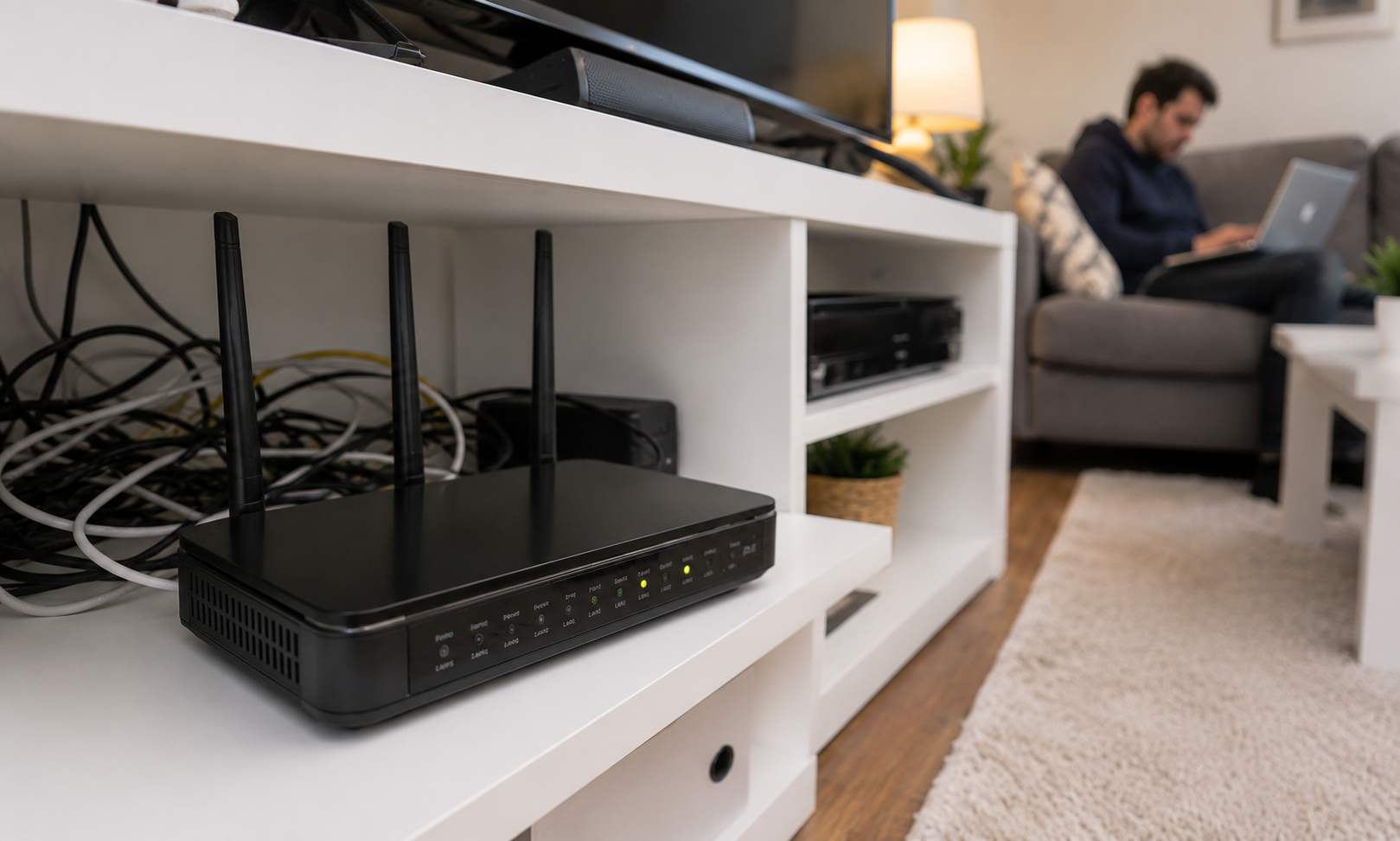
Routers are easy to forget about. They’re not devices we hold in our hands every day. They sit behind TVs, collect dust on bookshelves, or get tucked into cabinets where they can spend years doing their job without much attention.
There’s no universal expiration date for a router, so age alone isn’t a reason to replace one. But once you’re several years in, it’s worth checking whether the technology, hardware, and manufacturer support are still keeping up with what you’re asking it to do.
| Router Age | What It May Mean |
|---|---|
| Under 3 years | Age alone probably isn’t your first suspect |
| 3–5 years | Worth comparing its capabilities with your newer devices and internet plan |
| 5+ years | Older Wi-Fi technology, limited capabilities, and hardware wear become more relevant |
| 7+ years | Definitely check its Wi-Fi standard and whether it still receives firmware and security updates |
Don’t know your router’s age? Flip it over and find the model number on the label. Search that model online to see when it was released.
If your internet provider supplied the router, your account or installation history may also tell you when you received it. Some router apps and admin pages also provide the model and firmware information.
But don’t order a replacement just because you discovered a surprisingly old date. Age is only your first clue. What your router has started doing matters much more.
The Signs Your Router May Be Showing Its Age
An old router doesn’t necessarily wake up one morning and stop working. The more common clues are frustrating little problems that become easier to notice over time.
One dropped connection doesn’t mean your router is headed for the recycling bin. Neither does one slow evening. What we’re looking for is a pattern, especially when several of these signs start happening at the same time.
1. Your Wi-Fi Isn’t As Reliable As It Used To Be
Your Wi-Fi still works. That’s what makes this one so annoying.
Nothing is dramatically broken. Instead, little glitches start creeping into everyday life:
- Netflix buffers even though nobody touched anything.
- Your video call freezes at exactly the moment you start talking.
- Your phone drops Wi-Fi, switches to cellular, then reconnects.
- Websites occasionally sit there thinking about life before finally loading.
- Everything works fine — until several people start using the internet at once.

It’s easy to assume your router has simply gotten slower with age. But another possibility is that your home has outgrown it.
Think about how many devices have joined your Wi-Fi since you bought that router. Smart TVs, streaming sticks, security cameras, speakers, thermostats, watches, tablets, game consoles, doorbells—the guest list keeps growing, and apparently nobody told the router.
An older router may simply have less processing power and wireless capacity for a modern, device-heavy home. The more simultaneous traffic you’re throwing at it, the easier those limitations can become to notice.
Quick Test: Wait For The Wi-Fi Rush Hour
The next time your connection starts acting up, don’t restart the router immediately. Instead, take 30 seconds to notice what’s happening around the house.
- How many people are actively online?
- Is someone streaming 4K video, gaming, or downloading something large?
- Are multiple video calls happening at once?
- Does the problem ease up when the house gets less connected?
If your Wi-Fi is perfectly pleasant at 10 a.m. but falls apart when everyone gets home, your router may be struggling with the workload rather than your internet connection simply being “slow.”
2. The Dead Zones Around Your Home Are Getting Harder To Ignore
You know the spot. Wi-Fi works beautifully in the living room, reasonably well in the hallway, and apparently gives up on life somewhere near the back bedroom.
Dead zones aren’t unusual, especially in larger or multi-story homes. What’s more interesting is when a room that used to have decent Wi-Fi becomes increasingly unreliable.
You might notice:
- Your signal drops several bars as you walk into certain rooms.
- Videos buffer in one part of the house but stream normally elsewhere.
- Your phone switches to cellular data in familiar trouble spots.
- A smart TV or security camera suddenly struggles to stay connected.
- You find yourself migrating toward the router whenever you need a reliable connection.
But don’t assume an old router’s signal has simply “worn out.” Wi-Fi coverage can change because the environment around your router has changed.
You may have moved furniture, added electronics, relocated the router, or gained more neighboring Wi-Fi networks competing for the same frequencies.
An older router can still be part of the problem. Newer models may support technologies that handle interference, direct signals, and manage crowded wireless environments more effectively than older hardware.
Quick Test: Take A Wi-Fi Walk
Run a speed test while you’re standing fairly close to your router. Then take the same device to the room where Wi-Fi gives you the most trouble and run it again.
- Strong near the router, terrible farther away? Your internet connection itself may be fine. Coverage is the bigger clue.
- Poor in both locations? Don’t blame the dead zone yet. The problem could be the router, modem, ISP connection, or something else upstream.
You don’t need matching numbers throughout the house. You’re looking for a dramatic change based on where you’re standing.
If the Wi-Fi problem seems to have a favorite room, we’ve narrowed the investigation considerably.
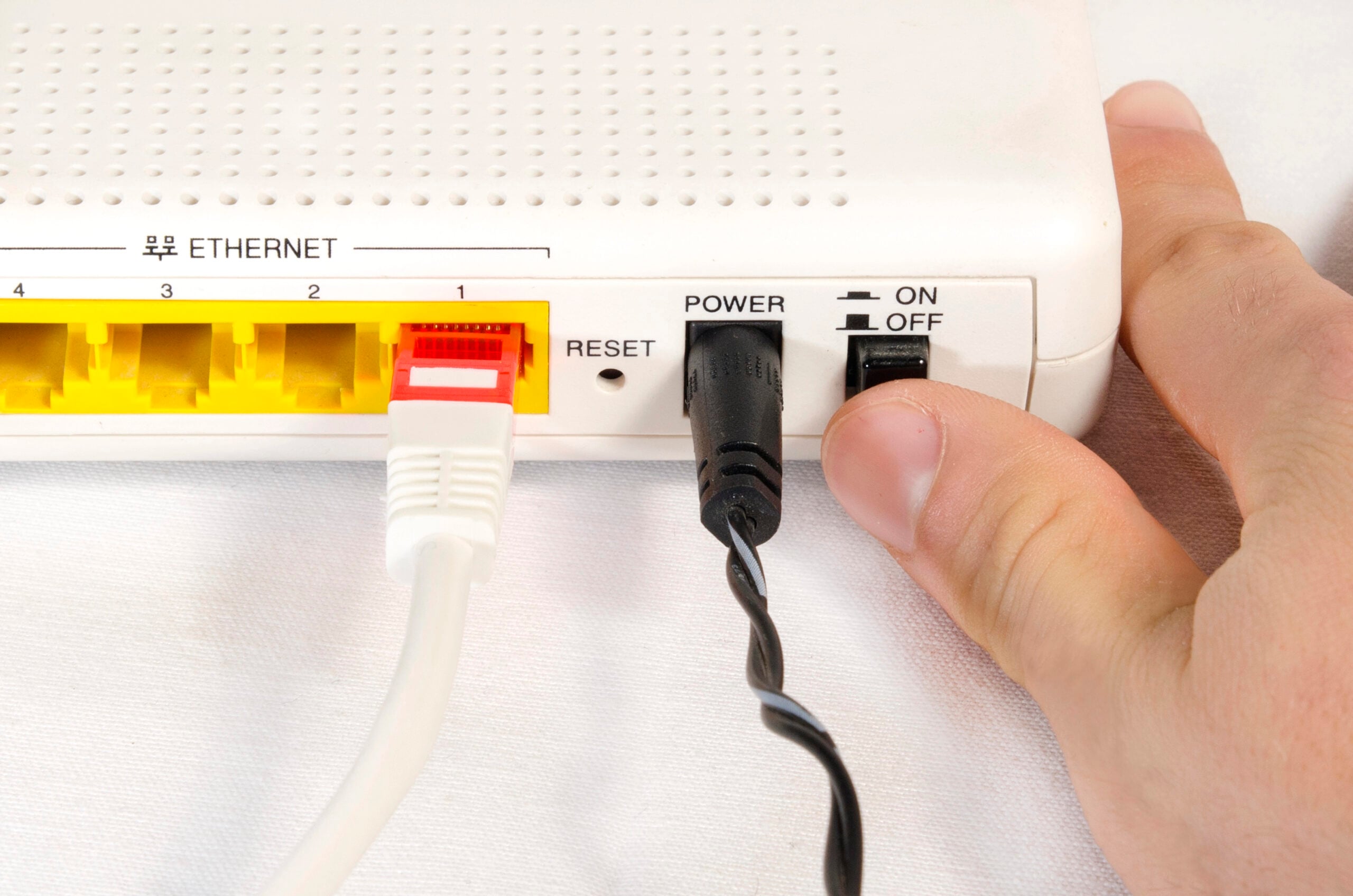
3. You’re Restarting Your Router More Often
Restarting your router once in a while isn’t particularly suspicious. Technology gets cranky.
But if “Have you unplugged the router?” has become your household’s standard response to everything from frozen Netflix to a lagging laptop, pay attention.
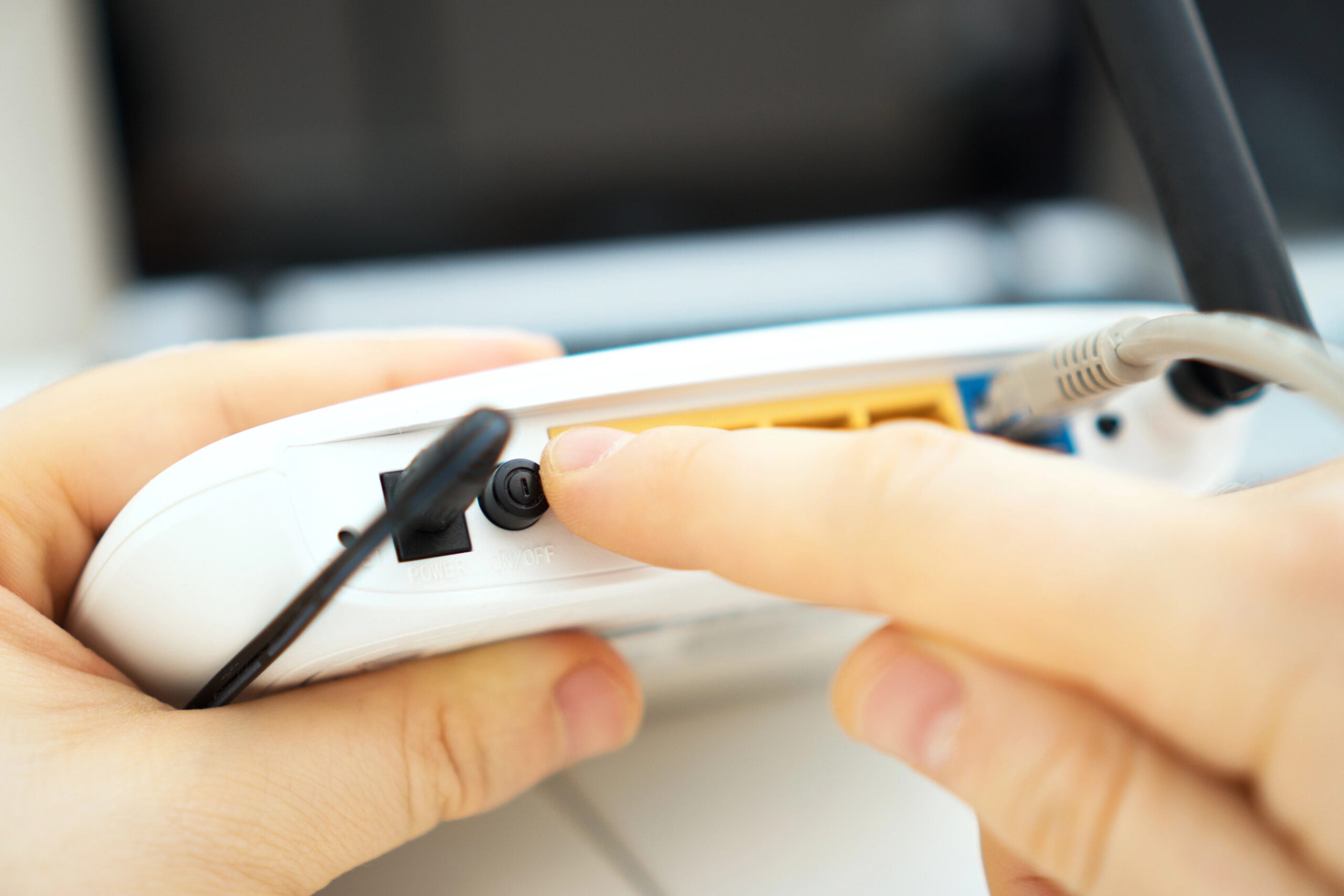
A reboot can temporarily clear glitches and reset processes that have become stuck or unstable. That’s why the old unplug-it-and-plug-it-back-in trick genuinely works sometimes.
The bigger clue is how often you need to do it.
Your router may be struggling if:
- Wi-Fi regularly stops working until you reboot it.
- The router freezes or becomes unresponsive.
- Connections repeatedly drop after it’s been running for a while.
- Restarting fixes everything—but only temporarily.
- You’re rebooting every few days rather than once in a blue moon.
Several things can cause that behavior. Outdated or buggy firmware can create instability. An older router may have limited memory or processing power for your increasingly busy network.
The important part is what a restart actually does. It doesn’t necessarily fix the underlying problem. It gives the router a fresh start until whatever caused the instability happens again.
Quick Test: Stop Losing Count
For the next week, make a note every time you restart your router because something isn’t working. Also jot down what was happening immediately beforehand.
If you’re repeatedly rebooting the router just to restore normal service, you’ve moved beyond an occasional tech hiccup. Something is making that router unstable — and age is becoming a much more interesting suspect.
4. Your New Devices Don’t Feel Very New On Wi-Fi
You buy a new laptop or phone that’s supposed to have faster, better Wi-Fi. You connect it to your home network and wait for the technological magic. But everything feels pretty much the same.
That’s because Wi-Fi isn’t determined by your device alone. Your phone, laptop, or tablet and your router have to communicate using technology they both support.
If one side of that conversation is several generations behind, the newer device can’t take full advantage of everything it can do.
This becomes especially noticeable when you’ve gradually upgraded the devices around your home, but the router hasn’t changed since everyone was still arguing over the Netflix password.
There’s an important catch: a new router cannot create internet speed your ISP isn’t delivering. If you pay for a 300 Mbps plan, buying a router with enormous numbers printed on the box doesn’t suddenly turn that connection into gigabit internet.
What it can do is remove a bottleneck that’s preventing your devices from making good use of the connection you already have.
Check This: Compare The Generations
Look up the Wi-Fi specifications for your router and one of your newest phones or laptops. You may see terms such as Wi-Fi 5, Wi-Fi 6, Wi-Fi 6E, or Wi-Fi 7.
If your newer devices support Wi-Fi technology that’s several generations ahead of your router, make a note of it. That gap doesn’t automatically mean you need an upgrade, but it gives us another useful clue.
5. Your Router Is Running Hot
Routers aren’t just boxes that make Wi-Fi happen. They’re small computers, with a processor, memory, wireless radios, and other electronic components working around the clock.
That work produces heat. Some warmth is completely normal.
Hot enough that you immediately notice it? That’s more interesting.
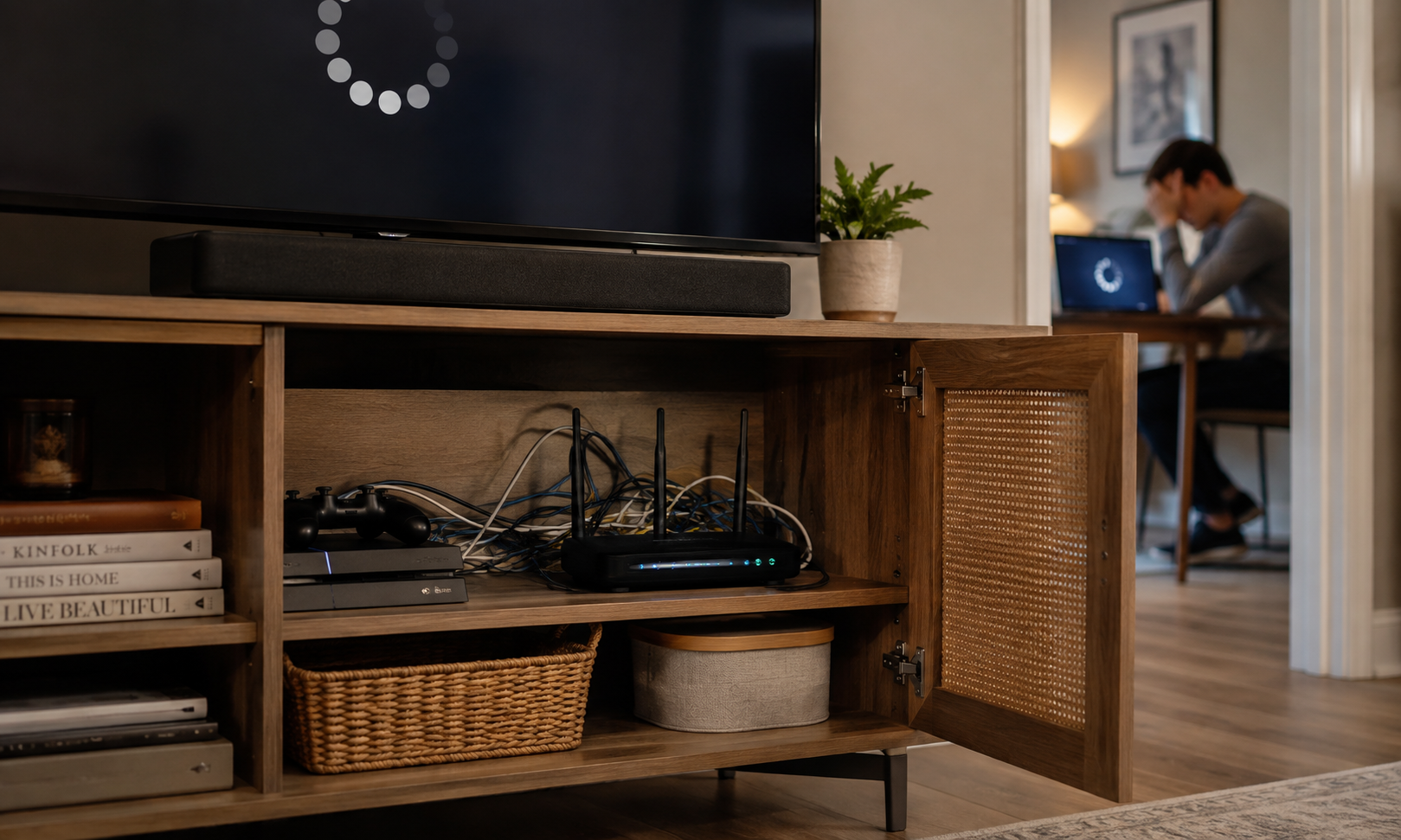
Heat becomes especially relevant when an older router is crammed behind a TV, buried under other electronics, or wedged into a cabinet with approximately the same airflow as a sock drawer.
Watch for a pattern such as:
- Wi-Fi becomes unstable after the router has been running for hours.
- Connections start dropping during periods of heavy use.
- The router feels unusually hot rather than simply warm.
- A restart temporarily improves performance.
- Problems seem worse on hot days or inside an enclosed space.
Excessive heat can make electronics less stable, and long-term heat exposure can contribute to component degradation. An aging router that’s already struggling doesn’t benefit from spending its retirement years slow-roasting behind the cable box.
Do This First: Give Your Router Some Breathing Room
Check where your router is sitting. If it’s inside a cabinet or surrounded by other heat-producing electronics:
- Move it into the open with airflow around it.
- Don’t stack other devices on top of it.
- Keep vents clear of dust and clutter.
- Give it some distance from TVs, game consoles, and other heat sources.
Then see whether the instability improves over the next few days.
If better airflow makes a noticeable difference, you’ve learned something useful about the problem — and potentially saved yourself the cost of a new router.
6. Your Router Is Stuck In An Older Wi-Fi Generation
If you’ve ever looked at router specifications and encountered 802.11ac, 802.11ax, Wi-Fi 6E, and a small avalanche of numbers, you’re forgiven for immediately closing the tab.
Fortunately, you don’t need to become a network engineer. The important part is simple: Wi-Fi technology has gone through several generations, and an older router can’t gain newer wireless capabilities just because you keep it around long enough.
Here’s the cheat sheet:
| Wi-Fi Generation | Technical Name | What It Means Today |
|---|---|---|
| Wi-Fi 4 | 802.11n | Very old technology for a primary home router |
| Wi-Fi 5 | 802.11ac | Still perfectly usable in many homes, but increasingly dated |
| Wi-Fi 6 | 802.11ax | Designed to handle busy, device-heavy networks more efficiently |
| Wi-Fi 6E | 802.11ax | Extends Wi-Fi 6 into the less-congested 6 GHz band |
| Wi-Fi 7 | 802.11be | Newer generation offering substantially more wireless capacity and advanced features |
The biggest mistake here is assuming newer automatically means faster internet. It doesn’t.
Newer Wi-Fi generations improve the wireless network inside your home. Depending on your devices and setup, that can mean:
- Better performance when many devices are active
- More efficient use of available wireless bandwidth
- Access to additional spectrum, such as 6 GHz with Wi-Fi 6E and Wi-Fi 7
- Lower latency and better performance under heavy network loads
- Higher potential wireless speeds when compatible devices are involved
And this is where context matters. A stable Wi-Fi 5 router isn’t suddenly junk because Wi-Fi 7 exists. If it covers your home, handles your devices, receives security updates, and keeps up with your internet connection, replacing it solely because the number is smaller may accomplish very little.
Wi-Fi 4 in 2026, however? Now we’re asking more questions.
Check This: Find Your Router’s Wi-Fi Generation
Search your router’s model number and look at its specifications. If you see 802.11n, ac, ax, or be, use the table above to translate it.
Then compare that with the Wi-Fi generation supported by your newest phone or laptop.
A large gap doesn’t automatically mean “buy a new router.” But combine an older Wi-Fi generation with the reliability, coverage, or performance problems we’ve already uncovered, and the case for upgrading gets considerably stronger.
7. Your Router Isn’t Getting Security Updates Anymore
Here’s the sneakiest sign on the list: your Wi-Fi might be working perfectly. No buffering, no mysterious disconnects, and no nightly router reboot ritual.
But if the manufacturer has stopped providing security updates for your model, the router may still be too old to keep using.
Like your phone or computer, a router runs software called firmware. Manufacturers release firmware updates to fix bugs, improve stability and compatibility, and patch newly discovered security vulnerabilities.
Eventually, though, older models reach end of life (EOL) or end of support (EOS). At that point, the manufacturer may stop releasing firmware and security fixes.
That’s worth taking seriously because your router sits between your home network and the internet. A model that no longer receives security patches can remain vulnerable to security flaws discovered after support ends.
And unlike buffering Netflix, you may not get an obvious warning that anything is wrong.
Check This: Is Your Router Still Supported?
Grab the exact model number from the router’s label, then:
- Go to the manufacturer’s official support website and search for your model.
- Look for an end-of-life or end-of-support notice.
- Check the date of the most recent firmware or security update.
- See whether automatic firmware updates are available and enabled.
- If your ISP supplied the router, ask whether that model is still supported or eligible for replacement.
Don’t assume an old copyright date or a lack of recent feature updates automatically means the router is unsafe. What matters is whether the manufacturer still supports the model and provides security fixes when they’re needed.
If support has officially ended, though, that’s different from a slightly slower speed test or one annoying dead zone. You now have a reason to consider replacement even if the router still seems to work just fine.
Put Your Router To The Test
By now, your router may be looking a little suspicious. But slow Wi-Fi doesn’t automatically mean you need a new one. Before we add more evidence to the case, let’s see whether the problem actually follows your Wi-Fi.
You don’t need special equipment. Your phone or laptop and a few minutes are enough.
| Try This | What The Result May Tell You |
|---|---|
| Test your speed close to the router | Gives you a best-case look at what your Wi-Fi is delivering |
| Repeat the test in your problem room | A major drop points toward a coverage or interference problem |
| Test a second device in the same spot | If only one device struggles, the router may not be the culprit |
| Test at different times of day | Problems that appear only during busy evening hours could involve your ISP or network congestion |
| Try Ethernet, if possible | Good wired performance but poor Wi-Fi puts more suspicion on the wireless side of the network |
Don’t worry about getting the exact speed you’re paying for over Wi-Fi. There are too many variables for this to be a perfect laboratory experiment. We’re looking for differences and patterns.
What You’re Really Looking For
If multiple devices struggle over Wi-Fi, particularly when you’re farther from the router, or the network is busy, the evidence against your router is getting stronger.
But if everything slows down—including a device connected directly by Ethernet—the problem may be happening before Wi-Fi ever enters the picture.
Keep that distinction in mind. We’ll come back to it when we put the router and your ISP head-to-head.
Before You Buy A New Router, Make Sure It Isn’t Your ISP
At this point, your router may have accumulated enough evidence to look guilty. But there’s one other suspect we haven’t ruled out: your internet provider.
Your router and your internet connection aren’t the same thing.
Your ISP brings the internet connection into your home, while your router distributes that connection to your devices, primarily through Wi-Fi. A problem on either side can leave you staring at the same spinning loading circle—which is why it’s so easy to blame the wrong one.
Now use what you found to separate a Wi-Fi problem from an internet problem.
| If You Notice… | Start By Suspecting… |
|---|---|
| Wi-Fi is good near the router but poor in certain rooms | Coverage, placement, or interference |
| Ethernet works well, but Wi-Fi doesn’t | Router/Wi-Fi |
| One device struggles while everything else works | That device |
| Router repeatedly freezes or needs rebooting | Router |
| Problems mainly appear when your home network gets busy | Router capacity or available bandwidth |
| Everything slows during the same times each day | ISP congestion or heavy household usage |
| Wired and wireless devices lose internet together | Modem, ONT, or ISP connection |
The goal isn’t to diagnose your entire network from one symptom. It’s to figure out which side of the router the problem seems to live on.
If Wi-Fi is the weak link while the connection reaching your home looks healthy, your router moves much higher on the suspect list. If Ethernet is struggling too, buying a shiny new router may be an expensive way to discover that your ISP was the problem all along.
When Replacing Your Router Can Actually Make A Difference
So when is it finally reasonable to stop troubleshooting and buy a new router?
When the clues start piling up.
Instead of making the decision based on age alone, look at four things together:
Age + Capability + Support + Symptoms
Think of router age as evidence, not a verdict. A five-year-old router that’s secure, stable, and handling everything you throw at it may have plenty of life left.
But an older router becomes a much stronger replacement candidate when it’s also falling behind technically, losing manufacturer support, or giving you recurring problems.
Your router becomes a much stronger replacement candidate when:
- Age: It’s several years old, and problems are becoming more frequent.
- Capability: It can no longer comfortably handle your internet speed, devices, or household traffic.
- Support: Firmware and security support has ended.
- Symptoms: Reliability, overheating, crashes, or coverage problems continue after you’ve ruled out simpler fixes.
There’s one important exception: a better router doesn’t automatically mean better coverage everywhere.
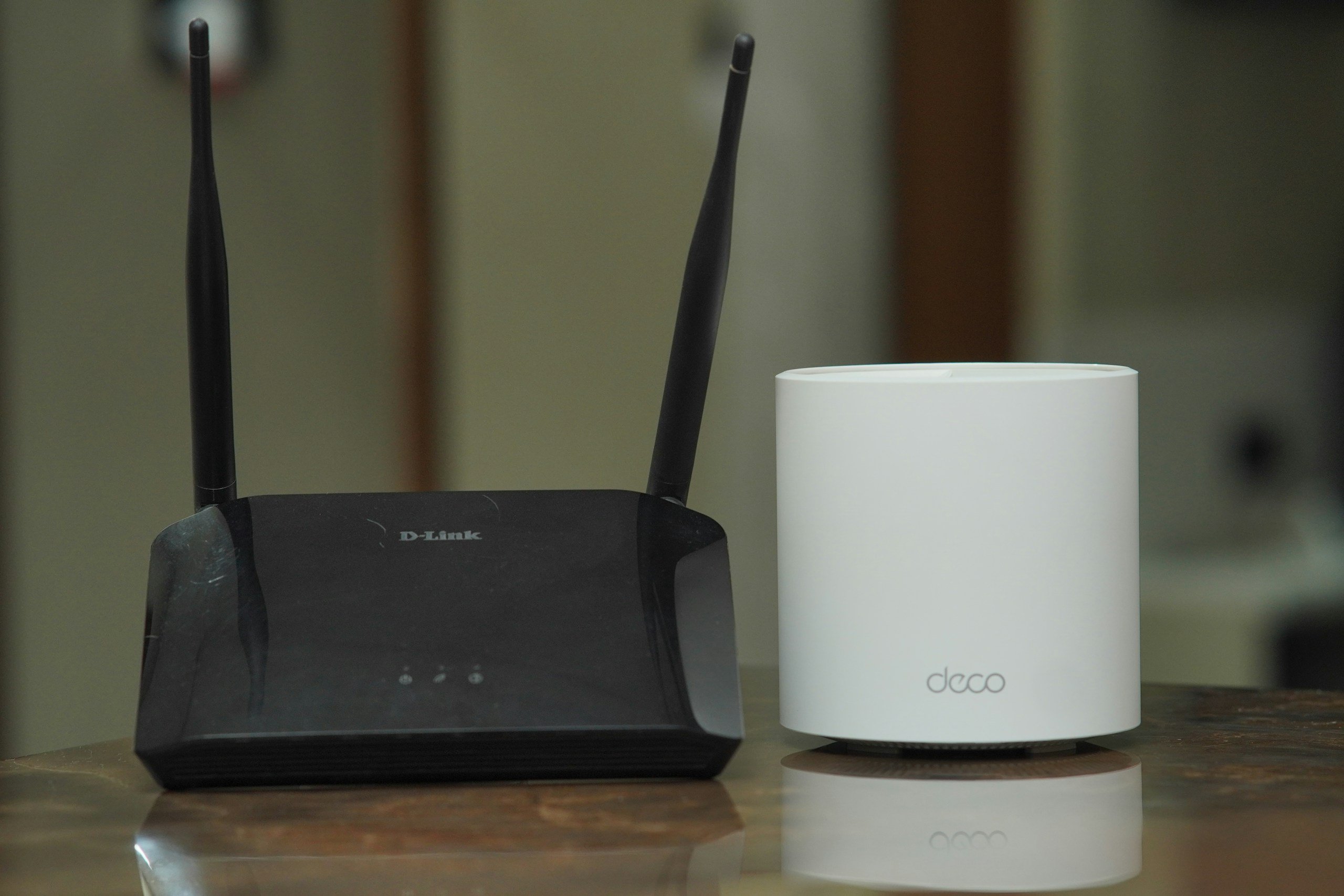
One exception: don’t confuse an age problem with a coverage problem. If your router performs well nearby but can’t reach parts of a large or multi-story home, you may need better placement, wired access points, or a mesh system — not simply a newer standalone router.
In that situation, you may get better results from moving the router, adding wired access points, or switching to a mesh Wi-Fi system rather than replacing one standalone router with another and hoping it develops superpowers.
What Should You Look For In A Replacement?
Once you’ve decided your router really is ready for retirement, don’t automatically buy the model with the biggest speed number on the box. Router marketing loves enormous numbers. Your house is considerably less impressed by them.
The better question is: What does your network actually need?
Before you buy, look at:
- Your internet plan: A router should comfortably support the speed you’re paying for, but buying wildly beyond your needs won’t make your ISP connection faster.
- Your home size and layout: A small apartment and a three-story house have very different coverage problems. Larger or awkwardly shaped homes may be better candidates for mesh Wi-Fi.
- Your busiest devices: Check which Wi-Fi generations your newer phones, laptops, TVs, and gaming devices support. There’s little benefit in paying for features none of your devices can use.
- How busy your network gets: Households with lots of simultaneous streaming, gaming, video calls, and smart devices can benefit more from newer Wi-Fi technology.
- Ethernet ports: If you hardwire computers, game consoles, TVs, or other equipment, make sure you have enough ports—and that they support the speeds you need.
- Software support: Look for a manufacturer with a clear firmware and security-update policy. You’re buying software support along with the hardware.
And if you’re currently renting a router from your ISP, check the monthly equipment fee before buying anything.
Depending on your provider, using your own compatible router could eliminate that recurring charge, but some setups require specific ISP equipment.
Buy for the problem you’ve identified: better capacity, newer device support, stronger security support, more coverage, or greater stability. Otherwise, you may end up with a very expensive blinking box doing essentially the same job as the old one.
Frequently Asked Questions
Still sizing up that blinking box in the corner? These questions cover a few router-aging situations that aren’t as obvious as slow speeds and dropped connections. Don’t see your question here? Ask us in the comments!
Can My Internet Provider Replace An Old Router For Free?
Sometimes. If you’re renting your router or gateway from your internet provider, contact the ISP before buying anything. Providers may replace outdated, malfunctioning, or unsupported rental equipment, although policies and potential fees vary.
If you own the router yourself, replacement is generally your responsibility.
What’s The Difference Between A Router And A Modem?
They’re doing different jobs, even when they’re combined inside the same box.
A modem or optical network terminal (ONT) connects your home to your internet provider. A router creates and manages your home network, directing traffic between your devices and the internet.
Many ISPs provide a single gateway that combines modem and router functions. If that’s what you have, you won’t necessarily see two separate boxes—which can make figuring out what’s actually failing a little more confusing.
Should I Buy My Own Router Or Use The One From My ISP?
It depends on how much control you want.
ISP equipment is convenient: setup, compatibility, updates, and troubleshooting may largely be handled for you. Buying your own router can give you more control over features, coverage, performance, and hardware choices and may eliminate a monthly router rental fee with some providers.
Before buying your own, check your ISP’s compatibility requirements and whether you’ll still need its modem, ONT, or gateway.
What Should I Do With My Old Router?
Don’t toss it straight into the trash—or hand it to someone else with your network information still stored on it.
Before getting rid of an old router, perform a factory reset according to the manufacturer’s instructions. That clears your customized network settings and other stored configuration data.
Then look for an electronics recycling or e-waste program in your area. Some manufacturers, retailers, and local recycling programs accept networking equipment along with other electronics.
What Else Is Your Home Tech Trying To Tell You?
Routers aren’t the only devices that can work perfectly for years and then suddenly become the most irritating thing in the house.
If your router checks out but your technology is still misbehaving, follow the next clue:
- Why Your Wi-Fi Keeps Disconnecting — for connections that drop, reconnect, and generally refuse to explain themselves.
- Why Your Internet Suddenly Slows Down At Night — if everything feels fine until evening hits.
- Why Technology Works In One Room But Not Another — when your house seems to have its own invisible technology borders.
- Nobody Else Is Using The Internet. So Why Is It So Slow? — for the especially infuriating kind of slowdown with no obvious culprit.
- 14 Everyday Technology Problems That Seem Random But Aren’t — because sometimes the weirdest tech problems have surprisingly ordinary explanations.
Have you ever discovered your old router was the reason your Wi-Fi was acting up? Tell us what tipped you off in the comments — your experience might help someone else figure out whether it’s finally time for an upgrade.

