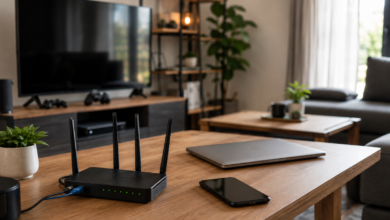
You probably don’t think you have that many devices on your Wi-Fi. A couple of phones. A laptop or two. The TV. Maybe a tablet. Six devices? Eight? Nothing your router can’t handle.
Now count the ones you forgot. The streaming stick. Video doorbell. Security cameras. Smartwatch. Printer. Game console. Thermostat. Smart speakers. Robot vacuum. That old tablet someone still uses occasionally. And apparently, at some point, your light bulbs demanded internet access.
Suddenly, your perfectly reasonable household has 20, 30, or more devices connected to Wi-Fi.
So is there a point when your router finally throws up its metaphorical hands? Yes, but the number of devices may not be what pushes it over the edge. And one gadget you barely think about could make a much bigger difference than 10 others combined.
So, How Many Devices Are Too Many For Wi-Fi?
If you came here hoping for a magic number, unfortunately, there isn’t one. Twenty devices might run perfectly well on one home network while another starts struggling with far fewer.
You’ll sometimes see routers advertised as supporting 50, 100, or even more connected devices. But there’s an important catch: “can connect” and “can perform well simultaneously” are very different promises.
Your real limit depends on a combination of things, including:
- Your router: Its hardware, age, and Wi-Fi generation all affect how efficiently it can manage a busy network.
- What your devices are doing: Streaming video and uploading camera footage create very different demands than a smart thermostat checking in.
- How many are active at once: Thirty connected devices aren’t necessarily a problem if most of them are sitting around doing very little.
- Your internet connection: Both download and upload capacity can become bottlenecks.
- Your Wi-Fi environment: Distance, walls, interference, and weak connections can make an already busy network work harder.
The distinction that matters most is connected vs. actively demanding Wi-Fi.
A sleeping smart plug and a teenager downloading a 90 GB game each appear as one device on your network. But your router doesn’t have the same experience with both.
How Many Wi-Fi Devices Are In Your House Right Now?
Before we get into which devices matter most, take a quick inventory. Don’t count only what’s in your hand or currently turned on.
| Look Around For… | Easy-To-Forget Examples |
|---|---|
| Entertainment | Streaming sticks, game consoles, connected speakers |
| Security | Cameras, video doorbells, baby monitors |
| Smart home | Thermostats, smart plugs, bulbs, hubs |
| Wearables | Smartwatches, fitness trackers |
| Household gear | Printers, robot vacuums, appliances, garage-door openers |
Now add the devices you aren’t currently using.
That old phone in a drawer may not matter much, but spare tablets, printers, consoles, guest devices, and connected gadgets around the house can still be part of your network.
If your original estimate just doubled, you’re likely not alone. The more interesting question is what all those devices are actually doing.
Did You Know?
If your device count climbed faster than you expected, you’re in good company. BroadbandSearch estimates that the average U.S. household with broadband now has around 17–21 connected smart devices, up from roughly 8–10 in 2020.
Your Wi-Fi Doesn’t Care About The Headcount As Much As You Think
Imagine 25 people standing around a grocery store. No big deal. Now imagine five of them reaching the only open checkout line at exactly the same time with overflowing carts.
The number of people in the building didn’t suddenly become the problem. What they’re trying to do did.
Your Wi-Fi works in a similar way. At any given moment, your connected devices generally fall into three camps:
- Connected but mostly idle: A smart plug, thermostat, sleeping laptop, or TV that’s waiting for you to do something.
- Occasionally communicating: A smartwatch syncing, smart speaker checking in, or phone fetching notifications.
- Actively moving lots of data: Streaming TVs, video calls, large downloads, cloud backups, and cameras sending video.
That last group can make your network feel surprisingly slow, especially when several devices get busy at once.
But another piece gets overlooked: Wi-Fi devices also have to take turns.
Wi-Fi is a shared wireless medium, which means devices communicating on the same channel share available airtime — the opportunities they get to send and receive data. The more devices actively trying to communicate, the more competition there is for those turns.
Wi-Fi airtime isn’t the same thing as internet bandwidth. Bandwidth describes how much data your internet connection can carry. Airtime is about how efficiently devices can communicate over the wireless network itself.
That’s why counting devices can send you looking in the wrong direction. The better question is: which devices are demanding your network’s attention, and what are they doing with it?
These Devices Can Put The Biggest Load On Your Network
Once you stop treating every connected device as an equal vote, the device count looks very different. Some gadgets spend most of the day waiting around. Others become surprisingly demanding the moment they get busy.

1. Streaming TVs: The Obvious Heavyweights
Streaming video creates sustained demand, and resolution and simultaneous streams matter. One TV streaming HD is very different from two or three TVs streaming 4K at once.
Don’t forget everything attached to the TV, either. One entertainment center might include a smart TV, streaming stick, game console, and connected audio gear — each appearing separately on your network.
Most may sit idle much of the time. When several start moving data at once, that’s a different story.
2. Security Cameras: The Devices People Forget Are Working
Cameras are particularly interesting because they can use your network when nobody is actively using them.
Network demand can increase when:
- Motion triggers recordings
- You watch a live feed
- Footage uploads to cloud storage
- Several cameras activate at once
- Higher-resolution video requires more data
There’s another important difference: cloud-connected cameras and video doorbells may spend substantial time sending data out of your house.
That can strain upload capacity, which may be considerably lower than your download speed. So while you’re blaming the teenager gaming upstairs, the front door, driveway, and backyard may all be uploading video.
3. Game Consoles & Computers: It’s Not Always The Gaming
Online gaming itself isn’t necessarily the biggest bandwidth hog. Downloads and background activity can be far more demanding.
Watch for:
- Large games, patches, and software updates
- Cloud backups and file syncing
- Video meetings
- Large uploads or downloads
A network can feel perfectly normal and then deteriorate seemingly out of nowhere because one computer or console started moving a huge amount of data in the background.
4. Phones & Tablets: Death By Multitasking
Phones are sneaky because what you’re doing on-screen isn’t necessarily everything the device is doing.
A phone or tablet may simultaneously be backing up photos, updating apps, syncing cloud files, downloading media, fetching notifications, or making a video call.
One phone doing that may barely register. Multiply that across a household while TVs stream and computers work, and those small background jobs can start overlapping.
5. Smart Speakers, Bulbs & The Army Of Tiny Devices
Smart speakers, thermostats, watches, bulbs, plugs, sensors, robot vacuums, and appliances can make your connected-device list look slightly ridiculous.
But most typically move relatively little data compared with streaming video, large downloads, or camera uploads. They still check in, report status, receive commands, and consume some wireless resources, but 10 smart bulbs aren’t equivalent to 10 TVs streaming 4K.
These smart home devices can dramatically inflate your headcount without being the biggest source of network demand.
20 Devices vs. 5 Devices: Which Network Has It Worse?
Here’s where the raw device count really falls apart.
House A has 20 connected devices:
- 8 smart bulbs
- 3 smart speakers
- A thermostat
- A printer
- A robot vacuum
- Several mostly idle phones and tablets
- One TV streaming
House B has only 5:
- Two 4K TVs streaming
- A laptop downloading a huge game
- A security camera uploading video
- A phone on a video call
Which network is working harder?
At that moment, very likely House B. It has one-quarter as many connected devices, but nearly everything on the network is actively moving significant amounts of data.
That’s why “How many devices do I have?” is only the beginning of the diagnosis. What those devices are doing at the same time tells you far more.
Your Router May Be The Real Device Limit
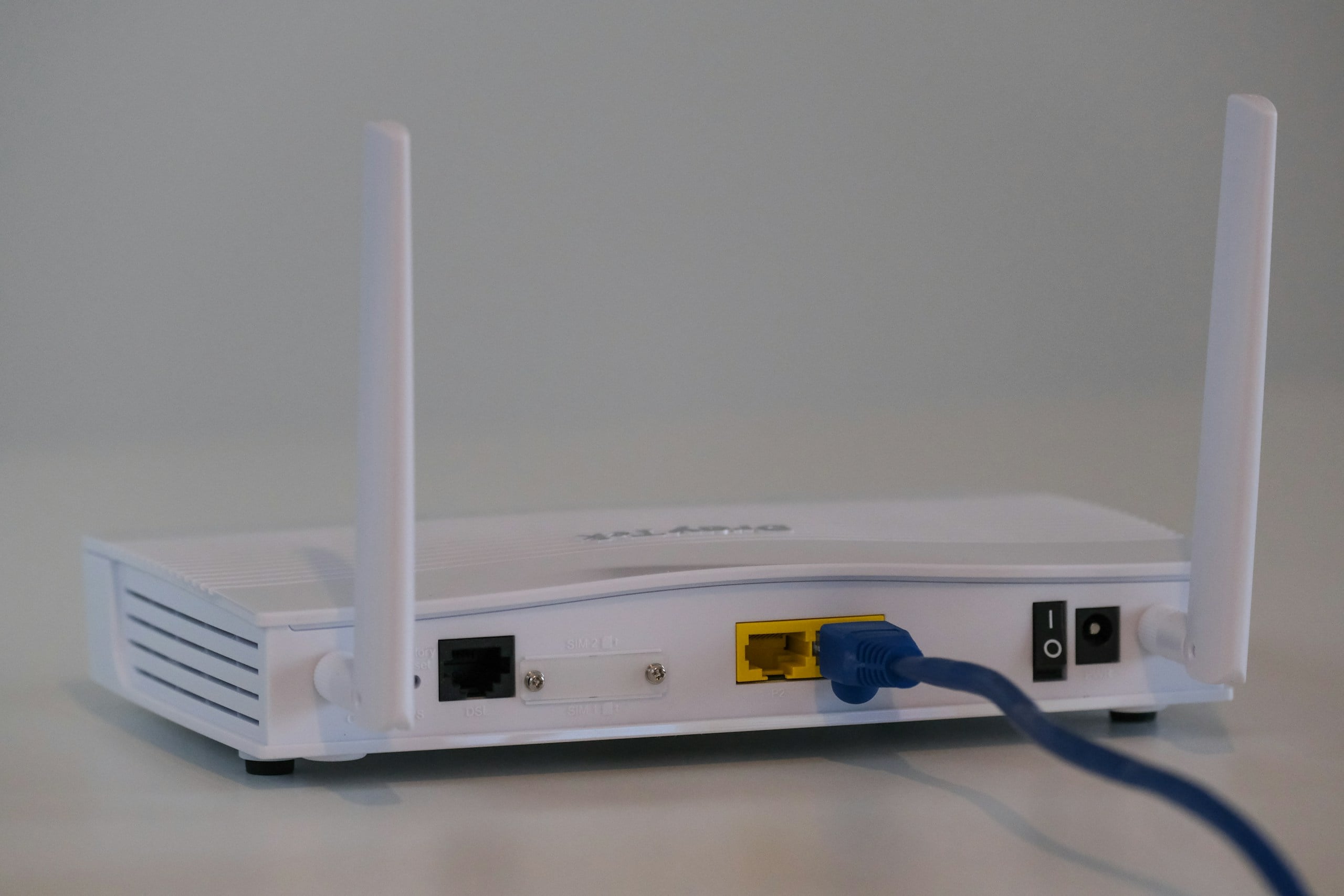
Once several devices are active, how efficiently your router manages them matters. A router isn’t just passing internet data along; it’s coordinating wireless communication among phones, TVs, cameras, computers, and everything else competing for airtime.
And not every connection uses that airtime equally efficiently.
A Weak Device Can Demand More Airtime
A laptop with a strong connection may transfer its data quickly and get out of the way. A device struggling through distance, walls, interference, or older Wi-Fi technology may communicate at a lower data rate, meaning it can need more airtime to move the same amount of information.
That doesn’t mean one old phone automatically ruins everyone’s Wi-Fi. But a busy network full of weak or inefficient connections is a very different workload from the same number of devices with strong connections.
Older Routers Can Hit The Wall Sooner
Your router also has finite processing power, memory, radio capacity, and client-management capabilities. That’s why a router advertised as supporting 50 or 100 connected devices doesn’t necessarily deliver great performance when 50 or 100 devices demand data at once.
Older equipment may have less capable hardware, older Wi-Fi standards, and fewer tools for managing a busy modern household. Age alone isn’t a reason to replace a router, but if your device population has grown substantially while the router hasn’t changed, it belongs on the suspect list.
Newer Wi-Fi Was Built For Busier Homes
Newer Wi-Fi generations aren’t only about higher top speeds. They’ve also become better at coordinating multiple devices.
Wi-Fi 6, for example, introduced technologies such as:
- OFDMA: Divides wireless resources into smaller pieces so the router can serve multiple devices more efficiently instead of treating every transmission like one large job.
- MU-MIMO: Allows a compatible router to communicate with multiple compatible devices at the same time rather than handling everything strictly one by one.
You don’t need either acronym to diagnose your network. The takeaway is that a newer router may handle a crowded household more efficiently, even if your internet plan hasn’t changed.
Before replacing anything, look at the router’s age, capabilities, software support, and actual symptoms together.
Before You Blame The Router, Check Your Internet Connection
Another reason a house full of devices can suddenly feel overloaded, even when the router is handling them just fine, is that the internet connection itself can run out of room.
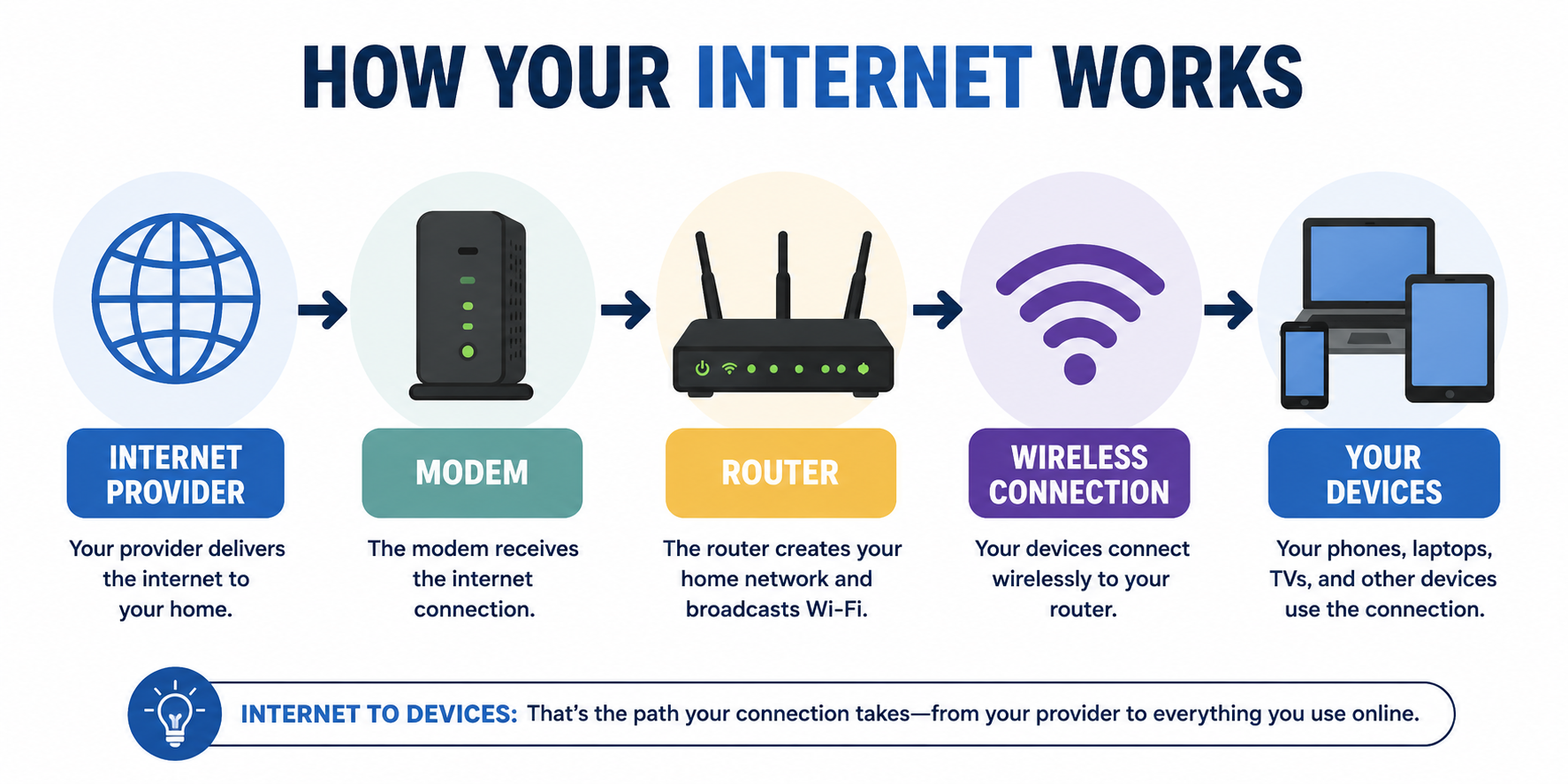
Think of your router as managing traffic inside your home. Once that traffic needs to reach the internet, it has to travel over the connection your internet service provider (ISP) supplies. Thirty devices could communicate perfectly well with your router while collectively asking for more internet capacity than your plan can provide.
That becomes more likely when several high-demand activities overlap:
- Multiple 4K streams pulling in video at the same time
- Large game or software downloads consuming substantial download capacity
- Cloud backups sending photos, videos, and files out of the house
- Security cameras uploading footage to cloud storage
- Multiple video calls moving data in both directions
And don’t overlook upload speed.
Internet plans are often marketed by their download speeds, but some connections provide considerably less capacity in the other direction.
If several cameras are uploading footage while a laptop backs up files and two people are on video calls, you can run short on upload capacity even though your advertised download speed looks more than adequate.
That can make video calls stutter, games lag, uploads crawl, or the whole connection feel strangely unresponsive.
So before deciding your router has finally met one smart device too many, check whether your household is simply trying to push more through the internet connection than it can handle at that moment.
How To See What’s Actually Connected To Your Wi-Fi
You’ve counted TVs, phones, cameras, and everything else around the house with Wi-Fi privileges. Now it’s time to see what your network actually knows about.
Most routers let you view devices through the manufacturer’s app, mesh-system app, or router administration page. Look for something labeled Connected Devices, Clients, Attached Devices, or Network Map.
One important catch: the number you see may not represent devices actively using Wi-Fi right now. Depending on your router, the list may include:
- Currently connected devices
- Offline or recently connected devices the router remembers
- Wired devices connected by Ethernet
- Guest-network devices, sometimes shown separately
So if your router reports 38 devices, don’t assume 38 gadgets are simultaneously fighting over Wi-Fi. Check which ones are actually online.
Don’t Recognize Half The Names? That’s Normal
You may expect Living Room TV and instead find DESKTOP-7X3F9Q, a manufacturer name, a string of characters, or the ever-helpful Unknown Device.
Before assuming someone nearby has infiltrated your network:
- Check the manufacturer or device details. They may reveal whether you’re looking at a phone, TV, camera, computer, or smart-home gadget.
- Turn a suspected device off temporarily. If the mystery entry disappears from the connected list, you’ve probably found it.
- Rename devices as you identify them. Kitchen TV will be considerably more useful six months from now than Unknown Device 14.
Some phones and computers also use private or randomized hardware addresses, which can make identification less obvious.
If you find a device you’re confident doesn’t belong to your household, remove or block it if your router allows, change your Wi-Fi password, and make sure you’re using WPA2 or WPA3 security.
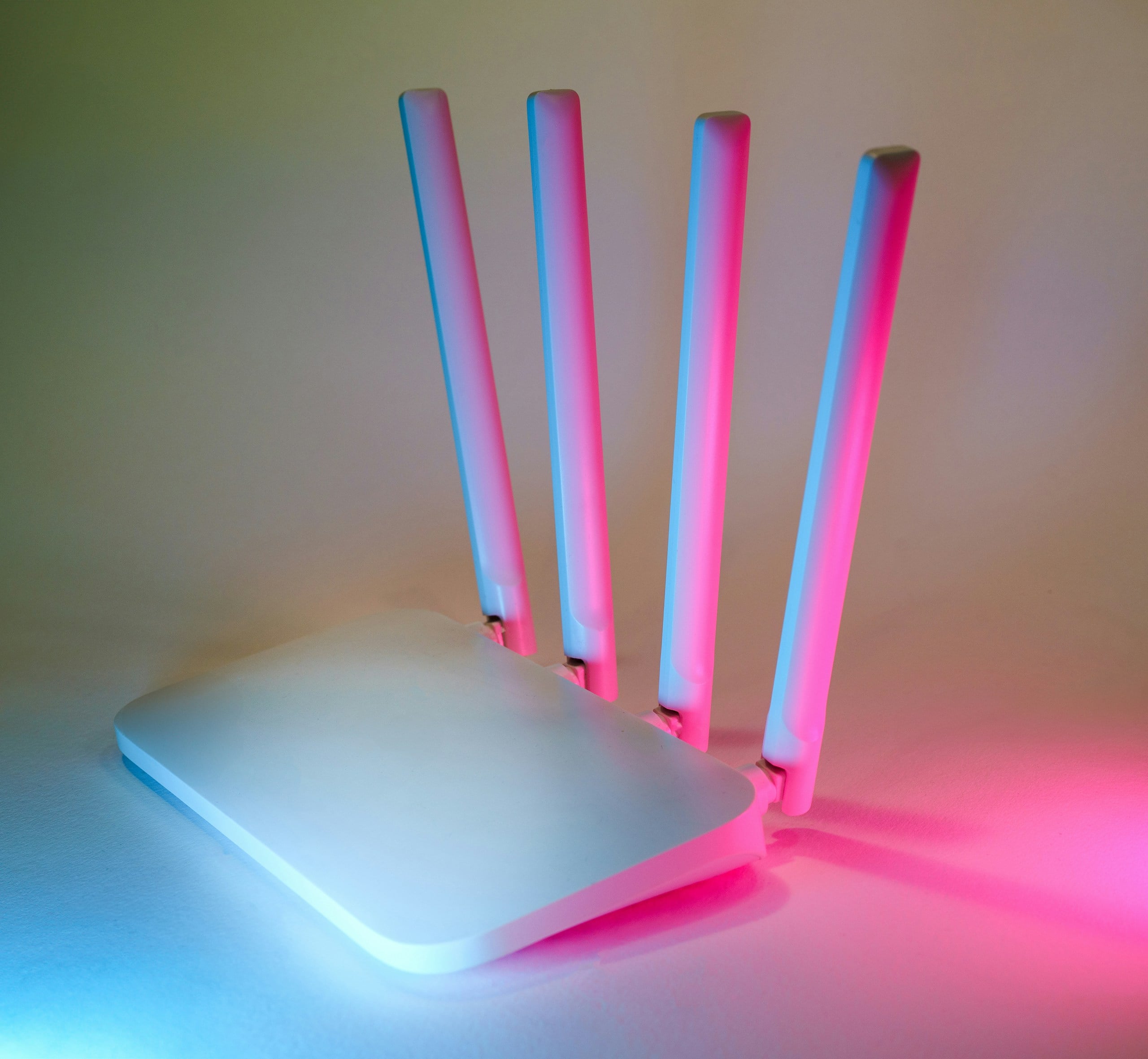
Find Your Network’s Biggest Troublemaker
Once you know what’s connected, check the list when your Wi-Fi is actually struggling. If your router or app shows real-time activity, look for devices suddenly moving lots of data.
Otherwise, try temporarily pausing the strongest suspect—a 4K stream, large download, cloud backup, or camera upload—and test again.
If performance improves immediately, you’ve learned far more than the raw device count could tell you.
How To Tell Whether You Actually Have “Too Many” Devices
Forget looking for a magic cutoff. A few simple comparisons can tell you much more than the number in your router’s device list.
Test 1: Compare Busy vs. Quiet Times
Pay attention to whether performance changes with household activity.
If Wi-Fi works beautifully in the morning but struggles when everyone gets home, multiple TVs start streaming, or several people are gaming and making video calls, simultaneous demand moves higher on the suspect list.
Look for problems that follow activity: buffering that starts when another TV comes on, games that lag during large downloads, or video calls that become unstable during backups.
If the same problems happen when practically nobody is using the network, sheer device activity becomes a less convincing explanation.
Test 2: Pause The Heavy Hitters
When trouble starts, temporarily pause one or two likely offenders:
- 4K streaming
- Large downloads
- Cloud backups or file syncing
- Large uploads
- Camera uploads, where practical
Then try the struggling activity again.
If performance noticeably improves, simultaneous traffic is contributing to the problem. That doesn’t necessarily mean you own too many devices; your Wi-Fi or internet connection may simply be reaching its limit when certain activities overlap.
Test 3: Move Close To The Router
Take a struggling phone or laptop into the same room as the router.
If performance improves dramatically, device count probably isn’t the first thing I’d investigate. Distance, walls, interference, or another coverage problem becomes a stronger clue.
Devices that repeatedly disconnect or become unreliable only in certain parts of the house also point more strongly toward coverage or interference than sheer headcount.
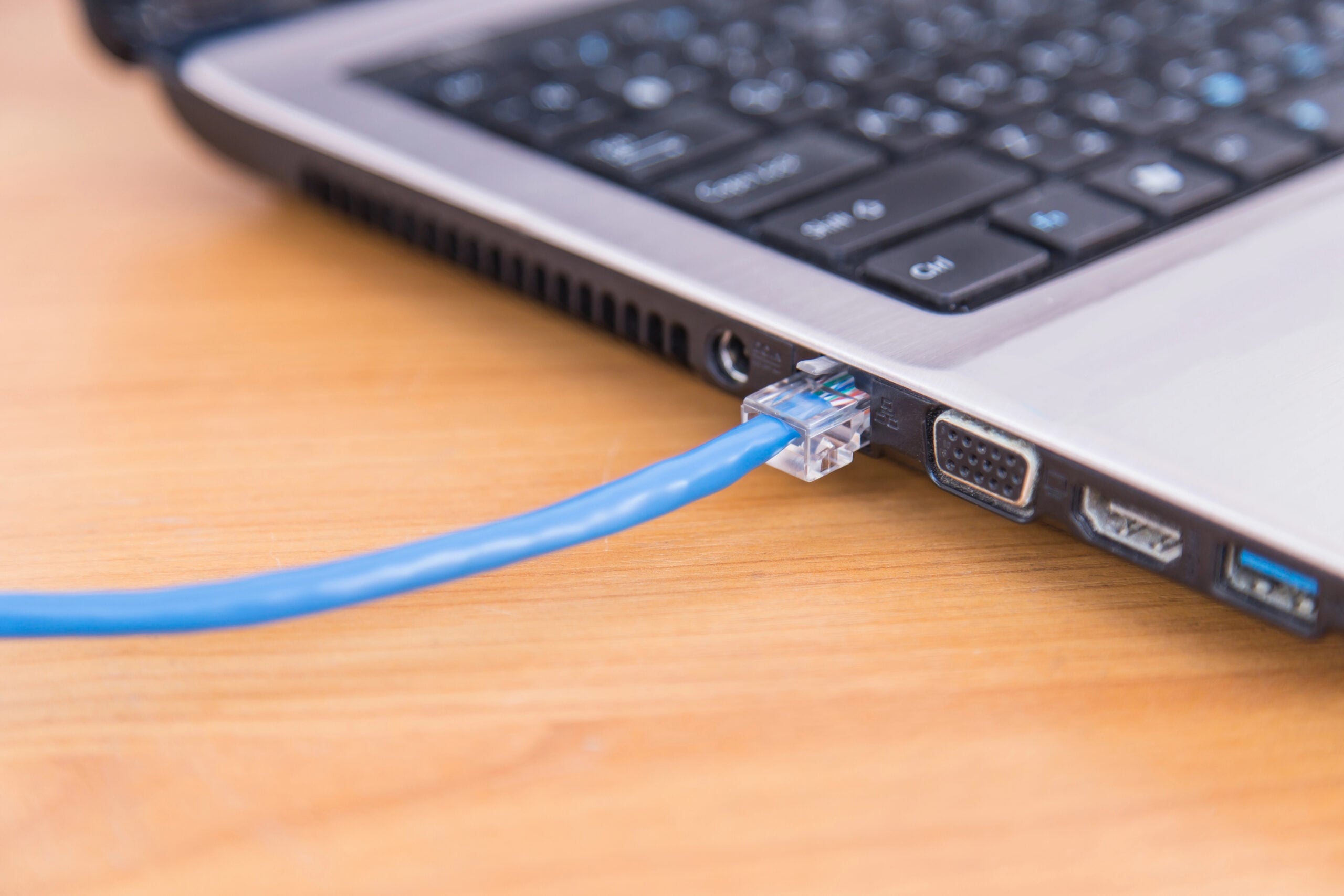
Test 4: Compare Wi-Fi With Ethernet
If you have a computer that can connect by Ethernet, test it while the problem is happening. A wired connection takes Wi-Fi out of the equation.
- Ethernet struggles too: Your internet connection, ISP, or overall household demand becomes more plausible.
- Ethernet works well while Wi-Fi struggles: Signal, interference, wireless congestion, or router capability deserves more attention.
Test 5: Look At The Router Itself
If problems consistently appear when lots of devices become active, persist even with a strong signal, and aren’t explained by the internet connection, the router becomes a much more interesting suspect.
Use four clues together: Age + Capability + Support + Symptoms
Ask whether the router is several generations old, still receives manufacturer updates, has the capabilities your current household needs, and is actually showing symptoms such as instability or poor performance under load.
One additional clue: if restarting the router repeatedly fixes the problem only temporarily, don’t assume the reboot itself proves anything. But combined with the other evidence, recurring instability can strengthen the case for a closer look at the router.
Do You Need A Better Router For More Devices?
Maybe—but don’t shop based on the number in your connected-device list alone. A newer router can help when the router itself is the weak link, especially in a household where many devices are active at the same time.
A New Router May Help If…
- Your router is several Wi-Fi generations old and lacks newer multi-device efficiency features.
- It no longer receives firmware or security updates from the manufacturer.
- Performance consistently deteriorates when several devices become active, even when signal strength is good.
- Your household has changed dramatically since you bought it, adding cameras, streaming TVs, consoles, computers, and other connected gear.
The strongest case isn’t simply “I have 40 devices.” It’s “I have 40 devices, my older router struggles when several become active, and my tests keep pointing back to the router.”
A New Router Probably Won’t Fix…
- Coverage or placement problems: Dead zones, distant rooms, and badly positioned equipment may call for better placement or a mesh system instead.
- Internet plan or ISP limitations: A new router can’t create capacity your internet connection doesn’t have.
- Wireless interference: Nearby networks and other sources of interference can cause problems even with newer hardware.
- One troublesome device: A single huge download, cloud backup, weak connection, or misbehaving device doesn’t necessarily justify replacing the router.
Diagnose first, upgrade second. A box promising enormous speeds and support for 100+ devices isn’t useful if the router wasn’t your bottleneck in the first place.
Frequently Asked Questions
Still wondering what all those connected gadgets mean for your Wi-Fi? These quick answers tackle a few of the device-count questions that tend to come up once you start looking at what’s actually on your network. Don’t see your question? Ask us in the comments below.
Can 50 Devices Be Connected To Wi-Fi?
Potentially, yes. Many modern routers advertise support for dozens or even hundreds of connected devices. But maximum client count isn’t a performance guarantee. Fifty mostly idle smart-home devices create a very different workload from 50 devices simultaneously streaming, downloading, uploading, and making video calls.
Your router’s capabilities, Wi-Fi environment, and internet connection all affect what happens when those devices actually get busy.
Do Smart Bulbs Slow Down Wi-Fi?
A few smart bulbs generally use very little data, so they’re unlikely to have the same impact as streaming TVs, computers downloading large files, or cloud-connected cameras.
A very large collection of Wi-Fi smart-home devices can still add connections and wireless communication for the router to manage, however. Some smart-lighting systems avoid connecting every bulb directly to Wi-Fi by using a dedicated hub or another wireless protocol between the bulbs and hub.
Does Turning Off Devices Make Wi-Fi Faster?
Only if those devices were contributing to the problem.
Turning off an idle device that was barely communicating may make no noticeable difference. Pausing a device that’s downloading a massive game, uploading a backup, or streaming 4K video could make an immediate one.
If you’re troubleshooting, start with what’s actively moving the most data, not everything that happens to have a Wi-Fi connection.
Can One Device Slow Down Wi-Fi For Everyone?
Yes, under the right circumstances. One computer downloading a huge file or uploading a cloud backup can consume a large share of the available internet capacity. A poorly connected device can also use wireless airtime less efficiently.
And occasionally, a malfunctioning or misconfigured device can generate unusual network activity that affects other users. If problems repeatedly begin when the same device connects or starts a particular task, that’s a clue worth following.
Is Wi-Fi 6 Better For Homes With Lots Of Devices?
Yes, Wi-Fi 6 introduced technologies specifically intended to improve efficiency when many compatible devices share a network. Features such as OFDMA can divide wireless resources more efficiently among multiple devices, while MU-MIMO lets compatible equipment communicate with multiple devices simultaneously.
That doesn’t mean upgrading to Wi-Fi 6 automatically fixes a crowded network. Poor coverage, interference, or an internet connection that’s already maxed out remain separate problems.
Your Device Count Is Only The First Clue
Once you know how many devices are connected, the next question is what happens when your network starts struggling. Does the problem follow heavy activity, one room, a particular device, or the router itself? That clue can save you from upgrading the wrong thing.
Still tracking down the problem? Try the guide that matches what you’re seeing:
- Wi-Fi Acting Up? Your Devices Don’t Stop Using The Internet When You Do — Find the background downloads, backups, updates, cameras, and other activity that may be consuming your connection without anyone realizing it.
- How Old Is Your Wi-Fi Router? 7 Signs It’s Time To Replace It — If your router seems to be the weak link, use its capabilities, support, and symptoms—not its birthday alone—to decide whether an upgrade makes sense.
- Your Router Might Be In The Worst Possible Spot — If Wi-Fi improves when you move closer to the router, investigate placement, obstacles, interference, and coverage before buying new equipment.
- Why Your Wi-Fi Keeps Dropping, And How To Fix It — If devices aren’t merely slowing down but actually disconnecting, work through the other causes of an unstable wireless connection.
- Why Your Fast Internet Crawls Every Night — If everything works beautifully during the day and falls apart when the household gets busy, investigate what changes during those peak evening hours.
Now we’re curious: How many devices did you discover on your Wi-Fi? Was the number about what you expected, or did your router reveal a small army of gadgets you’d completely forgotten about? Drop your device count in the comments, and tell us which connection surprised you most.