At 2 p.m., your Wi-Fi is a model citizen. Fast, reliable, and no complaints in sight. By 7 p.m., Netflix is buffering, someone’s yelling about lag, and a video call has frozen your face into an expression you’d rather not share.
What happened in those five hours?
It’s easy to blame the router, your internet provider, or whoever’s downloading something the size of a small country.
But having more people online isn’t necessarily the problem. Some of the biggest Wi-Fi troublemakers aren’t doing anything obvious.
Let’s figure out what’s bringing your home network to its knees — and what you can do about it without making everyone take turns using the internet.
Want our human-written content to rank above AI-generated garbage? Help us out by clicking this button!

What Actually Changes When Everyone Comes Home?
Your router doesn’t know it’s 7 p.m. It doesn’t brace itself when the garage door opens or panic when the kids get home from school.
But the way your household uses Wi-Fi can change dramatically in a matter of minutes.
The surprising part is that a house with 30 connected devices can have faster Wi-Fi than one with just five.
The Evening Internet Rush
Now picture what happens when everyone gets home:
- TVs start streaming: Netflix, YouTube, and other services begin pulling in video.
- Game consoles wake up: Someone starts playing online or downloading a new game.
- Laptops get busy: Video calls, cloud syncing, and work files compete for bandwidth.
- Phones reconnect: Photos, videos, and app updates may start syncing automatically.
What’s interesting is that some devices start using your connection without anyone touching them.
They’ve simply been waiting for the right conditions to resume syncing, backing up files, or downloading updates. And those automatic activities can begin just as everyone else starts using the internet.
The real question isn’t how many devices are connected. It’s what they’re all doing at the same time.
6 Reasons Your Wi-Fi Gets Worse When Everyone Is Home
Not all online activities slow your connection down in the same way. Some consume huge amounts of data, while others create delays that can make even simple tasks frustrating.
Here’s where things can start going wrong when the whole household gets online.
1. Multiple People Streaming Can Eat Up Your Bandwidth
One person watching Netflix? Usually no problem. But add a second TV streaming in 4K, someone watching YouTube, and a teenager scrolling through an endless supply of videos, and your internet connection suddenly has a lot more work to do.
Every stream uses a portion of your available download bandwidth—the amount of data your internet connection can receive at once.
And higher-quality video needs more of it. According to Netflix, recommended speeds are:
- 720p (HD): 3 Mbps per stream.
- 1080p (Full HD): 5 Mbps per stream.
- 4K (Ultra HD): 15 Mbps per stream.
A few 4K streams can add up quickly, especially when the household is doing more than watching television.
Streaming services download portions of video ahead of time to keep playback running smoothly. When bandwidth gets tight, they may lower picture quality or pause to buffer.
That’s why one person might be watching a slightly blurry show without realizing anything is wrong, while someone in another room stares at a spinning loading circle. And the buffering TV isn’t necessarily the device causing the slowdown.

Best Fix: See If Streaming Is Really The Problem
If several people are streaming at once, try temporarily stopping one or two streams. Does everything else suddenly run better? That’s a useful sign your household may be running short on download bandwidth.
If streaming does seem to be the culprit, you have a few options:
- Reduce video quality where possible.
Switching from 4K to HD can free up bandwidth, particularly on smaller screens. Some services let you adjust playback quality, but the available settings vary by app and device. - Compare your speeds with your household’s needs.
If several simultaneous streams consistently overwhelm your download capacity, a faster internet plan may be worth considering.
2. Cloud Backups Can Overload Your Upload Connection
You get home, connect to Wi-Fi, and put your phone down. You’re not streaming, downloading, or even looking at it.
But your phone might be one of the busiest devices in the house.
Services like iCloud Photos and Google Photos can automatically back up photos and videos when conditions allow. If you’ve been taking pictures or recording videos all day, your phone may have quite a bit of uploading to do. And that can create a problem most people don’t think about.

Your internet connection has two different speeds:
- Download speed: How quickly your devices receive data, such as streaming videos or loading websites.
- Upload speed: How quickly they send data, such as backing up photos, uploading files, or transmitting video during a call.
Many internet plans, particularly cable plans, offer much slower upload speeds than download speeds. You might have 300 Mbps for downloading but only 10 or 20 Mbps for uploading.
When a cloud backup consumes most of that upload capacity, other devices can experience delays. Even ordinary activities like browsing the web require some outgoing data, and video calls need a steady connection in both directions.
That’s how a phone sitting untouched on the kitchen counter can contribute to a glitchy video call upstairs.
Best Fix: Keep Large Uploads Out Of Your Busiest Hours
If your connection slows down when everyone gets home, check whether a phone or computer is uploading a large amount of data.
- Check cloud backup activity.
On an iPhone, open Photos, tap Collections, and check the sync status near your profile icon. In Google Photos, open the app and check the backup status at the top. You can also check OneDrive or other syncing services for uploads in progress. - Pause large uploads when necessary.
If someone’s on an important video call or gaming online, temporarily pausing a big backup may help. - Adjust sync settings where available.
Some services let you limit bandwidth or schedule certain transfers for less busy times.
If uploads regularly cause problems, check your internet plan’s upload speed—not just the advertised download speed. A plan with more upload capacity may make a bigger difference than one offering even faster downloads.
Did You Know? Your Phone May Wait Until You Get Home To Get Busy
Your phone doesn’t necessarily upload photos the moment you take them. Services like iCloud Photos may pause syncing to conserve battery power or when network conditions aren’t ideal.
Plugging your phone in and connecting to Wi-Fi can give those waiting uploads a chance to resume. Which means your phone might finally get to work just as you’re settling in for the evening.
3. Gaming And Video Calls Are Especially Sensitive To Lag
Ever notice how someone can watch Netflix without a problem while another person is yelling that their game is completely unplayable?
They’re using the same internet connection, but they don’t need it to behave the same way.
Online gaming generally uses surprisingly little bandwidth compared to streaming 4K video. What matters more is latency, also called ping—the time it takes data to travel between your device and a server.
And when your connection gets busy, those tiny delays can become a big problem.
Three things matter especially for gaming and video calls:
- Latency (ping): How long data takes to make the trip. Higher latency means slower responses.
- Jitter: How much that delay keeps changing. Unpredictable timing can make games feel jumpy and conversations choppy.
- Packet loss: When some data fails to reach its destination, potentially causing glitches, freezes, or missing information.
Streaming services have an advantage: they can download video ahead of time. Your favorite show doesn’t need to react to something happening on screen.
Online games and live video calls don’t have that luxury. They need information delivered at the right moment.
That’s why someone might be happily watching a movie downstairs while an upstairs video call turns into a slideshow of increasingly unfortunate facial expressions.

Best Fix: Give Time-Sensitive Activities A Clearer Path
If gaming or video calls become unreliable whenever the household gets busy, focus on reducing delays rather than simply chasing higher download speeds.
- Use Ethernet when possible.
A wired connection can reduce Wi-Fi interference and provide a more consistent connection for gaming PCs, consoles, and stationary work computers. - Pause competing transfers.
Large downloads and uploads can increase delays, especially when they’re using most of your available bandwidth. - Check your router’s QoS settings.
Open your router’s app or administration page and look for Quality of Service (QoS), Traffic Prioritization, or Device Priority. If available, you may be able to prioritize a gaming console or work computer so important activities get preference when the network is busy. Options vary by router, and some models manage traffic automatically.
A faster internet plan isn’t always the answer to high ping. If your connection has enough bandwidth but becomes sluggish under heavy use, managing traffic and reducing network delays may help more.
4. Background Downloads Can Hog Your Connection
Someone turns on their game console for a quick round of Fortnite. Instead, they’re greeted by a 40 GB update that apparently needs to happen before civilization can continue.
Meanwhile, everyone else is wondering why the internet suddenly feels slower.
Large downloads can consume a huge portion of your available bandwidth, especially when devices are configured to download updates automatically.

And game consoles aren’t the only culprits. Some of the biggest downloads happen when nobody is paying attention:
- Game consoles: New games, massive patches, and automatic updates can involve downloading tens of gigabytes.
- Computers: Windows and macOS can download operating system updates in the background.
- Phones and tablets: App updates and system downloads may begin when devices reconnect to Wi-Fi.
- Cloud storage: OneDrive, Dropbox, and similar services may download files that changed on another device.
Unlike streaming, which typically downloads enough data to maintain playback, large file transfers often try to use as much available bandwidth as possible.
Your connection may be perfectly capable of handling the household’s normal activity. But add a massive download, and suddenly everything else has less room to work.
Fortunately, this is one of the easiest evening slowdowns to investigate. Check the download queues on your consoles, computers, and other devices. If something large is running, pause it and see whether the rest of the household’s connection improves.
You can also schedule major updates and downloads for less busy hours when your devices or apps support it. Just remember that some automatic security updates are important, so don’t disable them indefinitely.
5. Your Wi-Fi Network Gets Congested When Too Many Devices Are Active
Here’s something that catches a lot of people off guard: you can have plenty of internet speed and still have congested Wi-Fi.
That’s because your internet connection and your Wi-Fi network aren’t the same thing.
Your internet plan determines how much data can travel between your home and your internet provider. Wi-Fi determines how that data moves wirelessly between your router and your devices.
And unlike a wired connection, devices sharing the same Wi-Fi channel have to compete for something called airtime—the opportunity to transmit data over the wireless network.
Think of it as a conversation where everyone has to take turns speaking. A few people chatting? No problem. But when the entire household starts talking at once, someone inevitably spends more time waiting.
This becomes especially noticeable when several devices are actively using the same Wi-Fi band.
A few things can make that congestion worse:
- Crowded 2.4 GHz connections: This band generally reaches farther but has fewer non-overlapping channels and is often crowded with neighboring networks.
- Older or slower devices: Some devices take longer to transmit the same amount of data, occupying more wireless airtime.
- Weak Wi-Fi signals: Devices farther from the router may communicate at slower wireless speeds or need to retransmit data, occupying more airtime. A connection that works fine when the house is empty may start struggling when everyone else gets online.
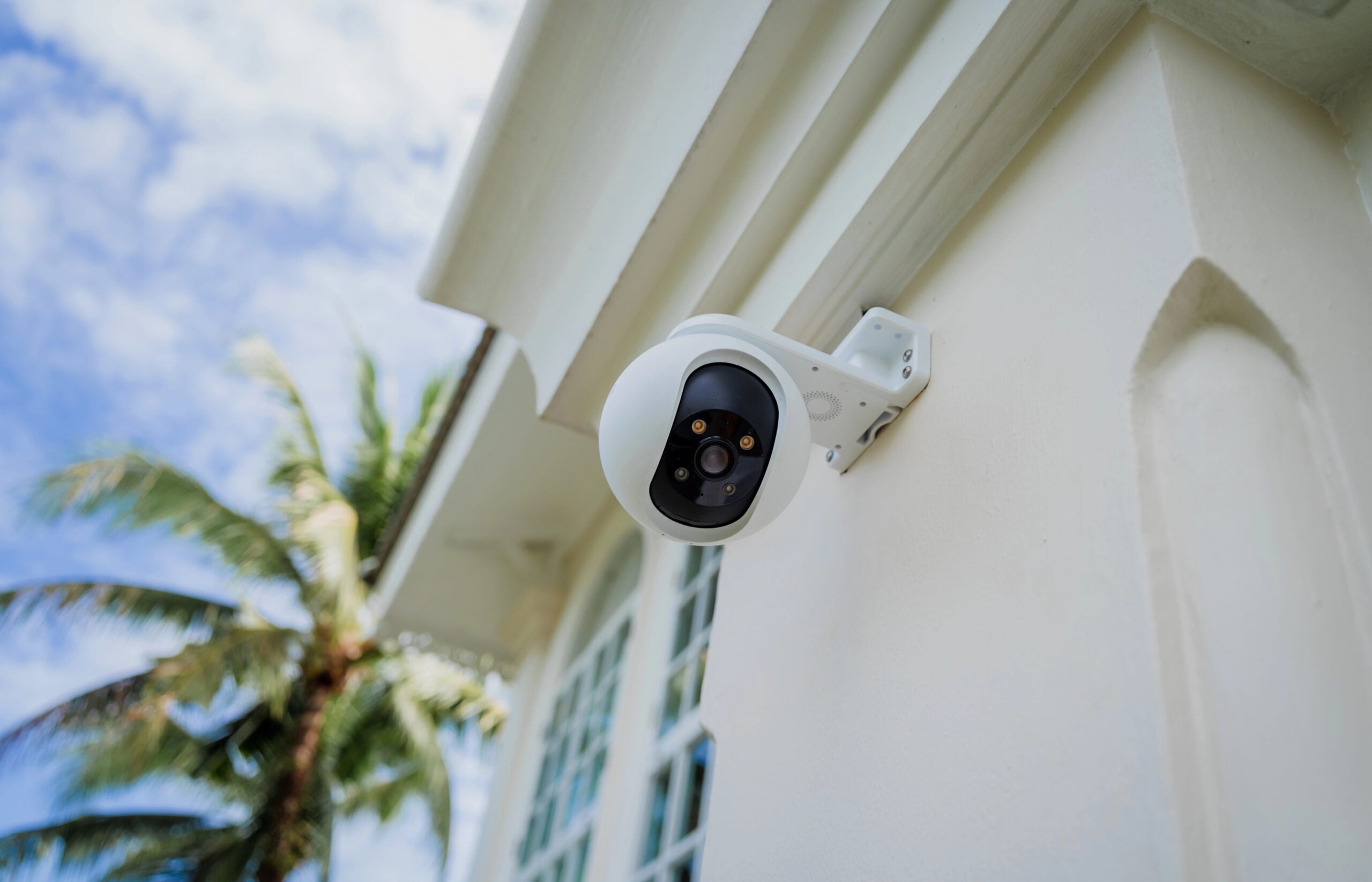
- Busy smart-home cameras: Wi-Fi security cameras transmitting video can use substantial airtime, especially when several are active.
That last example is worth remembering. A smart bulb occasionally checking in isn’t the same as a security camera continuously transmitting video.
And adding more internet speed won’t necessarily solve wireless congestion. Your router could have a fast connection to the internet while devices inside your house are struggling to communicate with it.
Best Fix: Reduce Competition For Wi-Fi Airtime
You don’t need to disconnect half the household. The goal is to move some traffic off the busiest wireless connections.
- Use Ethernet for stationary devices.
Wiring a smart TV, desktop computer, or game console removes its traffic from Wi-Fi, even though it still uses your internet connection. - Check which Wi-Fi band your devices are using.
Open your router’s app and look for connected devices or wireless settings. If your router automatically selects between 2.4 GHz, 5 GHz, and 6 GHz, you may not need to change anything. Otherwise, connecting nearby compatible devices to 5 GHz or 6 GHz may help reduce congestion on the crowded 2.4 GHz band. - Check devices with weak Wi-Fi signals.
If a TV or laptop struggles in a distant room, try using it closer to the router. If performance improves noticeably, poor coverage may be contributing to congestion. Moving your router to a more central, open location or improving coverage may help. See our guide to the worst places to put your router for simple ways to improve coverage.
Using a Wi-Fi extender or mesh system? Some setups also use wireless airtime to relay traffic back to the main router. Under heavy household use, that extra traffic can add to congestion. Systems with wired backhaul can avoid this additional wireless hop.
Did You Know? Wi-Fi 6 Was Designed With Busy Networks In Mind
One improvement introduced with Wi-Fi 6 is a technology called OFDMA. Instead of always giving a wireless channel to one device at a time, it can divide that channel into smaller portions, so multiple compatible devices can communicate more efficiently.
Think of it as letting several people place smaller orders at once instead of making everyone wait behind one customer. It’s particularly useful when many devices are exchanging small amounts of data.
6. Your Router May Struggle When Everyone Is Online
Your internet connection might have enough bandwidth for everyone, but that doesn’t necessarily mean your router is managing all that traffic efficiently.
Not every router handles heavy traffic equally well. Older or less capable models may struggle to keep everything running smoothly when lots of devices are active.
And the problem isn’t always that your router can’t move data fast enough. Sometimes, it’s how the router handles traffic when the connection gets crowded.
One particularly frustrating issue is called bufferbloat.
Routers and other network equipment temporarily hold data in queues while waiting to send it. That’s normal. But when those queues become too long during heavy traffic, time-sensitive data can get stuck waiting behind everything else.
Imagine trying to ask a quick question at the grocery store, only to discover you’re standing behind someone buying enough food to survive the next decade.
That’s essentially what excessive network queuing can do to your connection.
You might notice:
- Games suddenly lagging whenever someone starts a large download.
- Video calls freezing or stuttering during heavy household activity.
- Websites hesitating even though your internet speed test looks respectable.
- Ping times jumping dramatically when your connection is under load.
A router doesn’t have to be old to experience bufferbloat. Even powerful equipment can develop excessive queues if traffic isn’t managed effectively.

Best Fix: Check Your Router’s Traffic Management Settings
Before replacing your router, see whether it offers features designed to keep heavy traffic from overwhelming everything else.
- Look for Smart Queue Management (SQM).
Sign in to your router’s app or settings page and look under QoS, Traffic Management, or Advanced Settings. Some routers offer SQM, which helps prevent large downloads and uploads from delaying games, video calls, and other activities. If it’s available, follow your router’s instructions to enable it. Not all routers support SQM, and some use different names for similar features. - Check Quality of Service (QoS) options.
Some routers let you give certain devices or activities priority over others. That’s useful when gaming or video calls need a more reliable connection, but basic QoS doesn’t necessarily prevent bufferbloat. SQM is specifically designed to help manage excessive traffic queues. - Keep your router’s firmware updated.
Updates can improve stability, security, and sometimes performance, depending on the model. - Test for bufferbloat.
Run the free Waveform Bufferbloat Test, preferably from a computer connected by Ethernet. It measures how much your latency (ping) increases during heavy downloads and uploads. A large jump in latency can indicate excessive network queuing, even if your internet speed looks perfectly fine.
If your router lacks effective traffic-management features or consistently struggles under normal household use, upgrading may be worth considering.
Surprising Fact: A Slightly Lower Speed Test Result Could Actually Be Good News
Some traffic-management features, including Smart Queue Management (SQM), deliberately limit how much data flows through your connection at once. That can produce a slightly lower maximum speed-test result.
But there’s a payoff: less time spent waiting in crowded data queues can mean smoother gaming, fewer interruptions during video calls, and a more responsive connection when everyone is online.
In other words, the highest speed-test number doesn’t always deliver the best experience.
How To Find Out What’s Actually Slowing Your Wi-Fi Down
By now, you’ve probably identified a few suspects. But before you start changing router settings or shopping for a faster internet plan, it’s worth catching the problem in the act.
The key is to test your connection when everyone is home and the slowdown is actually happening, not at 10 a.m. when the network has the house to itself.
1. Run A Speed Test During The Slowdown
Use a service like Speedtest by Ookla and pay attention to three results:
- Download speed: Is your household getting significantly less speed than expected?
- Upload speed: Is your upload performance noticeably worse than usual?
- Ping (latency): Are response times unusually high when the network is busy?
Run the same test again when fewer people are online. Comparing the results can help reveal whether performance changes significantly during your household’s busiest hours.
Just remember that a speed test is a snapshot, not a complete diagnosis.
2. See What Happens When You Pause One Activity
This is often the fastest way to identify a bandwidth hog.
Ask someone to pause a large download, cloud backup, or high-quality stream for a minute. Then check whether the connection improves.
If everything suddenly runs better, you’ve found a useful clue. Repeat the test with other activities if the culprit isn’t obvious.
You can also check your router’s app or administration page. Some models show which devices are actively using the most bandwidth.
3. Compare Wi-Fi With A Wired Connection
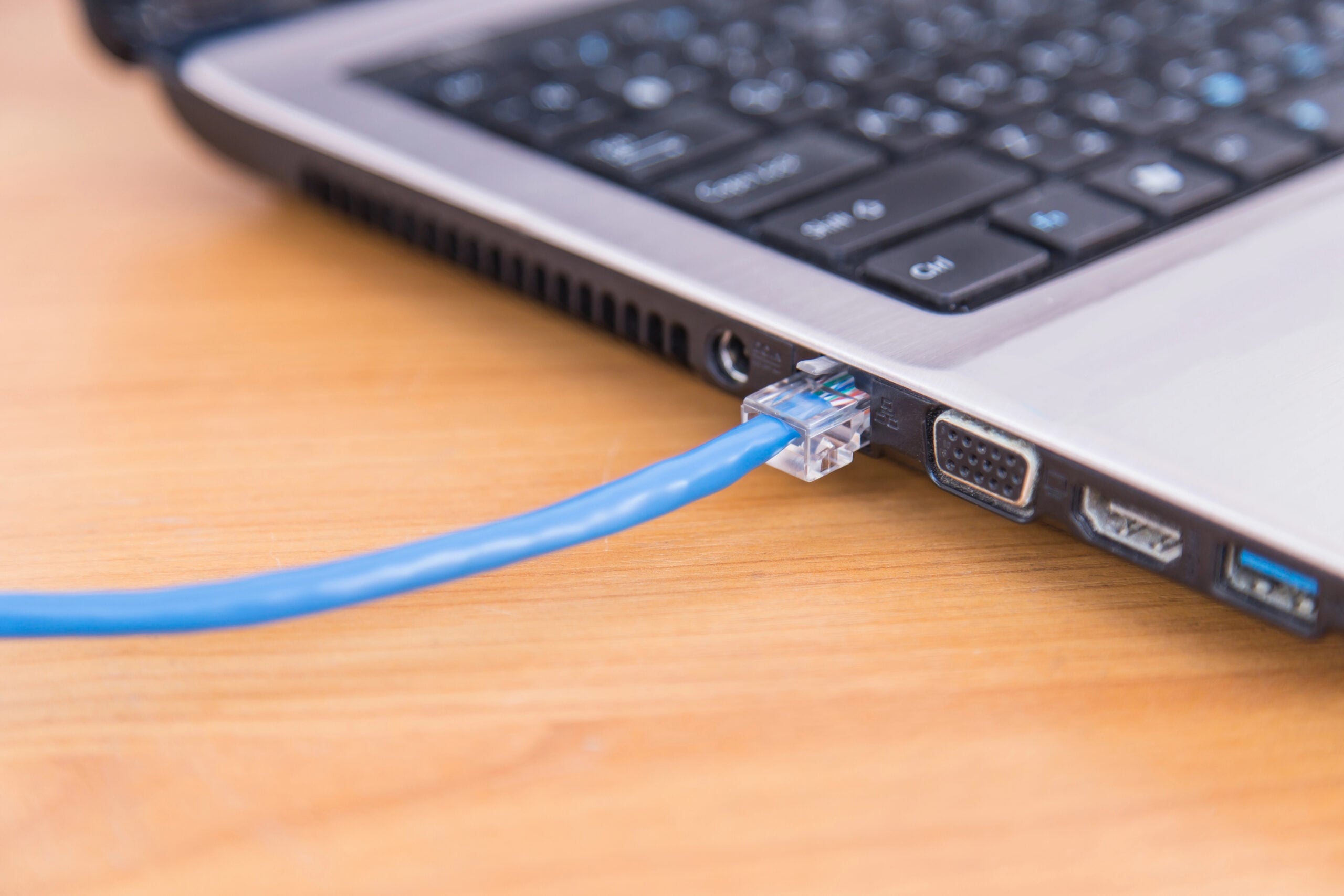
If you have a computer that can connect directly to your router with Ethernet, try running the same speed test over Wi-Fi and then over Ethernet while household activity remains roughly the same.
The difference can help narrow things down:
- Ethernet is fast, but Wi-Fi is slow: Wireless congestion, interference, or coverage problems become more likely.
- Both are slow: Your internet connection, heavy household traffic, or router performance may be responsible.
- Speeds look fine, but games and calls still lag: Check latency while the connection is busy, not just download speed.
The goal isn’t to find a single magic speed-test number. It’s to figure out whether the slowdown comes from your internet connection, your wireless network, or a particular activity that’s overwhelming one of them.
When A Faster Internet Plan Or New Router Might Actually Help
If your Wi-Fi struggles every evening, it’s tempting to throw money at the problem. Internet providers are certainly happy to help with that.
But a faster plan and a better router solve different problems. Buying the wrong one could leave you with the same frustrating Wi-Fi and a bigger bill.
A Faster Internet Plan May Help If…
- Your household regularly maxes out its download speed when several people are streaming, downloading, or browsing.
- Your upload speed is too limited for simultaneous video calls, cloud backups, and other uploads.
- Wired and wireless devices both slow down during heavy household use, and testing points to insufficient internet capacity.
Before upgrading, compare your actual speeds with the plan you’re paying for. If performance regularly falls well below expectations, contact your internet provider before paying for a higher tier.
A New Router May Help If…
- Your router consistently struggles with heavy household activity, particularly if it’s an older or basic model with limited processing power.
- Wi-Fi performance drops significantly while wired connections remain strong, even after addressing placement and interference.
- Your router lacks effective traffic-management features, and you’ve confirmed that heavy traffic causes serious latency problems.
- Your router can’t take full advantage of your internet plan, or its wireless capabilities no longer meet your household’s needs.
Tip: A new router won’t necessarily fix poor Wi-Fi coverage throughout a large house. Depending on your home’s layout, a mesh system or additional wired access point may be a better solution.
And if the real problem is an internet connection that can’t keep up with everyone’s activity, even the fanciest router won’t make your internet plan faster.
Frequently Asked Questions About Slow Wi-Fi In Busy Households
Still wondering why your Wi-Fi seems to have a completely different personality when everyone is home? Here are a few other questions worth considering. If you don’t see yours here, ask us in the comments!
Does Having Too Many Devices Connected Slow Down Wi-Fi?
Not necessarily. A device that’s connected but barely doing anything usually puts very little pressure on your network. However, routers do have practical limits on how many devices they can manage effectively.
There’s no universal number where Wi-Fi suddenly becomes slow. Your router’s capabilities, wireless conditions, and how actively those devices communicate all matter.
Why Is My Internet Slower In The Evening Even When Nobody Else Is Home?
Your household might not be responsible at all.
Internet providers can experience congestion during peak evening hours when many customers in the same area are online. This can be particularly noticeable on shared-access connections.
If speeds consistently drop at the same time every evening, even when your own network is barely being used, test with a wired connection and contact your provider if the pattern continues.
Can My Neighbor’s Wi-Fi Make My Internet Slower?
Yes, especially in apartments, condos, and neighborhoods where lots of wireless networks overlap.
Nearby Wi-Fi networks can compete for the same wireless channels, increasing congestion and reducing performance even when your own household isn’t doing much.
This is particularly common on the crowded 2.4 GHz band. Using 5 GHz or 6 GHz where supported, or selecting a less congested channel, may help.
Why Does My Wi-Fi Get Worse When Guests Come Over?
Guests may start streaming, sharing videos, downloading files, or making video calls. And devices joining your network may begin background syncing.
If you frequently host large gatherings, a properly configured guest network can help keep visitors separate from your personal devices. Just remember that a guest network typically shares the same internet connection, so it won’t create extra bandwidth.
Still Having Wi-Fi Problems? Here’s What To Check Next
Maybe you’ve caught the culprit behind your evening Wi-Fi slowdown. Or maybe your connection has a few more mysteries left to solve.
The next clue is often when, where, or which device starts struggling. These guides can help you narrow things down:
- What’s Really Using All Your Internet Bandwidth? Find out which devices and background activities are consuming your connection.
- Is Your Wi-Fi Slow On Just One Device? Discover why one phone, laptop, or TV might struggle while everything else works fine.
- The Most Common Wi-Fi Mistakes People Make At Home See whether your setup is making everyday Wi-Fi problems worse.
- Is Your Router In The Worst Possible Spot? Learn how router placement can affect performance throughout your home.
What happens to your Wi-Fi when everyone gets home? Does Netflix start buffering, gaming turn into a lag fest, or does the whole house seem to lose patience at once? Tell us in the comments.