Modern homes have more technology than ever. Yet, somehow, things still don’t work the way they should.
Your Wi-Fi is great in one room, but useless in another. Your TV buffers at the worst possible moment, or your printer suddenly decides it’s not participating today.
None of these issues are life-changing problems on their own. But together, they add up to a house full of small, constant frustrations.
If this sounds familiar, you’re not doing anything wrong. These are some of the most common tech issues most of us run into at home. The good news? Most of them are easier to fix than they seem.

Sound Familiar?
- Your Wi-Fi works in one room, but not the one you’re in
- Something disconnects right when you need it
- Your TV buffers at the worst possible moment
- Your printer suddenly refuses to cooperate
- Your phone or laptop feels slower than it used to
If you nodded at even one of these, you’re in the right place.
1. Your Wi-Fi Is Slow, Spotty, Or Keeps Dropping
Your Wi-Fi works great until you leave the one room it likes. Move a room or two over, and suddenly everything slows down — or stops loading altogether — even though your device still says you’re connected.
Or maybe everything seems fine… until it isn’t. A video call freezes mid-sentence. A show starts buffering right when it gets good. A page loads halfway, then just stalls.
That’s usually not your internet plan. It’s either your Wi-Fi signal or how your network handles multiple devices at once.
Wi-Fi naturally gets weaker the farther it travels, especially through walls, floors, and furniture. And even when it reaches you, it doesn’t always stay stable under load.
Translation: You can have fast internet and still have weak or inconsistent coverage.
Try This First (Quick Fixes)
Before you assume anything major is wrong, try a few quick adjustments:
- Move your router to a more central, open area
- Raise it off the floor (waist height or higher helps)
- Keep it away from TVs and large electronics
- Restart your router (unplug → wait 30 seconds → plug back in)
Then go back to the problem area or activity and see if anything improves. If things improve, you were dealing with signal placement, not speed. If not, you’ll need to do some more diagnostics.
Update Your Router (Quick Check Most People Skip)
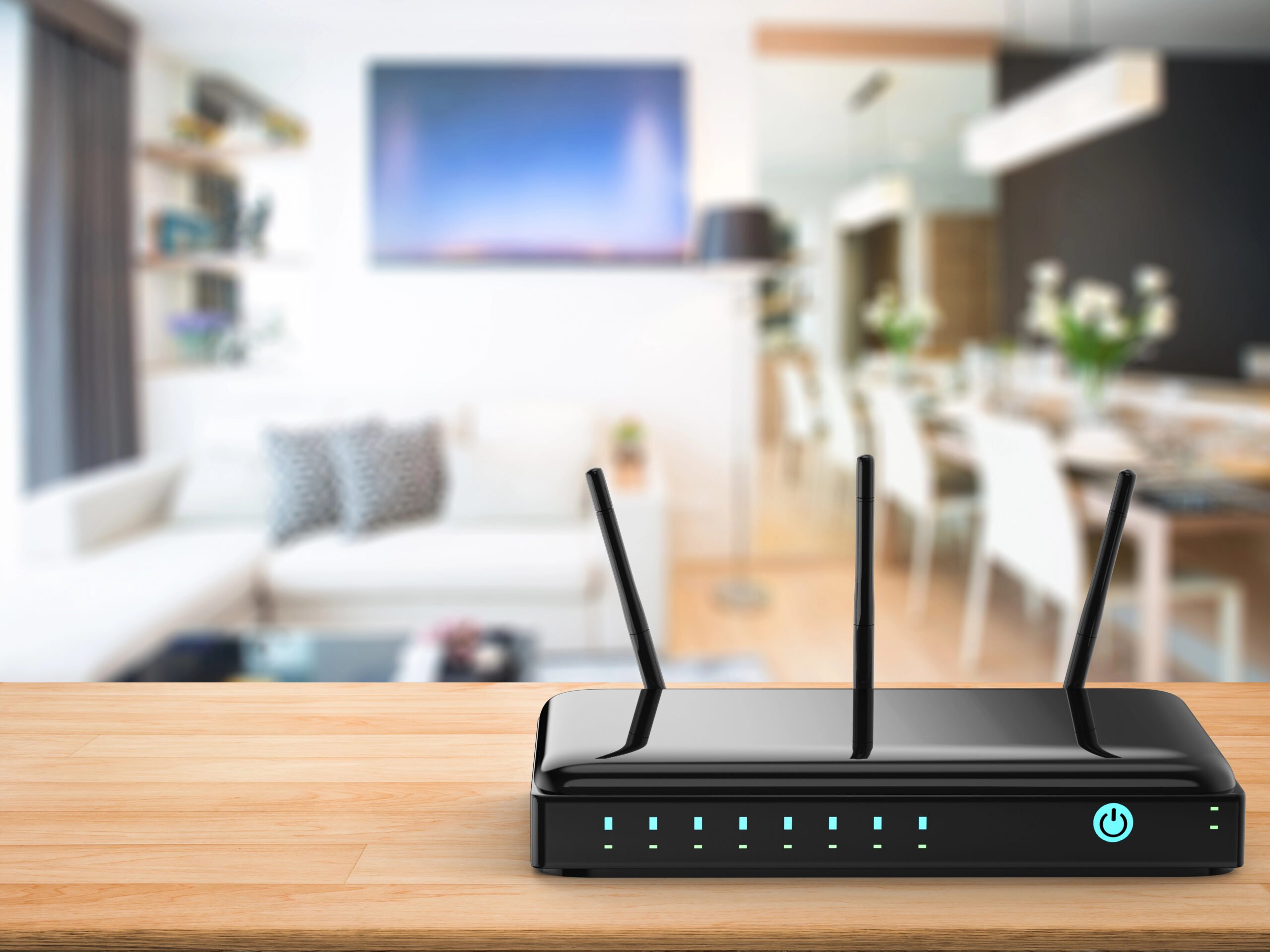
Routers aren’t “set it and forget it” devices. They get updates just like your phone or laptop to fix bugs, improve performance, and stabilize connections.
If your Wi-Fi has been inconsistent, it’s worth checking.
Quick steps:
- Log in to your router’s settings (usually through a web browser or app)
- Look for something like “Firmware Update” or “Router Update”
- Follow the prompts to install any available updates
If an update is available, it only takes a few minutes, and it can fix a surprising number of stability and performance issues.
Check If It’s A Coverage Problem
Before changing anything else, figure out what you’re actually dealing with.
The easiest way to do that is to test your connection in two places:
- Right next to your router
- In the room where things feel slow
You can do this casually (just load a page or video), or for a clearer picture, run a quick internet speed test. Just search “internet speed test” on Google or use a free tool like Speedtest by Ookla.
What you’re looking for is the difference between the two spots.
- Fast near the router, slower farther away → you don’t need faster internet; you need better coverage
- Slow in both places → your router or internet plan may be the bottleneck
You don’t need exact numbers, just the difference between locations. This step alone eliminates much of the guesswork.
Try Switching Wi-Fi Bands
If you’ve ever seen two networks like HomeWiFi and HomeWiFi-5G, you’re looking at two different types of Wi-Fi, and they behave very differently.
Here’s the simple breakdown:
- 5 GHz (usually the “-5G” network)
This one is faster and better for things like streaming, video calls, and downloads. The tradeoff? It doesn’t travel as far and struggles more with walls and floors. - 2.4 GHz (usually the regular network name)
This one is slower, but it has a longer range and holds up better through walls and distance.
Faster Wi-Fi doesn’t travel as far. So if you’re connected to the faster network but a room or two away from your router, your device may be holding onto a signal that’s too weak to work well.
What to use when:
- If you’re close to your router → connect to the faster (5 GHz) network
- If you’re farther away → switch to the longer-range (2.4 GHz) network
This alone can fix many “it says I’m connected, but nothing loads” problems.
Quick Tip Most People Miss
Many modern routers use “Smart Connect” (band steering) to auto-switch between bands. It works most of the time, but not always. If your connection feels unstable, manually selecting the network can help stabilize it.
Reduce What’s Using Your Wi-Fi
Take a quick look at what’s actually using your network. In most homes, your internet is being shared across multiple devices, often all at once.

Try this:
- Turn off Wi-Fi on devices you’re not actively using (phones, tablets, laptops)
- Pause downloads or updates running in the background
- Temporarily unplug or disconnect smart devices you don’t need right now
- Ask others in your home to pause streaming, gaming, or large downloads
Even devices sitting idle can use bandwidth in the background by updating apps, syncing data, or staying connected. Smart speakers are a good example. They’re always on and connected, waiting for a command, which means they’re still part of your network load.
If things improve, you’re dealing with a capacity issue, not a signal problem.
Looking for more advanced steps? If you’re a techie and want to dive deeper into Wi-Fi troubleshooting steps, see our Complete Troubleshooting Guide.
When Quick Fixes Aren’t Enough
If you’ve tried the steps above and certain areas still struggle, or your connection never feels consistent, you’re likely running into a limitation of your setup, not a temporary glitch.
Most people solve this in one of two ways:
- A Wi-Fi extender may help push the signal into one weak area
- A mesh system spreads coverage more evenly across your entire home
We’ll break those down shortly, because once your coverage improves, a lot of these “random” problems tend to disappear along with it.
2. One Device Won’t Connect (But Everything Else Works)
Nothing makes you question everything faster than one device that just won’t connect.
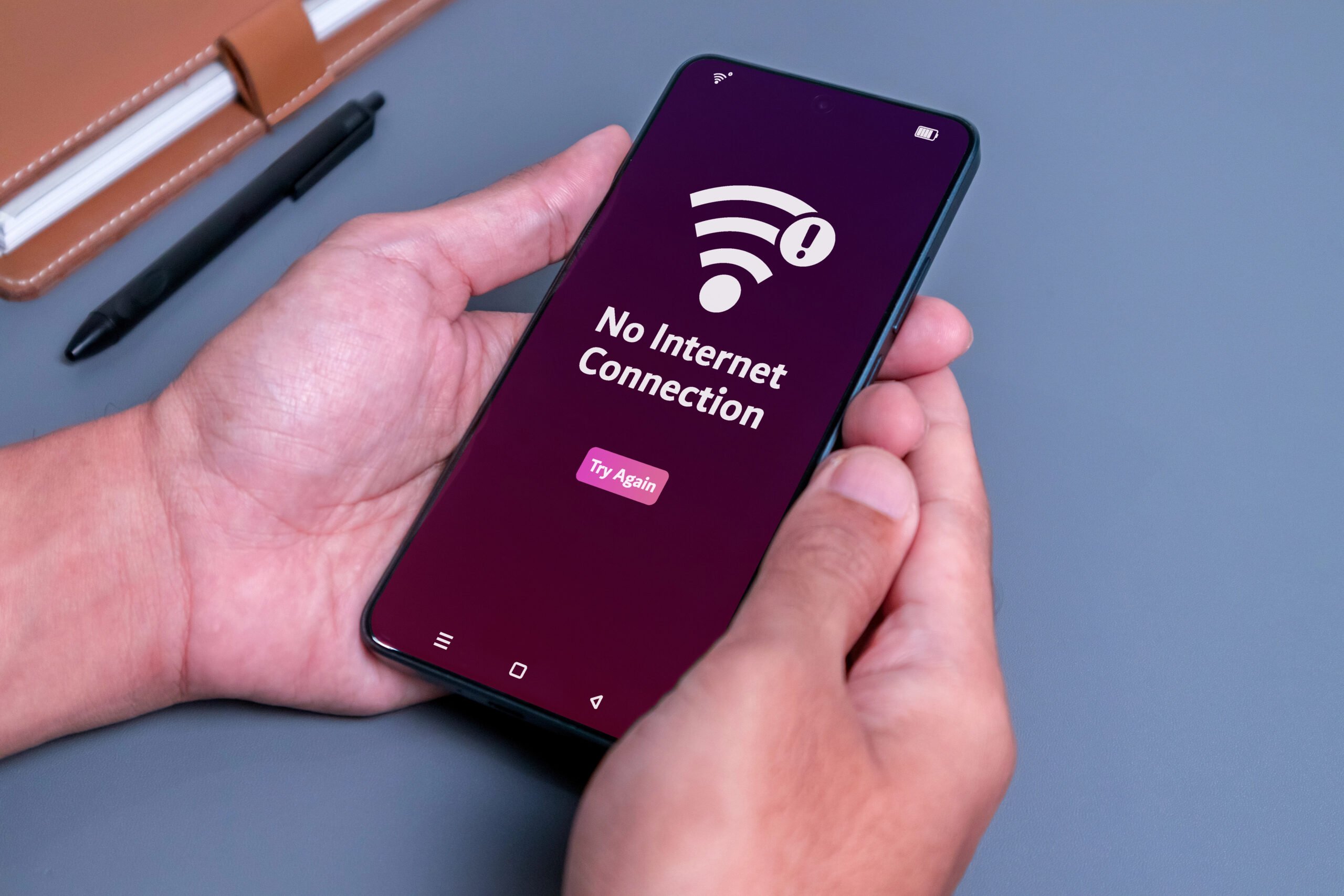
Your Wi-Fi seems fine. Other devices are online, but this one phone, laptop, or tablet refuses. Or it connects, but says “No Internet.”
When only one device is having trouble, the issue usually isn’t your internet; it’s how that device is connecting.
Most of the time, it comes down to:
- A saved connection that’s no longer working properly
- A temporary glitch on the device
- A mismatch between the device and your network
Try This First (Quick Fix)
Before digging into settings, start with the basics.
- Turn Wi-Fi off and back on for that device
- Restart the device
- Make sure you’re on the right network
- Toggle Airplane Mode on, wait a few seconds, then turn it off
- Reconnect and test again
This fixes more issues than you’d expect.
Forget And Reconnect To Wi-Fi
Sometimes your device is holding onto a bad or outdated connection, and it just needs a clean reset.
What to do:
- Go to your Wi-Fi settings
- Select your network
- Tap “Forget”
- Reconnect and enter the password
This fixes a surprising number of connection issues almost instantly because it:
- Clears corrupted data: It wipes cached, incorrect security keys, or old network configurations that no longer match the router.
- Resolves IP conflicts: It forces the router to re-assign an IP address, solving instances where two devices are fighting for the same address.
- Fixes hidden conflicts between devices
Check For Device Updates
If your device is out of date, it can cause connection problems behind the scenes.
- Check for system updates
- Install anything pending
- Restart the device
If It Connects But Says “No Internet”
This is one of the more confusing ones. Your device shows Wi-Fi, but nothing actually works. That usually means it’s connected, but not communicating properly.
Try this:
- Forget and reconnect to Wi-Fi
- Restart both your router and the device
- Try connecting to a different network (like a mobile hotspot)
What this tells you:
- Works on another network → issue is your Wi-Fi
- Still doesn’t work → issue is the device
3. Your TV Buffers, Freezes, or Just Won’t Cooperate
Everything else in your house is working fine. Your phone loads instantly. Your laptop is fine. But your TV?

It buffers, freezes, refuses to load apps, or feels slow. At some point, you start wondering, is it the internet, or is my TV just being difficult?
Smart TVs aren’t just TVs anymore — they’re basically small computers.
And like any computer, they can:
- Get glitchy after updates
- Hold onto bad network settings
- Slow down when they’re overloaded
So even if your Wi-Fi is perfectly fine, your TV might be the problem.
Try This First (Quick Fix)
Before digging into menus, do a quick reset:
- Restart your TV
- Unplug it for about 30 seconds (this clears temporary memory)
- Restart your router
- Open the same app again and see if anything changes
This alone fixes a surprising number of issues.
Reset Your TV’s Network Connection
If your TV won’t connect, even though everything else does, it may just be stuck on a bad connection.
This happens more often than you’d think, especially after switching routers, a software update, or a power outage.
What to do:
- Go to Settings
- Find Network
- Look for Reset Network
- Confirm and restart the TV
- Reconnect to Wi-Fi
Think of this as giving your TV a fresh start.
Clear Cache & Free Up Space
If your TV feels slow, laggy, or delayed when opening apps, it might be overloaded.
Smart TVs store temporary data (called cache) to help apps load faster, but over time, it can actually slow things down.
Try this:
- Go to Settings → Storage
- Clear the cache
- Delete apps you don’t use anymore
Even clearing a little space can make things feel noticeably faster.
Check For Software Updates
If your TV has pending updates, it may be running with bugs behind the scenes.
Quick check:
- Go to Settings → Software Update
- Install anything pending
- Restart your TV
Updates often fix random glitches, slow apps, and connection issues.
If It’s Just One App Acting Weird
If only one app is buffering or freezing, that’s a clue. It’s probably the app, not your TV or Wi-Fi.
Try this:
- Close and reopen the app
- Check for updates
- Reinstall it if needed
One Small Fix That Surprises People
On some TVs (especially Samsung), certain built-in apps run in the background and quietly slow things down. Some people notice better performance after disabling things like Samsung TV Plus.
If your TV feels unusually sluggish, it’s worth a quick check.
When This Keeps Happening
If you’ve tried everything and your TV still struggles, you’re likely dealing with a bigger-picture issue:
- Weak Wi-Fi where your TV is located
- Too many devices are using your network at once
- Or a TV that’s a bit underpowered or aging
This is where fixes from Section 1 (Wi-Fi) start to matter again.
4. Your Smart Devices Suddenly Stop Responding
You say, “Alexa, turn on the lights.” Nothing. You try again, slower this time, like that’ll help. Still nothing. Meanwhile, the light switch is right there, judging you.
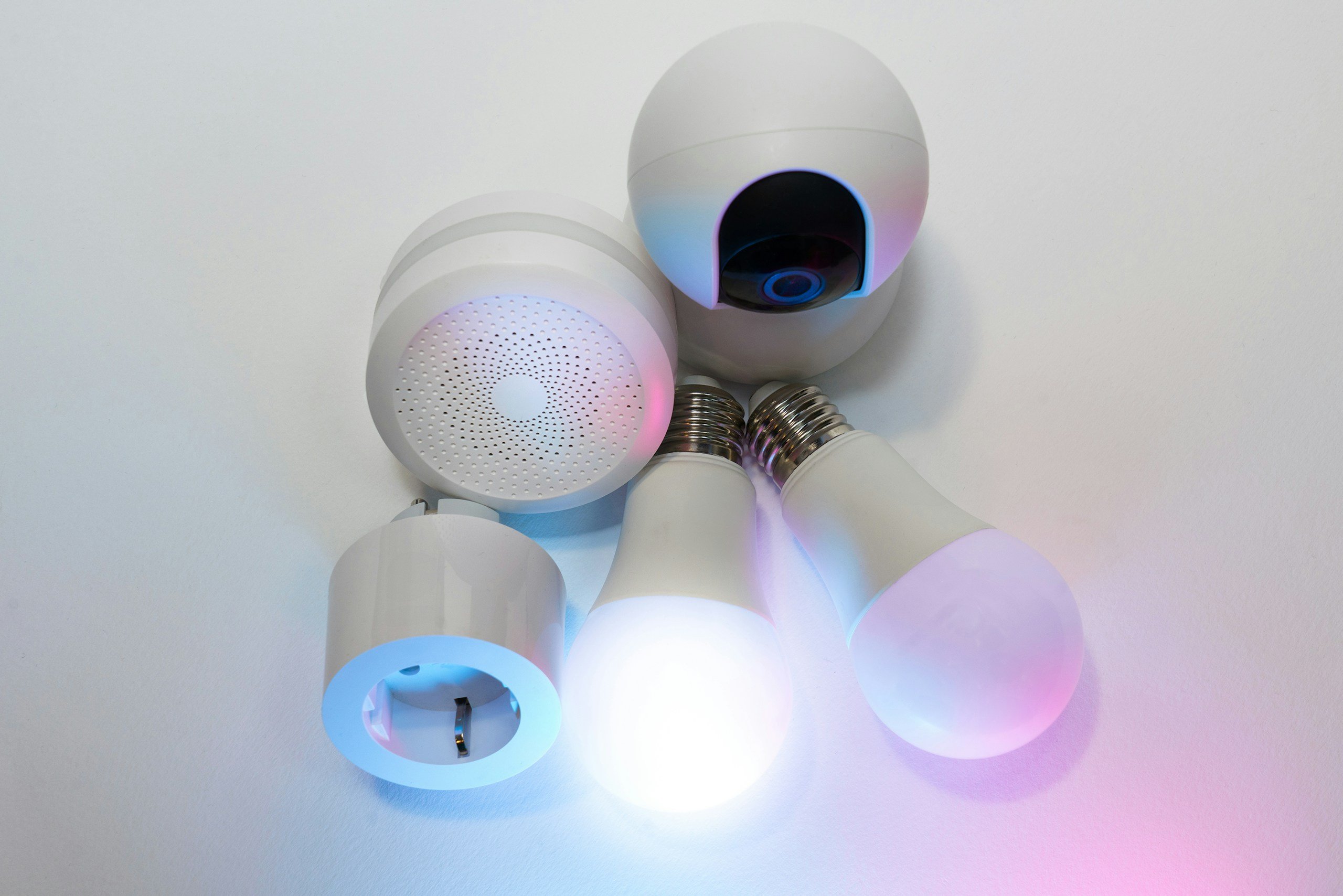
Smart devices don’t work on their own — they rely on a chain of connections:
- Your Wi-Fi network
- The device itself
- The app controlling it
- Sometimes, a cloud service in the background
If any one part of that chain slows down or drops, even briefly, the whole thing stops responding.
Try This First (Quick Fix)
Before you get into settings, start simple: power-cycle your device. This can clear temporary glitches or firmware hiccups.
- Unplug the device
- Wait about 10–15 seconds, and plug it back in
- Try the command again
It sounds basic, but this alone solves a surprising number of “why is this thing ignoring me?” moments.
Double-Check The Obvious Stuff
Before you go any deeper, take a quick look at the basics:
- Is the microphone muted?
- Is the device actually powered on?
- Any indicator lights showing something’s off?
It sounds simple, but this is one of the most common causes.
Check What’s Actually Failing (Device, App, Or Network)
Before you start changing things, take a second to figure out where the problem is.
Try this:
- Open your app (Alexa, Google Home, etc.) and see if you can control the device there
- Then try using your voice like you normally would
What you’re looking for:
- Works in the app, but not by voice → likely a voice assistant issue
- Doesn’t work at all → likely a connection problem
- Multiple devices acting up → probably your network
This quick check saves you from guessing and points you in the right direction.
Make Sure It Didn’t Quietly Go Offline
Sometimes these devices drop off your network and never reconnect. There’s usually no alert or warning.
Here’s what to do:
- Open your app
- Look for the device status (does it say “offline”?)
- If it does, reconnect it to your Wi-Fi
This happens a lot after:
- Restarting your router
- Changing your Wi-Fi password
- A brief internet outage
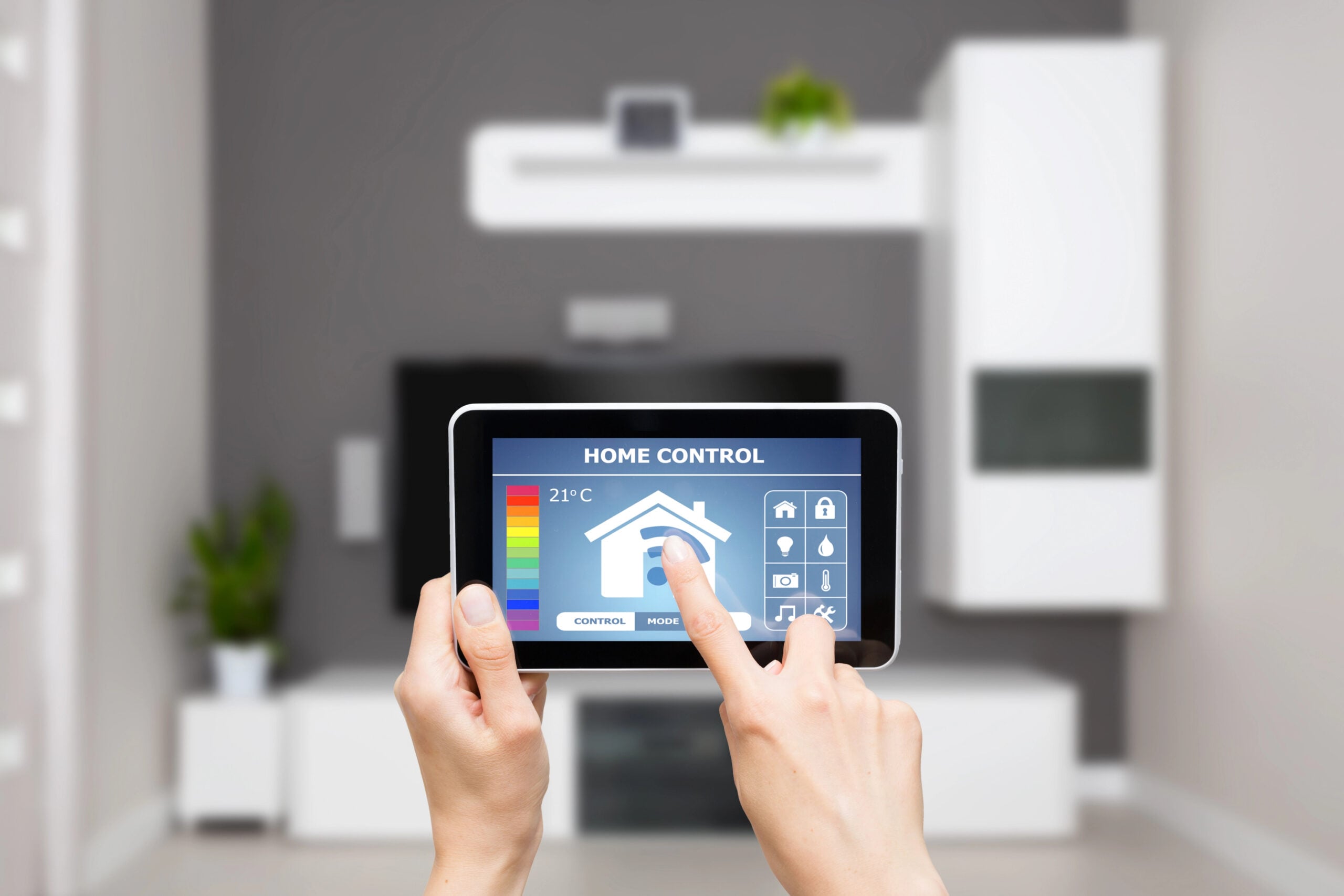
Check The App (It’s Often The Real Problem)
Even if the device is fine, the app might not be keeping up. And if the app isn’t syncing properly, the device won’t respond, no matter what you say.
Try this:
- Close the app completely and reopen it
- Check for updates
- Sign out and back in
It’s a small reset, but it fixes a lot of those “why is nothing working?” moments.
Think About Where The Device Is Sitting
Smart devices don’t use much internet, but they do need a steady signal.
And many of them are placed in spots like the corners of rooms, behind furniture, or far from the router, which makes them more sensitive than your phone or laptop.
If other devices in that area are also struggling, it’s probably a signal issue (see Section 1).
Watch For Name Confusion
If you’ve recently added devices or renamed things, your assistant might be getting confused.
For example:
- “Kitchen Light”
- “Kitchen Lights”
- “Kitchen Lamp”
Now it’s guessing what you meant, and sometimes getting it wrong.
Quick fix:
- Keep names simple and distinct
- Avoid anything that sounds too similar
5. Your Phone Or Laptop Feels Sluggish
It usually starts small. Apps take a little longer to open. Your browser hesitates. Maybe your laptop fan kicks on more than it used to.
At first, you ignore it. Then one day, everything just feels slow.

Most devices don’t suddenly break — they get overloaded over time.
Think of it like a desk that keeps collecting papers. At first, it’s manageable. Eventually, it’s harder to find anything.
Your phone or laptop works the same way. Over time, it builds up:
- Apps running in the background
- Saved data and temporary files
- Updates and new features that demand more power
Eventually, it just starts to feel sluggish.
Try This First (Quick Fixes)
Before digging into settings, start here:
- Restart your device
- Close apps or tabs you’re not using
- Check if anything is updating in the background
If it’s been a while since your last restart, this alone can make a noticeable difference.
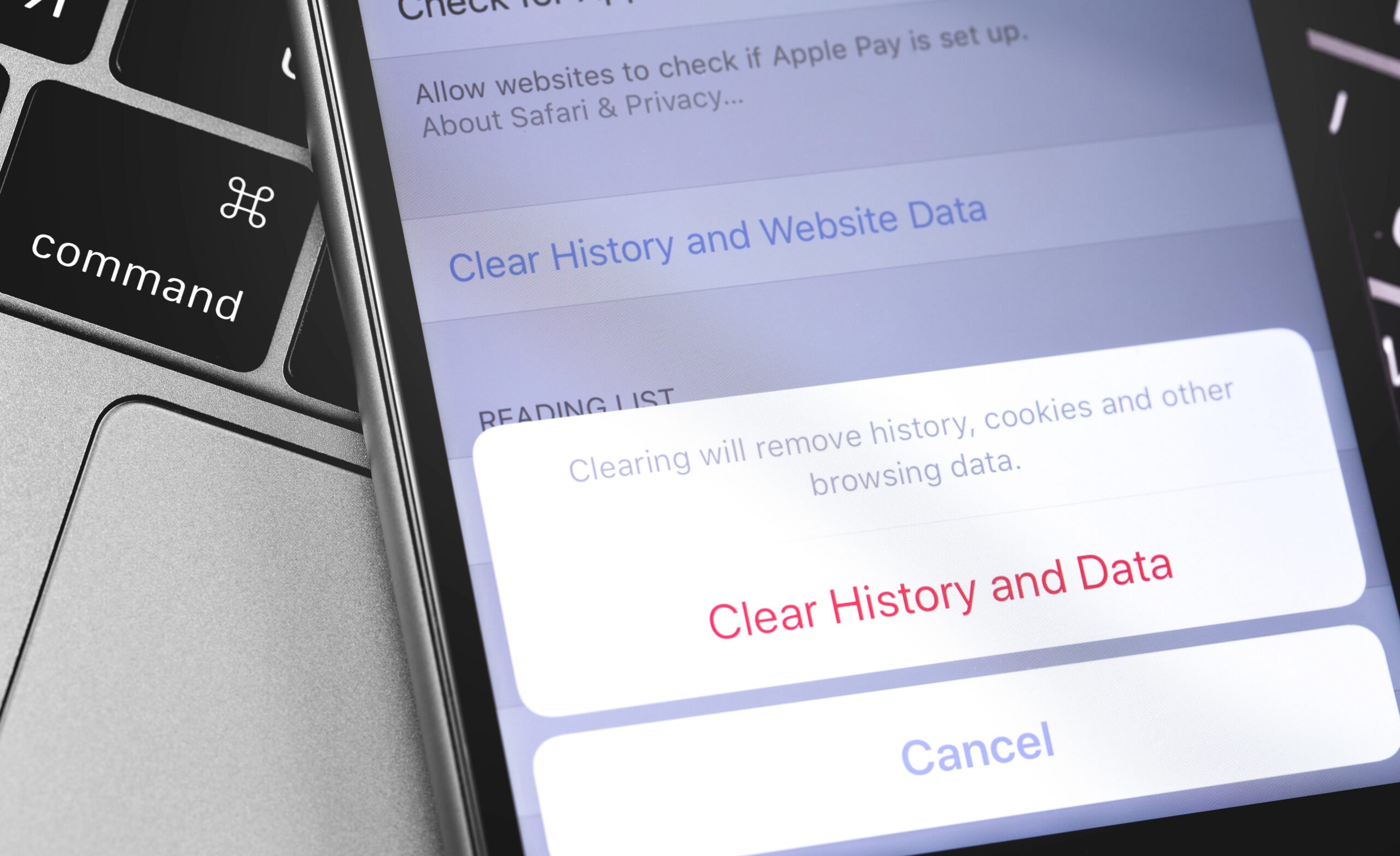
Clear Your Browser’s Cache
Your device phone and laptop store temporary data (cache) to help things load faster. But over time, it builds up and can eventually slow things down.
See our ultimate guide on how to clear your cache and cookies on the most popular browsers and devices.
Check Storage Space
If your device is nearly full, performance drops fast. Look at your storage in settings.
Easy fixes:
- Delete unused apps
- Move photos/videos to cloud storage
- Remove old files and downloads
Check For Updates (Yes, They Matter Here, Too)
If your device is out of date, it can cause slowdowns behind the scenes.
Updates often include performance improvements, bug fixes, and better compatibility with apps.
What to do:
- Install system updates
- Update apps
- Restart after updating
This helps your device keep up with everything it’s running.
When This Keeps Happening
If things still feel slow after cleaning things up, you’re likely dealing with:
- An older device struggling with newer software
- Limited memory or storage
- Too many apps competing for resources
At that point, it’s more about constant maintenance or eventually upgrading.
6. Your Printer Decides Not To Print Today
It always happens at the worst time. You click print, and nothing happens. You click it again. Still nothing.
Now you’ve got three copies stuck in the queue, and somehow, none of them are printing.

Printers have a way of working perfectly until you actually need them.
Most printer problems aren’t about the printer itself; they’re about communication. Your computer sends the print job → your network delivers it → the printer receives it.
If anything in that chain gets stuck, the whole thing stops. And unlike your phone or TV, printers aren’t great at telling you why.
Try This First (Quick Fix)
Start here before digging into settings:
- Turn the printer off → wait 10–15 seconds → turn it back on
- Restart your computer
- Try printing again
This clears a lot of temporary glitches.
Check The Print Queue (Most Common Fix)
If something’s stuck in the queue, nothing else can move.
What to do:
- Open your printer queue
- Look for paused or “stuck” documents
- Cancel everything in the queue
- Try printing again
Think of it like clearing a traffic jam so things can move again.
Make Sure You’re Printing To The Right Device
This one trips people up more than you’d expect. You might be sending your document to:
- An old printer you no longer use
- A “Save as PDF” option
- A printer that’s offline
Check Your Printer’s Connection
If your printer is wireless, it relies on your Wi-Fi — just like everything else. But printers are often:
- In another room
- Near walls or furniture
- Far from the router
This makes them more likely to lose connection.
Try this:
- Check if the printer shows as offline
- Reconnect it to Wi-Fi if needed
- Move it slightly closer to the router (if possible)
Restart The Whole Chain (When Nothing Else Works)
If things are still stuck, reset everything involved:
- Turn off your printer
- Restart your computer
- Restart your router
- Turn the printer back on
- Try printing again
This helps reestablish the connection from start to finish.
Refresh The Software Side
If everything looks fine, but it still won’t print, the issue might be on the software side.
This is where things like drivers and updates come into play (don’t worry—you don’t need to be tech savvy to try this).
Try this:
- Update or reinstall the printer drivers to ensure compatibility
- Check the printer for firmware updates and install them if available
- Clear any pending print jobs
- Restart your computer after doing this
This basically resets how your computer and printer “talk” to each other.
If It Still Won’t Print
At this point, the issue is usually one of these:
- The printer lost its connection to your network
- Your computer isn’t communicating with it properly
- Or there’s a driver/software issue behind the scenes
A quick fix that often works:
- Remove the printer from your device
- Add it again like it’s new
It’s not something you’ll do often, but it can reset everything in one step.
Do You Actually Need To Upgrade Your Wi-Fi?
If you’re dealing with a few of these issues, there’s a good chance nothing is “broken.” Things are just a little out of sync. Before replacing anything or spending money, try a quick reset.
The 5-Minute Reset Most People Skip
- Restart your router (unplug → wait 30 seconds → plug back in)
- Restart the device that’s having trouble
- Turn Wi-Fi off and back on
- Close and reopen the app you’re using
This clears a lot of temporary glitches that build up over time.
If That Didn’t Fix It
Try a slightly deeper reset:
- Disconnect devices you’re not actively using
- Check for updates
- “Forget” and reconnect to Wi-Fi
- Clear app or browser data
Most everyday tech issues aren’t permanent; they’re just things getting stuck.
When This Isn’t A Quick Fix Anymore
If you’re seeing problems across multiple areas, such as slow speeds, disconnects, smart devices acting up, etc., and nothing above is helping, it’s typically how your Wi-Fi is reaching (or not reaching) your home.
This is where upgrades start to make sense. So, what are your choices?
Wi-Fi Extenders (Why They Sound Better Than They Work)
Wi-Fi extenders (or repeaters) are often recommended as a quick, budget fix. In theory, they make sense. An extender grabs the signal from your router and repeats it farther into your house.
The catch is that it can only repeat the signal it receives. So if the extender is already getting a weak or unstable signal, it’s just rebroadcasting a weaker version of an already struggling connection.
That’s why extenders can slightly improve a dead zone, but don’t make the overall experience feel much better.
After extensive testing, WIRED noted that most extenders are inefficient, prone to interference, and often create a second network. And, unfortunately, this rebroadcast network is often slower.
Consumer Reports says they often perform poorly enough that you’re better off improving your main setup or moving to mesh instead.
When An Extender Might Work
There are a few cases where they make sense:
- You have one specific weak spot
- Your home is relatively small
- You can place the extender where it still gets a strong signal
- You want a cheap test before upgrading
Think of it as a targeted fix, not a whole-home solution.
When It’s Time For A New Router Or Mesh System
Most routers don’t age gracefully. After about 4–5 years, they start to fall behind, and sometimes sooner.
Here’s what changes over time:
- Updates slow down or stop altogether
- Performance gradually drops
- Security protections become outdated
Meanwhile, your home is going in the opposite direction.
You’re adding more devices. They’re faster, smarter, and constantly connected — streaming, syncing, updating in the background. At a certain point, your router just can’t keep up anymore.

Why This Happens
Think about what’s changed in your home over the past few years:
- New phones, laptops, and TVs
- Streaming in 4K instead of HD
- Smart home devices running 24/7
Newer devices are designed for newer Wi-Fi technology. So when you pair them with an older router, your Wi-Fi home system can’t keep up.
Signs Your Router Is Holding You Back
- Your Wi-Fi consistently struggles in multiple rooms
- Devices disconnect or hesitate regularly
- Streaming quality drops when multiple devices are active
- Newer devices don’t seem to run as smoothly as expected
- You find yourself restarting your router often to fix things
Should You Get A New Single-Unit Router Or Mesh Router?
At this point, it’s not just “Do I need a new router?” It’s: What kind of setup will actually fix this?
The right choice depends less on speed and more on your home layout and where the problems are happening.
You have two main options:
- Upgrade to a better single router
- Switch to a mesh system
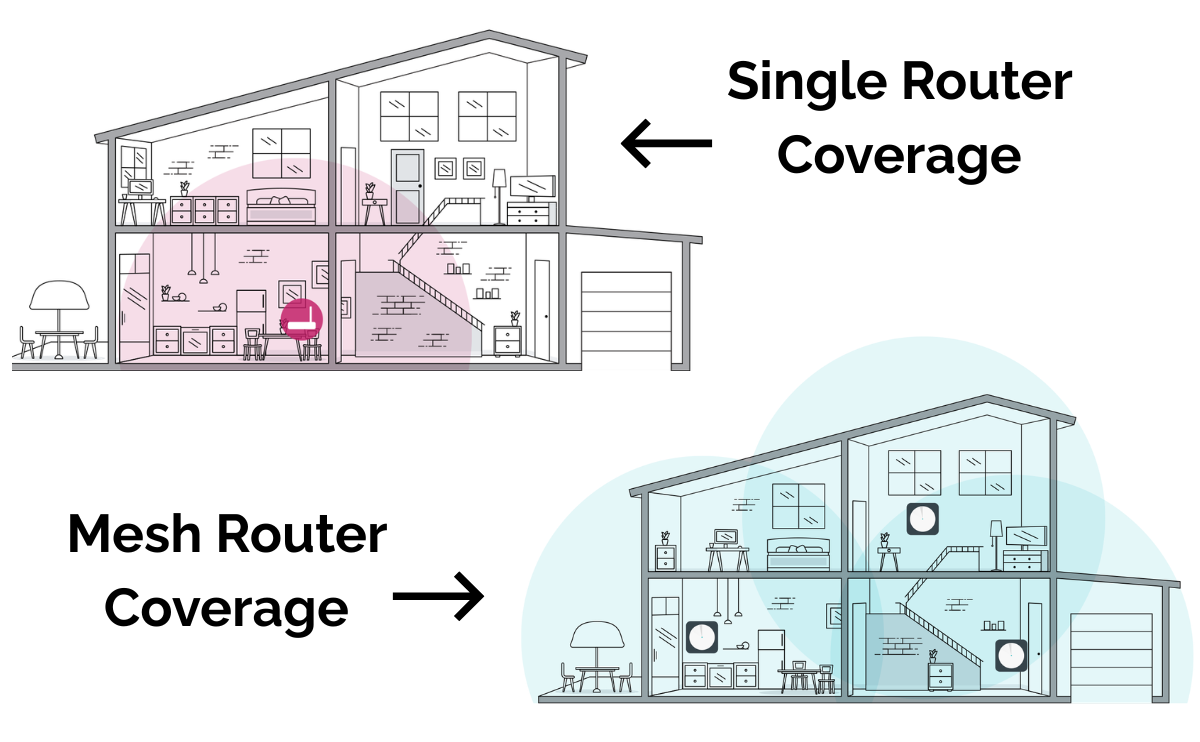
The difference comes down to coverage, not just speed.
When A Single Router Is Enough
A newer router can work well if your space allows it. A single router is best for:
- Apartments or smaller homes
- One main usage area
- Issues that feel like slow performance, not a weak signal
This improves your core performance, but doesn’t change how Wi-Fi spreads.
When Mesh Is The Better Choice
If your problems show up in different rooms or seem to follow you around the house, this is where mesh shines. Instead of a single router, mesh systems use multiple units (nodes) placed throughout your home. Each node creates a strong local signal.
So, instead of stretching one weakening signal, you’re creating multiple strong connection points. Your devices automatically connect to the best node as you move.
There’s no switching or drop-offs. And your home is covered no matter where you are.
Mesh Systems Are Best For:
- Larger homes
- Multiple floors
- Lots of connected devices
Our Top Mesh Picks:
Tip: You’ll want to look for a Wi-Fi 7 model for the most current standards, although you can still purchase Wi-Fi 6 or 6E for better coverage than you have.
- Best Overall: TP-Link Deco 7 Pro BE63 Tri-Band WiFi 7 BE10000
- Best Budget: Amazon eero 6 mesh wifi system
Quick Tip: How Much Internet Speed Do You Actually Need?
A lot of people assume they need faster internet, but in many cases, the real issue is coverage or an aging router, not speed.
That said, your plan may be too small for how your household actually uses the internet.
What Speeds Are Actually Used For
According to the FCC’s Broadband Speed Guidelines:
- About 5 Mbps → HD streaming
- Around 25 Mbps → One 4K stream
- Roughly 1–6 Mbps → Video calls (depending on quality)
The FCC also raised its broadband benchmark to 100 Mbps download / 20 Mbps upload in 2024, which is a good real-world baseline for most homes today.
Simple Rule Of Thumb
If you don’t want to overthink it, use this:
- 25–50 Mbps → Fine for one person, light use, a couple of streams
- 100 Mbps → A solid baseline for most households
- 200+ Mbps → Better for multiple people streaming, gaming, and video calling
- 500+ Mbps → Only really worth it for heavy use or lots of simultaneous devices
Website Not Working Or Gmail Not Loading?
Troubleshooting other issues? If everything else seems fine but a specific site or Gmail isn’t loading properly, the issue is usually browser-related, not your Wi-Fi.
Start here with our ultimate guides:
- Why Isn’t This Website Working? This can help fix broken pages, loading issues, or outdated content.
- Gmail Not Loading? Fix common Gmail problems such as your email not loading, updating, or working properly.
What’s the most annoying tech problem in your house right now? Is it your Wi-Fi? Your TV? That one device that just refuses to cooperate? Drop it in the comments. Chances are, someone else has dealt with the exact same thing, and there’s usually a fix that’s simpler than it looks.