We’ve all been there. You’re in the middle of a video call, streaming a movie, or scrolling your feed when everything suddenly freezes.
You stare at the screen, waiting for the loading wheel to disappear. Then, 10 seconds later, your device snaps back online like nothing ever happened.
This kind of intermittent dropping is so frustrating. A total internet outage at least lets you walk away and deal with it.
Random disconnects break your flow, waste your time, and often reconnect before you can even figure out what happened.
The good news is your house probably isn’t cursed, and your hardware usually isn’t fundamentally broken.
Want our human-written content to rank above AI-generated garbage? Help us out by clicking this button!
When Wi-Fi keeps disconnecting, it’s often caused by a handful of predictable issues. With a simple process of elimination, you can usually narrow down the culprit pretty quickly.
Try These Quick Fixes First
Before you spend hours troubleshooting settings or sitting on hold with tech support, start with the basics.
Many Wi-Fi drops are caused by temporary connection conflicts or overloaded networks, which can often be cleared out in just a few minutes.
Even if you’re fairly tech-savvy, start here first. These quick adjustments solve a surprising number of intermittent connection issues.
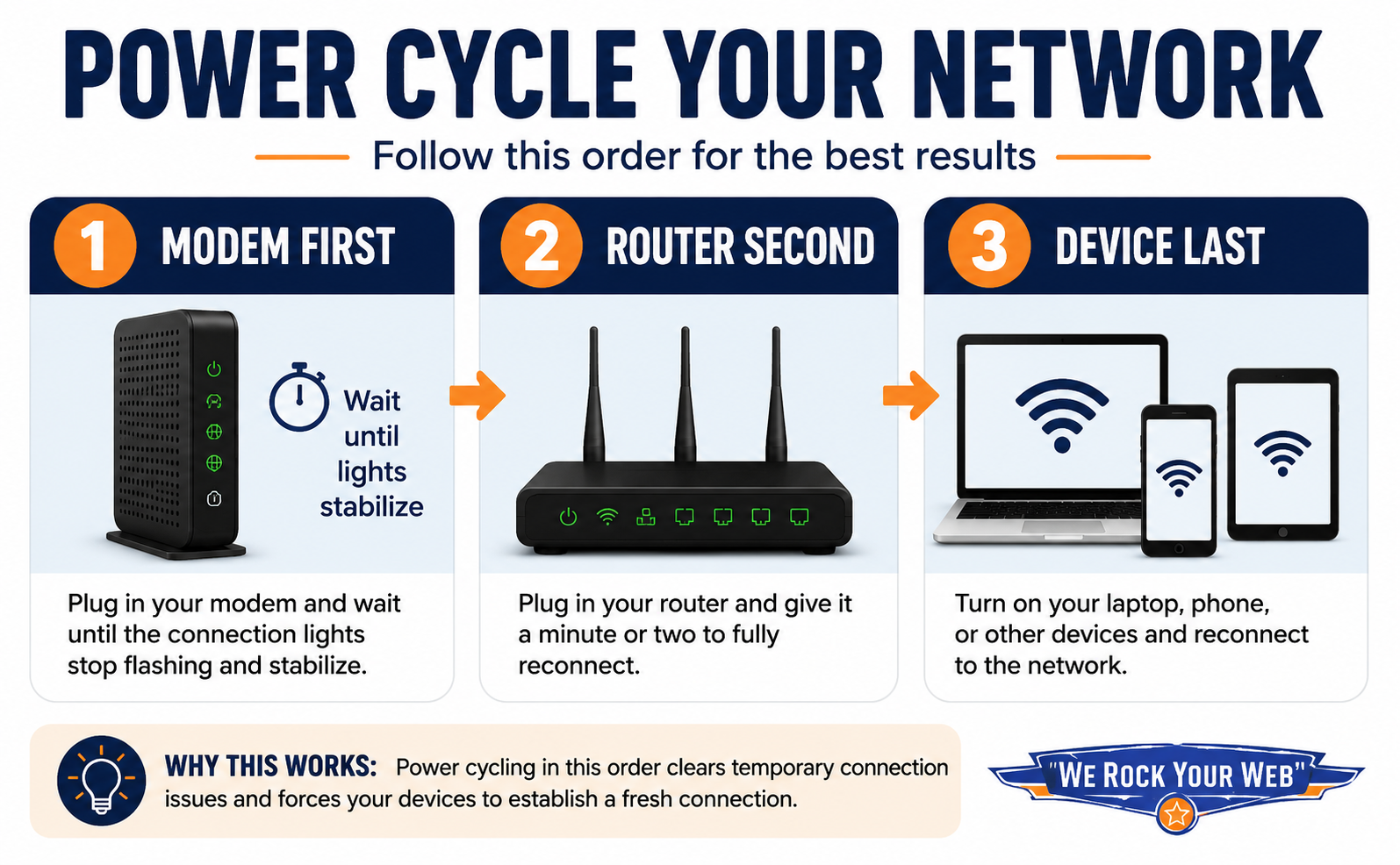
Power Cycle Your Network Properly
Don’t just restart your device and hope for the best. Sometimes the problem is a temporary connection issue between your modem, router, and device.
Unplug your modem and router and turn off your device. Wait about 30 seconds before powering everything back on.
Now reconnect everything in this order:
- The Modem First: Plug it in and wait until the main connection lights stop flashing and stabilize.
- The Router Second: Plug it back in and give it a minute or two to fully reconnect.
- Your Device Last: Turn your laptop or phone back on and reconnect to the network.
Restarting your network in sequence can clear out temporary connection problems and force your devices to establish a fresh connection.
Run a Simple Proximity Test
Before assuming your settings or hardware are failing, rule out distance and physical interference first.
If your laptop or phone keeps dropping offline, move into the same room as your router and use it there for a few minutes.
If the connection becomes noticeably more stable, the issue is likely related to range, interference, or physical obstacles inside your home rather than a major hardware failure.
Switch Your Wireless Channel
Most routers are set to automatically choose their wireless channel. In busy apartment buildings or crowded neighborhoods, that automatic selection doesn’t always pick the cleanest option.
In some cases, manually selecting a less congested channel can improve connection stability.
- For the 2.4 GHz Band: Channels 1, 6, and 11 are usually the best choices because they overlap less with neighboring networks.
- For the 5 GHz Band: Simply selecting a fixed channel instead of leaving the setting on automatic may help reduce interference in crowded areas.
You can usually adjust these settings through your router’s mobile app or web portal. If your connection becomes more stable afterward, local wireless congestion was likely part of the problem.
Let’s Go Deeper: Why Does Wi-Fi Disconnect So Randomly?
Wi-Fi problems rarely stem from a single dramatic failure. Most disconnects are caused by smaller issues that interfere with your signal, overload your hardware, or interrupt the connection between your devices and your internet provider.
Some problems are physical obstacles inside your house. Others come from network congestion, aging hardware, software bugs, or overloaded devices running quietly in the background.
The key is figuring out which category your problem actually falls into first. Once you narrow that down, troubleshooting becomes much faster and a lot less frustrating.
Reason #1: The Invisible Things Blocking Your Signal
To fix the stuttering, we have to start with the physical layout of your house. Because Wi-Fi is invisible, it’s easy to assume the signal just fills every room evenly.
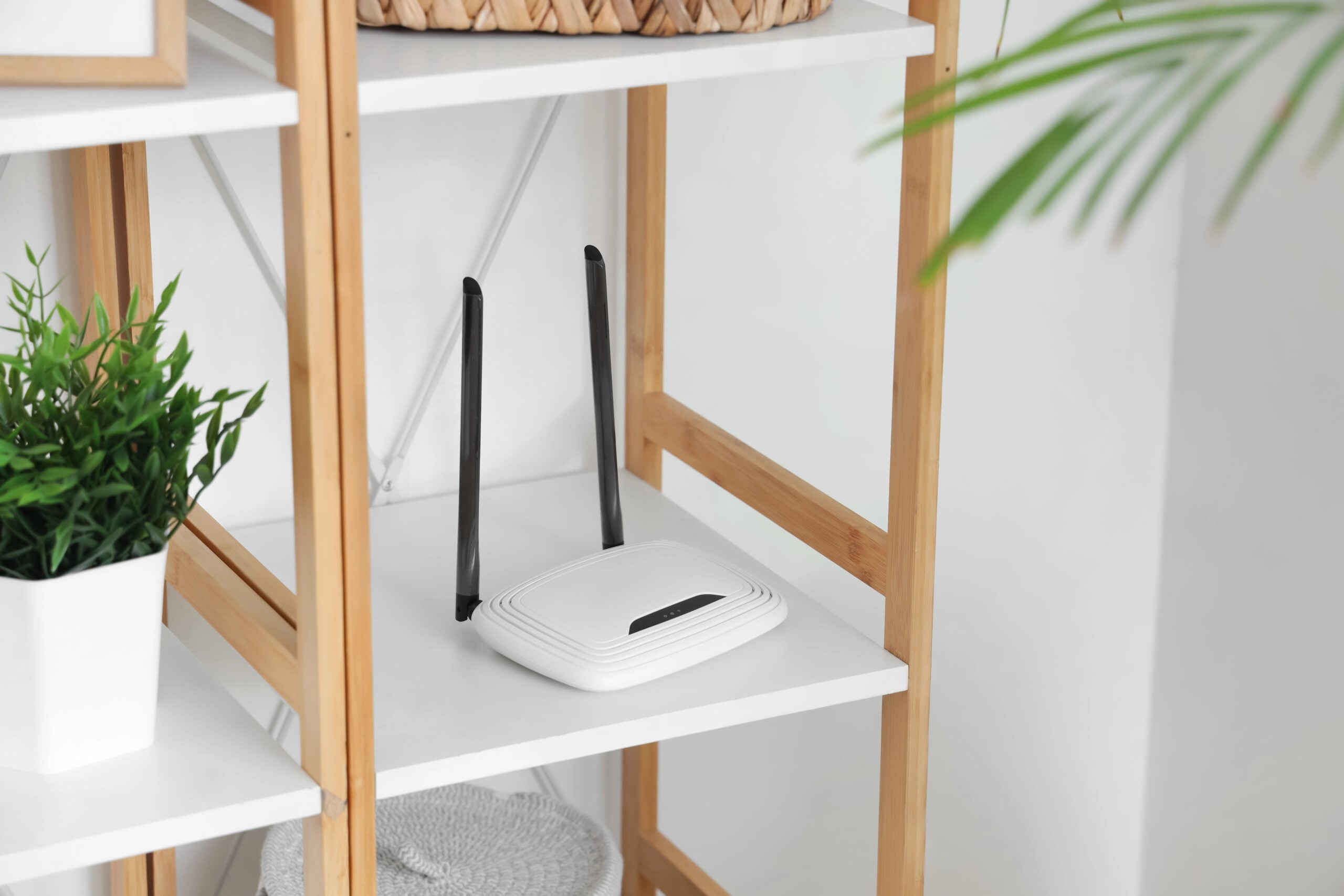
In reality, wireless signals behave a lot like light; some materials let them pass through fairly easily, while other everyday objects weaken or block them.
Some of the most common signal blockers inside a home include:
- Dense Walls and Heavy Materials:
Brick fireplaces, metal shelving, concrete, dense walls, and heavy furniture can reduce signal strength between rooms. - Kitchen Appliances:
Refrigerators, ovens, dishwashers, and other large metal appliances can weaken or scatter wireless signals. - Large Mirrors:
The metallic backing behind large mirrors can reflect wireless signals, interfering with coverage nearby. - Fish Tanks and Aquariums:
Water can weaken high-frequency wireless signals, especially when a router sits directly beside a large tank.
If your connection drops in the exact same area every day, the issue is often environmental rather than random.
Sometimes, moving the router — or even shifting furniture a few feet — improves stability more than changing network settings.
Best Fix: Place your router out in the open, at roughly eye level (about 5 feet off the ground), on a bookshelf, mantel, or a central piece of furniture.
Reason #2: Your Router Might Be Overwhelmed
If your home’s layout looks fine but your internet still drops, it’s time to look at the traffic flowing through your network. We tend to think of Wi-Fi as endless, but the hardware managing it still has limits.
When too many requests hit your network at once, things can start slowing down or disconnecting.

Modern Homes Overload Older Routers
Your router is essentially a small computer dedicated to managing network traffic. It has its own processor, a miniature motherboard, and a small pool of system memory (RAM). Every single device connected to your network requires a slice of that processing power to manage data.
The problem is that modern homes now have far more connected devices than older routers were designed to handle.
When you bought your router a few years ago, it probably only had to handle a laptop, a tablet, and a couple of smartphones.
Today, you likely have smart TVs, streaming sticks, smart plugs, light bulbs, watches, and security cameras all fighting for attention.
On older or lower-end routers, that extra traffic can start causing stability problems, especially once you reach 20–30 connected devices.
When that tiny RAM pool fills up entirely, the system hits a hard wall. Because the router physically lacks the memory space to process new incoming data, your devices will start timing out and dropping offline.
If your internet drops for 10–15 seconds and then suddenly comes back, your router may simply be struggling to keep up with the workload.
Best Fix: If your home now has smart TVs, cameras, speakers, gaming systems, and dozens of connected devices all sharing one older router, it may simply be time for a hardware upgrade.
Reason #3: Background Downloads Are Quietly Killing Your Connection
Sometimes the issue isn’t the number of devices connected to your network — it’s what those devices are doing behind the scenes.
You’re in the middle of an important video call when your connection suddenly pixelates and stutters. Meanwhile, in another room, a gaming console quietly started downloading a massive update in the background.

Gaming updates aren’t the only hidden bandwidth drains, either. Other common culprits include:
- Cloud photo backups uploading thousands of files
- Automatic Windows or phone updates
- Security cameras continuously uploading video footage
- Streaming devices downloading app or software updates
When one device suddenly starts a heavy background task, it can slow down the rest of the network, especially on older routers or slower internet plans.
Best Fix: Schedule large downloads, cloud backups, and software updates overnight whenever possible. If your network slows down at the same time every day, background syncing or automatic updates may be the reason.
Reason #4: Local Wireless Interference Can Disrupt Your Signal
Even if your router is elevated and your home is free of major physical barriers, you can still experience drops caused by wireless interference outside your walls.
If you live in an apartment complex or a tightly packed neighborhood, your devices are constantly competing for clean airwaves.
2.4 GHz vs. 5 GHz: Why Devices Keep Switching Back and Forth
Most modern routers are dual-band, meaning they broadcast your internet across two different wireless frequencies. The two bands behave very differently:
- The 2.4 GHz band is slower and more crowded, but it travels farther and passes through walls more easily.
- The 5 GHz band is faster and cleaner, but it has a shorter range and weakens more quickly through physical obstacles.
Problems can happen when your laptop, phone, or smart TV sits right near the edge of your router’s 5 GHz coverage area.
Your device may connect to the faster 5 GHz network, lose signal strength, switch to the more stable 2.4 GHz network, then jump back to the 5 GHz network once the stronger signal returns. That constant switching can feel like random Wi-Fi drops.
Best Fix: To improve stability, try manually connecting stationary devices far from the router, such as a guest room TV or office computer, to the 2.4 GHz band instead of the 5 GHz band. You’ll sacrifice some speed, but the connection is often more stable.
Your Neighbors’ Wi-Fi Might Be Part of the Problem
Wireless networks communicate on specific channels. In crowded apartment buildings or subdivisions, nearby routers can end up competing on the same channels, especially on the crowded 2.4 GHz band.
That overlap can sometimes create instability, slower speeds, or dropped connections. Fortunately, this is often easy to improve.
Best Fix: Restarting your router may allow it to automatically select a cleaner wireless channel after rebooting. You can also manually change channels in your router settings if interference problems continue.
Did You Know? Your Microwave Can Interfere With Wi-Fi
It sounds exaggerated, but microwave ovens and older 2.4 GHz Wi-Fi networks operate on similar radio frequencies.
That doesn’t mean your microwave is dangerous, but older units can sometimes create enough interference to temporarily disrupt nearby 2.4 GHz Wi-Fi signals while they’re running.
If your internet regularly stutters when the microwave is on, try moving important devices over to your router’s 5 GHz network, which is much less affected by microwave interference.
Reason #5: The Slow Decline of Networking Hardware
If your airspace is clear but your connection still cuts out, the issue might be aging hardware.
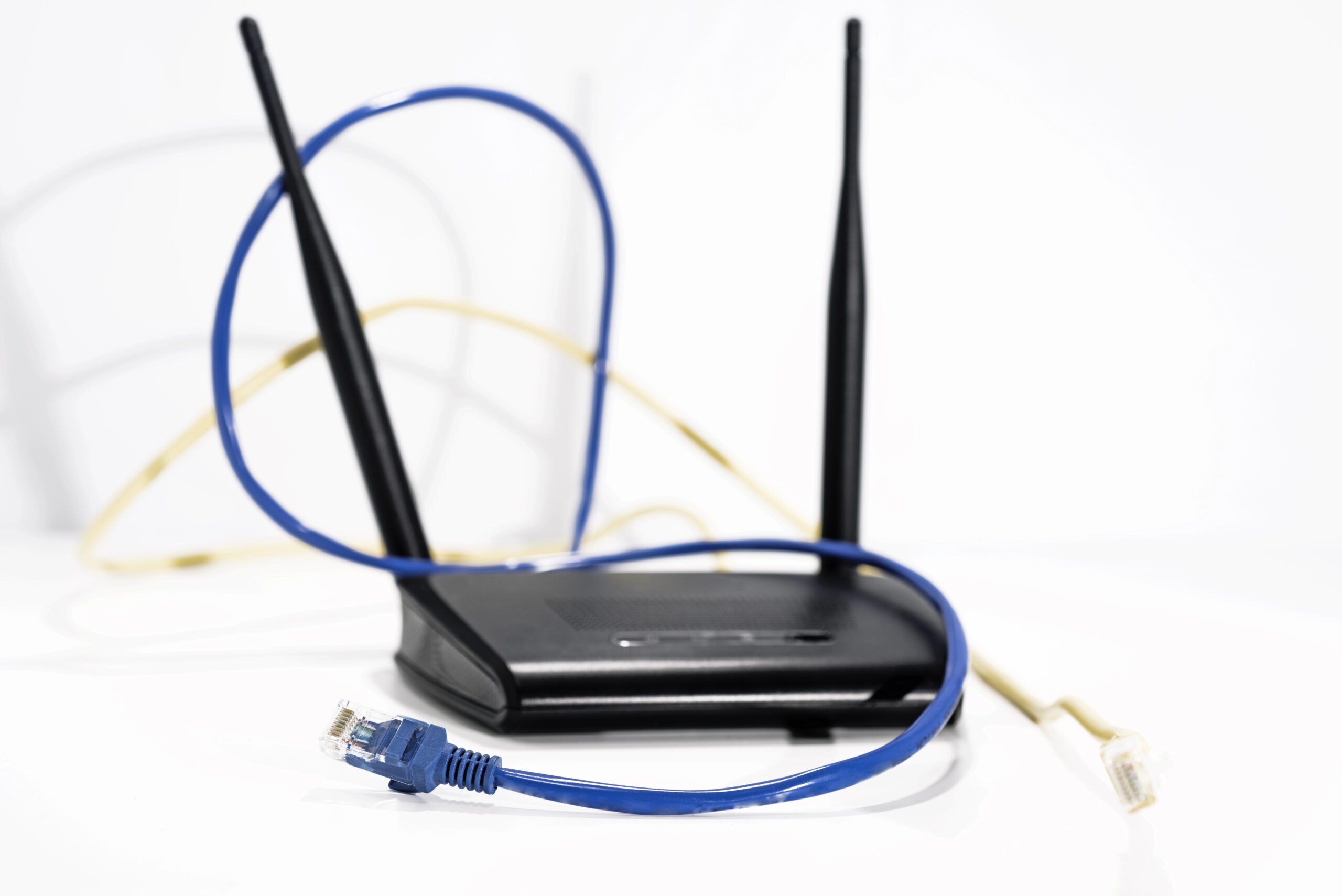
We tend to treat routers like appliances that should last forever, but networking gear wears down over time just like phones, laptops, and other electronics.
Your router stays powered on 24 hours a day, 7 days a week, constantly managing traffic between every device in your home. Over time, heat buildup and continuous use can start causing stability problems, especially on older or lower-end hardware.
That wear can eventually lead to:
- Random slowdowns
- Brief disconnects
- Spontaneous reboots
- Inconsistent performance under heavy use
The next time your internet drops unexpectedly, place your hand on the router. Warm is normal. But if it feels unusually hot and frequently disconnects under load, aging hardware or overheating may be part of the problem.
If your router is more than four or five years old, especially if it came directly from your ISP years ago, it may simply be struggling to keep up with modern device demands.
Best Fix: If your router regularly overheats, randomly reboots, or struggles under heavy household usage, it may be time for a replacement rather than another troubleshooting session.
Reason #6: Software Glitches Can Look Like Bad Wi-Fi
Sometimes the issue isn’t your signal strength or your hardware — it’s the software running behind the scenes.
Like phones and laptops, routers rely on built-in software called firmware to manage network traffic. As with any software, firmware updates can occasionally introduce bugs, instability, or compatibility issues.
Most modern routers install updates automatically overnight. If an update contains a bug or doesn’t install cleanly, it can lead to:
- Random disconnects
- Temporary freezes
- Unexpected reboots
- Devices suddenly dropping off the network
Fortunately, this is usually easy to check. Open your router’s mobile app or web portal and look for a firmware or software update section. Installing the latest stable update can sometimes resolve persistent connection problems surprisingly quickly.
Best Fix: Update your router firmware regularly and restart networking equipment after major updates to help clear temporary software conflicts.
When the Problem Isn’t Inside Your House
Sometimes, you can check every wire, device, and setting in your home and still lose your connection. When that happens, the issue may be occurring entirely outside your house.
Before replacing hardware or changing additional settings, it helps to verify whether the issue is on your internet service provider’s side of the connection.
What Your Modem Lights Are Trying to Tell You
When the internet drops, stop staring at your phone or laptop and check your modem lights instead.
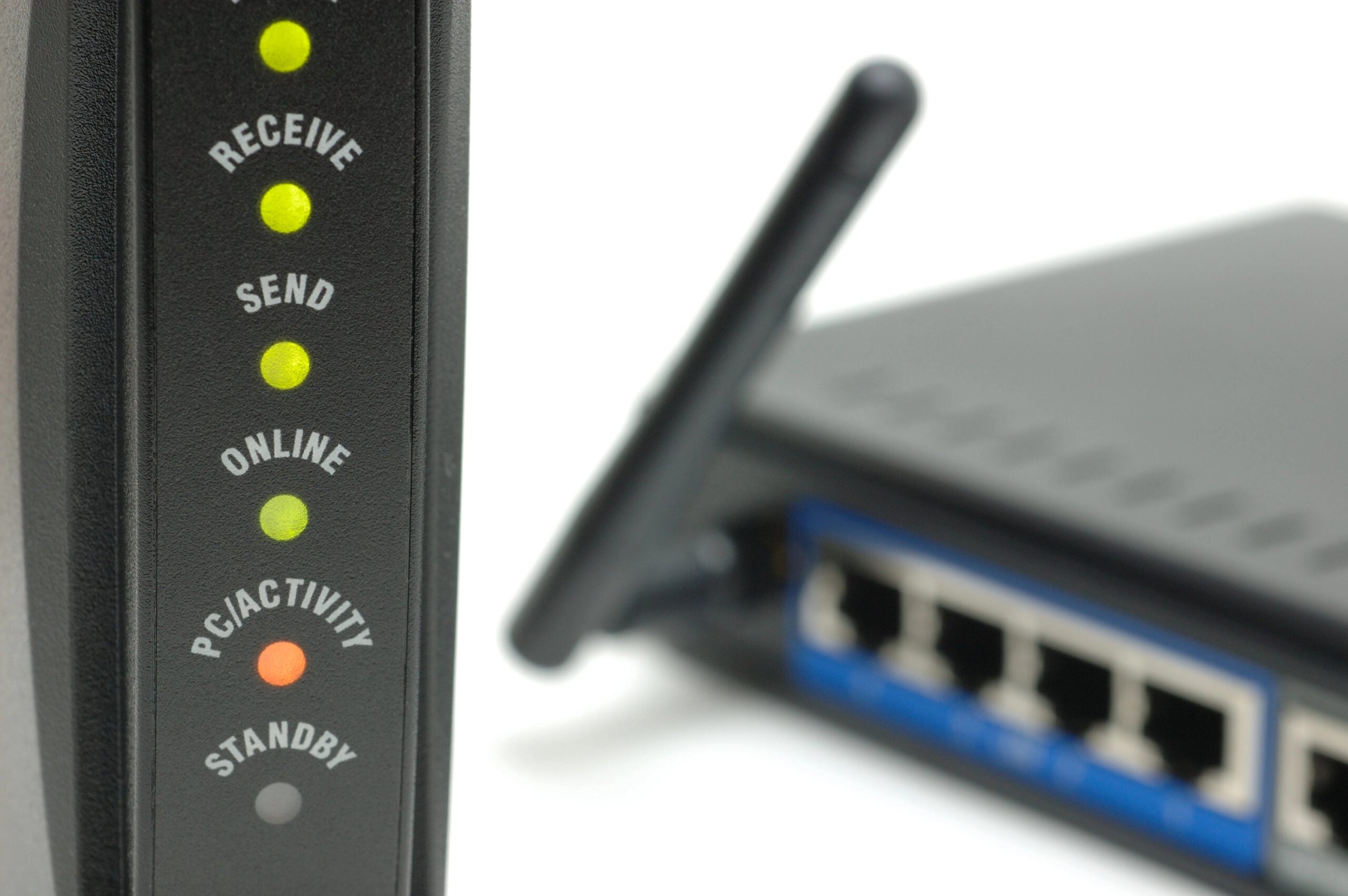
Your modem is the device directly connected to the incoming cable or fiber line from outside. Its status lights can usually tell you whether the issue is inside your home or coming from your ISP.
Different modem brands use different labels,* but common indicators include:
- Online: Shows whether your modem currently has an active connection to your internet provider.
- Internet: Indicates whether your modem is successfully passing internet access to your home network.
- Sync: Shows whether the modem has established communication with your provider’s network.
- Downstream: Tracks incoming data being delivered from your ISP into your home.
- Upstream: Tracks outgoing data being sent from your devices back to your ISP.
- WAN: Short for “Wide Area Network,” this light represents the modem’s connection to the outside internet.
In many cases:
- Solid green or blue lights usually mean the connection is stable
- Blinking lights often mean the modem is trying to reconnect
- Amber, orange, or red lights can signal a line problem or service interruption
If those lights start flashing or changing color during a disconnect, the incoming internet signal itself may be failing. At that point, restarting random devices around your house usually won’t fix the problem.
* Every modem is a little different, so check your manufacturer’s support page or manual to understand what each light, color, and blinking pattern specifically means for your model.
The “Connected, No Internet” Problem
Another major clue is when your devices still show a strong Wi-Fi signal but suddenly display a “No Internet Connection” message instead.
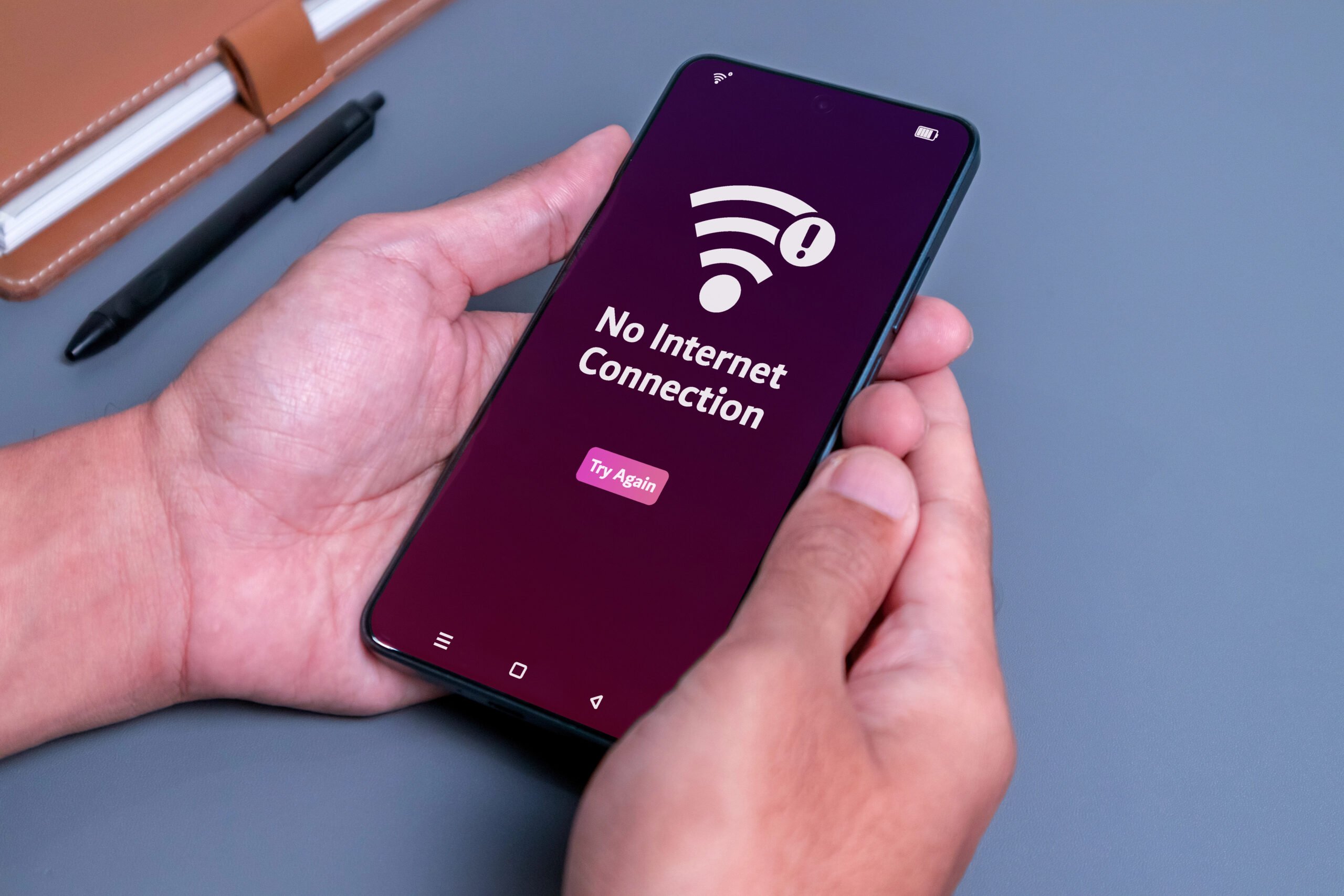
That usually means your router is still working normally, but the connection coming into your home has been interrupted.
This can happen during:
- ISP maintenance windows
- Temporary neighborhood congestion
- Brief service interruptions outside your house
At that point, restarting random devices around your home usually won’t solve the problem.
The Direct Connection Test That Instantly Narrows It Down
If you want to quickly determine whether the issue is your Wi-Fi setup or the incoming internet line itself, try a direct connection test.
Unplug the Ethernet cable running from your router to your modem. Then connect a laptop directly to the modem using an Ethernet cable.
Use the connection for a while without the router involved.
- If the connection stays stable, the issue is likely related to your router or Wi-Fi environment.
- If the connection still drops when plugged directly into the modem, the issue is much more likely on the ISP’s side.
That gives you much clearer information before calling support — and makes it easier to explain the problem to your provider.
Best Fix: If your modem repeatedly loses its “Online” or “Internet” signal, document when it happens and contact your ISP with the results of a direct-to-modem connection test.
The Minor Habits That Prevent Many Wi-Fi Problems
If you want a more stable home network without constantly troubleshooting settings, a few small habits can prevent a surprising number of connection problems before they start:
- Restart your router occasionally.
Power cycling your router every few weeks can help clear temporary software conflicts and refresh the connection. - Let the router breathe.
Keep it out of enclosed cabinets, tight shelves, and crowded entertainment centers where heat can build up. - Place your router in a central location.
Wi-Fi signals weaken over distance, so placing the router near the center of your home usually improves overall coverage and stability. - Keep firmware updates enabled.
Automatic updates help patch security issues and fix stability bugs in the background. - Keep routers away from major appliances.
Large metal appliances and microwaves can interfere with wireless signals, especially on crowded 2.4 GHz networks. - Schedule large downloads overnight.
Gaming updates, cloud backups, and software downloads can quietly overwhelm your network during the day. - Disconnect devices you no longer use.
Old phones, unused smart devices, and abandoned streaming sticks still compete for network resources in the background. - Pay attention to patterns.
If your Wi-Fi drops at the same time every day, there’s often a specific trigger behind it — like automatic updates, peak congestion, or scheduled backups. - Don’t keep outdated hardware forever.
Routers that are five or six years old may struggle to handle modern device loads, especially in larger smart homes.
When It’s Time for a New Router
At a certain point, constant troubleshooting stops being worth it.
While many Wi-Fi problems can be fixed with better placement, updated settings, or reduced network congestion, older routers eventually start struggling to keep up with modern device demands.

It may be time for a replacement if:
- Your router is more than 3–5 years old, depending on heavy usage.
- Disconnects keep happening after repeated troubleshooting.
- The router frequently overheats or randomly reboots.
- Certain rooms never maintain a stable connection.
- Your household now has dozens of connected devices.
- Your is much faster than your router can realistically handle.
Many older ISP-provided routers were designed for a much simpler internet era — before multiple smart TVs, security cameras, gaming systems, and dozens of always-connected devices became normal in most homes.
And sometimes, the real fix isn’t another reboot. It’s finally replacing the hardware that’s been blinking in the corner since 2018.
Should I Consider a New Single Router or a Mesh System?
Not every home needs an expensive mesh Wi-Fi setup.
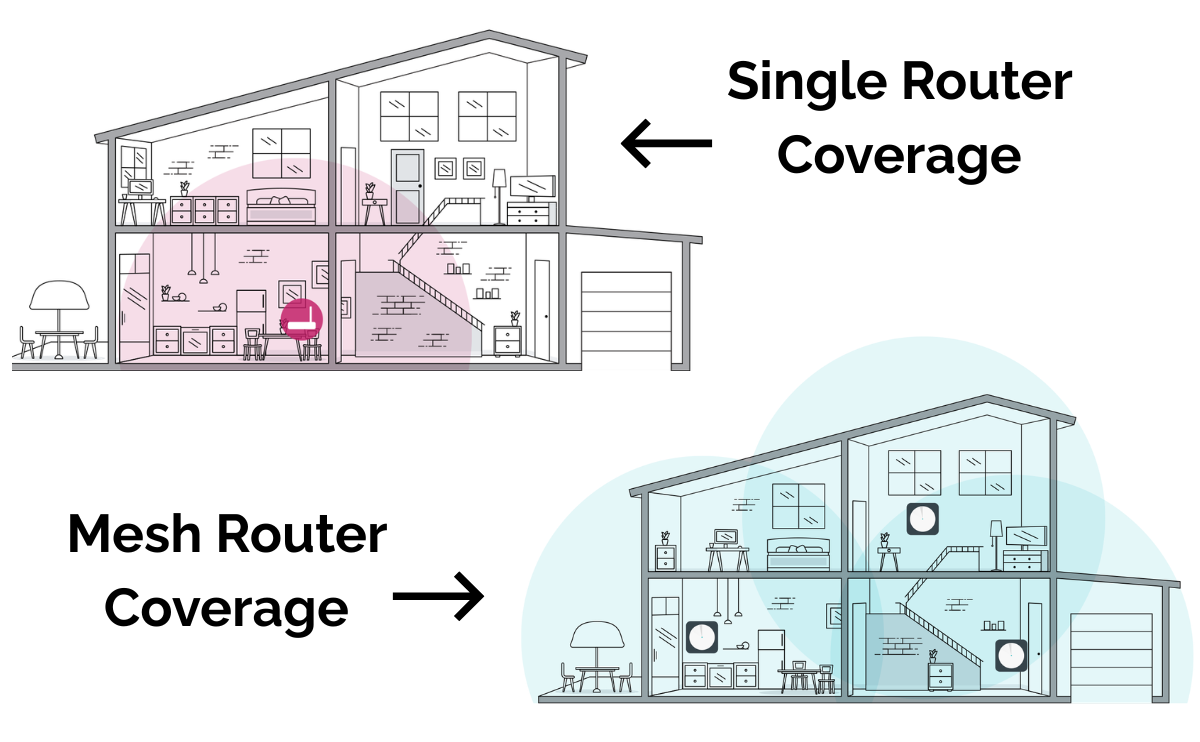
For smaller homes, apartments, or spaces where the router can sit near the center of the house, a modern single-router setup is often completely sufficient.
But larger homes can run into coverage problems that no amount of rebooting or troubleshooting will fully solve.
A mesh system may make more sense if:
- Your home has multiple floors
- Certain rooms constantly lose signal
- You have thick walls or long hallways
- Your router sits far from your main work areas
- Extenders haven’t solved dead zones
Instead of broadcasting Wi-Fi from a single point, mesh systems use multiple access points placed throughout the house to create more consistent coverage.
For many people, the biggest improvement isn’t faster speed — it’s finally getting stable Wi-Fi in rooms that have always struggled with weak or inconsistent connections.
Frequently Asked Questions
Wi-Fi problems have a way of making people feel like they’re losing their minds because the issue usually disappears right before you figure out what caused it.
If you’re still dealing with random disconnects, weird slowdowns, or a problem we didn’t cover here, drop your questions in the comments. There’s a good chance someone else is fighting the exact same battle.
Why Does My Home Wi-Fi Always Seem To Act Up Worse At Night?
Evening slowdowns are often caused by:
- Peak neighborhood internet usage
- Streaming traffic
- Gaming downloads
- Automatic cloud backups
- Software updates running in the background
If your connection gets worse around the same time every night, congestion or scheduled downloads are often involved.
Can Too Many Smart Home Devices Overload Wi-Fi?
Yes. Smart TVs, cameras, speakers, plugs, thermostats, and other connected devices all compete for router resources, even when you aren’t actively using them.
Older routers can start struggling when dozens of devices are simultaneously connected.
Why Does My Wi-Fi Randomly Disconnect On Only One Device?
If only one phone, laptop, or tablet keeps disconnecting while everything else stays online, the issue is usually device-specific rather than a full network failure.
Common causes include:
- Outdated device software
- VPN or security app conflicts
- Power-saving settings
- Aging wireless hardware
- Corrupted saved Wi-Fi settings
A quick test is to forget the network completely and reconnect from scratch.
Will Buying A Wi-fi Extender Stop My Internet From Dropping?
In many cases, no. Wi-Fi extenders can improve coverage, but they can’t fix an unstable signal source.
If the extender is receiving a weak or inconsistent connection from the main router, it may simply rebroadcast that same unstable connection somewhere else in the house.
How Often Should You Replace A Router?
Most routers last around 3–5 years before performance and stability problems start becoming more noticeable.
Older routers may still technically work, but they often struggle with:
- Modern smart-home device loads
- Newer Wi-Fi standards
- Heavy streaming and gaming traffic
- Larger household bandwidth demands
Can A VPN Cause Wi-Fi Disconnects?
Yes. Some VPNs include built-in security features that immediately block internet access if the VPN connection drops unexpectedly. To you, it can look like your Wi-Fi failed, even though your router and internet connection are still working normally.
If disconnects mainly happen while connected to a work VPN or privacy app, temporarily disabling the VPN can help narrow down the cause.
Why Does My Wi-Fi Suddenly Act Worse During Storms?
Rain usually doesn’t interfere with the Wi-Fi signal inside your home. However, severe weather can affect outdoor utility equipment, neighborhood lines, or local ISP infrastructure, especially during heavy wind, lightning, or power fluctuations.
Is Your Tech Acting Weird In Other Ways Too?
Random Wi-Fi drops are usually just one piece of a much bigger tech puzzle. Slow devices, overloaded smart homes, aging hardware, and hidden background activity often stack together until everything starts feeling unstable at once.
If your setup still feels “off” even after fixing your network, these guides may help you track down the next likely culprit:
Is your Wi-Fi behaving oddly lately? Random drops, mysterious slowdowns, devices refusing to connect for absolutely no reason? You’re probably not the only one fighting it. Drop a comment and share what’s happening in your setup.