You click a program. Nothing happens. So you click again. Still nothing.
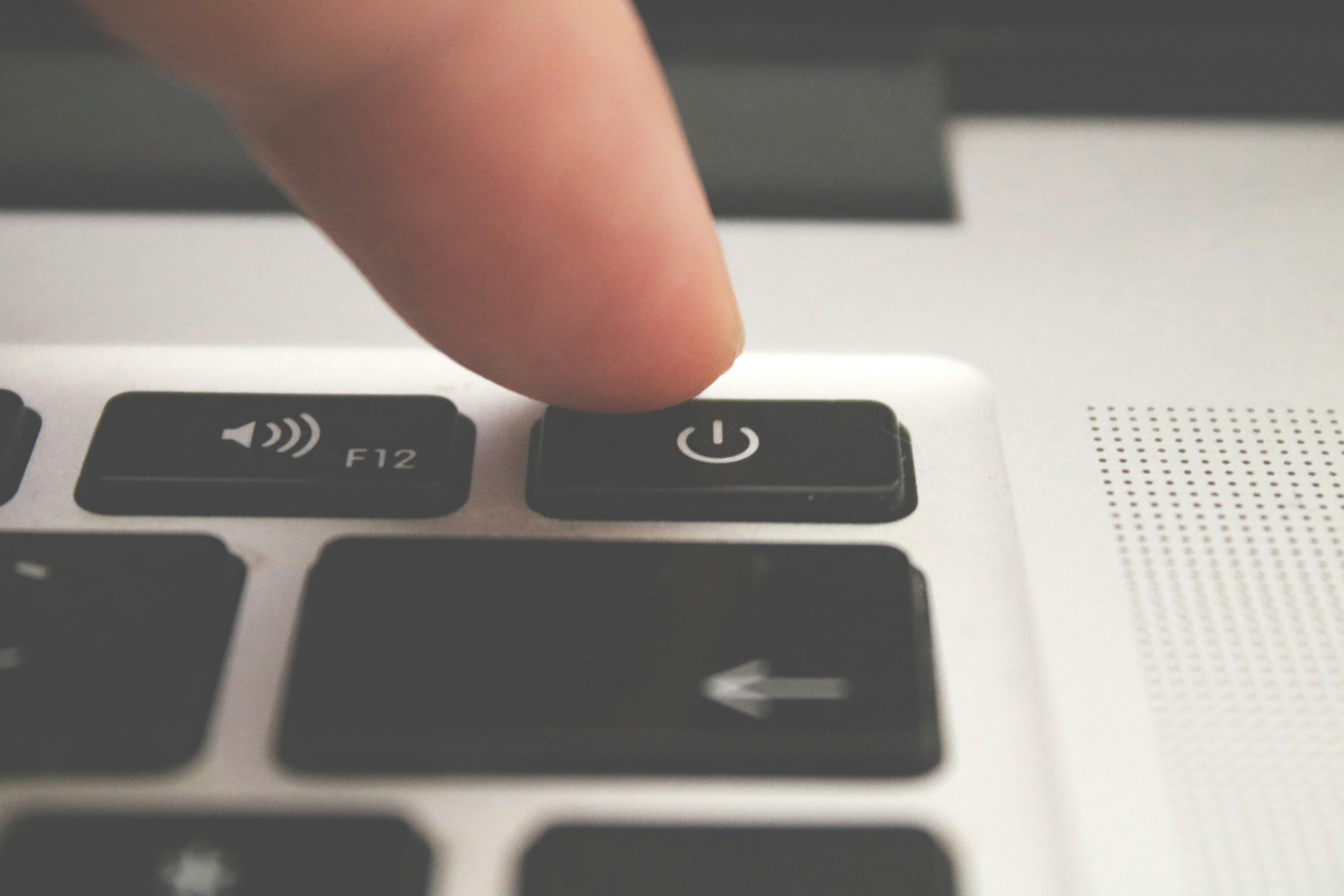
A few seconds later, your entire computer stops responding. You start wondering if it’s finally time to buy a new one…and your finger slowly drifts toward the power button.
Then, just as you’re convinced it’s completely frozen, every window suddenly opens at once, every click catches up, and everything works like nothing ever happened.
If your computer was really frozen, how did it magically recover?
The truth is that most of the time, your computer isn’t actually frozen at all. It’s busy waiting on something behind the scenes, and until that job finishes, everything else gets stuck in line.
Want our human-written content to rank above AI-generated garbage? Help us out by clicking this button!
Once you understand what it’s waiting for, these frustrating “freezes” suddenly become a lot less mysterious.

The Biggest Myth: Your Computer Probably Isn’t Frozen
When your computer stops responding, it’s easy to assume the worst. Maybe it crashed. Maybe it locked up. Maybe it’s finally time to replace it.
But in many cases, none of those things happened at all.
A computer can look completely frozen while it’s actually working as hard as it can.
The key is understanding which of these three situations you’re dealing with:
- Busy: Your computer is still working normally, but it’s juggling more tasks than it can handle comfortably.
- Overwhelmed: One task or resource has become a bottleneck, forcing everything else to wait its turn.
- Frozen: The operating system has stopped responding entirely, and nothing is making progress.
Most of the time, what feels like a frozen computer is actually one of the first two. The tricky part is that all three situations can look almost identical from your chair.
The only clues are what your computer is doing behind the scenes—which is exactly what we’re about to uncover.
What Your Computer Could Be Waiting On
- Information it needs to load
- Available memory
- Background tasks
- Your browser
- System maintenance
- One demanding application
- Working space on your storage drive
- Earlier requests to finish
Let’s look at the eight most common times a computer appears frozen and what’s actually happening inside it instead.
1. You Click A Program, And Nothing Happens
Some programs open almost instantly. Others leave you staring at the screen, wondering whether your computer even noticed you clicked.
Those few silent seconds are when most people decide it’s frozen, even though it usually isn’t. You may notice this when you’re:
- Opening a large game or creative application
- Launching a massive spreadsheet or database
- Starting software you haven’t used in a while
- Running several demanding programs at the same time
One of the most common reasons a computer appears frozen is that it’s waiting for information it needs before it can continue.
Think of your CPU (Central Processing Unit) as your computer’s brain. It can perform billions of calculations every second, but it can’t do much until it has the files and instructions it needs to work with.
Those files usually come from your computer’s storage drive.
Solid-state drives (SSDs) can retrieve data much faster than older hard disk drives (HDDs), but even SSDs can slow down temporarily when loading large applications or handling multiple requests at once.
While your CPU waits for those files to arrive, your computer may look completely unresponsive, even though it’s still actively working behind the scenes.
This delay is called a bottleneck.
Think of it like traffic merging into one lane. The CPU is ready to keep working, but it can’t move forward until the storage drive catches up.
Best Fix
- If your computer still has an HDD, upgrading to an SSD is one of the biggest performance improvements you can make.
- Give demanding programs a few extra seconds to open before clicking again.
- If the mouse still moves, resist the urge to keep clicking. Every extra click creates another request your computer has to work through once it catches up.
In many cases, waiting an extra 10 seconds is faster than clicking 10 more times.
2. Everything Was Fine Until You Opened One More App
Your email is open. Music is playing. A few browser tabs are running, and everything feels perfectly normal.
Then you open one more program.

Suddenly, everything feels slower. Switching between windows takes longer, programs hesitate before responding, and what felt fast a moment ago now seems to be struggling.
That last app usually isn’t the real problem—it was simply the one that pushed your computer past its limit. This can occur when you’re:
- Running a video meeting while several other apps are open
- Keeping dozens of browser tabs open throughout the day
- Editing large photos or videos while multitasking
- Opening “just one more program” on an already busy computer
Why This Happens
Your computer has a limited amount of RAM (Random Access Memory), which acts as its fast, temporary workspace.
Every open program, browser tab, and background process takes up part of that space. Once RAM starts running low, your operating system has to borrow space on your storage drive as temporary workspace.
This process is called virtual memory (or a page file on Windows), but there’s one problem: your storage drive is much slower than RAM.
That means your computer has to constantly move information back and forth, rather than accessing it instantly. The more it has to juggle, the slower everything feels.
Best Fix
- Close programs you’re no longer using instead of leaving everything open all day.
- Reduce the number of browser tabs, especially ones running videos, AI tools, or other web apps.
- Restart your computer occasionally to clear memory that’s been tied up by long-running applications.
- If this happens regularly, consider adding more RAM. (Keep in mind that many newer laptops and Macs have memory that’s built in and can’t be upgraded.)
3. You Only Opened Your Browser, So Why Is Everything Slowing Down?
Checking your email turns into reading the news.
Then you open a shared document, stream some music, look something up, and ask an AI chatbot a question.
Before long, you realize you haven’t opened many programs at all, yet your computer somehow feels busier than ever. You’ll notice this when you’re:
- Streaming music or videos while you work
- Using web apps like Google Docs or Microsoft 365
- Keeping messaging apps open in your browser
- Using AI tools alongside several other tabs
- Running multiple browser extensions
Modern browsers aren’t just tools for viewing websites anymore. They’ve quietly evolved into application platforms that run some of the most demanding software on your computer.
Today, a single browser window might be running:
- Video calls
- Streaming music or movies
- AI assistants
- Cloud-based office apps
- Interactive maps
- Messaging platforms
- Extensions working in the background
Each of those tabs is doing its own work. They’re running scripts, loading images and video, maintaining internet connections, syncing data, and updating information in real time.
In other words, your browser isn’t just displaying web pages—it’s constantly running software.
That’s why your browser often feels very different today than it did 10 or 15 years ago. It’s become one of the hardest-working programs on your computer.
Best Fix
- Turn on Memory Saver or Sleeping Tabs if your browser offers them.
- Close tabs you’re finished with instead of letting them pile up all day.
- Remove browser extensions you no longer use.
- Restart your browser occasionally, especially after long work sessions with many active tabs.
4. Your Computer Is Slow Before You Even Start Using It
You press the power button, grab a cup of coffee, and come back expecting everything to be ready. Instead, your desktop loads (sort of).
You can move the mouse, but every click takes forever. Somehow, your computer is already struggling before you’ve even started your day.

So, what’s going on? Starting your computer doesn’t mean it’s immediately finished starting.
Your computer doesn’t wait for you to open programs before it gets to work. The moment your computer starts, it begins running a long list of background jobs before you even open your first application.
These can include:
- Cloud storage apps syncing your latest files.
- Messaging apps checking for new conversations.
- Security software scanning for threats.
- Software updaters looking for new versions.
- Software for printers, webcams, keyboards, and other accessories.
None of these tasks usually takes very long on its own. The problem is that many of them start at the same time. Until they finish, your computer has less processing power available for the things you’re trying to do.
That’s why your computer often feels slow for the first few minutes after startup, then gradually returns to normal once those background jobs finish.
Best Fix
- Give your computer a minute or two after startup before opening several demanding programs at once.
- Review which apps launch automatically when your computer starts and disable the ones you rarely use.
- Remove software you no longer use, since many older applications add startup tasks without you realizing it.
- Restart your computer occasionally instead of leaving it running for weeks at a time.
5. Your Computer Starts Working Hard Even When You’re Not Using It
You step away to grab lunch or make a call.
When you come back, the fans are running harder than before, even though you haven’t touched your computer in half an hour.
You start wondering what your computer could possibly be doing without you.
In reality, your computer may have been taking advantage of the quiet time to catch up on work of its own.
Modern computers don’t simply sit around waiting for you to click something. When you stop using your computer, it often sees an opportunity to catch up on jobs it has been postponing.
That work can include:
- Installing operating system updates
- Scanning for malware or other security threats
- Indexing files so searches are faster later.
- Syncing files with cloud storage services.
- Cleaning up temporary files and performing routine system maintenance.
Most of these maintenance jobs are scheduled during idle time intentionally.
Developers know you’d rather not have an update, security scan, or file indexing interrupt your work, so your computer often waits until you’re away before getting started.
That’s why it sometimes seems busiest when you’re doing absolutely nothing.
Best Fix
- Let updates and maintenance finish whenever possible, rather than interrupting them.
- Restart your computer after major updates if prompted.
- If you use a laptop, leave it plugged in occasionally, since some maintenance tasks wait until enough power is available.
- If your computer stays busy for hours, check whether an update or another background process has stalled.
6. Your Fans Suddenly Get Loud, And Everything Slows Down
One minute, your computer is running quietly. The next, the fans kick into high gear, and everything starts lagging; even moving the mouse feels less responsive.
It almost sounds like your computer is preparing for takeoff, even though all you did was open one program.
Usually, that’s a sign that a single task is asking your computer to do a lot of work at once. You may notice this when you’re:
- Playing games or editing videos
- Exporting large photo or video projects
- Running AI software or other demanding applications
- Working with large spreadsheets or complex calculations
- A program stops responding while everything else slows down
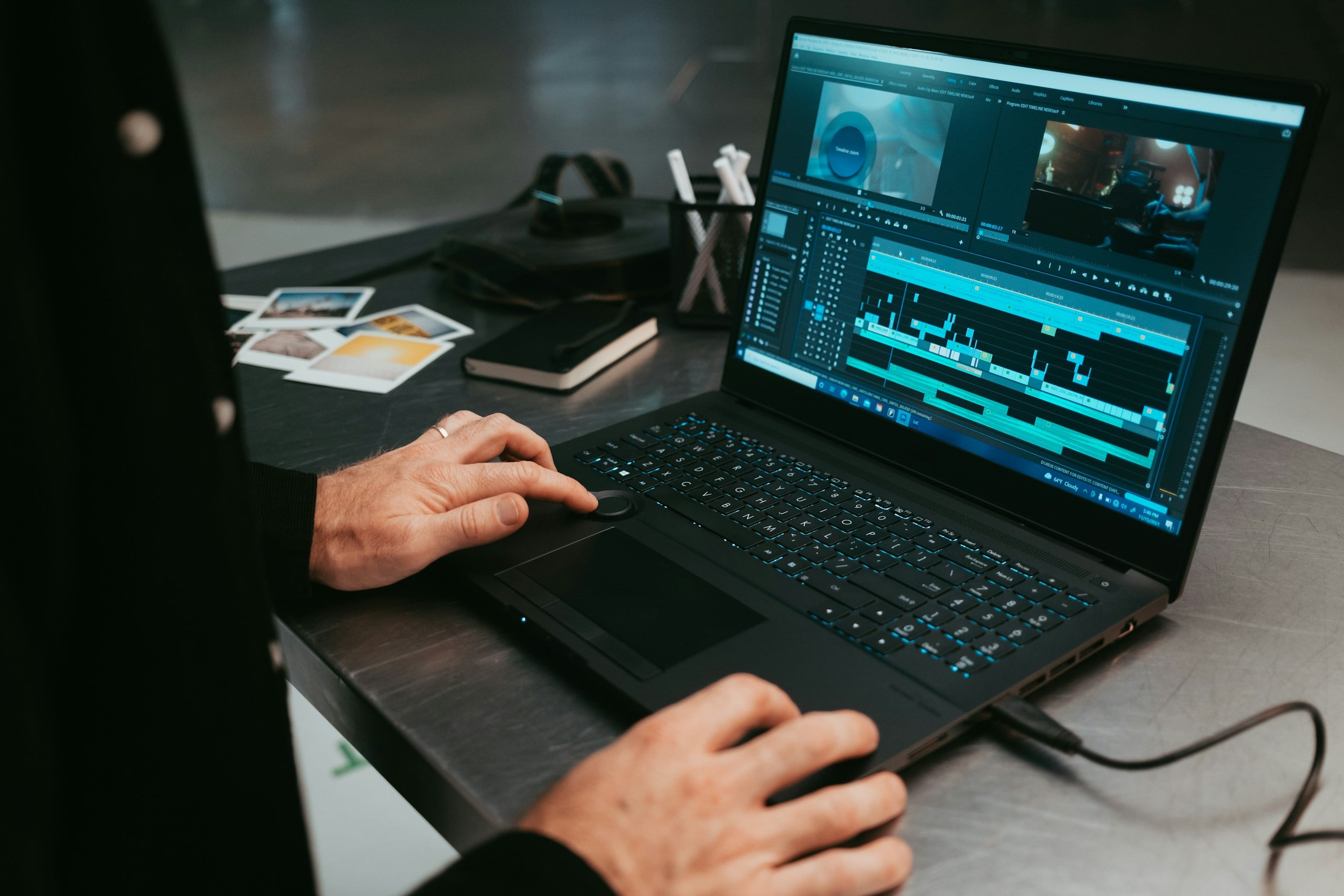
Not every slowdown is caused by having too many things open. Sometimes, one application can keep your computer almost entirely occupied.
Some rely heavily on the CPU, which handles calculations and instructions. Others lean on the GPU (Graphics Processing Unit) to render graphics, edit videos, or process visual effects.
At the same time, it may also be using:
- RAM to store information it’s actively working with.
- Your storage drive to constantly read and write files.
If one application suddenly demands a large share of those resources, everything else has to wait its turn.
As your processor works harder, it generates more heat. Your computer responds by increasing the fan speed to keep temperatures under control. That’s why louder fans and slower performance often happen at the same time.
If you’re curious which application is causing the slowdown, Windows users can open Task Manager, while Mac users can use Activity Monitor to view CPU, memory, disk, and GPU usage.
Best Fix
- Close or restart the program if it has stopped responding.
- Check Task Manager (Windows) or Activity Monitor (Mac) to identify which application is using the most resources.
- Avoid running several demanding tasks at once, such as gaming while exporting video or scanning large files.
- If your fans are frequently loud, check that the vents are clear of dust and that your computer has plenty of airflow.
7. You Still Have Plenty Of Free Space, So Why Is Your Computer Slowing Down?
You finally decide to check your storage. Surely that’s the problem.
But instead of finding a full drive, you discover you still have dozens of gigabytes of free space. So why is your computer still slowing down when you:
- Install large software updates
- Copy or move lots of files
- Work with large photo or video libraries
Why Free Space Matters
Your storage drive isn’t just a place to keep your files. Your operating system also relies on it as temporary working space for various behind-the-scenes tasks.
It uses free space to:
- Store temporary files while programs are running.
- Hold virtual memory when RAM starts running low.
- Download and install operating system updates.
- Create caches that help applications load faster.
The less free working room your drive has, the harder it becomes to juggle all of those jobs efficiently.
Solid-state drives (SSDs) work most efficiently when they have some breathing room. As they fill up, they have fewer free memory cells available, so everyday tasks can gradually take longer.
That’s why a computer can start feeling slower long before you ever see a “Storage Full” warning.
Best Fix
- Aim to keep 10–20% of your storage drive free whenever possible.
- Delete files you no longer need or move large photos and videos to external or cloud storage.
- Empty your Downloads folder and Recycle Bin regularly, as they often accumulate forgotten files.
- Uninstall applications you no longer use, especially large games or creative software that consume significant storage space.
8. Everything Suddenly Starts Working Again All At Once
You’re finally convinced your computer has given up.
Your hand is halfway to the power button…and suddenly everything happens.
The program opens. The browser responds. Three windows appear at once. Every click you made over the last 30 seconds seems to register all at the same time.
It’s frustrating, but it’s also a pretty good clue that your computer was never truly frozen.
What’s Happening Behind The Scenes
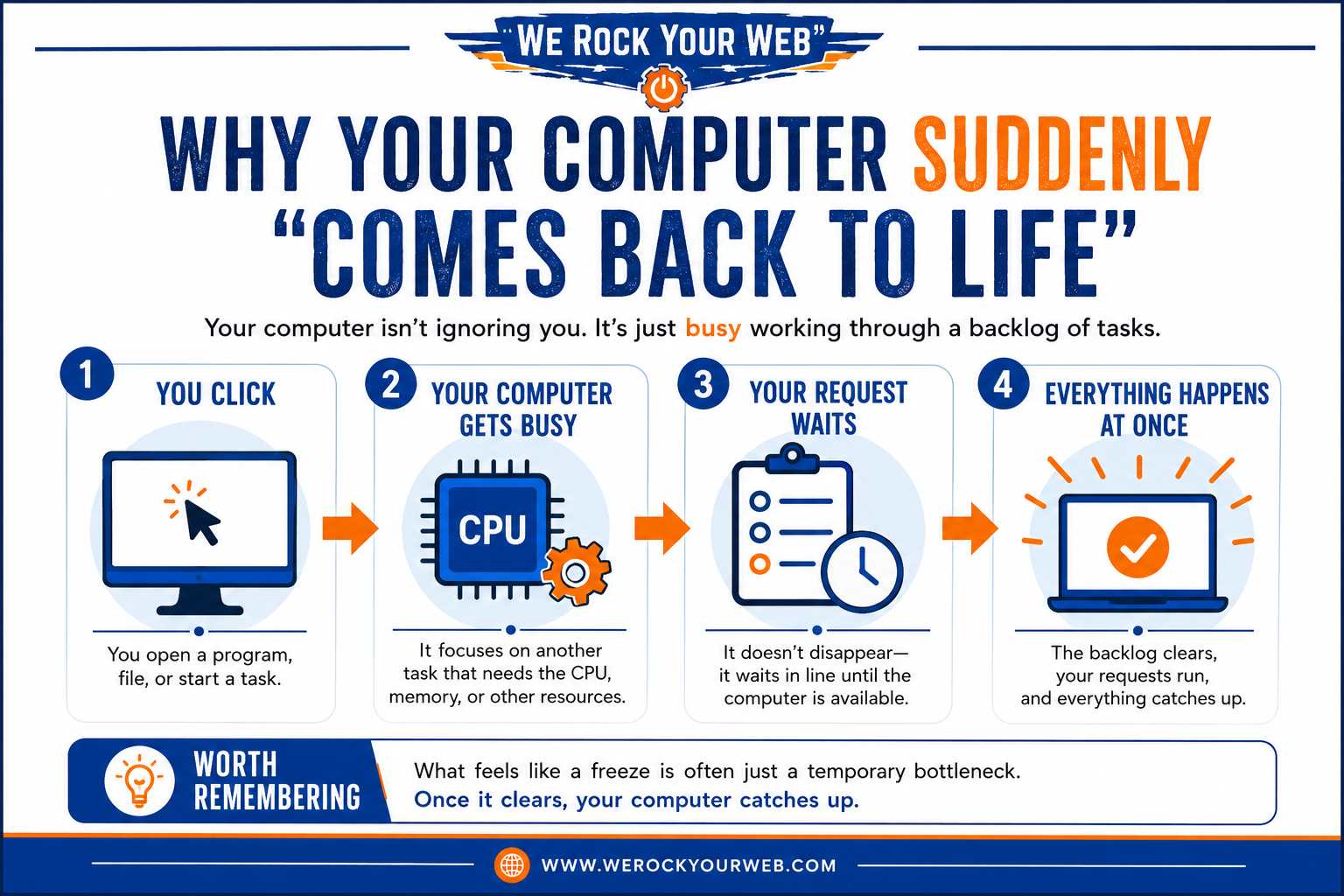
When your computer gets bogged down, it usually doesn’t forget the things you asked it to do. Instead, those requests wait in line.
Once the slowdown clears, your computer starts working through that backlog. That’s why the program finally opens, the browser responds, and every click you made over the last 30 seconds seems to happen all at once.
Think of it like traffic after a lane closure. The cars never disappeared—they were simply waiting for the road to open again.
Your computer wasn’t ignoring you. It was catching up.
Best Fix
- Wait a little longer before clicking again, especially if you can still move the mouse or see signs of activity.
- Give large programs time to finish loading before assuming they’ve stopped responding.
- Force a restart only if your computer truly stops responding for several minutes and shows no signs of progress.
How To Tell If Your Computer Is Busy Or Actually Frozen
So how do you know whether you should keep waiting or hold the power button?
There’s no single clue that tells you every time, but these signs can help you make the call.
| If You Notice… | Your Computer Is Probably Busy | Your Computer May Actually Be Frozen |
|---|---|---|
| The mouse pointer still moves |  | |
| The spinning cursor appears occasionally | | |
| The hard drive activity light is flashing (if your computer has one) | | |
| The fans speed up or slow down | | |
| A progress bar is slowly moving | | |
| The keyboard and mouse stop responding completely | | |
| The screen never updates | | |
| Keyboard shortcuts don’t work (such as Ctrl+Alt+Delete on Windows or Force Quit on Mac) | | |
| Nothing changes after several minutes | |
The biggest clue is whether anything is still changing.
If the cursor moves, the fans speed up or slow down, or a progress bar is still inching along, your computer is usually making progress, even if it doesn’t feel like it.
If nothing changes for several minutes and the keyboard, mouse, and built-in recovery shortcuts all stop responding, it’s much more likely that your computer has genuinely frozen.
Before You Hold The Power Button
Before forcing your computer to shut down, take a minute to run through this quick checklist. It could save you from losing unsaved work—or restarting when your computer was about to recover on its own.
1. Wait 30–60 Seconds
Many temporary slowdowns resolve themselves if you give your computer a little more time.
2. Check For Signs It’s Still Working
Look for clues that your computer is still making progress:
- The mouse pointer still moves
- A progress bar is still moving
- The fans speed up or slow down
- The drive activity light is flashing (if your computer has one)
If you notice any of these, your computer is probably still busy.
3. Open The Built-In Troubleshooting Tools
If your computer responds at all:
- Windows: Press Ctrl + Alt + Delete, then open Task Manager.
- Mac: Press Command + Option + Escape to open Force Quit, or check Activity Monitor.
If only one application has stopped responding, close that program instead of restarting your entire computer.
4. Restart Only If Nothing Is Responding
If several minutes have passed and nothing is changing—no mouse movement, no keyboard response, no progress indicators, and no recovery shortcuts—a restart is probably your best option.
Force a shutdown only as a last resort, since any unsaved work will likely be lost.
Frequently Asked Questions
Computer slowdowns always seem to happen at the worst possible time. Here are answers to some of the questions readers ask us most often. If you don’t see yours here, ask it in the comments.
Can Force Shutting Down My Computer Damage It?
Occasionally forcing your computer to shut down isn’t likely to cause permanent damage, but it should be a last resort.
If your computer still shows signs of life, such as a moving cursor or a progress bar, it’s usually worth waiting another minute before holding the power button.
Can Too Many USB Devices Slow Down My Computer?
Usually, no. A keyboard, mouse, webcam, or external drive won’t normally make your computer feel frozen.
However, a malfunctioning USB device or driver can occasionally cause Windows or macOS to pause while trying to recognize the hardware. If your computer regularly freezes after plugging in a specific device, try disconnecting it to see if the problem disappears.
Why Does My Computer Freeze More Often After An Update?
Major operating system updates sometimes rebuild search indexes, optimize files, install additional components, or finish setup tasks after the first restart.
It’s common for your computer to feel slower for a day or two while those jobs finish in the background. If the problem continues well beyond that, the update may have introduced a software or driver issue that’s worth investigating.
Does Leaving My Computer On All The Time Make It Slower?
Not necessarily, but it can allow more programs and background processes to accumulate over time. If your computer has been running for days or weeks, a simple restart can clear temporary memory, restart system services, and often improve responsiveness.
Why Does The Same Program Open Quickly One Day And Slowly The Next?
Programs don’t always start under the same conditions.
One day, your computer may have plenty of available memory and very little background activity. The next day, it could be installing updates, syncing files, or running several other applications at the same time. The program itself hasn’t necessarily changed—your computer’s workload has.
Should I Upgrade My RAM Or Buy A Faster SSD?
It depends on what’s slowing your computer down.
If everything grinds to a halt whenever you have lots of programs open, more RAM is often the better upgrade. If programs take a long time to launch or your computer still uses an older hard disk drive, upgrading to an SSD usually delivers the biggest overall improvement.
How Often Should I Restart My Computer?
There’s no perfect schedule, but restarting every few days—or at least once a week for most people—is a good habit.
It gives your operating system a chance to clear temporary files, restart background services, and apply updates that may be waiting for a reboot.
Keep Your Computer & Wi-Fi Running Smoothly
Computers have a way of turning small problems into big frustrations. Fortunately, many of the most common slowdowns have simple explanations—and even simpler fixes once you know what to look for.
If you’re troubleshooting another tech headache, these guides are a great place to start:
- Why Is My Computer Getting Slower Over Time? Discover the gradual changes that can make almost any computer feel less responsive.
- Your Laptop Never Used To Get This Hot, So What’s Going On? Find out why laptops overheat and what you can do about it.
- Learn why your connection may feel sluggish—even when you’re paying for fast internet.
- Your Wireless Connection Keeps Dropping. Find out why your Wi-Fi disconnects unexpectedly and what you can do to make it more reliable.
Has your computer ever suddenly “come back to life” just as you were about to hold the power button? Tell us what happened in the comments—we’d love to hear your story. There’s a good chance someone else has experienced the exact same thing.