Does your home Wi-Fi act like an overachiever in the morning, only to turn into an employee who’s mentally checked out by 4 PM?
At 8 AM, everything loads instantly. By midafternoon, websites crawl, videos buffer, and your laptop suddenly needs a motivational speech just to open a webpage.
How can your internet work perfectly at breakfast and become painfully slow just a few hours later? Especially when you’re using the same devices and doing the same things online.
As it turns out, your home isn’t quite the same Wi-Fi environment in the afternoon as it was that morning. And some of the changes causing trouble are surprisingly easy to miss.

What Changes Around Your Home As The Day Goes On?
Your home might have 20 devices connected to Wi-Fi before you’ve even finished breakfast: phones, laptops, smart TVs, security cameras, and a collection of gadgets you probably forgot you owned.
Want our human-written content to rank above AI-generated garbage? Help us out by clicking this button!
But being connected to Wi-Fi isn’t the same as actively using it.
At 8 AM, many devices may be sitting idle or exchanging tiny amounts of data. Later, they start placing greater demands on your network.
Not every Wi-Fi slowdown is caused by running out of internet speed. Two different things can create trouble:
- Internet bandwidth: The amount of data your internet connection can handle at once. When too much is being transferred, everything competes for available capacity.
- Wi-Fi airtime: The time wireless devices share to communicate with your router. Even with plenty of internet speed, a crowded wireless network can struggle to keep up.
8 Reasons Your Wi-Fi Gets Worse As The Day Goes On
Some afternoon slowdowns have an obvious explanation. Others involve devices and household routines you wouldn’t think to blame. Let’s start with what’s happening on your network before investigating the less obvious suspects.
1. Your Devices Are Doing More Than They Were This Morning
By midafternoon, the living room TV is streaming a show nobody’s watching, someone’s scrolling through videos on a tablet, and another person is on a video call. Meanwhile, you’re trying to get some actual work done.
Your internet connection hasn’t gotten any bigger, but the demands on it have.
Consider a household with a 50 Mbps internet plan. Two TVs streaming 4K video could consume 30 Mbps or more of that capacity, leaving considerably less available for everything else.
Different activities place different demands on your connection:
- Streaming video needs a steady supply of download bandwidth to prevent buffering.
- Video calls need data to travel in both directions with minimal delay.
- Online gaming generally uses relatively little bandwidth during gameplay but is particularly sensitive to delays and interruptions.
Having a strong Wi-Fi signal doesn’t mean you have plenty of internet bandwidth available. Your laptop could have an excellent wireless connection to the router while the household’s shared internet connection is struggling to keep up.
How To See What’s Using Your Connection
Open your router’s app or administration dashboard and look for device activity, traffic statistics, or bandwidth usage. Not every router provides this information, but some show which devices are transferring the most data.
If yours doesn’t, try a simple experiment:
- Pause an active stream or other demanding activity while the connection is slow.
- Test the same device again to see whether performance improves.
- Compare the results with what you typically experience in the morning.
If performance improves, competing household activity may be stretching your available bandwidth.
Did You Know? Your Router Might Be Playing Favorites
Some routers have a feature called Quality of Service (QoS) that gives certain devices or activities priority when bandwidth is limited. For example, Google’s Nest Wifi can reserve 70% of available bandwidth for a prioritized device. If someone’s laptop gets priority during afternoon video calls, other devices may get less bandwidth when the connection is busy.
Check your router’s app for QoS, Priority Device, or Traffic Prioritization settings to see whether something is getting preferential treatment.
2. Your Phones And Computers May Be Uploading More Than You Realize
Your phone might be sitting untouched on the kitchen counter, but that doesn’t mean it’s taking the afternoon off.
Cloud backups and automatic syncing can transfer surprisingly large amounts of data without you doing anything. And some of that activity may happen long after you created the files.
For example:
- iCloud Photos and Google Photos may be uploading photos and videos from earlier in the day.
- OneDrive and Google Drive can sync documents, spreadsheets, and other files you’ve been working on.
- Computer backup software may be sending large amounts of data to cloud storage in the background.
These uploads don’t necessarily happen in the afternoon. But when they overlap with busier household internet use, their impact becomes much more noticeable. A backup that barely affects your morning browsing might cause trouble when other devices are competing for the same connection.
Why Uploads Can Make Everything Feel Slower
Here’s something many people don’t realize: Some internet plans have much less upload capacity than download capacity.
For example, a plan advertising 300 Mbps downloads might provide only 10 Mbps uploads.
That matters because uploading isn’t just about sending files. Your devices also send requests, acknowledgments, and other information back across the internet.
When a large backup fills your available upload capacity, outgoing data can pile up in a queue. This increases latency, the delay between sending a request and receiving a response.
The result? Your download speeds might still look impressive, but video calls stutter, games lag, and ordinary browsing feels strangely unresponsive.
This is often associated with bufferbloat, which happens when excessive data queues create unnecessary delays.

How To Check For Background Uploads
Start with a few simple checks:
- Check your cloud apps. Open iCloud Photos, Google Photos, OneDrive, or Google Drive and look for active uploads or syncing.
- Look at your upload speed. Run an internet speed test when the connection is sluggish, paying attention to upload performance and latency.
- Pause a large upload temporarily. If the app allows it, pause an active backup or sync and see whether responsiveness improves. Resume it afterward.
If your connection improves, try scheduling large backups outside your household’s busiest hours or limiting their upload speeds, if supported.
3. Automatic Downloads Don’t Always Happen When You Expect
Your gaming console has been idle all morning. Then, just as you’re trying to finish something important, it decides now would be an excellent time to download a 40 GB game update.
Automatic downloads don’t necessarily start when you turn on a device. They can begin later, resume after being interrupted, or start when new updates become available.
Common suspects include:
- Windows updates: Your computer can download system updates in the background while you’re working.
- Gaming consoles: PlayStation, Xbox, and other consoles may download game patches or system updates automatically, depending on their settings.
- Apps and software: Programs and app stores can download updates without you manually starting them.
Unlike cloud backups, these downloads primarily consume your incoming internet bandwidth. A large game update might use much of your download capacity, leaving less available for streaming, browsing, and everything else.
There’s another wrinkle for Windows users. Microsoft’s Delivery Optimization helps download updates and apps efficiently. Depending on your settings, your PC can even exchange parts of those downloads with other computers.
How To Catch An Unexpected Download
If your connection suddenly slows down, check for background updates:
- Windows 11: Open Settings > Windows Update to check update activity. Under Advanced options > Delivery Optimization, you can review activity and adjust bandwidth limits.
- Gaming consoles: Check the downloads or updates queue for active transfers.
- Other devices: Look for app updates or background downloads.
Keep automatic updates enabled for security and performance. Instead, pause optional large downloads or configure bandwidth limits and download schedules where supported.
And don’t confuse Windows active hours with a download schedule. That setting primarily prevents inconvenient automatic restarts, not background downloading.
4. Your Smart Home Has Its Own Schedule
Your smart home might not be doing much in the morning. But as the day progresses, your security cameras, smart displays, and other connected gadgets may suddenly have a lot more to do.
Think about what happens when the kids get home from school, deliveries arrive, or your dog begins another important backyard investigation.
Depending on your setup, that activity could trigger:
- Security cameras: Motion-triggered cameras may upload video clips to cloud storage whenever they detect activity.
- Video doorbells: Deliveries, visitors, and people approaching your front door can trigger additional recordings.
- Smart displays: A device that spent the morning showing the weather might start streaming music or video.
- Automated routines: Scheduled or occupancy-triggered activities may activate devices that use your network more heavily.
Not all smart-home activity puts meaningful strain on your Wi-Fi. Turning on a smart bulb or adjusting a thermostat uses very little data. But a security camera uploading high-resolution video can require several megabits per second of upload bandwidth, depending on its settings.
The sneaky part? You don’t have to be watching the footage for a cloud-connected camera to upload it. Your doorbell could be documenting the neighborhood’s afternoon delivery parade while you’re wondering why your video call keeps freezing.

How To Check Your Smart-Home Activity
If your connection regularly slows down around the same time:
- Check camera event histories for frequent motion recordings during the problem period.
- Review scheduled automations to see which devices activate around that time.
- Look for bandwidth or video-quality settings in camera apps, especially if you have several cloud-connected cameras.
If the timing matches, try adjusting motion detection zones, recording settings, or video quality where appropriate without compromising important security coverage.
5. Your Daily Routine May Put You In A Worse Wi-Fi Spot
Sometimes your Wi-Fi isn’t getting worse as the day goes on. You’re just moving farther away from the good stuff.
Maybe you spend the morning working at a desk near the router, then move to the kitchen, living room, or back patio. Your internet connection hasn’t changed, but the wireless signal reaching your device certainly has.
Wi-Fi signals weaken as they travel, especially through walls, floors, and other obstacles. A few things can make certain spots particularly troublesome:
- 5 GHz and 6 GHz Wi-Fi can deliver excellent speeds but generally don’t reach as far through walls as 2.4 GHz.
- Mesh Wi-Fi systems use multiple access points. Your device may connect to a different node that doesn’t provide the same performance.
- Walls, furniture, and other obstacles can weaken signals, creating frustrating dead zones.
Try this: Run a speed test in your usual afternoon location, then repeat it closer to your router. If speeds improve significantly, coverage may be the problem. For a more reliable time-of-day comparison, test in the same location using the same device in the morning and later in the day.
6. Everyday Electronics Can Start Interfering With Your Wi-Fi
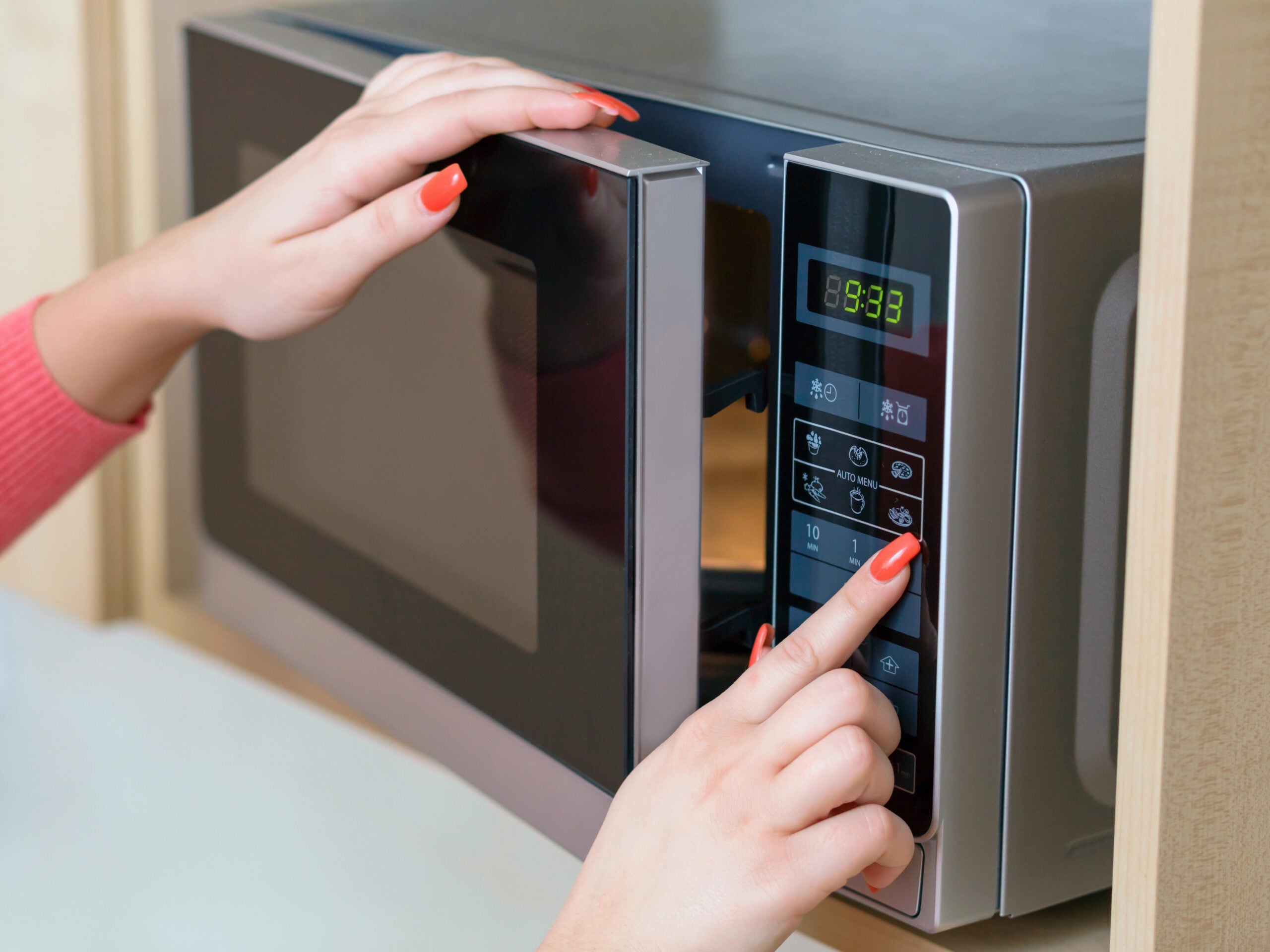
Your microwave might be perfectly innocent at 8 AM. By lunchtime, however, it could be interfering with your Wi-Fi while reheating yesterday’s leftovers.
Some household electronics can disrupt wireless signals even when they aren’t connected to your network. And because we use different appliances throughout the day, interference can seem to appear out of nowhere.
The biggest troublemakers often involve the 2.4 GHz Wi-Fi band, which shares radio-frequency space with several household technologies.
Potential culprits include:
- Microwave ovens: When operating, they can produce interference that disrupts nearby 2.4 GHz Wi-Fi connections.
- Baby monitors: Some wireless monitors transmit signals that can interfere with Wi-Fi, especially near your router or other connected devices.
- Cordless phones and wireless video equipment: Certain models use frequencies that overlap with Wi-Fi, which can cause problems when they’re active.
This isn’t necessarily a bandwidth problem. These electronics can interfere with the wireless signals carrying your data, even when your internet connection has plenty of capacity.
When interference disrupts communication, your devices may need to retransmit data, reducing Wi-Fi performance.
According to Google’s wireless interference guidance, household electronics can cause slowdowns or disconnections, sometimes only while they’re operating.
How To Spot Interference
Pay attention to when the slowdown starts and stops. Interference from a microwave, for example, might last only while it’s running.
If you suspect a particular device:
- Compare the timing. Does your connection stumble whenever the microwave runs or a wireless monitor is switched on?
- Create some distance. Move susceptible Wi-Fi equipment away from the suspected interference source when practical.
- Try another Wi-Fi band. If your router and device support 5 GHz, test that connection to see whether it performs better.
7. Your Neighbors’ Wi-Fi Gets Busier, Too
You might be the only person home, with nothing running but your laptop, and still experience a slowdown later in the day.
The culprit could be your neighbors. And no, that doesn’t mean someone has figured out your Wi-Fi password.
If you live in an apartment building, townhouse, or neighborhood with houses close together, multiple networks may be competing for the same wireless channels.
In the morning, those networks might see relatively little activity. Later, as more people come home and start streaming, gaming, and browsing, their Wi-Fi activity can affect yours, even though everyone has their own internet connection.

Why Nearby Networks Can Slow You Down
Wi-Fi operates on specific radio channels. When multiple networks use the same channel, their devices compete for available airtime, the opportunity to transmit data wirelessly.
This is called co-channel contention.
Think of it like several households sharing a narrow driveway. Everyone has their own car, but only so many can pass through at once.
The problem is especially common on 2.4 GHz Wi-Fi, which has relatively few nonoverlapping channels. The 5 GHz and 6 GHz bands offer more channel options, although they aren’t immune to congestion.
Unlike the microwave interference we discussed earlier, neighboring Wi-Fi networks compete to communicate over shared wireless channels rather than simply producing disruptive radio noise.
How To Check For Crowded Wi-Fi Channels
Here’s how to investigate whether nearby networks are competing with yours:
- Check nearby networks. Open the list of available Wi-Fi networks on your phone or computer. If dozens appear, you’re in an area with many detectable networks that could be competing for the same channels. It doesn’t prove congestion, but it’s a reason to investigate further.
- Look for channel settings. Your router’s app or dashboard may show which channels it’s using or how congested they are.
- Enable automatic channel selection. If supported, this helps your router choose a less crowded channel, though it may not switch continuously throughout the day.
- Try another Wi-Fi band. If your router and devices support 5 GHz or 6 GHz, these bands may perform better in crowded environments, provided the signal is strong enough.
Apple recommends automatic channel selection for most home routers and a 20 MHz channel width on 2.4 GHz to help reduce interference.
8. Afternoon Heat May Be Exposing A Router Problem
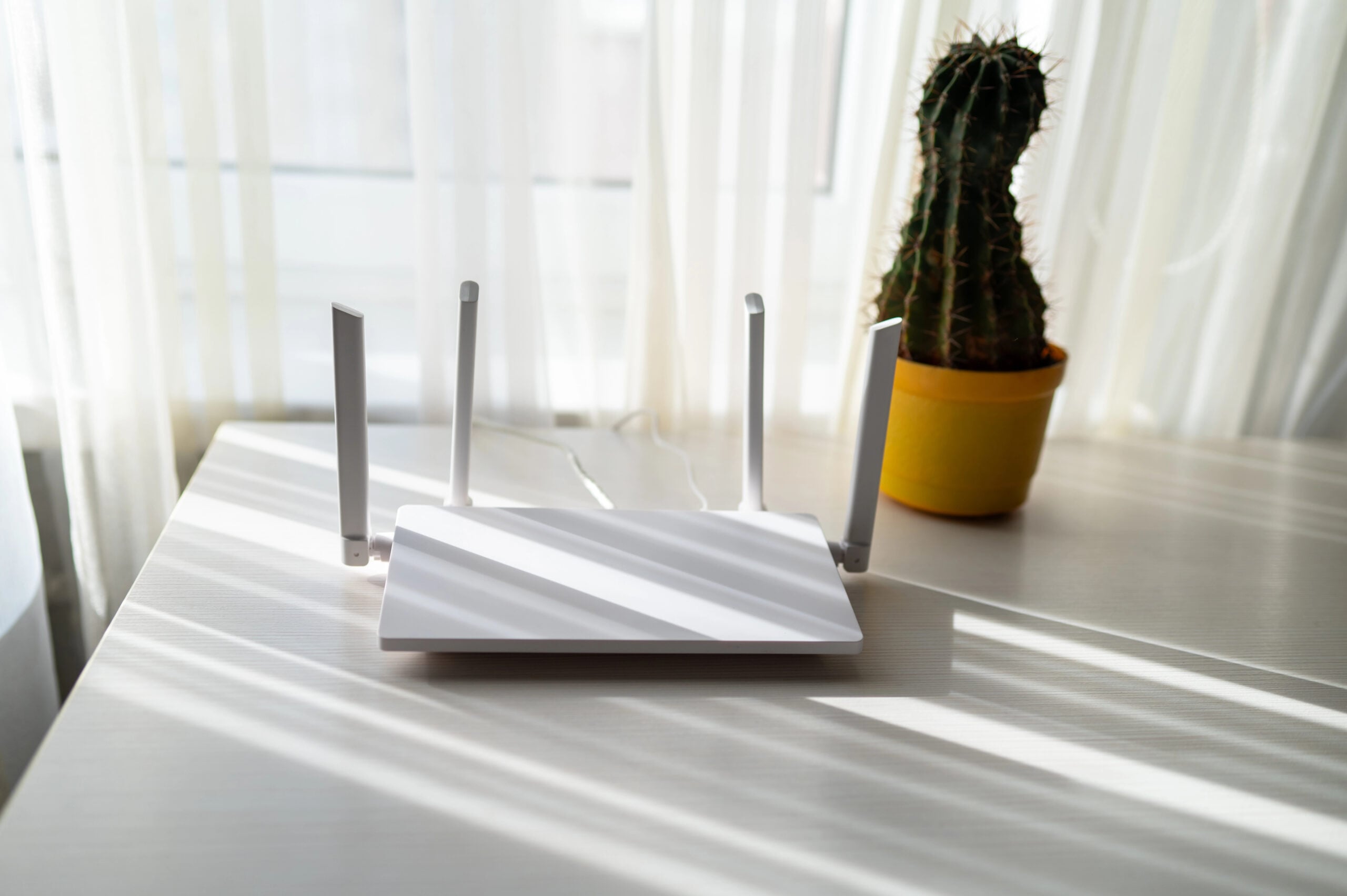
That sunny windowsill might be a lovely spot for a houseplant, but your router probably has other opinions.
If it’s sitting in direct afternoon sunlight or squeezed into a cabinet with other warm electronics, heat could be contributing to your Wi-Fi problems.
Routers generate heat during normal operation, but excessive temperatures can cause unstable connections, reduced performance, or unexpected restarts, especially when equipment lacks adequate ventilation.
A few common trouble spots include:
- Enclosed cabinets: Limited airflow can trap heat, especially when other electronics share the space.
- Direct afternoon sunlight: A router near a west-facing window may get considerably hotter later in the day.
- Nearby electronics: Modems, gaming consoles, and other equipment can add heat to an already cramped setup.
How To Tell If Your Router Is Overheating
A warm router isn’t necessarily overheating. Some models normally feel quite warm, even when working perfectly.
Instead, look for these clues:
- Check the timing. Does performance deteriorate as the room warms up or sunlight hits the router?
- Inspect its surroundings. Make sure ventilation openings aren’t blocked and air can circulate.
- Watch for instability. Frequent disconnections, unexplained restarts, or warning lights may indicate a hardware problem.
If your router is in a hot or poorly ventilated location, try moving it to a cooler, open spot and see whether the slowdowns continue.
Routers don’t normally get slower simply because they’ve been running all day. If heat is responsible, there’s usually a ventilation problem, excessive environmental heat, or an issue with the equipment itself.
How To Find Out What’s Actually Slowing Your Wi-Fi Down
You’ve got quite a few suspects. But before you start changing router settings or interrogating the household about who’s downloading what, compare your connection when it’s working well with when it starts struggling.
1. Test Your Connection In The Morning And Later
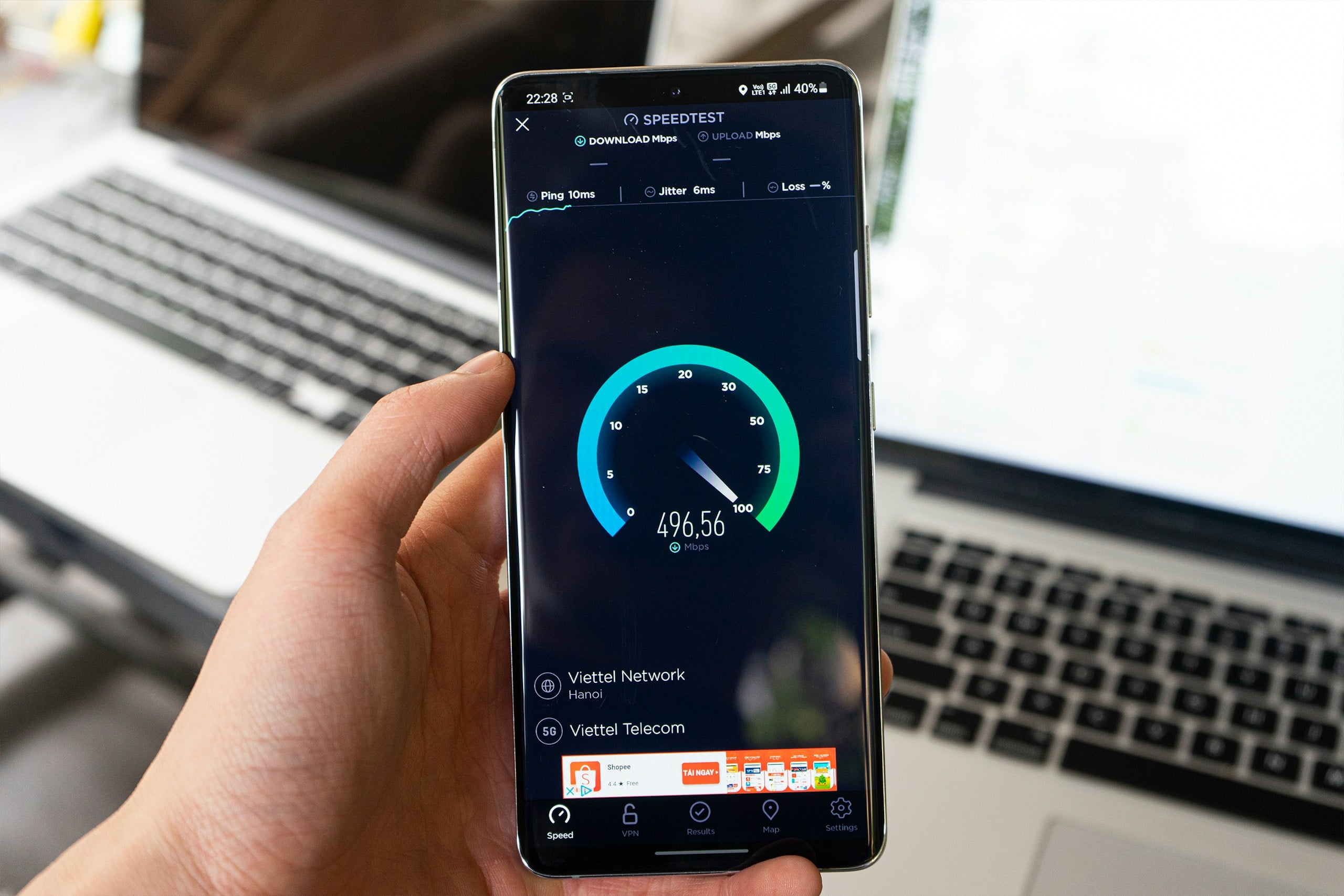
Run a speed test using Speedtest by Ookla when your connection is behaving normally. Repeat it during your usual slowdown.
For a meaningful comparison:
- Use the same device and location, preferably on the same Wi-Fi band.
- Record download and upload speeds to see whether either drops significantly.
- Check latency (ping). Higher latency can explain sluggish browsing, gaming, or video calls even when download speeds look fine.
One important catch: A speed test reflects performance at that moment, not necessarily your connection’s full capacity. If someone’s downloading a massive game update, your results could look terrible even though your provider is delivering the speeds you’re paying for.
Repeat the test after pausing major downloads, uploads, or streams. If speeds bounce back, competing household activity becomes a stronger suspect.
Try this over a few days. A consistent pattern tells you more than one disappointing test.
2. Find Out Whether It’s Wi-Fi Or Your Internet Connection
If possible, connect a computer directly to your router using an Ethernet cable and run another speed test during the slowdown. Some routers also offer a built-in internet speed test.
The results can point you in different directions:
- Wi-Fi is slow, but Ethernet performs normally: Investigate wireless interference, congestion, or coverage.
- Both connections are slow: Check household activity, router performance, or your provider’s connection.
- Only one device struggles: The problem may involve that device rather than your network.
Don’t overlook the device itself. Too many browser tabs, background programs, or high memory usage can make a laptop increasingly sluggish.
If your laptop is dragging, try loading the same website on your phone using the same Wi-Fi. If your phone responds normally, check CPU and memory usage in Task Manager (Windows) or Activity Monitor (Mac).
A slow wired connection doesn’t automatically mean your ISP is responsible, but it helps narrow the possibilities.
3. Look For A Pattern, Then Test One Suspect
Does the slowdown begin around the same time every day? When people return home? Or as the room gets warmer?
Timing can be your biggest clue.
Once you’ve identified a likely cause, change one thing and retest. Pause a suspected backup, for example, and check whether performance improves.
Change one variable at a time. Otherwise, you might solve the problem without knowing which adjustment actually worked.
Is The Slowdown Coming From Your Internet Provider?
Sometimes your household isn’t responsible for the slowdown at all. Your internet provider’s network can also become congested as more customers go online.
Internet providers share network infrastructure among customers. When demand exceeds the available capacity at a particular point, speeds can drop and latency can increase.
If you use 5G or LTE home internet, there’s another factor to consider. Unlike cable or fiber connections, services such as T-Mobile and Verizon 5G Home Internet rely on cellular towers. As more people use the same tower throughout the day, available network capacity can shrink.
Some plans also give certain customers lower priority during congestion, which can make slowdowns more noticeable. Both T-Mobile and Verizon explain how these policies work.
Your Wi-Fi signal could be perfectly strong while the cellular connection feeding your router struggles.
The Federal Communications Commission (FCC) identifies weekday evenings between 7 PM and 11 PM as typical peak internet usage hours. But network slowdowns aren’t limited to nighttime, and local conditions can vary.
How Do You Know When To Involve Your Provider?
Look for these clues:
- Both wired and wireless connections slow down during the same periods.
- Performance drops even when household internet activity is minimal.
- The slowdown follows a consistent daily pattern, despite changes to your devices or routines.
- Your provider reports network problems affecting your area.
If those signs sound familiar, contact your ISP with the results of your morning and later-day speed tests. Include the times, download and upload speeds, and whether Ethernet was affected.
That evidence gives your provider something specific to investigate, rather than another report of mysteriously slow Wi-Fi. Just remember that poor wired performance can also point to your modem or router, so ISP congestion isn’t the only possibility.
Will Faster Internet Or A New Router Actually Fix This?
When your Wi-Fi slows down later in the day, upgrading your equipment or internet plan can sound awfully tempting. But spending more money won’t necessarily solve the problem, especially if your morning performance is excellent.

Before opening your wallet, use your speed-test results to figure out which upgrade, if any, makes sense.
- Consider a faster internet plan if: Your wired connection slows during busy household activity but improves when large downloads, uploads, or streams stop. Check your plan’s download and upload speeds to see which limit you’re approaching. More bandwidth could help if you’re regularly maxing out your connection.
- Consider a router upgrade if: Your wired connection performs well, but Wi-Fi struggles across multiple devices, even near the router. First, rule out interference and coverage problems, then check whether your router is outdated or unable to handle your internet plan’s speeds and household demands.
- Skip the upgrades if: Pausing a scheduled backup, moving away from an interfering appliance, or changing a device’s location restores normal performance. You’ve found a specific problem that probably doesn’t require new equipment.
The goal isn’t to make your morning Wi-Fi even faster. It’s to figure out what’s preventing you from getting that same performance later in the day.
FAQs About Wi-Fi Getting Slower Throughout The Day
Still wondering why your Wi-Fi seems to lose steam as the day goes on? Here are a few more questions worth exploring. If yours isn’t here, drop it in the comments!
Why Is My Wi-Fi Slower On Weekdays Than Weekends?
Your household probably doesn’t follow the same schedule every day, and neither does your network.
Work-from-home video calls, school-day routines, and scheduled backups can create different patterns of internet activity during the week.
Nearby networks may also follow weekday schedules, especially in apartment buildings or densely populated neighborhoods.
Compare your speed tests at the same time on weekdays and weekends. If the slowdown consistently follows your work or school schedule, look for activities tied to those routines rather than assuming the connection itself is deteriorating.
Can My Internet Feel Slow Even When A Speed Test Looks Fine?
Absolutely. Download speed isn’t the only factor affecting internet performance.
High latency can make games lag and video calls freeze, while packet loss, which occurs when data fails to reach its destination, can cause interruptions and retransmissions.
A standard speed test might show excellent download speeds while missing intermittent problems.
Try a test that measures latency under load, such as Cloudflare’s speed test. This can reveal delays that become noticeable when your connection is busy.
Is My Internet Provider Throttling My Connection Later In The Day?
Not necessarily. A slowdown during busy hours doesn’t automatically mean your provider is deliberately limiting your speed.
Network congestion happens when too many customers compete for available capacity. Throttling or traffic management, on the other hand, involves a provider deliberately limiting or prioritizing certain traffic under specified conditions.
Some plans, particularly cellular home internet services, may receive lower priority during network congestion.
Check your provider’s network management policies and compare wired speed tests at different times before assuming your connection is being throttled.
Should I Restart My Router Every Afternoon?
Needing to restart your router daily isn’t normal. A reboot can temporarily clear a software glitch or restore an unstable connection, but it doesn’t explain why the problem keeps returning.
If restarting consistently helps, check for firmware updates, overheating, or signs that the router is struggling.
You can also review your router’s system logs, if available, for errors or unexpected restarts around the time performance deteriorates.
What Else Could Be Messing With Your Wi-Fi?
Found a possible culprit? There may be a few more things worth checking before you start shopping for new equipment. These guides can help you tackle some of the most frustrating home Wi-Fi problems:
- 10 Things In Your Home That Might Be Messing With Your Wi-Fi – From microwaves to surprisingly ordinary household objects, discover what’s interfering with your signal.
- Your Router Might Be In The Worst Possible Spot – Find out why a few feet can make a big difference in Wi-Fi coverage.
- Is Your Wi-Fi Slow On Just One Device? – When everyone else’s connection works perfectly, here’s how to investigate that one stubborn device.
Does your Wi-Fi have a daily meltdown, or have you figured out what’s causing those afternoon slowdowns? Tell us what you’ve noticed in the comments, especially if you’ve discovered an unexpected culprit. Your experience might help someone else solve their own Wi-Fi mystery!