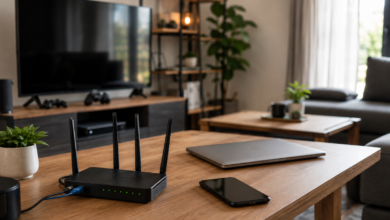
When your Wi-Fi slows to a crawl in the bedroom or starts buffering halfway through a movie, your internet provider is an easy suspect. And sometimes, it absolutely deserves the blame.
But sometimes, the problem is much closer to home.
That router tucked neatly behind the TV? The extender you plugged into the one room where Wi-Fi barely exists? The faster internet plan you upgraded to because surely more speed would fix everything?
Some of the most common Wi-Fi problems are caused by perfectly reasonable things we do in our own homes. They just stop looking so reasonable once you understand what your router is actually trying to accomplish.
Let’s see how many are happening in yours.
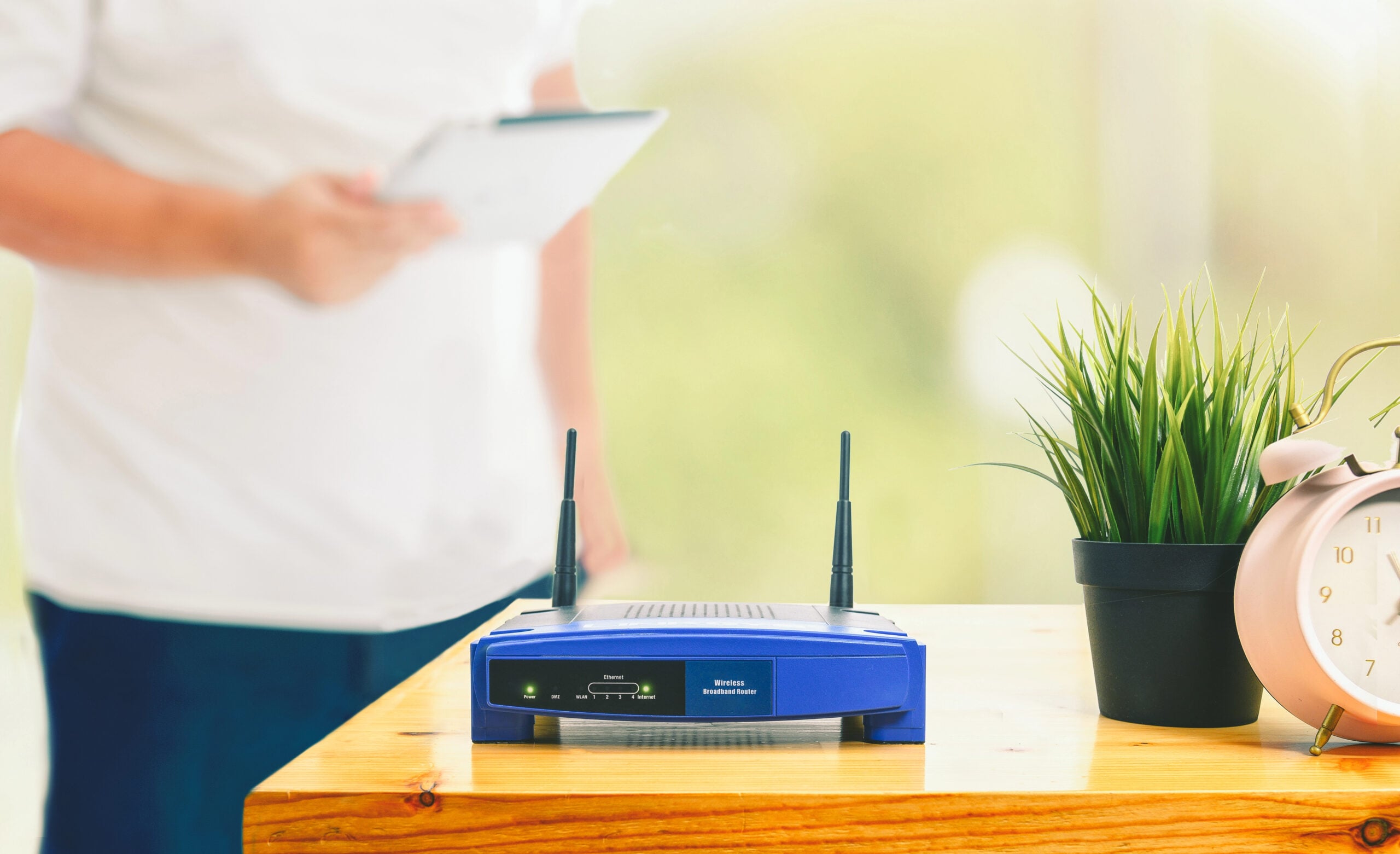
10 Wi-Fi Mistakes That Could Be Making Your Connection Worse
The frustrating thing about Wi-Fi is that small decisions can have surprisingly big consequences. A setup can look perfectly normal and still make your router work much harder than it should.
Some of the biggest offenders are also the easiest to overlook. But before you upgrade your internet plan or add more equipment, check how many of these common mistakes are happening in your own home.
1. You Hid The Router Because Routers Are Ugly
Let’s give the router some credit: it has never pretended to be home decor. Between the blinking lights, antennas, and tangle of cables, hiding it inside an entertainment cabinet or behind the TV can feel like the obvious solution.
Unfortunately, what’s good for living room aesthetics isn’t always good for Wi-Fi.
Your router communicates with devices using radio waves, and those signals lose strength as they encounter obstacles. Engineers call this signal attenuation — essentially, the Wi-Fi signal weakens as it travels through the stuff between the router and your devices.
Some hiding places are worse than others:
- Inside a metal cabinet, which can block or reflect radio waves
- Behind dense furniture or surrounded by books and other objects
- Inside an entertainment center, adding another barrier before the signal reaches the room
- Behind a TV, putting a large object directly in the signal’s path
This doesn’t mean Wi-Fi stops the moment you close a cabinet door. Each barrier simply makes the signal’s trip harder, especially when it still has another room or floor to reach.
If your router is hidden, get it into the open and give it some breathing room. Then test Wi-Fi in a problem area before and after the move.
You don’t have to display the router like a prized family heirloom; you just need to find out whether its hiding place is part of the problem.
2. Your Router Is In The Wrong Part Of The House
Getting your router out of the cabinet solves one problem. But it doesn’t help much if that nice, unobstructed router is sitting at the far end of the house while everyone uses Wi-Fi at the other end.
Routers often live wherever the internet connection enters the home — a downstairs office, basement, utility room, or corner chosen by an installer years ago. It worked on installation day, so the location basically became part of the house.
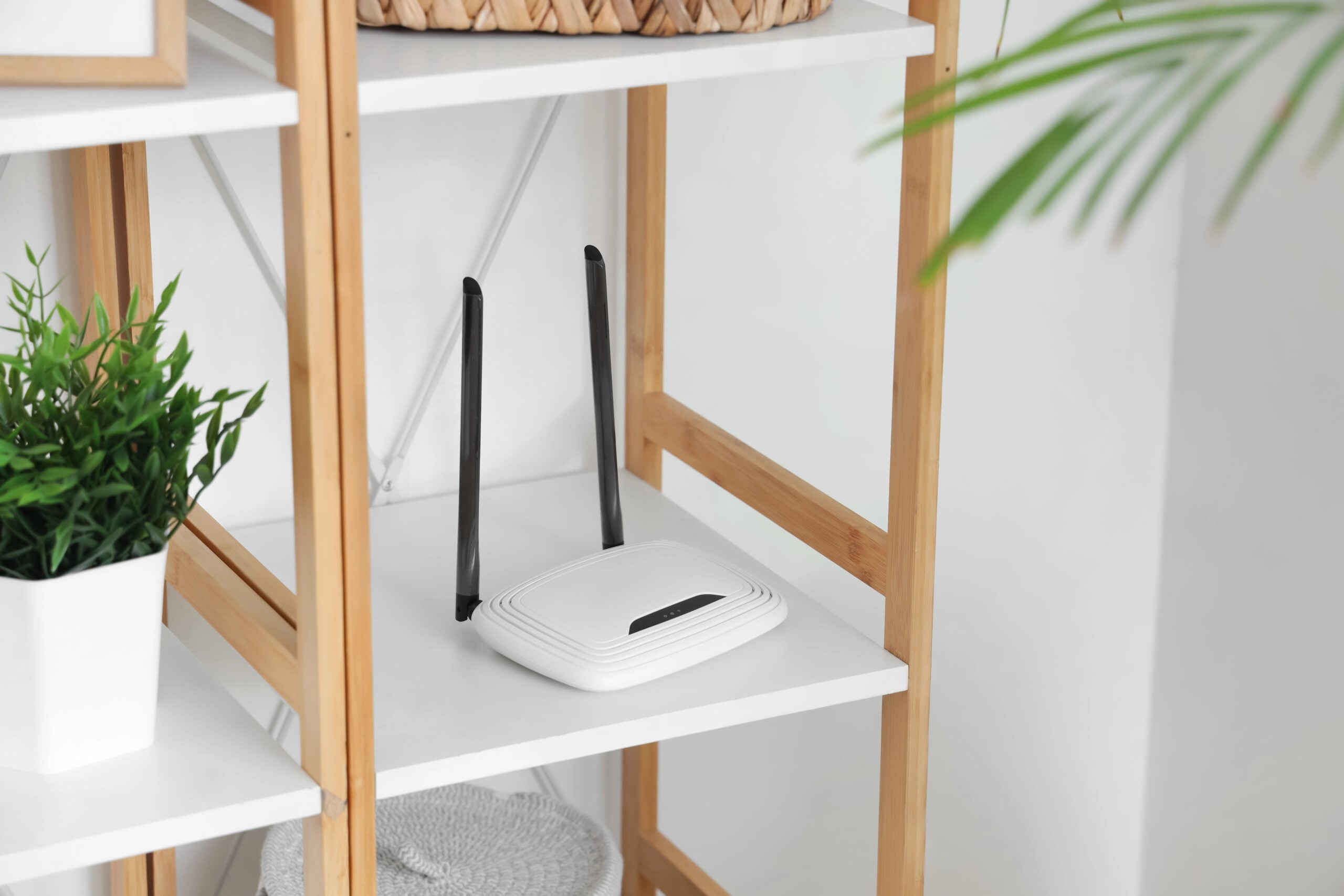
But Wi-Fi coverage is three-dimensional. Radio waves travel outward from the router, and the farther they have to go, the harder the trip can get.
A router at one end of the first floor may struggle to reach a bedroom at the opposite end of the second. The signal isn’t just traveling farther; it may also be crossing multiple walls and floors, potentially including brick, concrete, tile, metal, or other difficult materials.
That means a location that’s convenient for the incoming internet connection isn’t necessarily a good location for distributing Wi-Fi throughout your home.
Best Fix
- Identify the rooms where your household uses Wi-Fi most and choose a more central, open, elevated router location relative to them.
- Trace the path from the router to your worst Wi-Fi area. Fewer floors, walls, and major obstacles along that path are better.
- Before rerouting cables or permanently rearranging furniture, test the router in a better location temporarily if your setup allows it. If the problem improves, you’ve found a strong clue.
3. You’re Treating Every Wi-Fi Band Like It’s The Same
If your router offers 2.4 GHz, 5 GHz, and possibly 6 GHz, it’s easy to treat them like a ranking system. Six is bigger than five, which is bigger than 2.4, so 6 GHz must be the deluxe Wi-Fi.
Radio frequencies don’t work quite that neatly.
The band your device uses affects how the signal travels and the performance it can deliver. In general, 2.4 GHz can reach farther and handle obstacles better, while 5 GHz and 6 GHz trade some reach for greater performance potential and access to less-crowded spectrum.
| Wi-Fi Band | Where It Can Shine | The Tradeoff |
|---|---|---|
| 2.4 GHz | Longer distances and many smart-home devices | More congestion and lower potential speeds |
| 5 GHz | Streaming, gaming, laptops, phones, and other high-speed uses | Shorter practical range than 2.4 GHz |
| 6 GHz | Fast connections on compatible newer devices, especially closer to the router | Shorter reach and requires compatible hardware |
That means forcing a device at the opposite end of the house onto 5 or 6 GHz simply because it sounds faster can give it a less reliable connection.
Fortunately, many modern routers use band steering, which automatically guides compatible devices toward an appropriate band based on network conditions. Some even combine the bands under one Wi-Fi network name, so this may already be happening without you realizing it.
If automatic band steering is working well, there’s no reason to micromanage every device. But if one device struggles, testing another available band can be revealing. A distant smart plug and a gaming PC sitting beside the router aren’t asking Wi-Fi to do the same job.
4. You Put Your Router Too Close To Other Electronics
Your router can be out in the open, centrally located, and still have some surprisingly unhelpful neighbors.
The entertainment center is a common culprit. It seems like the logical place to gather the router, TV, streaming box, game console, speakers, smart-home hub, and every mysterious cable you’ve been afraid to unplug since 2019. But some of the technology clustered around your router may be competing for the same wireless airspace.
That’s where radio-frequency interference comes in. Unlike signal attenuation, where Wi-Fi weakens as it travels through distance and obstacles, interference happens when other wireless signals compete with or disrupt communication on the same or nearby frequencies.
There’s another complication with the 2.4 GHz band we just talked about: Wi-Fi isn’t the only technology using that part of the radio spectrum. Potential sources of interference include:
- Microwave ovens, which operate around the 2.4 GHz range
- Some cordless phones and baby monitors, depending on the frequencies they use
- Bluetooth devices and nearby Wi-Fi networks, which also share crowded wireless airspace
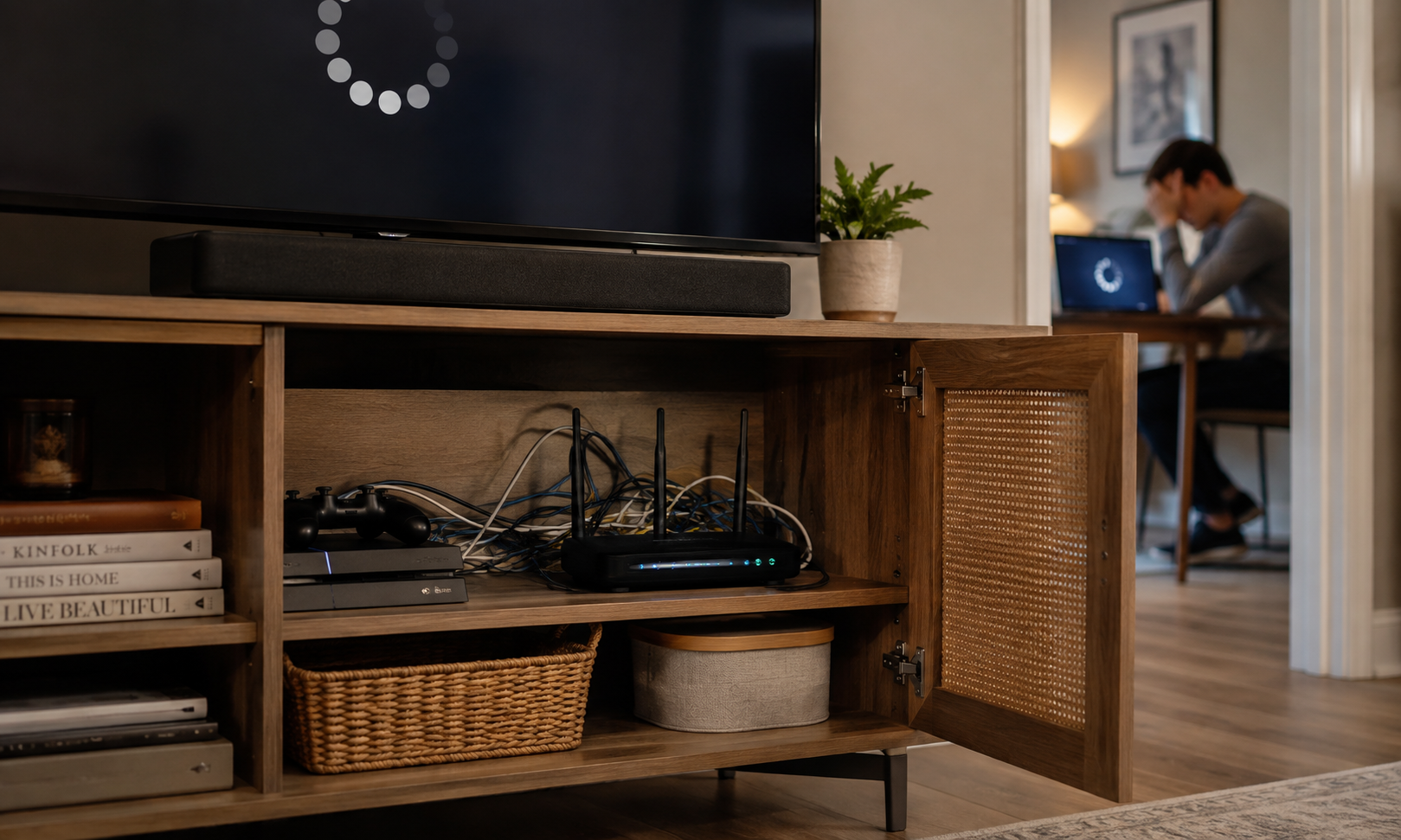
Interference can also leave a different clue than poor placement. Your Wi-Fi may become inconsistent rather than simply weak. If the connection gets worse at certain times, when a particular device is running, or despite a reasonably strong signal, interference becomes a more interesting suspect.
That doesn’t mean you need to evict every Bluetooth speaker. Modern wireless technologies are designed to coexist, and having electronics near your router doesn’t automatically mean they’re causing trouble.
Best Fix
- Give your router some separation from likely interference sources rather than stacking wireless equipment together.
- Watch the timing. If Wi-Fi repeatedly worsens when a particular device is operating, turn that device off and test again.
- If problems seem concentrated on 2.4 GHz, test the same device on 5 GHz or 6 GHz, if compatible, and compare the results.
5. You’re Treating Full Wi-Fi Bars Like A Speed Test
You glance at your phone. Full Wi-Fi bars. Excellent. So why is the video buffering like you’ve somehow traveled back to 2007?
Because that little Wi-Fi icon isn’t giving your internet connection a performance review.
The bars primarily represent the strength of the wireless signal between your device and the router or access point. A strong signal means those two devices can hear each other well. It doesn’t guarantee that everything happening beyond that connection is fast.
You can have excellent Wi-Fi signal strength while something else is slowing things down, including:
- A problem with your internet connection coming into the house
- Heavy network activity from other devices
- A slow or overloaded website, app, or streaming service
- A device-specific problem, such as background downloads or updates
- A VPN connection adding another potential bottleneck
Think of the Wi-Fi bars as answering “How well can I reach the router?” rather than “How fast is everything on the internet right now?”
That distinction becomes particularly useful when you’re diagnosing a problem. If your bedroom has one bar and terrible performance, coverage deserves a closer look. But if you’re sitting near the router with full bars and everything is still crawling, moving the router or buying an extender probably isn’t where I’d start.
What To Do Instead
- With full Wi-Fi bars, run a speed test instead of judging performance by the icon.
- Test another device in the same location. If only one struggles, investigate that device.
- Try another website, app, or streaming service. One slow service doesn’t necessarily mean the network is slow.
- If everything is sluggish despite a strong Wi-Fi signal, look beyond coverage at your internet connection, router, network activity, or device.
6. You Upgraded Your Internet Plan To Fix Your Wi-Fi
The bedroom Wi-Fi is slow. Your ISP offers a faster plan. More megabits, more speed, problem solved. It’s a perfectly reasonable conclusion—and sometimes an expensive way to fix the wrong problem.
That’s because internet speed and Wi-Fi performance aren’t the same thing.
Your internet plan determines how much speed your provider can deliver to your home. Wi-Fi handles the wireless trip from your router or access point to your devices. Increasing one doesn’t automatically improve the other.
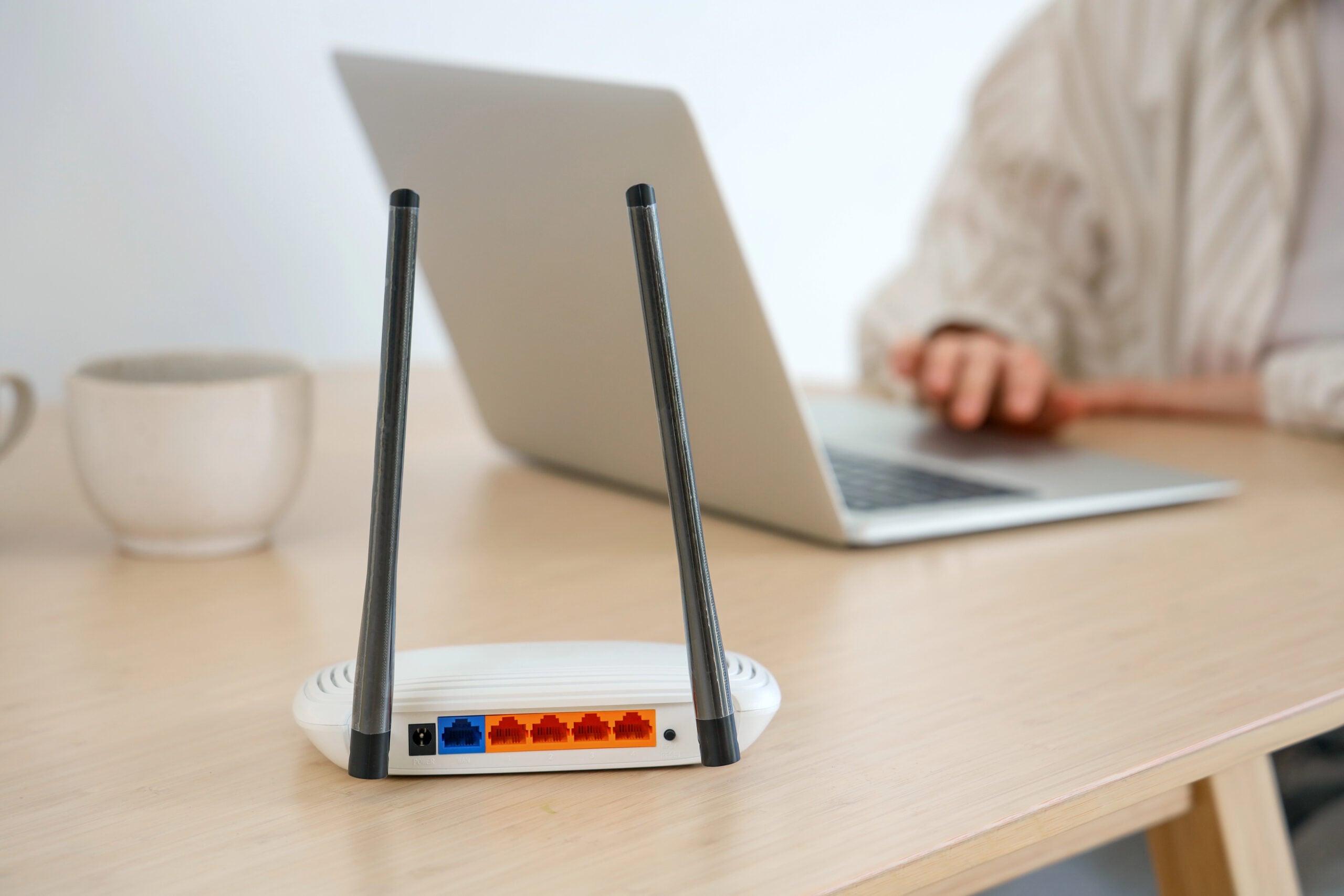
Say you upgrade from 300 Mbps to 1 Gbps. That extra capacity can absolutely help if your household was maxing out the old connection. But it won’t make your router’s signal travel farther, remove interference, or change the walls and floors standing between the router and your bedroom.
A gigabit plan is impressive. It still doesn’t give Wi-Fi a special permit to bulldoze through the refrigerator and two bathrooms on its way upstairs.
Best Fix
Before paying for more speed, run a simple comparison:
- Using the same device, run a speed test near the router.
- Repeat the test in the room where Wi-Fi struggles, under similar conditions.
- If performance drops dramatically with distance, investigate Wi-Fi coverage and placement before upgrading your plan.
- If performance is poor everywhere, including near the router, look instead at your router, modem, ISP connection, or whether your current plan is actually being maxed out.
7. You Keep Adding Equipment Instead Of Finding The Problem
Bad Wi-Fi has a way of turning otherwise reasonable people into network equipment collectors.
First there’s the router. Then an extender. Then perhaps a better extender because the first one didn’t fix the upstairs bedroom. Eventually someone starts researching mesh systems, and the living room is one purchase away from resembling the network closet of a small dentist’s office.
Extra equipment can absolutely improve Wi-Fi coverage. The mistake is assuming more Wi-Fi hardware automatically means better Wi-Fi.
Extenders, mesh nodes, and other access points—devices that provide additional places for wireless devices to connect to your network—still have to be positioned and connected properly. More importantly, they can’t fix an underlying problem that isn’t actually about coverage.
A mesh system, for example, can be excellent for a home that genuinely needs broader coverage across multiple floors or a difficult layout. But adding more access points won’t solve an ISP problem, a struggling device, or interference, and several poorly positioned Wi-Fi nodes can be an expensive way to preserve the original problem.
Best Fix
Before adding another extender, mesh node, or access point:
- Test beside the router. If performance is already poor there, additional coverage probably isn’t your first fix.
- Test the problem location with more than one device. This helps distinguish a room problem from a device problem.
- If performance drops primarily with location, check router placement and interference before adding hardware.
- Only start shopping when your tests actually point toward a coverage gap that additional equipment could solve.
8. You Put A Wi-Fi Extender Where The Wi-Fi Is Already Terrible
There’s a certain logic to Wi-Fi extenders that seems almost impossible to argue with. The bedroom has terrible Wi-Fi, so you plug the extender into the bedroom. That’s where you need more Wi-Fi.
Unfortunately, that’s also where there’s barely any Wi-Fi for the extender to work with.
A traditional wireless extender doesn’t create a brand-new internet connection. It has to receive data from your existing network and then rebroadcast it farther into the house. That connection back toward the router is often called the backhaul.
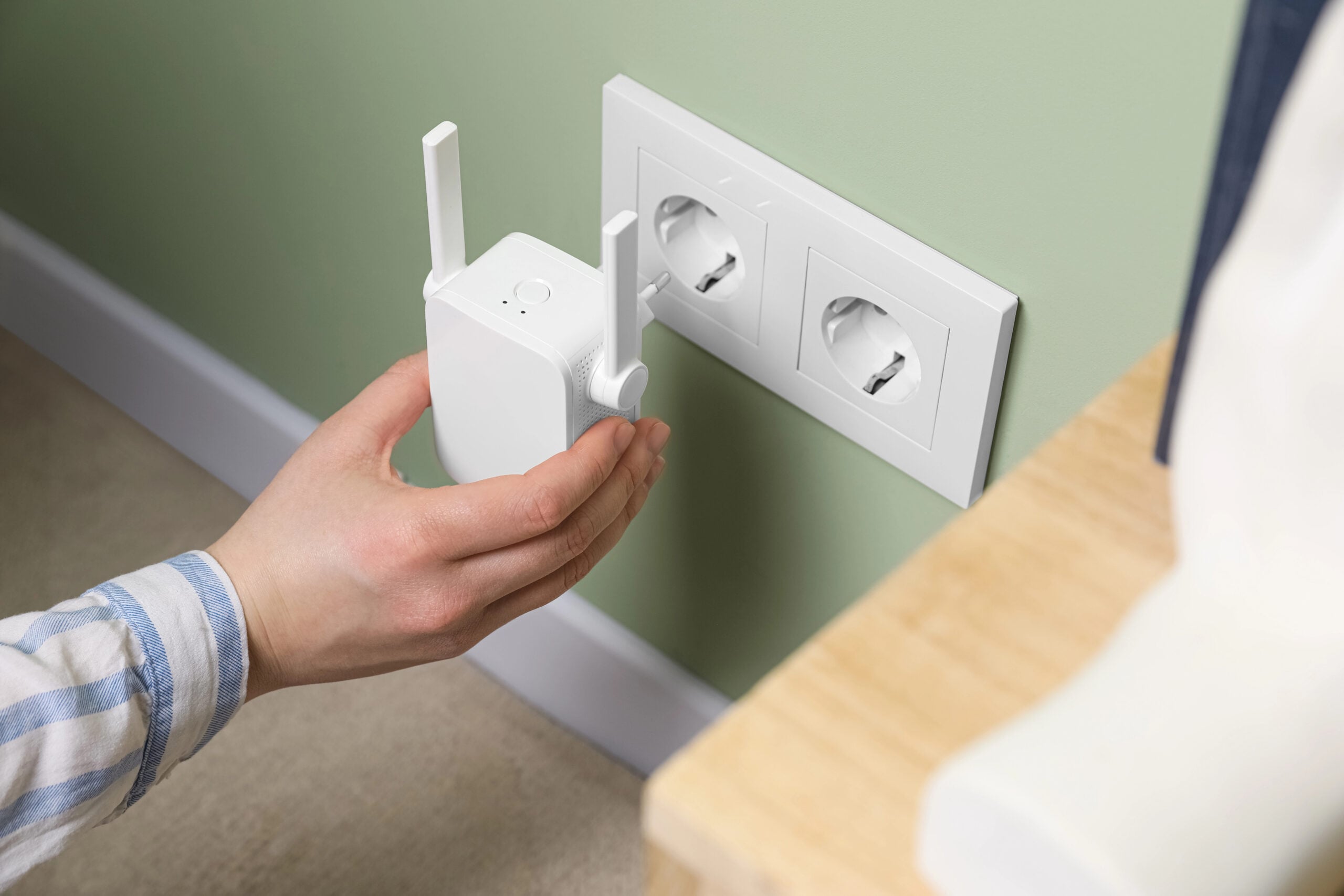
If the extender’s backhaul is weak, you’re asking it to repeat a poor connection. You might even see more Wi-Fi bars when connected to the extender, but a strong connection between your device and the extender doesn’t fix the extender’s weak connection back to the router.
That’s why plugging an extender directly into the dead zone can be so disappointing. The goal is to find a location where it can still communicate well with the router while extending coverage toward the problem area.
Best Fix
- Check the extender’s app or status lights to see how strong its connection is to the router.
- If that connection is weak, move the extender closer to the router and test again.
- Check performance in the room you’re trying to reach, then adjust the extender’s location incrementally until you find a useful balance.
- Don’t worry about placing it exactly halfway between the router and dead zone. Walls, floors, and your home’s layout matter more than perfect geometry.
9. Your Router Is Running Software You Haven’t Thought About In Years
Phones and laptops ask you to install updates. Your television may interrupt your evening to announce that it, too, has apparently become a computer.
Your router is one as well. It runs software called firmware, which controls how the hardware operates and communicates with devices on your network. Unlike your phone, though, the router is very good at sitting in a corner without reminding you that its software exists.
Firmware updates can address:
- Security vulnerabilities discovered after the router was released
- Bugs and stability problems that can contribute to connection issues
- Compatibility issues with devices or network features
- Performance or feature improvements supported by the hardware
An overdue update isn’t automatically responsible for every buffering video in the house. But if you’re dealing with unexplained instability, check your firmware before you start replacing equipment.
Many newer routers update automatically; others let you enable automatic updates through the manufacturer’s app or settings. Check that your firmware is current and turn on automatic updates if your router supports them.
If you discover that your router isn’t receiving updates at all, however, that’s a different clue. Manufacturer support eventually ends — and now the hardware’s age and capabilities deserve a closer look.
10. You’ve Replaced Everything Except The Router
Think about how much technology in your house has changed since you installed your router. You’ve probably replaced a phone or two, upgraded a laptop, bought a new TV, and added devices that weren’t even on your Wi-Fi shopping list a few years ago.
Meanwhile, the same router is still sitting there, reporting for duty.
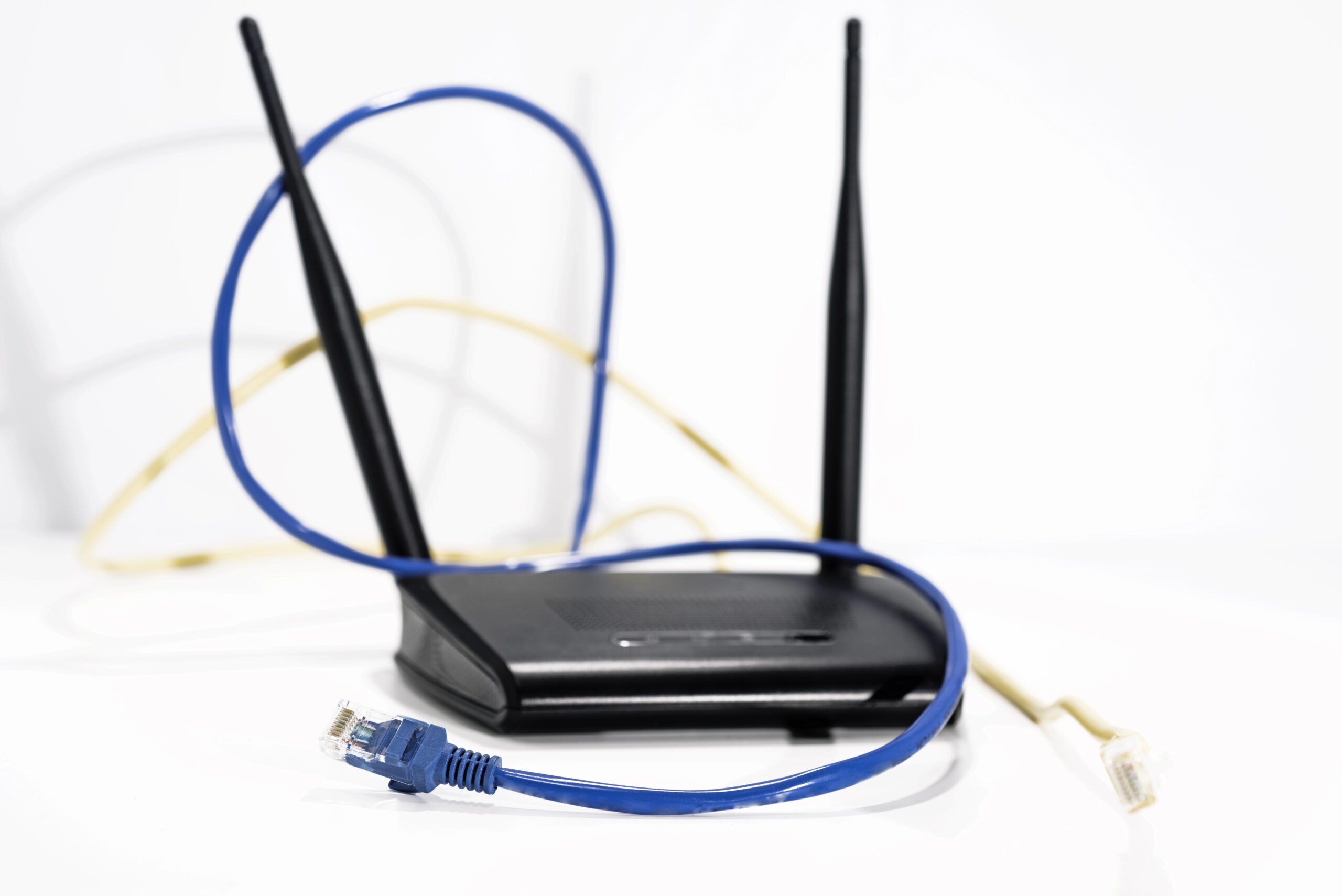
That isn’t automatically a problem. Routers don’t become bad because they celebrate a particular birthday. But wireless technology keeps evolving, and an older router may eventually lack the capabilities your newer devices and busier household can actually use.
Newer generations of Wi-Fi can improve speed, efficiency, capacity, and how well a network handles multiple active devices. An older router may still connect everything while becoming the limiting factor in what those devices can do.
The important distinction is old versus outdated. A router that’s several years old but still supported, capable, and performing well doesn’t need replacing just because the calendar says so. But aging hardware combined with missing features, ended manufacturer support, and persistent problems makes a much stronger case.
Best Fix
Before replacing your router, look at the whole picture:
- Age: How long has it actually been in service?
- Capability: Does it support Wi-Fi standards and features appropriate for your current devices and internet connection?
- Support: Is the manufacturer still providing firmware and security updates?
- Symptoms: Do performance or reliability problems remain after you’ve addressed placement, interference, and other obvious causes?
Think of it as Age + Capability + Support + Symptoms. If several of those point to inadequate hardware, you’ve got a much better reason to upgrade than the router simply having a few birthdays behind it.
One Common Wi-Fi Mistake That Has Nothing To Do With Speed
Not every Wi-Fi mistake shows up as buffering, slow downloads, or a dead zone upstairs. One of the most important may not affect your connection speed at all: forgetting about security once the network is up and running.
For many households, the Wi-Fi password has had quite a social life. Family members have it. Friends have it. The babysitter has it. Your kid’s friends have it. There’s a decent chance someone who came over for a cookout three summers ago still connects automatically whenever they pull into the driveway.
While you’re checking your setup, pay attention to two passwords that are easy to confuse:
- Your Wi-Fi password controls who can join the wireless network.
- Your router administrator password protects access to the settings that control the router itself.
Use strong, separate passwords and modern WPA2 or WPA3 encryption rather than outdated security such as WEP. It’s also worth opening your router’s connected-device list occasionally. If something called DESKTOP-Q7F4X9 appears and nobody in the house claims it, investigate rather than assuming you’ve acquired another family member.
Guest networks can help, too. They’re useful for visitors, and depending on your router and how your smart-home devices communicate, a separate guest or IoT network may help isolate less-trusted connected devices from computers and other devices containing sensitive information.
What To Do
- Make sure your network uses WPA2 or WPA3 encryption, not obsolete WEP.
- Use a strong Wi-Fi password and a separate, strong router-administrator password.
- Open the router’s connected-device list and investigate anything you don’t recognize.
- Consider a guest network for visitors rather than routinely sharing access to your primary network.
- If your router supports separate guest/IoT networking, consider whether it makes sense for your smart-home setup.
Before You Blame Wi-Fi, Run This 60-Second Test
After ten mistakes, there’s one more trap worth avoiding: assuming every problem that happens on a Wi-Fi-connected device must be a Wi-Fi problem.
Instead of asking, “Why is my Wi-Fi so bad?” start with a more useful question: What does the problem follow?
You don’t need networking tools to get a surprisingly good clue. Pay attention to where and when the problem appears:
| What’s Happening? | Where To Look First |
|---|---|
| One device is slow | That device’s Wi-Fi adapter or driver, software, updates, VPN, or background activity |
| One room is slow | Wi-Fi coverage, distance, obstacles, or interference |
| Everything is slow everywhere | Router, modem, internet connection, or heavy network activity |
| One website or app is slow | The website, app, or service itself |
| Things slow down when you use a VPN | The VPN connection, server, or routing |
These aren’t definitive diagnoses. They’re shortcuts for shrinking the suspect list.
If one laptop struggles while two phones work perfectly well from the same couch, for example, blaming the router becomes less convincing. The laptop’s Wi-Fi adapter, driver, operating-system settings, or other software deserves a closer look.
If every device becomes sluggish only in the upstairs bedroom, the room itself just became a much more interesting clue.
There’s another useful test if you have a computer with an Ethernet port or adapter. Temporarily connect it directly to the router with an Ethernet cable and compare the connection. Ethernet removes the wireless portion of that particular test — no Wi-Fi distance, walls, or radio interference between the computer and router.
If the wired connection performs well while Wi-Fi struggles, you’ve just narrowed the investigation toward the wireless side of your network.
Follow the problem before you follow the usual instinct to reboot, upgrade, relocate, or buy something.
Before You Buy Anything: Your 5-Minute Wi-Fi Check
In a hurry? Start here. You don’t need to redesign your network or understand every setting in your router. These five quick checks can help you spot some of the most common problems before you spend money trying to fix them.
- Get your router into the open. Move it out of cabinets, from behind the TV, and away from obvious obstructions or interference sources.
- Test Wi-Fi near the router and in your problem area. A big performance drop as you move through the house points toward coverage, placement, or interference.
- Try another device. If your laptop struggles from the couch but your phone works perfectly in the same spot, investigate the laptop before blaming the entire network.
- Check your router. Make sure its firmware is current, automatic updates are enabled if available, and the manufacturer still supports your model.
- Look for a pattern before buying a solution. Does the problem follow one room, one device, one service, or the entire network? That clue can tell you whether you need better coverage, different hardware, help from your ISP—or no new equipment at all.
If you only do one thing differently, diagnose first and shop second.
Frequently Asked Questions
Wi-Fi has a way of raising one question as soon as you answer another. Here are a few we hear often. Still trying to figure out something strange happening on your home network? Ask your Wi-Fi question in the comments below.
Does Restarting Your Router Actually Help?
Yes, sometimes. Restarting a router can clear temporary glitches, stalled processes, or connection problems, which is why “turn it off and back on” has survived several generations of tech support.
But pay attention to how often you’re doing it. If your Wi-Fi works normally after every reboot but starts misbehaving again a few days later, the repeated need to restart is a clue, not a long-term fix. Firmware problems, overheating, aging hardware, or another network issue may be worth investigating.
Should You Turn Your Router Off At Night?
Generally, there’s no Wi-Fi performance reason to turn your router off every night. Routers are designed to operate continuously, and shutting yours down can disconnect security cameras, smart-home devices, cloud backups, and anything else that expects an always-on connection.
Some routers also perform automatic updates or maintenance when network activity is low, making overnight one of the more convenient times to leave them alone.
Can Too Many Devices Slow Down Wi-Fi?
They can, but the number of connected devices doesn’t tell the whole story. What those devices are doing matters much more.
Forty smart bulbs sitting around waiting for someone to ask Alexa to dim them aren’t the same as four people simultaneously streaming, gaming, video calling, and downloading enormous files.
Wi-Fi devices also share available airtime—the opportunities devices get to transmit data over the wireless network. Lots of active devices competing for that airtime can affect performance, especially on older or heavily congested networks.
Is Wi-Fi Always Slower Than Ethernet?
Not necessarily in every real-world comparison, but Ethernet has some important advantages because it removes the wireless portion of the connection. A wired device doesn’t have to contend with Wi-Fi distance, walls, radio interference, or competition for wireless airtime in the same way.
That makes Ethernet useful for more than squeezing out maximum speed. If a computer performs well over Ethernet but struggles over Wi-Fi, you’ve just gathered another clue that the wireless part of the network deserves your attention.
Still Fighting With Your Tech At Home?
Wi-Fi has a special talent for getting blamed whenever technology misbehaves, but it isn’t always working alone. Phones slow down, smart-home devices stop cooperating, connections drop, and perfectly good internet somehow turns miserable at the same time every night.
If your router isn’t the only piece of technology testing your patience, these guides can help you figure out what to investigate next:
- These Everyday Habits Are Slowing Down Your Devices — For those times when the Wi-Fi is innocent and your phone, laptop, or other device is actually the one dragging its feet.
- Why Your Phone Battery Suddenly Drains Faster Than It Used To — If your phone suddenly can’t make it through the day like it used to, find out what’s actually eating through the battery.
- Why Your Laptop Gets Hot So Easily Now — Learn what’s behind a laptop that suddenly seems determined to double as a space heater.
- Why Your Smart Home Setup Suddenly Starts Acting Dumb — If lights, plugs, speakers, or other connected devices are the ones staging the rebellion, start troubleshooting there.
Which Wi-Fi mistake are you guilty of? Is your router hiding in a cabinet, living in the worst possible corner of the house, or surrounded by enough extra equipment to run a small office? Share your setup — or your strangest Wi-Fi fix — in the comments below.