Your internet suddenly slows to a crawl. The TV starts buffering. A video call cuts in and out. A website that normally loads instantly seems to be reconsidering its life choices.
So you ask the obvious question: “Who’s using all the internet?”
Nobody, apparently.
No one’s streaming. No one’s downloading anything. Everyone in the house swears they’re innocent. Yet something is still using your connection.
And that’s where the mystery gets interesting. Some of the biggest bandwidth hogs aren’t nearly as obvious as you’d expect. They can spring into action without anyone pressing play, opening an app, or even being in the room.
Want our human-written content to rank above AI-generated garbage? Help us out by clicking this button!
So if everyone really is innocent, what’s using all your bandwidth?
First, What Does “Using Your Bandwidth” Actually Mean?
Before we start looking for suspects, there’s one distinction that makes this whole mystery easier to solve: internet speed and bandwidth aren’t quite the same thing.
Think of your internet connection like a water pipe feeding your house. The pipe can only carry so much water at once. Open one faucet, and there’s plenty to go around. But turn on the shower, dishwasher, washing machine, and three more faucets at the same time, and they’re all competing for what that pipe can deliver.
Your internet connection works in a similar way. Your plan determines how much data your connection can move, while everything happening online competes for that available capacity.
The more demanding activities happening at once, the more likely you are to notice buffering, lag, slow downloads, or frozen video calls.
There’s another wrinkle: internet traffic moves in two directions.
Downloads bring data into your home, such as streaming a movie, downloading a game, or installing an update.
Uploads send data out. Cloud photo backups, file syncing, security camera footage, computer backups, and video calls can all use your upload capacity.
The Bandwidth Clue Most People Miss
Something doesn’t have to be on your screen to be using your internet connection.
A device that looks idle may still be downloading, uploading, updating, syncing, or backing up data in the background. That’s why finding the culprit isn’t always as simple as asking who’s online.
Let’s Find Out What’s Using All Your Bandwidth
Now that we know internet traffic can be happening even when nobody appears to be doing much online, it’s time to start checking the usual suspects — and a few you probably wouldn’t think to blame.
Some consume a steady trickle of data. Others can suddenly demand a huge chunk of your connection. And a few may be doing it while sitting there looking completely innocent.
1. Game Consoles & Massive Background Updates
The game console hasn’t been touched all afternoon. The TV is off. The controller is exactly where someone abandoned it last night.
The console, however, may be having a very productive day.
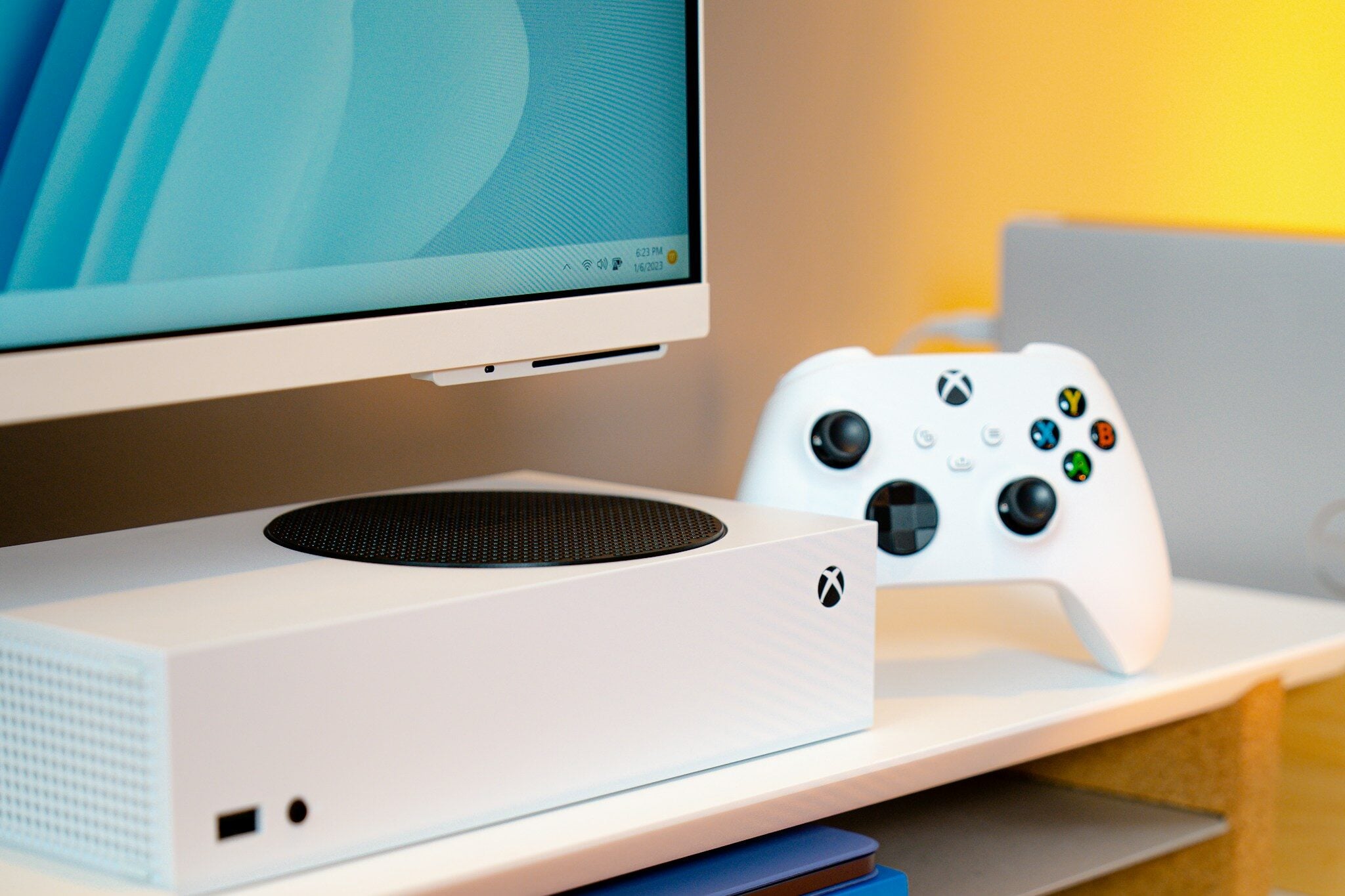
Modern consoles can automatically download game patches, new content, system software, and other updates in the background. Depending on the settings, some of that work can continue while the console is in a low-power or rest mode.
And these aren’t necessarily small downloads. Modern game updates can run into tens of gigabytes, particularly after a major patch, expansion, or new season.
One automatic update can suddenly become one of the busiest things on your network without anyone intentionally downloading anything.
Your console deserves a look if:
- A game recently released a major patch, expansion, or new season
- Automatic game and system updates are enabled
- The console is allowed to download while in rest or standby mode
- It hasn’t been used for a while and may have several updates waiting
- Your connection suddenly slows with no obvious activity elsewhere
That’s what makes consoles such a good first suspect. The owner can truthfully say they haven’t been gaming all day while the console has been moving gigabytes of data behind their back.
2. Cloud Photo Backups
Here’s another suspect that can get busy without anyone deliberately using the internet: the phone sitting on the kitchen counter.
Imagine you’ve spent the day away from home taking photos and videos. You walk through the door, your phone reconnects to Wi-Fi, and your cloud photo service starts uploading everything it has been waiting to back up.

That can be especially noticeable if you’ve recorded a lot of high-resolution or 4K video. And if several people arrive home around the same time, multiple phones may start syncing their photo libraries at once.
This time, the traffic is going in the other direction. Instead of downloading data from the internet, your phone is uploading it to the cloud.
A bigger upload may be triggered by:
- A day packed with photos and videos
- Recording long or high-resolution videos
- Returning to Wi-Fi after spending hours on cellular data
- Setting up a new phone or restoring a photo library
- Several family members syncing their devices at once
Uploads deserve particular attention because many home internet connections provide substantially less upload capacity than download capacity. A large backup can therefore crowd that side of the connection faster than you might expect, especially during activities that also need upload bandwidth, such as video calls.
3. The TV Nobody Is Watching
Streaming isn’t exactly a hidden bandwidth hog when you’re sitting on the couch watching a movie. The more interesting suspect is the TV nobody is watching anymore.
Someone starts a show in the bedroom, walks away, and forgets about it. Autoplay rolls into another episode. A streaming box continues playing while its audience is making dinner, taking a shower, or has simply moved on with life.

The screen may be out of sight, but the stream can keep pulling data through your connection.
And resolution makes a difference. Netflix recommends connection speeds of roughly:
- 720p HD: 3 Mbps or higher
- 1080p HD: 5 Mbps or higher
- 4K/UHD: 15 Mbps or higher
That means a forgotten 4K stream can claim a meaningful chunk of bandwidth while entertaining absolutely no one.
Look for streaming that’s been left behind:
- A TV playing in an empty bedroom or basement
- Autoplay continuing after someone walks away
- A streaming stick or box still playing content
- Kids leaving a show running when they switch rooms or activities
- Multiple TVs that weren’t actually turned off when everyone finished watching
The important distinction isn’t whether your household ever streams video. Of course it does. It’s whether something is still streaming when everyone assumes it stopped.
4. Security Cameras & Video Doorbells
Here’s a bandwidth user that doesn’t care whether anyone is home: your security cameras.
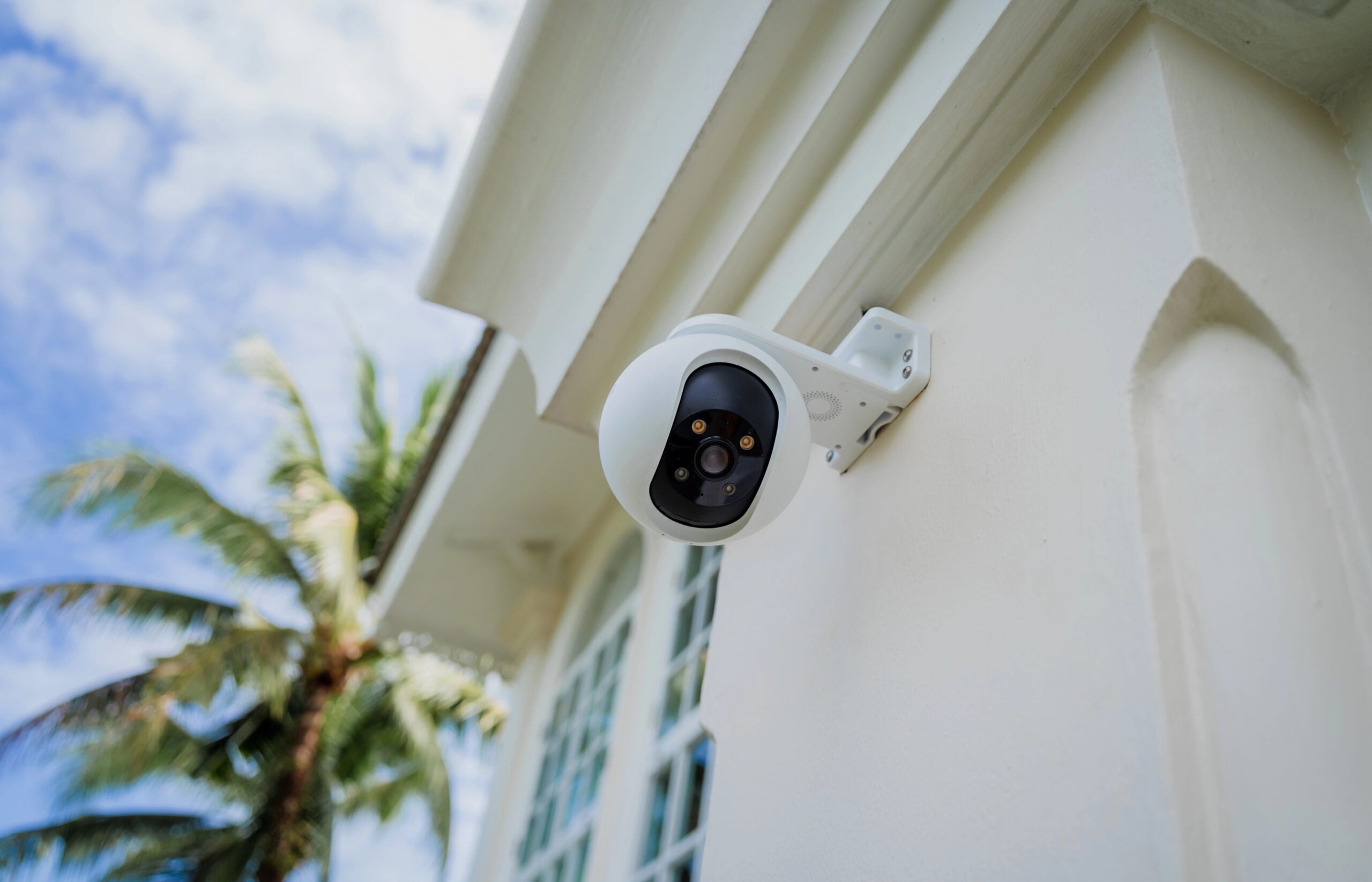
Cloud-connected cameras and video doorbells may upload footage whenever they detect motion, when you open a live view, or, depending on the device and subscription, as part of more continuous recording.
One camera may not put much strain on a typical connection, but the equation changes when you have several of them.
A doorbell watches the porch. Another camera covers the driveway. Two more monitor the backyard and garage. Suddenly, your home has multiple devices capable of sending video to the cloud throughout the day.
Camera bandwidth use can increase with:
- More cameras: Each one adds another potential video stream.
- Higher resolution: 2K or 4K footage contains more data than lower-resolution video.
- Frequent motion: A busy sidewalk or street can trigger repeated recordings.
- Continuous recording: Cameras that upload more consistently can generate far more traffic than occasional event clips.
- Live viewing: Checking camera feeds also adds network activity.
The biggest clue here is upload traffic. If video calls become unstable or other upload-heavy activities struggle, cameras are worth investigating, particularly in a home with several cloud-connected models.
Quick Gut Check: How Many Of These Are Happening Right Now?
Without checking first, how many of these could be happening somewhere in your house right now?
- A game console is downloading a massive update
- Photos or videos are uploading to the cloud
- Security cameras are sending footage online
- A computer is syncing files or running a backup
- Phones or tablets are downloading automatic updates
- An app or operating system is updating in the background
If you don’t know, it’s time to investigate.
5. Computers Syncing Files In The Background
A laptop sitting closed on a desk or a desktop with nobody in front of it certainly looks innocent. But computers have plenty of ways to use your connection without asking for your attention first.
Cloud services such as OneDrive, Dropbox, and Google Drive can automatically synchronize files whenever something changes. Operating systems and applications download updates. Backup software may run on a schedule.
And if you work with large photos, videos, presentations, or other hefty files, one background sync can involve far more data than you’d expect.
This becomes particularly noticeable when you’ve made a lot of changes at once — or when a computer hasn’t been online for a while and suddenly has some catching up to do.
Look for background activity such as:
- OneDrive, Dropbox, Google Drive, or another cloud service actively syncing
- Windows, macOS, or application updates downloading
- Scheduled computer backups
- Large work folders being uploaded or synchronized
- A recently restarted or long-unused computer downloading a backlog of updates
If you’re not sure what the computer is doing, Windows Task Manager and macOS Activity Monitor can show which apps and processes are currently using the network. That makes your computer one of the easier suspects to interrogate once you know where to look.
6. Phones & Tablets Doing Things Without You
Your phone doesn’t stop using the internet when you put it down. It just stops telling you about most of what it’s doing.
Phones and tablets routinely handle background tasks over Wi-Fi, from downloading app and operating-system updates to refreshing content and downloading media for offline use.
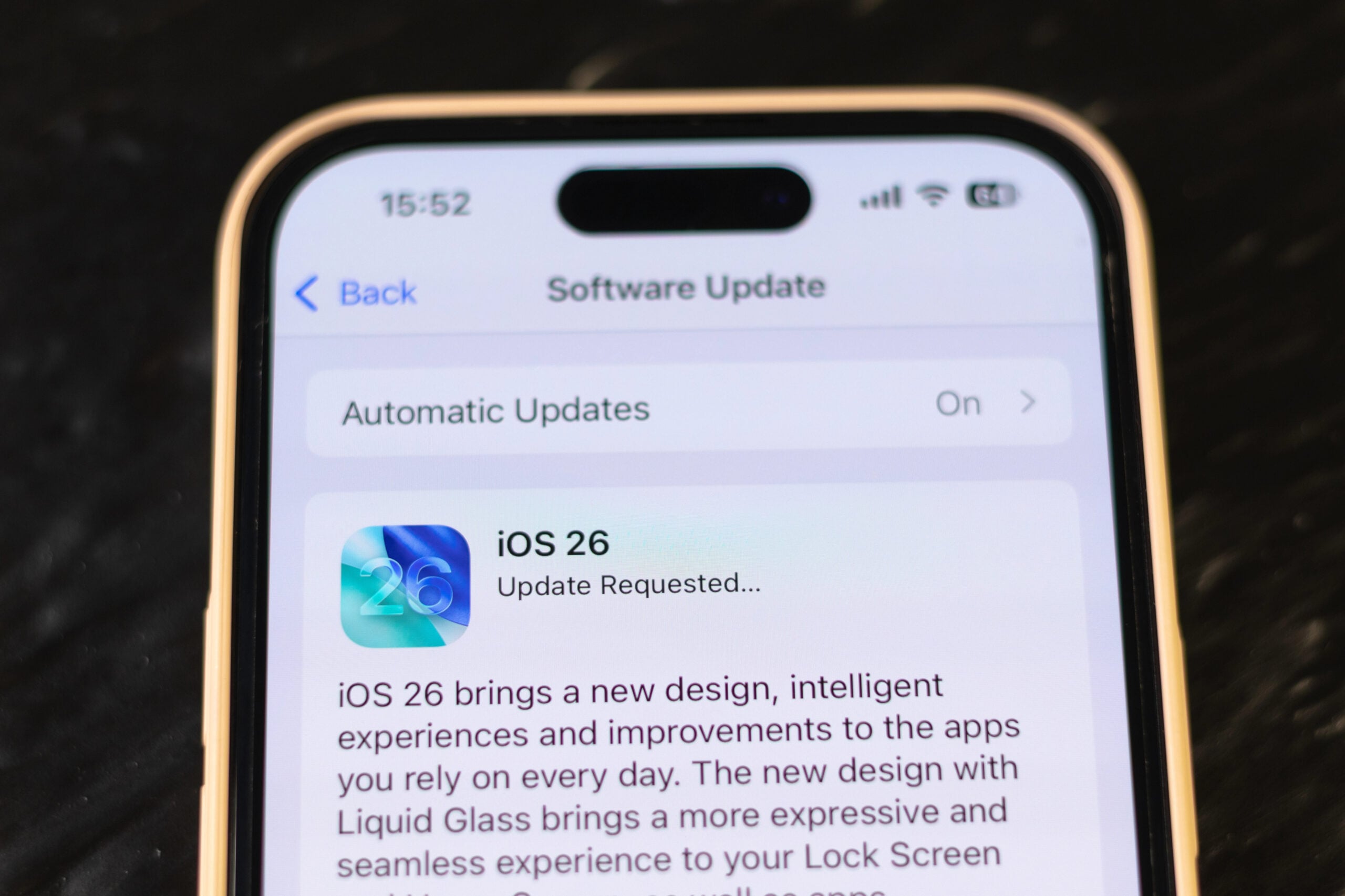
Individually, many of these activities aren’t especially demanding. The more interesting problem appears when several devices decide to get busy at the same time.
Background activity can include:
- Operating-system and security updates
- Automatic app updates
- Podcast episode downloads
- Music or video downloaded for offline use
- Email and other apps refreshing content
- Files resuming uploads or downloads after reconnecting to Wi-Fi
We’ve already separated photo backups because large photo and video uploads can become significant enough to deserve their own spot on our suspect list.
If slowdowns tend to happen when everyone gets home, wakes up, or reconnects several devices to Wi-Fi, look at what those devices started doing — not just who’s holding one.
7. Smart Home Devices: Are They Really The Problem?
Open your router’s connected-device list, and things can get alarming fast.
Thermostat. Smart speaker. Six light bulbs. Three plugs. Robot vacuum. Refrigerator. Garage door opener. Something called ESP_47A2 that nobody remembers buying.

With dozens of devices connected, it’s tempting to conclude that your smart home is eating your bandwidth.
Usually, that’s not the best place to start.
Many basic smart-home devices exchange relatively small amounts of data during normal operation. A smart bulb doesn’t need a high-bandwidth connection just to receive an instruction to turn off, and a thermostat doesn’t need to stream gigabytes of data to change the temperature.
Usually, low-bandwidth users include:
- Smart bulbs and plugs
- Thermostats
- Basic sensors
- Smart switches
- Garage-door controllers
- Many connected appliances
The important exceptions are devices that handle audio, video, large downloads, or cloud uploads. Cameras and video doorbells are the obvious examples, while smart speakers and displays can use more bandwidth when they’re actively streaming media. Firmware updates can also temporarily increase a device’s usage.
So don’t let an intimidating connected-device count send you unplugging every smart bulb in the house. The number of devices on your network matters far less than what those devices are actually doing.
The Real Problem May Be That Everything Happened At Once
Sometimes no single rogue device is devouring your connection. The problem is that perfectly normal internet activity is piling up at the same time.
Consider what can happen over just a few minutes in the evening:
- 6:07 PM: Two phones reconnect to Wi-Fi and begin backing up today’s photos.
- 6:10 PM: A laptop resumes syncing a large work folder.
- 6:12 PM: A console wakes in the background and discovers an update.
- 6:16 PM: Another computer begins a scheduled backup.
- 6:20 PM: Several apps start installing automatic updates.
- Meanwhile: Security cameras continue uploading triggered footage.
Nothing on that list is particularly unusual. The problem is the pileup.
Your internet connection has a finite amount of download and upload capacity. When several bandwidth-hungry activities happen simultaneously, they compete for a share. A connection that handles any one of them easily can start struggling when they’re stacked together.
This is your peak demand: the point when your household is asking the most from its connection at the same time.
It’s also why simply counting the devices connected to your Wi-Fi can be misleading. Thirty mostly idle devices may use less bandwidth than four very busy ones. What matters is what those devices are actually doing when your household hits its busiest moment.
If your internet works beautifully for most of the day but seems to fall apart every evening, don’t just hunt for one bandwidth hog. Look at everything happening during the window when the slowdown starts.
How To Find Out What’s Actually Using Your Bandwidth
By now you’re probably running through a mental list of every device in your home, wondering which one’s the culprit. Now for the useful part: catching the bandwidth hog in the act.
You don’t need to inspect every smart bulb or start unplugging things at random. Start with the places that can actually show you what’s moving data.

Start With Your Router
Your router is the best place to start because all of your home’s internet traffic eventually passes through it.
Many newer routers and mesh Wi-Fi systems have an app or web dashboard that can show some combination of:
- Connected devices currently using your network
- Real-time traffic or current bandwidth use
- Usage by device, which can reveal unusually busy phones, TVs, consoles, or computers
- Upload and download activity
- Historical usage, sometimes broken down by device or time period
The exact information available varies considerably by manufacturer and model. Some routers provide excellent device-level statistics; others give you little more than a list of what’s connected.
If yours provides real-time usage, check it while the slowdown is actually happening. That’s much more useful than looking hours later after the giant download or backup has finished.
Try A Network Monitoring App
If your router doesn’t provide much useful detail, a network monitoring app can give you another way to investigate what’s happening on your connection.
Just be aware that these tools don’t all work the same way. Some are better at identifying every device connected to your network, while others show which apps and processes are transferring data on a particular computer.
A couple of approachable options for home users include:
- GlassWire: A visual network monitor that can show current and historical network activity, data usage, and which apps on your computer are sending and receiving data. It’s particularly useful when you suspect the bandwidth hog is running on your PC.
- Fing: Useful for discovering and identifying devices connected to your network, tracking when devices come and go, and monitoring network changes. Some bandwidth-analysis features require additional Fing hardware or setup.
These tools can be especially helpful when your router gives you little more than a list of connected devices. Instead of simply seeing that your laptop is online, you may be able to get much closer to figuring out what it’s actually doing.
Check Your ISP Account
Your internet provider may offer another piece of the puzzle. Log into your account or ISP app and look for data usage or network information.
Depending on the provider, you may be able to see:
- Monthly data consumption
- Usage over previous days or months
- Connected or managed devices
- Periods of unusually high activity
There’s an important limitation here: monthly data usage and real-time bandwidth use aren’t the same thing.
Knowing your household used 800 GB this month tells you that a lot of data moved through the connection. It doesn’t necessarily tell you why your video call froze at 7:15 last night.
If your router, monitoring app, and ISP account still aren’t pointing to an obvious culprit, it’s time to stop looking at statistics and start eliminating suspects.
Still Stumped? Check The Suspects Directly
If your router, monitoring app, and ISP account don’t reveal an obvious culprit, go directly to the devices most likely to be moving a lot of data.
You don’t need to inspect everything connected to your network. Start with the potential heavy hitters:
- Windows PC: Open Task Manager and check network activity to see which apps and processes are transferring data.
- Mac: Open Activity Monitor and select Network to see which processes are sending and receiving data.
- Phones and tablets: Look for active cloud backups, photo syncing, app downloads, and system updates.
- Game consoles: Open the download or update queue and look for games, patches, or system software currently downloading.
- Cloud services: Check OneDrive, Dropbox, Google Drive, iCloud, or your backup software for an active sync or upload.
- Security cameras: Check the camera app for live viewing, frequent recording events, continuous recording settings, or other cloud-upload activity.
Start with the devices capable of moving the most data, then work your way down.

Quick Test: Remove One Suspect At A Time
If nothing obvious jumps out, don’t start disconnecting everything at once. Change one thing, then see what happens.
- Pause the likeliest bandwidth-heavy activity. Stop the download, backup, sync, stream, or other activity you’ve identified.
- Test your connection again. See whether the buffering, lag, or slowdown noticeably improves.
- No difference? Move to the next suspect. Pause or temporarily disconnect another potentially busy device.
- Repeat until something changes. The moment your connection improves gives you a strong clue about which device or activity was contributing to the problem.
You can also work backward: disconnect several likely bandwidth hogs, then reconnect them one at a time and watch for the slowdown to return.
The goal isn’t simply to find the most devices connected to your network. It’s to find what changes your connection when you take it out of the equation.
Once You Find The Culprit
Finding the bandwidth hog doesn’t necessarily mean you have to stop using it. Often, you just need to change when it does its heavy lifting.
Depending on the device or service, you may be able to:
- Schedule large backups and software downloads for overnight or other low-use hours.
- Change automatic update settings on computers, consoles, and other devices.
- Pause cloud syncing when you need the connection for a video call or another bandwidth-heavy activity.
- Reduce streaming or camera quality if one device consistently consumes more bandwidth than you want.
- Limit or prioritize devices if your router offers bandwidth controls or Quality of Service (QoS) settings.
The goal isn’t to keep everything off your network. It’s to keep the biggest downloads, uploads, and backups from piling up during the hours when your household needs the connection most.
The same background task that causes trouble at 7 p.m. may be completely harmless at 3 a.m.
When Bandwidth Isn’t Actually The Problem
You’ve checked the consoles. Nobody’s streaming 4K in an empty bedroom. Your cloud backups aren’t running. So why does the internet still feel painfully slow?
At that point, bandwidth may not be the problem at all. The way your connection misbehaves can point toward what to investigate next.

It’s Worse In Certain Rooms
Start by testing the same device in several locations, including right next to your router. If performance improves dramatically as you get closer, you’re probably dealing with a Wi-Fi signal problem rather than a shortage of bandwidth.
Distance is only part of the equation. Wi-Fi signals have to travel through your home, and plenty of things can get in their way:
- Walls and floors, particularly dense materials such as brick, concrete, and tile
- Large furniture and packed bookcases between you and the router
- Mirrors and other reflective surfaces
- Electronics and neighboring Wi-Fi networks creating interference
- Poor router placement, such as inside a cabinet or tucked behind other electronics
If the same phone or laptop works beautifully in the living room but struggles every time you carry it upstairs, where the problem happens is telling you more than how much bandwidth your household is using.
All Your Devices Lose Internet At Once
Check your modem and router, then see whether your internet provider is reporting an outage.
If every device fails simultaneously, one bandwidth-hungry gadget is unlikely to be responsible. The problem may be with your modem, router, or the connection coming into your home from your ISP.
Your Connection Has Gradually Become Less Reliable
Look at the age and capabilities of your router, whether it still receives firmware updates, and whether the problems persist even when you’re close to it.
Older hardware can become the bottleneck as your network changes. A router that handled your household perfectly well years ago may be dealing with more devices, newer Wi-Fi standards, and greater demands today.
Only One Phone Or Computer Struggles
Test another device from the same location. If everything else works normally, the problem is probably isolated to that device rather than your entire network.
Software, Wi-Fi settings, the network adapter, power-saving features, or even the saved network connection can all cause device-specific trouble.
Wi-Fi Is Slow, But Ethernet Works Fine
If possible, connect a computer directly to your router with an Ethernet cable and compare the performance.
If Ethernet works well while Wi-Fi struggles, your internet service itself may be perfectly healthy. The trouble is more likely somewhere between your router and your wireless devices.
And that’s why immediately upgrading your internet plan can be an expensive wrong turn. More internet speed won’t fix weak Wi-Fi, bad router placement, interference, aging networking hardware, or a problem isolated to one device.
If your bandwidth investigation comes up empty, the pattern of the slowdown becomes your next clue. Our guide to why fast internet can still mean slow Wi-Fi walks through the other major suspects, including weak signals, router placement, interference, and hardware limitations.
Frequently Asked Questions
Still trying to account for where all that data is going? These less-obvious possibilities can help explain network activity that doesn’t match what your household appears to be doing. If you still have questions about your situation, ask us in the comments.
Can A Device Use Bandwidth If It Isn’t Connected To Wi-Fi?
Yes. Anything connected to your router by Ethernet can use your internet connection, too. That might include a desktop computer, game console, smart TV, network storage device, or another piece of wired equipment. If you’re investigating bandwidth use, don’t limit your search to the devices listed as wireless clients.
Is Bandwidth Usage The Same As My ISP’s Data Cap?
No. Bandwidth describes how much data your connection can move at a given time, while a data cap measures how much data you use over a longer billing period.
A huge game download might temporarily consume a large share of your available bandwidth while also adding substantially to your monthly data total.
Could Malware Be Using My Internet In The Background?
It’s possible, although normal updates, syncing, backups, and streaming are much more likely explanations. Malware can generate network traffic without your knowledge, so unexplained activity alongside other suspicious behavior, such as unfamiliar programs, browser changes, or unusual system performance, deserves further investigation.
Can Someone On My Guest Wi-Fi Slow Down My Internet?
Yes. A guest network may be separated from your main home network, but devices connected to it generally still share your internet connection. A visitor downloading a large game or streaming 4K video can compete for bandwidth just like one of your own devices.
Will A Faster Internet Plan Fix Bandwidth Congestion?
Sometimes. If your household regularly reaches the limits of your current plan during peak use, additional capacity can help. But upgrading won’t fix weak Wi-Fi, poor router placement, interference, or a struggling router. Identify the bottleneck before paying for more speed.
Your Internet Has Been Busier Than You Thought
The next time your connection bogs down and everyone swears they aren’t using the internet, believe them. They may be completely right. The better question isn’t “Who’s online?” It’s “What’s transferring data right now?”
Once you start looking at the traffic instead of the people holding the devices, the next step becomes much easier to spot. Maybe you’ve uncovered a bandwidth pileup. Or maybe nothing unusual is transferring at all — which points the investigation somewhere else.
Still chasing a slow or unreliable connection? Try these next:
- Nobody Else Is Using The Internet. So Why Is It So Slow? — Check this next if you’ve ruled out heavy traffic but your connection still struggles.
- Why Is My Wi-Fi So Slow Even Though I Pay For Fast Internet? — Start here if your speeds are disappointing even when bandwidth usage looks normal.
- Why Does My Wi-Fi Keep Disconnecting? — Dig into weak signals, interference, overloaded or aging routers, and random connection drops.
- Why Does My Phone Keep Disconnecting From Wi-Fi? — Use this when the problem seems limited to your phone rather than the entire network.
What turned out to be the bandwidth hog in your house? Was it an obvious culprit, or something you never would have suspected? Share what you found in the comments — your answer might help someone else track down theirs.