We’ve all been there: you’re in the middle of typing an email, reading an article, or streaming a video when everything suddenly grinds to a halt. Scrolling becomes choppy, your cursor turns into a spinning loading circle, and letters appear on screen seconds after you type them. Soon, the dreaded “Not Responding” message appears, your computer fan starts sounding like a jet engine, and you are left with the ultimate digital defeat: force-quitting the browser.
It feels completely random. Firefox was working fine an hour ago, so why is it suddenly choking now?
Usually, it is not random at all. Behind the scenes, Firefox is juggling open tabs, extensions running in the background, demanding websites, temporary files, and everything else your computer is trying to do. Over time, that load can quietly build until one heavy tab, video, update, or memory-hungry process becomes the final straw.
Before you force-quit Firefox and lose your work, this guide explains why it can suddenly slow down, freeze, or stop responding, and the simplest ways to find and fix the problem.
6 Common Reasons Firefox Suddenly Freezes or Slows Down
When Firefox starts lagging, freezing, or flashing a “Not Responding” message, it can feel like it happened for no reason. In most cases, though, the problem has been building quietly in the background.
Want our human-written content to rank above AI-generated garbage? Help us out by clicking this button!
A few extra tabs, a resource-hungry website, an extension running on every page, or a computer already stretched thin can all add up. Then one more video, search, or click pushes Firefox past its limit.
Here are six of the most common reasons Firefox suddenly slows down—and what you can do about each one.
1. The “Too Many Tabs” Tax
It usually starts innocently. You open one tab to read later, another for a recipe, three for work, and five more because you forgot you already had them open.
Before long, Firefox is holding dozens of pages in the background. Every open tab needs memory to stay ready when you come back to it. Some tabs may also keep refreshing, playing video, checking for new messages, or running scripts behind the scenes—even when you have not looked at them in hours.

That does not always cause an immediate problem. But over time, those tabs add up. When Firefox and the rest of your computer start competing for the same limited memory, everything can feel delayed: scrolling becomes choppy, typing lags, pages take longer to load, and switching tabs feels painfully slow.
Eventually, one more demanding tab can become the final straw. That is why Firefox may seem fine all morning, then suddenly freeze when you open one more video, spreadsheet, shopping page, or online document.
If Firefox keeps getting slower after it has been open for hours or days, the issue may be more than an ordinary tab overload. Read our guide to spotting and fixing a Firefox memory leak.
What to do: Close tabs you are not actively using. Bookmark pages you genuinely want to revisit, or save them to a reading list instead of leaving them open indefinitely.
2. Rogue Extensions Running Wild
Extensions can make Firefox much more useful. Ad blockers, password managers, grammar tools, coupon finders, note-taking tools, and privacy add-ons can all save time.
But every extension is another piece of software running inside your browser. Some only work when you click them. Others may check pages as they load, scan text while you type, block scripts, change how websites look, or run in the background across every tab you open.
Most extensions behave perfectly well. The trouble starts when one becomes outdated, conflicts with a Firefox update, clashes with another extension, or begins using more memory than it should.
A single problematic extension can make every website feel slower—even when the extension itself is invisible. This is especially frustrating because it can feel like Firefox is the problem when the real issue is a tool you installed months ago and forgot was there.
What to do: Restart Firefox in Troubleshoot Mode. This temporarily disables extensions and helps you determine whether an add-on is causing the slowdown. If Firefox runs normally, re-enable extensions one at a time until you find the culprit.
3. Modern Websites Are Doing a Lot of Heavy Lifting
Websites are not just text and images anymore. Many are closer to full software programs running inside a browser tab.
A single page might load high-resolution images, autoplay videos, animated ads, live chat boxes, tracking scripts, shopping recommendations, social media feeds, maps, pop-ups, and dozens of background processes.
Online email, streaming services, web-based design tools, dashboards, and document editors can be especially demanding because they are constantly updating in real time.

That is why Firefox may freeze when you open a few heavy websites at once. Your computer is trying to download, display, and keep all of that content running smoothly. If the page is poorly optimized—or your computer is already busy—memory and processor use can spike quickly.
The spinning loading circle is not always a sign that your internet is broken. Sometimes Firefox is simply working too hard to keep up with everything happening inside a tab.
What to do: Try closing the most demanding tabs first. You can also type about:processes into the Firefox address bar to see which tabs and processes are using the most resources.
4. Cache and Cookie Buildup
Firefox stores temporary pieces of websites on your computer, such as images, page files, and site data. This is called the cache.
The cache is meant to make browsing faster. Instead of downloading the same logo, image, or page element every time you visit a site, Firefox can reuse a saved copy.
Usually, that is helpful. But temporary files do not always stay helpful forever. A website may update while Firefox is still holding onto older saved files. Site data can become outdated, corrupted, or conflict with newer versions of a page.
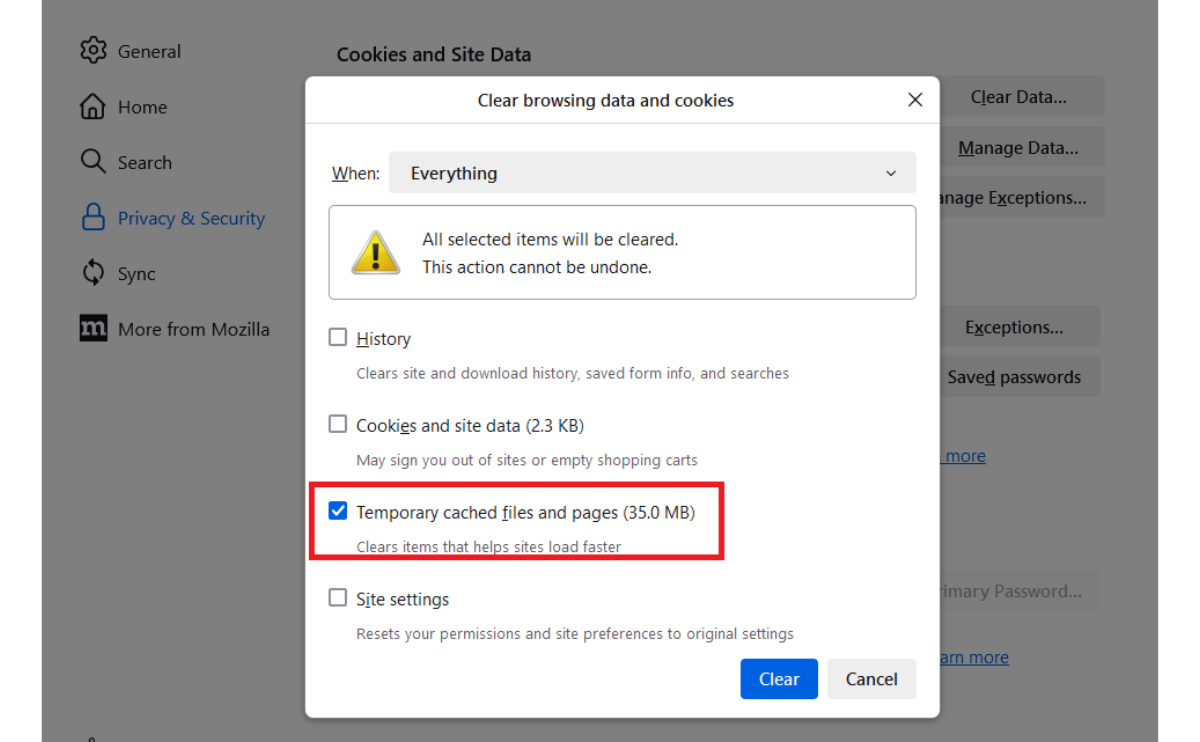
When that happens, you may see pages that load incorrectly, fail to respond, or behave strangely. Clearing the cache and cookies is not a cure-all, but it can help when a specific website seems broken or Firefox has started acting unusually.
If one website keeps loading incorrectly, logging you out, or showing broken buttons, try clearing cache and cookies in Firefox before assuming the entire browser is broken.
What to do: Open Firefox settings and clear cached web content and cookies. Keep in mind that clearing cookies may sign you out of websites and remove saved site preferences.
5. Hardware Acceleration Can Help—or Occasionally Hurt
Firefox uses a feature called hardware acceleration to hand certain visual tasks to your computer’s graphics processor, also known as the GPU.
This can make videos, games, animations, and graphics-heavy websites run more smoothly while reducing the workload on your main processor.

Most of the time, it helps. But if your graphics driver is outdated, unstable, or incompatible with a particular website, hardware acceleration can occasionally backfire.
That can lead to flickering, stuttering, blank pages, video problems, or sudden browser freezes. This is one reason Firefox can work perfectly on most websites but struggle badly with one specific video, animation, or graphics-heavy page.
What to do: Go to Settings > General > Performance. Uncheck Use recommended performance settings, then temporarily disable hardware acceleration. Restart Firefox and see whether the issue improves.
6. Background Apps and Updates Can Tip Firefox Over the Edge
Firefox is not the only thing using your computer’s memory and processing power.
A video call, game launcher, cloud backup, antivirus scan, software update, or several startup apps can quietly consume resources in the background. Firefox may appear to be freezing, but the bigger problem may be that your entire computer is stretched too thin.
- If Firefox is only part of the problem and your entire computer feels slow—even with just a few tabs open—read why your computer suddenly feels slow.
- If your computer is slow, your storage is nearly full, or background apps seem to be multiplying, learn how to clean your PC and clear hidden clutter that may be dragging down performance.
Updates can also change the situation. Firefox may update successfully, but an older extension, graphics driver, or security program may not immediately work well with the latest version.

That is why Firefox can work fine one day and feel sluggish the next. Something else on your computer may have changed, or Firefox may now be competing with more background activity than before.
What to do: Close programs you are not using, restart Firefox, and make sure Firefox and your operating system are up to date. A full computer restart can also clear background processes that have been quietly using memory for hours or days.
Is It Firefox—or Is It Your Wi-Fi?
When a page takes forever to load, or a video keeps buffering, it is easy to blame Firefox. Sometimes, though, the browser is not the real problem. Your Wi-Fi router, internet provider, or another device using your connection may be slowing things down.
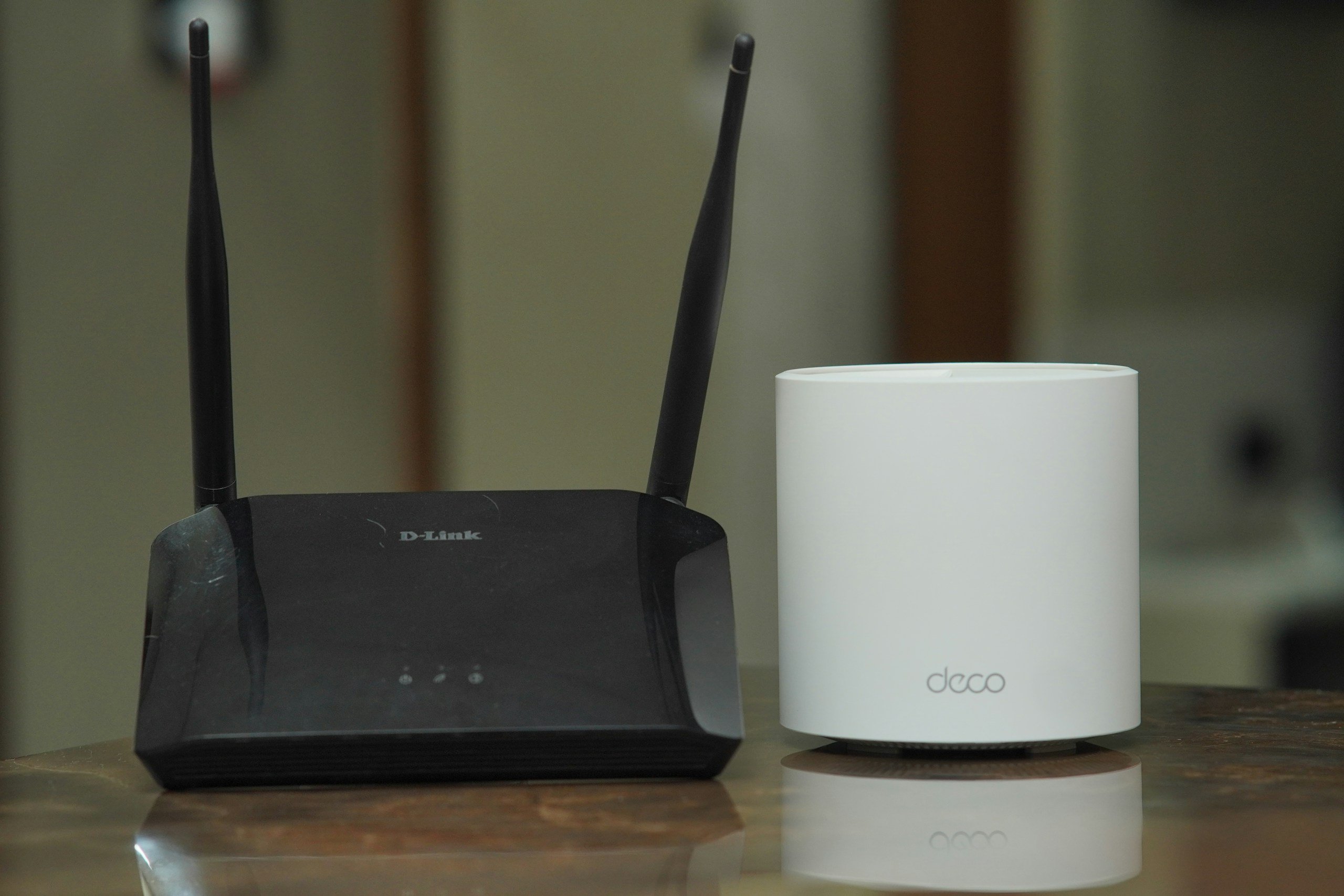
Here is the easiest way to tell the difference: pay attention to what is slow.
- Firefox is probably the problem if typing feels delayed, scrolling is choppy, tabs freeze, your computer fan gets loud, or Firefox shows a “Not Responding” message.
- Your Wi-Fi may be the problem if pages keep loading forever, videos buffer, downloads crawl, or multiple devices feel slow on the same connection.
- The website itself may be the problem if every other site works normally, but one specific page refuses to load or behaves strangely.
A quick test can save a lot of frustration. Open the same website on your phone while it is connected to the same Wi-Fi. If your phone loads the page quickly but Firefox is still struggling on your computer, the issue is more likely Firefox, your computer, or one of your open tabs.
Keep in Mind
- If your phone, tablet, smart TV, and computer all seem slow at the same time, your browser may be innocent. In that case, read our guide on why your internet feels slow even when nobody else is using it.
- If the problem changes depending on where you are in the house—fast in the kitchen, painfully slow in the bedroom—your Wi-Fi signal may be struggling to reach that room. Our guide on why technology works in one room but not another can help you track down the cause.
- And if your internet repeatedly disconnects, vanishes, or reconnects at random, start with why your Wi-Fi keeps dropping and how to fix it.
Do These Problems Happen in Other Browsers?
Yes. Too many tabs, heavy websites, outdated extensions, background apps, and low available memory can slow down almost any browser, not just Firefox.
Chrome, Edge, Safari, and other browsers may use different menus and settings, but the warning signs are often the same: pages take too long to load, typing feels delayed, videos stutter, tabs freeze, and your computer fan suddenly gets louder.
The difference is that this guide focuses on Firefox-specific tools and settings, including Firefox Process Manager, Troubleshoot Mode, and performance options. If another browser is freezing, the same basic troubleshooting ideas still apply: close unused tabs, disable suspicious extensions, clear temporary files, and check whether your computer or Wi-Fi is the real problem.
3 Quick Fixes
When Firefox starts lagging, you do not always need to reboot your whole computer or immediately force-quit the browser. Try these steps first:
1. Close Tabs You Are Not Using
Close anything you do not need right now. Bookmark important pages, save them to a reading list, or send them to yourself instead of keeping dozens of tabs open “just in case.”
2. Find the Resource Hog
Type about:processes into the Firefox address bar to see which tabs and processes are using the most memory or CPU power. A single demanding tab may be causing most of the slowdown.
3. Restart Firefox in Troubleshoot Mode
If Firefox keeps freezing, restart it in Troubleshoot Mode. This temporarily disables extensions and certain performance settings, making it easier to tell whether an add-on or browser setting is behind the problem.
If Firefox works normally in Troubleshoot Mode, re-enable extensions one at a time until you identify the one causing trouble.
When Firefox Is Not the Real Problem
If you have closed extra tabs, checked Firefox Process Manager, and restarted in Troubleshoot Mode—but Firefox is still struggling—the browser may not be the only thing slowing you down.
Sometimes Firefox is simply the first place you notice a bigger computer problem. Background apps, low storage space, overheating, software updates, cloud backups, or too many startup programs can make the entire computer feel sluggish.
- If every app feels slow—not just Firefox—start with our guide on why your computer suddenly feels slow. It can help you figure out whether background programs, updates, storage, heat, or startup apps are quietly dragging down your computer.
- If your computer has been getting slower over time, feels cluttered, or seems to have too many things running in the background, read how to clean your PC and clear the hidden clutter slowing it down.
- And if Firefox slows down while your laptop gets unusually hot or the fan runs constantly, heat may be part of the problem. Learn more about why your laptop suddenly gets hot and what may be causing it.
Once you know whether the slowdown is coming from Firefox, your computer, or your internet connection, it becomes much easier to choose the right fix instead of restarting everything and hoping for the best.

Frequently Asked Questions About Firefox Freezing
Firefox slowdowns can look different from person to person. You may be dealing with frozen tabs, delayed typing, loud fans, endless loading circles, or a full “Not Responding” message. If you do not see your exact question below, leave it in the comments and describe what Firefox was doing when the problem started.
Why does Firefox keep freezing even when I only have a few tabs open?
A small number of tabs can still cause problems if one of them is especially demanding. Streaming video, online documents, shopping sites, social media feeds, maps, and pages with lots of ads or animations can use far more memory and processing power than a simple article.
Extensions, background apps, low available memory, overheating, or a computer update can also slow Firefox down even when your tab count looks reasonable.
Can browser extensions make Firefox slow or unresponsive?
Yes. Extensions such as ad blockers, password managers, grammar tools, coupon finders, and privacy add-ons can all use resources in the background. An outdated extension, a conflict between add-ons, or one extension using too much memory can make Firefox feel slow across every website.
Try restarting Firefox in Troubleshoot Mode. If Firefox runs normally there, an extension, theme, or performance setting may be the cause.
Is Firefox freezing because of my Wi-Fi?
It depends on the symptom. Slow Wi-Fi can cause pages to load slowly, videos to buffer, and downloads to crawl. But Wi-Fi usually does not cause delayed typing, choppy scrolling, loud fans, or a “Not Responding” message.
If Firefox itself feels stuck, the problem is more likely a heavy tab, an extension, low available memory, or another issue on your computer. If every device in your home is slow, your internet connection may be the real problem.
Should I clear my cache if Firefox is lagging?
Clearing cache and cookies can help when a specific website loads incorrectly, buttons stop working, pages look broken, or Firefox starts acting strangely after a long period of browsing.
However, it is not a guaranteed fix for every slowdown. If Firefox freezes because of too many tabs, a demanding website, a rogue extension, or limited computer memory, clearing the cache alone may not solve it.
How do I find out which tab is slowing Firefox down?
Type about:processes into the Firefox address bar. This opens Firefox Process Manager, where you can see which tabs and processes are using the most memory or CPU power.
Look for anything using far more resources than the rest, especially a tab playing video, running a web app, or constantly refreshing in the background.
When should I restart or reinstall Firefox?
Start with a normal Firefox restart, then try Troubleshoot Mode if the problem keeps happening. Reinstalling Firefox should usually be a later step, after you have checked tabs, extensions, updates, cache, and hardware acceleration.
If Firefox still freezes after basic troubleshooting, the issue could be related to your Firefox profile, another program on your computer, or a broader system performance problem.
Keep Your Home Tech Healthy
A frozen Firefox window can feel like a random disaster, but it is often a small warning sign that your technology has been working harder than usual. Too many open tabs, background apps, full storage, missed updates, heat, and aging hardware can all slowly add up until something finally starts lagging or freezing.

The good news is that many of these problems are preventable. Small habits—like closing apps you are not using, restarting your devices occasionally, keeping software updated, and paying attention when a fan gets louder than normal—can help your computer, browser, and phone run more smoothly for longer.
More Help for Everyday Tech Issues
Browser slowdowns are only one piece of the puzzle. These guides cover other common problems that can affect your devices at home.
- For more ways to avoid everyday slowdowns, read about the tech habits that secretly slow down your devices. It is also worth separating useful advice from outdated assumptions by checking these common technology myths most people still believe.
- Not every slowdown means you need a new computer or phone. But if freezing, loud fans, long startup times, overheating, or constant lag are becoming normal, your device may simply be getting older. Learn more about how long tech devices usually last and the signs that it may be time for a repair, cleanup, or upgrade.
- The same thing can happen with phones, too. A device that once felt fast may eventually start lagging, draining its battery quickly, overheating, or behaving strangely. Our guide explains why smartphones start acting strange after a few years.
- And if Firefox freezes are only one of several technology frustrations in your home—along with weak Wi-Fi, buffering TVs, slow laptops, or smart devices that refuse to cooperate—explore our guide to common technology problems in modern homes.
Most tech problems are easier to manage when you notice the warning signs early. A few simple habits can help keep Firefox, your computer, your phone, and the rest of your home tech running better for longer.
Has Your Browser Ever Frozen at the Worst Possible Time?
Slow tabs, spinning loading circles, delayed typing, and “Not Responding” messages can be incredibly frustrating—especially when they seem to come out of nowhere.
Share your experience in the comments. What was Firefox doing when it froze, and which fix helped you get it running smoothly again?